What this is
Reordering fixes the order of one crew’s stops. Sometimes that isn’t the problem — one crew has eleven jobs and finishes at seven, the other has four and is done by one. Rebalance this day looks at every crew at once and proposes moving jobs between them so the day is shared out and the total driving comes down. Nothing changes until you say so. You get a full preview first.Rebalancing is only offered on teams with more than one crew, and only to people whose role lets them plan routes for all of them. See Roles and permissions.
Open it
Three places lead to the same screen:-
Schedule → Day view → ⋯ More → Rebalance this day
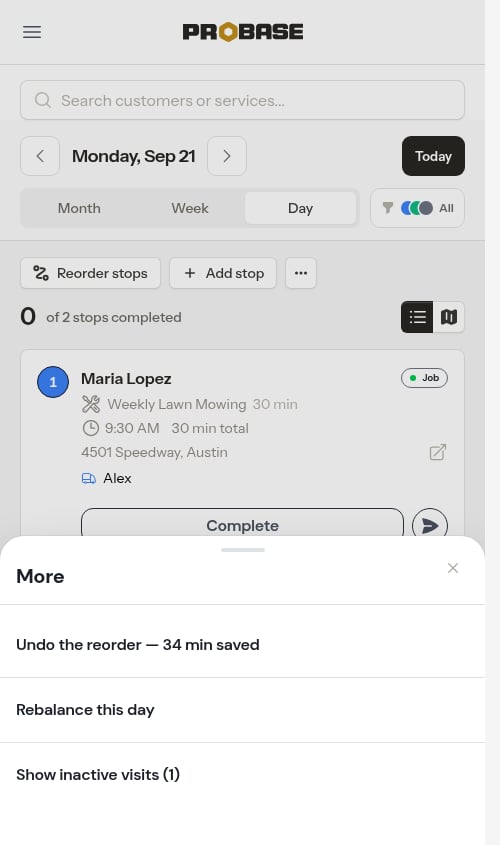
- The day note on the Day view, when a crew’s day won’t fit its hours and no reordering would help — the note’s verb reads Rebalance
- HomeBase — the “Move work to another crew” row in Plan your day
Reading the proposal
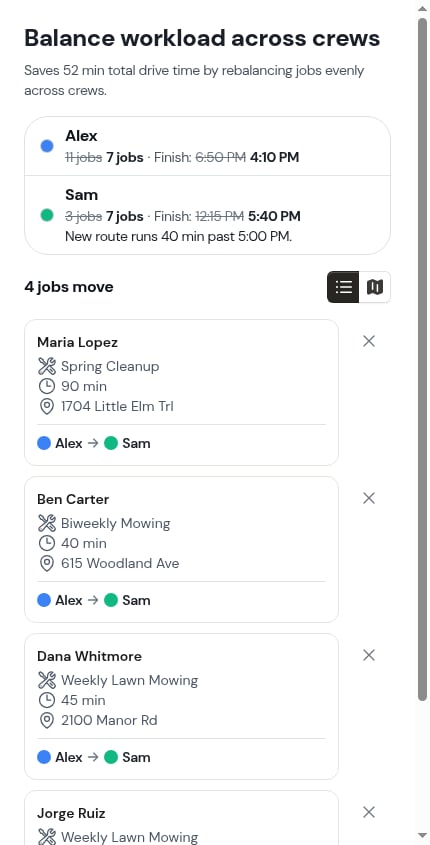
The screen is headed Balance workload across crews, with one sentence saying what the change is worth — “Saves 52 min total drive time by rebalancing jobs evenly across crews.” If the shuffle costs driving rather than saving it (which happens when you’re evening out the workload rather than shortening the day), the sentence says that honestly instead: “Adds 12 min total drive time…”.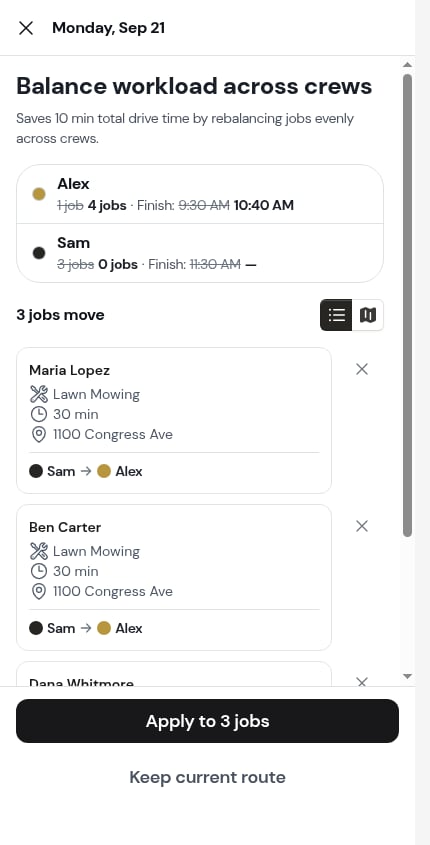
List and Map
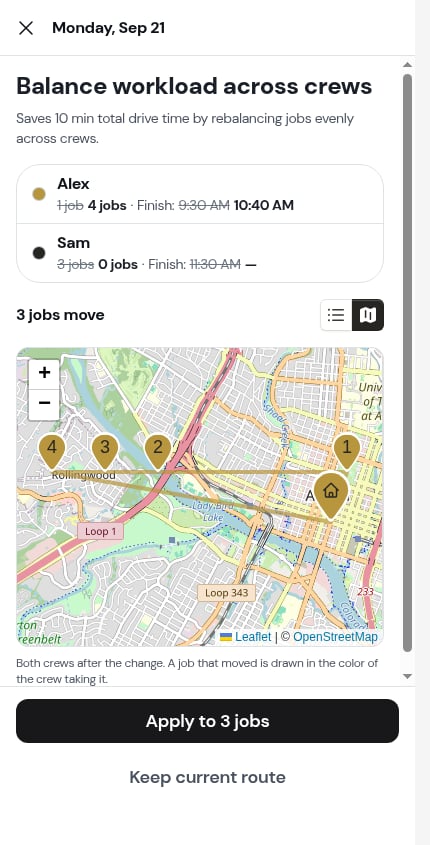
A toggle switches between two ways of reading the same proposal, with the count beside it — “4 jobs move”.- List — one card per job that would move, with the handover line on it: “Alex → Sam”.
- Map — both crews’ routes after the change, each job drawn in the colour of the crew taking it.
Leaving a job out
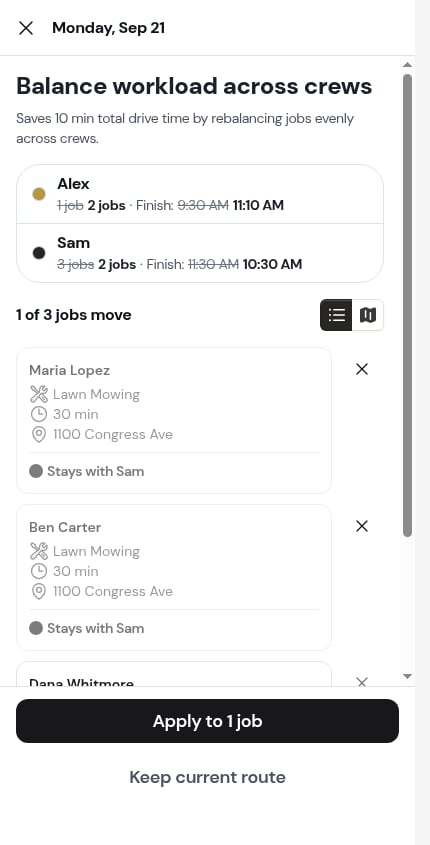
Some jobs shouldn’t move — the customer knows your driver, the crew has the equipment, whatever the reason. Tap the ✕ on a job card and ProBase keeps it where it is and works the rest of the day out again. The card then reads “Stays with Sam” instead of showing a handover, and every total above it restates itself.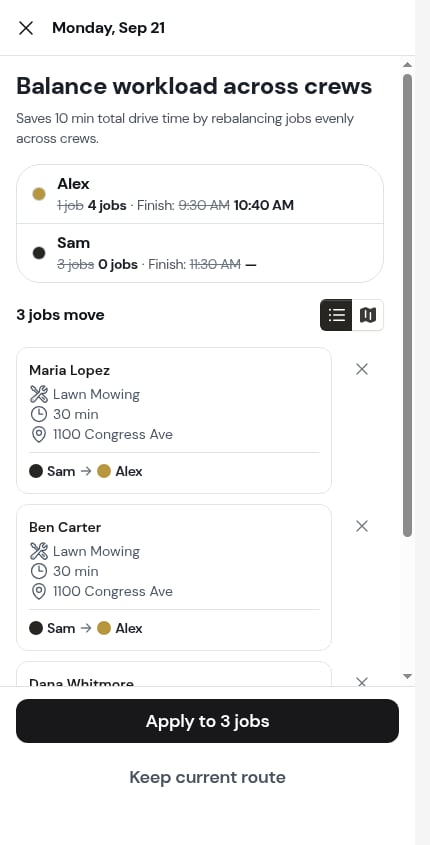
ProBase balances at most three crews in one pass. With a bigger fleet it works in groups and tells you which crews this proposal covers: “Balancing Alex, Sam and Jordan. Add more crews and ProBase balances them in groups of three.”
Applying it
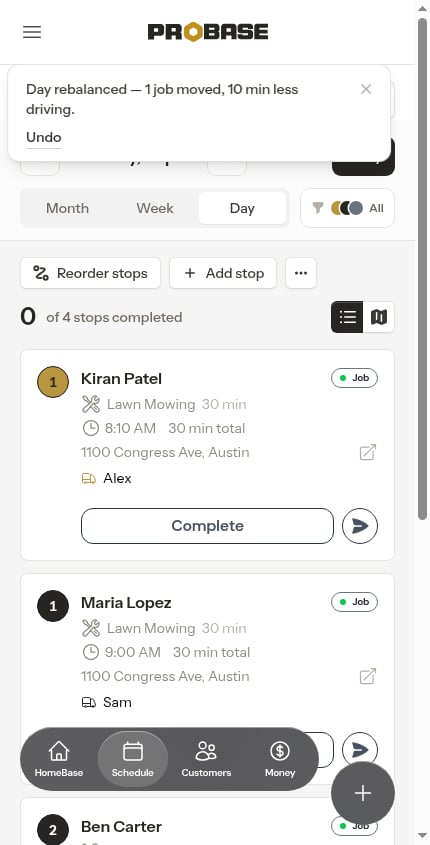
- Apply to 4 jobs writes the change — the jobs move to their new crews and every affected stop is re-timed.
- Keep current route closes the screen and writes nothing.
Undoing it
Undo puts every moved stop back to the crew and time it had. It’s available until your crews start working the day — once the first stop on the day is completed, or the day has passed, the undo expires and ProBase tells you so rather than pretending: “Too late to undo — this day’s first stop is done, or the day has passed.” The undo also lives in ⋯ More → Undo the reorder on the Day view for as long as it’s good, so you don’t have to catch the message.If you moved a stop by hand after applying, Undo leaves your own change alone and only restores the ones still sitting where ProBase put them. It tells you: “Route put back. 1 stop you moved yourself stayed where you put it.”
What rebalancing never does
- It never moves a pinned stop. See Pinning a visit’s time.
- It never moves a stop a crew is already working.
- It never touches other days. Jobs move for this day only — a recurring job’s later visits keep the crew they have.
Next steps
- Optimize a route — reorder one crew’s day instead
- Jobs that need a crew — assign and route unassigned work in one pass
- Daily crew schedules — the day view these tools hang off