Overview
HomeBase is the main dashboard you see after logging in. It gives you a quick snapshot of the day’s work, what needs you, and what’s left to set up — so you can jump right in.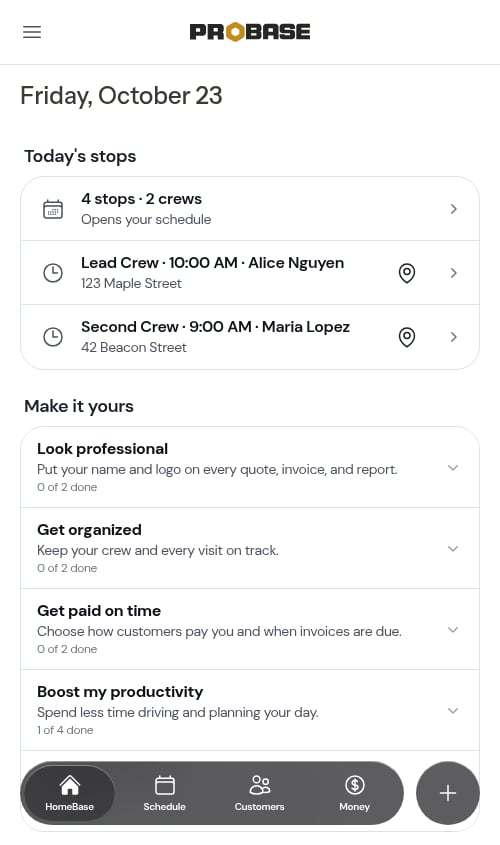
What’s on the page
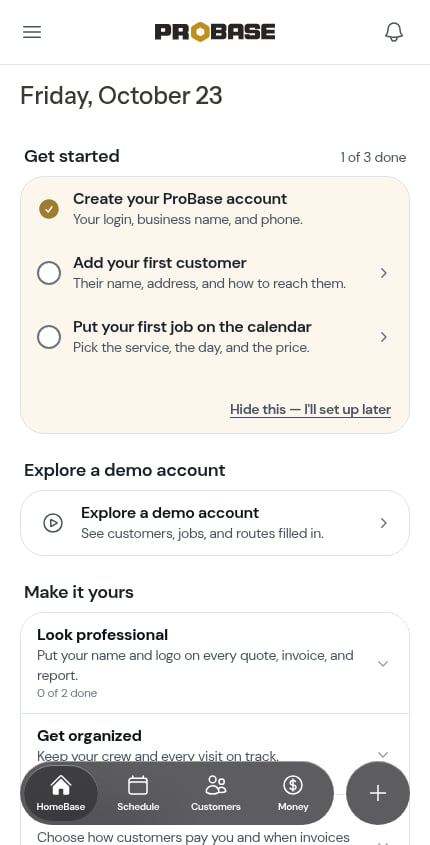
HomeBase is made of sections that always appear in the same order, top to bottom. A section only shows up when it has something for you, so a brand-new account and a busy one look quite different:- Reconnect warning — only while a marketplace connection has expired
- Date heading
- Today’s stops
- Get started
- Explore a demo account
- Action needed
- Updates
- Available to claim
- Make it yours
- Talk to Us
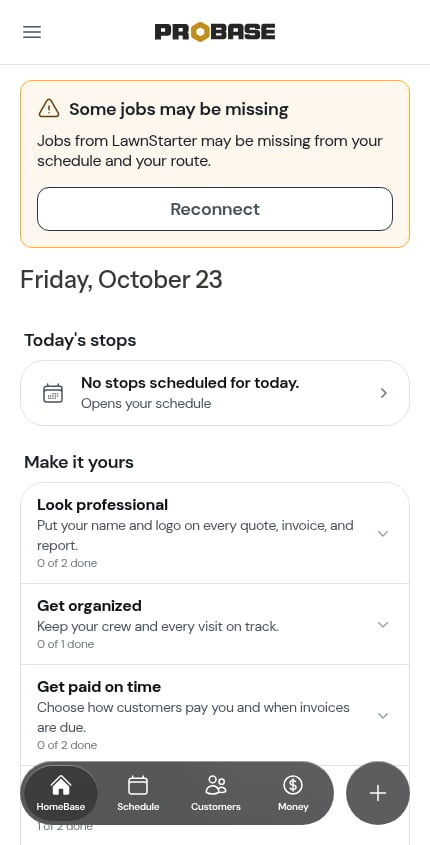
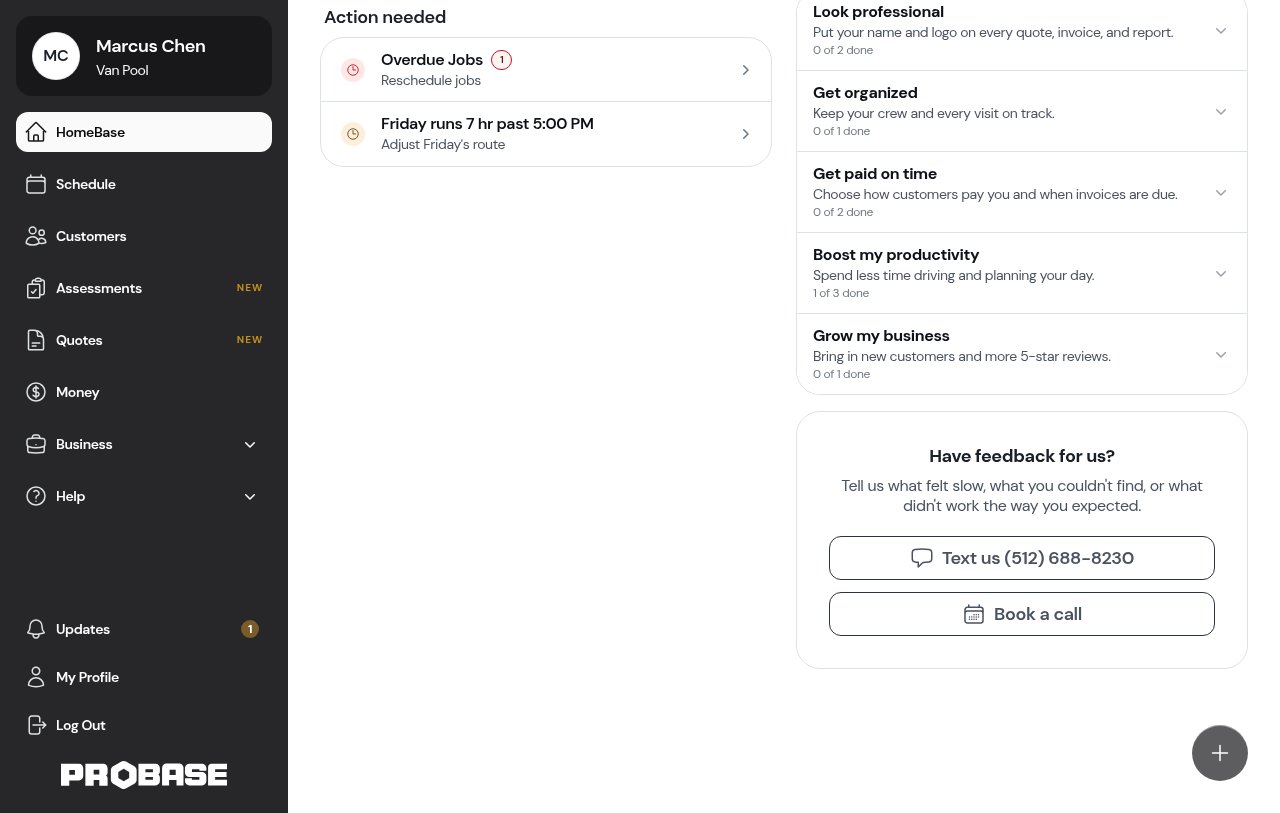
While Action needed is still loading you’ll see a few grey placeholder lines in its place. The sections below it appear once it’s ready, so the page doesn’t jump around while you’re reading it.
Reconnect your marketplace account
If you’ve linked a marketplace account (LawnStarter, Lawn Love, or Home Gnome) and that connection has expired, an amber warning sits at the very top of HomeBase — above the date — reading Some jobs may be missing, with Jobs from LawnStarter may be missing from your schedule and your route (or whichever marketplace it is) underneath. Tap Reconnect to sign in again (if more than one marketplace has expired, each gets its own button, such as Reconnect LawnStarter) and get your customers and jobs flowing.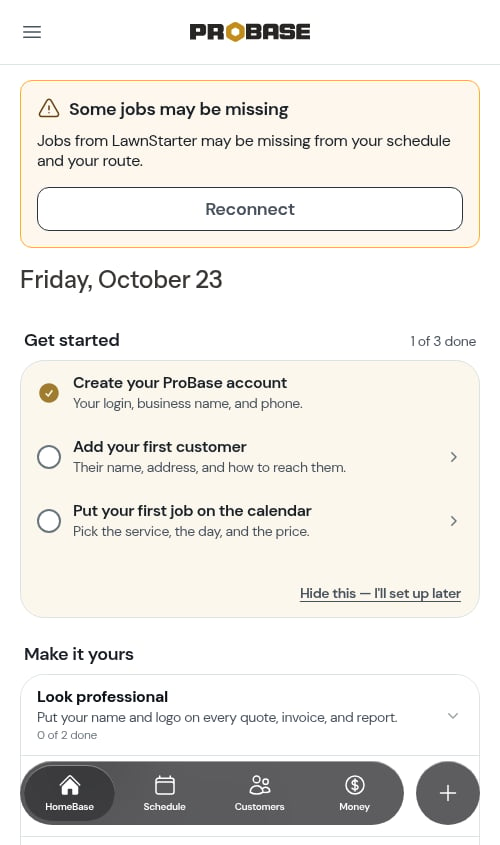
This warning is for business owners and admins — the same people who manage your Integrations. It only appears if you’ve connected a marketplace account.
Date heading
Below that, the page shows today’s date (e.g., “Monday, October 12”) so you always know what day the data is for.Today’s stops
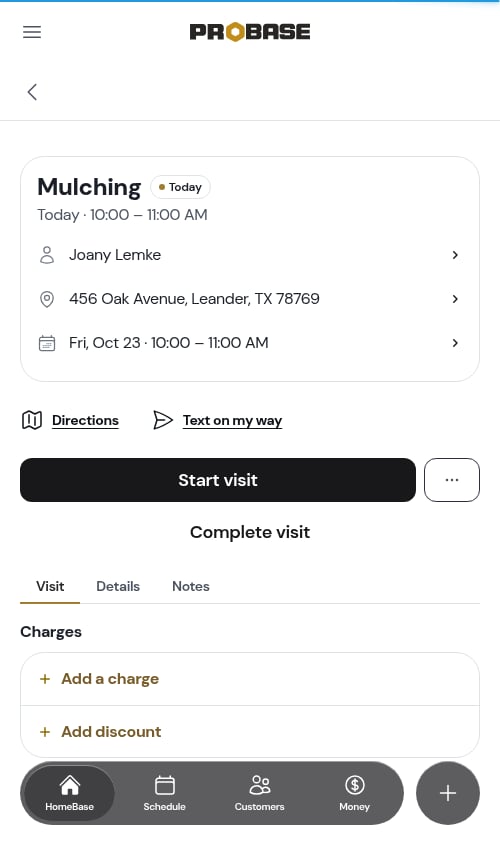
Once you’ve scheduled your first visit, the Today’s stops card shows the day at a glance:- The summary row — how many stops are on today’s schedule, for example 8 stops, or 8 stops · 3 crews if you run more than one crew. Tap it to open today’s Day view of the schedule.
- The next stop — the time and customer of the next stop still to do, for example 10:00 AM · Alice Nguyen, with the address underneath. Tap the row to open that stop. Tap the map pin on the right to open directions to it in your maps app.
- One next stop per crew — on a team with more than one crew, each crew with a stop left gets its own next-stop row, starting with the crew’s name: Lead Crew · 10:00 AM · Alice Nguyen.
No stops scheduled
If there are no appointments today, the card shows a single row reading No stops scheduled for today. — tap it to open your schedule.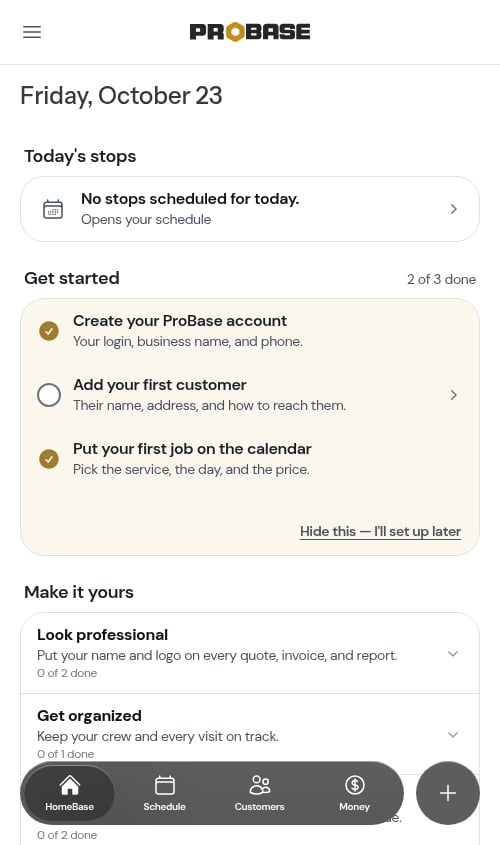
Team members who only see their own work get wording of their own: No jobs scheduled for you today. when they have work on other days, or Nothing assigned yet — your team will schedule your work. when nothing has been assigned to them yet.
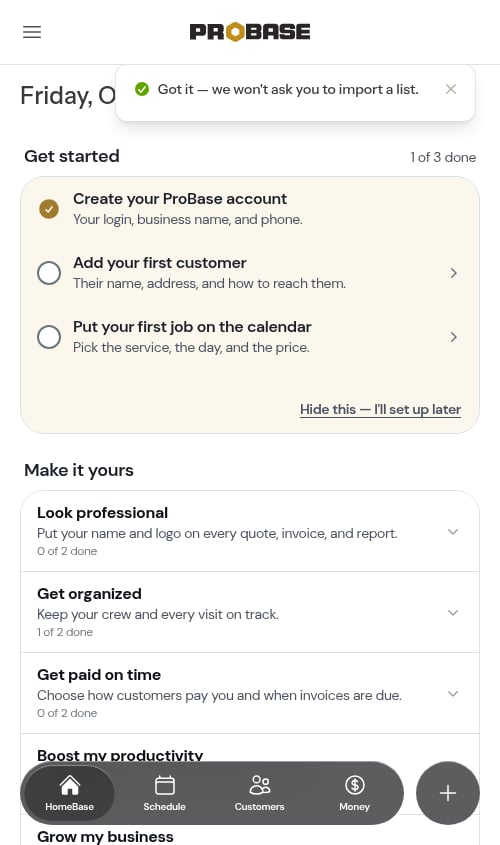
Get started
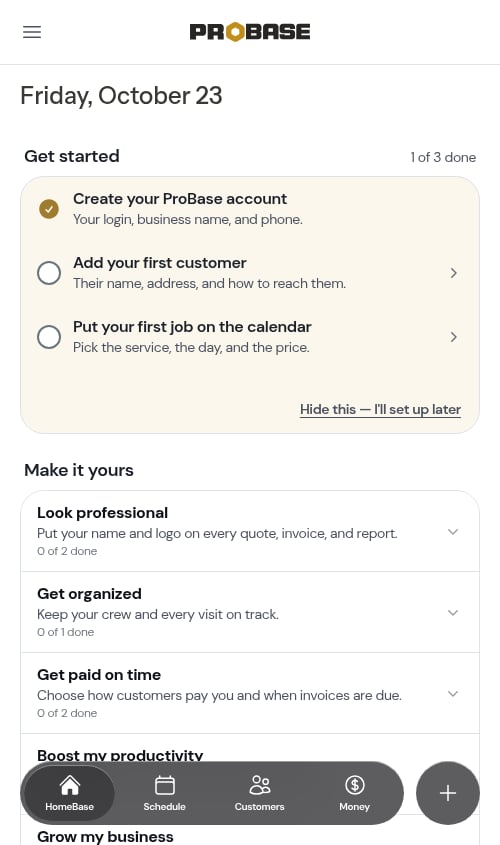
A brand-new account sees a short Get started checklist near the top of HomeBase, with how many steps are done beside the heading (e.g., “1 of 3 done”). Each step gets a checkmark as you finish it.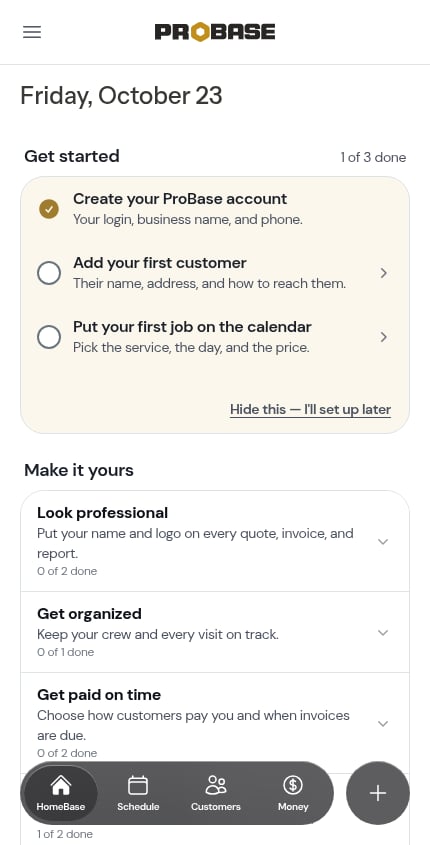
- Create your ProBase account — Your login, business name, and phone. Already done by the time you log in, so it starts checked off
- Set up your crews — Do this first so every job goes to the right crew. Opens your crews. Only shown if you told ProBase during sign-up that you work with a crew (not “Just me”)
- Add your first customer — Their name, address, and how to reach them. Opens the Add Customer form
- Put your first job on the calendar — Pick the service, the day, and the price. Starts a new job. Once you have a customer without a job, the step names them — for example Put Jordan Lee on the calendar
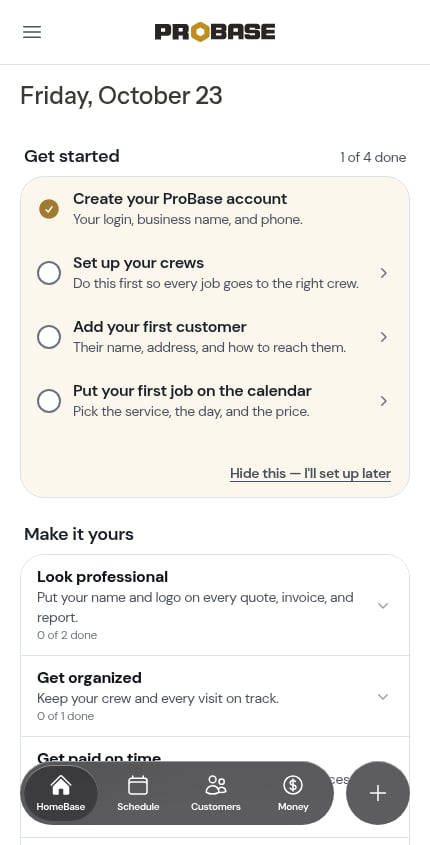
If you’re importing customers from another system, the Add your first customer step reads “We’re processing your file” and opens your import’s status instead of the Add Customer form.
Hiding the checklist
Not ready to set up yet? Tap Hide this — I’ll set up later at the bottom of the card. The checklist disappears and a message reading Checklist hidden appears with an Undo button. You have about 10 seconds to tap Undo and bring it back.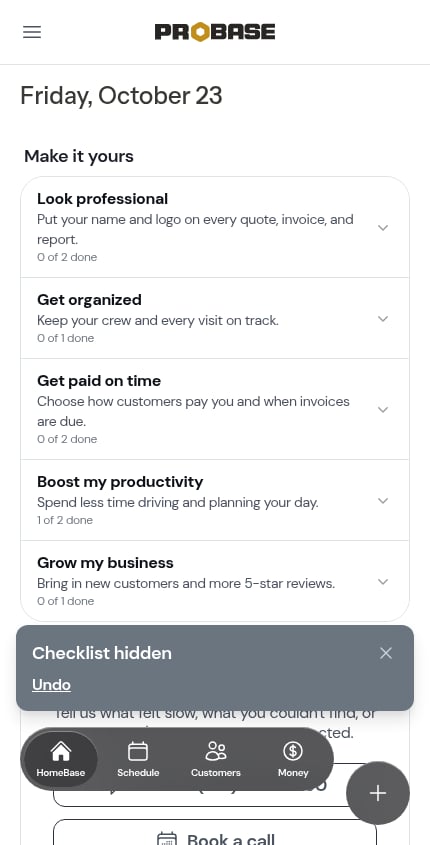
Explore a demo account
When the demo is switched on for your account, an Explore a demo account section sits just below Get started, with one row: Explore a demo account — See customers, jobs, and routes filled in. Tap it to drop into a fully-loaded sample ProBase business, seeded for your line of work, so you can see what the app looks like in full swing. If you do more than one kind of work, it first asks which trade you want to explore.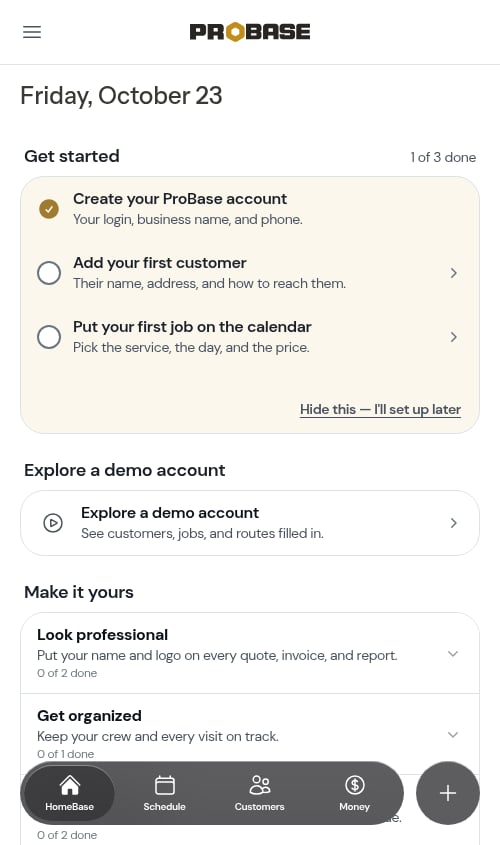
Action needed
The Action needed section gathers the work that needs your attention into one card. Rows always appear in the same order — first the things already affecting someone (shown in red or amber), then the work that’s at risk if nothing is done. Most rows carry a count of what’s waiting. The whole section hides itself when nothing needs your attention.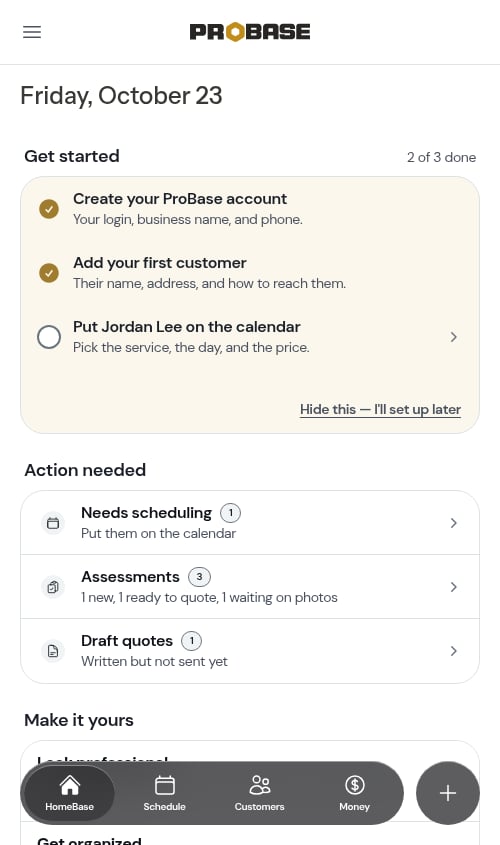
These rows look after themselves. Each one stays exactly as long as its condition is true and clears the moment you deal with it — apart from Finish your import, there’s nothing to dismiss and nothing to tick off. You only see the rows your role lets you act on.
Overdue Jobs
If you have visits that are still scheduled after their day is over — never completed, cancelled, or rescheduled — an Overdue Jobs row appears with the count and Reschedule jobs underneath. A visit counts as overdue from 9:00 PM on its own date, or from whatever time you’ve picked under Mark visits Overdue at.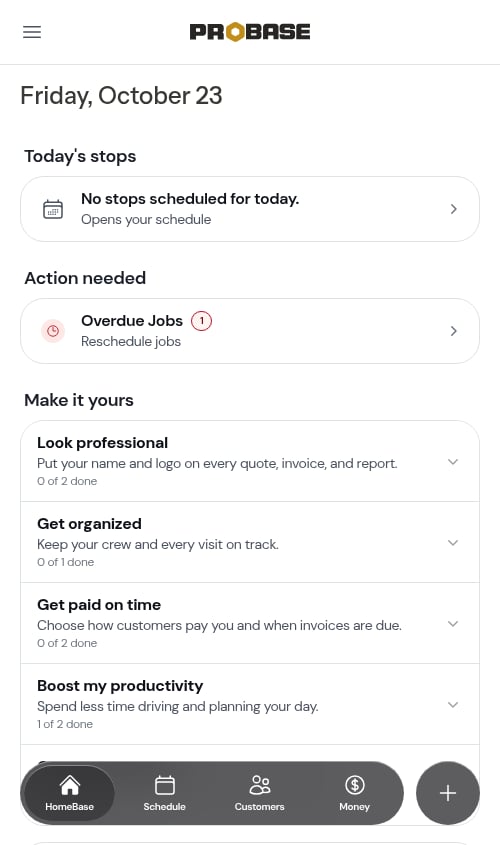
Overdue payments
If you have overdue invoices, an Overdue payments row appears with how many and Follow up on what’s owed underneath. Tap it to open your Invoices list filtered to overdue invoices, set to All time so every overdue invoice is there.Jobs with no crew
On a team with more than one crew, when jobs on the day you’re planning have nobody assigned, a Jobs with no crew row appears with the count and Assign a crew underneath. Tap it to open Jobs that need a crew for that day. The day being planned is today until 6:00 PM, then tomorrow — see Plan your day.Send your drafts
When you have draft invoices that have been waiting a while — the oldest charge on them is at least 7 days old — a Send your drafts row appears, for example 2 drafts, $1,240.00 total — oldest charge is 34 days old. The total is what those customers will be asked to pay, after any credit already on their drafts. Tap Review drafts to open the list of drafts ready to go, where you can send them all in one go. See Sending invoices in a batch.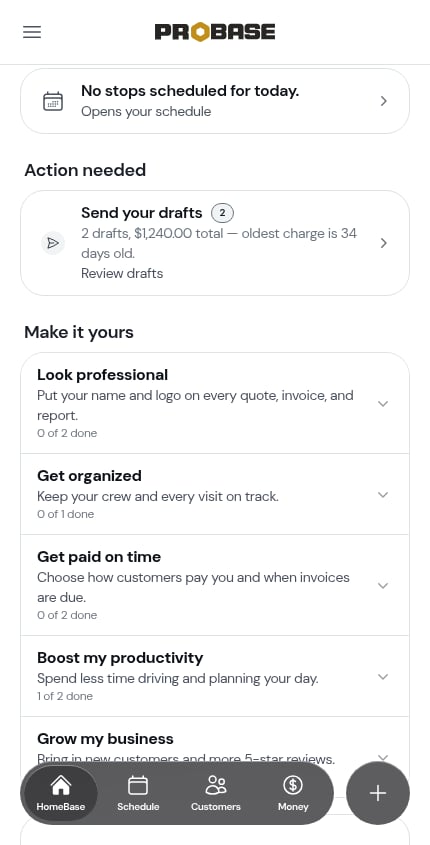
The row counts every open draft — the same drafts you’ll find on the list it opens, so the number on HomeBase and the number on that page always match. It’s only shown to people whose role lets them send invoices. Back from that list returns you to HomeBase.
Needs scheduling
If you have active jobs that haven’t been scheduled yet, a Needs scheduling row appears with the count and Put them on the calendar underneath. Tap it to open the Unscheduled jobs list.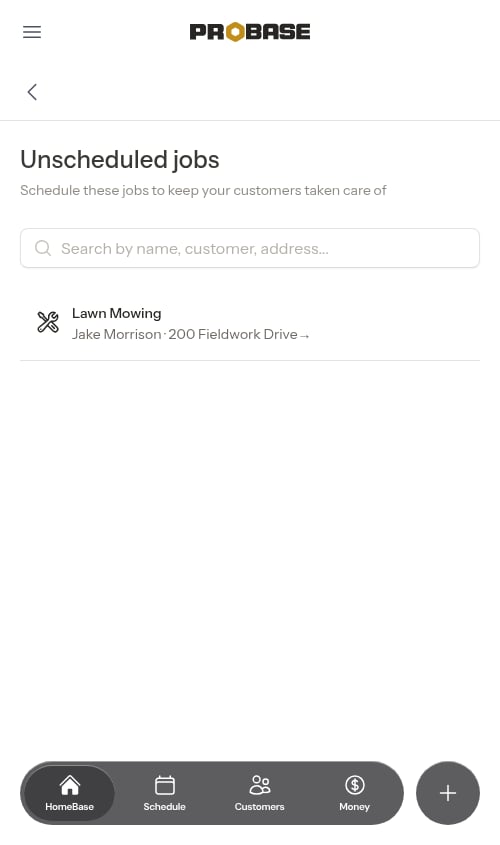
- Search by customer name, service name, or address using the search bar at the top
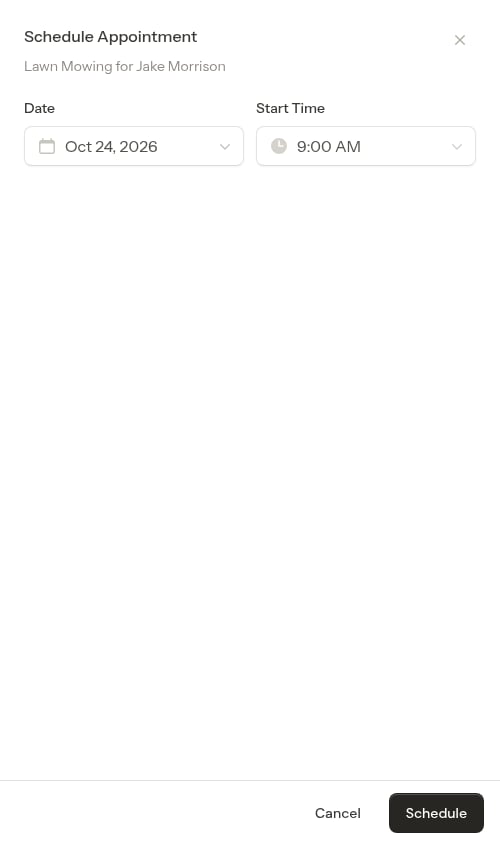
- Tap any job to open a scheduling modal and book an appointment right away
Finish your import
If you started a customer import and haven’t finished it, a Finish your import row appears with the file name, how many customers are waiting, and when you started — for example customer-list.pdf · 12 customers waiting · started Oct 15. Tap Pick up where you left off to reopen the import at the step you reached.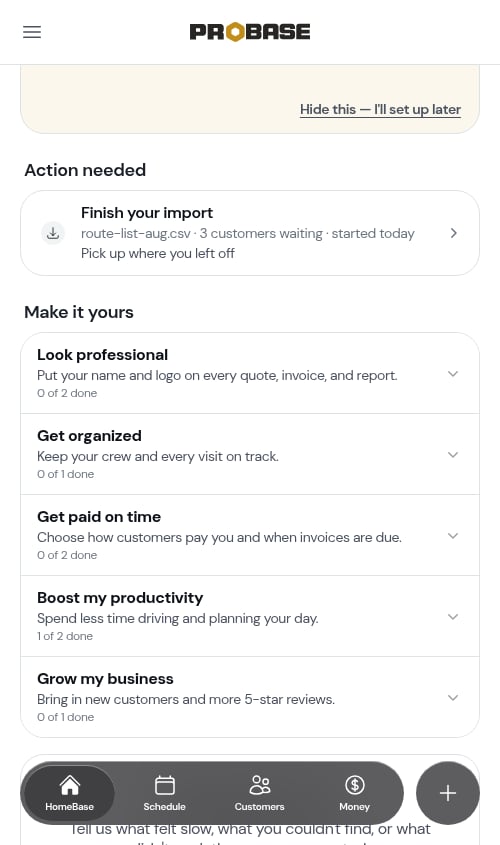
Assessments
One Assessments row covers every assessment where it’s your move. The count is the total, and the line underneath splits it by stage — for example 1 new, 1 ready to quote, 1 waiting on photos (only the stages that have something in them are listed):- New — leads that came in and haven’t been looked at yet
- Ready to quote — the customer sent their photos, or you finished the on-site visit, so it’s your turn to write the quote
- Waiting on photos — you asked the customer for photos three or more days ago and they still haven’t sent anything. Fresher asks don’t count; this is a nudge for the ones that have gone quiet
Draft quotes
If you’ve written quotes but not sent them, a Draft quotes row appears — Written but not sent yet — with the count. Tap it to open the Quotes screen and finish sending them.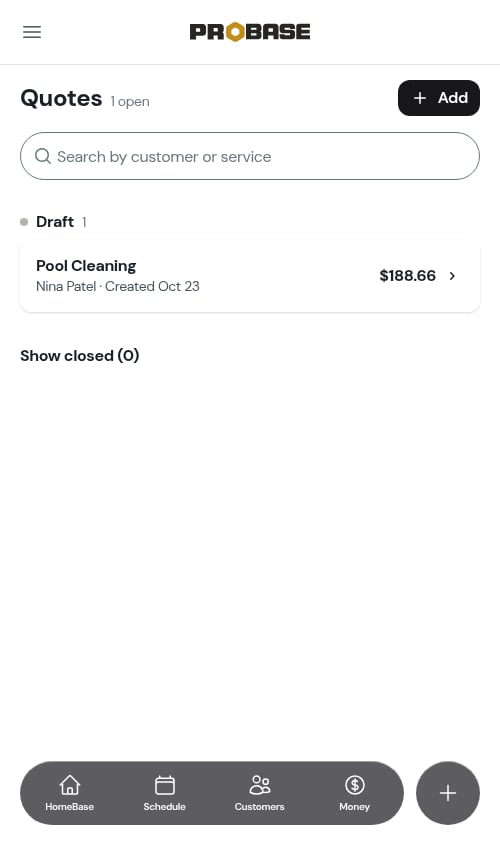
A day that runs late
When a crew’s planned work and driving on the day you’re planning won’t fit its hours, a row appears for that crew — for example Monday runs 47 min past 5:00 PM, with Adjust Monday’s route underneath. On a team with more than one crew the row starts with the crew’s name and colour dot (Alex · Monday runs 47 min past 5:00 PM), and each crew that runs late gets its own row. Tap it to open the fix ProBase suggests: Reorder stops, or — when no reordering can make the day fit on a multi-crew team — that day on the Schedule so you can rebalance it. See Plan your day.The “Save about 40 min of driving” suggestions now live on the Day view of the schedule rather than on HomeBase.
Updates
Below Action needed, an Updates section shows the updates you haven’t read yet — a new contact came in through your form, a customer’s card payment went through, or Stripe needs something from you, for example. It’s the same feed that lives behind the bell, pulled onto HomeBase so the newest things needing you are visible without opening anything.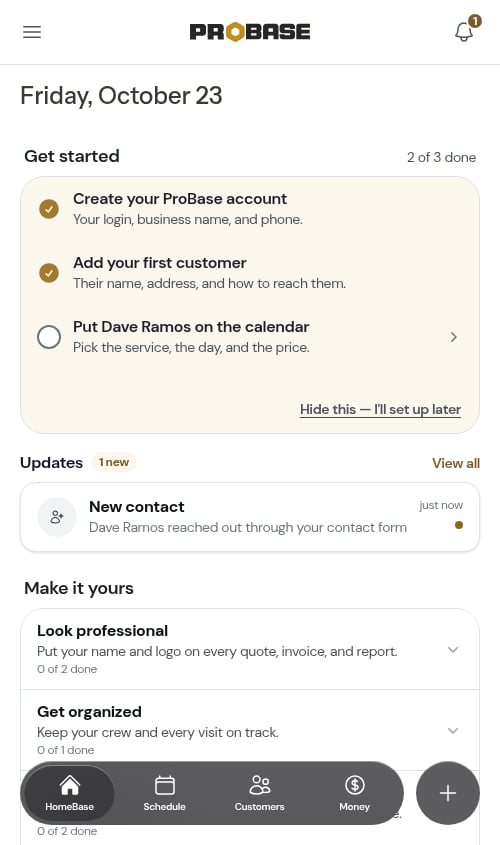
- A gold N new chip next to the heading counts everything you haven’t read.
- Below it, up to three unread updates are listed, newest first. Each row shows an icon, a title, a one-line summary, and how long ago it happened.
- Tap a row to go straight to the screen it points to — the new lead’s customer page, for instance. Arriving there marks that update read, so the row drops off HomeBase the next time you’re back.
- View all opens the full Updates drawer, where read updates are kept too.
This section is unread only, and it hides itself completely when you have nothing unread — HomeBase never shows an empty Updates card. It appears once updates are switched on for your account. See Updates for the full picture.
Available to claim
If you’ve connected a marketplace account and it has work near you waiting to be claimed, an Available to claim section appears. Each connected marketplace gets its own row showing how many jobs are waiting — for example 3 jobs available to claim — with New LawnStarter work near you — claim it in the app before it’s gone underneath.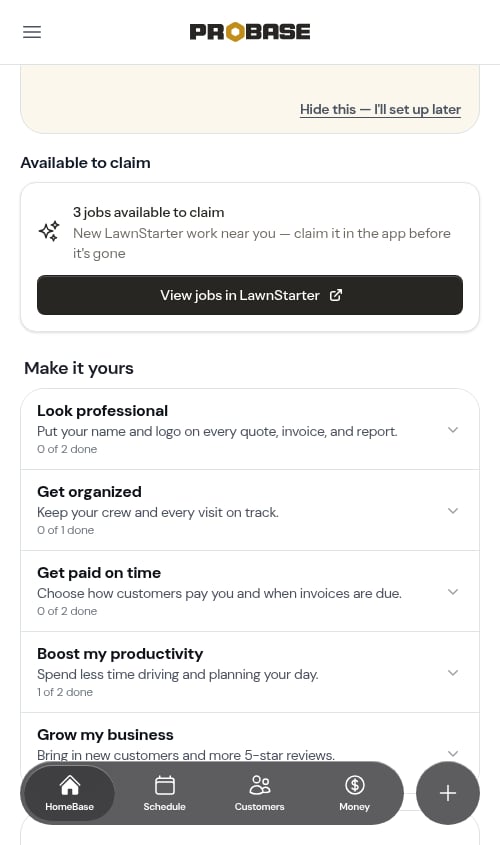
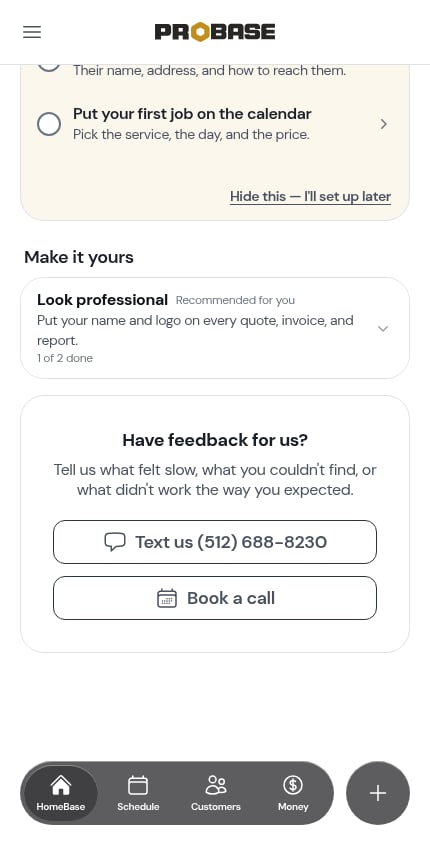
Make it yours
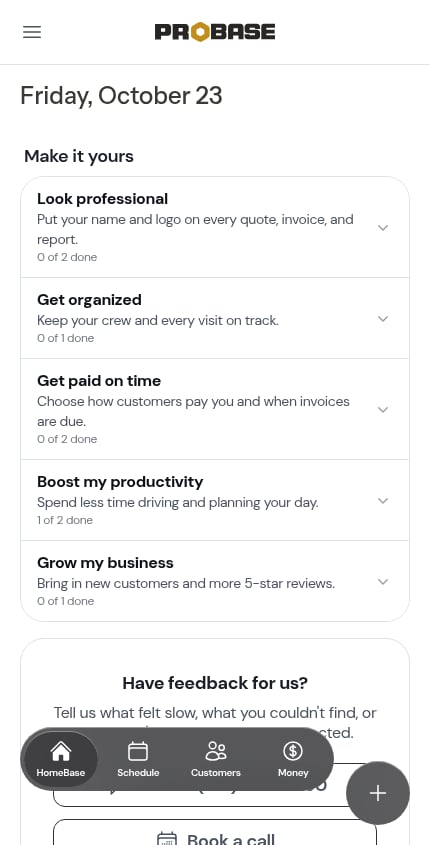
Make it yours gathers the optional setups that make ProBase fit your business, grouped into five cards. Each card shows a one-line description and how many of its setups are done (e.g., “0 of 2 done”).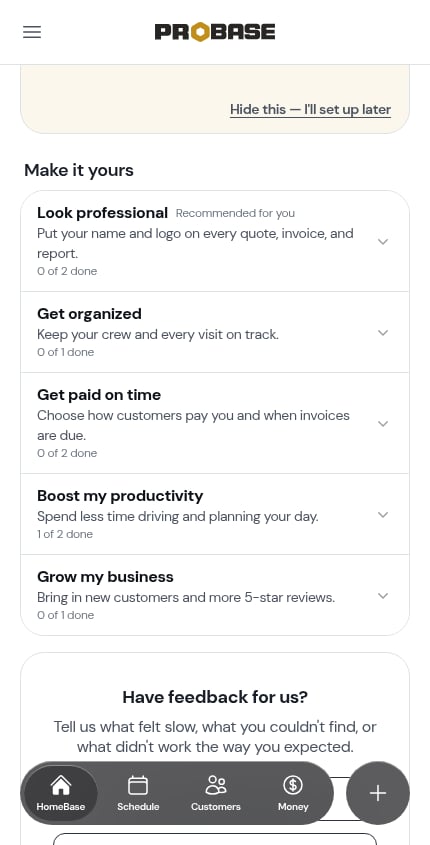
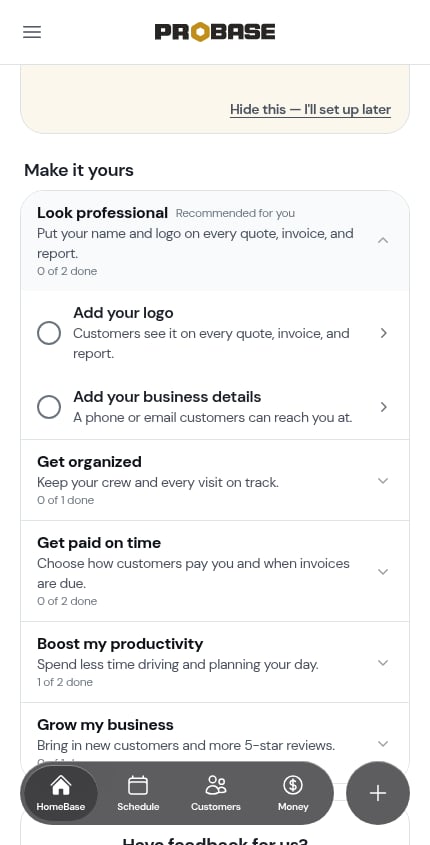
You only see the setups that apply to you. Some depend on your role, some on your business — Invite your team only appears for businesses with more than one crew, and Set up checklists and Get more Google reviews only when those features are switched on for your account.
Recommended for you
If you told ProBase during sign-up what you most wanted help with, the matching card comes first and reads Recommended for you beside its title.Done and seen setups
-
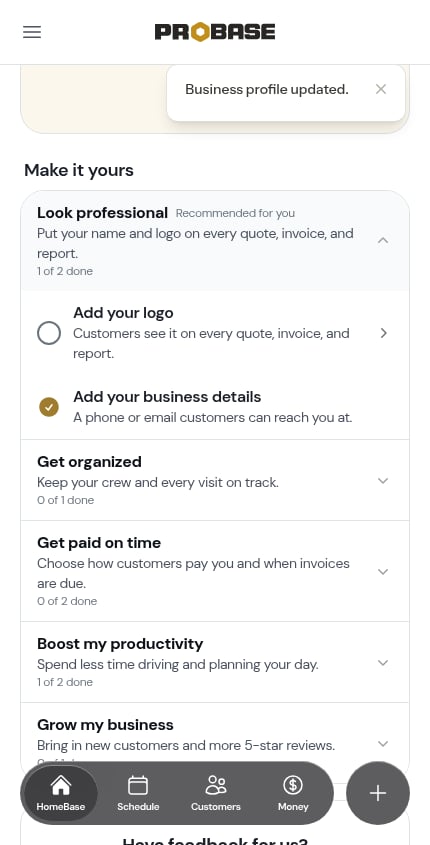
A finished setup stays ticked. ProBase checks each setup every time you open HomeBase — add a business phone on your Business Profile, come back, and Add your business details shows a gold check.
-
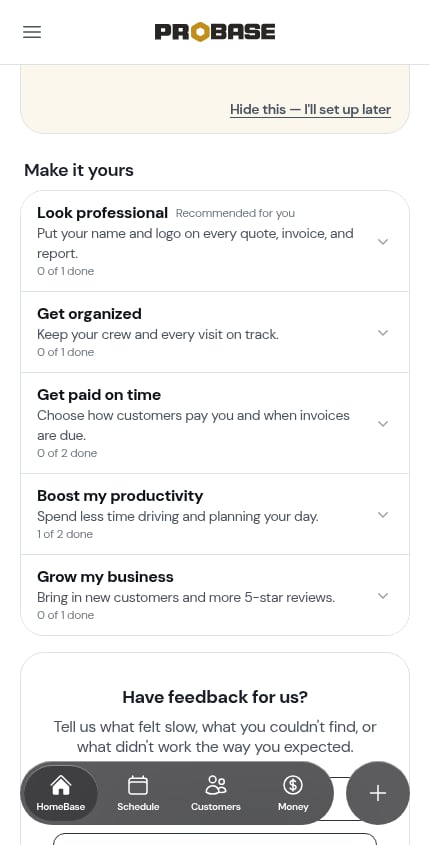
A setup you’ve looked at steps aside. If you open a setup from HomeBase and come back without finishing it, ProBase takes it as “not now” and stops listing it, so the card only shows what you haven’t looked at yet.
-
A card leaves once there’s nothing left to do, and the whole section leaves HomeBase once every card is gone.
Where your routes start
On Boost my productivity, a crew with no starting address gets its own setup. With one crew it reads Set where your routes start; with more than one, one row per crew that’s missing an address, such as Starting point for Bravo Crew — Usually the shop, or where the crew parks the truck overnight. Tap it to open that crew’s page, then tap Add start address. The setup reads done as soon as the address is saved.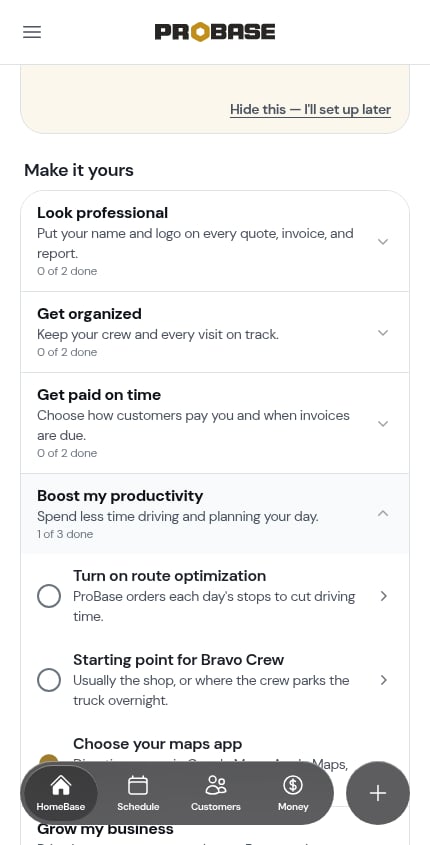
Choose how customers pay you
Choose how customers pay you on Get paid on time opens the Getting paid guide: five cards — Credit & Debit Cards (through Stripe), Venmo, Cash App, PayPal, and Cash, Check, Zelle, or Bank Transfer — each with a badge showing where it stands (Not Setup, Incomplete, Under Review, Active, Off, or Always Active) and the one button that moves it forward, such as Set Up Card Payments, Complete Card Setup, or Edit Venmo Settings (likewise Edit Cash App Settings and Edit PayPal Settings). Tapping anywhere on a card does the same as tapping its button.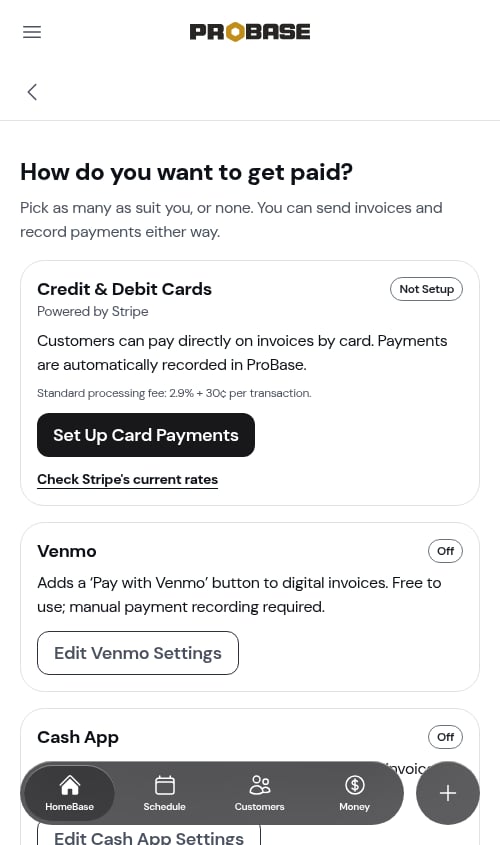
Only taking payments by hand?
If you get paid by cash, check, Zelle, or bank transfer and don’t plan to take cards or payment apps, open the Getting paid guide and tap This is how I get paid on the Cash, Check, Zelle, or Bank Transfer card.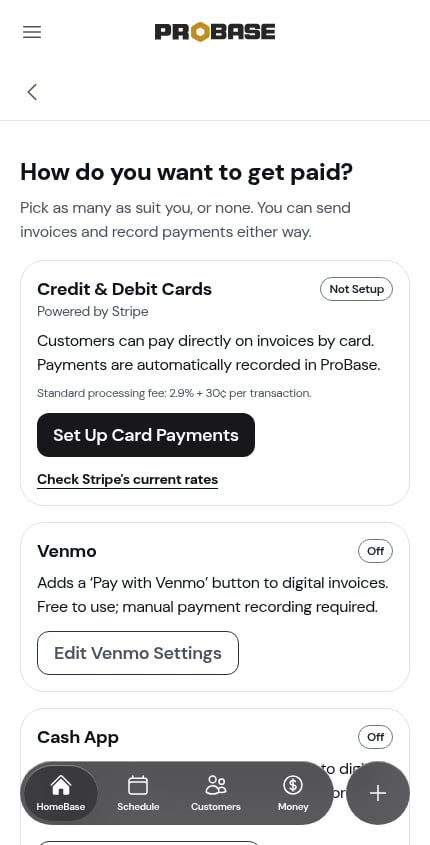
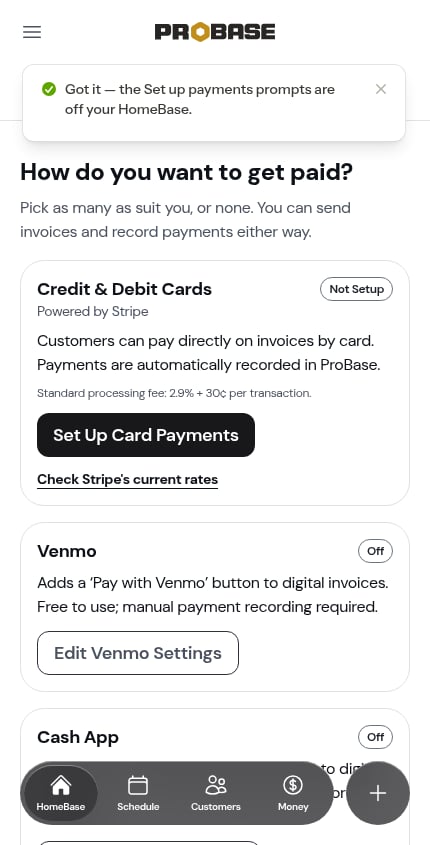
The choice applies to your whole business. You can still set up Stripe or a payment app from the guide whenever you like. The This is how I get paid button only appears for people whose role lets them change payment settings, and only while neither Stripe nor any payment app is set up. If you tap it on a guide you opened before someone switched one on, ProBase says “You already take online payments — the Set up payments prompts are off your HomeBase.” and changes nothing. You’ll also find it on the cash card during onboarding.
Install the app and Enable notifications
These two setups on Boost my productivity only appear on your phone — on a computer they’re never listed or counted. Install the app — Get ProBase on your phone so your schedule and routes are with you on site. What happens when you tap it depends on your phone:- On Android (Chrome) — Chrome’s own install box pops up. Tap Install to add ProBase to your home screen.
- On iPhone — a sheet opens with the steps for adding ProBase to your home screen from the Share menu.
- Inside Facebook’s or Instagram’s browser — those browsers can’t install apps, so a sheet headed Open ProBase in your browser opens instead, with an Open in Safari (or Open in Chrome) button, a Copy link button, and the by-hand steps for leaving the in-app browser. Once you’re in Safari or Chrome, sign in and tap Install the app again.
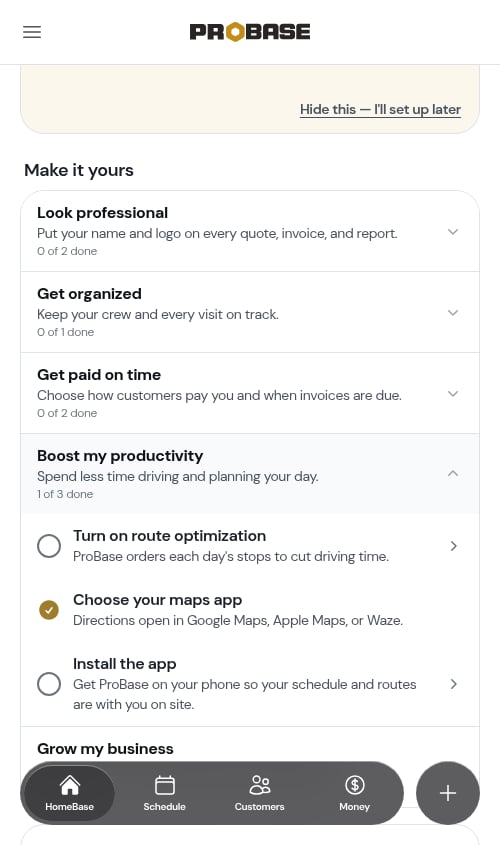
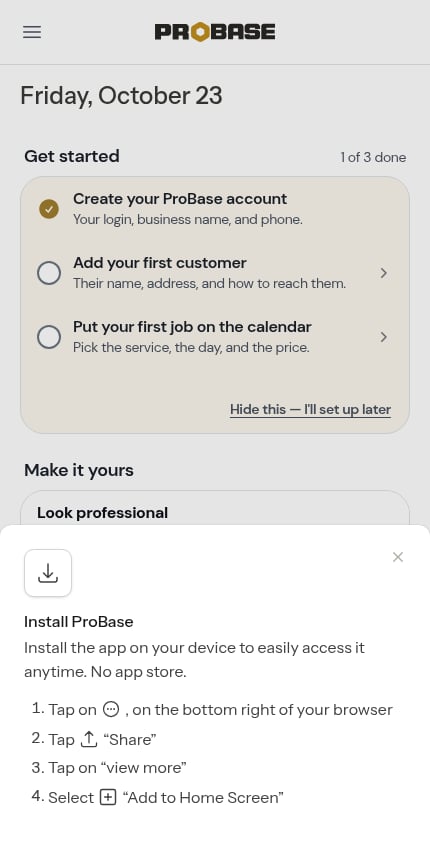
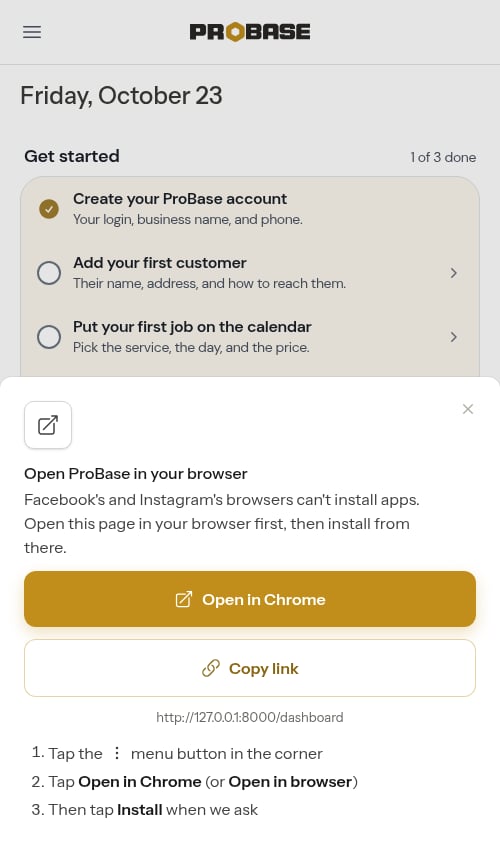
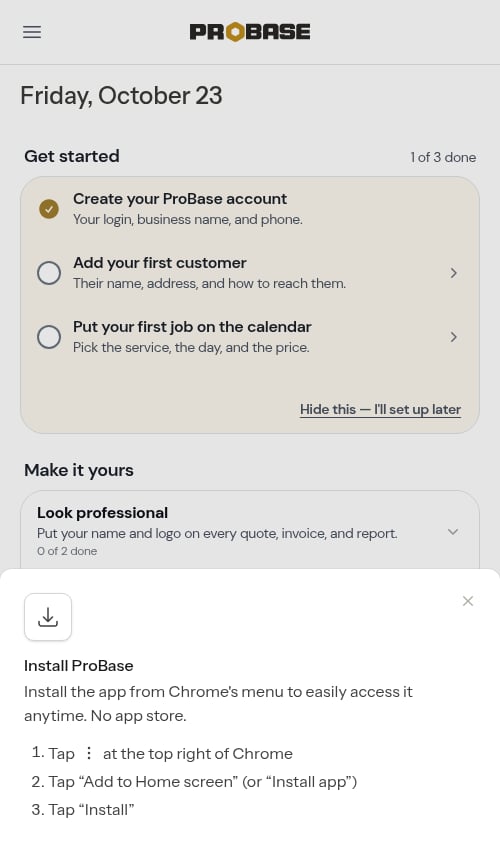
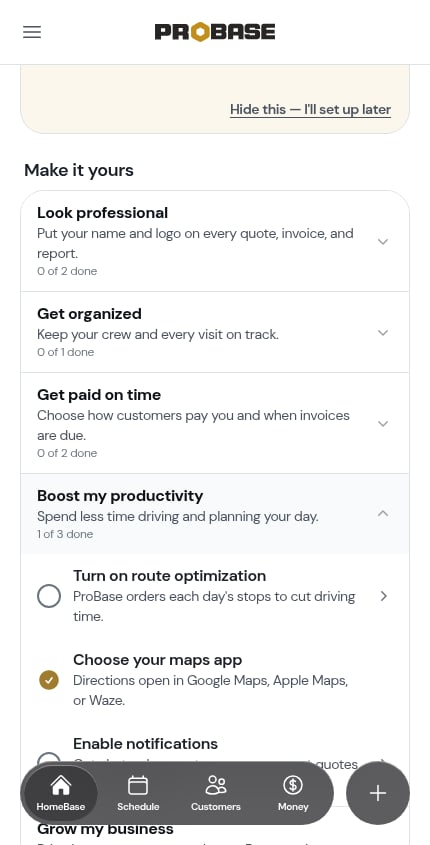
Because these two setups depend on the phone in your hand, the “N of M done” count on Boost my productivity can differ between your phone and your computer.
Talk to Us
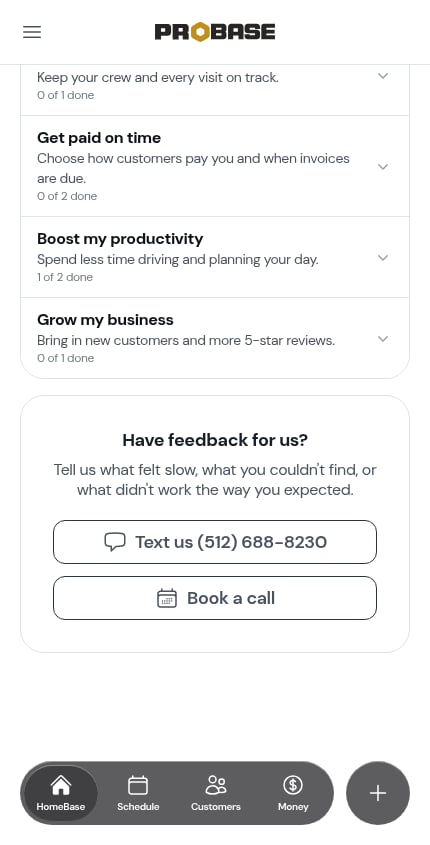
The last card on HomeBase asks Have feedback for us? — Tell us what felt slow, what you couldn’t find, or what didn’t work the way you expected. It has two buttons:- Text us — shows the ProBase team’s number and opens your phone’s Messages app with the number already filled in.
- Book a call — opens a calendar in a new tab so you can book a short call with the ProBase team. The booking form is pre-filled with your name and email.
Getting help
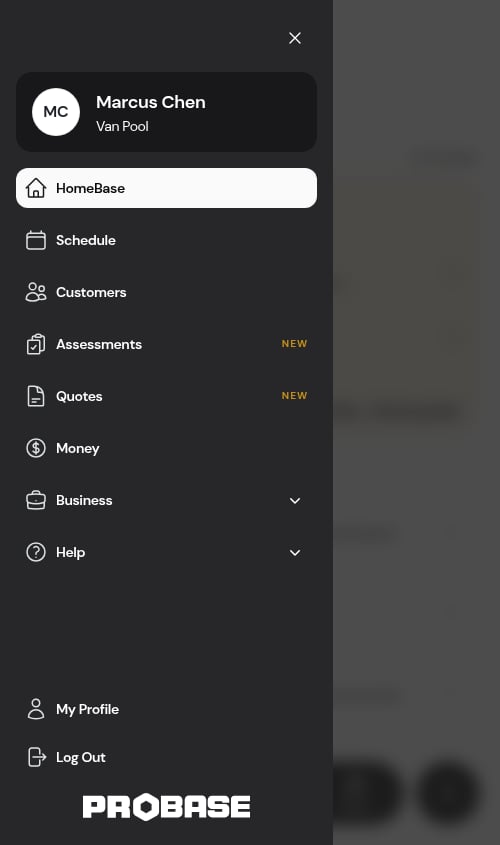
A Help group sits at the bottom of the sidebar (and inside the side navigation drawer on mobile) so you can reach support from anywhere in the app: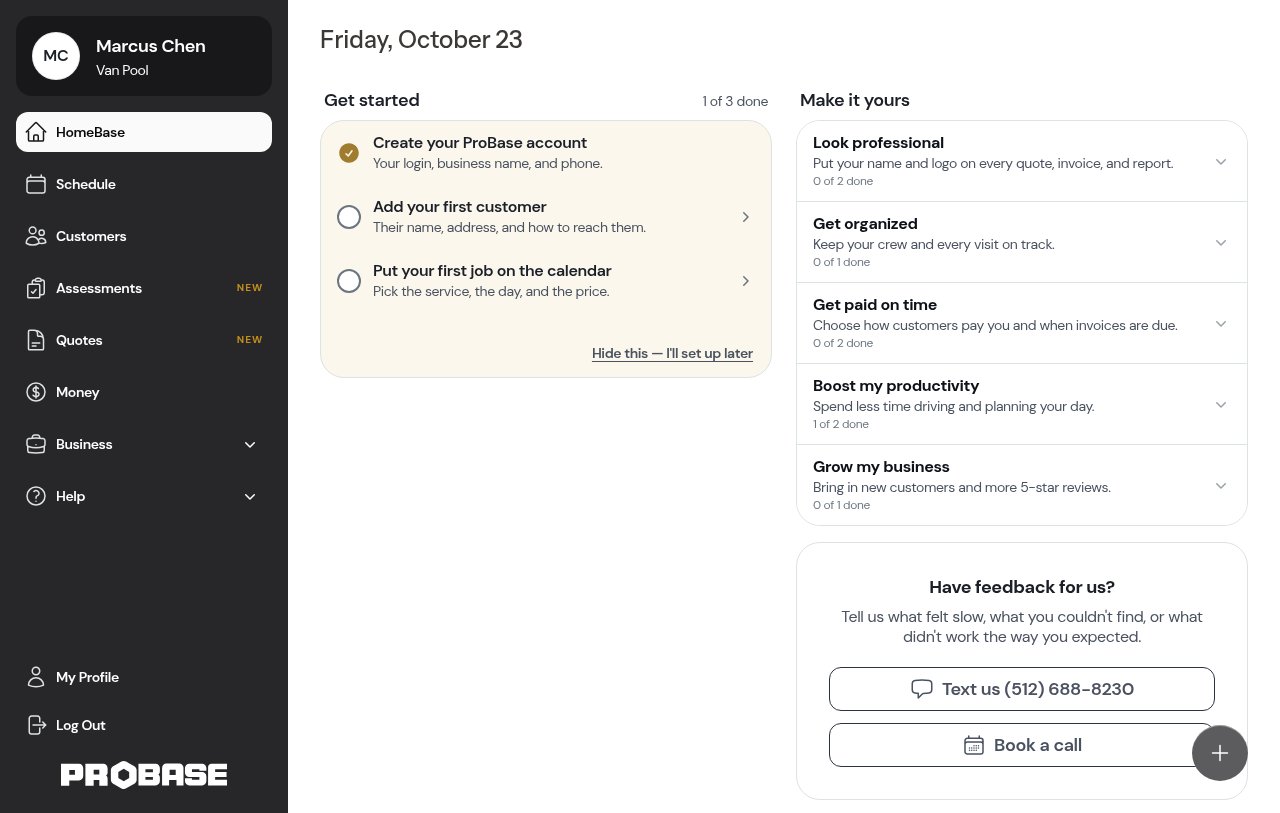
- Schedule a call — book a 1:1 with the ProBase team (opens in a new tab, pre-filled with your name and email)
- Docs — open these docs in a new tab
- Support — start a live chat with the ProBase team
- Tour a demo — drop into a fully-loaded sample business (learn more). Appears below Support when the demo is switched on for your account. If you do more than one kind of work it asks which trade to open first
Quick Actions (FAB)
The floating + button in the bottom-right corner gives you fast access to the most common creation tasks:- New Customer — Add a new customer
- New Job — Create confirmed work (customer + property + service + appointment)
- New Quote — Start the quote wizard for formal quotes or on-site assessments
Next steps
- View today’s full schedule to see all appointments in detail
- Complete appointments as you finish each stop
- Quick Actions for shortcuts to common tasks