Two ways to add your first customer
You can add a customer using:- Quick Actions (Job creation) - Fastest way to create customer + property + service + appointment all at once. See Creating jobs.
- Step-by-step approach (described below) - Create customer first, then add property and services separately.
If you want to get a customer scheduled quickly, use the Job creation feature from the Quick Actions button. If you prefer more control over each step, follow the instructions below.
Create a customer step-by-step
1
Go to Customers
Click Customers in the sidebar. With no customers yet, you’ll see a friendly empty state (“No customers added yet”) with an Add customer button right in the middle of the page.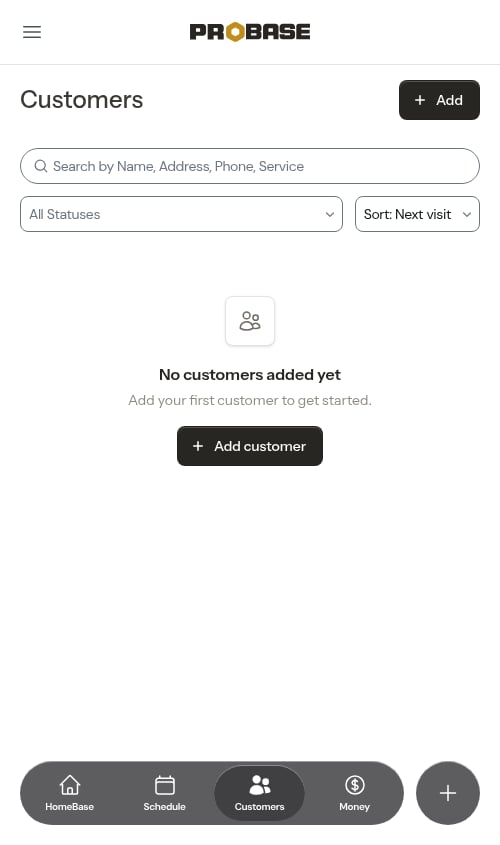
2
Open the form
Click Add customer to open the customer creation modal.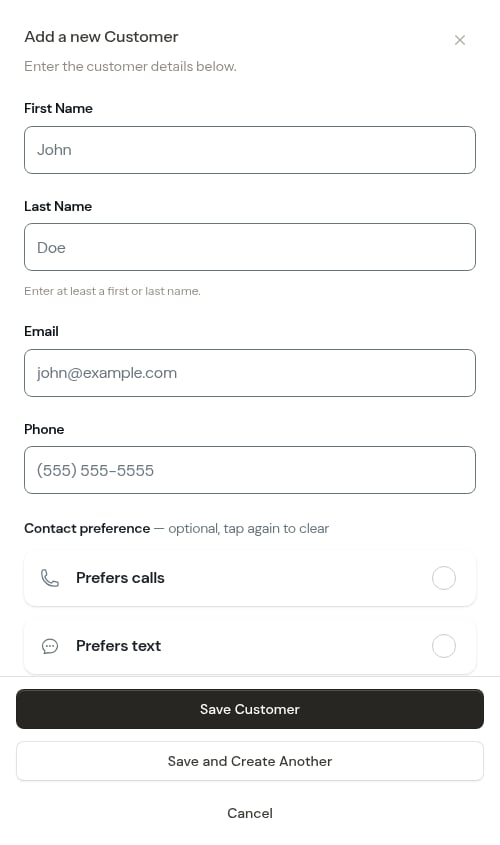
3
Enter customer details
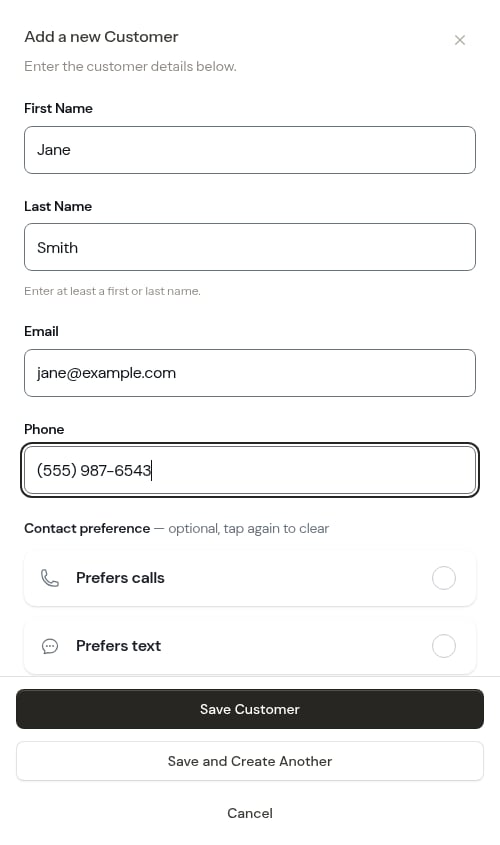
Fill in the customer information:
- First name and Last name — enter at least one of the two (just a first name, just a last name, or both)
- Phone number (optional) — automatically formatted as you type
-
Email address (optional, but recommended for sending payment links)
4
Add a property (optional)
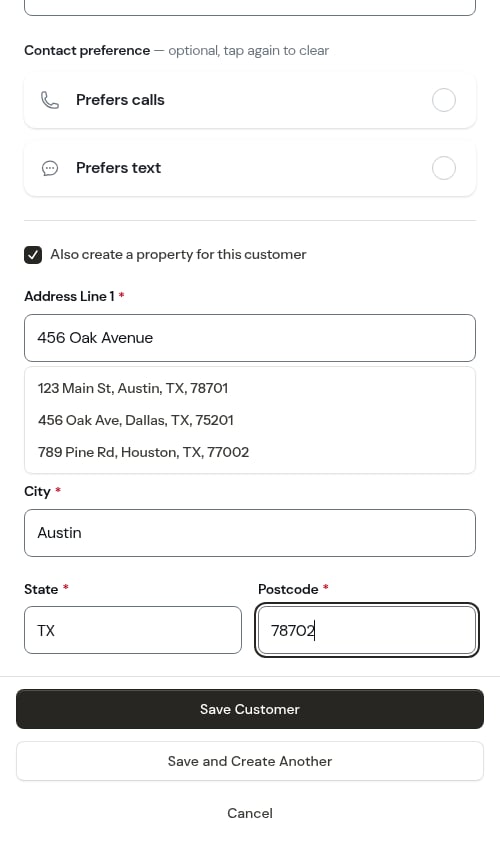
Check Also create a property for this customer to expand the property fields. This lets you add the customer and their first property at the same time.Enter the property address:
- Address line 1
- Address line 2 (optional)
- City
- State
-
Postcode
5
Save
Click Save Customer. You’ll be taken to the customer page — if you added a property, it appears in the Properties section there.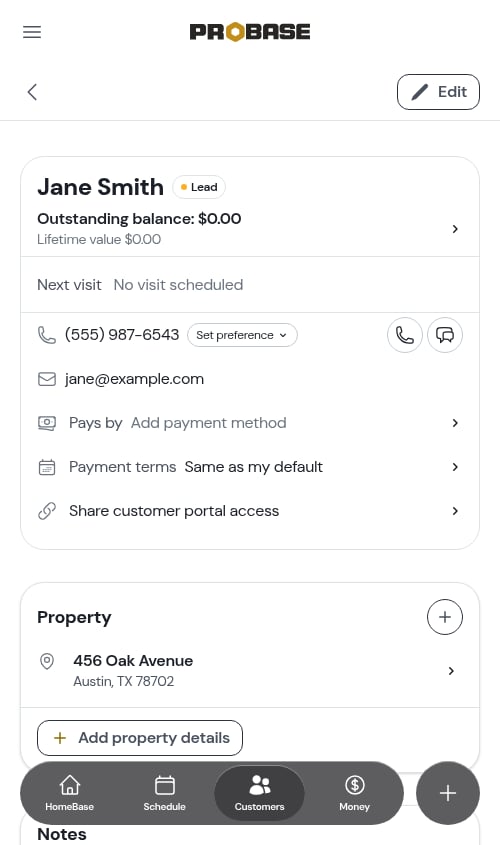
6
Pick what happens next (optional)
As soon as the customer is saved, ProBase asks “Customer added — what’s next?” with shortcuts to keep the momentum going: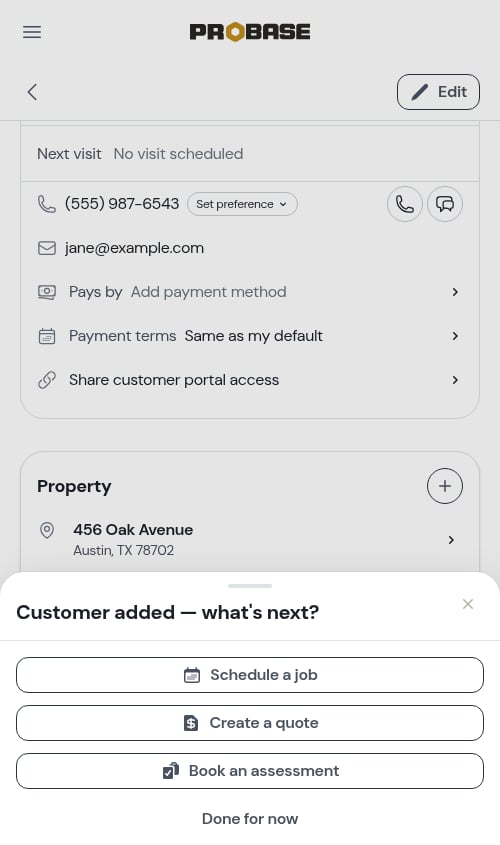
- Schedule a job — starts a job for this customer, already selected for you
- Create a quote — starts a quote for them
- Book an assessment — books a visit to look at the work first
- Done for now — closes the prompt and leaves you on the customer’s page
You can skip the property step during customer creation and add properties later from the customer’s page.
Add a service for the customer
In ProBase you add a service by creating a job (confirmed work) or a quote/assessment (work that needs approval or a site visit first). The guided wizard handles the customer, property, and service in one flow:- Tap the + Quick Actions button and choose New Job — or, from the customer’s page, tap the + beside the Services heading to start the same wizard with that customer already filled in
- Choose Schedule a Job for confirmed work
- Confirm the customer and property
- Configure the service details — pick a service template or build a custom one, then set the price, billing, and frequency
- Set the start date and create the job
Schedule more appointments
A job’s first appointment is scheduled as part of the wizard. To add another appointment to an existing service:- Open the service to view its details
- Click Schedule Appointment (appears near the top of the page when no upcoming appointment exists)
- Select the date and time
- Optionally assign a crew (when your team has more than one crew)
- Click Schedule
Send the invoice
Once you’ve completed work and the customer has a balance, send them their invoice:- On the completed visit, tap the Charged row under What happened — it opens the customer’s invoice. (You can also find it under Money → All invoices.)
- Check it over, then tap Send invoice
- On the Send invoice screen, choose how to send it — Text, Email, or Print / PDF — and tap the send button at the bottom