What a quote is
A quote is the price you put in front of a customer before the work is agreed. You build it up service by service, send it as a link they can open on their phone, and when they say yes it becomes a job. A quote is a real record from the moment you start it. It appears on your Quotes screen as a Draft straight away, it survives backing out, and picking the flow up again returns you to the same draft rather than making a second one.Not sure what the work is worth yet? Start an assessment instead — ask for photos or book a visit, then turn the answer into a quote. If the work is already agreed and needs no quote at all, create a job directly.
Starting a quote
There are four ways in, and they all land in the same place:
The flow opens on top of whatever page you were already on. Close it without finishing and you stay exactly where you were.
1
Who's this for?
Pick the customer. Search by name, email, phone, or any of their property addresses.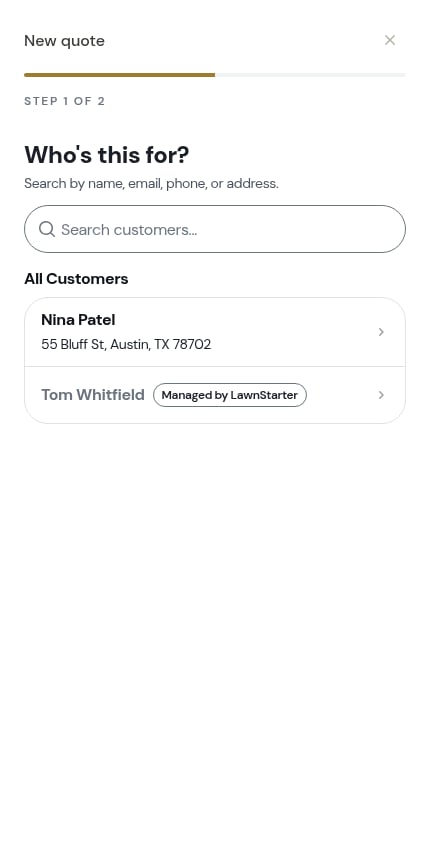
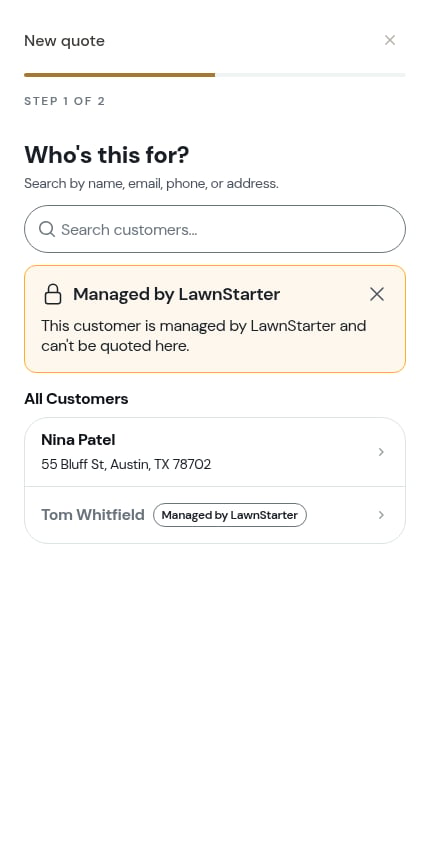
Marketplace customers can’t be quoted here. If you’ve connected a marketplace account, those customers still appear in the list so you can see your whole book — but they’re dimmed, show the marketplace’s logo in place of the usual person icon, carry a lock icon on the right, and read Managed by LawnStarter — not schedulable here. The marketplace owns their pricing, so there’s nothing to quote. Tapping one shows This customer is managed by LawnStarter and can’t be quoted here. and the step stays put — tap the ✕ on the notice to dismiss it. See Marketplace customers.
2
Which property?
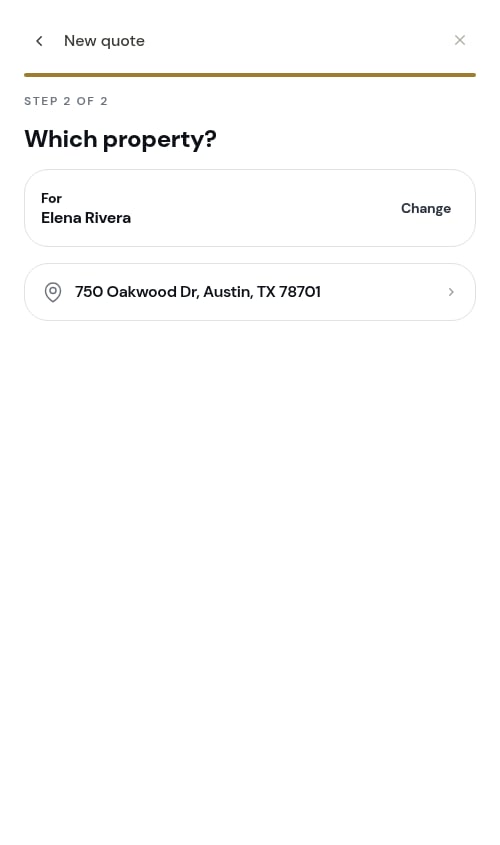
Pick the address the work is for. The customer you chose is shown at the top with a Change link if you picked the wrong one.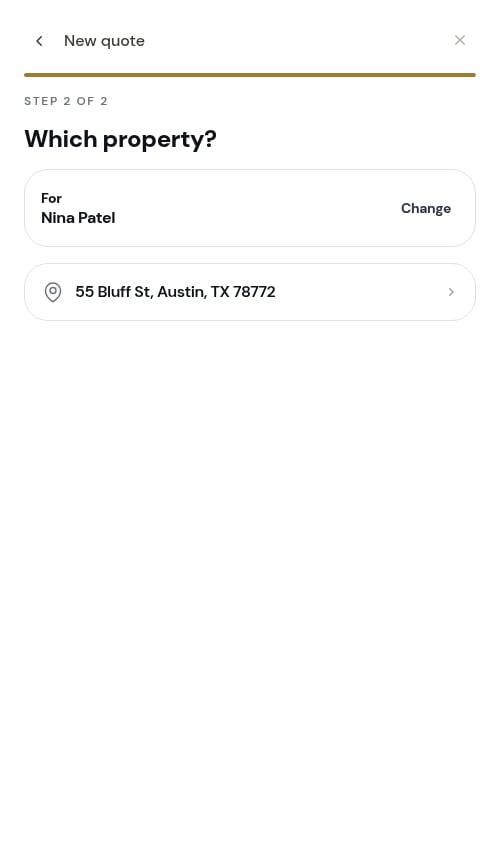
3
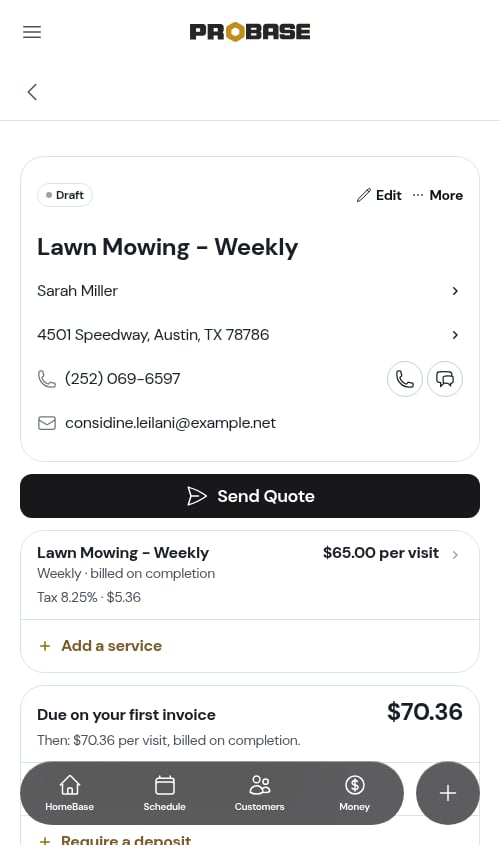
The quote opens, empty
You land on the new quote’s own page. It reads No services yet with a single Add your first service button — the quote exists, it just has nothing on it yet.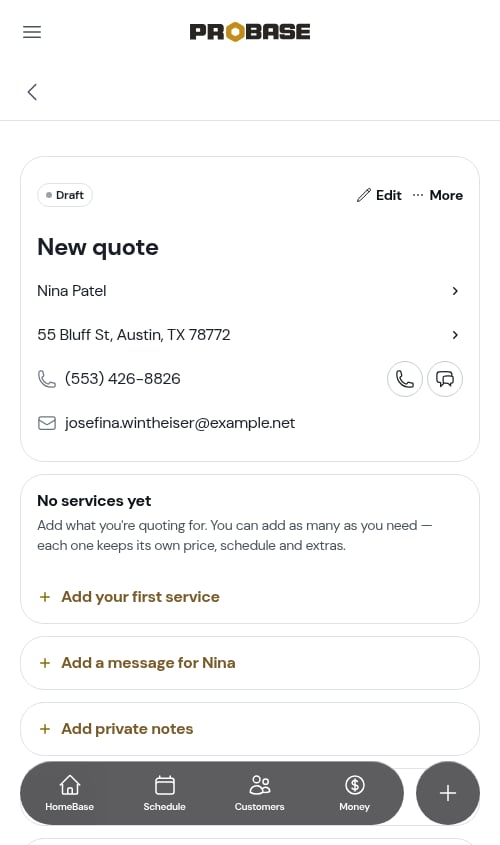
Starting from an assessment
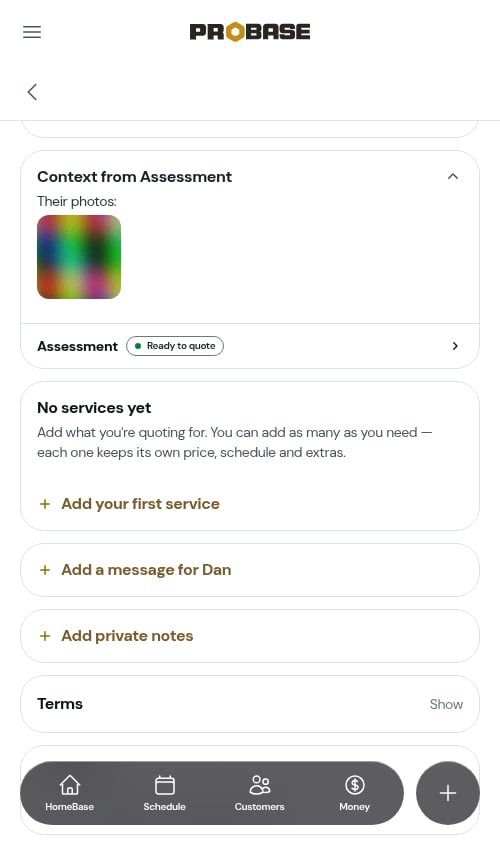
When the quote comes from an assessment, you skip both questions — and the quote carries the assessment’s context with it. A Context from Assessment section holds what the customer told you, the photos they sent, your visit notes, and any checklist answers, so you can price the work without flipping back and forth.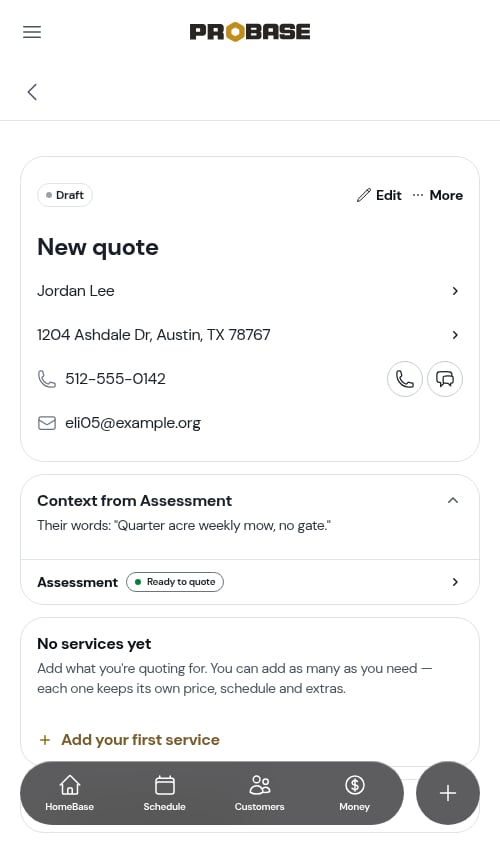
Adding services to the quote
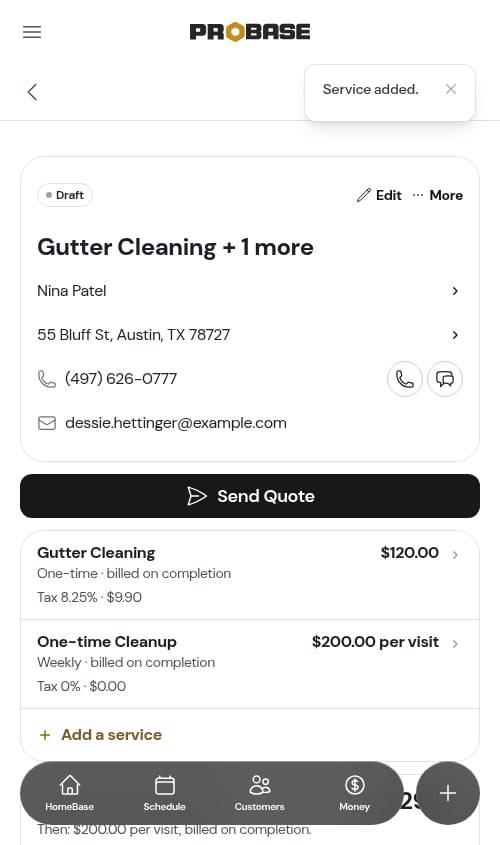
A quote is a container of services — one row per thing you’re charging for, each with its own price, cadence, and billing. Tap Add your first service (or Add service once there’s one on there) to open the service editor.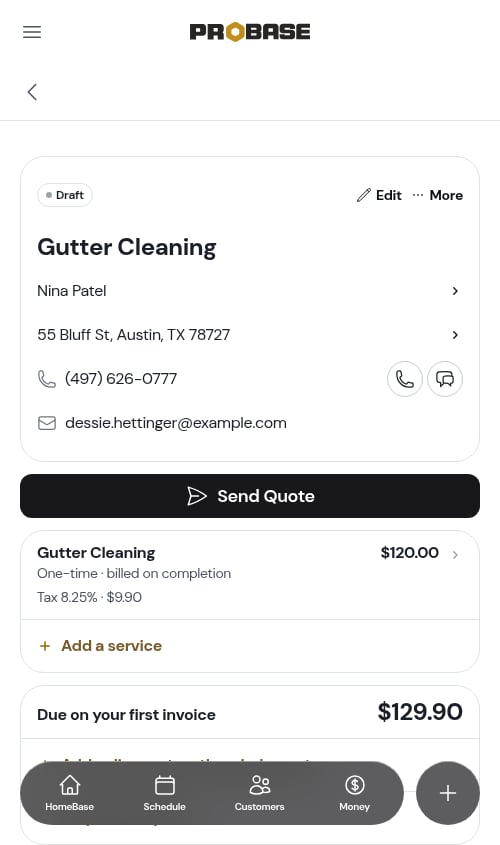
Start from one of your services
The editor opens with Start from one of your services, drawn from your service catalog. The service you’ve used most leads with a Most used badge, so the common case is one tap. Under it, Pick another service from your catalog — All 8 of your saved services. — opens the rest of the catalog as cards. Each card shows the service name plus how often the work happens and how it’s billed — for example Weekly · subscription billed monthly or One-time · per service.- Picking a card fills in the name, description, billing type, billing interval, frequency, price, and duration estimate — all still editable.
- Prefer to type this one out? Pick the Custom service card, which clears the pre-filled fields.
If your catalog is empty you simply type the details in yourself. Building a catalog first makes every future quote faster — see Managing your service catalog.
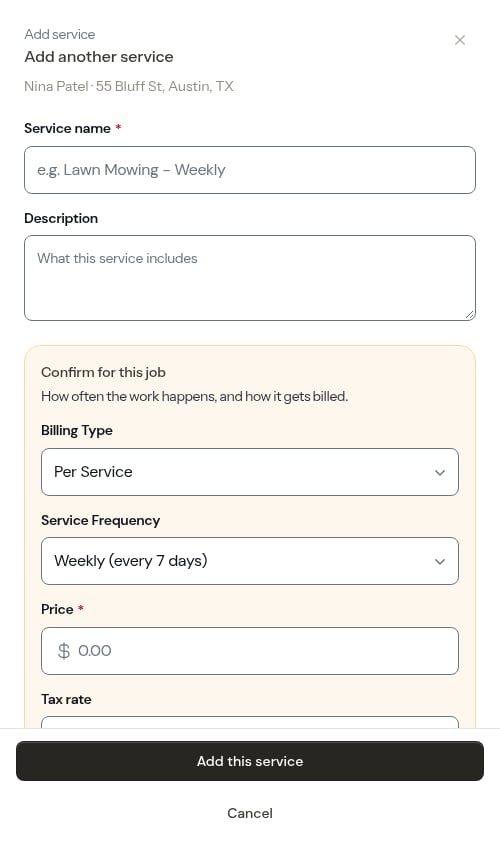
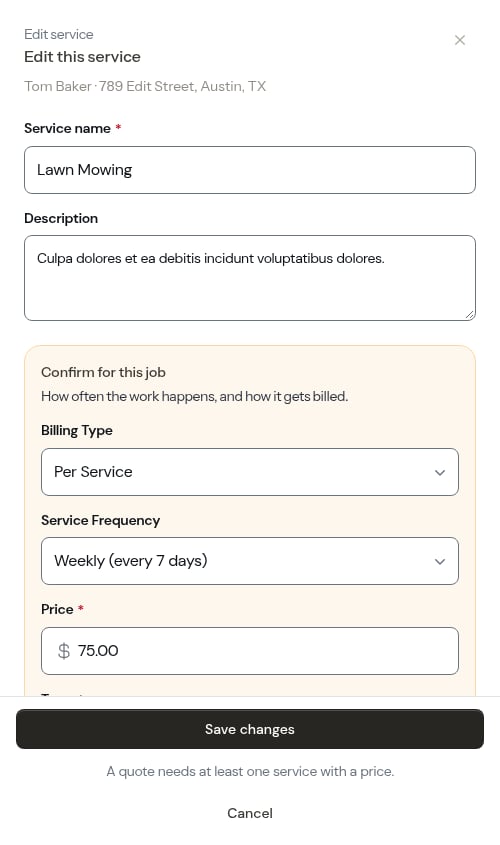
Fill in the details
- Service name (required) — what you’re providing, e.g. “Weekly Pool Cleaning”
- Description (optional) — what’s included. Line breaks you type are kept when the customer reads the quote.
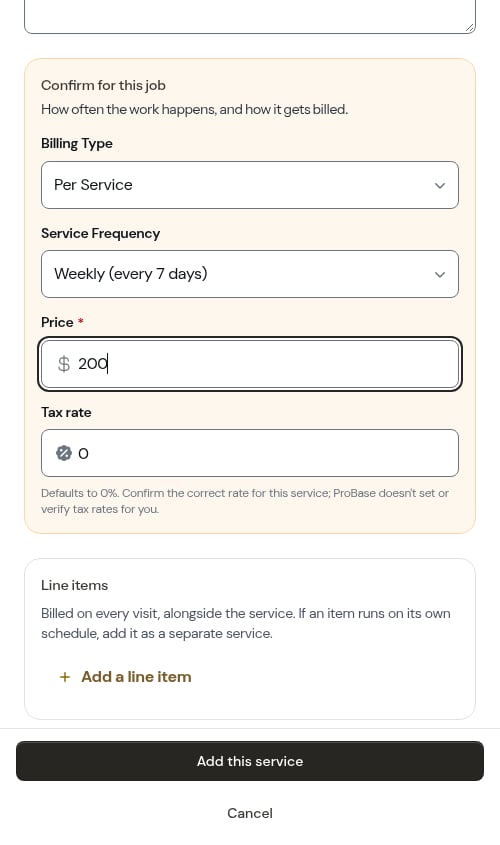
- Billing type — Per service (billed each time work is completed) or Subscription (billed on a recurring schedule regardless of visits)
- Billing interval (subscription only) — Weekly, Monthly, Quarterly, Semi-annual, or Annual. The recurring billing day is set automatically from the day the quote is accepted, so there’s no separate field to fill in.
- Service frequency — One-time, Weekly, Bi-weekly, Monthly, Every 2 months, Quarterly, Every 6 months, or Custom (pick Custom and type the number of days between visits, from 1 to 365)
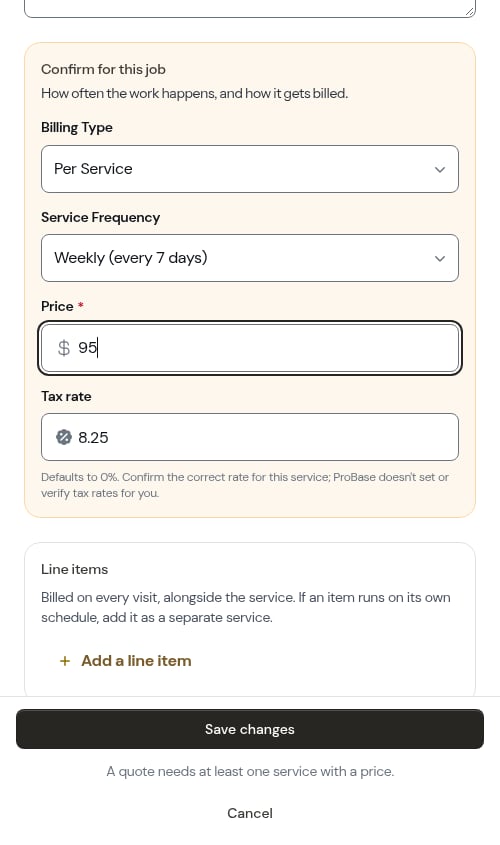
- Price (required) — what the customer pays per service or per billing period
- Tax rate (optional) — entered as a number, e.g.
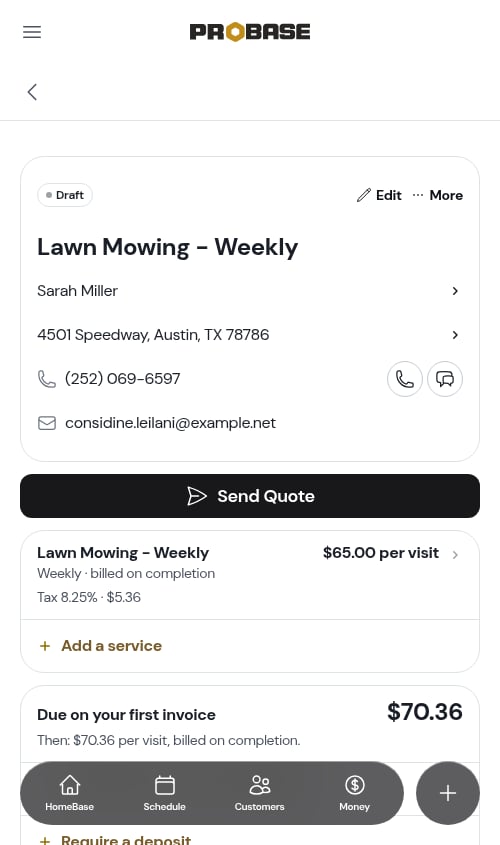
6.625for 6.625% tax. Defaults to 0% — leave it if you don’t charge tax. ProBase never sets, suggests, or verifies a rate for you, so confirm the correct rate for the service and the customer’s location. Three decimal places are supported for precise local rates. - Start date and time (optional) — when this service would first run. Setting it means accepting the quote books the first visit for you.
Line items
Inside a service you can add line items — small extras billed alongside it, like a dump fee or a bag of chemicals. Each is just a name and a price. Line items follow how the service is billed, and share its tax. The hint under them tells you which:- Billed per service, recurring — Billed on every visit, alongside the service.
- Billed per service, one-time — Billed once, alongside the service.
- Subscription — Added to each monthly charge, alongside the service (or each weekly, quarterly, 6-month, or yearly charge, matching the subscription’s billing period). A weekly service billed monthly adds a $50 line item once a month, not every week.
Editing or removing a service
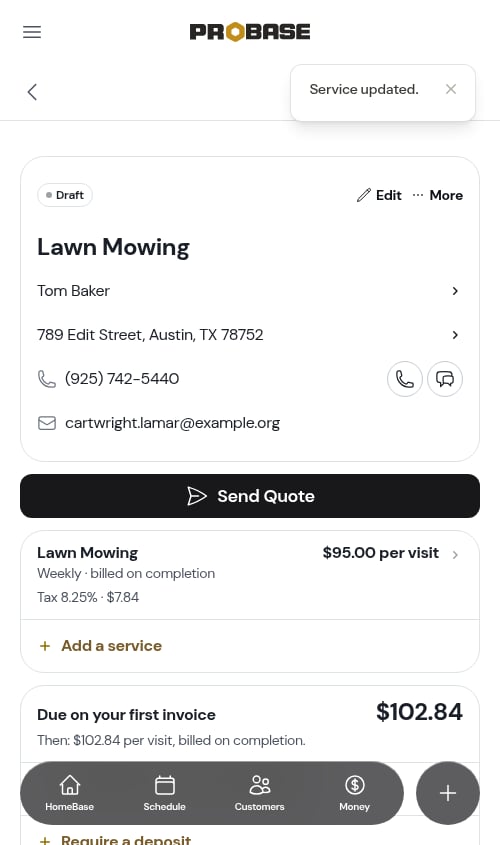
Tap any service row on the quote to reopen the editor with that service’s details loaded. Change what you need and save.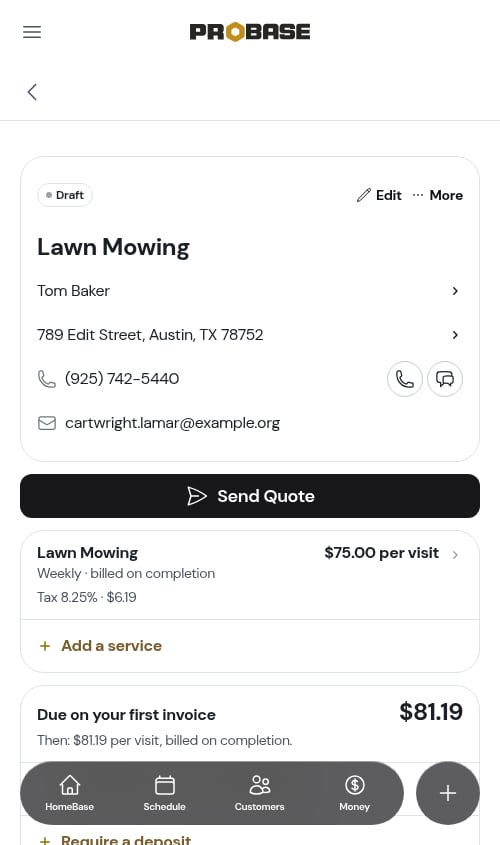
Discounts
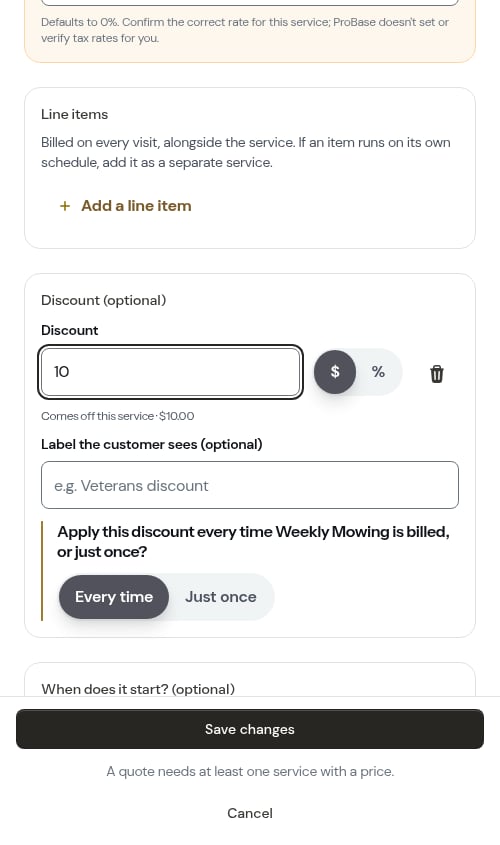
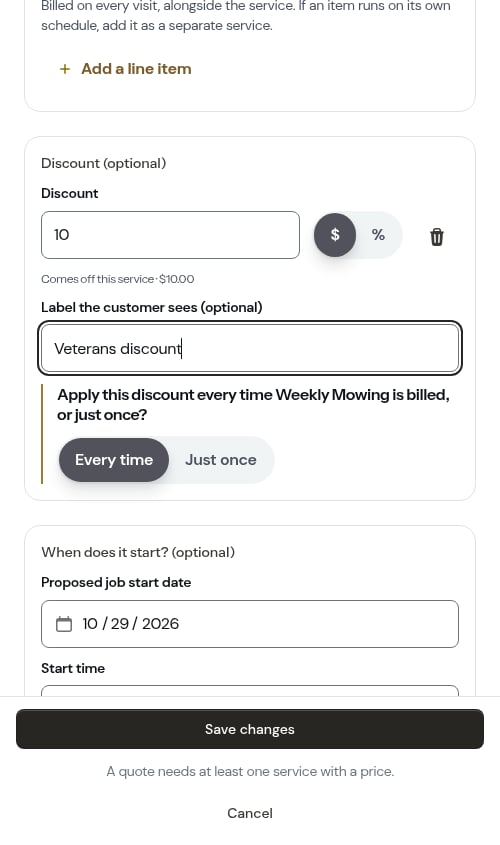
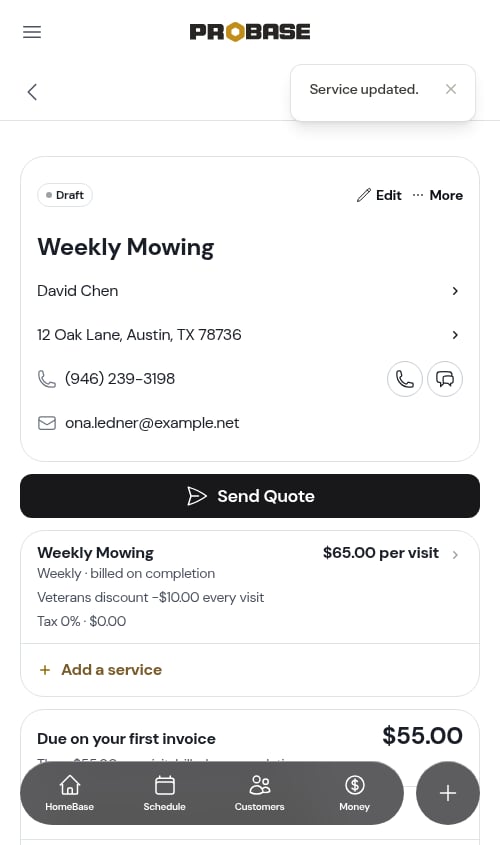
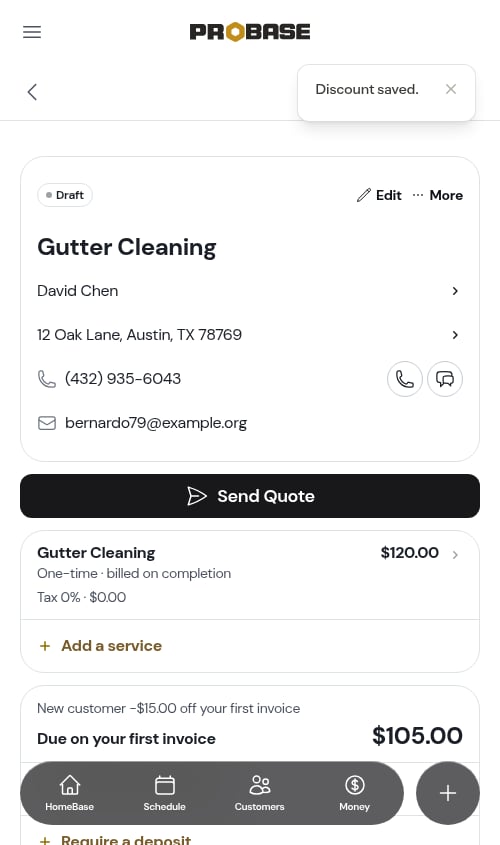
Discounts can go on a single service or across the whole quote. Either way the customer sees the discount spelled out on their copy — it’s never hidden inside a lowered price.Discount one service
In the service editor, type a value into the Discount field. As soon as you do, ProBase asks how often it should apply:- Every time — comes off every invoice for this service
- Just once — comes off the first invoice only
Discount the whole quote
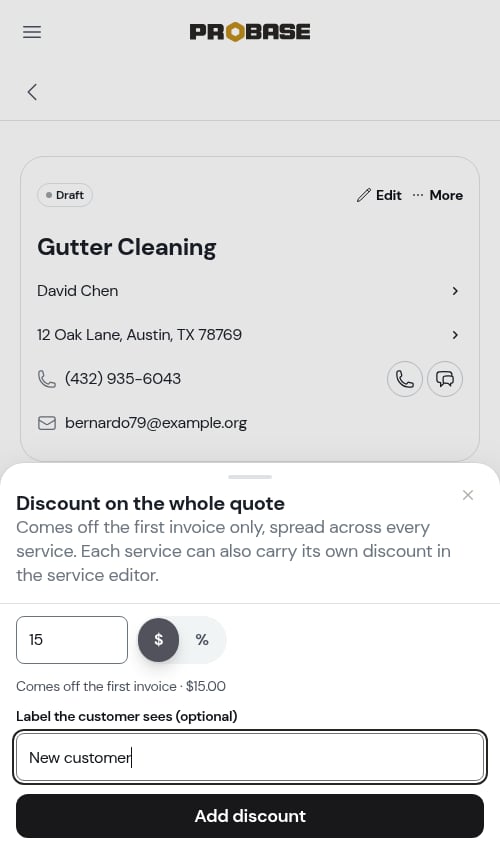
Below the services, tap Add a discount on the whole quote. Enter an amount and a label, and the sheet previews the exact money as you type — Comes off the first invoice · $15.00.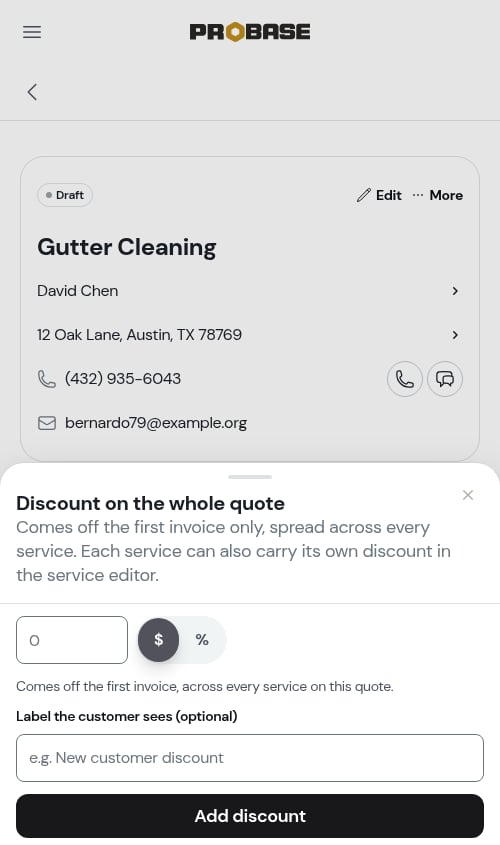
Requiring a deposit
For bigger jobs you may want money up front before you book the work. A deposit is asked for once, when the customer approves the quote.1
Open the deposit sheet
On the quote’s totals card, tap Require a deposit. The row appears once the quote has at least one service.
2
Enter the deposit
Type a number and choose % or **100.00)*.
3
Save it
Tap Require deposit. The totals now show a line under the first-invoice figure — Deposit due on approval · 25% ($100.00) — exactly as the customer will read it.
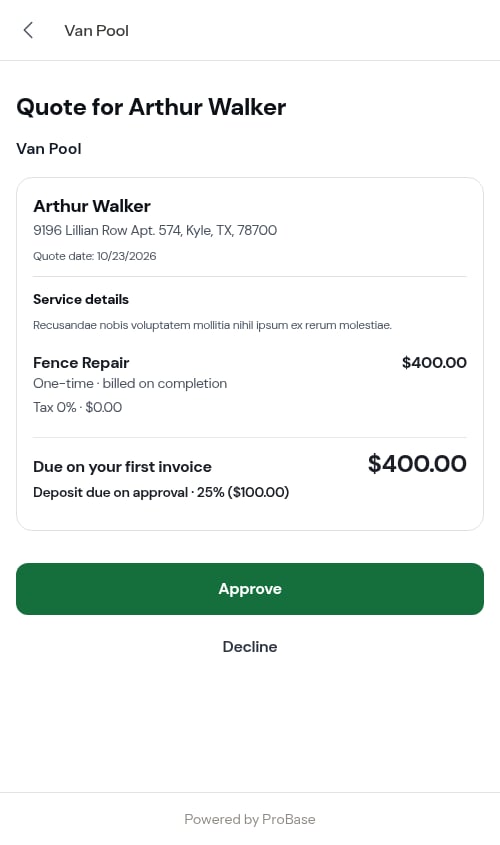
The deposit isn’t a separate charge on top of the quote — the Due on your first invoice figure stays the same. The deposit is simply part of that money, collected earlier.
What the customer reads
Two written fields sit under the services, and they’re saved as you type. Tap Done to collapse either one.- Customer message — appears at the top of the quote the customer opens. Use it for the one thing you’d say out loud: why this option, what happens next.
- Private notes — for you and your team only. The customer never sees these.
Terms and expiry
The Terms block holds the Valid until date — the day the quote stops being open for acceptance. Your default terms live in settings, and every new quote starts from them. Editing the terms on a quote changes that quote only — and changing the default later never rewrites a quote you’ve already created.Preview it as the customer
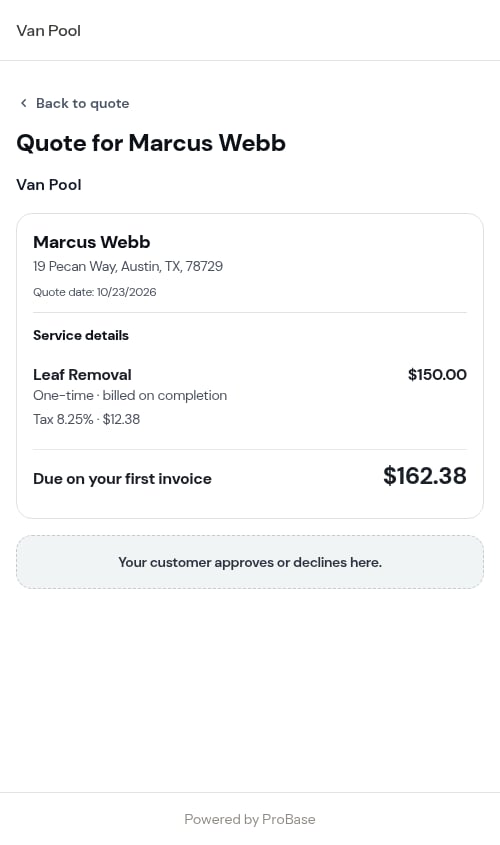
Before you send, check what the customer will actually see. Open the More menu on the quote and choose Preview as customer.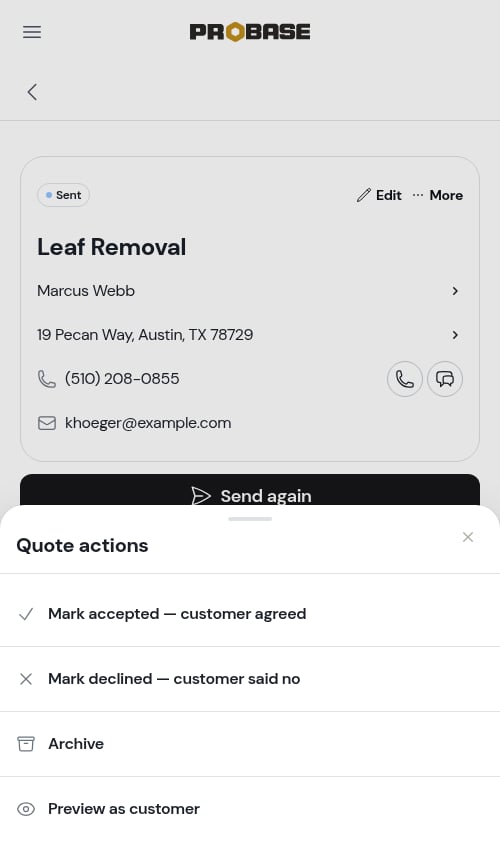
Next steps
- Managing quotes — send the quote, track the answer, and turn a yes into a job
- Working assessments — when you need a look before you can price the work
- Creating jobs — for work that’s already agreed
- Managing your service catalog — make every quote faster to build