What are services?
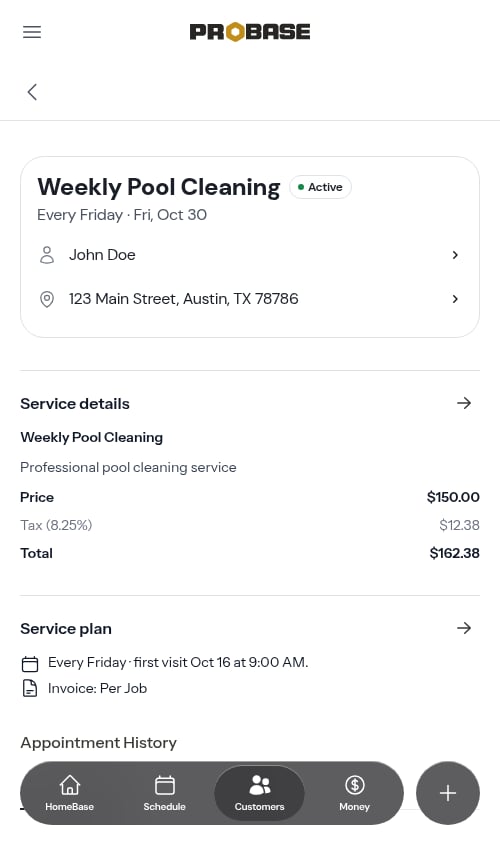
Services are the work you perform for customers at their properties. Each service includes pricing, billing details, schedule information, and a history of all related appointments.Viewing service details
To view a service:- Go to Customers in the sidebar
- Click on a customer name
- Click on a property address
- Click on a service name
Services that came from a connected marketplace work differently — they’re read-only, carry a Managed in LawnStarter (or Lawn Love / Home Gnome) tag, and can’t be re-priced, rescheduled, or cancelled from ProBase. Their page has no Service plan section at all; instead, Service details shows a read-only Frequency row with the marketplace’s own cadence, and the amount is labelled Payout — what the marketplace pays you per visit. See Marketplace customers.
Service information sections
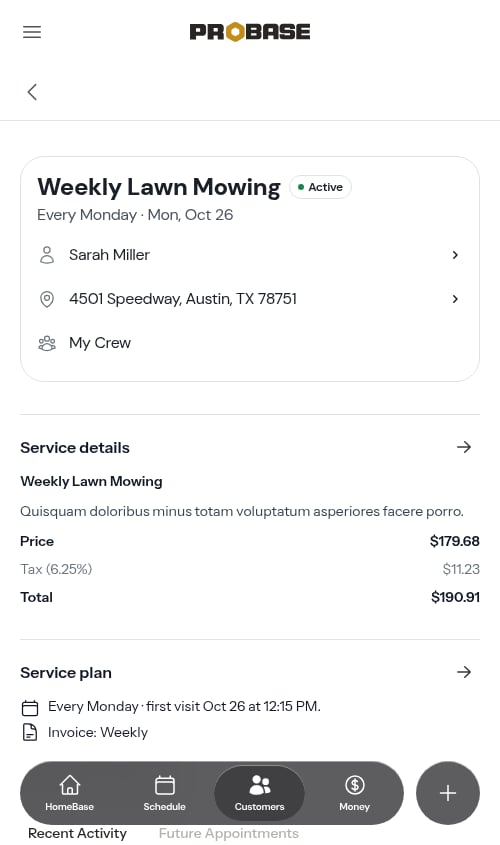
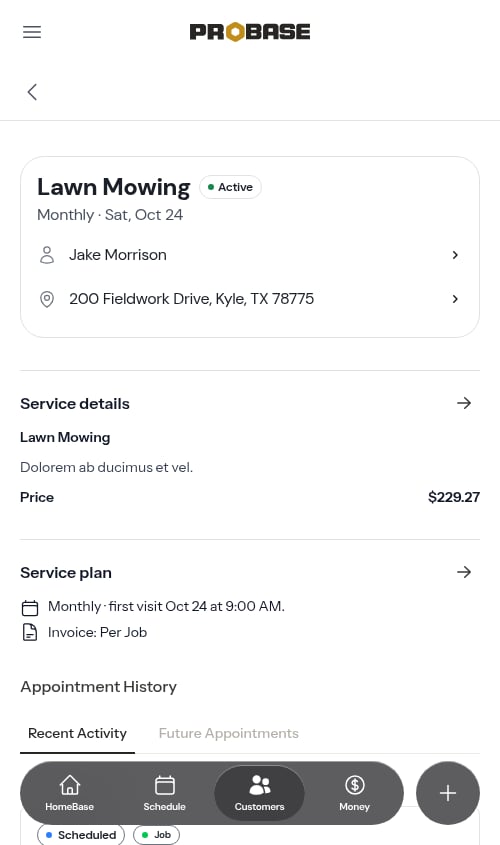
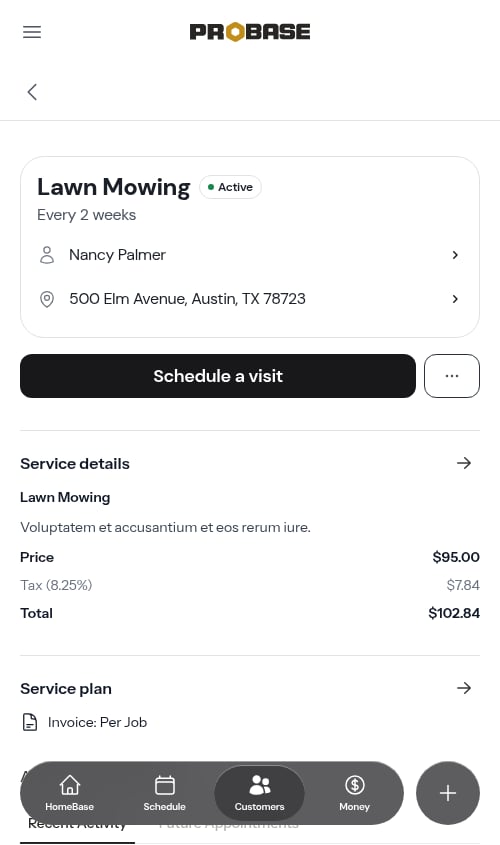
The page opens with the job’s header card, and the detail sections sit underneath it.The header card
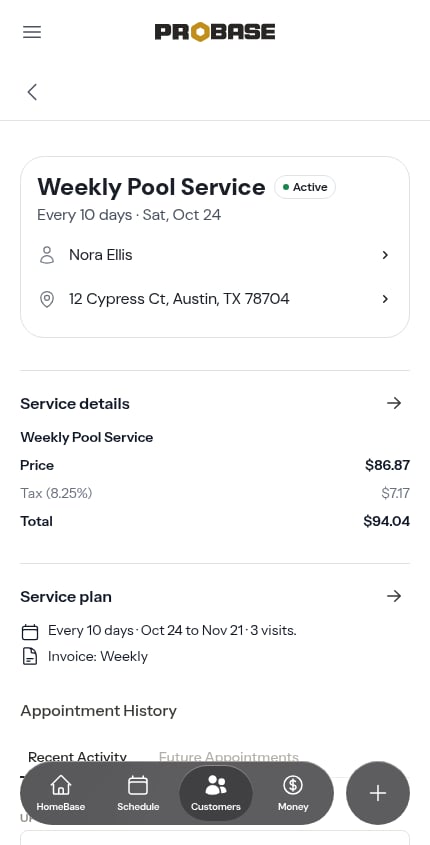
The card is the job itself, in one place:- The job’s name as the page title
- A state pill — Active, Completed or Cancelled
- A single line underneath carrying how often the work repeats and when the next visit is — Every Sunday · Sun, Sep 20. With nothing on the calendar it carries the cadence on its own
- A trade chip beside the pill, when the job has an industry
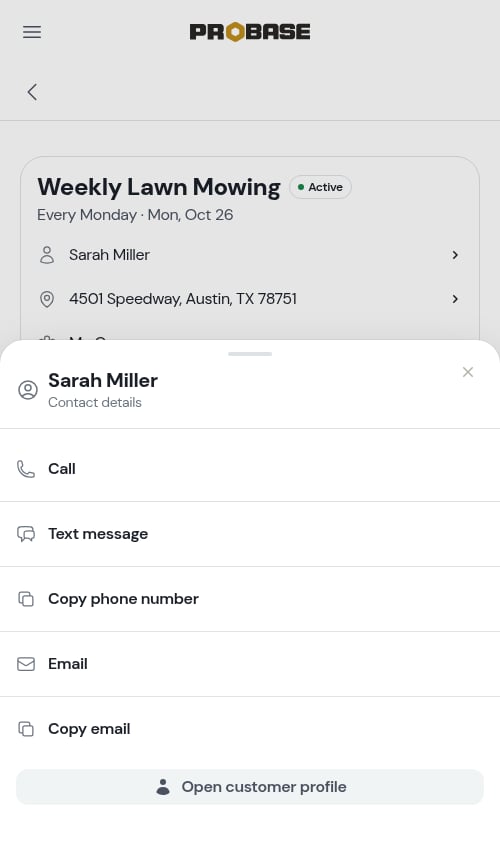
- Rows for the customer (tap for the contact sheet — Call, Text message, Open customer profile), the property address (tap for the address sheet — a satellite preview, Copy address, Get directions, Open property profile), and the crew on a business with more than one crew. The crew row is a fact here, not a button — the crew is set per visit
Service details
Shows pricing and core service information:- Service name — What you call this service
- Description — Details about what’s included (if provided). When the job came from an accepted quote, the description is copied across with its formatting intact, so bullets and bold text you wrote on the quote read the same here
- Price — What the customer pays per service or per billing period
- Tax and Total — If a tax rate is configured, the tax amount and total are displayed
Service plan
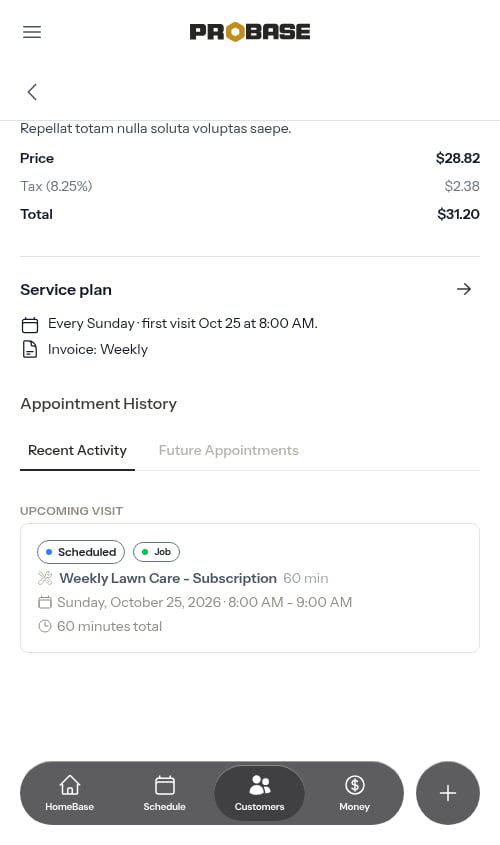
Two lines, and they’re deliberately short — the cadence and the next date are already on the header card, so this section doesn’t repeat them:- The schedule sentence — the plain-language version of the plan: Every Sunday · first visit Sep 20 at 12:15 PM., with the end date and the number of visits where the job has them. It’s absent until a visit is on the books
- How the customer is billed — Invoice: Per Job on a per-service job, or the subscription interval (Invoice: Monthly, and so on)
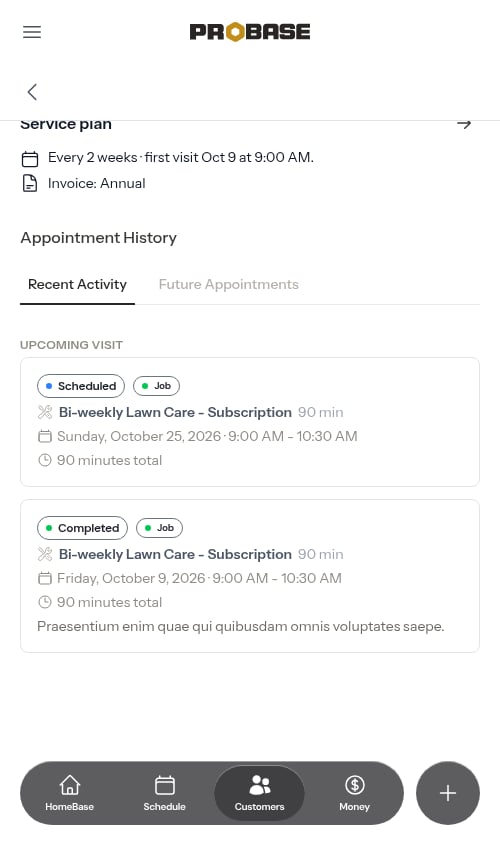
Appointment History
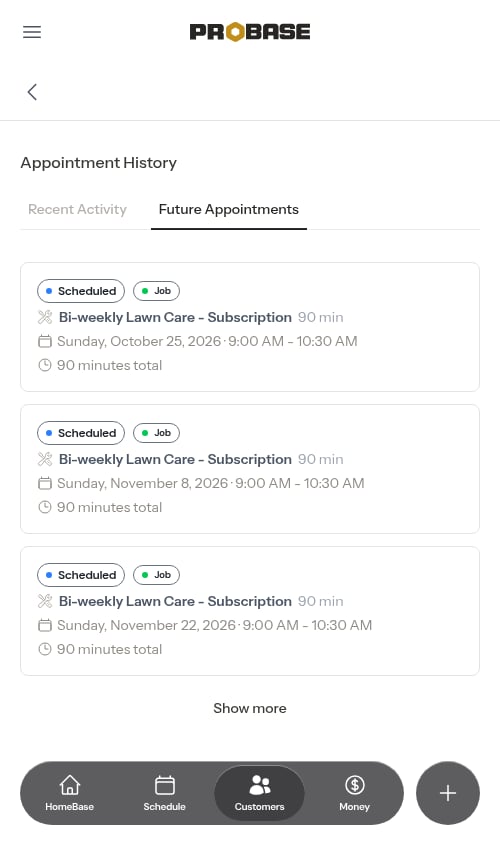
Below the service plan, this service’s appointments are organized into two tabs:- Recent Activity — completed, rescheduled, and cancelled visits, with the next upcoming visit pinned at the top under an Upcoming visit label
- Future Appointments — every upcoming scheduled visit, soonest first
Viewing a visit
Tapping an appointment opens the visit page — the one screen your crew works a job from. It carries the service name and the visit’s state, the customer, property, date-and-time and crew rows, the hand-offs (Directions and Text on my way), the action row, and the Visit · Details · Notes tabs.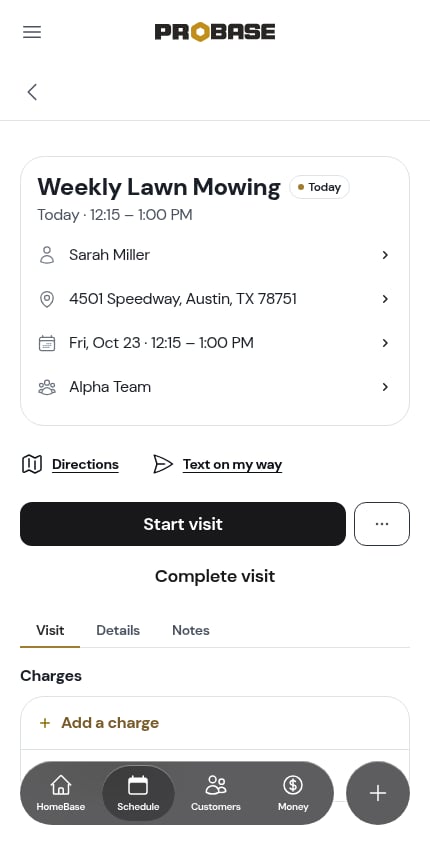
- Work the visit — Start visit, pause and resume the clock, then Complete visit. See Timing a visit and Completing a visit
- Fill in the checklists and add charges on the Visit tab
- Assign or swap the crew from the crew row on the header card (shown only when your business has more than one crew) — see Assign or change the crew
- Change time (move the visit within its day) or Reschedule it to another day, from the date-and-time row or the ⋯ More sheet
- Cancel this visit or Cancel job, at the bottom of the ⋯ More sheet — see Cancelling a visit
- Read the notes — the visit’s own pad, plus the property’s and the job’s notes, on the Notes tab
Actions your role isn’t allowed to use simply aren’t shown — see Roles and permissions.
A completed job visit
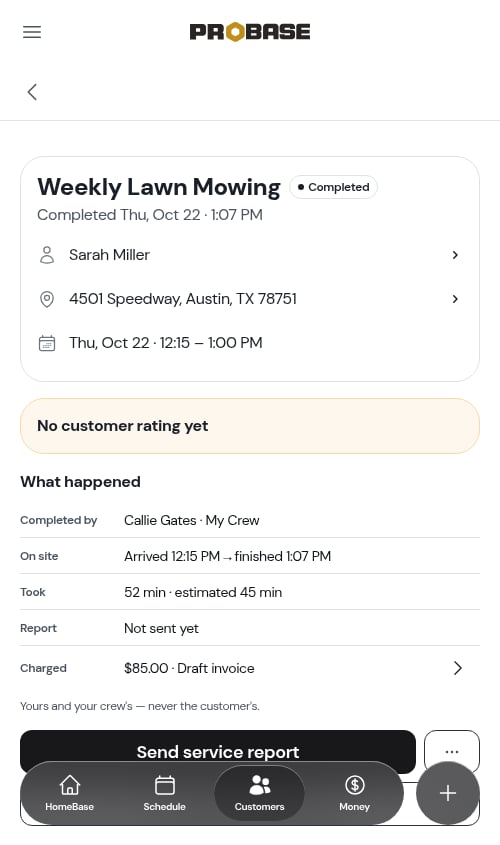
A completed job visit’s action row holds Send service report — the customer’s copy of the visit, with the invoice riding along if there’s money due — and Schedule another visit underneath it. See Sending the service report.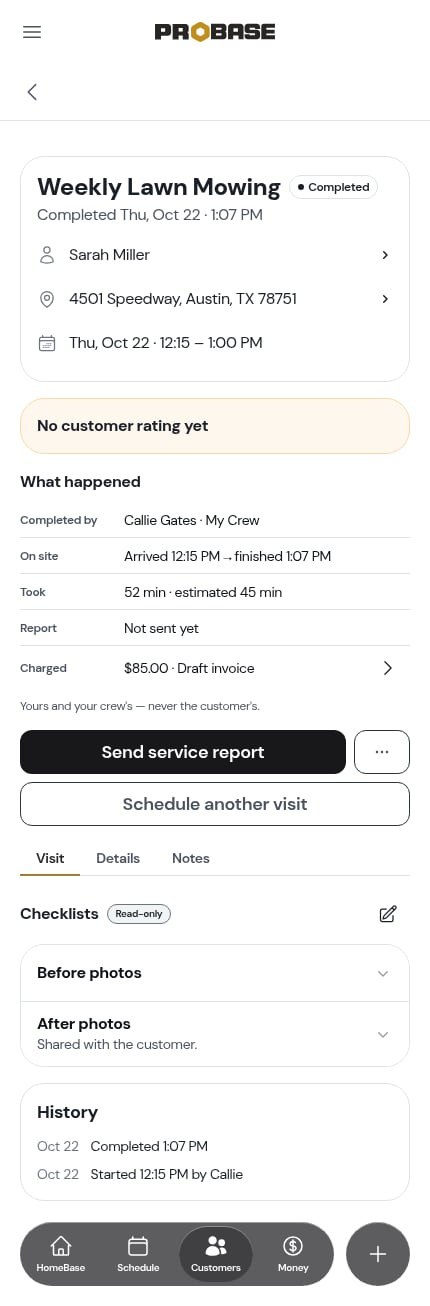
A completed assessment visit
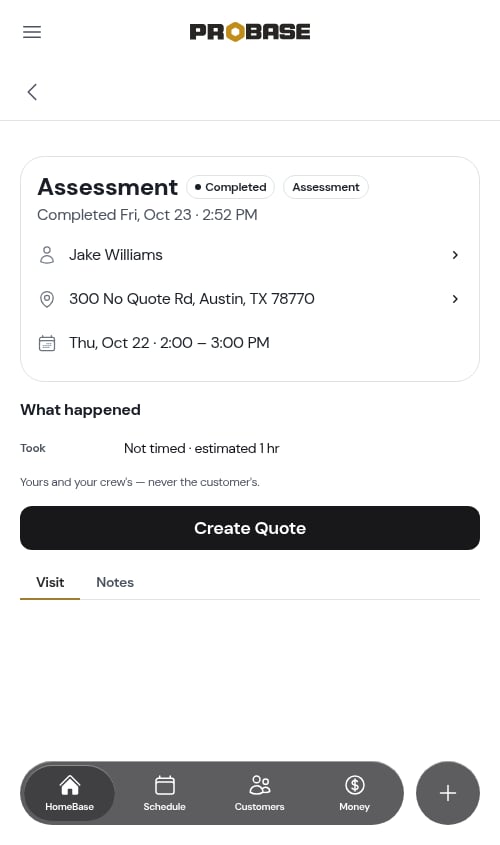
A completed assessment visit offers Create Quote instead — or View Quote once a quote exists for it.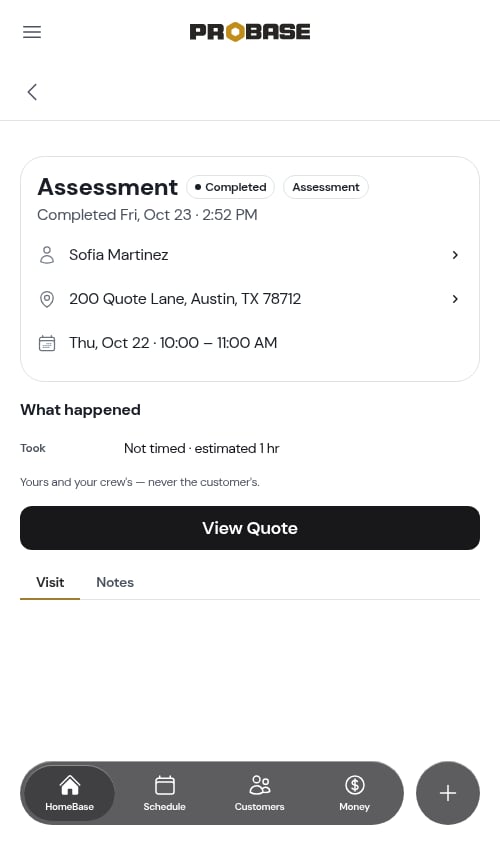
A rescheduled visit
A rescheduled visit keeps a single Send Reschedule Confirmation button, which opens a pre-filled text naming the new visit’s day, date and time (or simply noting that a new date will follow, if the replacement hasn’t been booked yet). See Rescheduling appointments.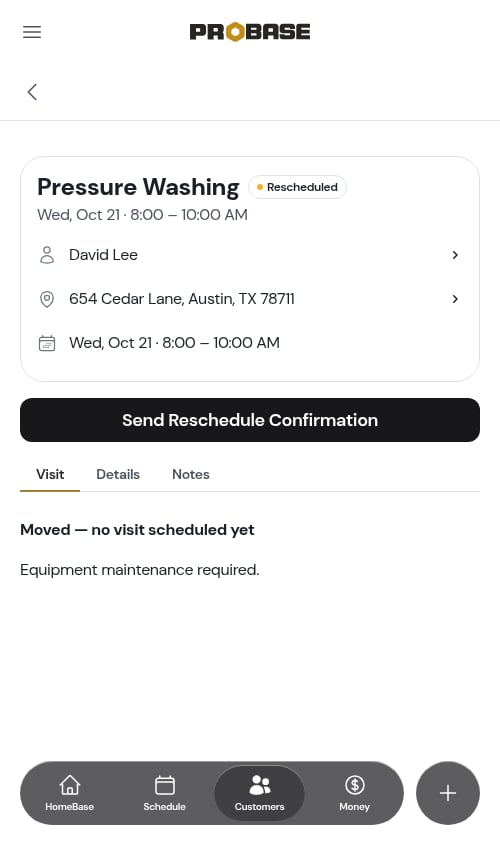
Scheduling appointments
Schedule a visit
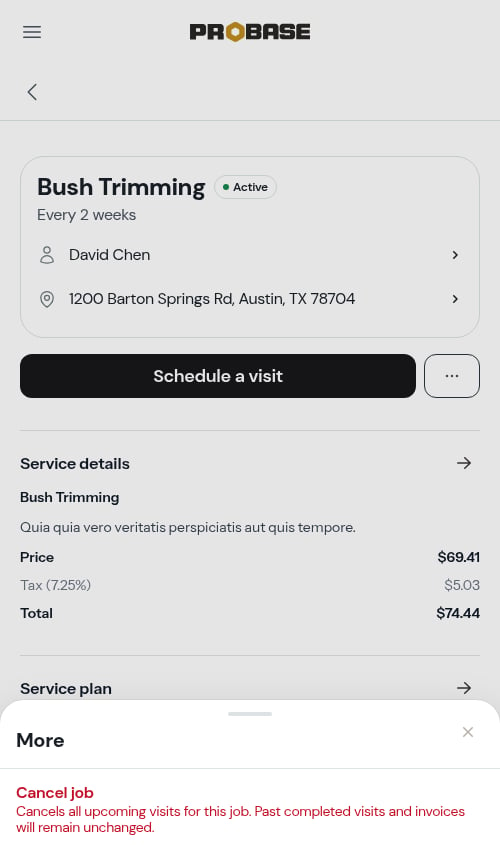
An active job with nothing on the calendar shows a solid Schedule a visit button directly under the header card, with a ⋯ button beside it. Every other state — a job that already has a visit booked, a completed job, a cancelled one — shows no button row at all.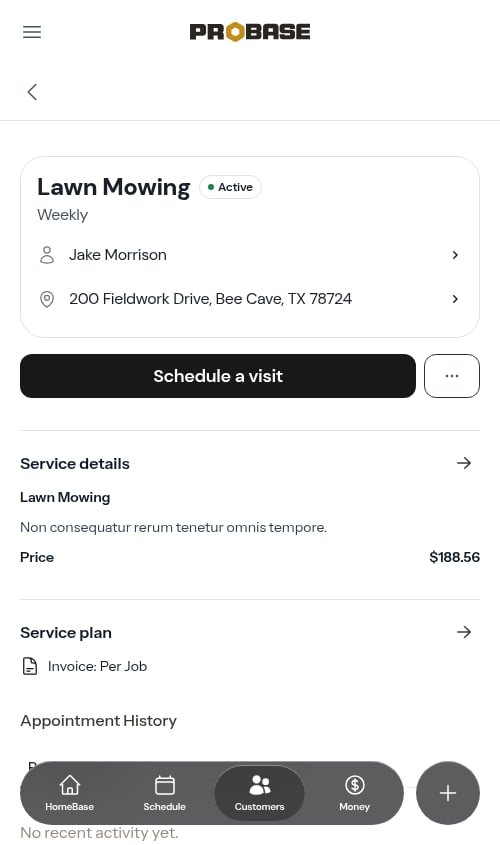
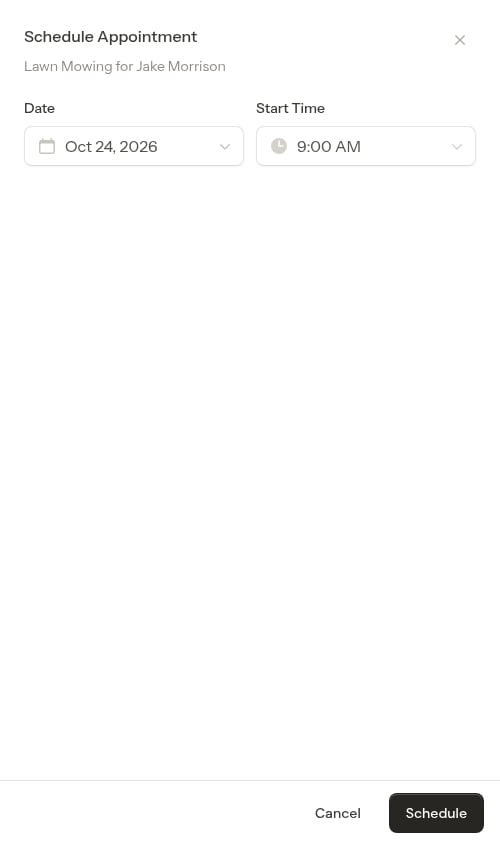
- Open next visit — only when the job has one, with the line Need to cancel just one visit? Open next visit underneath
- Cancel job, in red and always last — see Cancel job
Team members whose role can’t create jobs don’t see the button at all, and without permission to cancel jobs the ⋯ button isn’t shown either.
Service actions
Change Pricing
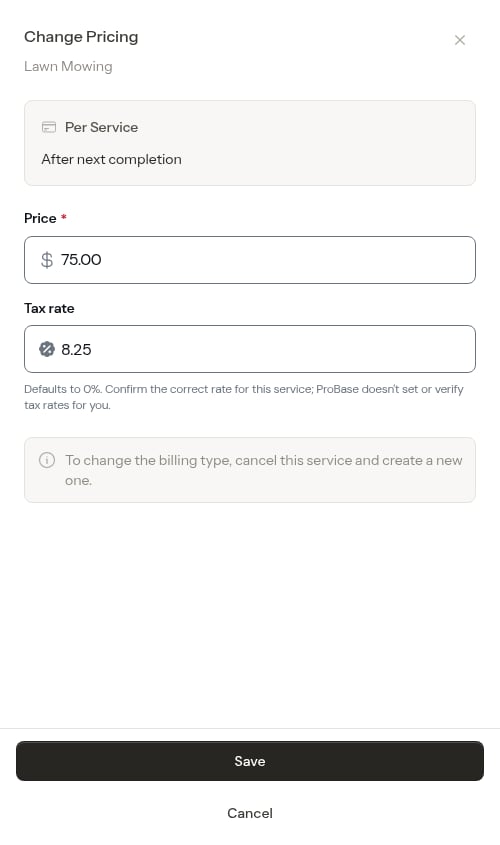
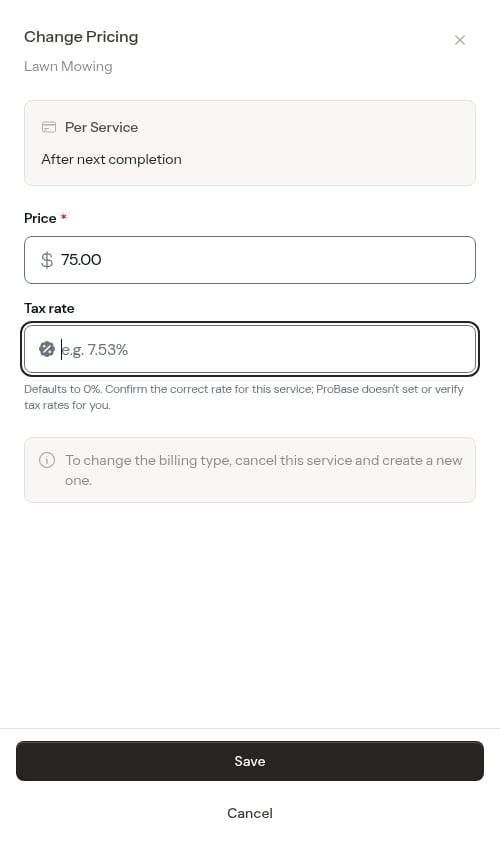
Tap the → button in the top-right of the Service details section to update the service’s price and tax rate. A full-screen modal opens where you can:- Update the Price (what the customer pays per service or per billing period)
- Update the Tax rate — entered as a number (e.g.,
8.25for 8.25%). Leaving the field blank saves it as 0%, so you can clear the rate to stop charging tax. ProBase never sets, suggests, or verifies a tax rate for you — confirm the correct rate for the service before saving.
Change Schedule
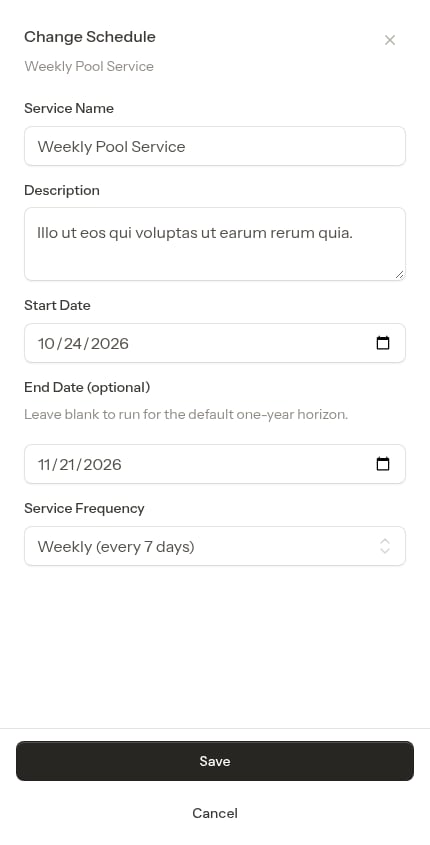
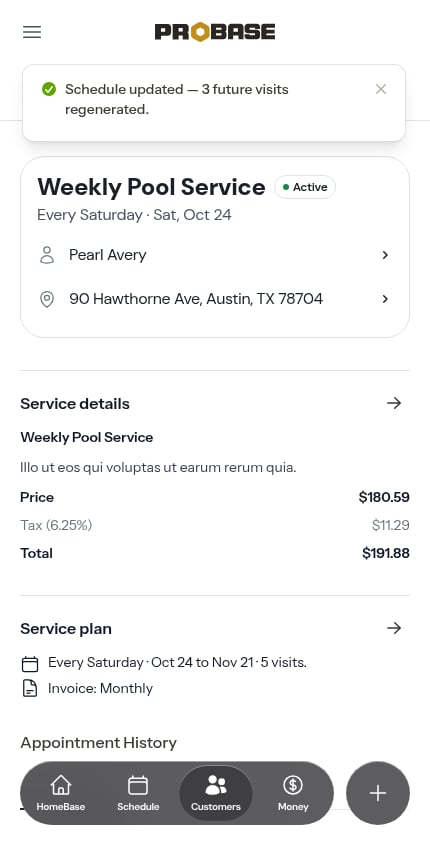
Tap the → button in the top-right of the Service plan section to update the service’s schedule. A full-screen modal opens where you can modify:- Service Name - What you call this service
- Description - What’s included
- Industry - The trade this job belongs to (only shown if you’ve set up more than one trade). See Industries (trades).
- Start Date - When the visit schedule begins
- End Date (optional) - When the recurring schedule stops (leave blank to run for one year from the start date)
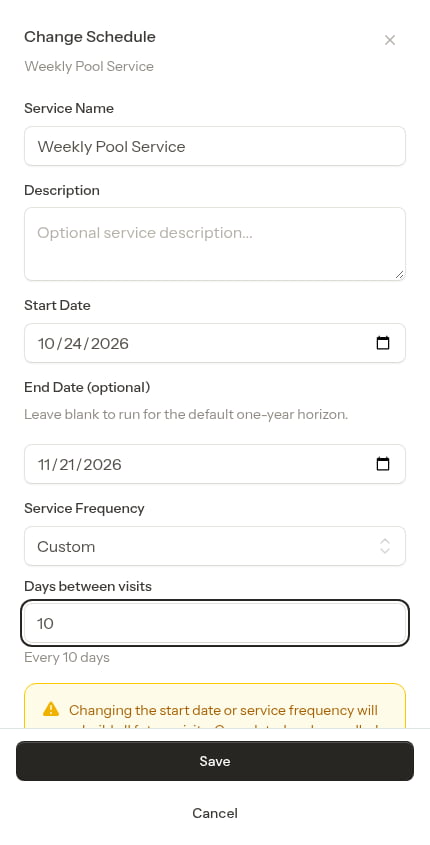
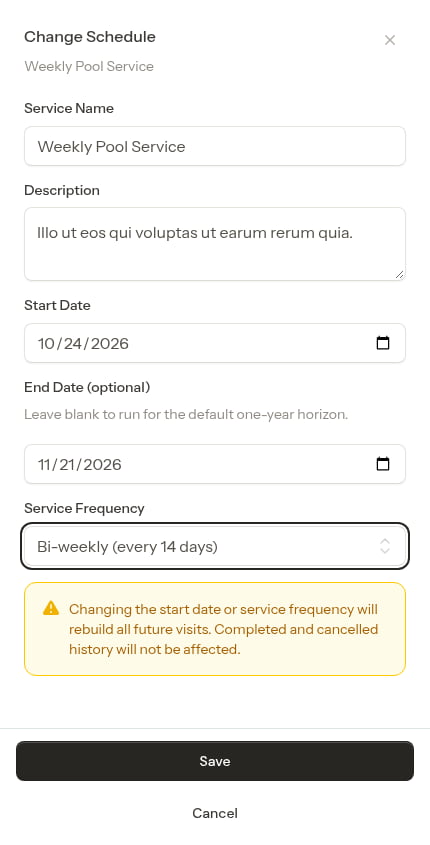
- Service Frequency - How often work is performed (One-time, Weekly, Bi-weekly, Monthly, Every 2 months, Quarterly, Every 6 months, or Custom for any other cadence)
If the schedule can’t be saved
If ProBase can’t apply the change, you get a red message saying so instead of the green confirmation — so a change that didn’t stick is never reported as saved. The most common reason is that the service was cancelled in the meantime (for example, in another tab, or by a teammate while you had the window open); the message reads “This service is inactive, so its schedule can’t be changed.” Reload the service page to see its current status. A cancelled service keeps its history and you can still work its remaining visits, but its schedule can’t be edited — set up a new service if the customer wants the work to continue. See Working with cancelled services. See How recurring visits are scheduled for the full picture of how the visit chain is rebuilt.Cancel job
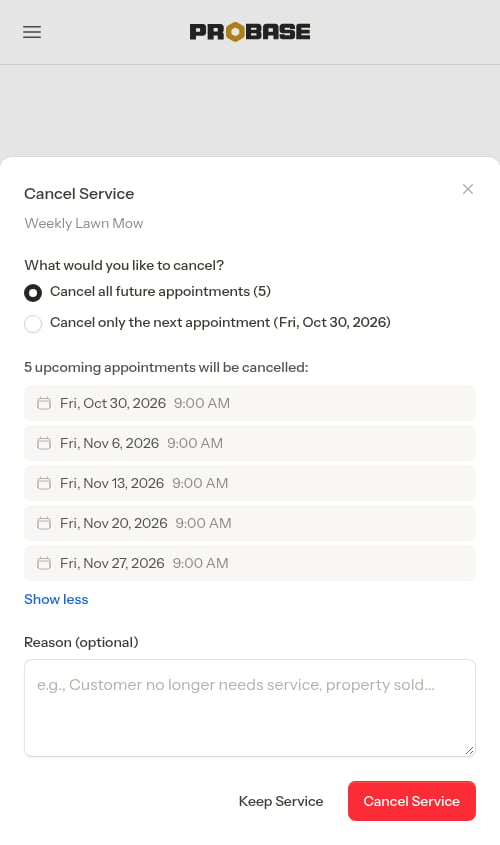
Cancelling a job ends the work: every upcoming visit is cancelled, while past completed visits and the invoices for them stay exactly as they are. From a visit — open any visit for the job, tap ⋯ More, and take the last row, in red: Cancel job. A window headed Cancel job confirms what it covers; add an optional reason and tap Cancel job, or back out with Keep the job.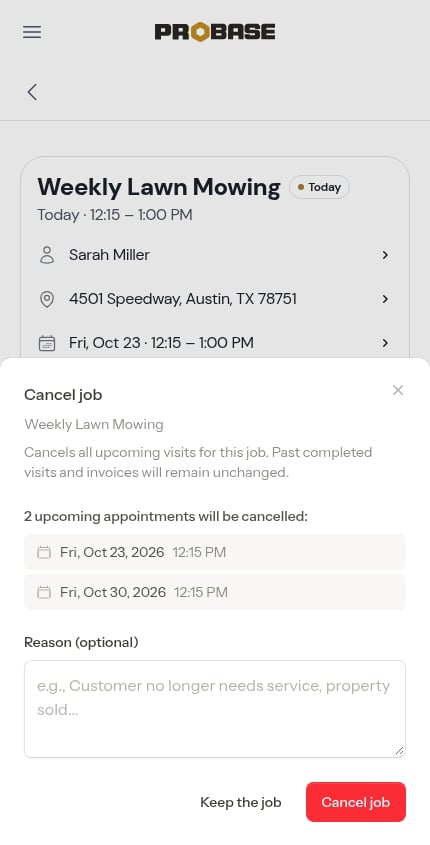
Choosing how much to cancel, from the job page
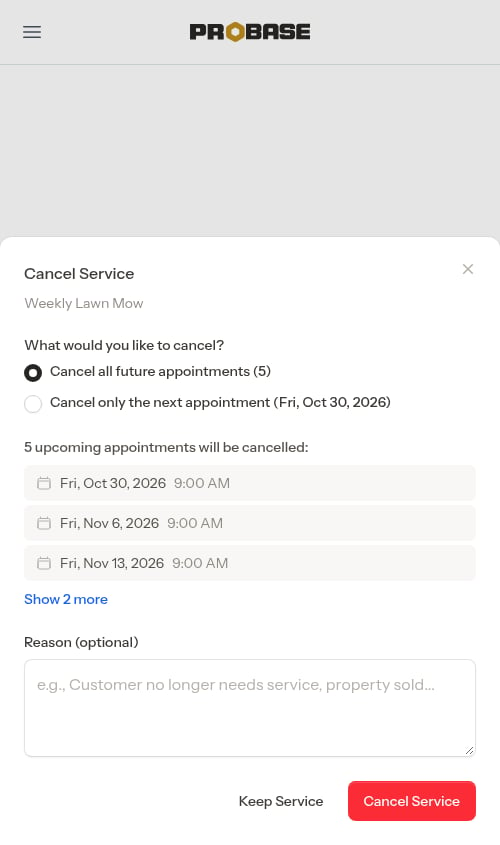
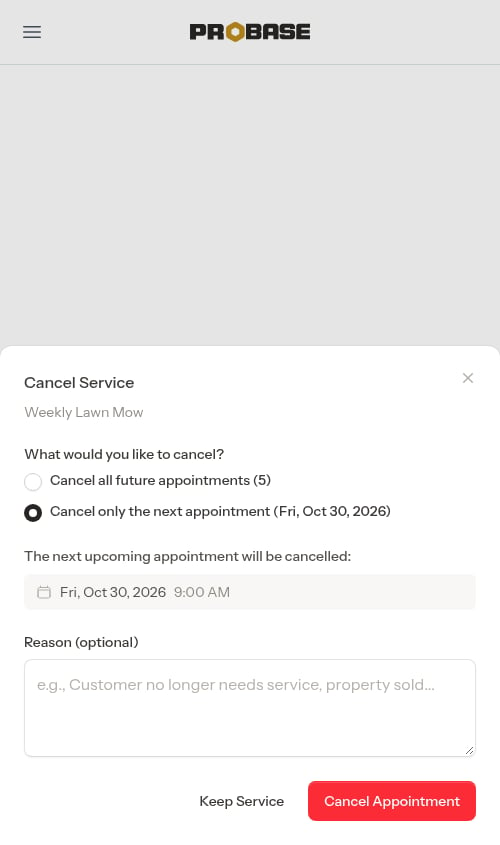
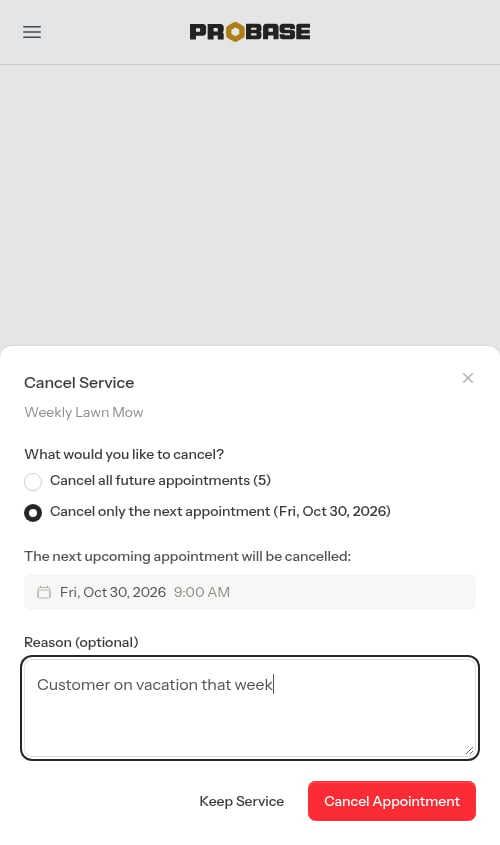
The window opened from the job page asks What would you like to cancel? whenever the job still has visits on the calendar and your role can cancel both the job and single visits:- Cancel all future appointments (5) — the whole job, as above
- Cancel only the next appointment (Fri, Sep 25, 2026) — just the next visit; the job carries on
If someone else completed, rescheduled or cancelled that visit while your window was open, nothing is written and you get a warning instead — That visit is no longer scheduled — nothing was cancelled. The rest of the job is left exactly as it was.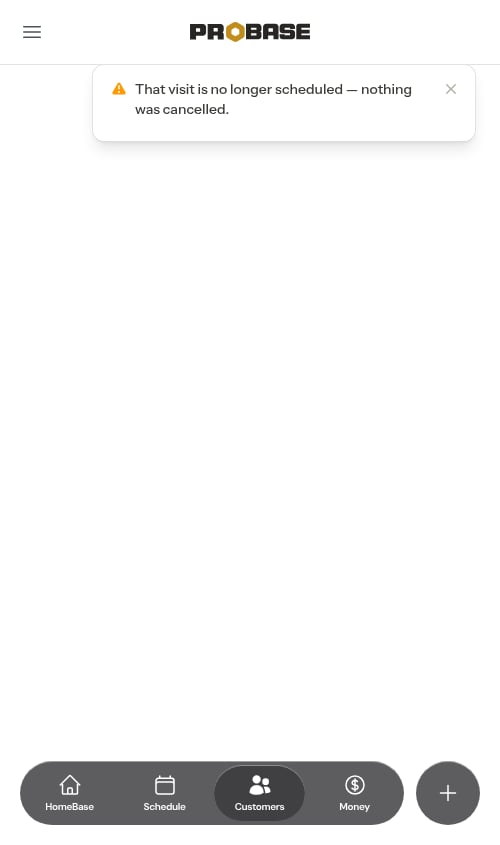
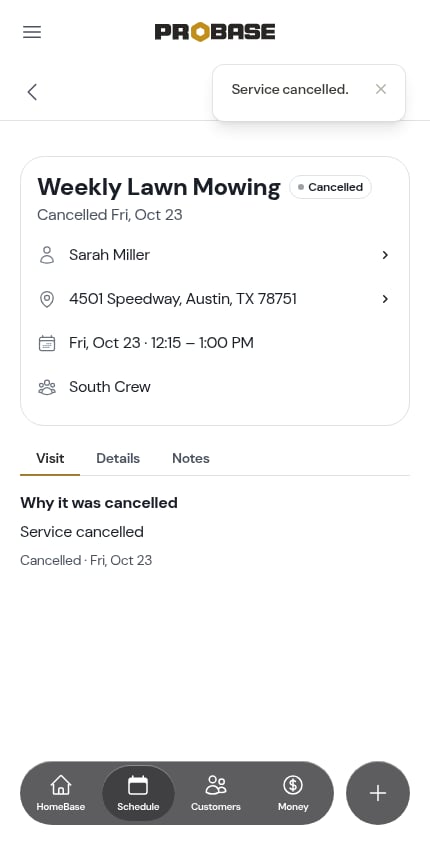
- The job’s status changes to Cancelled
- Every upcoming scheduled visit is cancelled
- A visit someone was in the middle of working has its clock stopped, and the time already worked is kept on it
- Your reason is saved, if you entered one
- The Schedule a visit button is gone
Only calling off one visit? Use Cancel this visit, one row above, and the job carries on. See Cancelling a visit.
Working with cancelled services
After cancelling a service, you can still:- View appointment history and past service records
- Cancel individual remaining scheduled appointments (see below)
- The “Schedule next visit” step is automatically skipped (a cancelled service doesn’t book new visits)
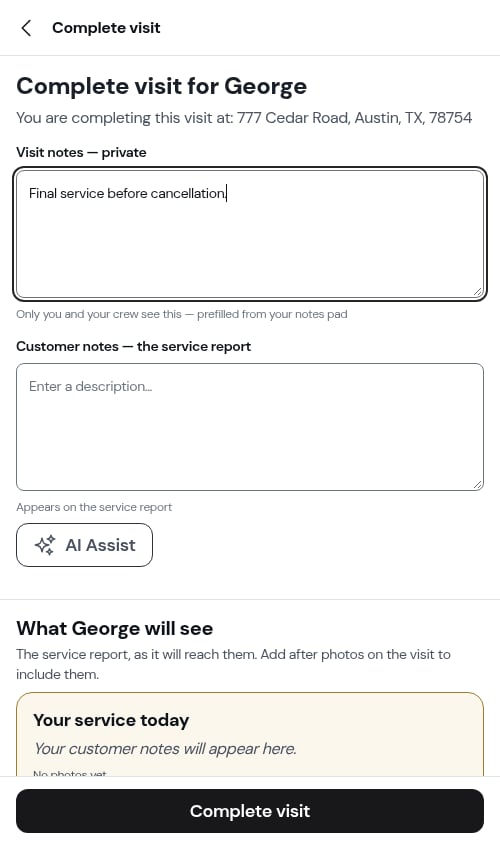
- Completion works the same as active services (you can add notes and service records)
- For per-service billing, charges are still created when appointments are completed
Cancelling individual visits on a cancelled service
If any scheduled visits were not cancelled along with the job and you want them off the calendar:- Open the visit from the service page, the calendar or your schedule
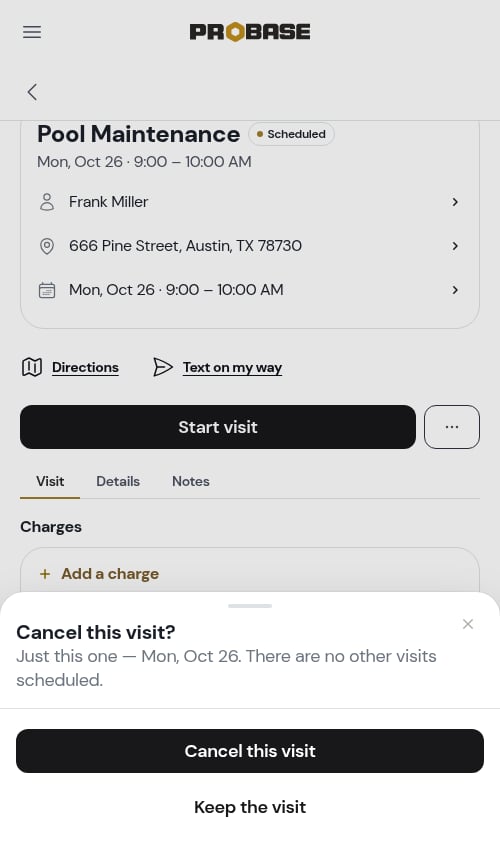
- Tap ⋯ More → Cancel this visit
- Confirm in the sheet — if the visit has charges or notes of its own, it asks whether to move them to the next visit first
Service types: Jobs vs Assessments
Services can be either Jobs or Assessments, representing different stages in your workflow:Jobs
Jobs are confirmed work ready to schedule and perform. Characteristics:- Service status is “Active”, “Completed”, or “Cancelled”
- Work is confirmed and ready for scheduling
- Appointments can be completed and will generate charges (for per-service billing)
- Most of your services will be Jobs
- Created when you accept a quote or create a job directly from the Quick Actions menu
Assessments
Assessments are on-site evaluations where you gather information to create quotes. Characteristics:- Assessment status is New, Waiting on customer, Visit scheduled or Ready to quote while it’s open, and Quoted or Closed once it’s resolved
- Used for on-site assessments before providing formal quotes
- Schedule an appointment to visit the property and assess the work needed
- After completing the assessment, you create a quote with pricing and details
- Answer the visit’s checklist questions, if it has a checklist
- Write your Notes about what you found on site — these are private to you and carry into the quote
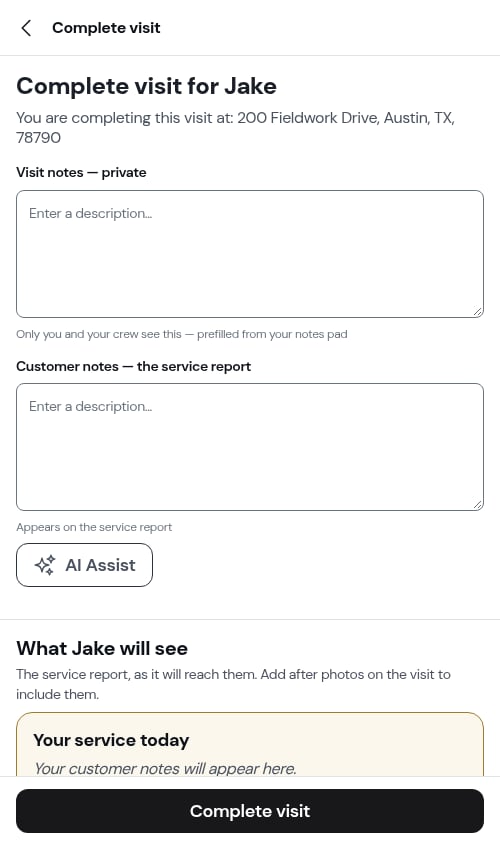
- Finish with Complete and create quote (a draft quote opens right away), Complete — quote later (the assessment moves to Ready to quote), or Close assessment (there’s nothing to quote)
- View Quote — Appears when a quote has been created for this assessment. Tap it to open the quote directly.
- Create Quote — Appears when no quote exists yet. Tap it to start the quote creation process.
- Create an Assessment service for a customer (see Creating quotes and assessments)
- Schedule and complete an assessment appointment to visit the property
- During completion, create a Quote with your recommended service and pricing based on what you observed
- Review and send the quote to the customer for approval (see Managing quotes)
- When the customer accepts the quote, it automatically creates a Job service with the first appointment scheduled
- The job is ready to complete and will generate charges (for per-service billing)
The full workflow is: Assessment → Quote → Job. However, if you can quote without a site visit, create a Quote directly. If work is already confirmed, skip straight to creating a Job.
Once a customer accepts a quote, the original Assessment service is hidden from the customer’s services list — only the resulting active Job appears, so the page doesn’t show duplicate work. Draft, sent, and declined assessments still appear so you can re-engage them.
The visit briefing
A visit that’s still ahead of you carries a What you need for this visit card — a few plain lines the AI writes from the notes already on the customer, the property and the job, so your crew has the gate code, the dog and last visit’s request before they get out of the truck. It’s for you and your crew, never the customer, and it disappears once the visit is completed or cancelled. To add notes that feed the briefing:- Customer notes — the Notes card on the customer’s page (see Adding notes)
- Property notes — the Notes card on the property’s page
- Job notes — the notes on the job itself
Understanding service billing
Per-Service Billing
- Customer is billed each time an appointment is completed
- A billing line item (charge) is created automatically when the crew marks the appointment complete
- Best for one-time jobs or pay-per-visit arrangements
- The price shown is the amount charged per visit
Subscription Billing
- Customer is billed on a recurring schedule (weekly, monthly, quarterly, semi-annual, or annual)
- Billing line items are created automatically by ProBase on each configured billing date
- Completing appointments does NOT create charges
- The price shown is the amount charged per billing period
- Charge Dates — open the job and tap the → beside Service details to see when charges are automatically created: the last charge date and the next 3 upcoming billing dates
Service frequency
Service frequency determines how often work is performed:- One-time - Work happens once (spring cleanup, installations)
- Weekly (every 7 days) - Work every week
- Bi-weekly (every 14 days) - Work every two weeks
- Monthly (every 28 days) - Work approximately once per month
- Every 2 months (every 56 days) - Work approximately once every two months
- Quarterly (every 90 days) - Work approximately once every three months
- Every 6 months (every 182 days) - Work approximately twice a year
- Custom - Any other cadence, from 1 to 365 days between visits
Custom frequencies
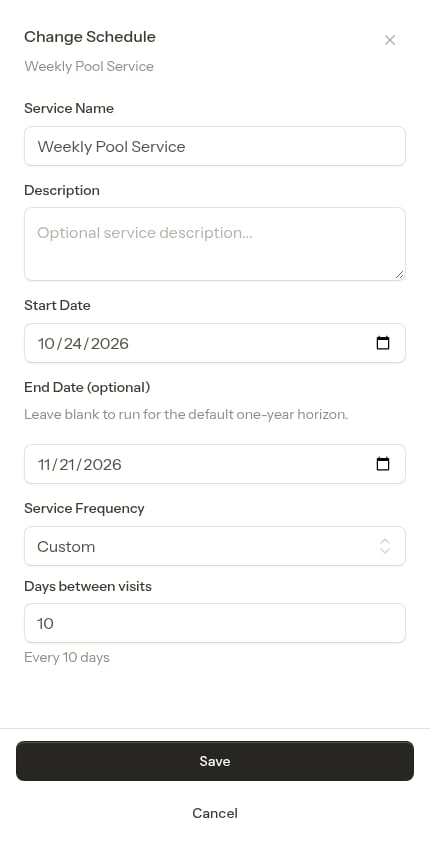
If none of the presets match how you work, pick Custom in the frequency picker and type the number of days between visits in the Days between visits box. The box starts out holding the cadence the service is on now, so you’re always editing a real number rather than an empty field, and a line underneath confirms the result — Every 10 days — before you save.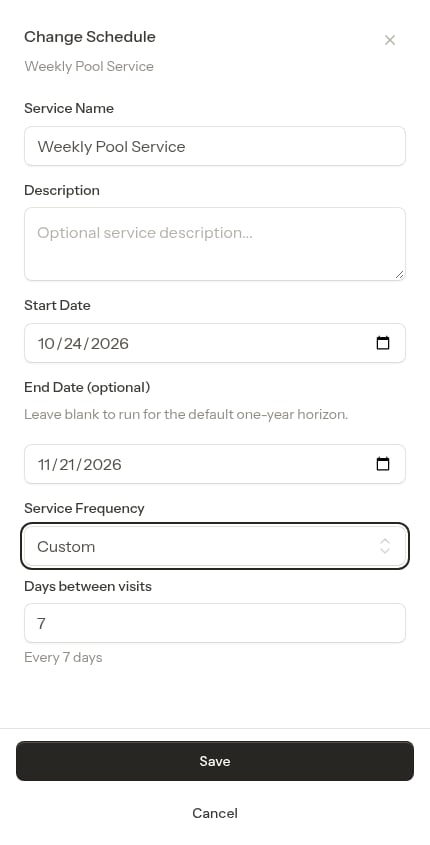
A year (365 days) is the longest gap you can set. Type more than that and the form won’t save until you bring the number back down.
Next steps
- Create appointments for your services
- Complete appointments and document service records
- Manage your service catalog to create reusable templates
- Understand billing types to choose the right billing method