What updates are
An update is a short, in-app message telling you something happened in your business that may need you — a new contact came in through your form, a customer’s card payment went through, or Stripe paused your payouts, for example. Updates collect in one place behind the bell, so you can see what’s new without hunting through screens or scrolling back through your email. Each update is one line you can tap. Tapping it takes you straight to the screen where you’d act on it — the new lead’s customer page, for instance — rather than making you go and find it.Updates are being switched on gradually. The bell only appears once the feature is enabled for your account, and more kinds of updates are being added over time. If you don’t see a bell yet, nothing is wrong — it hasn’t reached your account.
Where the bell lives
On your phone, the bell sits in the app bar at the top of every screen, at the far right edge with the chat (support) icon just inside it. When you have unread updates, a small gold badge sits on the corner of the bell with the count in it. More than nine and it reads 9+. With nothing unread, there’s no badge at all. On a computer, there’s no top bar, so the bell is an Updates item in the navigation drawer, pinned in the footer just above My Profile. The unread count rides on the right-hand side of the row as the same gold pill.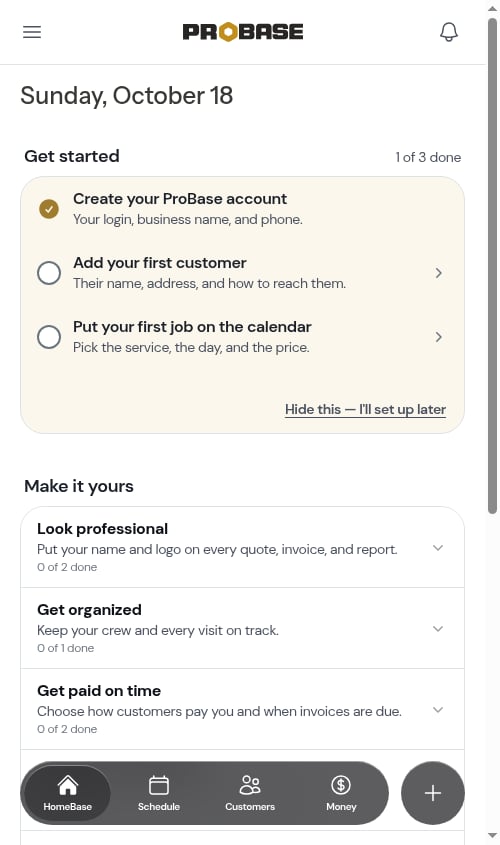
The count refreshes on its own while you’re using ProBase, so you don’t have to reload the page to see something new land. It keeps checking even when ProBase is sitting in a background tab — so if you read something on your phone, the badge on your laptop clears itself without you touching it.
The Updates drawer
Tapping the bell slides the Updates panel out from the right-hand side of the screen. It opens the moment you tap — grey placeholder lines fill it for the instant it takes your updates to load, then the real rows replace them. Tap the ✕ in its top corner, or the dimmed page behind it, to close it again.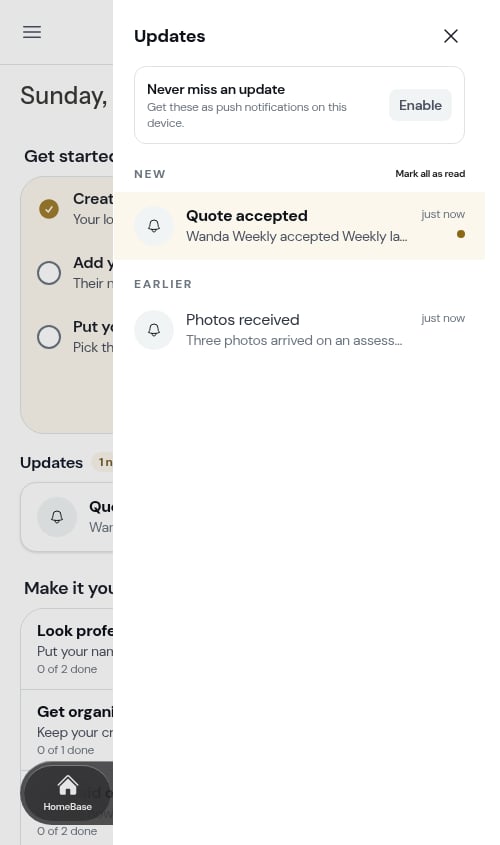
- New — updates you haven’t read yet. These rows are tinted, their titles are bold, and each carries a small gold dot on the right.
- Earlier — updates you’ve already read. Plain rows, no dot.
The list shows updates for the business you’re currently working in. If you belong to more than one business in ProBase, switch companies to see that business’s updates — the badge on the bell counts everything unread across all of them, so it can read higher than the list you’re looking at.
Mark all as read
Come back from a week away and New can be long. Rather than opening every row to clear it, tap Mark all as read — the small link beside the New heading.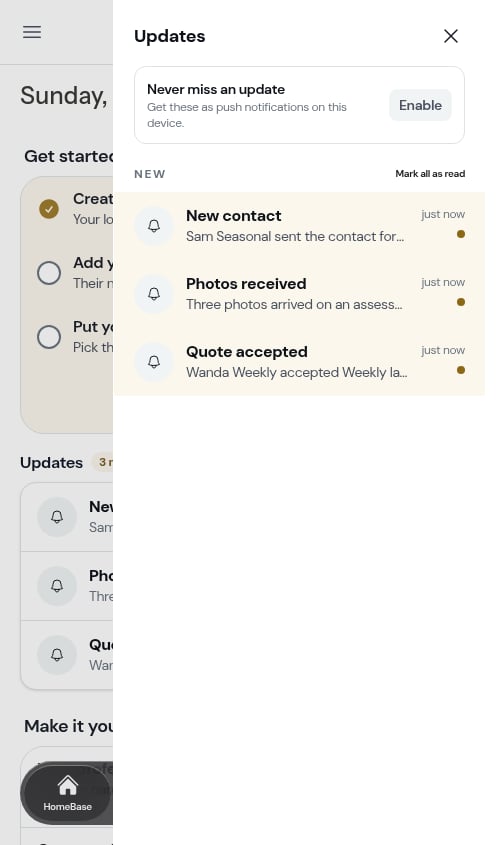
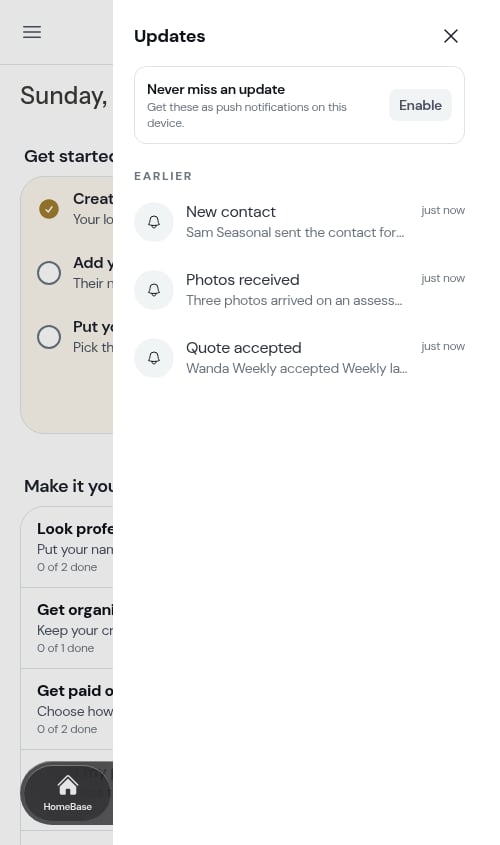
It clears the business you’re currently working in. If you belong to more than one business, the others keep their unread updates — and their share of the bell’s count.
When there’s nothing to show
If you have no updates at all, the drawer says You’re all caught up, with a line explaining what will land there in future: “When something needs you — an accepted quote, new photos, a new contact — it lands here.”Updates on HomeBase
You don’t have to open the bell to see what’s waiting. HomeBase carries an Updates section of its own, below Action needed, showing your unread updates on the page you land on after logging in.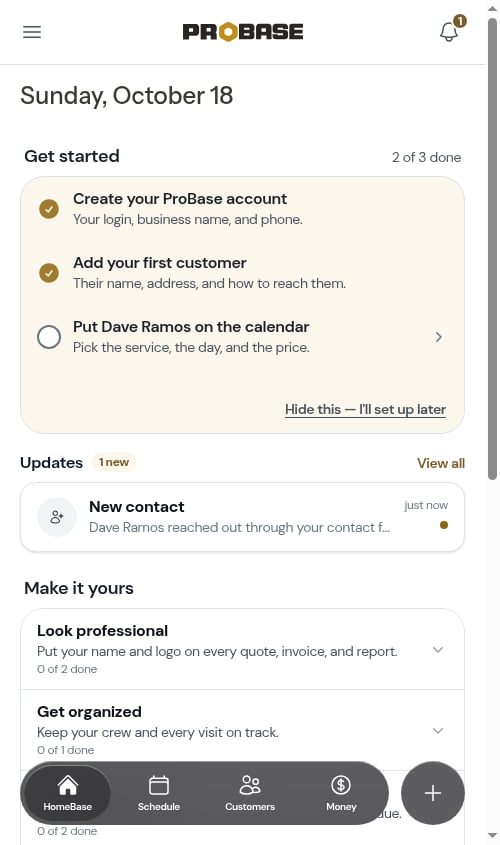
- The gold N new chip beside the heading counts everything unread.
- Up to three rows are shown, newest first — the glance version, not the whole feed.
- View all opens the drawer described above, where the rest of them (and everything you’ve already read) live.
- Tapping a row works exactly like tapping it in the drawer: you land on the screen it points to, and the update is marked read.
The HomeBase section is unread only, so it empties out as you work and disappears entirely once nothing is unread — there’s no empty state there. The drawer is the place to look back at things you’ve already read.
How updates get marked read
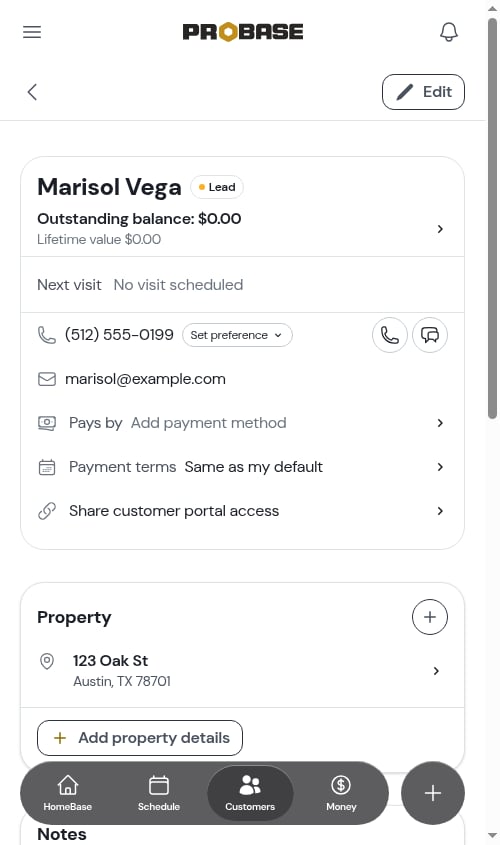
Opening the drawer doesn’t mark anything read. You can look at the list, decide none of it is urgent, and close it again — the badge keeps its count. An update is marked read when you actually arrive at the screen it points to. Tap a New contact row, land on that customer’s page, and that update quietly moves to Earlier, the badge ticks down, and the row drops out of the HomeBase section. Getting to the same screen another way counts too — if you happened to open that customer from your customer list, the update is marked read just the same.This is deliberate. The badge tracks work you haven’t looked at yet, not notifications you haven’t glanced at — so it clears itself as you actually work through things.
Push notifications for updates
Updates can also arrive as alerts on your phone’s lock screen. That’s a separate switch, granted per device:- Open the drawer with notifications not yet decided on this device and a small Never miss an update panel appears at the top with an Enable button. Tapping it asks your phone for permission.
- You can also turn it on — or back off — from Notification Preferences on your profile. See Push notifications.
Push notifications need ProBase installed on your home screen. See Push notifications for the full setup.
What sends an update today
Leads
- New contact — someone new submitted your contact form. Links to the new lead’s customer page. You still get the email as well.
- New request — the same thing from a phone number you already had on file. ProBase attaches the request to that customer rather than making a second record of them, so the update says request instead of contact and links to their existing page.
Marketplace work
- New LawnStarter Customer! — a customer arrived from a connected marketplace account, usually because you claimed one of their jobs in the marketplace app. The line underneath names them — Dana Whitfield was added to your customers from LawnStarter — and tapping it opens their customer page, where their property, service, and visits are already waiting.
Connecting a marketplace account for the first time doesn’t fill your feed. That first import brings your whole existing book across at once, and ProBase stays quiet through it. Updates start with the next genuinely new customer. See New customers arrive on their own.
Customer ratings
- [First name] rated your service N stars. — a customer submitted a rating, either on the visit’s service report or on the “How was your service?” screen before paying an invoice. Their comment, if they left one, is the line underneath, and tapping the update opens the visit they rated.
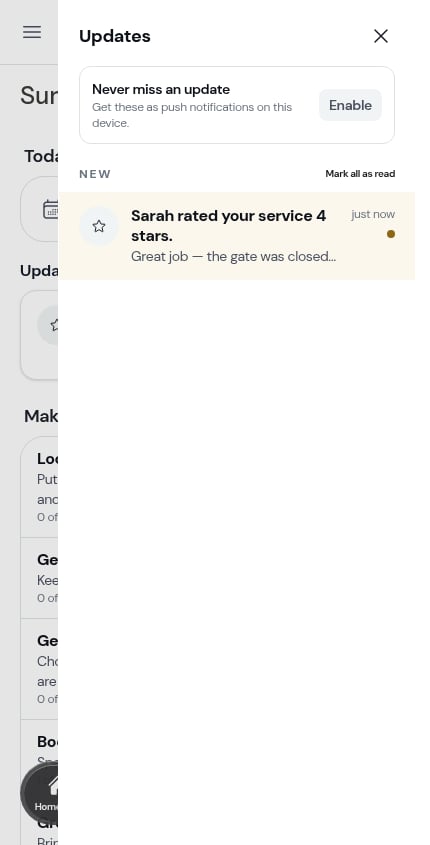
- [First name] left private feedback on their N-star rating. — after a 1–3 star rating, the customer told you what went wrong in the private box on their report. Their words are the line underneath, and tapping the update opens the visit. See Google reviews.
Money
These land when something happens to a payment while you’re out working. They go to everyone whose role includes the Money permissions, and tapping one opens the customer it concerns — or the Money page, if ProBase can’t tie it to a single customer.Payment processing
These are about the health of your Stripe connection — the kind of thing you’d otherwise only notice the next time you opened the Payments page. They go to everyone whose role lets them see payment settings, and each one links straight to Payments.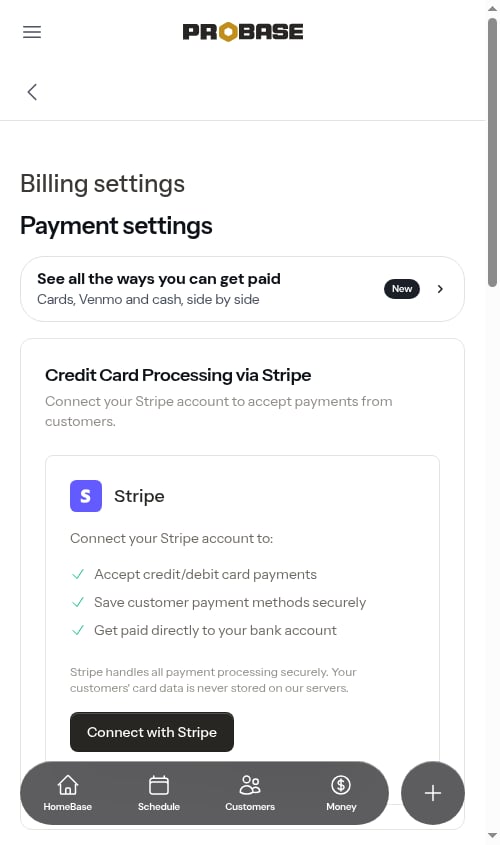
Stripe updates only arrive when something actually changes. Stripe re-checks your account constantly behind the scenes, and you’ll only hear about it when the account moves from one state to another — so a healthy connection stays quiet.
Late fees
When ProBase adds an automatic late fee to an invoice, everyone who can see invoices gets an update. For example: A late fee of 8% ($8.00) was added to Marcus’s invoice #00001 and the invoice was sent again. If ProBase couldn’t resend the invoice, the update says so and asks you to Resend it so the customer sees the new total. More events are being added over time. Anything already in your drawer stays there.Updates go to the people on your team who can act on them, based on their role. Someone who joins your team after an update was sent doesn’t get that older update.
How long updates stick around
- Unread updates never expire. They stay in New until you’ve been to the screen they point to, or you tap Mark all as read.
- Read updates are kept for 30 days, then clear themselves out of Earlier automatically.
Related pages
- Getting around ProBase — where the bell sits in the app bar and the drawer
- Push notifications — getting updates as phone alerts
- Text message notifications — the separate SMS preference
- Your contact form — the source of the New contact update
- Setting up payment processing — the Stripe connection the payment-processing updates report on
- Tracking payments — where a Payment received or Payment failed update lands you
- HomeBase — the unread Updates section on your dashboard
- How marketplace syncing works — the source of the New Customer update