Overview
Jobs you get through a connected marketplace sit on your ProBase schedule right next to your own work, so you plan your day in one place. The difference is where the work gets finished: a marketplace job is completed, rescheduled, or cancelled in the marketplace app, and the result syncs back to ProBase. ProBase makes those jobs easy to spot, lets you time them and arrange your own day around them, and gives you a one-tap way into the marketplace app when it’s time to finish the visit.Spotting a marketplace job on your schedule
Anywhere a job appears — the day, week, and month calendar, the day overview panel, your daily route stops, and the Overdue jobs and Jobs that need a crew lists on HomeBase — a marketplace job carries a small brand mark (the marketplace’s logo) next to the customer’s name.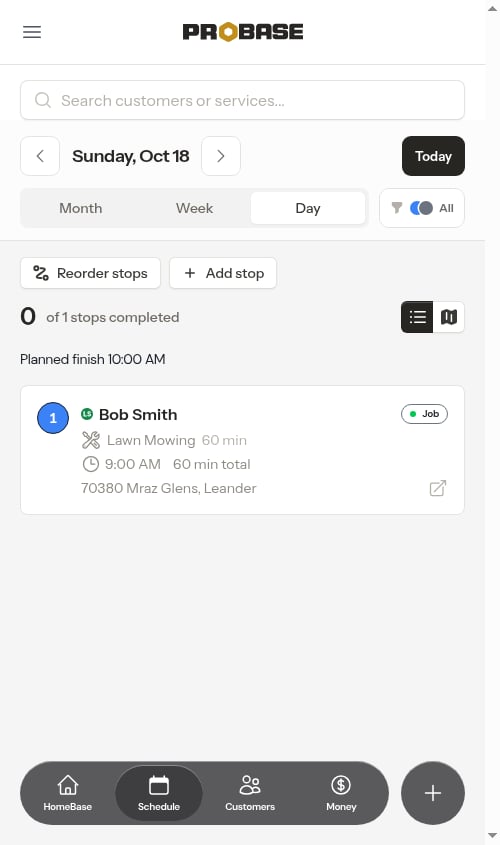
First service and gate marks
Two more marks come across from LawnStarter so you can plan before you open the visit:- First service (with a small flag) — this is the customer’s first visit, so allow a little extra time to find your way around the property
- 24in gate or 48in gate — the property’s gate is narrow, so pick equipment that fits through it. A wide gate, no gate, or a gate LawnStarter hasn’t measured shows nothing
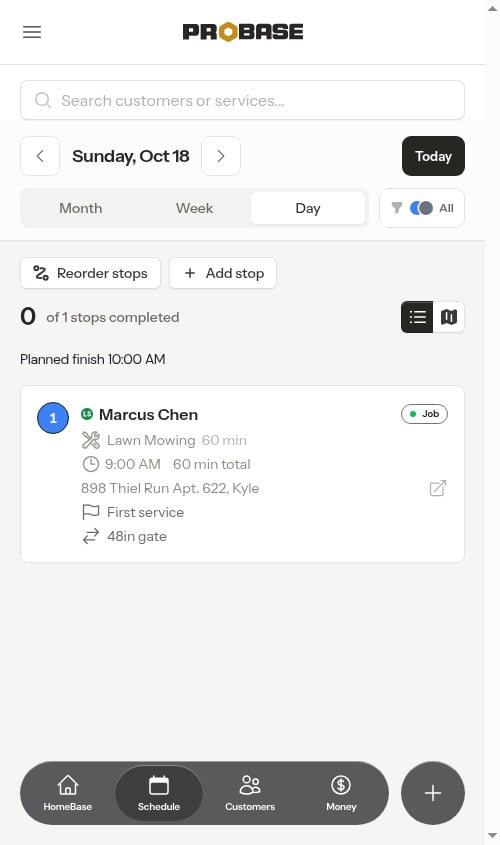
First service is only a heads-up. It doesn’t pin the visit’s time or change anything about how the day is planned.
How a marketplace job is named
A marketplace job carries the same name in ProBase that it has in the LawnStarter app, so you can match the two at a glance:
Seeing Fix for … on your day tells you it’s a return trip to put something right on a job you already did, rather than the customer’s regular visit. Only if the marketplace sends no service at all does the job fall back to a general name like LawnStarter service.
The visit page
Tap a marketplace job and you land on the visit page — the same screen you work your own jobs from, with the same header card, the same buttons in the same places, and the same clock. There’s nothing new to learn.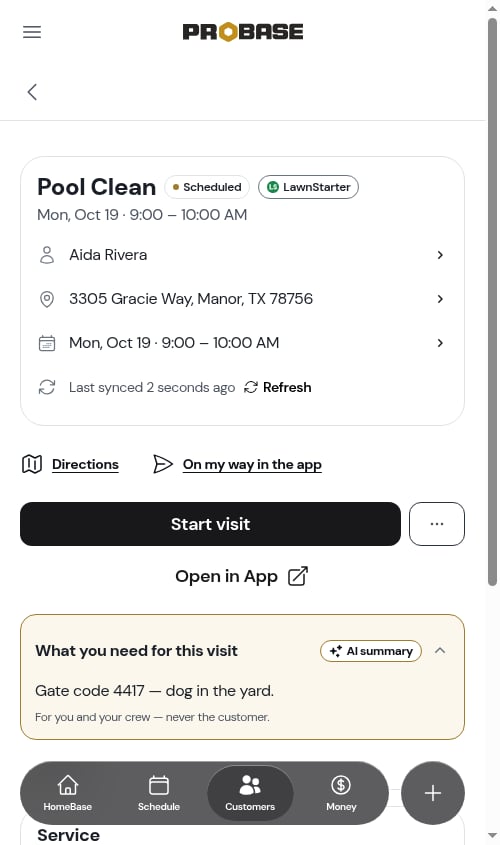
The header card
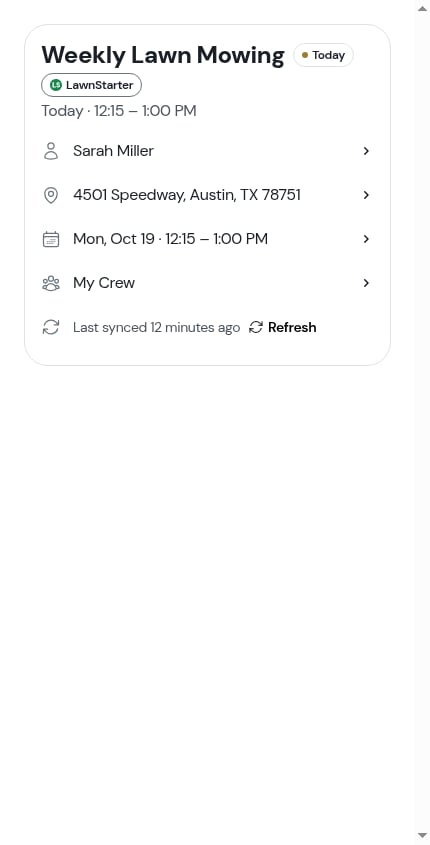
At the top sits the job’s name, the visit’s state pill (Scheduled, Completed, and so on) and a LawnStarter pill naming the marketplace the job came from. On the customer’s first visit a First service pill sits there too. Underneath, the same rows as on your own visits:- The customer — opens the contact sheet. On a marketplace job it has no phone or email rows: those details never cross over. In their place is a short line, LawnStarter doesn’t share customer contact details — contact the customer in the LawnStarter app., above an Open Customer Profile on LawnStarter button and a link to the customer’s ProBase profile. This row works whatever the visit’s status — the marketplace app is your only way to reach the customer, so it stays reachable on a job you already finished
- The property address — opens the address sheet: a satellite preview, Copy address, Get directions in your maps app, and Open property profile
- The date and time — tap it and the Edit Time window opens straight away. The marketplace owns the day, so there’s no Reschedule here — see Adjusting the time for the day
- The crew — on a business with more than one crew, opens the Assign a crew sheet. Marketplace jobs are yours to staff
- Last synced … Refresh — the final row, showing how fresh the record is with a Refresh to pull an update on the spot. The age counts up on its own while the page is open — see How old is “Last synced”?
Directions and On my way in the app
While the visit is scheduled and you haven’t started it, two wide buttons sit under the header card:- Directions — the property in your chosen maps app
- On my way in the app — the marketplace’s own “on my way” screen for that job. ProBase’s own Text on my way isn’t offered, because ProBase doesn’t have the customer’s phone number
The buttons
Open in App and Complete in App both land on that job’s screen in the marketplace app. The button flips to Complete in App once the marketplace shows the job as started — that’s the marketplace’s own record of it, not your ProBase clock.
There’s no ProBase Complete visit on a marketplace job, at any point. Completion is the marketplace’s, so the deep link stands where Complete visit would be on one of your own visits.
Your clock still runs
Start visit, Pause and Resume work on a marketplace job exactly as they do on your own, and the timer panel counts up the same way. It’s your record of how long the visit actually took — useful for your own costing, and it stays yours; nothing about it goes to the marketplace. If the marketplace moves the visit out of scheduled — you completed it in the app, or it was cancelled — the next sync stops your clock for you, so a running timer never gets left on. See Timing a visit for how the clock works.The More sheet
Tap ⋯ More and the sheet holds only what applies here: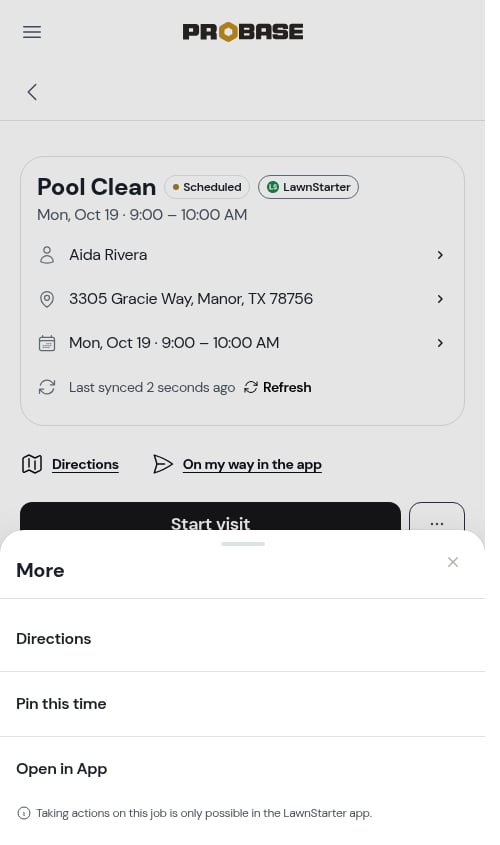
- Directions
- On my way in the app — once the visit is started
- Move to another crew — on a business with more than one crew
- Pin this time / Unpin — lock the visit’s time so route planning leaves it alone
- Open in App / Complete in App
- Underneath, a reminder: Taking actions on this job is only possible in the LawnStarter app.
One tab: Details
Your own visits have Visit · Details · Notes. A marketplace visit has Details only, because the other two have nothing to hold:- No Visit tab — checklists and charges are things ProBase captures when ProBase completes a visit, which never happens on a marketplace job
- No Notes tab — a marketplace job’s notes belong to the marketplace and are read-only. They’re already summarised for you in the briefing above the tab (see The briefing)
- Before you go — a one-line checklist of what to load and what to expect at the door (see Property facts from LawnStarter). Only on a visit that’s still ahead of you or in progress
- Service — the service name and description, a Frequency row with how often the marketplace has it repeating, a Duration row with how long you expect the visit to take, and a Payout row with what the visit pays you. There’s no price, tax, or itemised breakdown — the marketplace sets the payout and bills the customer
- Property — the property facts LawnStarter sent over. There’s no row for adding details: a marketplace property’s details come from the marketplace, so the card shows what it has or doesn’t appear at all
- How they want it done — the customer’s mowing preferences. Only on a visit that’s still ahead of you or in progress
- Photos — on a completed marketplace visit, the after photos that came across with it. Tap a tile to open it full size
- History — the moments logged on your clock, newest first
Property facts from LawnStarter
When LawnStarter has details about the property and how the customer likes the work done, ProBase lays them out on the Details tab so you and your crew don’t have to dig through notes.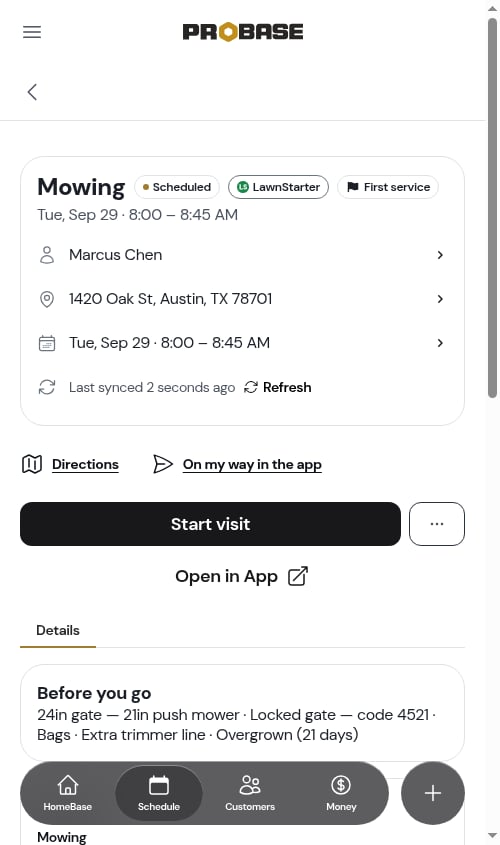
Before you go
One line of things to sort out before you leave, separated by dots — for example 24in gate — 21in push mower · Locked gate — code 4521 · Bags · Extra trimmer line · Overgrown (21 days). Each item appears only when it applies:Property
The Property card lists whichever of these LawnStarter provided: Gate (locked, how wide, the gate code, and a restricted community, all on one line — for example Locked · Under 24 in wide · Code 4521 · Restricted community), Pets on property, Community (restricted access, when there’s no gate), HOA, Corner lot, Irrigation, and Customer since (the month and year they joined LawnStarter). The same rows appear in the property’s details on the marketplace property page.How they want it done
The customer’s mowing preferences: Cut height (front and back), Clippings, Blowing, Obstructions, Notes, and Grass type.Only what LawnStarter actually knows is shown. A detail that’s missing, answered “no”, or left as a filler answer like “None” doesn’t get a row, and a card with nothing in it doesn’t appear. Before you go and How they want it done drop away once the visit is completed, cancelled, or rescheduled; the Property card stays as reference.
The briefing
Above the tab sits the same What you need for this visit card your own jobs get — a few plain lines drawn from what’s on file for the visit, so your crew gets the important bits without digging. On a marketplace job that’s built from what the marketplace sent: property access notes (gate codes, pet warnings, where to park), the customer’s instructions for the job (Please do not come before 10 am local time), and the property facts listed above. It’s yours and your crew’s only — never the customer’s.Marketplace notes are kept current by syncing, so they always match what the marketplace has: if the customer changes an instruction it updates on the next sync, and if they remove it, it disappears from ProBase too. You can’t add, edit, or delete notes on a marketplace record — see You can’t add your own notes to marketplace records.
Once the visit is finished
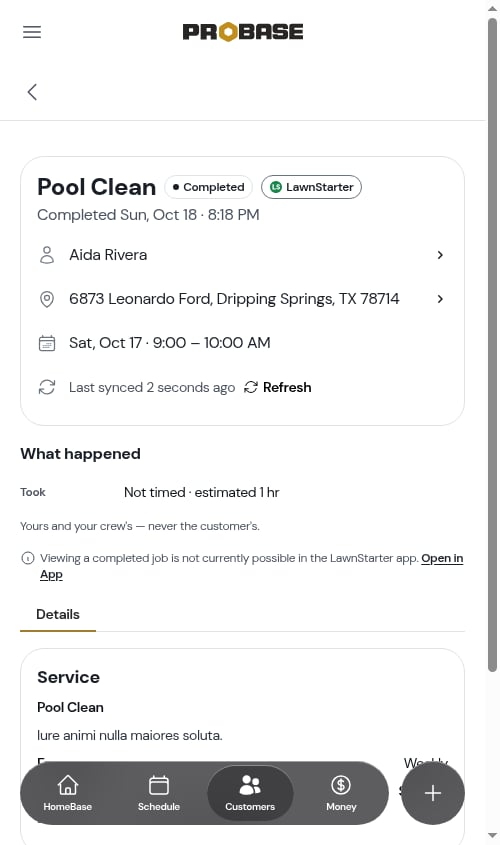
Once a marketplace visit is no longer scheduled — completed, rescheduled, or cancelled — the marketplace app has no job screen left to open for it. Rather than hand you a button that lands nowhere, ProBase swaps in the two things that still work:- Open in App — that customer in the marketplace app, where any follow-up on a finished visit belongs
- A short line underneath saying why the job itself can’t be opened, naming the status — for example Viewing a completed job is not currently possible in the LawnStarter app.
If you don’t have the app installed
Every … in App button is an ordinary link to the marketplace’s pro site, opened in a new tab. On a phone with the marketplace app installed, your device hands the link to the app and you land on that exact job screen. Without the app — or when you’re working at a computer — the same link opens the marketplace’s pro website in your browser instead, and takes you to the same screen once you’ve signed in. Either way you end up in the right place, so there’s nothing to install first and nothing to dismiss.Where the start time comes from
The marketplace tells ProBase which day a visit is due, but it doesn’t set a clock time for it. ProBase fills in a sensible start time and length when the visit first syncs in, so it has a real place in your route:- A repeat visit copies the last one. If you’ve already completed a visit for that same customer and service, the new one lands at the same time of day, with the same expected length, assigned to the same crew. Keep finishing them at 7:30 AM and the next one shows up at 7:30 AM.
- A brand-new job starts at 9:00 AM. With no history to copy, ProBase puts the visit in a 9:00 AM slot in your business’s time zone — unless the marketplace sent an arrival window with an actual time on it, in which case that window’s start time is used instead. Most marketplace jobs come across with a due day only, so 9:00 AM is what you’ll usually see.
- The expected length is a best guess. ProBase uses the estimate on a matching service in your service catalog if it finds one, otherwise how long that kind of visit usually takes you, and falls back to 60 minutes if it has nothing to go on. No crew is assigned to a brand-new job.
Visits are always dated in your business’s time zone, so a job due tomorrow on the marketplace lands on tomorrow in ProBase. Check your Timezone setting if dates look off by a day.
Adjusting the time for the day
The marketplace owns the day a job happens on, but you own how your day is arranged.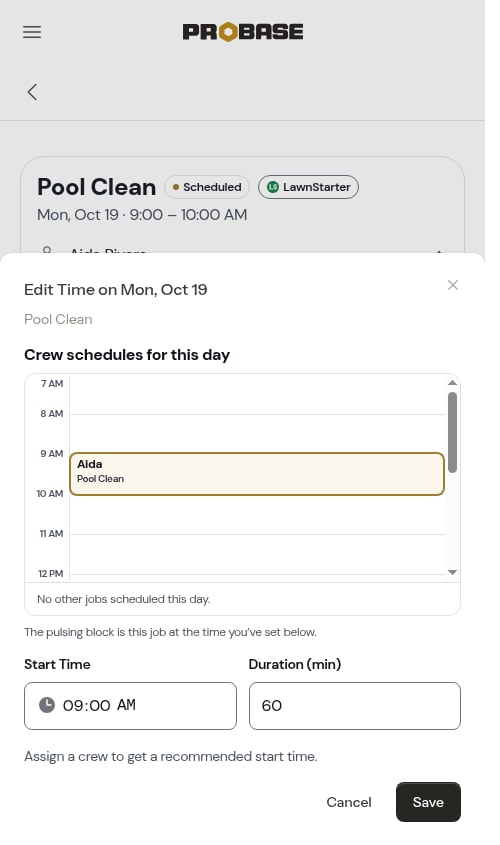
1
Tap the date and time row
On the visit page, tap the date and time row in the header card. On your own jobs that row offers a choice of Change time or Reschedule; on a marketplace job it goes straight to Edit Time, because the day isn’t yours to move.
2
Set the start time and duration
The Edit Time window’s title names the day it’s changing — for example Edit Time on Tue, Aug 18. Set the Start Time and the Duration, in minutes, to what you actually plan.
3
Save
Tap Save. ProBase confirms with “Appointment time updated.” and the stop moves in your day.
This change is local to ProBase — it tidies up your own schedule. To move the job to a different day, tap Open in App and reschedule it in the marketplace app.
The time you set applies to that one visit only, and it sticks. Nothing ProBase does elsewhere — reordering or optimizing the day’s route, or a later visit of the same service moving — pushes a new time onto other marketplace visits. Each one arrives from the marketplace on its own, so set the time on each as it lands and it stays where you put it.
Cancelling
There’s no Cancel this visit on a marketplace job, and that’s deliberate: it isn’t your customer’s booking to cancel on their behalf. If the visit can’t happen, tap Open in App and reschedule or cancel it there. Cancellations made by the customer or by the marketplace come back to ProBase on the next sync, and the visit shows as Cancelled on your schedule.After a visit is rescheduled in the marketplace app
When a marketplace visit moves to another day — you moved it in the marketplace app, or the customer or the marketplace moved it — the marketplace keeps the old booking and adds a new one. ProBase copies that on the next sync, so you end up with two records:- The original visit stays on its old day, marked Rescheduled. It’s the record of what was originally booked, so your history stays honest. It’s finished as far as your work is concerned: it drops off your daily route and your crew’s day, and never turns up in Overdue jobs even though its date has passed. It keeps whichever crew was on it as part of that record — a cancelled visit is the one that hands the crew back.
- The new day arrives as its own visit, scheduled the normal way — with its own start time, expected length, and crew. See Where the start time comes from.
This is the same two-record trail you get when you reschedule one of your own jobs in ProBase. The only difference is where the move happens: marketplace visits move in the marketplace app, and the change comes back on the next sync.
If a job goes back to the marketplace
Sometimes a visit stops being yours — the marketplace takes it back so another pro can pick it up, hands it straight to a different pro, or returns it to the available-to-claim pool while it waits to be reassigned. When that happens, the job disappears from ProBase entirely on the next sync: it drops off your calendar, your day view, and your daily route, and its visit page is gone. That’s different from a cancelled visit, which stays on your schedule marked Cancelled so you have a record of it. A job that’s no longer assigned to you isn’t your work any more, so ProBase doesn’t keep it around at all.- You don’t have to clean anything up — it removes itself, and the crew you’d put on it gets that slot back.
- It’s removed even if the visit was already hidden in ProBase — for example because you’d archived that customer.
- If the marketplace assigns the same work back to you later, it syncs in again as a fresh job.
- A job the marketplace cancels is different again: it stays on the customer’s page marked Cancelled, with the visits you worked on it, even once the marketplace takes your name off it — so the record of what you did doesn’t vanish with the booking. See What the status on a marketplace service means.
A job you never got assigned in the first place — work sitting in the marketplace’s pool — never lands in ProBase at all. You’ll see those in the marketplace app, or as a count on the Available to claim card on HomeBase. The same goes for a visit the marketplace hasn’t dated or assigned to a pro yet — see Why a marketplace job might not appear at all.
Billing
A completed marketplace job doesn’t create a ProBase charge or invoice — the marketplace bills the customer and pays you. Your earnings from those visits, and the deposits the marketplace sends, show up as locked entries on the Billing History of the customer record named after the marketplace. Nothing from marketplace work is mixed into your own invoices, and on the Money page the marketplace’s deposits sit on their own line under Received, apart from what your own customers paid you. See Marketplace earnings & payouts. Because there’s nothing for you to bill, a marketplace visit has no invoice, no service report and no charges of its own. The Service card on the Details tab is a short summary instead: the service name, a Frequency row, a Duration row, and a Payout row with what the visit pays you. There’s no itemised breakdown and no Total line. See the service page for more on that amount.It’s the identical summary everywhere a marketplace job shows up — the visit page, the service page, your day’s stops, and overdue jobs all read the same.
Next steps
- The visit page — the screen a marketplace job shares with your own work
- Marketplace customers — the customer, property, and service pages behind the job
- Available to claim — new marketplace work waiting for you
- How marketplace syncing works — when changes appear