Overview
Route planning keeps driving time and fuel down by putting your stops in a sensible order and spreading the work fairly across your crews. ProBase gives you four tools for it — three you drive yourself and one that runs quietly in the background. Every one of them shows you what it would do before anything changes.The tools
Reorder stops — you pick the order
Drag a crew’s stops into any order you like, from the calendar’s Day view. Drive times and the day’s totals settle as soon as you let go of a card, and the Save button names what you’re about to do.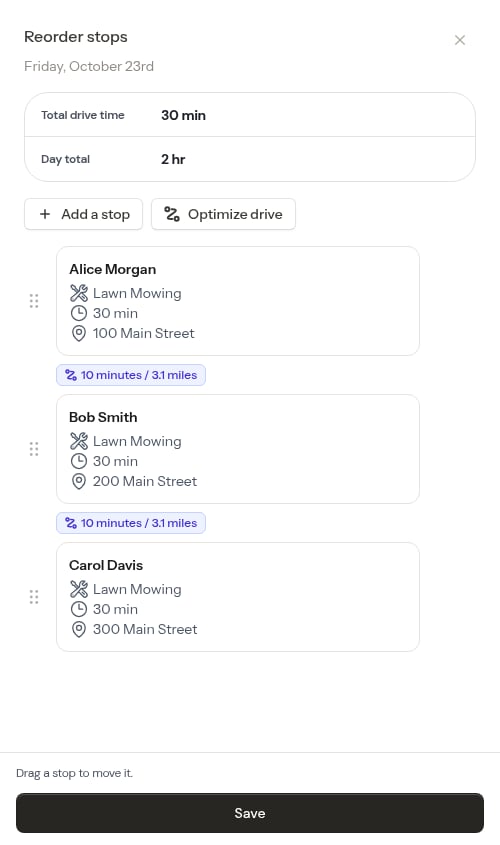
Optimize route — ProBase picks the order
Let ProBase work out the shortest order for one crew’s day. You get a full preview: what it saves, which stops move, and what time the day would finish.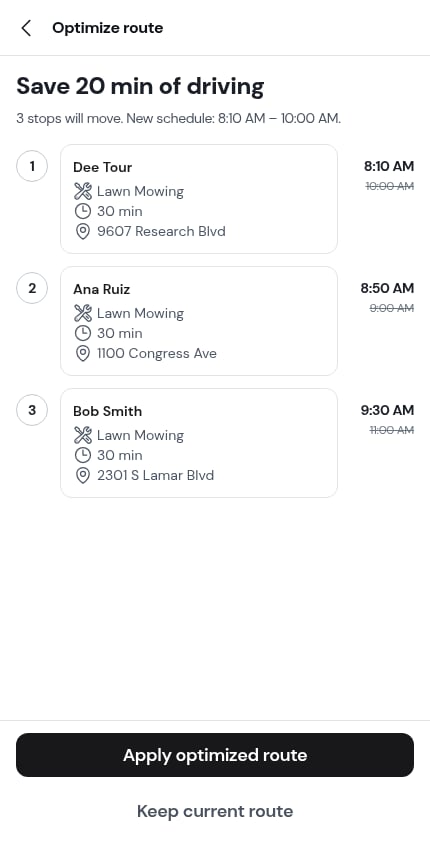
Rebalance this day — move work between crews
When one crew is buried and another is light, reordering won’t help. Rebalance this day looks at every crew at once and proposes moving jobs between them, with a per-crew before-and-after and a map of the result.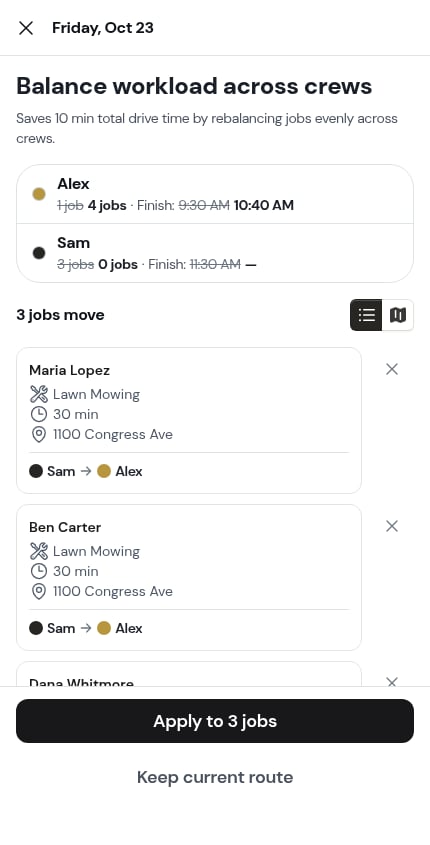
Assign & optimize routes — staff the day and route it in one pass
When a day has jobs with nobody driving to them, ProBase can hand them all to the best crews and route them together.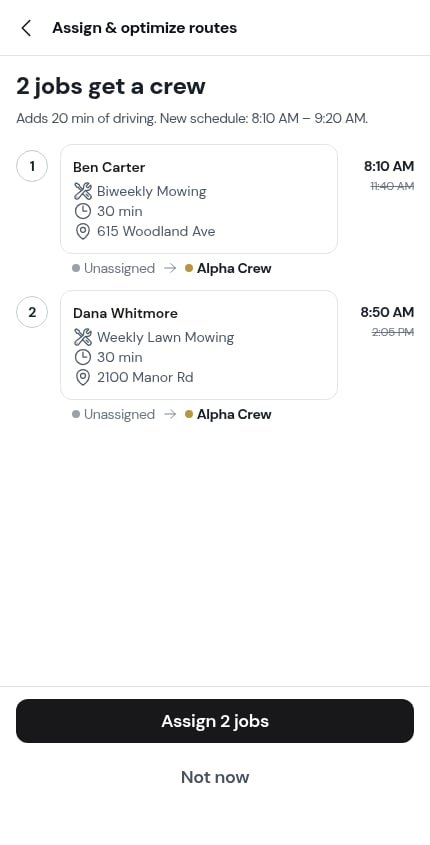
Background optimization — ProBase reorders as work changes
Switch Optimize my routes automatically on in Settings → Scheduling and ProBase reorders days in the background as jobs are added or updated. It isn’t silent: the next time you open a day it reordered, a message tells you what it did — “ProBase reordered this day — 22 min saved.” — with Undo beside it.Where the planning starts
You don’t have to go looking for any of this. Each morning HomeBase puts jobs with no crew and any day that runs past its end time in front of you, and the Day view of the schedule shows what optimizing each crew’s route would save — each row a tap away from the screen that fixes it. See Plan your day.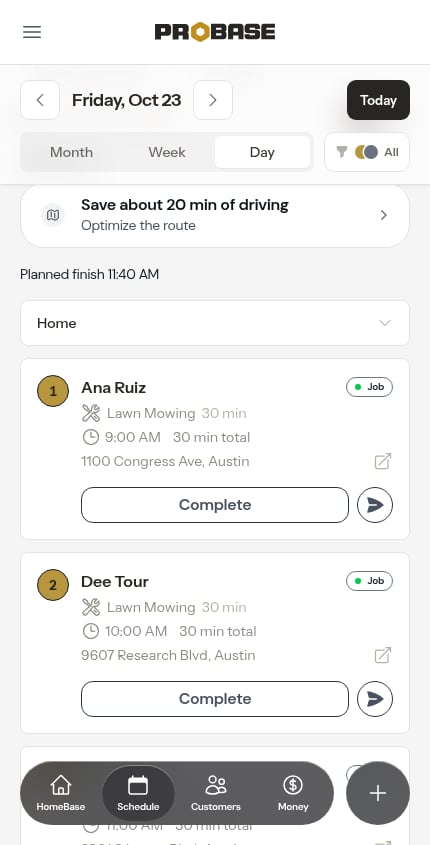
What planning never moves
- A pinned visit keeps its time. Nothing ProBase does — optimizing, rebalancing, assigning or the background pass — moves one.
- A stop a crew is already working stays exactly where it is.
- Nothing is proposed before the crew’s start time, and on a day already underway, never before now.
- Other days are never touched. A recurring job’s later visits keep the crew and times they have.
Requirements
To plan a route for a crew you need:- A starting address on the crew — it’s where the drive is measured from. A crew without one can’t be routed at all; its card carries an amber warning and HomeBase lists a starting-point setup under Make it yours. See Start and end locations.
- Property addresses ProBase can find on the map.
- At least two stops for that crew on the date.
Setting each crew’s End time is what lets ProBase warn you that a day won’t fit. Without one it plans the route happily but never tells you the day runs long. See Working hours.
Drive times you can trust
Every drive time ProBase plans with already includes your drive time buffer, so the numbers on screen are the numbers it schedules with — nothing is padded twice. Set it in Settings → Scheduling.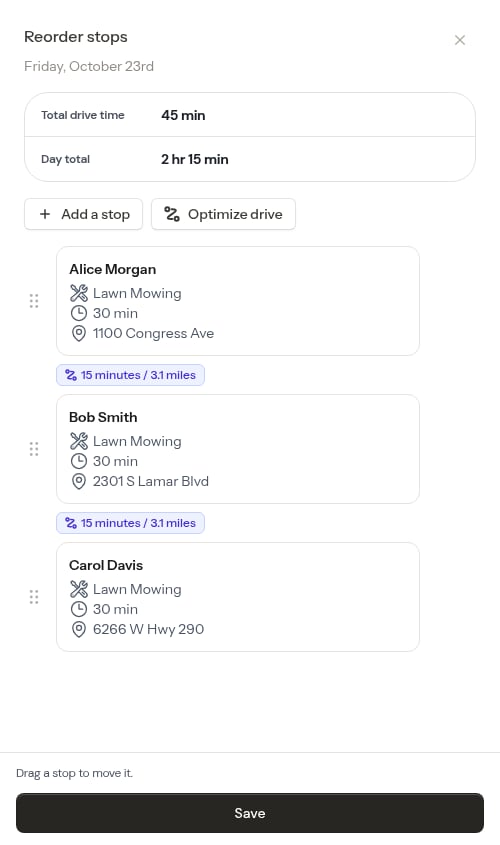
Which one to use
Next steps
- Set up your crews with start locations, working hours and an end time
- Plan your day — what HomeBase and the Day view tell you each morning
- Daily crew schedules — track the day once it starts