Overview
When the work is finished, you complete the visit. The completion flow is short by design: answer anything still required on your checklists, check the notes you’ve been writing all along, look at the report the way the customer will read it, and tap Complete visit. The last step offers to send that report to the customer. Most of the work is already done by the time you get here — your notes came from the notes pad on the visit, your photos came from the After photos checklist, and anything extra you charged for is already on the visit. For jobs: completing the visit stamps the finish, saves your notes, and (for per-visit billing) creates the charge on the customer’s account. For assessments: completing the visit records what you found and lets you turn it into a quote.Starting the completion
Where Complete visit sits depends on where the visit is: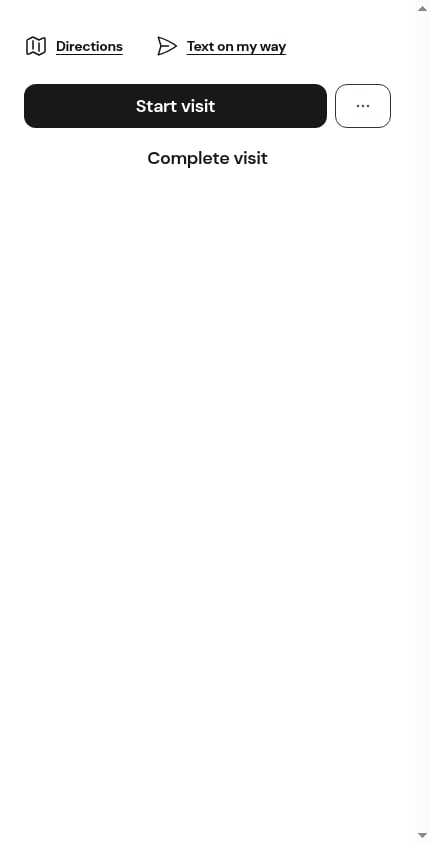
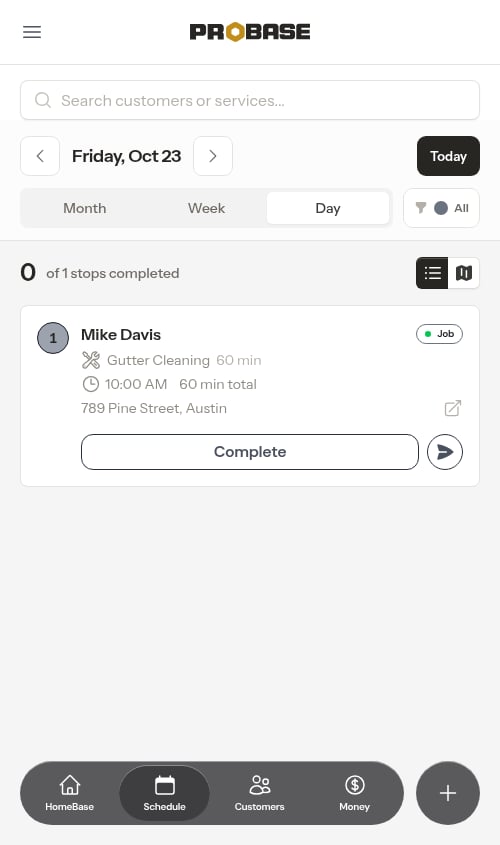
If the visit is still running, completing it stops the clock. See Timing a visit.
The checklist step
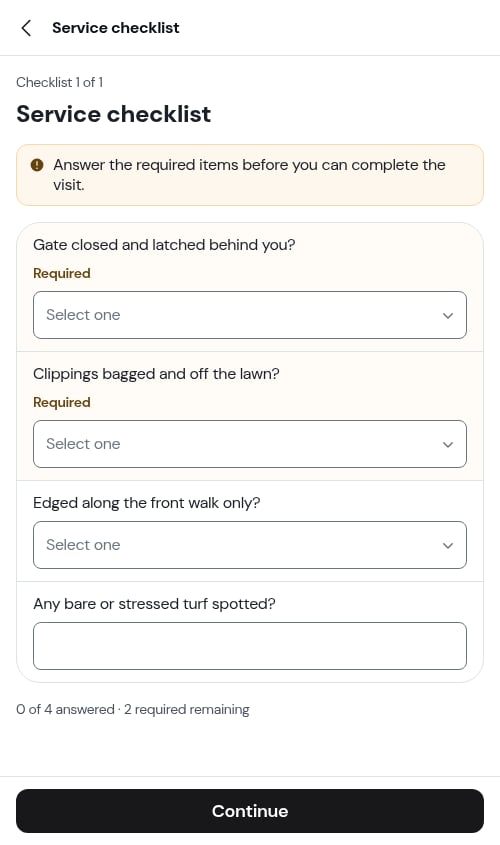
If any checklist on the visit still has required questions unanswered, those checklists open first — one screen at a time, headed Checklist 1 of 2.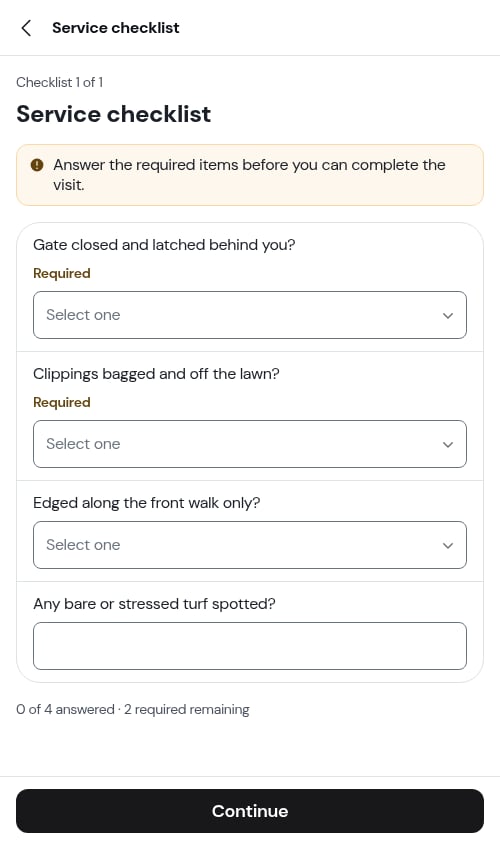
- Continue stays blocked while a required item on that page is still blank, with a line telling you so: Answer the required items before you can complete the visit.
- A counter under the title tracks where you are — 3 of 8 answered · 1 required remaining
- The back chevron never blocks. Back out at any point and your answers are still saved; backing out of the first page just closes the flow
The completion form
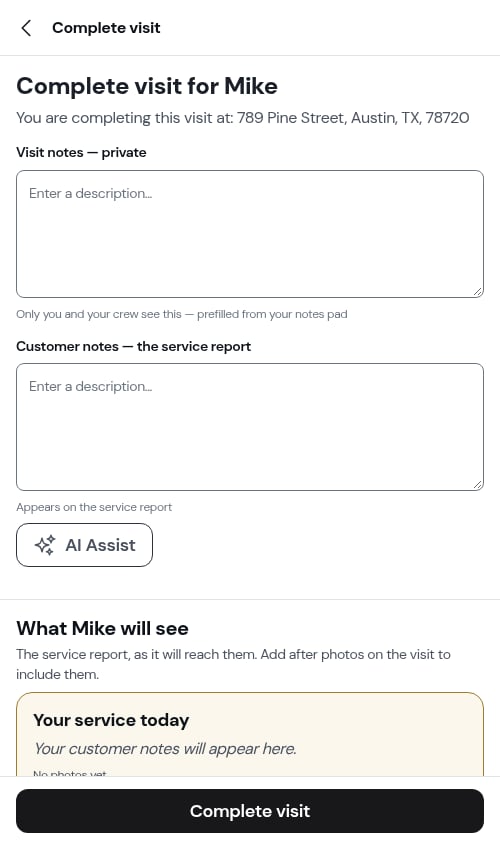
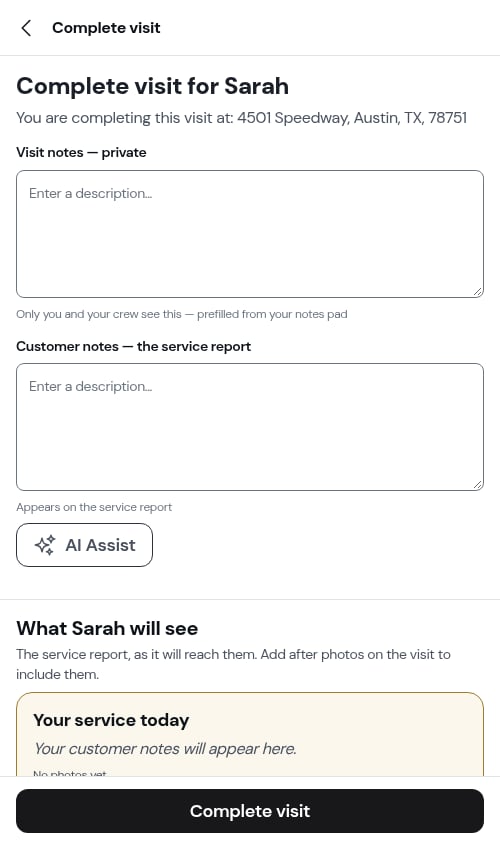
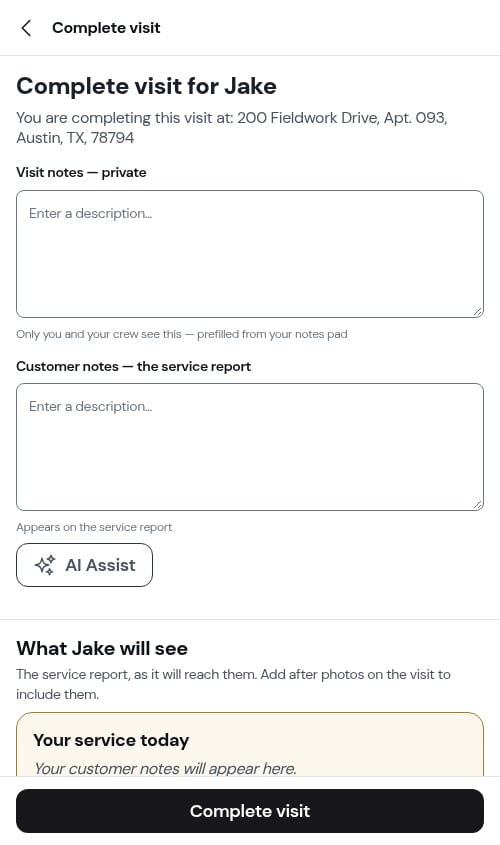
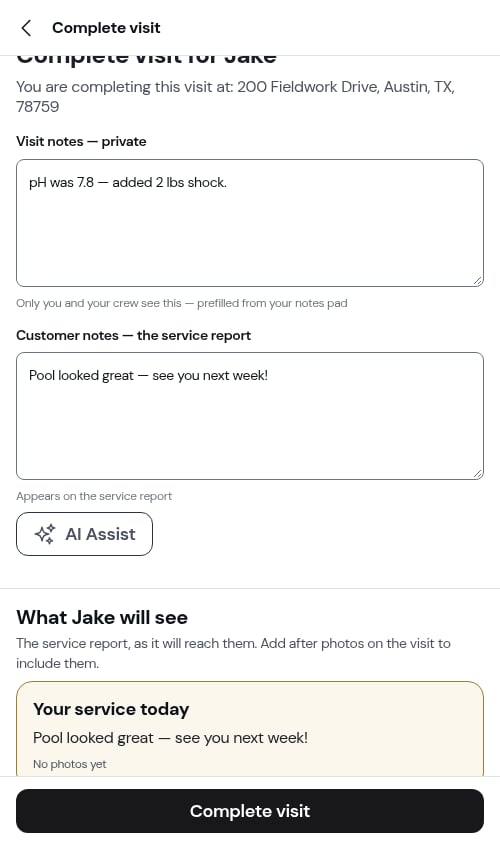
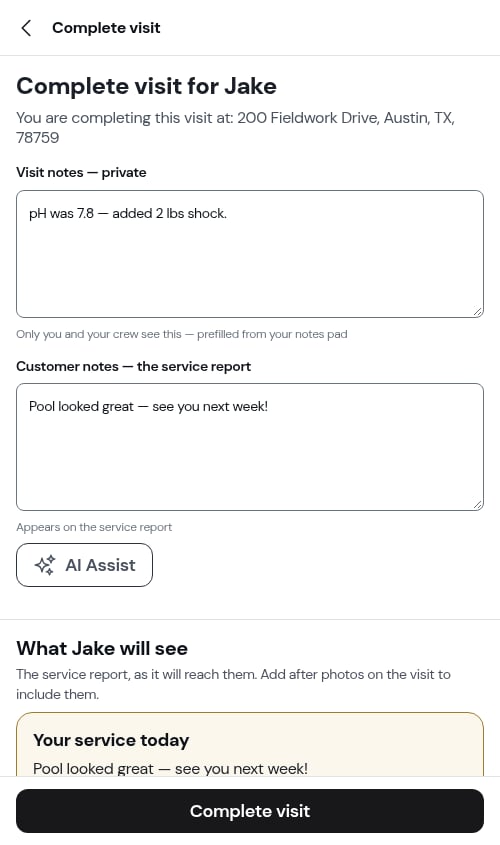
One screen, headed Complete visit for [First name] with the property address underneath.
Visit notes — private
Your own record of the visit. It arrives already filled in with whatever you typed into the visit’s notes pad while you were working — edit it, don’t retype it. Only you and your crew ever see this.Customer notes — the service report
A short, friendly description of what you did. This is what appears on the customer’s service report and invoice. Tap AI Assist (✦) and ProBase drafts it for you from your private visit notes, and at the same time pulls any structured records out of them. See Letting AI write it up below.Records from your notes
If AI Assist found measurements, materials or observations in your notes, they’re listed underneath as rows you can check before they’re saved: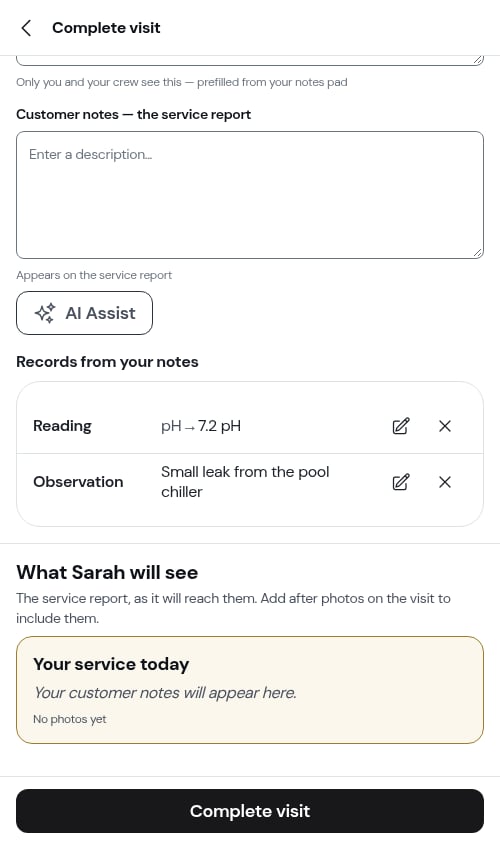
- Edit (pencil) opens that one record on its own screen so you can correct a value. Tap Done to come back.
- Remove (✕) drops it.
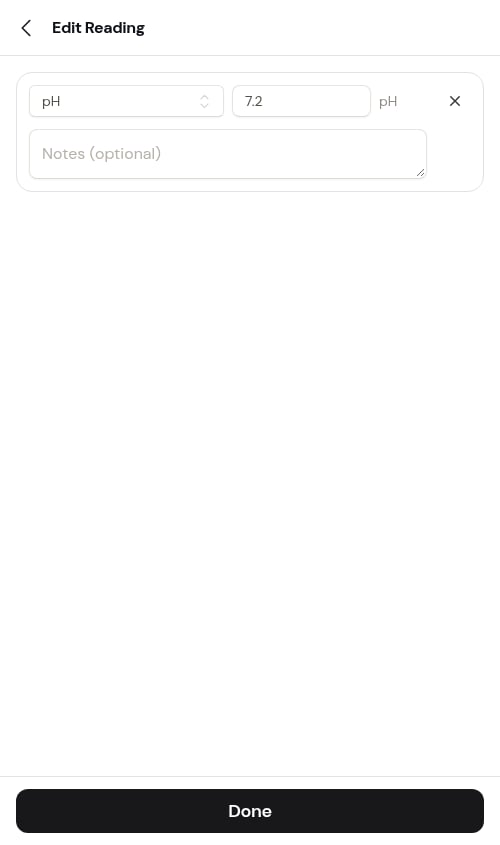
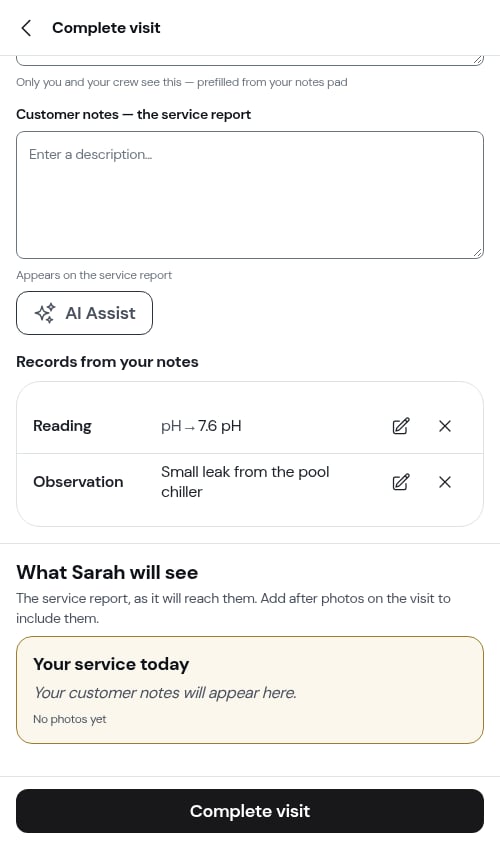
There’s no Add button here. Records are pulled out of your notes — write what you did in plain language in the visit notes and let AI Assist structure it. Pool chemistry you captured on a checklist arrives as records automatically. See Service records.
What [first name] will see
The last block on the form is the service report exactly as the customer will read it: your customer notes, and the After photos from the visit as a grid of tiles.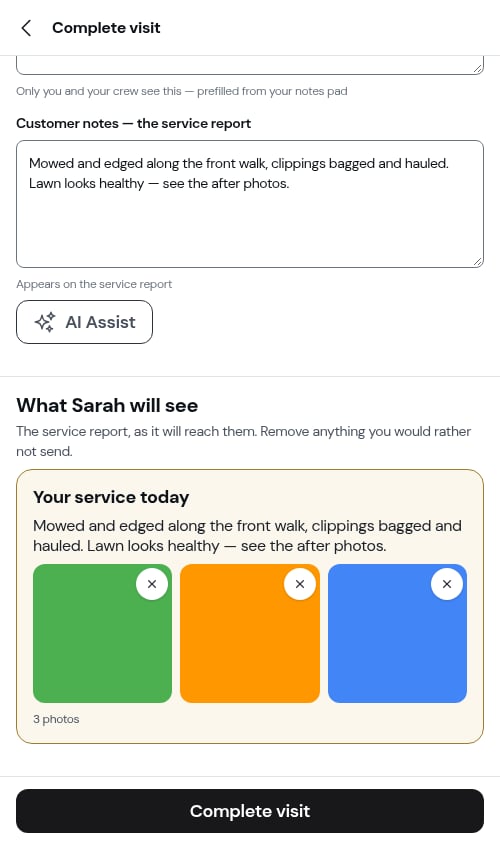
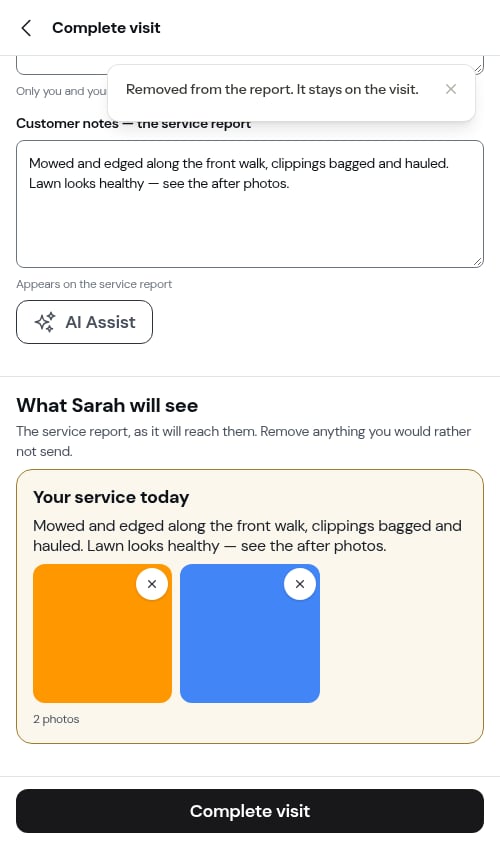
Photos get onto the report by being added to the After photos checklist on the visit. There’s no photo upload on the completion form itself. See Before and after photos.
Setting a trade
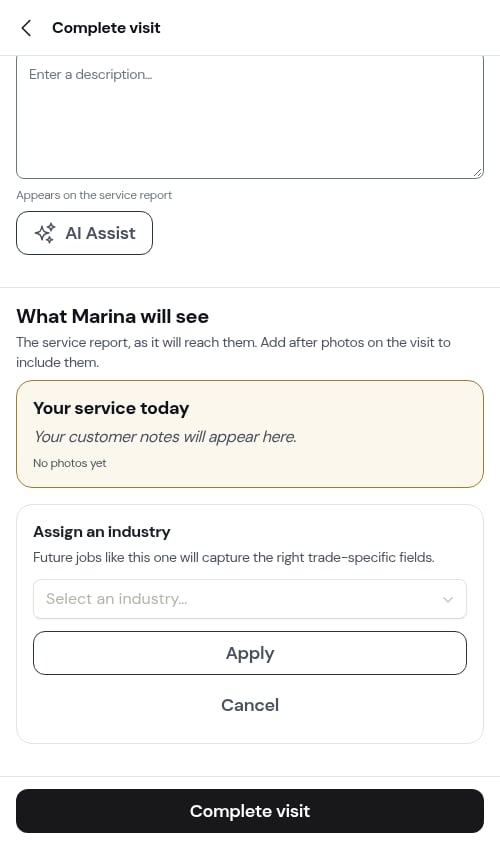
If the job has no trade yet, a short prompt offers to set one so future jobs of the same kind capture the right details.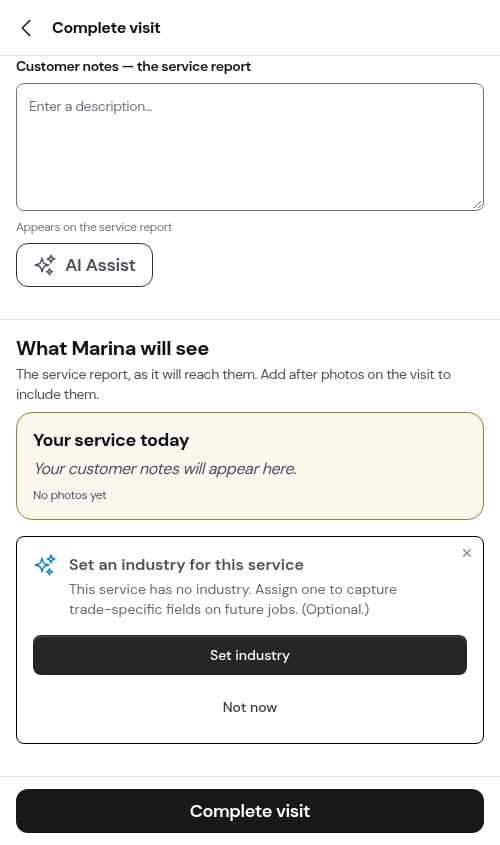
Finishing
Tap Complete visit at the bottom of the form. For most recurring jobs, the next visit is already on the calendar as part of the pre-scheduled chain, so there’s nothing more to do — the form shows a Next visit line confirming the date and finishes there.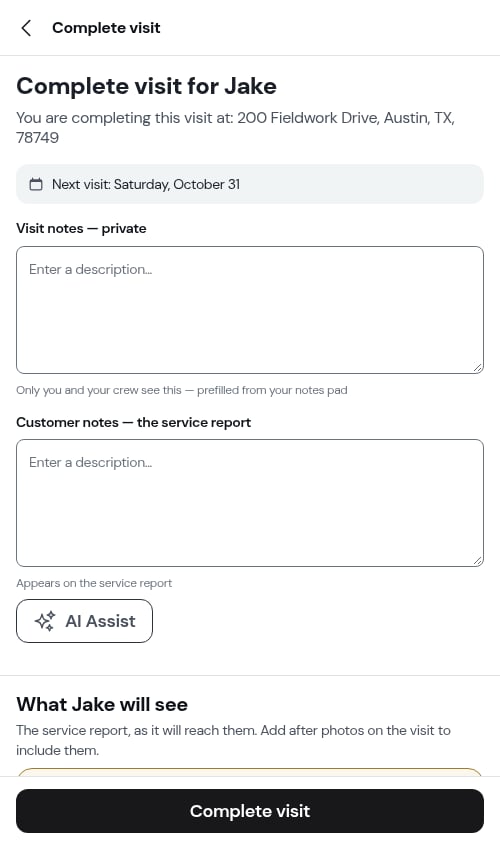
Scheduling the next visit (only when none is booked)
If a recurring job has no upcoming visit on the calendar, one more step appears so you can book it. The date and time are pre-filled from the job’s frequency.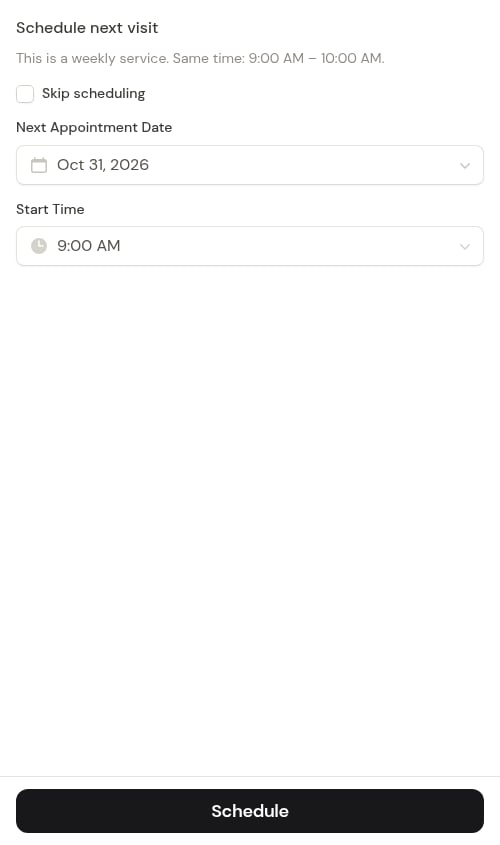
What a completed visit looks like
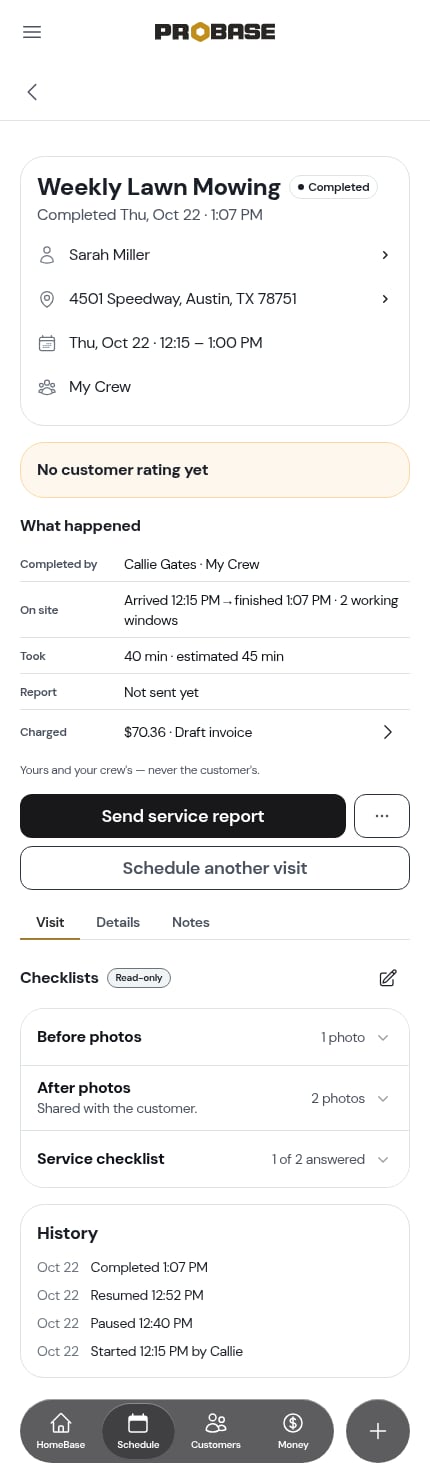
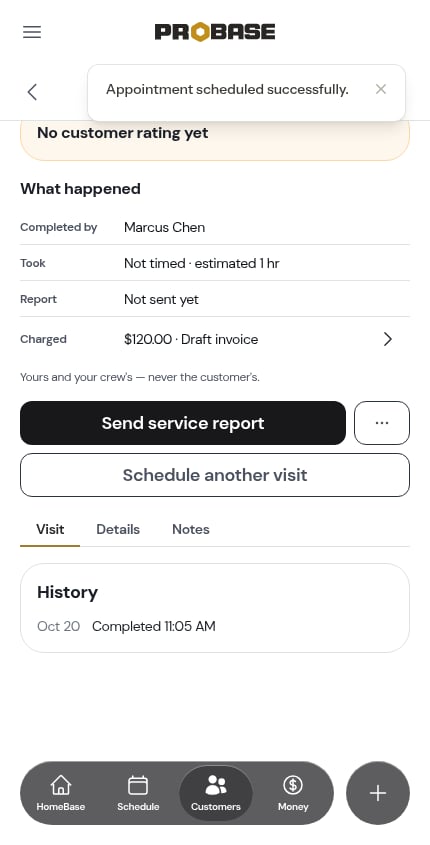
The visit keeps the same page. What changes:- A rating card slides in under the header — No customer rating yet until the customer rates the visit
- What happened appears next — who completed it, when you were on site, how long it took, whether the Report has gone out, and what the visit Charged. See Timing a visit.
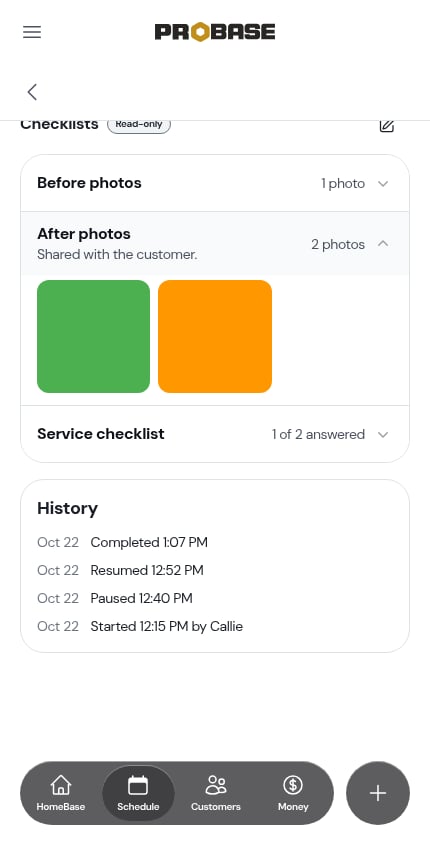
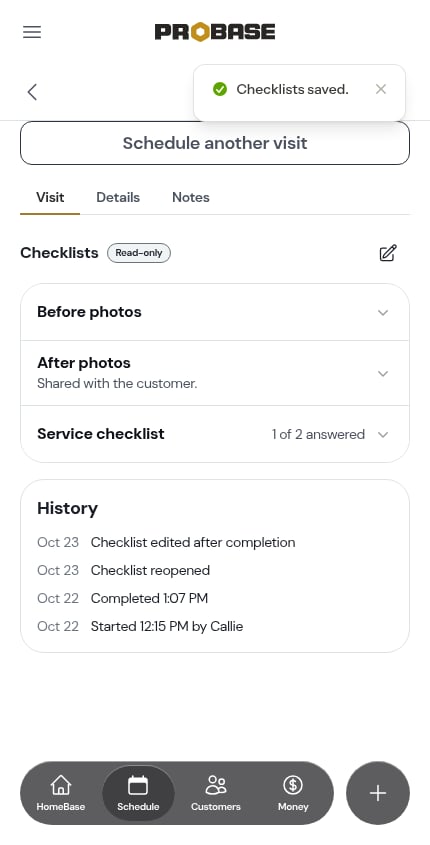
- The Checklists card carries a Read-only badge, and the rows show exactly what was captured, including the photos
- A History card at the bottom of the Visit tab lists every moment on the visit
- Send service report becomes the main button, with Schedule another visit underneath it
Going back in to fix a checklist
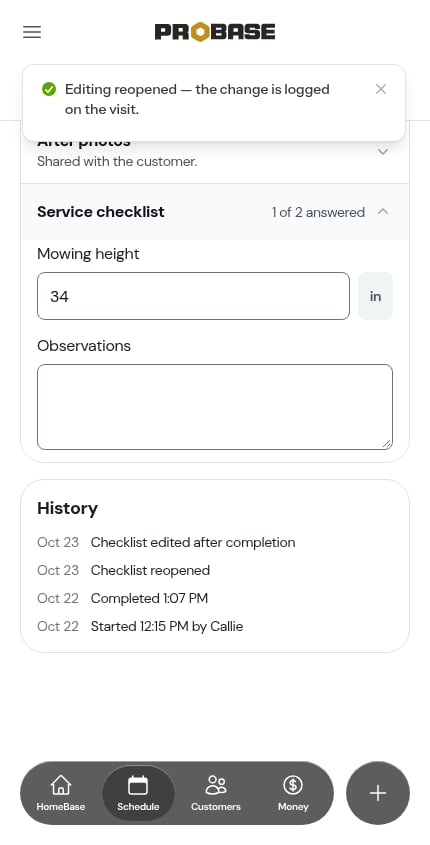
Spotted a mistake? While the report hasn’t been sent yet, a pencil sits beside the Checklists heading. Tap it and the card flips to Editing — the rows become answerable again, against the questions exactly as they were when you completed.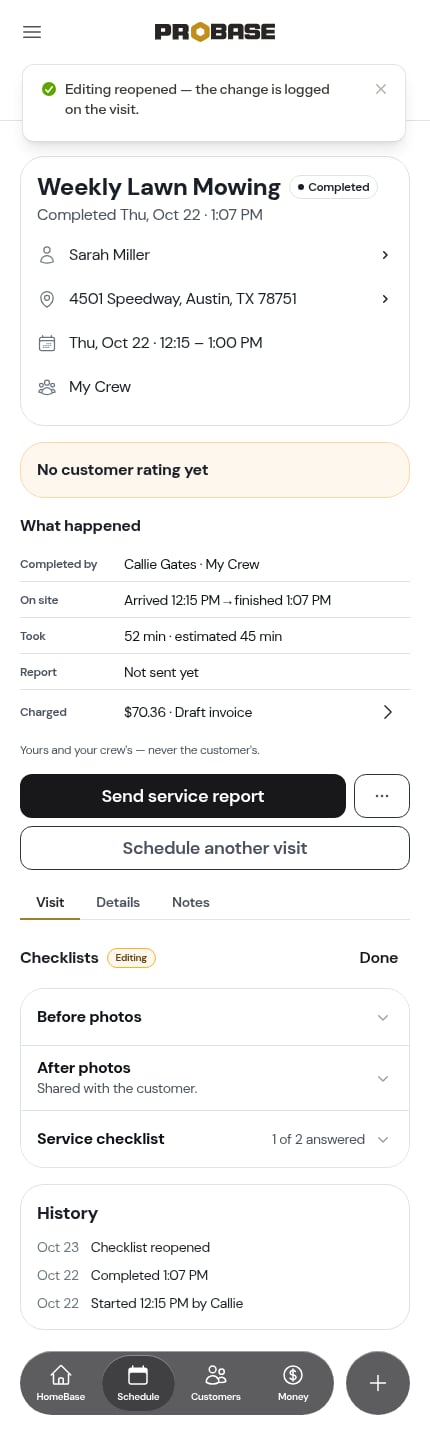
Sending the report
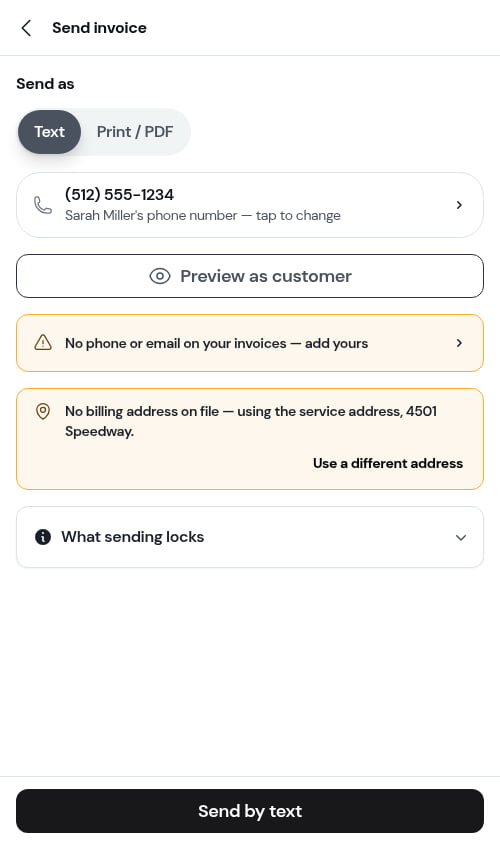
As soon as the visit is stamped complete, the send report step opens in place of the form: the report as the customer will read it, a switch to send the invoice with it if money is due, and the message ready to text.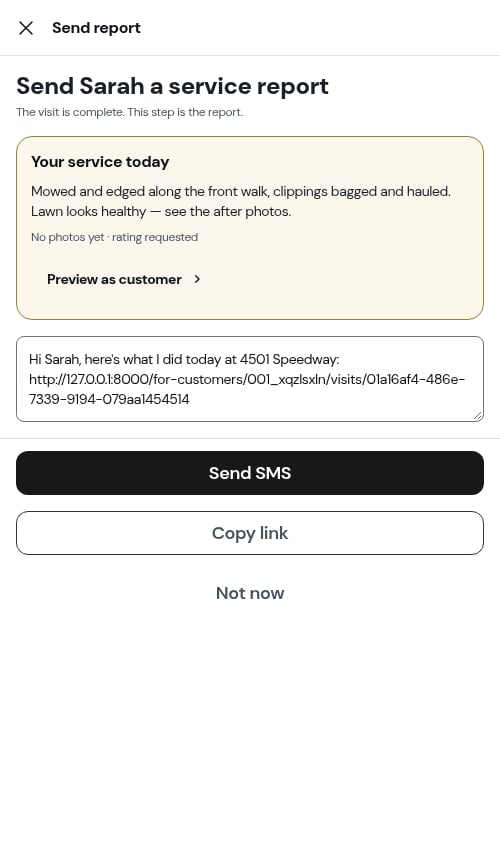
The step is skipped for assessments and marketplace visits — neither has a service report — and for team members whose role can’t send one.
Getting the invoice to the customer
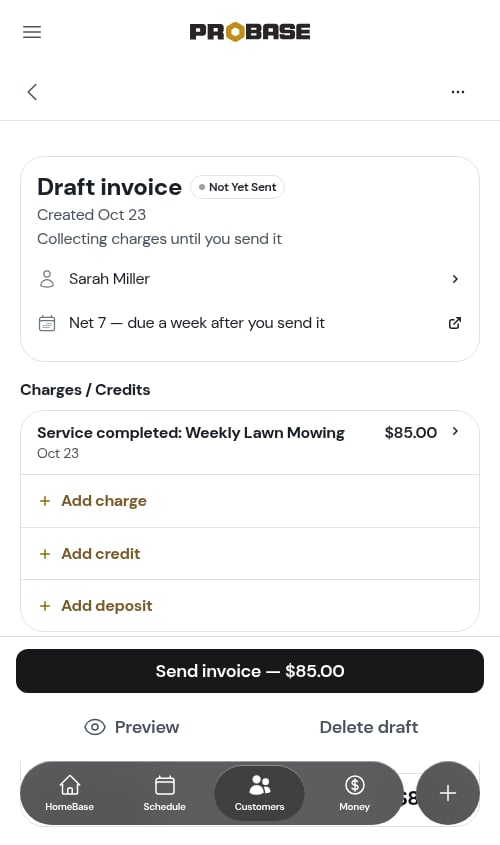
Sending the invoice with the report is one switch on the send step. If you’d rather send it on its own, the Charged row under What happened on the completed visit shows what the visit billed — $85.00 · Draft invoice — and its chevron opens that invoice.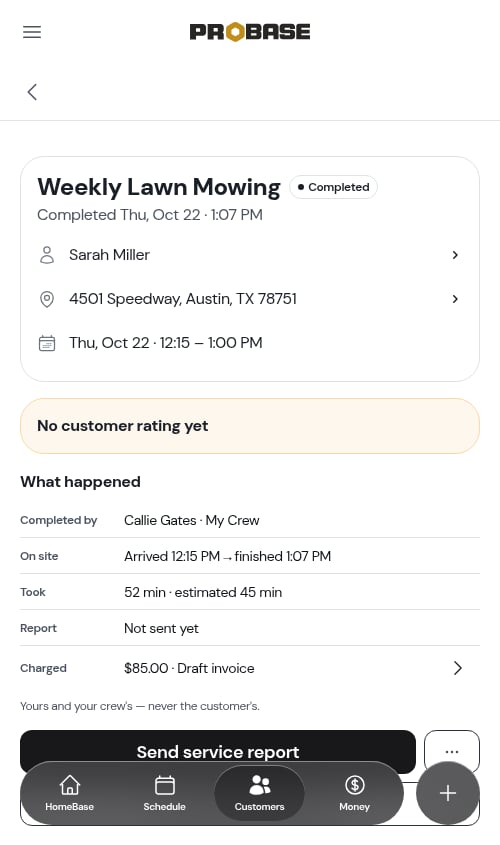
Recording a payment from the visit
If the customer paid you on the spot, open the completed visit’s ⋯ More menu and tap Record payment. It opens the Record payment flow with the customer and the visit’s open invoice already filled in, so you only enter the amount and how they paid. See Recording payments.A visit that created no charge — a subscription visit, or a $0 job — has no **Charged** row at all, rather than a row reading $0.00.
Scheduling another visit for the same job
A completed job visit also offers Schedule another visit. It opens the same scheduling window you’d use anywhere else, on the same job.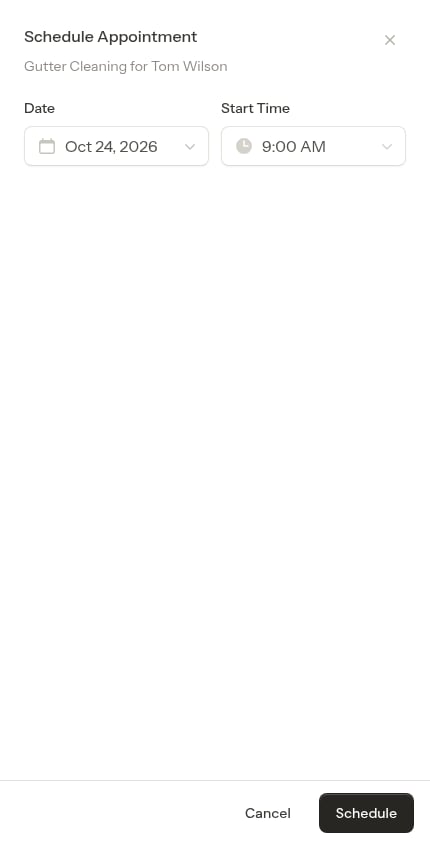
Completing an assessment visit
Assessments are on-site evaluation visits: you go out, see the property, and decide what to quote. Completing one is deliberately light.1
Tap Mark assessment complete
Open the assessment from the Assessments screen, the calendar, the day’s schedule, or the customer’s page. Once you’ve started the visit, Mark assessment complete is the solid button.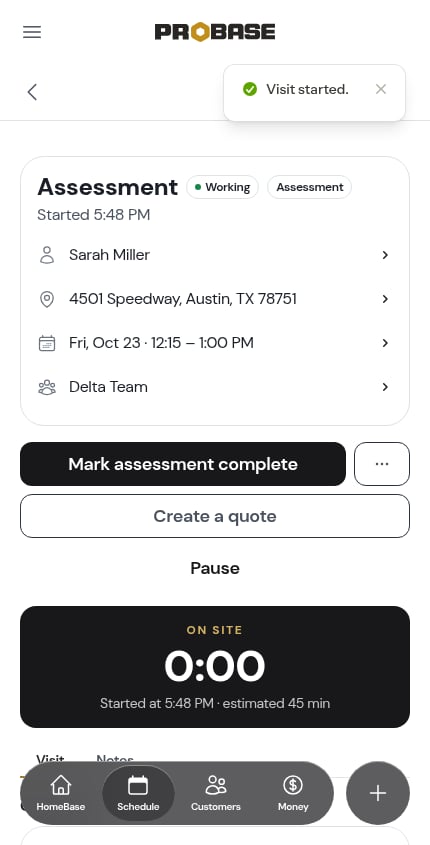
2
Answer anything still required
If the assessment has a checklist with required questions left blank, it opens the same one-page-at-a-time step a job does.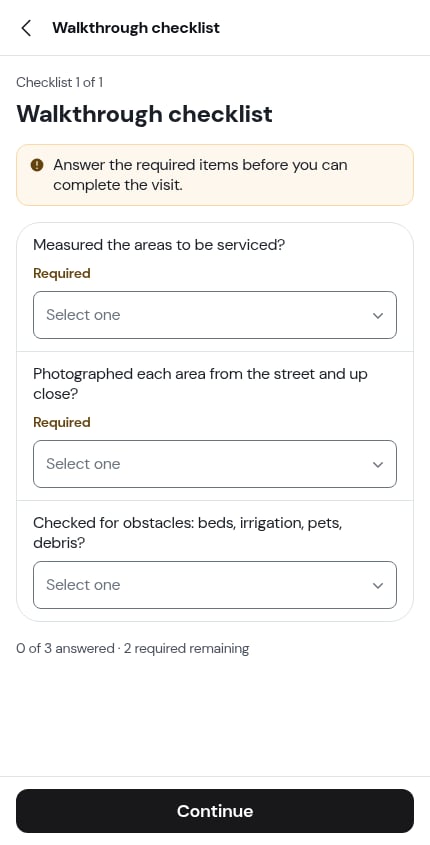
3
Write your notes (optional)
Type what you found in the Notes field. These are private — only you see these notes — and they carry into the quote so you don’t have to remember the details later.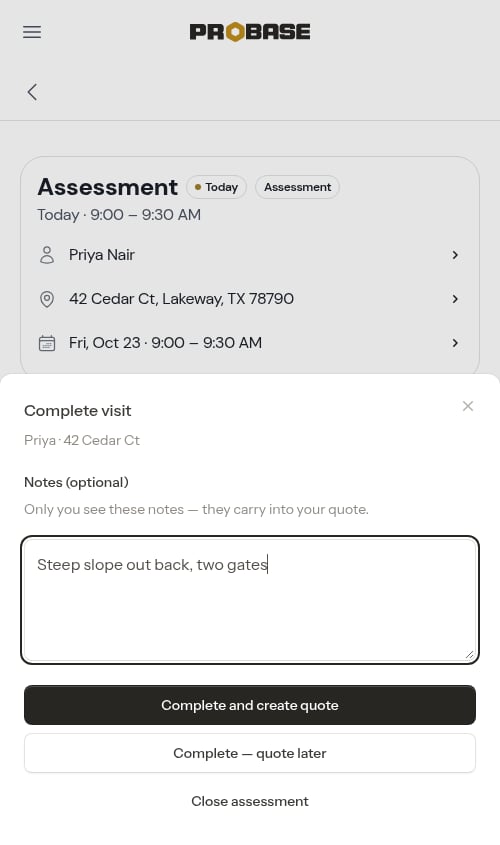
4
Choose how to finish

5
Build the quote
If you chose Complete and create quote, an empty draft quote opens with a Context from Assessment card at the top — your notes, the customer’s own words, their answers, and any photos, all in one place while you add services and pricing.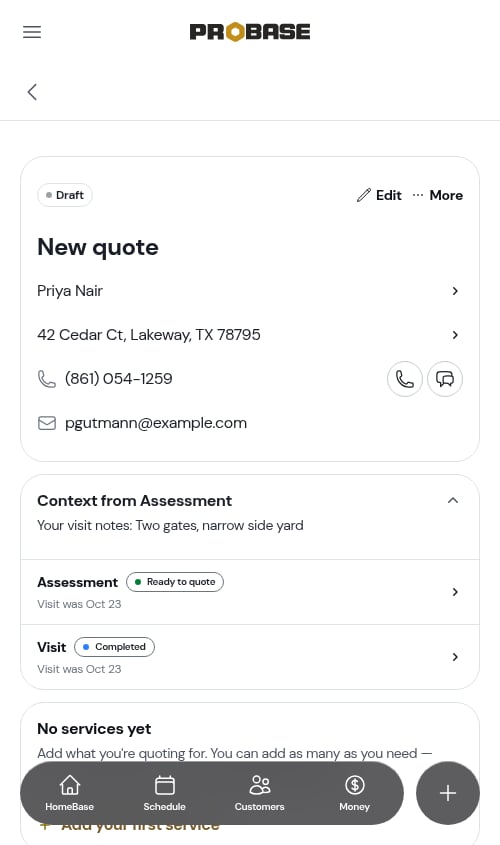
Backing out of the draft quote doesn’t lose anything — the assessment stays at Ready to quote until you save the quote’s first service.
Your work is saved as you go
Step away mid-completion and nothing is lost:- Visit notes and Customer notes save when you tap out of the field
- Checklist answers save as you enter them
- Photos are attached to the visit the moment they upload
Letting AI write it up
On accounts with AI assistance, you don’t have to structure anything by hand:- Write your notes naturally in the visit’s notes pad while you work, or in Visit notes on the form
- Tap AI Assist (✦)
- ProBase drafts a Customer notes summary and pulls any records out of your text
- Check the Records from your notes rows — edit or remove anything that isn’t right
- Tap Complete visit
“pH was 7.2, chlorine at 3 ppm. Added 2 lbs shock. Pool looked clear, no algae.”becomes:
- Reading: pH → 7.2 pH
- Reading: Chlorine → 3 ppm
- Adjustment: Shock → 2 lbs
- Observation: “Pool looked clear, no algae”
If the job has checklists with written answers on them, ProBase can run this analysis automatically the moment you finish the checklist step — you’ll see a full-screen “Analyzing your visit…” indicator while it drafts. Checklist answers marked Include in service record are reconciled against those drafts, so a reading you captured on the checklist is saved once, with the value as you left it on this form. See One record per reading, even with AI Assist.Photos aren’t part of that draft. A visit whose checklists hold nothing but pictures — the usual Before photos and After photos on a job with no other checklist — has nothing to analyse, so no waiting screen appears and you go straight to the form. Tap AI Assist yourself once you’ve written your notes. See It only drafts from what you wrote.
Nothing to read yet? If you tap AI Assist with nothing in Visit notes (and no written checklist answers), you’ll see “Add a line to your visit notes first — AI Assist reads those.” The button stays available — type a line and tap it again.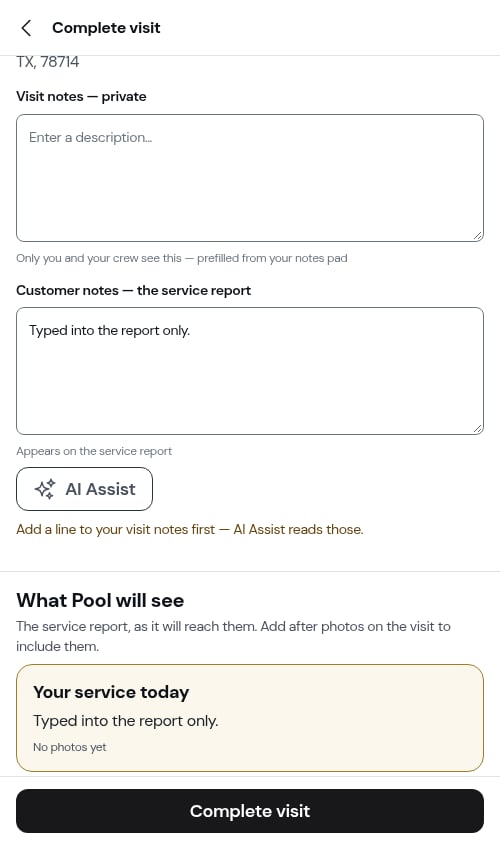
If AI Assist can’t run right now. It’s a convenience, never a requirement. If the assistant is busy or slow you’ll see “AI assist is unavailable right now. You can still add records and notes manually.” — nothing you’ve entered is lost, and you can complete the visit as usual or tap AI Assist again to retry.
What happens when you complete
- The visit’s status changes to Completed and the clock stops
- Your notes and any records are saved
- Per-visit billing: a charge is added to the customer’s account for the service price, plus a separate charge for every visit charge you added
- Subscription billing: the subscription is billed on its own schedule — only your visit charges are billed on completion
- Visit discount: if you discounted this visit, it’s taken off as its own Discount line
- Recurring jobs: the next visit is already on the calendar (or you book it from the last step)
- The send report step opens so you can tell the customer what you did
Completing a visit on a cancelled job
If a cancelled job still has a scheduled visit that needs finishing, you can still complete it. The flow is identical, except that the “schedule next visit” step never appears and no future visits are created. Charges are still created for per-visit billing.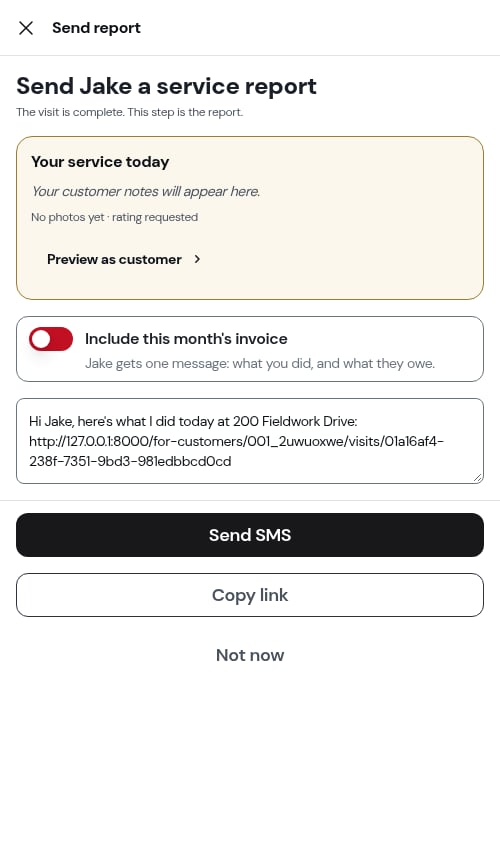
Next steps
- Sending the service report — the step that opens next
- The visit page — everything else on the screen
- Timing a visit — the clock and What happened
- Completing checklists on a job — filling them in as you work
- Service records — where the structured details end up