Overview
Sometimes the optimized route order isn’t quite right — maybe you want to start with a specific customer, or group nearby stops differently. The Reorder stops feature lets you manually drag stops into any order you choose, with real-time drive time calculations between each stop. Both service appointments and non-service stops (like lunch breaks or supply pickups added via Add stop) are shown in the panel and can be freely reordered.Access route reordering
Route reordering is available from the calendar’s Day view.1
Open the calendar
Click Schedule in the sidebar. The Day view is shown by default.
2
Tap Reorder stops
The Reorder stops button sits at the top of the Day view and is always there — you don’t have to filter to one crew first. It shows as soon as your business has at least one crew you’re allowed to plan routes for; if you haven’t added a crew yet, there’s no route to arrange and the button stays hidden.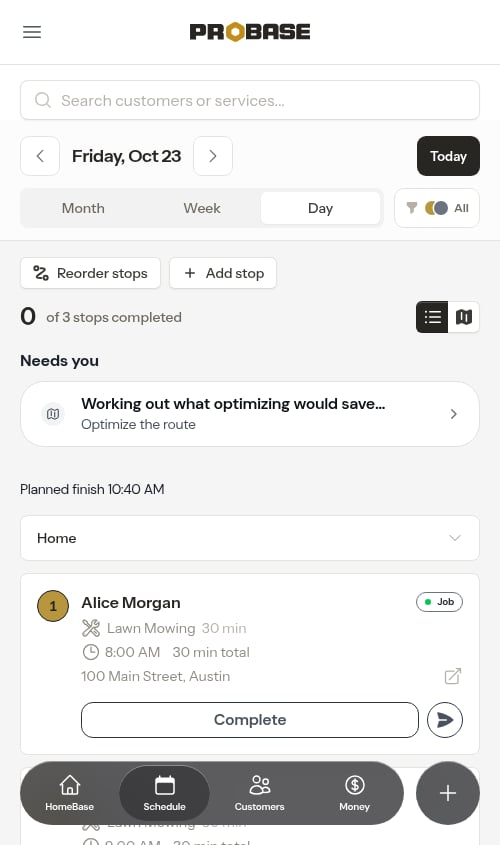
3
Pick a crew if you're looking at several
A route belongs to one crew, so ProBase needs to know whose day you’re rearranging:
- You’re already looking at a single crew — because you filtered to one with the crew filter, or because there’s only one crew you can work with — the reorder panel opens straight away for that crew.
- You’re looking at several crews at once — a short Pick a crew window opens first, listing every crew you’re allowed to plan routes for, each with its color dot. Tap the crew whose route you want to work on and the reorder panel opens for them straight away — there’s no extra confirm step. Tap Cancel at the bottom to back out without changing anything.
4
Review the stops
The reorder panel opens full-screen, showing all of that crew’s stops for the day in their current order — including both service appointments and any non-service stops you’ve added.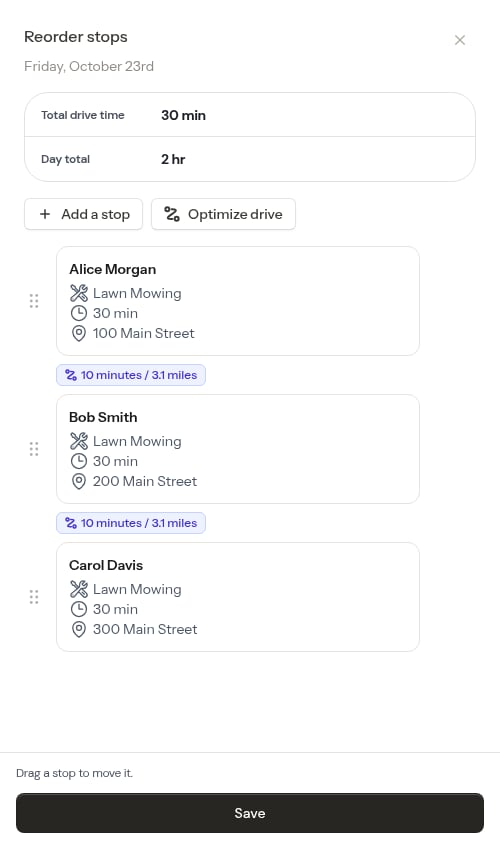
- Customer name
- Service name
- Property address
- Appointment duration
- Drive time and distance to the next stop (e.g., “8 minutes / 3.1 miles”)
5
Drag stops into your preferred order
Press and hold the drag handle (the grip icon on the left of each card) and drag the stop to a new position in the list. The card being dragged is highlighted with an accent border so you can clearly see which stop you’re moving.Drive time indicators are hidden while you drag and automatically recalculate once you release the stop in its new position.
6
Save your changes
When you’re happy with the order, tap Save. The panel closes and the appointment start and end times are updated to reflect the new sequence.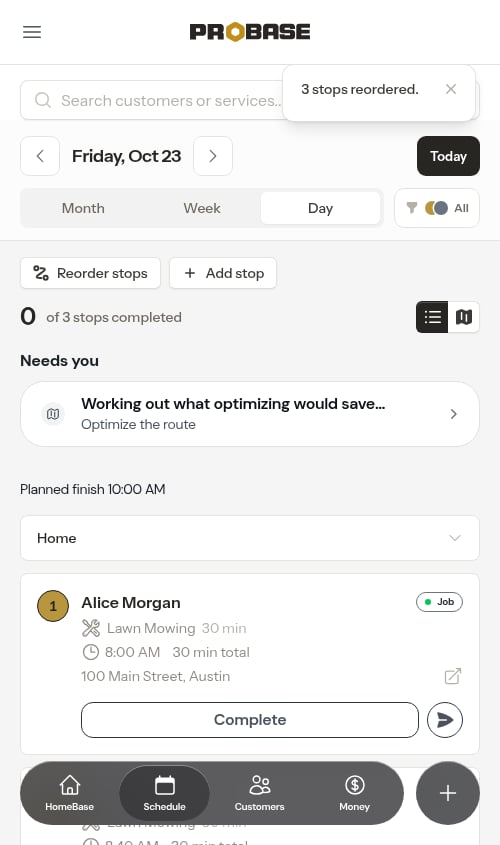
What the panel tells you as you work
The drive summary
At the top of the panel a small card holds the two numbers that describe the day: Total drive time (time behind the wheel only — the whole loop from the crew’s start location, between every stop, and back to their end location if you’ve set one) and Day total (driving plus the work itself).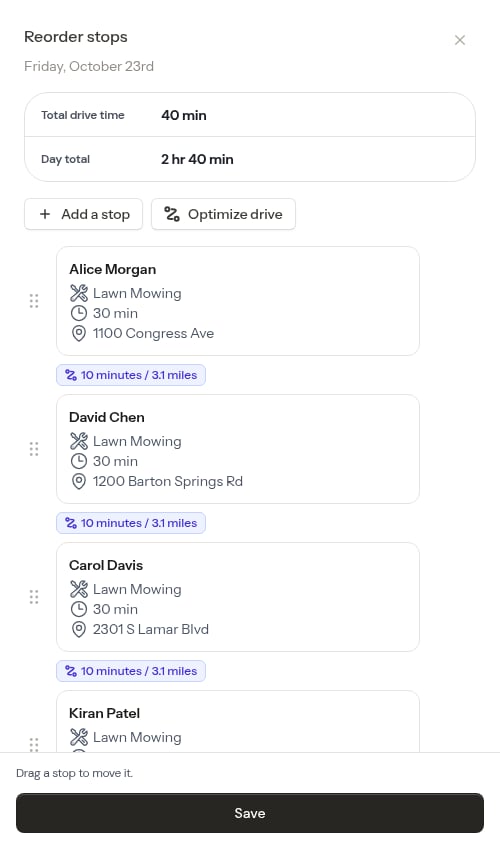
Times settle when you let go
Drive times are hidden while you drag and recalculate once you drop the card — “Times settle when you let go, not while you drag.” For the moment it takes, the button reads Working out the new times…; once they’ve settled it says what you’re about to do: Save — 3 stops move, 12 min less driving. Drag a card back where it started and it’s the plain Save again, because nothing would change.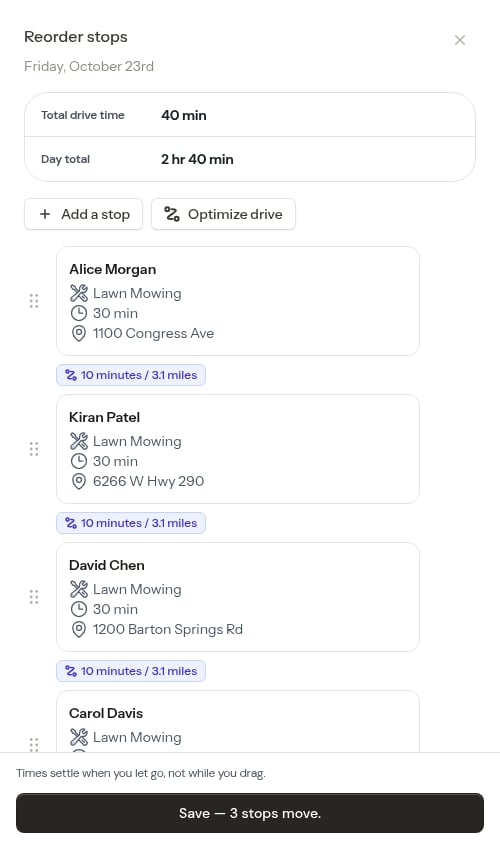
Pinned stops
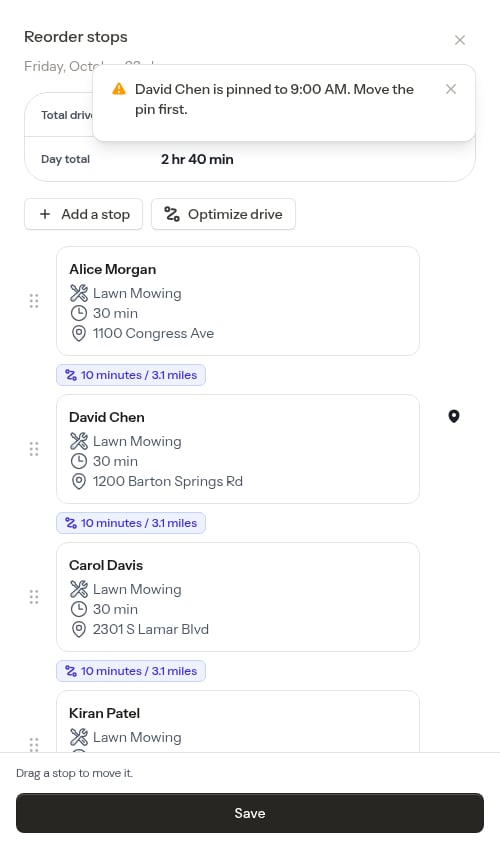
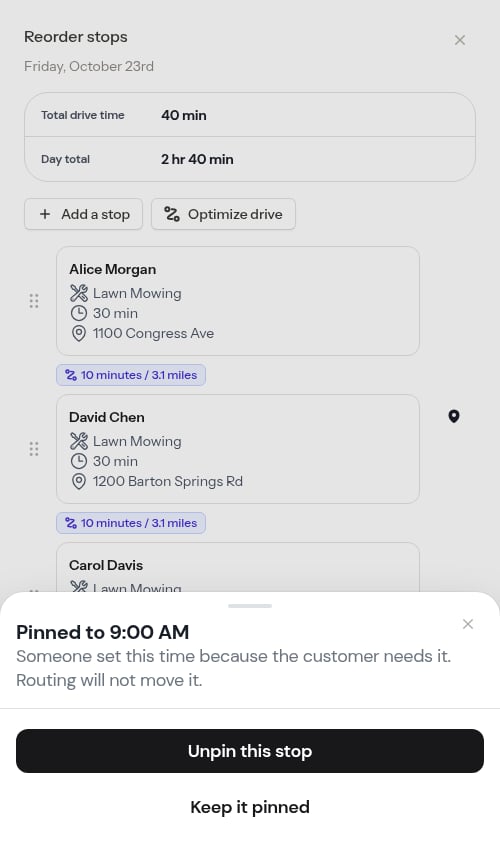
A pinned stop carries a pin mark and holds its time. You can’t drag another stop into its slot — ProBase puts the card back and explains why: “David Chen is pinned to 8:00 AM. Move the pin first.”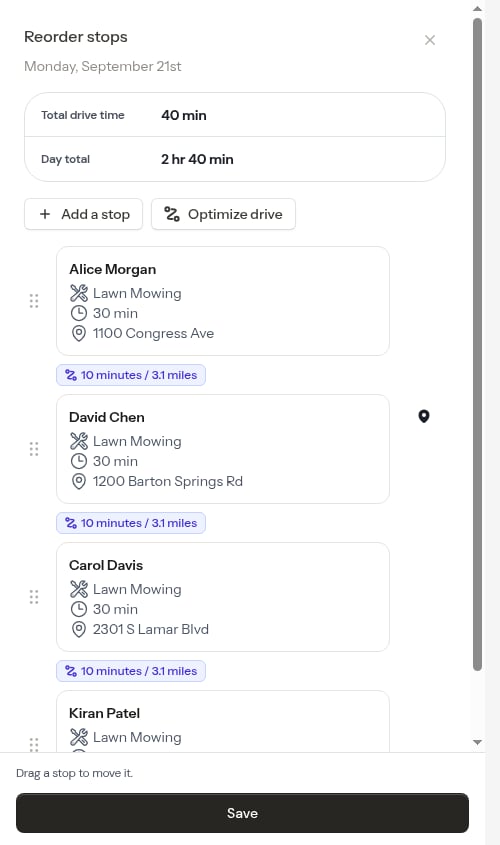
Optimize your drive automatically
Instead of dragging stops yourself, you can let ProBase work out the most efficient order — Optimize drive sits at the top of the reorder panel.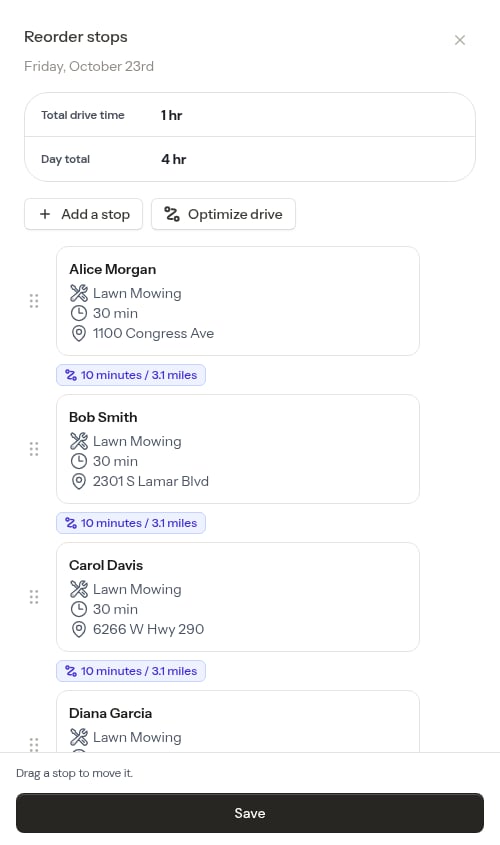
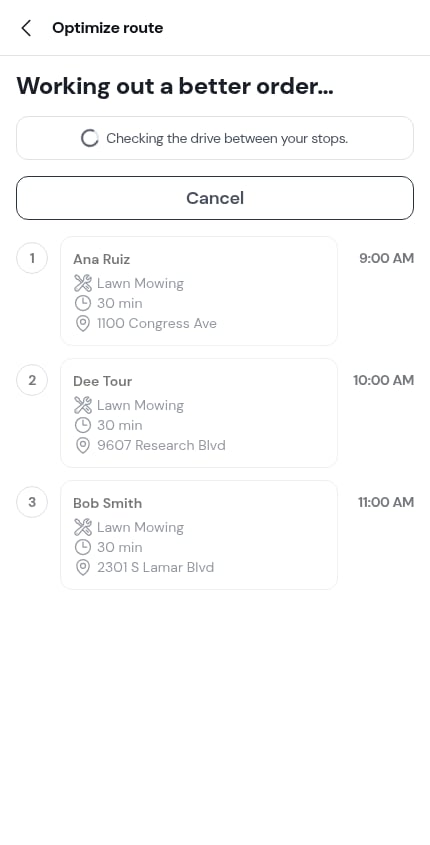
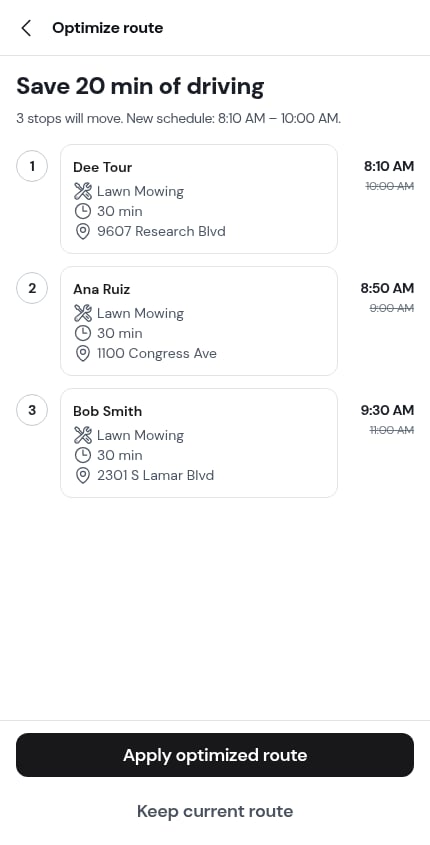
- Apply optimized route writes the new order, and the list behind refreshes into it.
- Keep current route leaves your day exactly as it was.
Optimize drive needs the crew to have a starting address saved and at least 2 stops with addresses ProBase can find. Set the address on the crew’s page — see Adding crews.
How times are recalculated
When you save a reordered route, ProBase anchors the day on the crew’s Start time and then walks through the stops in order, assigning times as it goes:- The day leaves at the crew’s Start time for that weekday (see Working hours). If the crew has never been given hours, ProBase uses the earliest work already on that day, and 8:00 AM if there’s nothing to go on.
- The first stop in the new order is assigned that start time
- ProBase adds the stop’s duration to get the finish time
- ProBase adds the drive time to the next stop
- The next stop’s start time is set accordingly
- This repeats for every stop in the list
Drive time display
Between each pair of consecutive stops, ProBase shows the estimated drive time and distance. These calculations use real road networks, not straight-line distances. Each drive time indicator displays both the travel time (in minutes) and the distance (in miles), for example: 5 minutes / 2.3 miles. These times already include your drive time buffer — if you’ve set it to Add 25%, a 20-minute drive is shown and scheduled as 25 minutes. There’s no second padding applied anywhere later.- Drive times and distances update automatically after you reorder stops
- A loading animation appears briefly while drive times are being calculated
- Drive times are hidden while a stop is being dragged to avoid distraction
- If ProBase can’t work out a driving path between two stops — because one of the addresses was matched to a spot the road network can’t reach, to a spot with no road anywhere near it, or to somewhere so far away that the drive is longer than the routing service will plan — the indicator shows a grey dash (—) instead of a time
A dash doesn’t block you. You can still drag stops and tap Save; that leg is simply treated as no drive time when the day’s stop times are recalculated. If you see a dash you didn’t expect, check the stop’s address on the map view — a pin in the wrong place is the usual cause.
Completed appointments
Completed appointments are also shown in the reorder panel. This allows you to see the full picture of the day’s route even if some work is already done. The ordering of completed stops still affects how times cascade to remaining stops.Marketplace jobs in the panel
Jobs that came from a connected marketplace appear in the reorder panel alongside your own, marked with the marketplace’s small brand mark next to the customer name. You can drag them into any position and save — how your own day is arranged is yours to decide, even on marketplace work. Moving a marketplace job to a different day is the one thing that has to happen in the marketplace app. See Marketplace jobs.When to use manual reordering vs optimize drive
Drag stops manually when:- You want to start with a specific high-priority customer
- You know the neighborhood better than the optimizer
- You want to group stops by a specific preference
- You want the most efficient route calculated automatically
- You’re making last-minute changes and don’t want to drag each card
- You want to see the drive time summary before committing
Next steps
- Optimize routes for fully automated route planning
- Complete appointments as you work through the day
- View the daily schedule to track progress