What archiving does
Archiving is the way to clean up your customer list when you stop working with someone — a customer who moved away, cancelled for good, or was added by mistake. Archiving is not deleting: nothing is permanently removed. When you archive a customer, ProBase:- Removes them from your active customer list, so your list only shows people you’re currently working with
- Unschedules their upcoming visits and takes them off the calendar and route optimizer
- Stops generating new recurring appointments for their services
- Keeps every record — jobs, invoices, payments, quotes, and notes stay intact and viewable
- Keeps their money where it was — unpaid invoices stay on your Money page and in your follow-up lists, their balance doesn’t change, and the links you sent them keep working, so they can still view and pay
Archiving keeps the full history on record, including any outstanding balance — nothing is permanently deleted. If a customer comes back, you can restore them yourself with Unarchive — see Bring a customer back.
The Archive customer action and the Archived status filter are rolling out gradually. If you don’t see them on your account yet, they’ll appear soon.
Archive a customer
1
Open the customer's Edit screen
Open the customer’s profile from Customers in the sidebar, then click the Edit button in the top-right corner.
2
Click 'Archive customer'
Scroll to the bottom of the Edit panel. Below the Save and Cancel buttons you’ll find the Archive customer action.
3
Review the confirmation
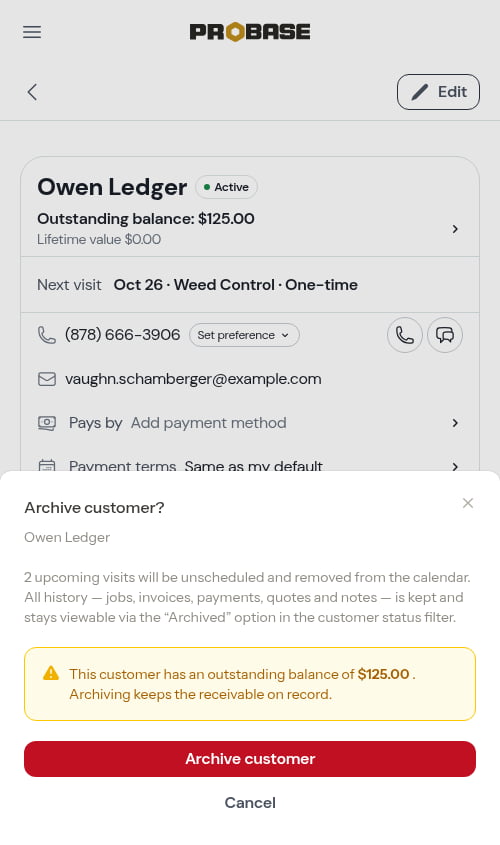
A confirmation dialog summarizes what archiving will do, including how many upcoming visits will be unscheduled. If the customer still owes you money, a warning shows their outstanding balance so you don’t lose track of the receivable.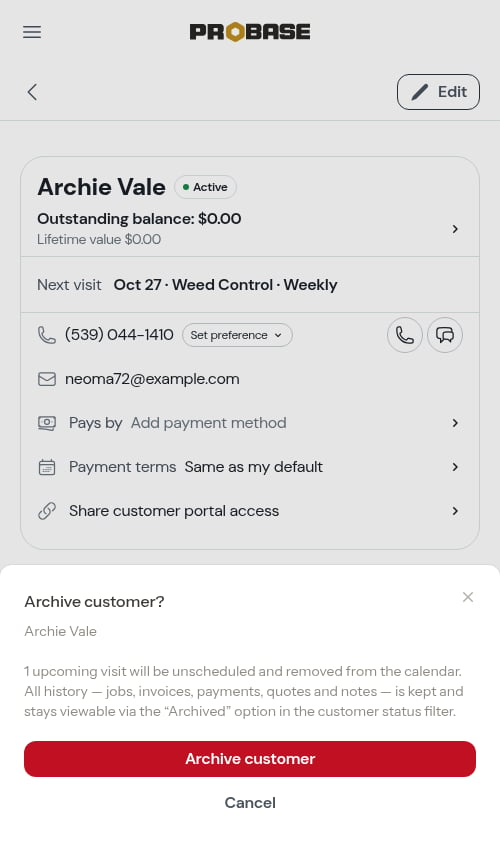
4
Confirm
Click Archive customer to confirm. You’ll be returned to the customer list, where the archived customer no longer appears among your active customers.
If you (or a teammate) happen to have one of the customer’s job pages open when they’re archived, ProBase won’t leave you stranded on a job that no longer exists. The next time that page updates, it shows a “That job is no longer available” notice and returns you to your schedule.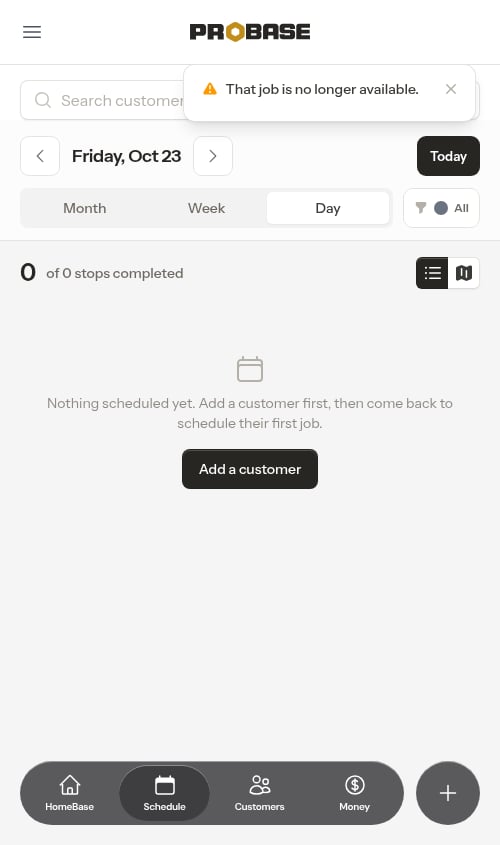
Viewing archived customers
Archived customers are hidden from your customer list by default. To see them, open the All Statuses filter at the top of the Customers list and select the Archived option. Archived customers then appear in the list, marked with an Archived badge in place of their usual status. Because the status filter lets you pick more than one option, you can select Archived on its own to see only archived customers, or combine it with active statuses (like Active or Lead) to show archived customers alongside your current ones.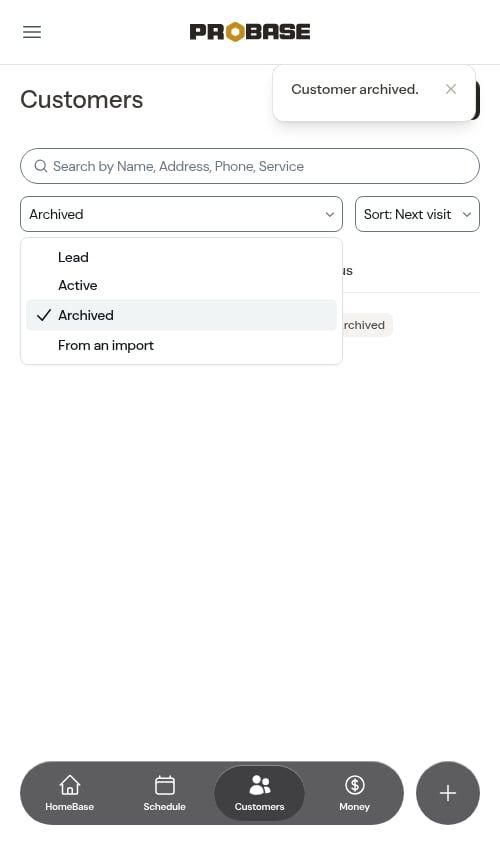
Settling an archived customer’s balance
Archiving doesn’t close the books. An archived customer’s invoices work just like an active customer’s, so you can still chase and settle what they owe:- Record a payment when the money finally comes in — cash, check, or a Venmo, Cash App or PayPal transfer that landed after you archived them. Use Record payment on the invoice or on the Money page — see Recording payments
- Add a charge or a credit on their invoice for something you missed or want to take off — see Invoices
- Archive the invoice if you’ve decided not to pursue it: open the invoice, tap ⋯ More → Archive invoice, and pick a reason such as Customer won’t pay or Not worth chasing. That takes it off Money and your follow-up lists. The invoice stays open, and the customer can still pay it
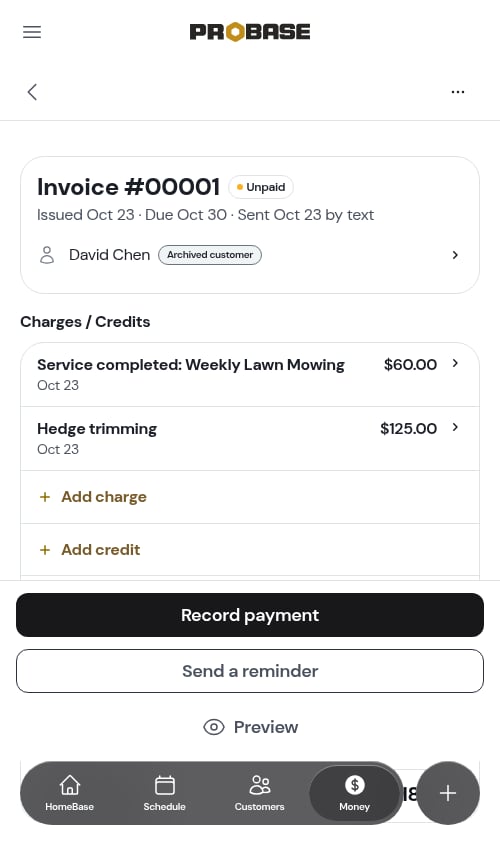
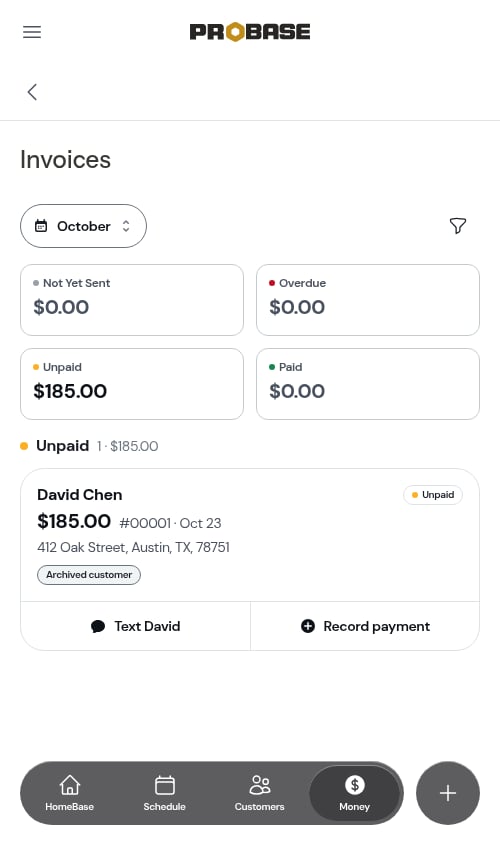
Because the balance keeps recalculating after archiving, the figure you see is always current. If the customer ever comes back and you bring them back, their account picks up with the right number rather than a stale one from the day you archived.
Bring a customer back
Archiving isn’t permanent. If a customer you’d written off calls again, you can restore them yourself — nothing needs to go through support.1
Find them under the Archived filter
Open the Customers list, set the status filter to Archived, and tap the customer.
2
Tap Unarchive
On an archived customer’s page the usual Edit button is replaced by a single Unarchive button at the top. That’s the only action an archived profile offers, so it’s hard to miss.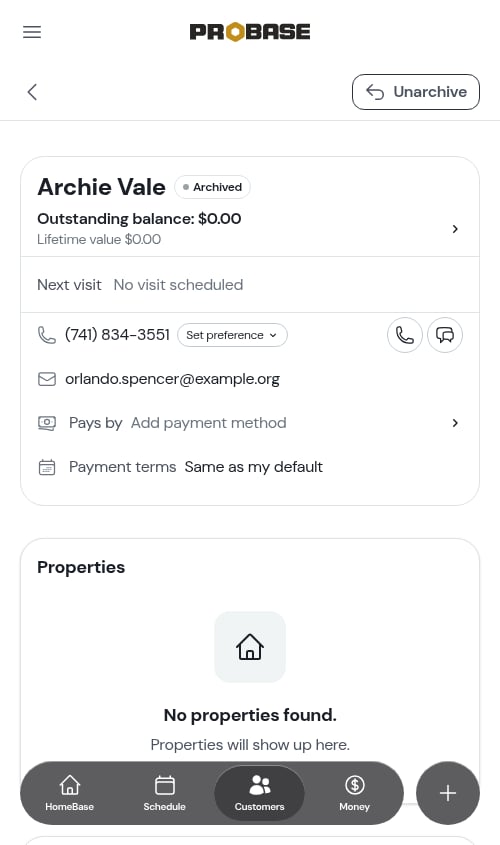
3
They're back
ProBase confirms with “Customer unarchived.” and reloads the page as a normal customer profile — the Archived badge gives way to their live status, Edit returns, and the + for booking new work is back beside the Services heading.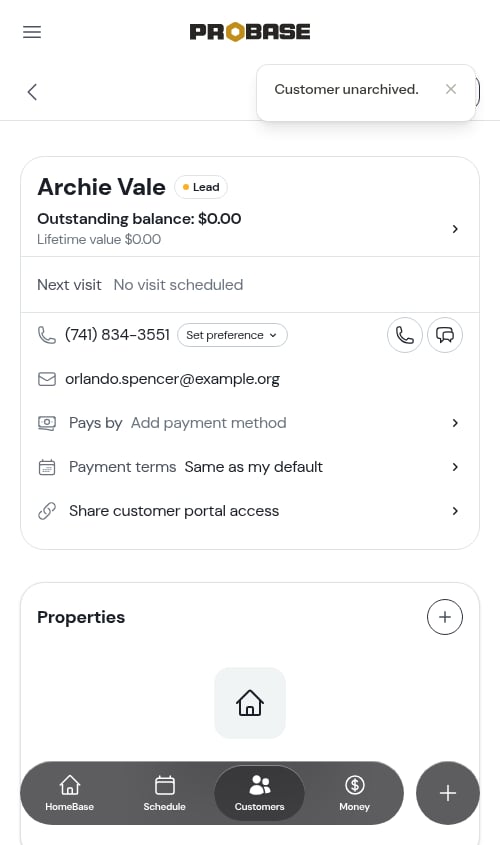
Unarchiving is available to the same people who can archive in the first place. If you don’t see the Unarchive button, your role doesn’t include it — ask an admin or the business owner.
Marketplace customers can’t be archived or unarchived in ProBase — their lifecycle belongs to the marketplace.
Next steps
- Understanding customer status — how active customers are automatically categorized
- Viewing customer information — review a customer’s full profile and history
- Customer balances — collect or settle an outstanding balance