Overview
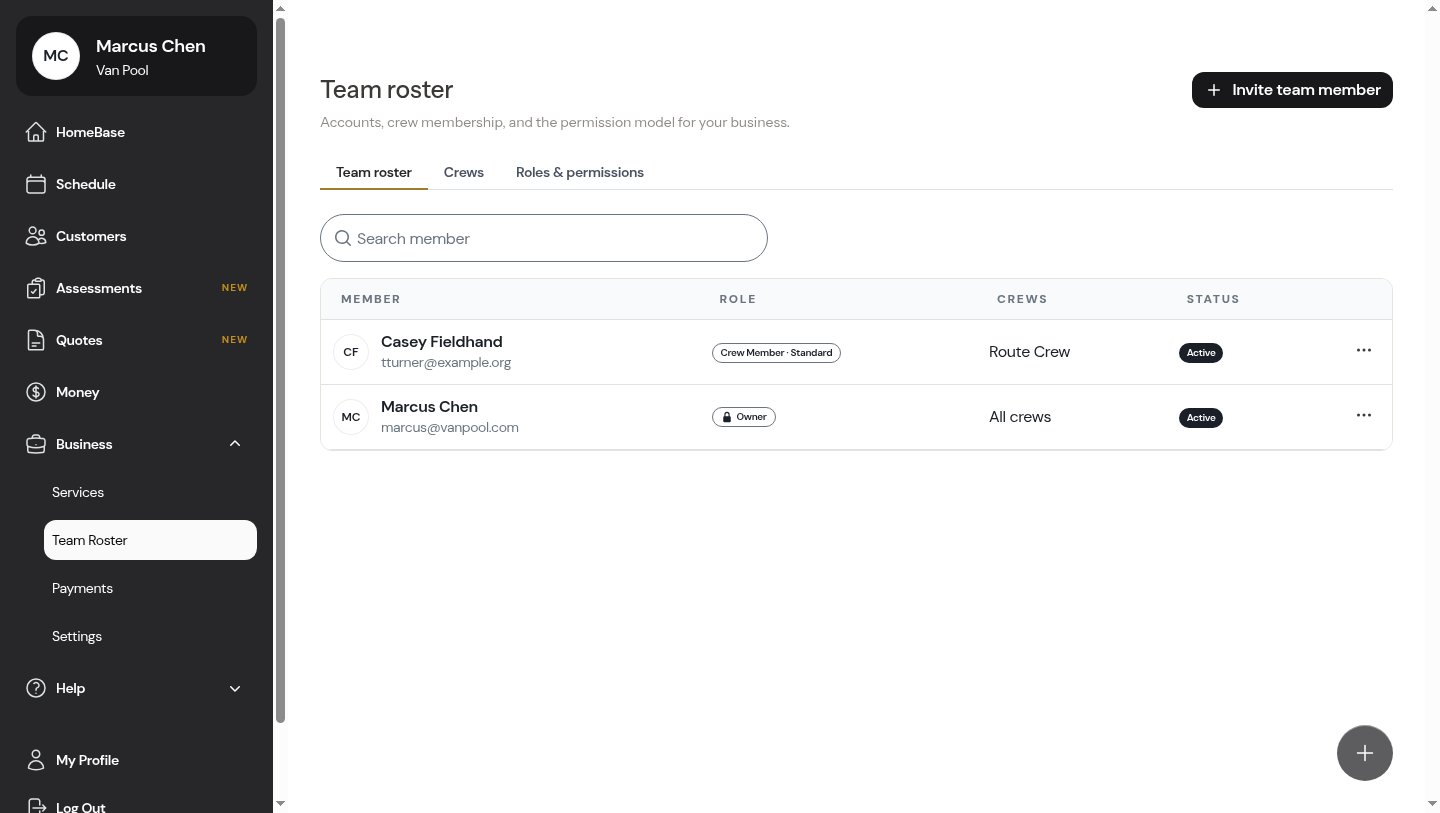
The Team Roster is the home for everyone who works in your business. From here you can see who’s on the team, what each person is allowed to do, which crews they run with, and whether their account is active — all in one list. Open it from Team Roster in the sidebar, under Business. The page has three tabs across the top:- Team roster — the people on your team (this page)
- Crews — your field crews and who’s on each one (learn more)
- Roles & permissions — what each role can do (learn more)
The Team Roster entry and its tabs only appear for owners, admins, and managers. Crew members who log in see the everyday screens (HomeBase, Schedule, Customers) but not the team-setup screens.
Reading the roster
Each person on your team shows up as a row with four things:- Member — their name and email
- Role — the role that decides what they can see and do (for example, Crew Member · Standard or Manager). The business owner always shows an Owner badge with a lock.
- Crews — the crews they belong to. Owners, admins, and managers show All crews; everyone else shows their crew names.
- Status — whether their account is Active, Pending (invited but not yet joined), or Deactivated
Pending invites
Anyone you’ve invited who hasn’t accepted yet appears in a Pending invites section above the member list, so you can see at a glance who still needs to join. Each card shows their name (or email), a Pending badge, and the role they’ll get once they join.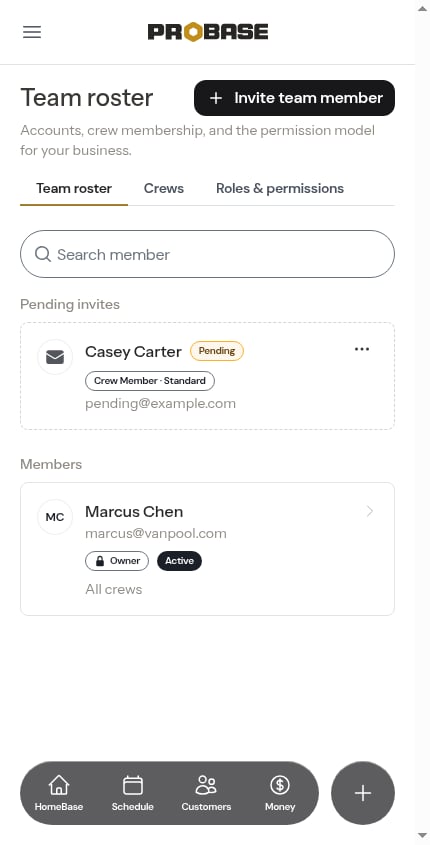
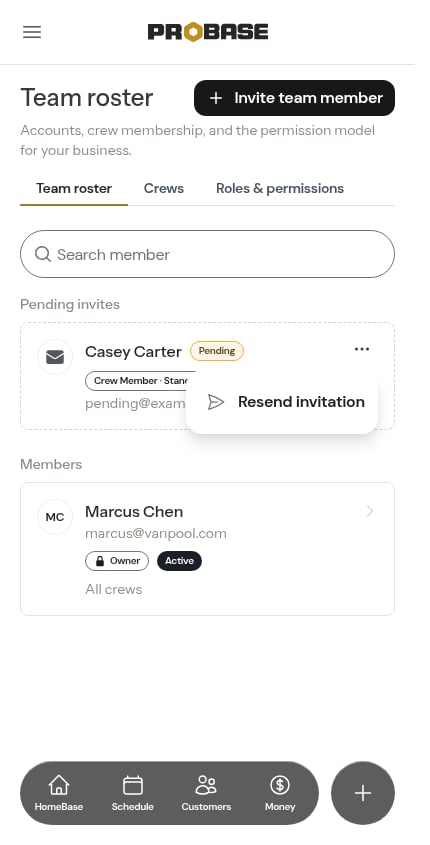
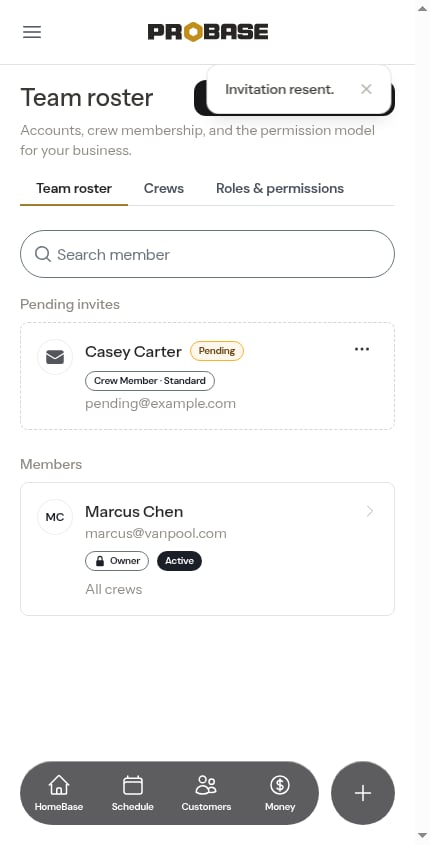
Need to expire or cancel an invitation instead of just resending it? Those actions live in the full Pending Invitations list — see Managing pending invitations.
Member actions
Click the ⋯ (three dots) at the end of any member’s row to open their actions menu.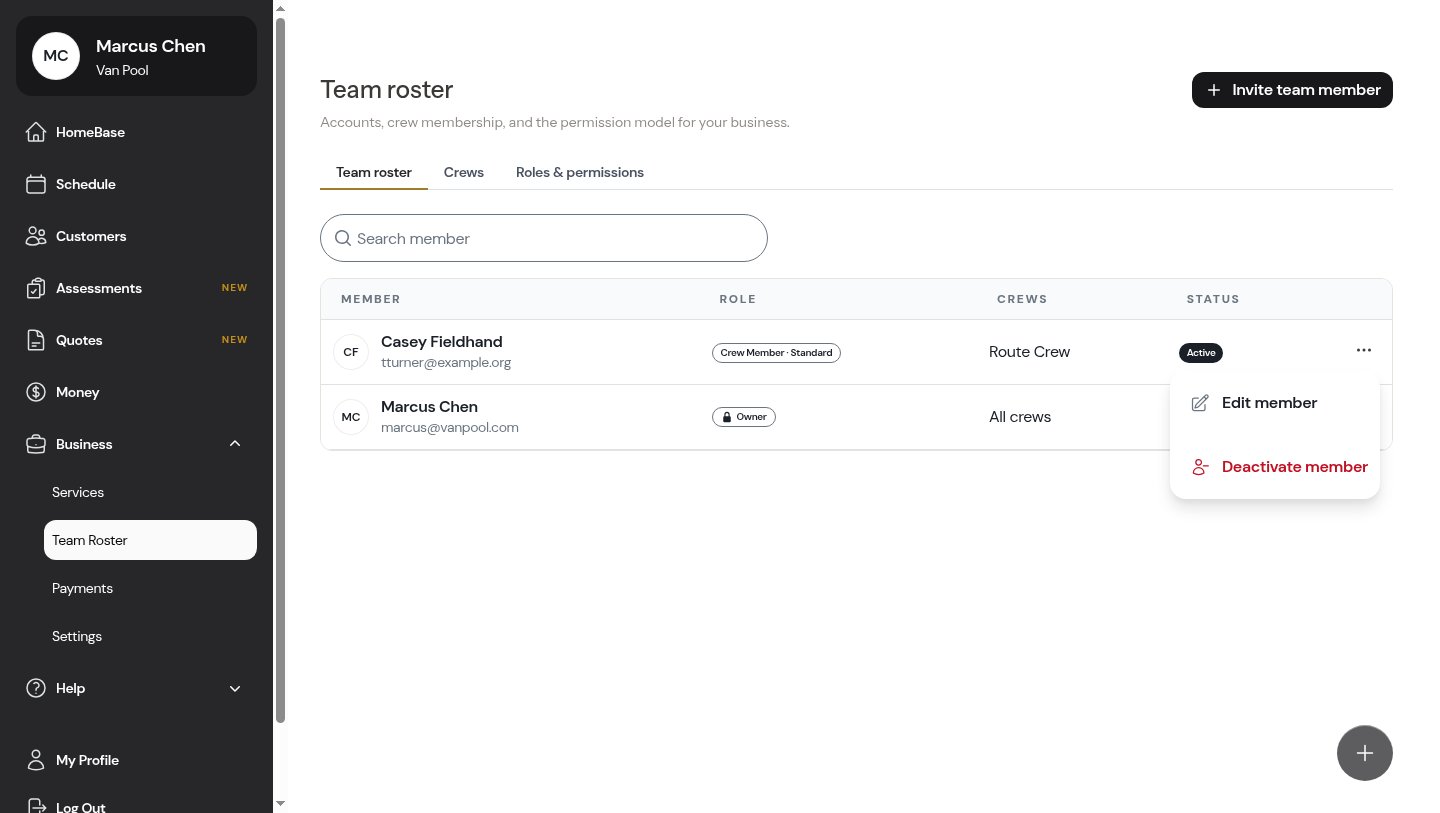
- Edit member — change their role, their crews, or their contact details
- Deactivate member — turn off their account access (or Reactivate member if they’re already deactivated)
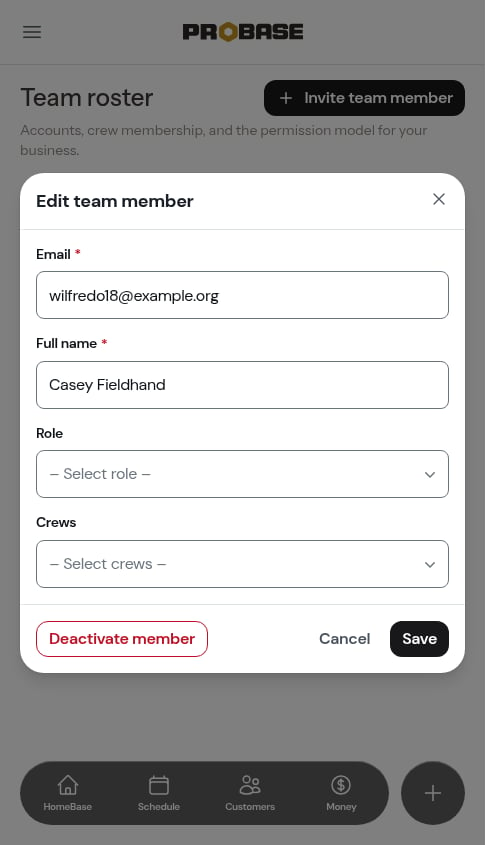
Editing a member
Choosing Edit member opens a form where you can update:- Email and Full name
- Role — pick from your roles
- Crews — the crews this person runs with
Managing member accounts
When someone leaves the team — or you just need to pause their access — you deactivate them rather than deleting them. Deactivating keeps all of their history (completed work, records, and notes) intact, and you can bring them back at any time.Deactivating a member
- Open the member’s actions menu (⋯) and choose Deactivate member — or open Edit member and click Deactivate member at the bottom of the form
- Confirm in the dialog
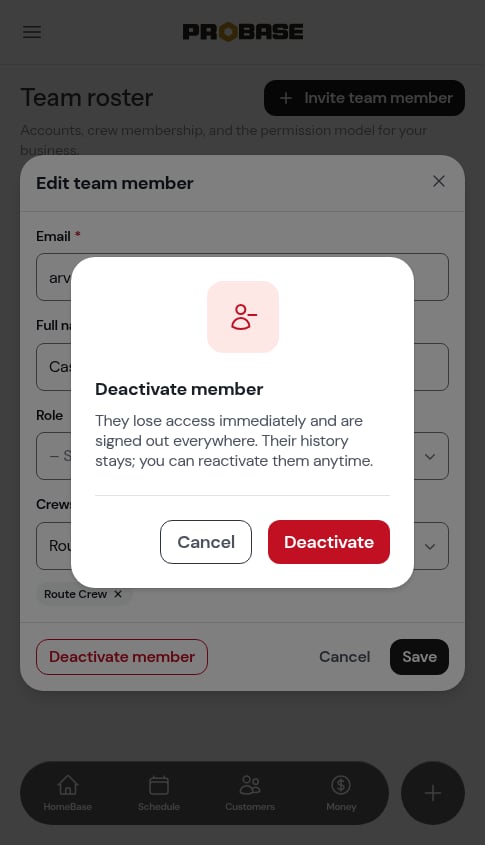
- They lose access immediately and are signed out everywhere
- They’re removed from every crew
- Their history stays exactly as it was
The business Owner can’t be deactivated. Ownership transfer is handled by the ProBase support team.
Reactivating a member
A deactivated member shows a Deactivated status. To bring them back, open their actions menu and choose Reactivate member, then confirm. They regain access immediately with the same role they had before.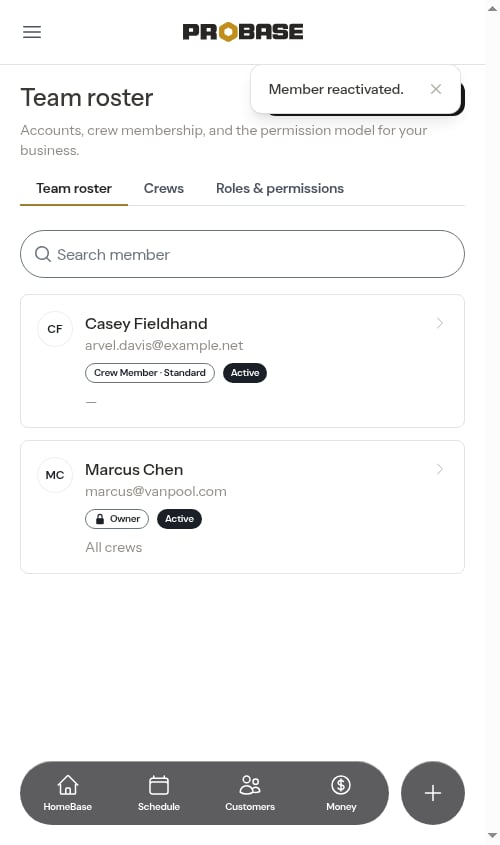
What crew members see
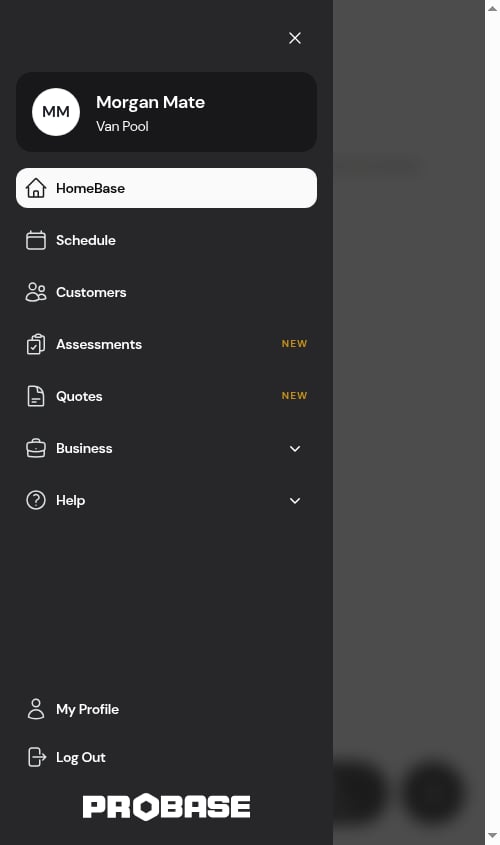
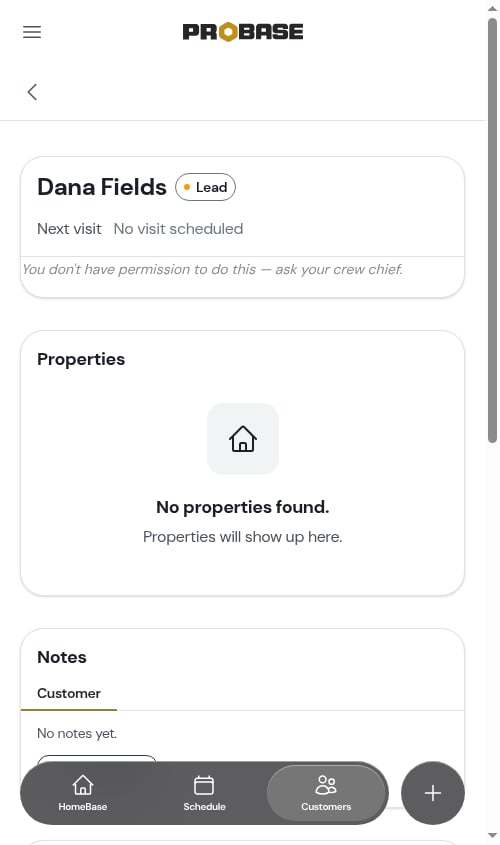
The Team Roster and the rest of the business-setup screens are only for owners, admins, and managers. Crew members get a focused experience built around the work assigned to them:- Their sidebar shows HomeBase, Schedule, and Customers — plus Services if their role allows it. The Money, Team Roster, Payments, and Settings screens are hidden.
- Until work is scheduled for them, their HomeBase shows a friendly note: “Nothing assigned yet — your team will schedule your work.”