What are checklists?
Checklists are reusable in-job forms. You build a checklist once — a set of questions like water chemistry readings, tasks completed, before/after photos, or a customer sign-off — and it appears automatically on the jobs it applies to. Your crew fills it out in the field, and the answers are saved to the visit. Think of a checklist as the standard set of things you want captured every time a particular kind of work is done. Instead of relying on memory or free-form notes, checklists make sure the same details are recorded consistently on every visit. Common uses:- Pool chemistry — free chlorine, pH, alkalinity, and other readings on every service
- Task confirmation — a checkbox list of what was completed
- Photo documentation — before and after photos of the work
- Customer sign-off — a signature confirming the work was done
Where to find checklists
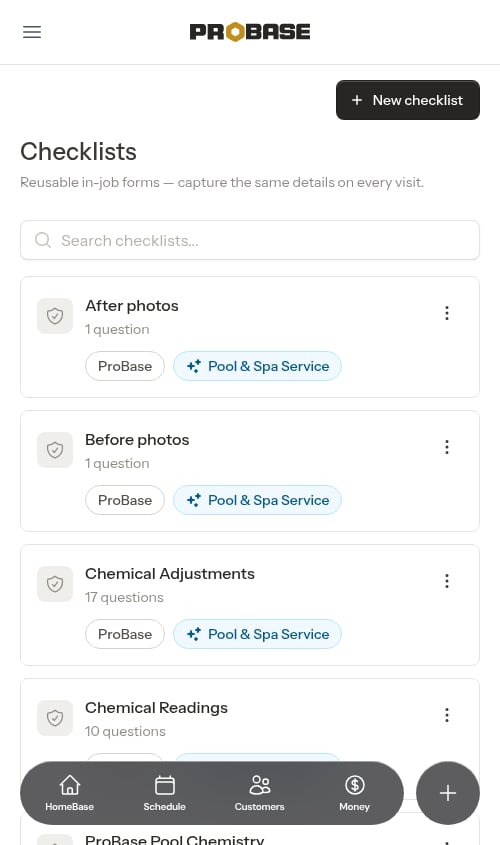
Click Checklists in the sidebar, under the Business section (next to Services). This opens your Checklists library — a list of every checklist available to your business.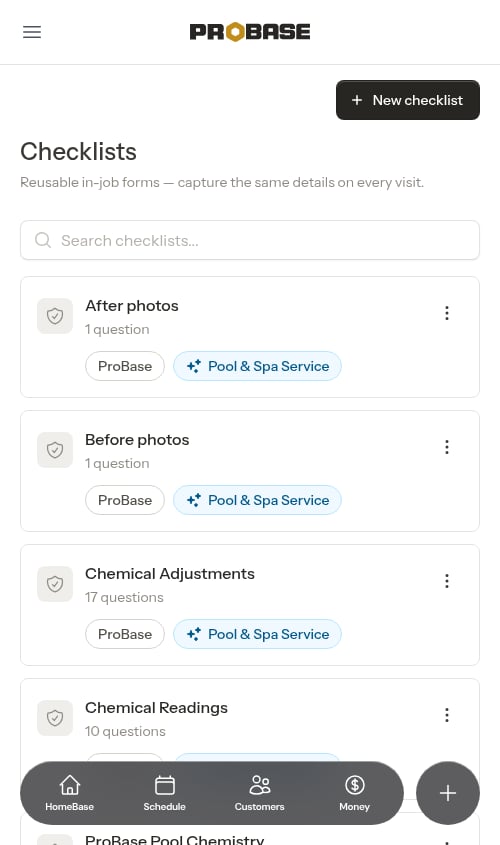
- Your checklists — the ones you build yourself. These are fully editable.
- ProBase checklists — ready-made templates provided by ProBase and marked with a ProBase tag. These are automatically added to services that match your industry. You can’t change the templates themselves, but you can preview them, choose which services they apply to, or tap Edit to make your own copy that replaces the template on your services. See ProBase system checklists.
Trade chips and “+N more”
A ProBase template can match several of your trades at once. To keep the row readable, the library shows the first three trade chips and collapses the rest into a +N more chip: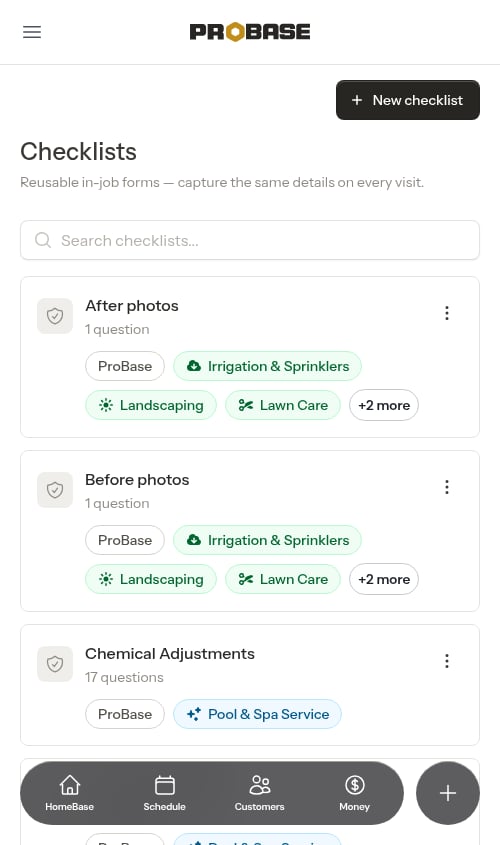
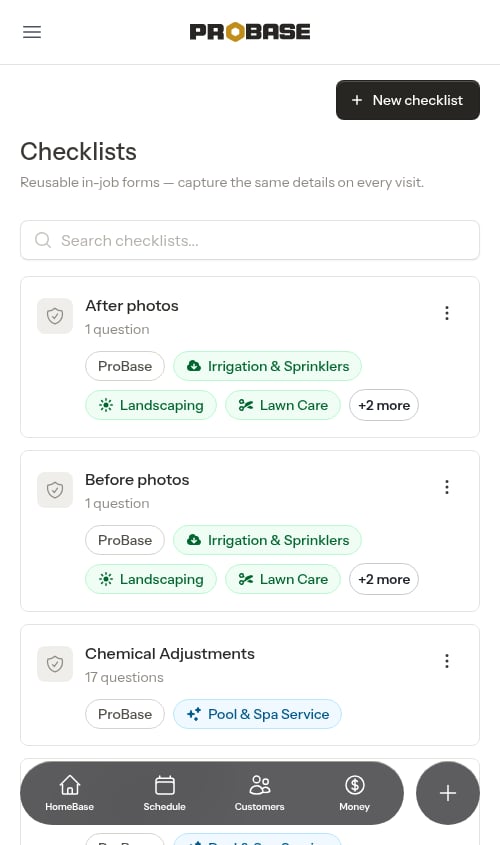
The chips only ever list your declared trades. A pool business sees a Pool chip on a template that also covers lawn and tree care — not ProBase’s whole trade list. Change which trades you work in Industries.
What you can do
1
Build a checklist
Create your own checklists with the mobile-first builder — add sections and questions, choose when the checklist should appear, and decide whether the answers show up on the customer’s invoice. See Building checklists.
2
Attach it to services
Connect a checklist to one or more of your services so it shows up automatically on those jobs. See Attaching checklists to services. For a one-off or custom job, you can also add a checklist to that job alone — see Adding a checklist to one job.
3
Fill it out on the job
When a crew opens a job that has a checklist, they fill it out on the appointment screen. Answers save automatically as they go. See Completing checklists on a job.
4
Share it with the customer
Choose which filled-in items appear on the customer’s invoice as a Service Report, giving customers a professional record of the work performed. See The customer Service Report.
Managing checklists from the library
Each checklist has an overflow menu (the ⋮ button) with these actions:- Duplicate — make a separate copy you can modify without changing the original. Handy for creating a variation of an existing checklist.
- Delete — permanently remove a checklist you no longer use. Only your own checklists can be deleted, so ProBase checklists show Duplicate alone.