What is the contact form?
The contact form is a branded web page you can share anywhere — link it from your social media bio, print a QR code on your truck or a flyer, or drop the link into an email. When someone fills it out, their details land in ProBase automatically as a new lead, so you can follow up and turn them into a paying customer. The form lives at its own web address (for exampleyoursite.com/f/your-business) and shows your business name and logo. Visitors don’t need a ProBase account — anyone with the link can reach out to you.
The contact form is turned off by default. You enable it and pick its web address from your Business Profile settings, described below.
Turning on your contact form
The contact form is managed from Settings → Business Profile, in the Contact Form section. Only the business owner and admins can change these settings.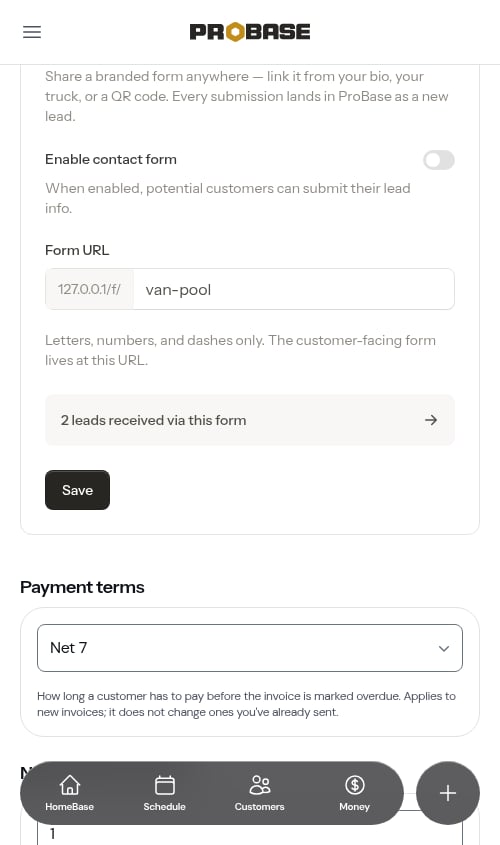
1
Open Settings
Click Settings in the sidebar (under Business) and scroll to the Contact Form section.
2
Choose your form's web address
Under Form URL, type the ending you want for your link — letters, numbers, and dashes only. This is the address customers will visit (for example,
van-pool becomes …/f/van-pool). Pick something short and recognizable, like your business name.3
Enable the form
Turn on the Enable contact form toggle. When enabled, potential customers can submit their information through your form.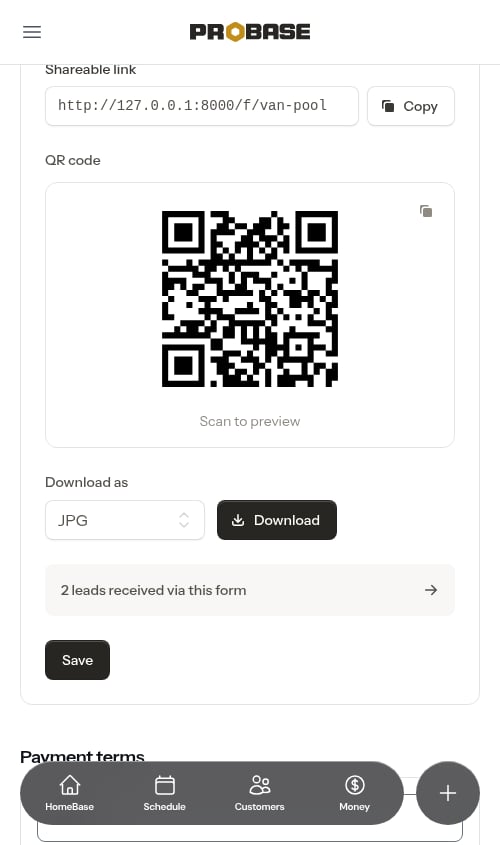
4
Save
Click Save. Your form is now live at its web address, and the shareable link and QR code appear so you can start sharing right away.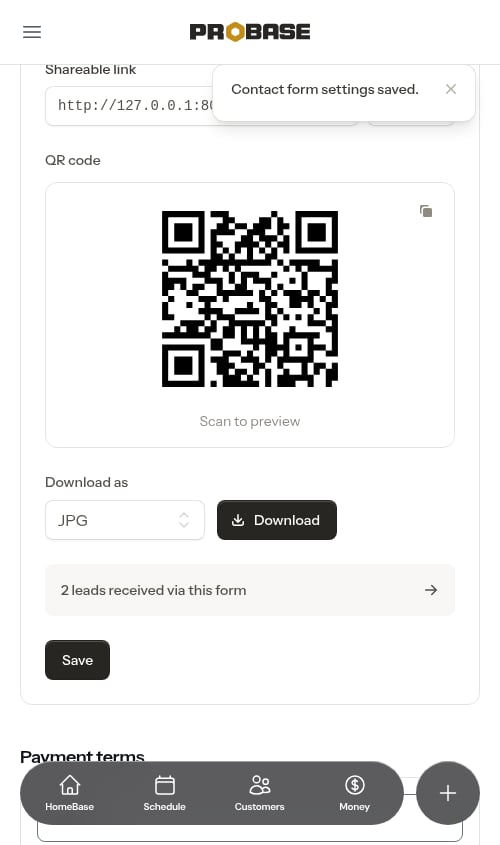
Sharing your form
Once the form is enabled, two ways to share it appear in the settings:Shareable link
Your form’s full web address shows in the Shareable link field. Click Copy to copy it to your clipboard, then paste it into your social media bio, a text message, an email signature, or anywhere else your customers will see it.QR code
A scannable QR code is generated automatically from your form’s link. Customers can point their phone camera at it to open your form instantly — perfect for printed materials like yard signs, flyers, business cards, or a sticker on your truck. Scan to preview under the code is a reminder that you can test it with your own phone before you print anything.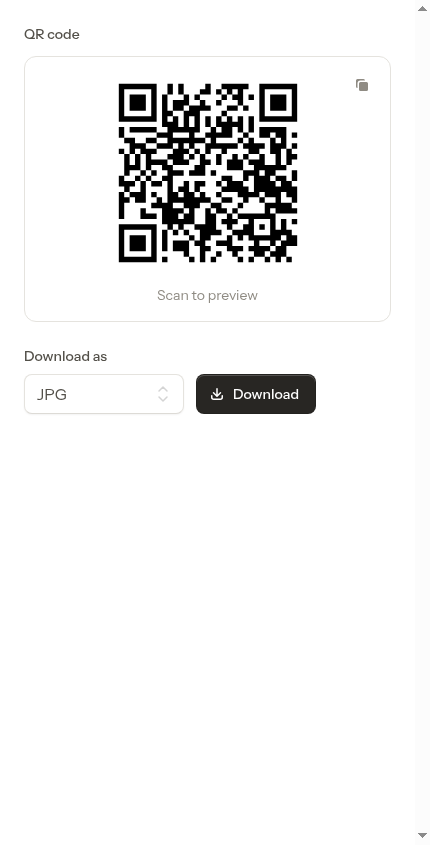
-
Copy the QR code — click the copy icon in the top-right of the QR code box to copy the image, then paste it into a design or document. The icon turns into a green checkmark for a couple of seconds to confirm the copy worked.
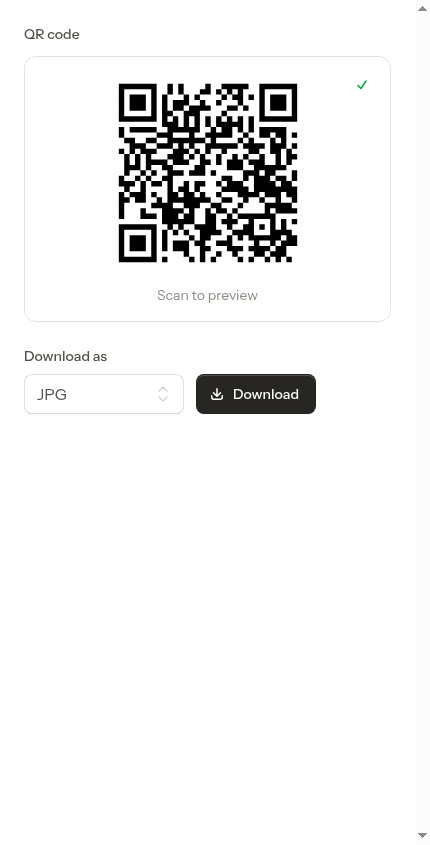
-
Download the QR code — choose JPG or SVG from the Download as dropdown and click Download. Use JPG for most documents and printing; choose SVG if your designer needs a sharp, resizable version for large signage.
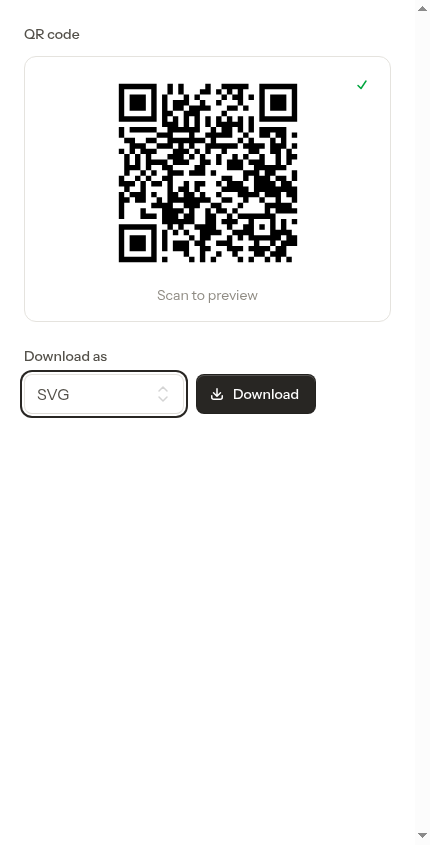
The QR code always points to your current form address. If you change your form’s web address (see below), download and reprint your QR codes so they point to the new link.
Changing your form’s web address
You can update your form’s web address at any time by editing the Form URL field and saving. When a change would retire your current address, ProBase shows a reminder in the settings before you save so the 30-day window is never a surprise.What your customers see
When someone opens your form, they see a clean, branded page with your business name and logo at the top.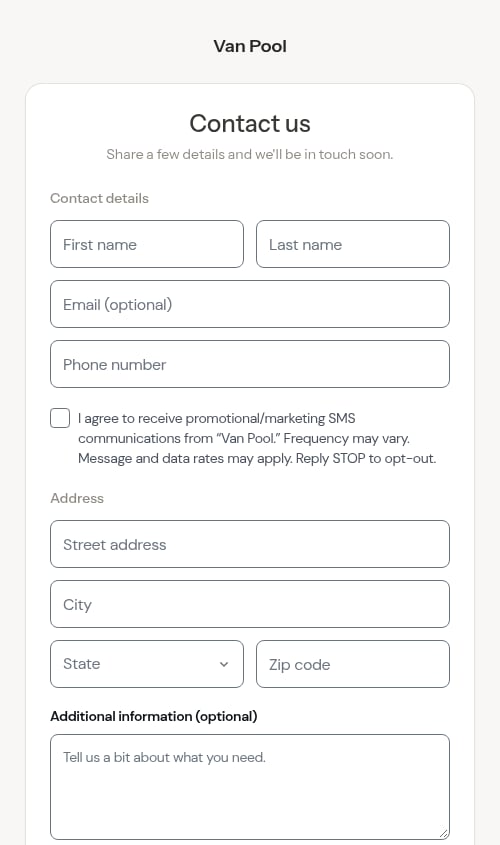
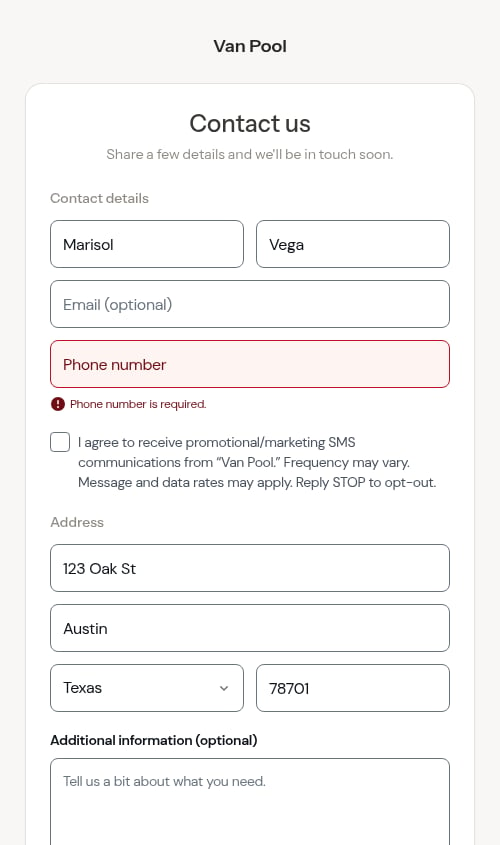
- First name and Last name (required)
- Phone number (required, so you always have a way to reach them)
- Email (optional)
- A checkbox to agree to receive promotional/marketing text messages from your business (optional — leaving it unchecked still lets them submit)
- Address — street address, an optional second address line, city, state, and ZIP code (required, so every lead arrives with a serviceable location)
- Additional information — a free-text box for them to describe what they need (optional)
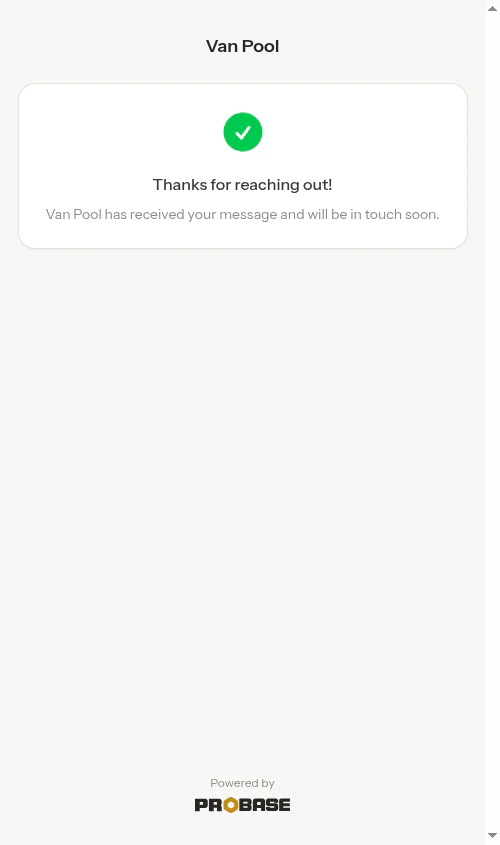
Putting the form on your own website
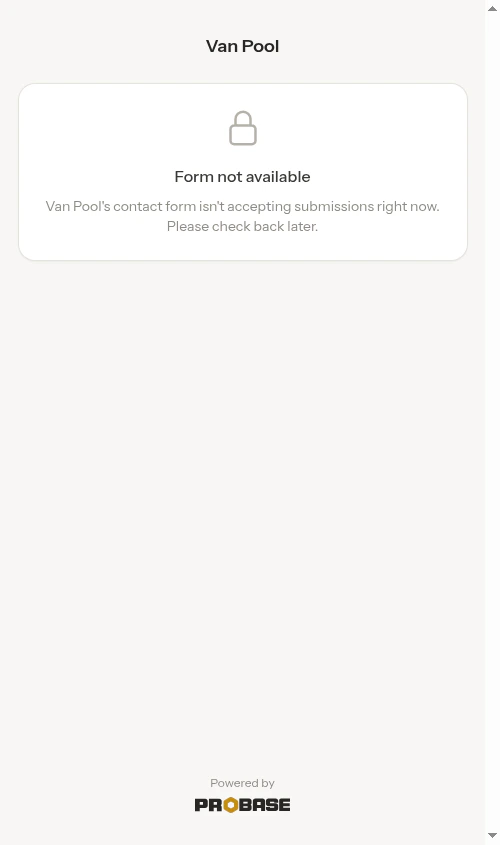
You can link to the form from your website, or place it right inside one of your site’s pages (many website builders let you embed another page in a frame). Either way, submissions arrive in ProBase just like they do from the link — even when the visitor’s browser blocks cookies or your website builder locks down the embedded frame. Even inside a locked-down frame, the form loads cleanly — it doesn’t put error messages on your website or leave any part of the form half-working.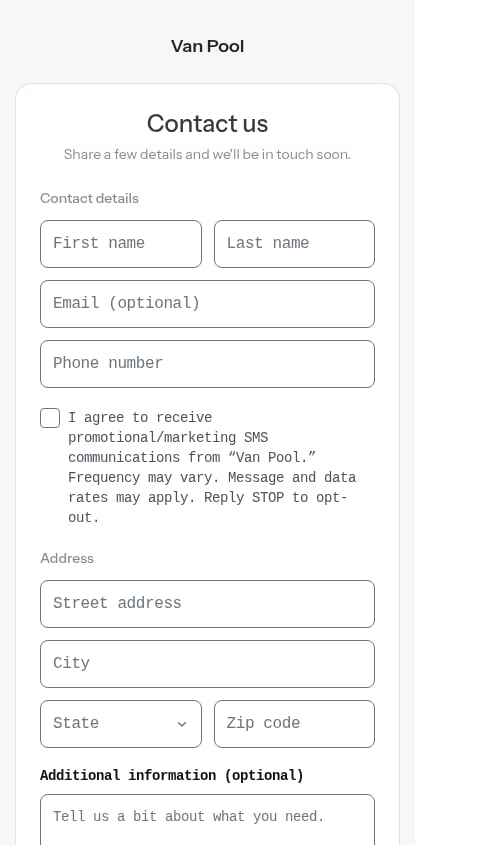

What happens to a submission
Every submission lands in ProBase on its own, ready for you to work:- The person. ProBase checks the phone number they typed against the customers you already have — archived ones included — so someone who has used you before doesn’t turn into a second record. No match, and a new customer is created with the Lead status.
- The property. An address that matches one of that customer’s existing properties exactly attaches to it; anything else becomes a new property. If they gave no street address at all, you get the lead on its own with no property.
- An assessment, named Contact form request, opens on your Assessments screen in the New group, carrying their words, the time it arrived, and the address exactly as they typed it. That’s where you ask for photos, book a look, or price the work.
- If they checked the text-message consent box, that agreement is recorded with the date for your records, and the lead’s contact preference starts out as Prefers text — a starting point you can change or clear from the customer’s page at any time. See Contact preference.
- You get an email letting you know the request came in through your form.
- An update appears behind the bell for everyone on your team whose role lets them see customers and leads — New contact for somebody new, New request when the phone number matched a customer you already had. Tapping it opens their page and marks the update read for you at the same time. If push notifications are switched on for your phone, the same message arrives there too.
Their words sit at the top of their page
Open the lead and the first thing on the page is a tinted From your contact form block: what they wrote, word for word, and when it landed — Arrived today · 1:10 PM. It’s deliberately set apart from your own notes so you can tell at a glance which words are theirs.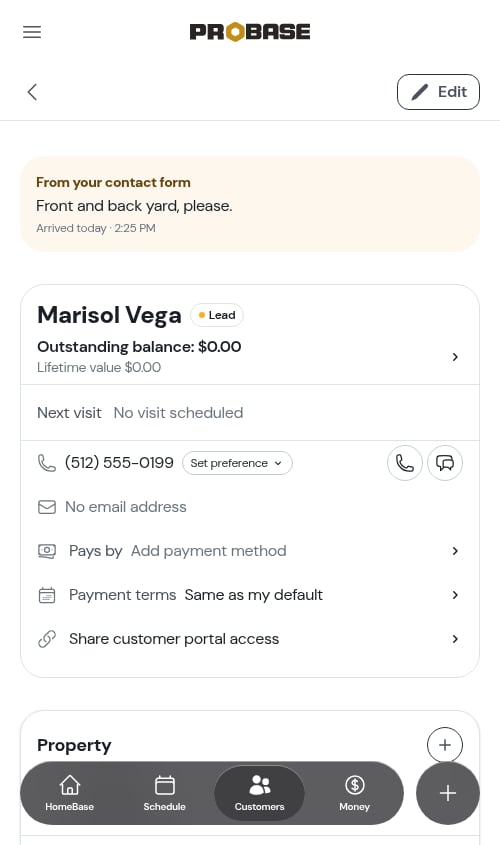
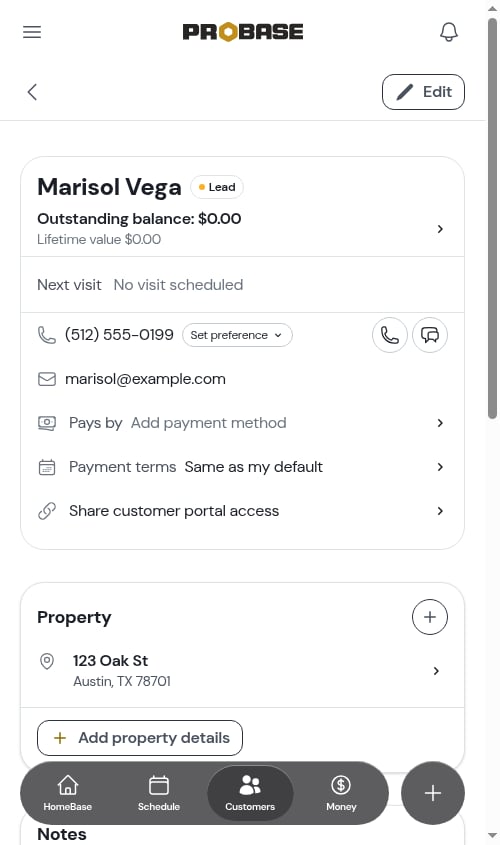
New leads appear in your customer list with the Lead status. See Understanding customer status for how leads move to Active once you start work, and Adding new customers for the other ways customers get into ProBase.
Spam protection
ProBase quietly filters out automated spam submissions and limits how often the same visitor can submit, so your lead list stays clean. This happens behind the scenes — you don’t need to configure anything.Next steps
- Understanding customer status — how leads progress to active customers
- Creating quotes — send a quote to a lead to win the work
- Adding customer notes — keep track of what each lead needs
- Updates — how the New contact alert reaches your team