What is a job?
A “job” in ProBase is confirmed work that’s ready to schedule and perform. Jobs are created through a guided multi-step wizard that asks one question per screen:- Who is it for? (customer)
- Where is it? (property)
- What are you doing? (service)
- What does it cost? (price, extra charges, discount)
- When should it be scheduled? (frequency, start date, crew, time of day)
- When should it be billed? (per visit or subscription)
When to use job creation
Use the job creation wizard when:- Confirmed work - Customer has already agreed to the service and pricing
- Quick setup - You want to go from “new customer” to “scheduled appointment” in one flow
- No approval needed - Work doesn’t require a formal quote or on-site assessment first
- Standard services - You know the pricing and scope upfront without needing a site visit
How to create a job
1
Step 1: Open the job creation wizard
Tap New Job from the Quick Actions menu (the floating + button), or start from the customer you’re scheduling for: open their page and tap the + button in the Services section header.Starting from a customer or property pre-fills what ProBase already knows and skips those questions, making the process even faster.The wizard opens over whatever page you were on, as a full-screen window titled New Job. Closing it with the ✕ leaves you exactly where you were and throws the answers away — nothing is saved until the last screen.
2
Step 2: Choose what you're doing
The first screen asks What would you like to do? — Schedule work you’ve priced, visit the property first, or send a quote.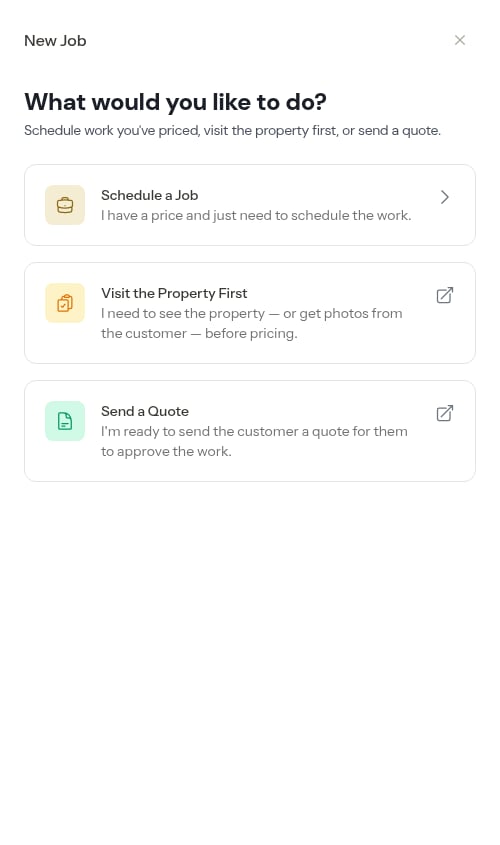
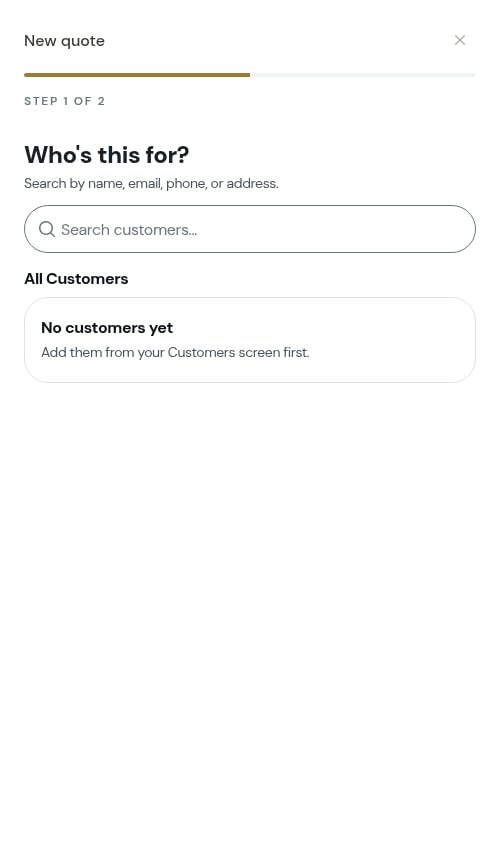
- Schedule a Job — I have a price and just need to schedule the work. Continues in this wizard.
- Visit the Property First — I need to see the property — or get photos from the customer — before pricing. Opens the assessment flow instead.
- Send a Quote — I’m ready to send the customer a quote for them to approve the work. Opens the quote flow instead.
The last two cards only appear if your role can create assessments and quotes. See Roles and permissions.
3
Step 3: Select or create customer
Choose an existing customer or create a new one (skipped if you came from a customer page).The customer step shows your full customer list in alphabetical order. The header is sticky as you scroll, so the Back button, New customer button, and search bar stay reachable.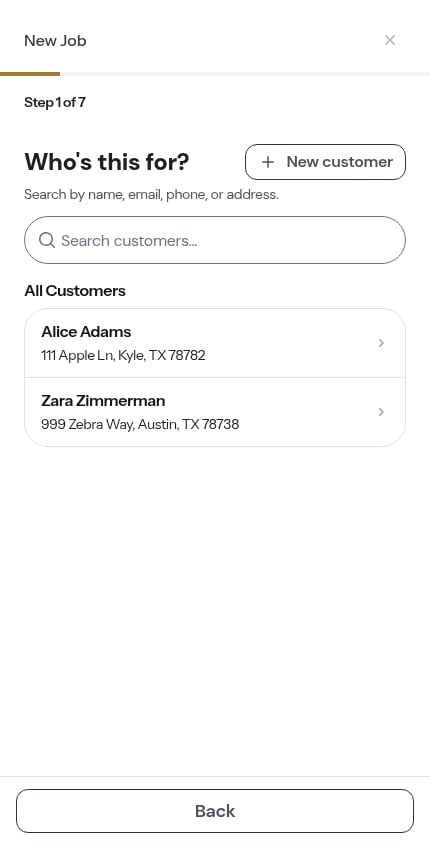
- Scroll through the All Customers list — more customers load automatically as you reach the bottom
- Or type into the search box to filter by name, email, phone, or address
- Tap the customer to select them
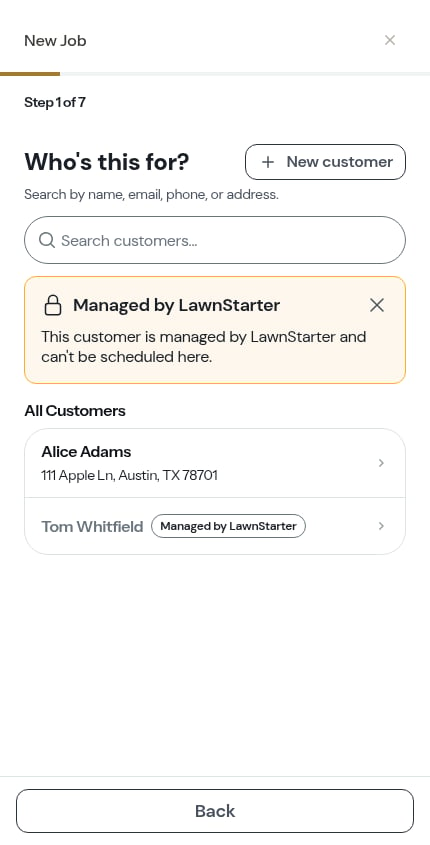
Marketplace customers can’t be picked here. If you’ve connected a marketplace account, those customers still appear in the list so you can see your whole book — but they’re dimmed, show the marketplace’s logo in place of the usual person icon, carry a lock icon on the right, and read Managed by LawnStarter — not schedulable here instead of their address. Tapping one shows This customer is managed by LawnStarter and can’t be scheduled here. and the wizard stays put. Marketplace work reaches your schedule by claiming it in the marketplace app instead — see Marketplace customers.
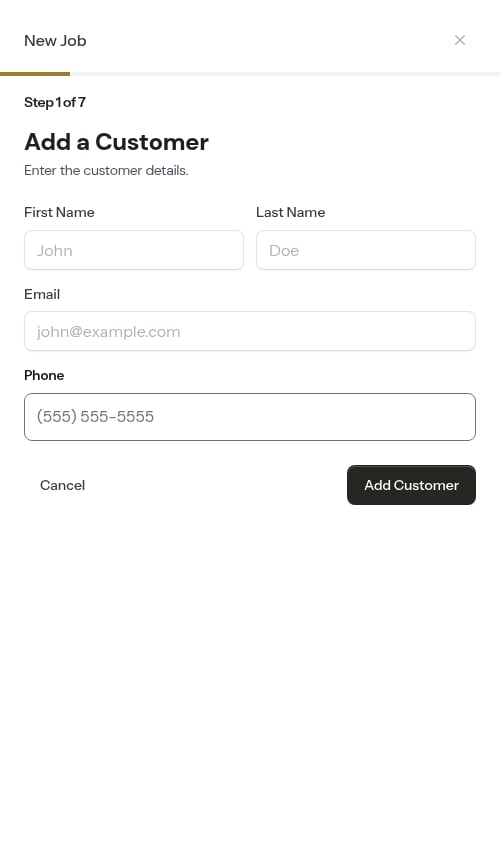
- Tap + New customer in the top-right of the header
-
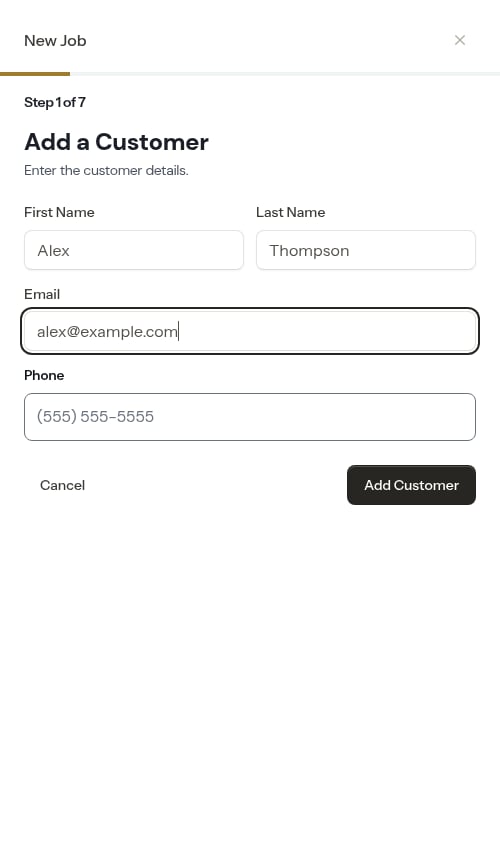
Fill in their information:
- First Name (required)
- Last Name (required)
- Email (optional, but helpful for payment links)
- Phone (optional, but helpful for notifications)
-
Tap Add Customer
4
Step 4: Select or create property
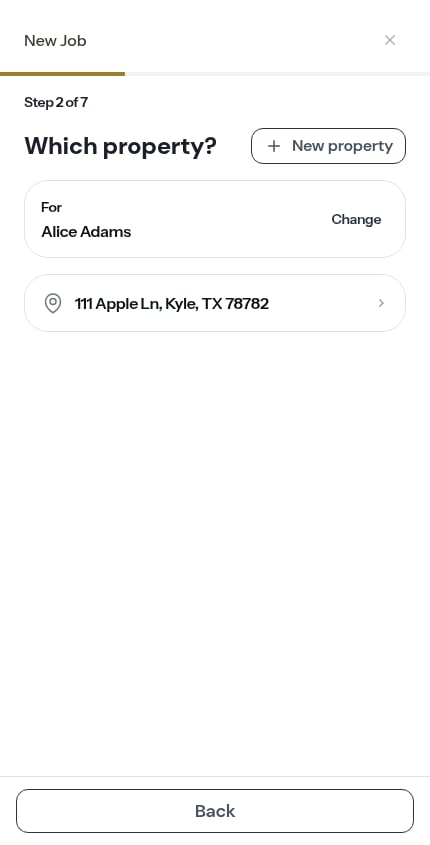
Choose which property address the work is for, or create a new one (skipped if you came from a property page).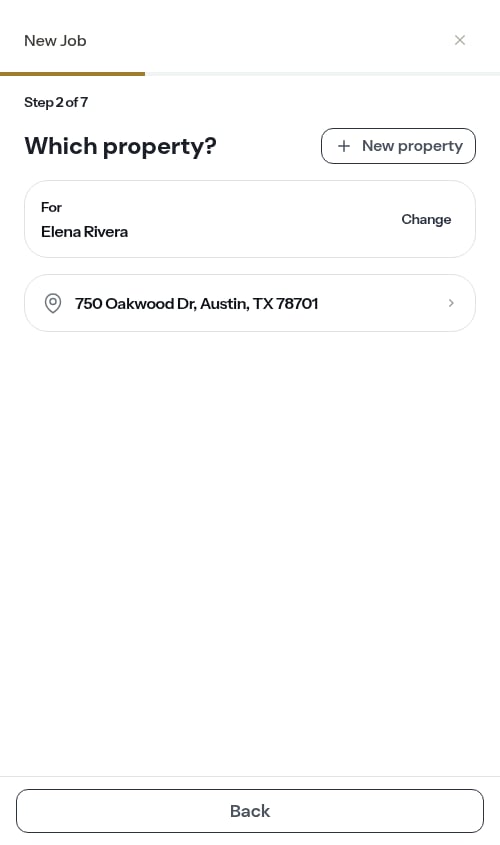
- Tap any of the customer’s properties shown in the list
- Tap New Property
-
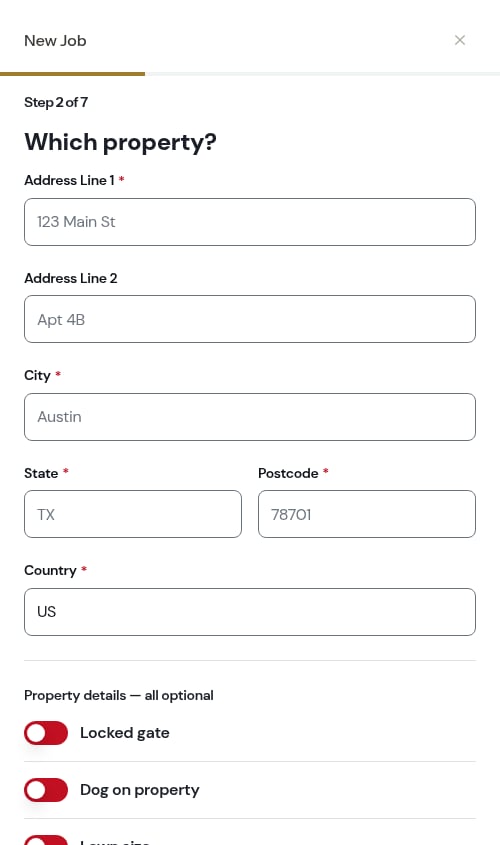
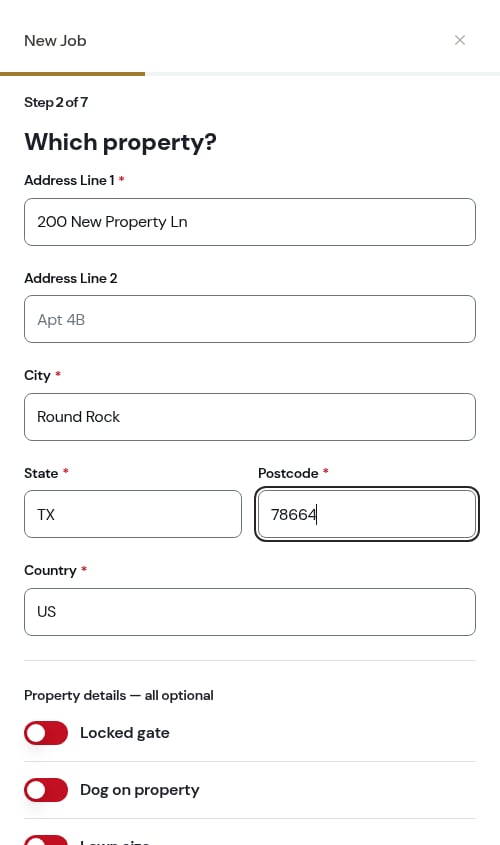
Fill in the address:
- Address Line 1 (required) — Start typing and address suggestions will appear. Pick one and the rest of the address fills itself in — see Address suggestions as you type.
- Address Line 2 (optional) — Apartment, suite, or unit number
- City, State, Postcode, Country — Filled in automatically when you select an address suggestion, or enter manually
-
Tap Add Property
5
Step 5: Pick the service
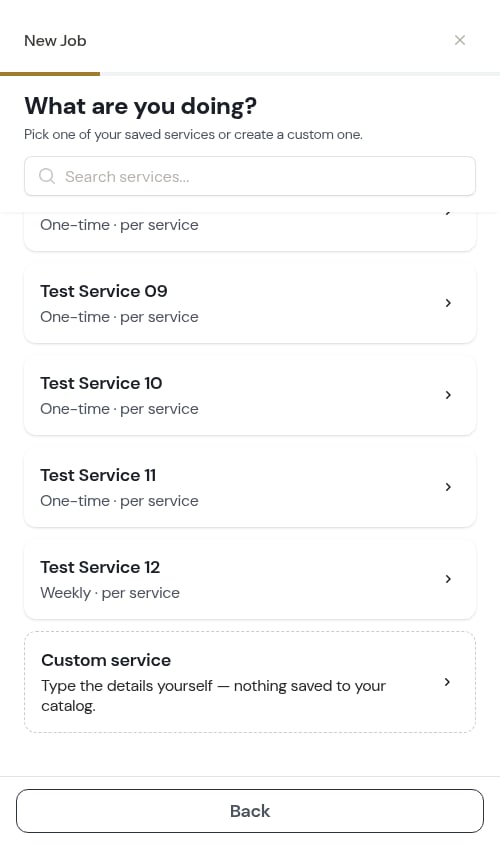
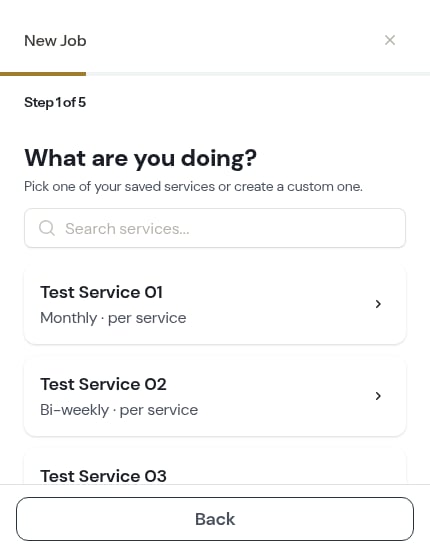
The wizard asks What are you doing? — Pick one of your saved services or create a custom one. Choosing here fills in the whole job for you, so the next screens are mostly confirmation.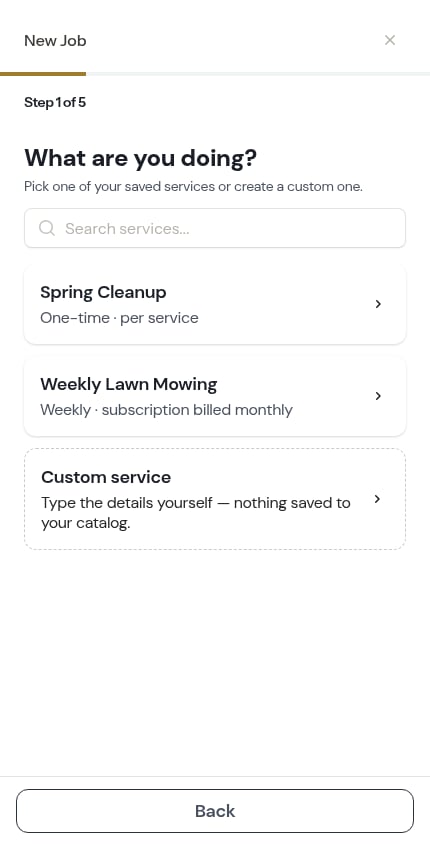
- The service name
- How often the work happens and how it’s billed — for example Weekly · subscription billed monthly or One-time · per service
- Pricing guidance where ProBase has a reference range for that kind of work — for example Most pros charge $45–$55 per visit for a small lot.
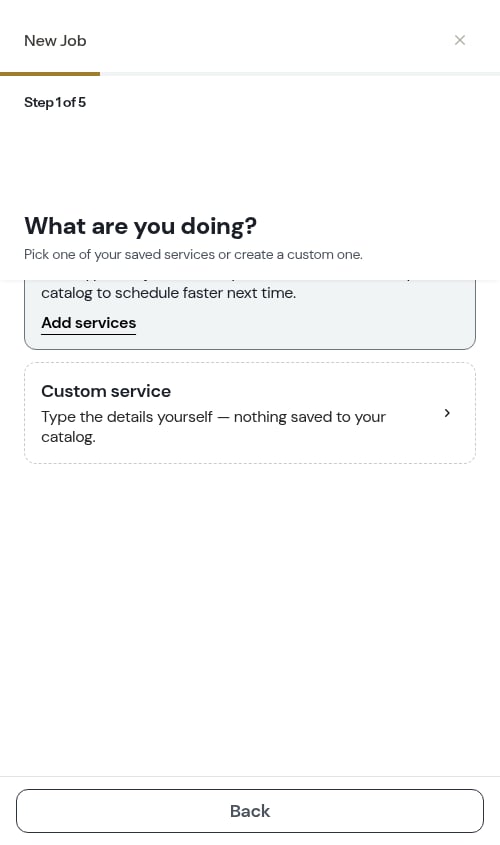
If your catalog is empty, the step shows No service templates yet — You’ll type this job’s details yourself. Add services to your catalog to schedule faster next time. — with an Add services link, and Custom service is the only way forward. Building a catalog first makes every future job faster — see Managing your service catalog.
6
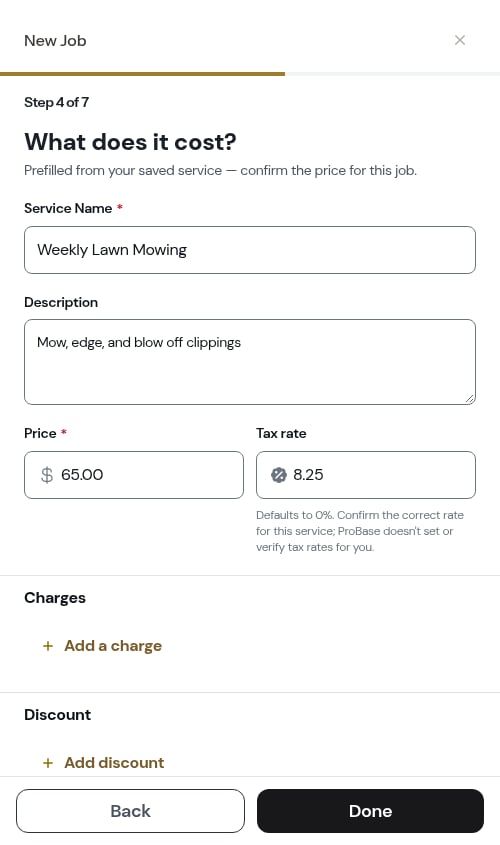
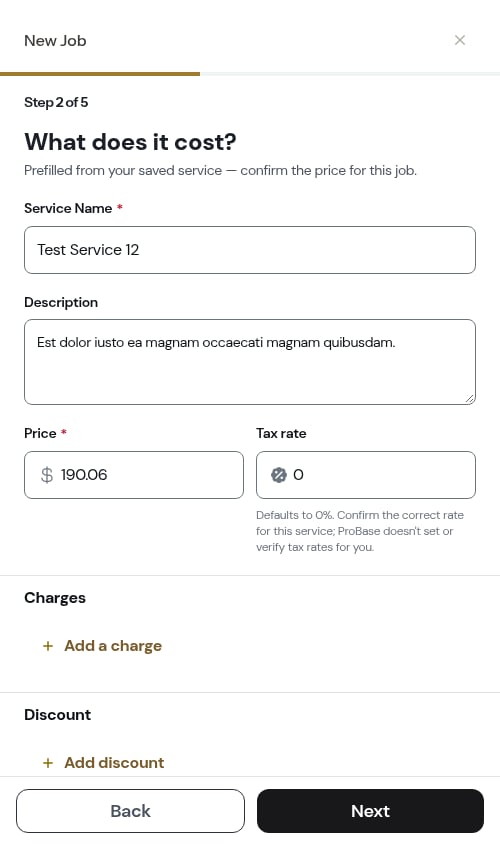
Step 6: Set the price
The next screen asks What does it cost? When you picked a saved service it adds Prefilled from your saved service — confirm the price for this job.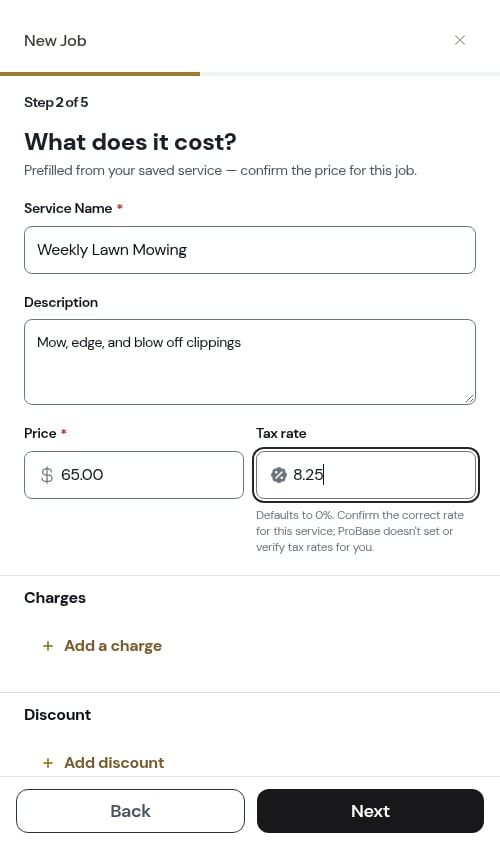
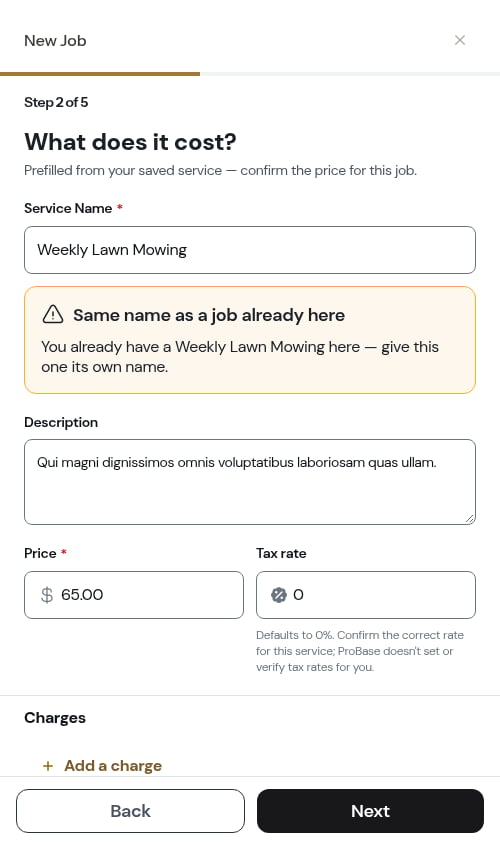
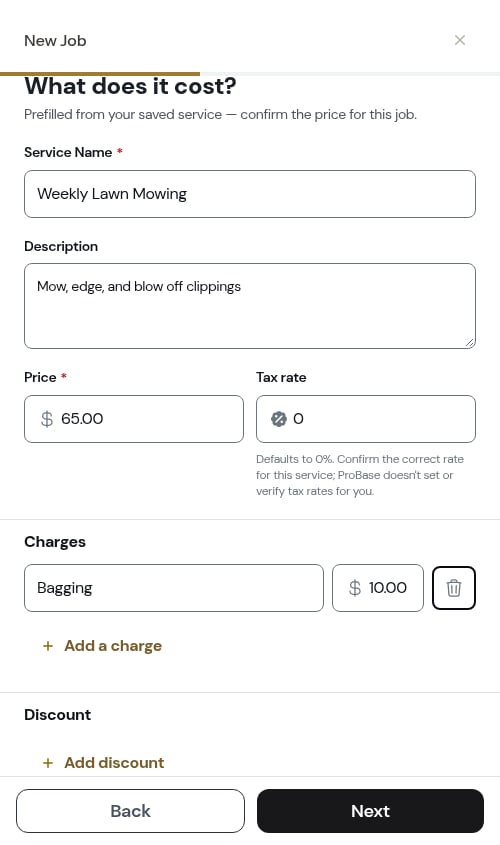
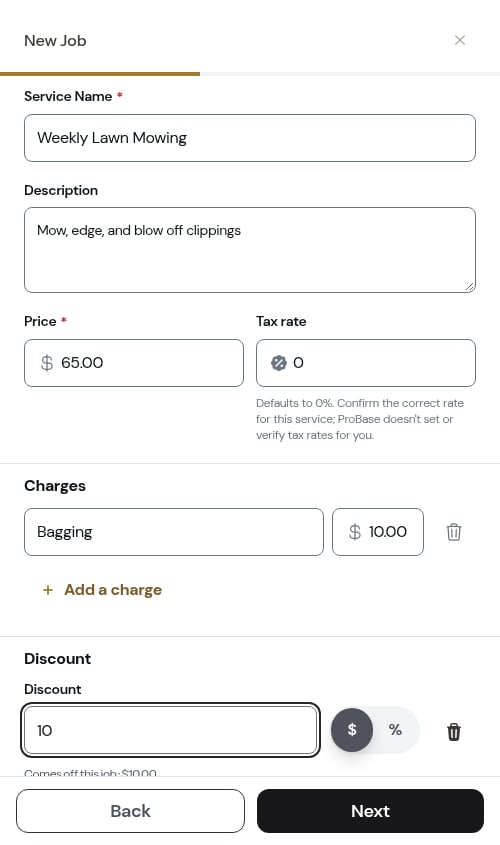
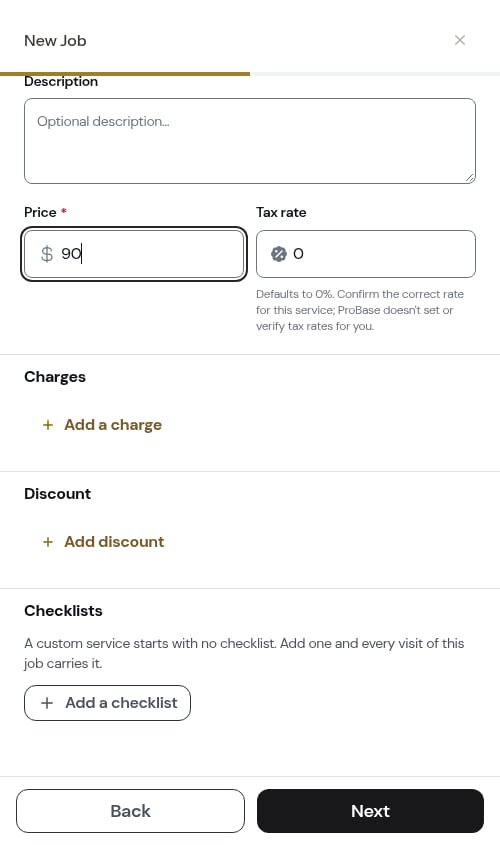
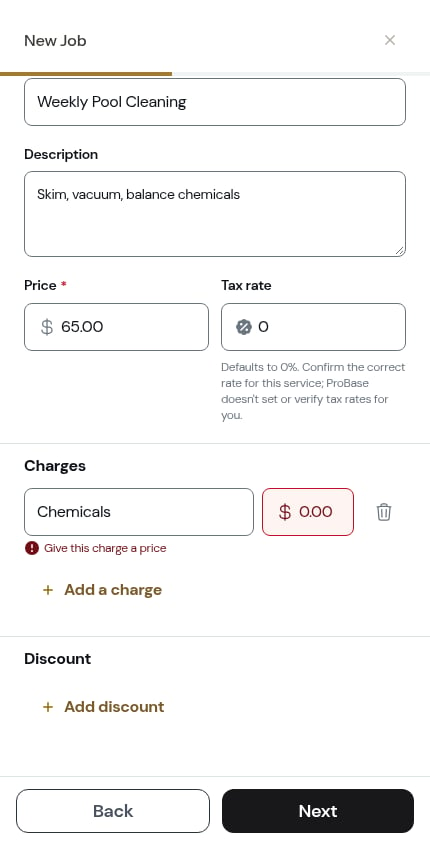
- Service Name (required) — What you’re doing (e.g. “Weekly Pool Cleaning”), filled in from the service you picked
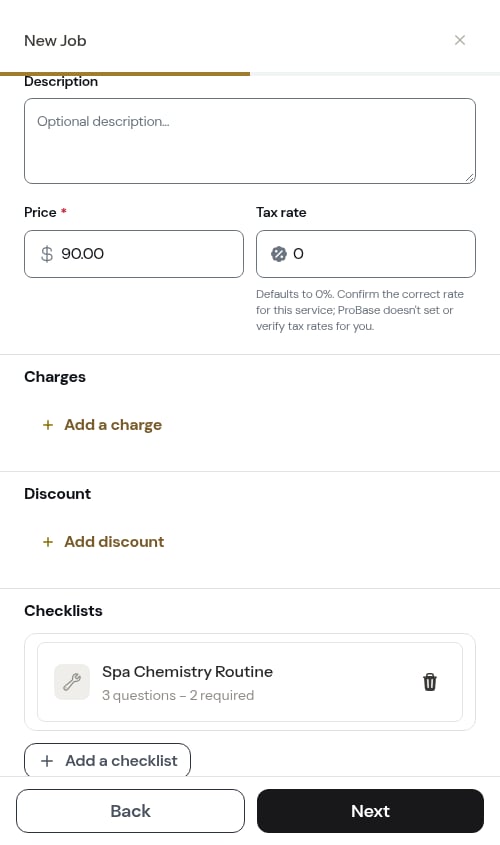
- Description (optional) — Details about what’s included, also carried over
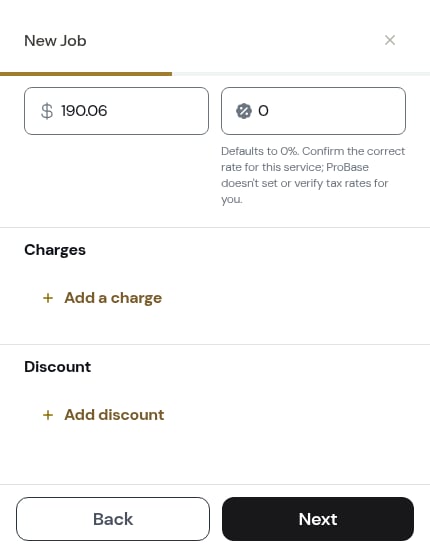
- Price (required) — What the customer pays per visit or per billing period. Pre-filled from the template’s starting price as an editable starting point (blank on a custom service), with the Most pros charge … guidance underneath where ProBase has a reference range
- Tax rate (optional) — The tax percentage for this job, entered as a number (e.g.
8.25for 8.25%). It defaults to 0% — leave it alone if you don’t charge tax. ProBase doesn’t set or verify tax rates for you, so confirm the correct rate for the service and the customer’s location. Three decimal places are supported for precise local rates. - Industry — Only asked for a custom service, and only if you’ve set up more than one trade. If you only do one trade, ProBase fills it in for you. See Industries (trades).
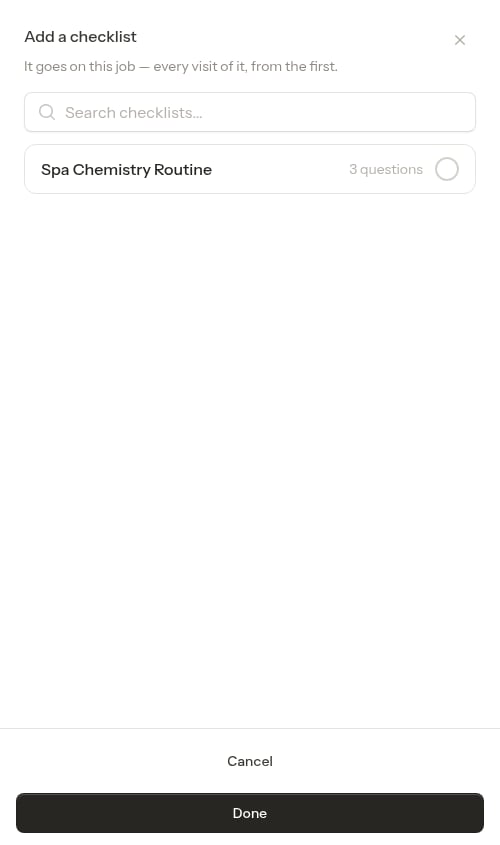
The Checklists section is shown to Crew Chiefs and above. If you go back and pick a saved service instead of Custom service, the checklists you chose are dropped — the job uses the service’s checklists.
Every charge needs both a name and a price. Leave one half-filled and Next stops on the charge with Give this charge a price — fill it in, or remove the row with the trash button.
7
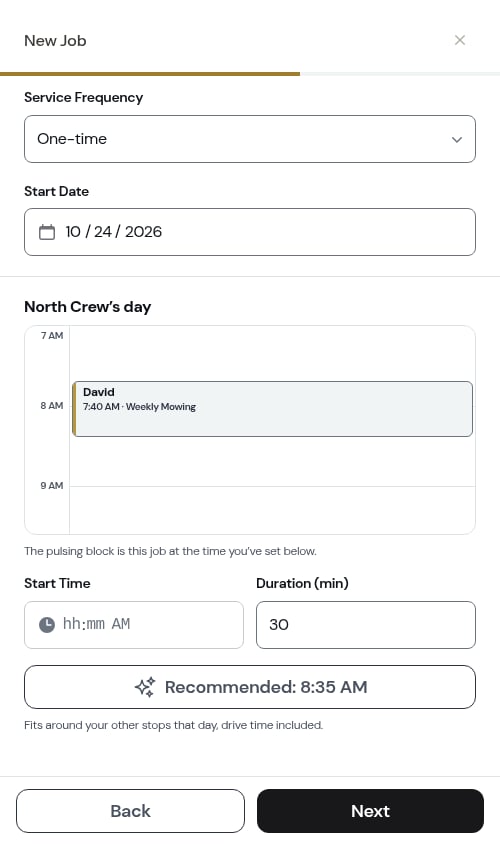
Step 7: Set the schedule
When should this job be scheduled? — Set the service frequency, start date, and crew assignment.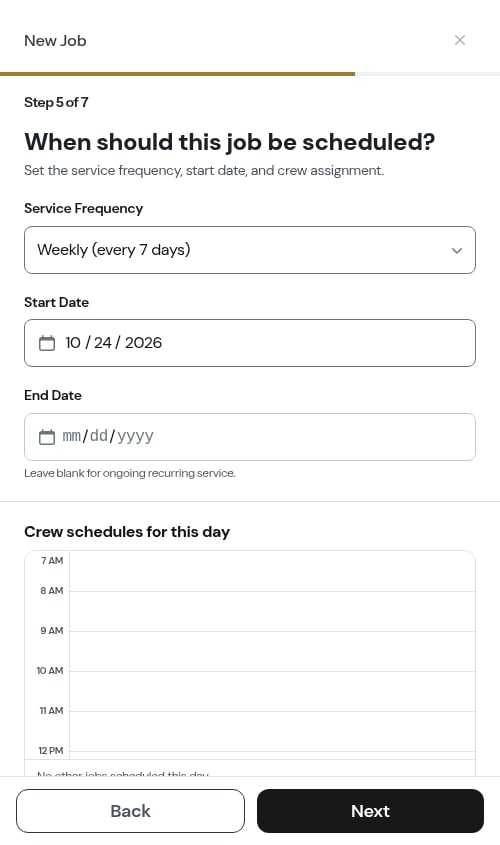
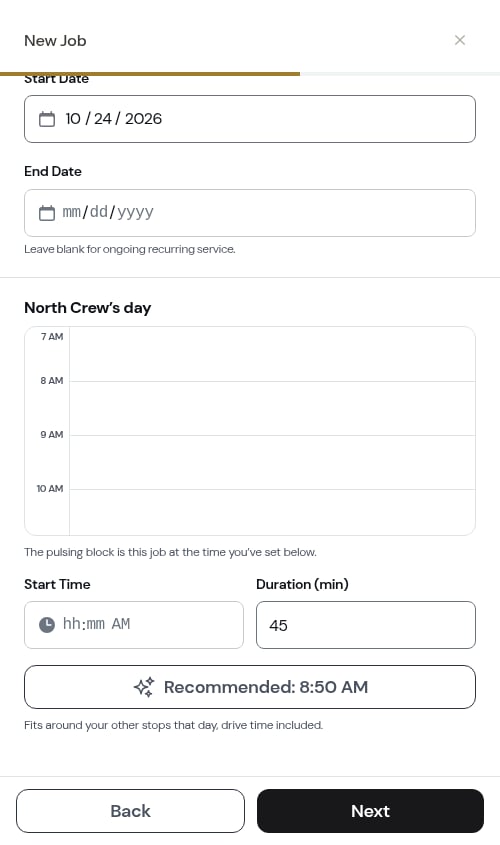
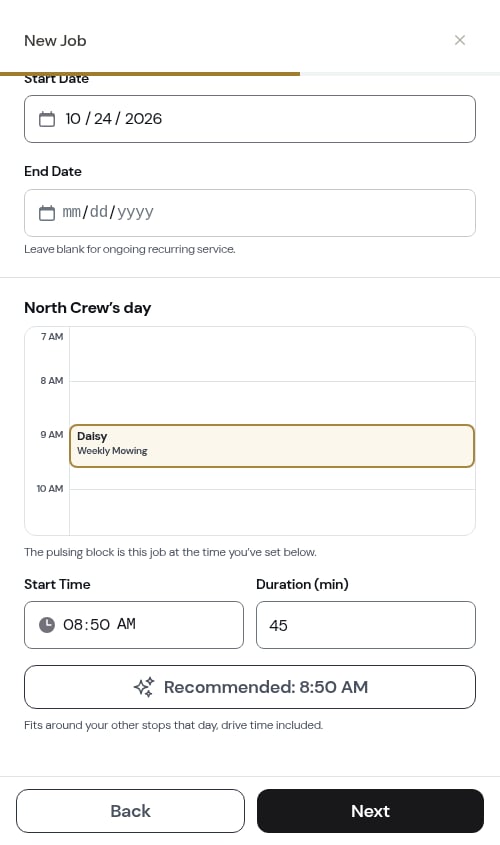
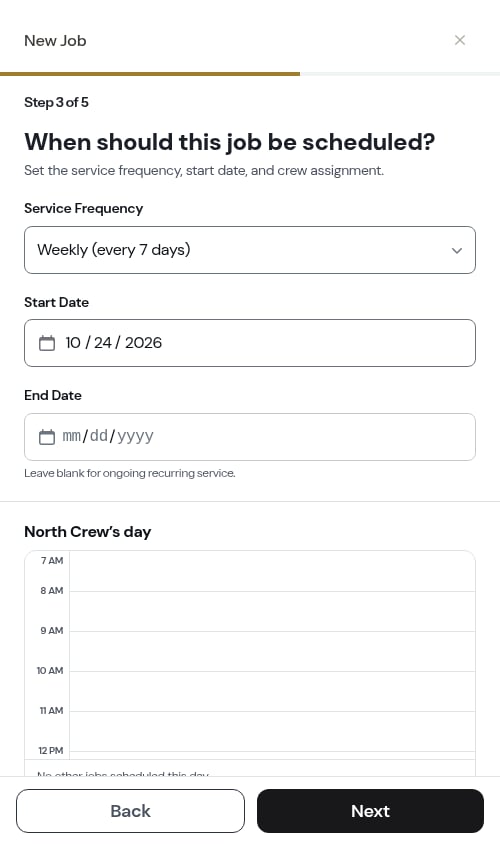
- Service Frequency — One-time, Weekly (every 7 days), Bi-weekly (every 14 days), Monthly (every 28 days), Every 2 months (every 56 days), Quarterly (every 90 days), Every 6 months (every 182 days), or Custom. Choosing Custom reveals a Days between visits box — type any number from 1 to 365 and a line underneath confirms the cadence, for example Every 10 days
- Start Date — When the first visit happens
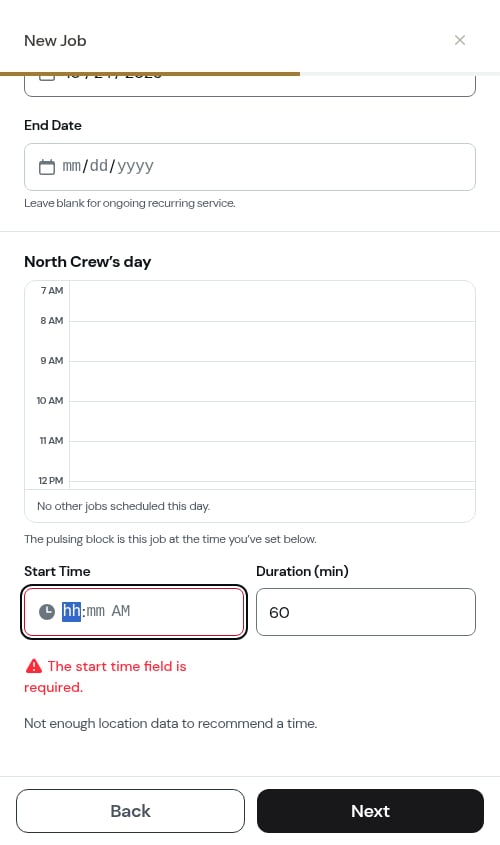
- End Date (recurring only) — When the recurring schedule should stop. Leave blank for ongoing recurring service.
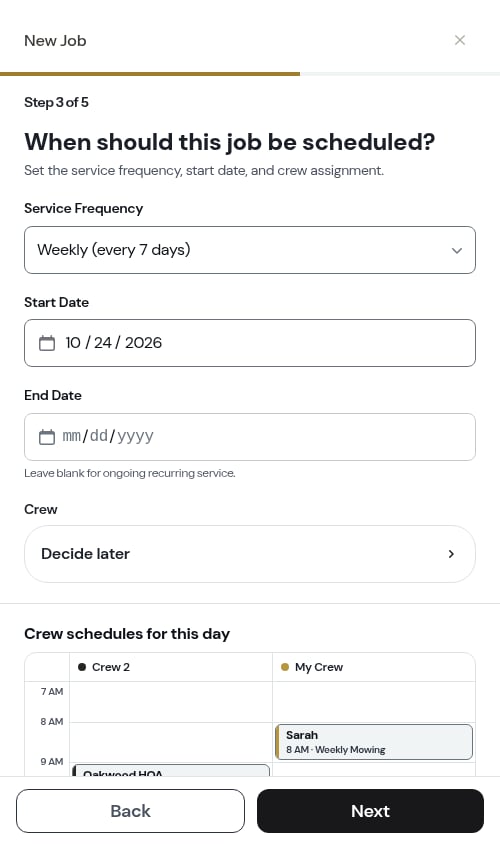
- Crew — Only asked if you have more than one crew. Tap the crew row and a sheet opens listing every crew with what its day would look like with this job on it; Decide later is the first choice. With a single crew, ProBase assigns it for you. See Picking the crew below.
8
Step 8: Choose how it bills
When should this job be billed? — Decide if charges are tied to individual visits or a set recurring schedule.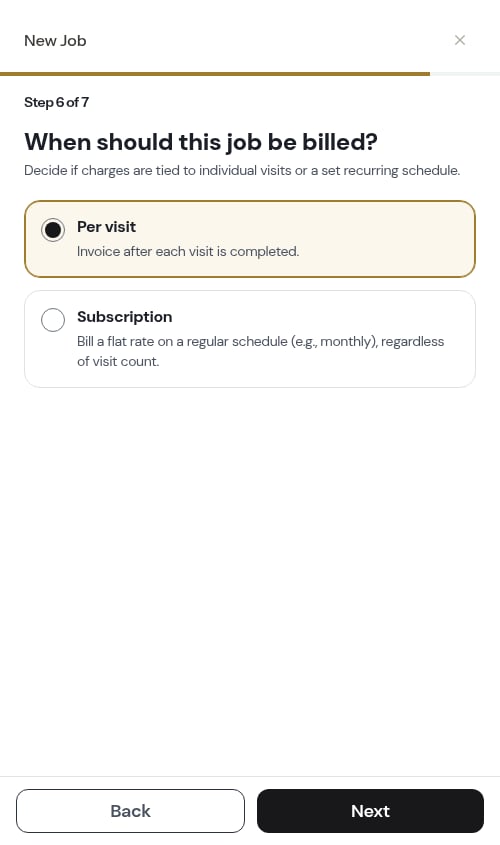
- Per visit — Invoice after each visit is completed.
-
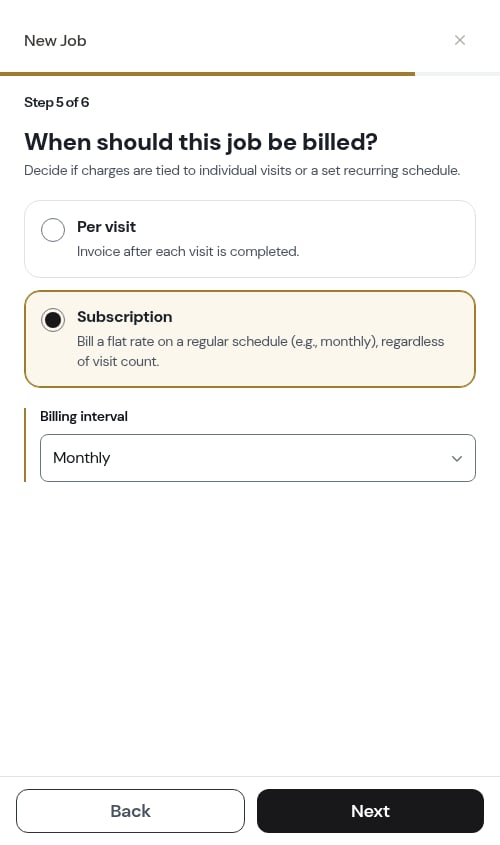
Subscription — Bill a flat rate on a regular schedule (e.g., monthly), regardless of visit count. Choosing it reveals a Billing interval: Weekly, Monthly, Quarterly, Semi-annual, or Annual.
9
Step 9: Check the receipt and create the job
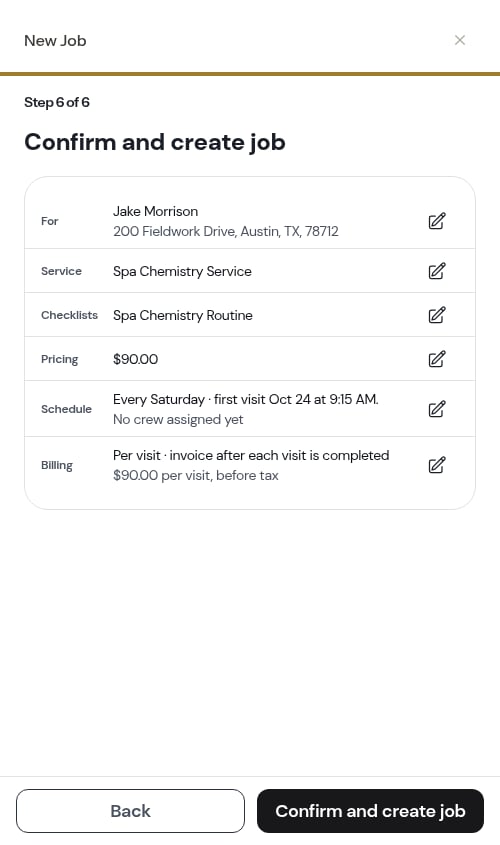
The last screen is Confirm and create job — everything you answered, on five rows: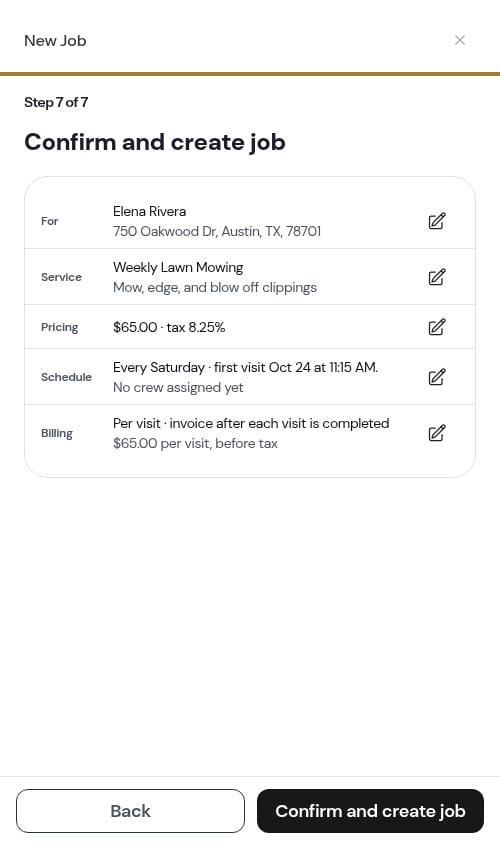
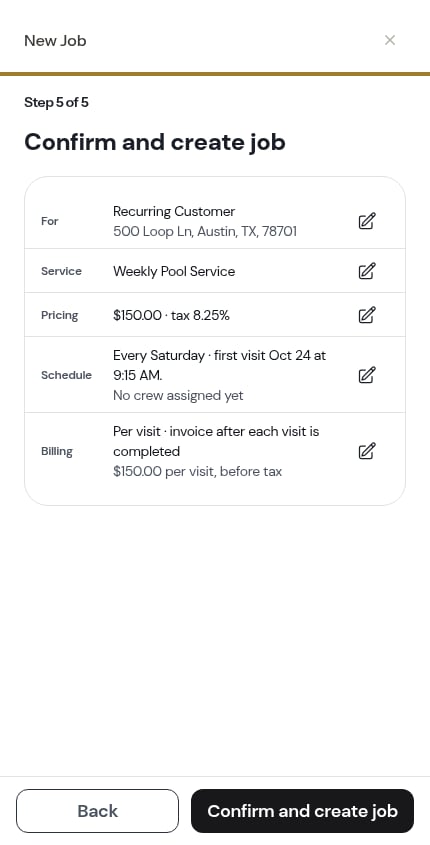
- For — the customer and the property address
- Service — the name and description
- Pricing — the price, tax rate, any charges and any discount
- Schedule — the cadence and first visit, plus the crew (or No crew assigned yet)
- Billing — per visit or subscription, and what the customer is billed
10
Step 10: Job created
The Job created screen confirms what was written — the service name, the customer and address, the schedule sentence for the first booked visit, and what the customer is billed.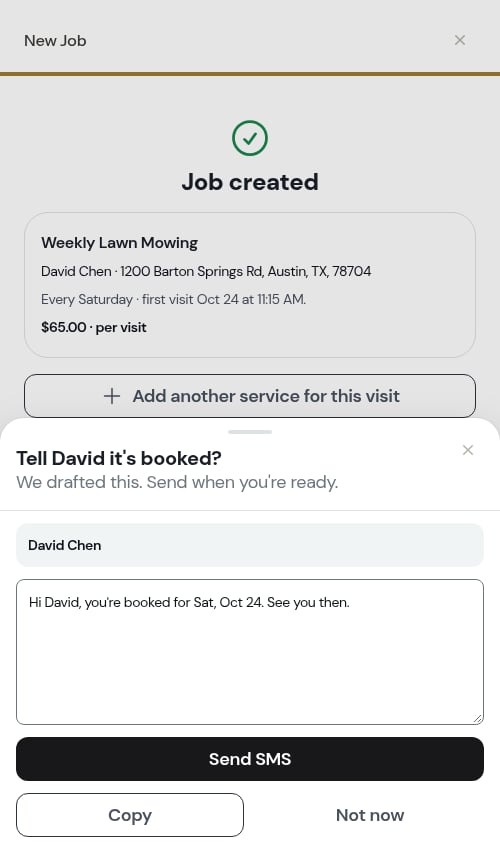
- Add another service for this visit — see below
- Done — takes you to the job’s page, where you can see its visits, notes and billing
Picking the crew
The Crew question only appears when you have more than one crew — with a single crew ProBase assigns it for you and doesn’t ask. It’s a row you tap rather than a dropdown, because each crew comes with a line about its day.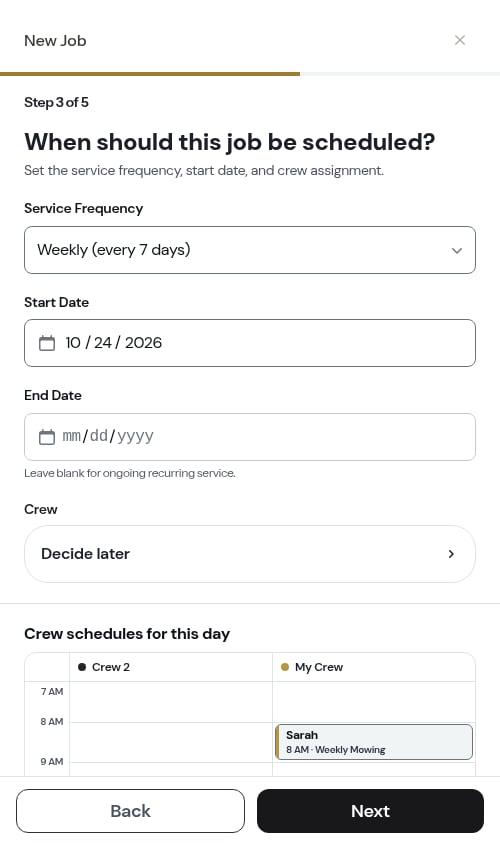
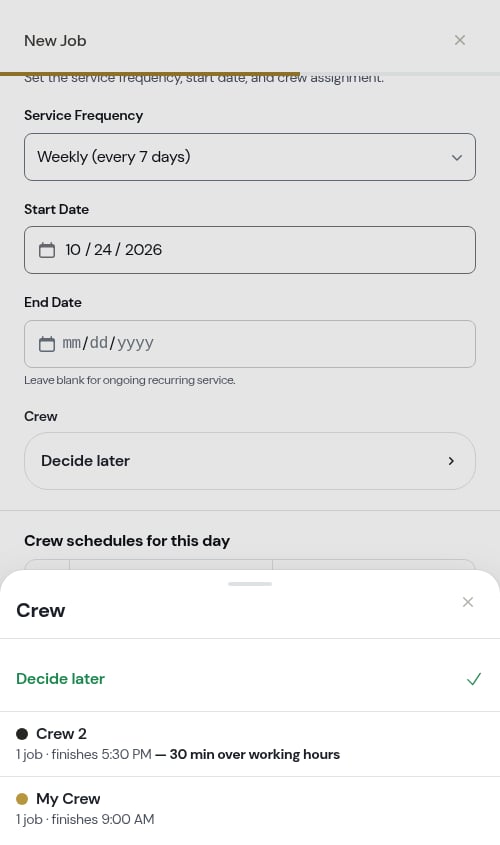
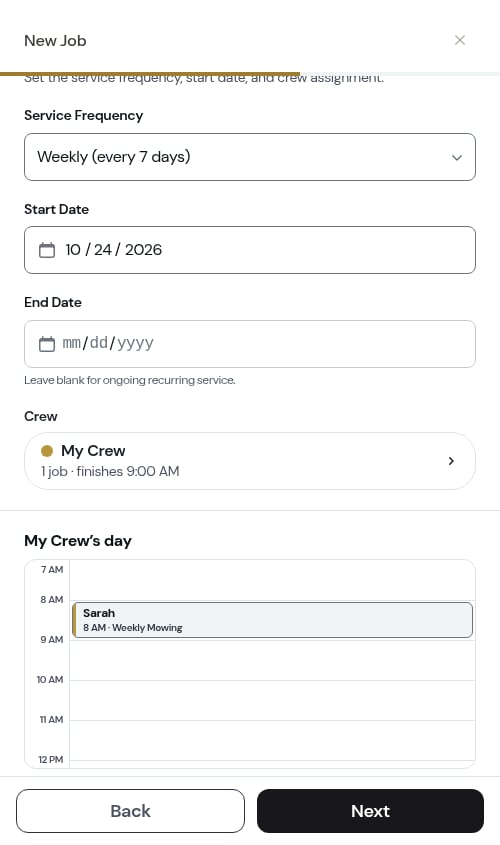
If the crew you picked doesn’t work the day you picked, ProBase asks once before booking — “Tuesday isn’t a working day for this crew. Schedule it anyway?” See Scheduling on a day the crew doesn’t work.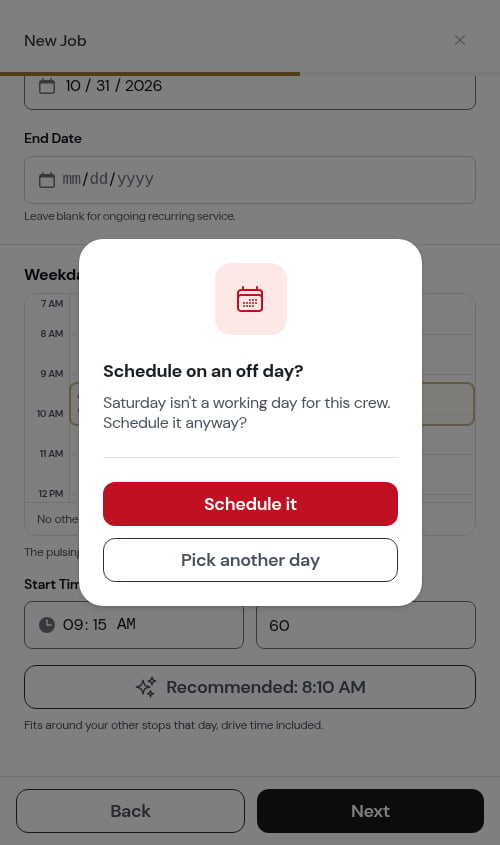
Adding a second service to the same visit
Doing two things at one stop — a mow and a hedge trim — is one visit with two services. On the Job created screen, tap Add another service for this visit and the wizard reopens at What are you doing? with a banner: Adding another service to David’s visit on Sep 19 — the date and crew carry over.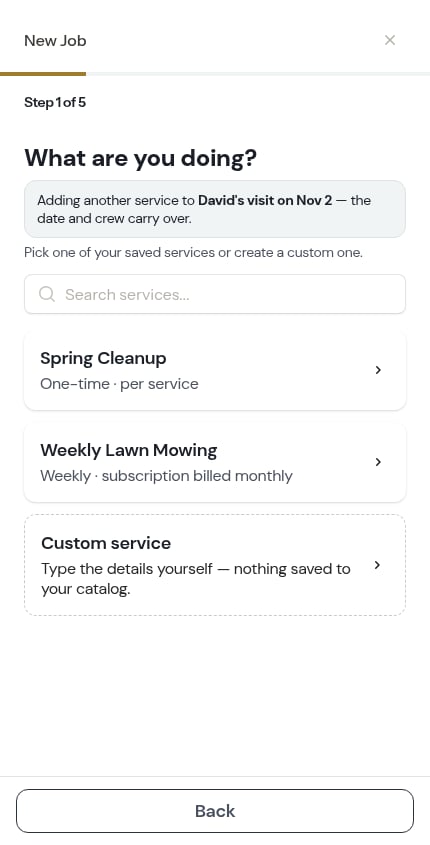
Moving between questions
- Next saves the current screen’s answers and moves on; Back returns to the previous question with everything intact.
- Next is never greyed out. If something on the screen is missing or doesn’t add up, tapping Next tells you which field needs attention — a short message appears under it and the screen scrolls to it — and Next stays ready for another try once you’ve fixed it.
- Each screen opens at the top, whether you came forward, tapped Back, or jumped in from the receipt’s pencil button — so you never land part-way down a long list left over from the previous screen.
- The ✕ in the top corner closes the wizard and discards the answers, until the job is created. On the Job created screen the job already exists, so ✕ goes where Done goes: the job’s page.
Quick job creation shortcuts
The wizard skips questions automatically when you already have context: From a customer page: Tap the + button in the Services section header on a customer’s page and the wizard opens with that customer already filled in — the customer question is skipped and you go straight to picking the property.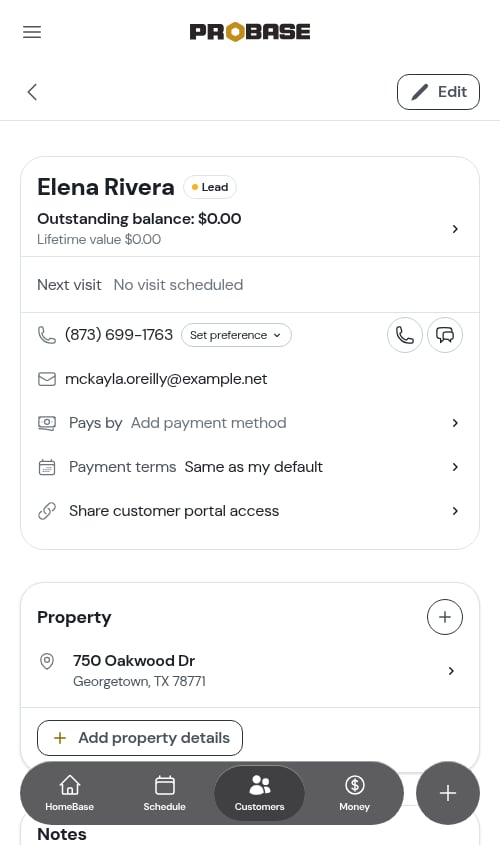
The + doesn’t appear on marketplace or archived customers — their work isn’t scheduled in ProBase.
Billing type options
When creating a job, you’ll choose how the customer is billed:Per visit billing
- Customer is charged each time a visit is completed
- Best for one-time jobs or pay-per-visit arrangements
- Billing line items are created automatically after a visit is completed
Subscription billing
- Customer pays a flat rate on a schedule (weekly, monthly, quarterly, semi-annual, or annual)
- Best for recurring flat-rate plans
- Choose the billing interval — the billing day is set automatically from the date you create the job
- Billing charges are created automatically on each upcoming billing date — ProBase shows you the upcoming billing dates on the job’s page
What happens after creating a job
After you tap Confirm and create job, ProBase automatically:- Creates the customer (if new) - Adds them to your customer list with all contact information
- Creates the property (if new) - Links it to the customer with the full address
- Geocodes the property - Places it on the map for accurate route planning and directions
- Creates the job - Sets it up as active work with all pricing and billing details
- Syncs with Stripe (if connected) - Creates the customer in Stripe for payment processing
- Schedules the visits - Creates the visit on your start date and, for recurring services, pre-schedules the whole future chain through the end date (or one year out if you left it blank)
- Optimizes routes (if enabled and a crew is assigned) - Automatically reorders the crew’s visits for efficiency
- View all job details and visits
- Assign crews and adjust the schedule
- Add notes or photos
- Complete visits and add service records
- Send the customer their invoice
Choosing between Jobs, Quotes, and Assessments
Create a Job when:- Work is confirmed and doesn’t need approval
- You know the pricing and scope
- Customer has already agreed to the service
- You’re ready to schedule and start immediately
- You can quote without visiting the property first
- Work needs customer approval before starting
- You want a formal acceptance workflow
- See Creating quotes and assessments
- You need to visit the property before providing accurate pricing
- The scope is uncertain and needs evaluation
- You’ll create a quote after the site visit
- See Creating quotes and assessments
The workflow: Assessment → Quote → Job. But if work is already confirmed, skip straight to Job creation.
Next steps
After creating jobs:- View your schedule to see all appointments
- Optimize routes for efficient daily schedules
- Complete appointments and track service records
- Send invoices to collect payment