What is an invoice?
An invoice is the bill a customer sees and pays. You never have to build one from scratch — whenever a charge lands on a customer’s account (a finished visit, a subscription’s billing day, or a charge you add), ProBase puts it on that customer’s draft invoice. Each customer has at most one draft at a time; it keeps collecting charges until you send it.Invoice states
Every invoice wears one of these words:
The pill is coloured to match: grey for a draft, green for Paid, red for Overdue, and amber for Unpaid and Partially paid — both are waiting on the customer, and the word tells them apart.
An invoice can also carry a tag:
- Couldn’t be delivered — the text or email you sent didn’t reach the customer. See Delivery status.
- Archived — you’ve taken it off your follow-up lists. See Archive an invoice.
- Archived customer — the customer has been archived. Their invoice is still owed and still payable.
An invoice’s due date is set the moment you send it, from that customer’s payment terms. Changing your terms later never moves an invoice you’ve already sent.
The Invoices list
Open it with All invoices on the Money screen, or by tapping any row in Money’s attention card.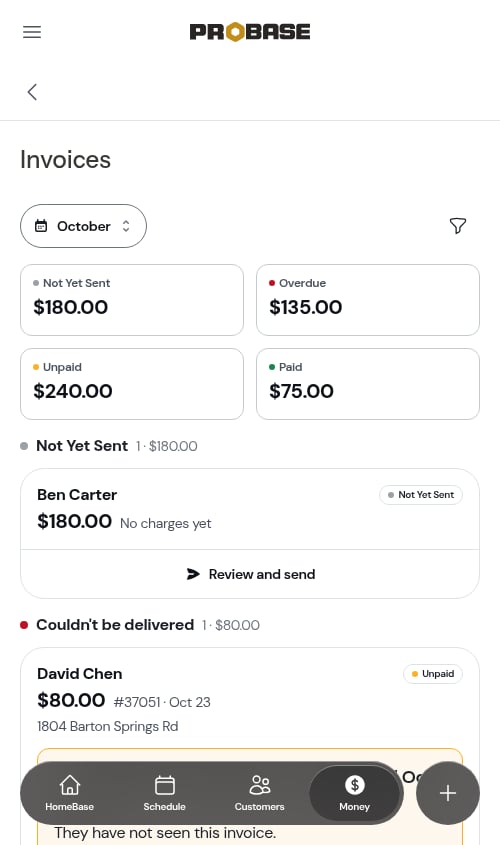
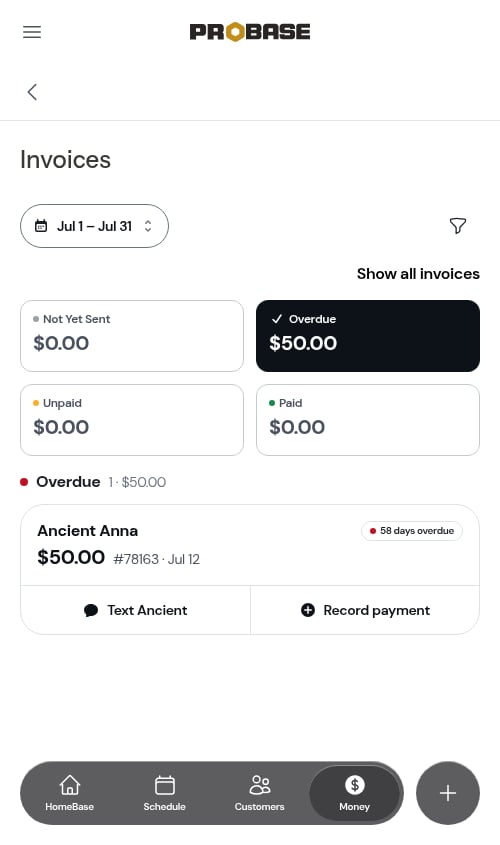
- The period chip — sets which paid invoices you see (the ones issued during that period). On This month, every open invoice shows, whenever it was billed. Pick any other period and the open groups, their tiles and the archived invoices narrow to the period too — a sent invoice by the day it was issued, a draft by the day it was started. It’s the same period you picked on Money. See What the period changes.
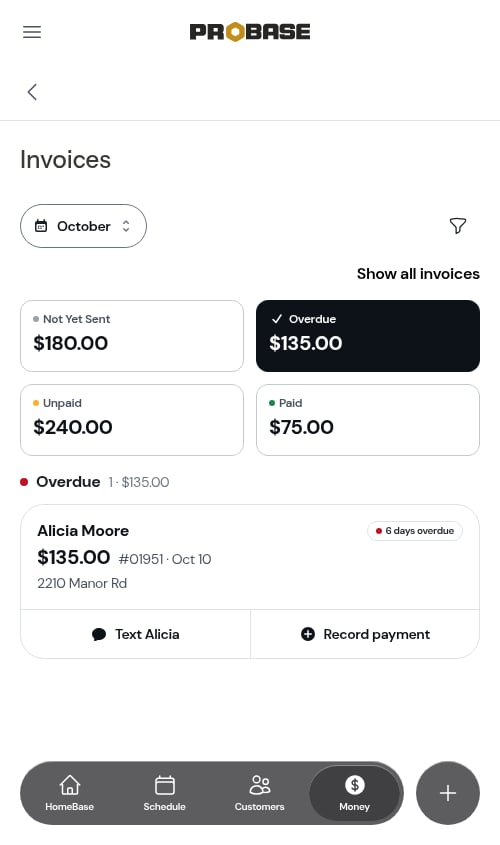
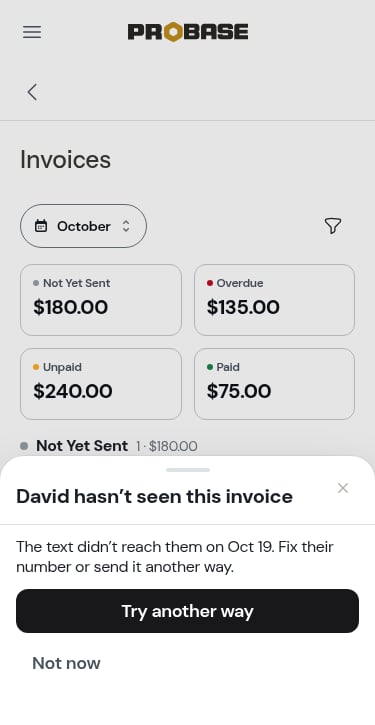
- Four tiles — Not Yet Sent, Overdue, Unpaid, and Paid, each with its total. Tap a tile to see only that group; tap Show all invoices to clear it.
- The filter button (top right) — opens Search and sort. Search by customer name or invoice number, and sort by Status or Due date. Search reaches paid and archived invoices too.
- Not Yet Sent
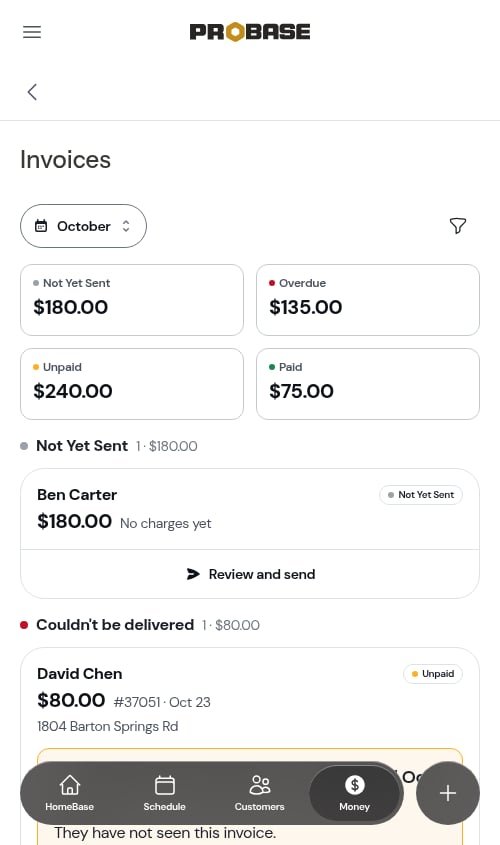
- Couldn’t be delivered — an invoice here also still counts in Overdue or Unpaid
- Overdue
- Unpaid
What each card shows
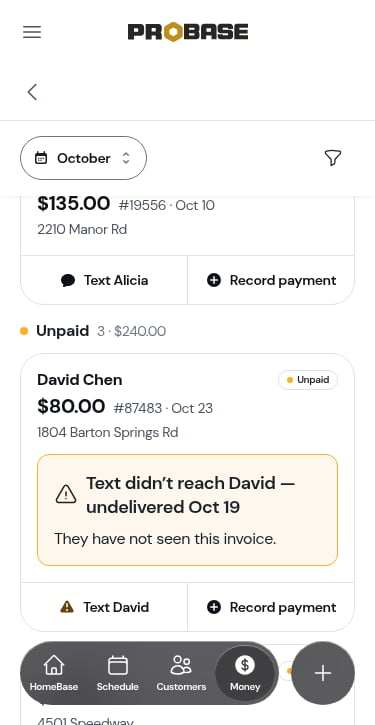
Each card shows the customer, the state (an overdue invoice reads how late it is — 12 days overdue), the amount still to pay, the invoice number and date, and the address. A partly paid invoice reads, for example, $40.00 left of $80.00 · $40.00 paid with Partial. The bottom of a card holds the next step:- Draft — Review and send opens the invoice.
- Owed — a split button: Text David on the left sends a reminder, Record payment on the right opens Record payment with the customer and invoice already chosen.
- Couldn’t be delivered — the card explains what went wrong, and the left half of the button opens the explanation with Try another way.
- Paid — no buttons.
The invoice page
Tap any invoice card to open the invoice. It opens as its own page, with the bottom navigation still on screen. The top of the page shows where you came from — for example Money / Invoices / Invoice #00042 — with a back arrow on the left and a ⋯ More menu on the right. Back (or your browser’s back button) returns you to wherever you opened it from — the Invoices list, the customer’s billing history, the visit, or the batch list.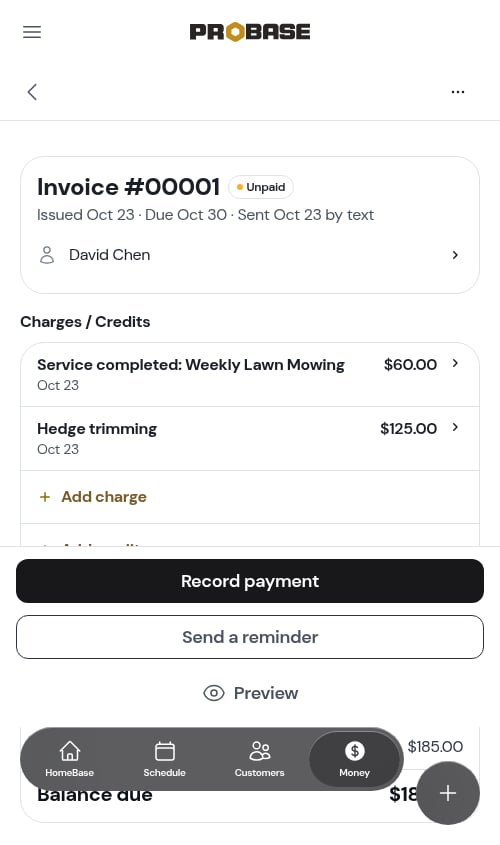
- The header — the invoice number (or Draft invoice), its state, and a line like Issued Oct 1 · Due Oct 8 · Sent Oct 1 by text. A draft reads Collecting charges until you send it and shows the payment terms it will use. Tap the customer’s name to call or text them.
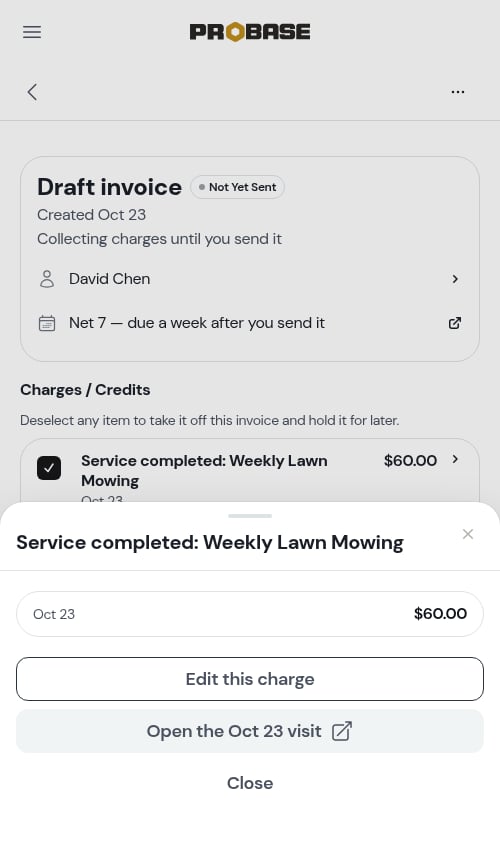
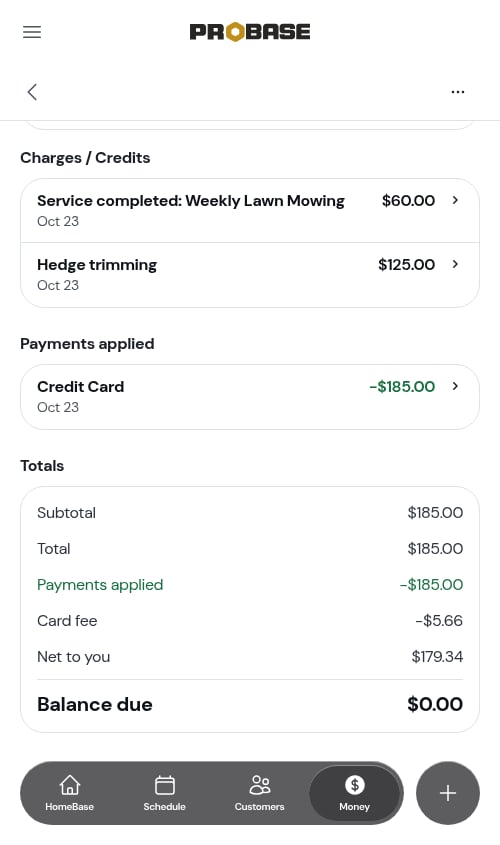
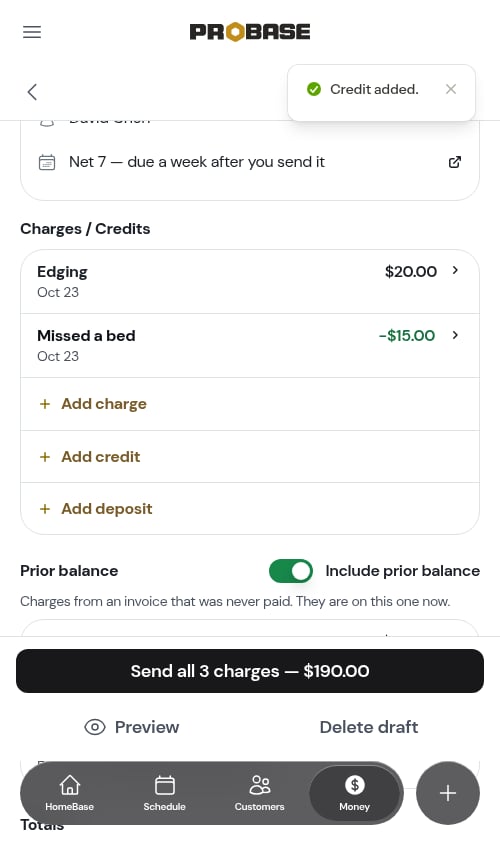
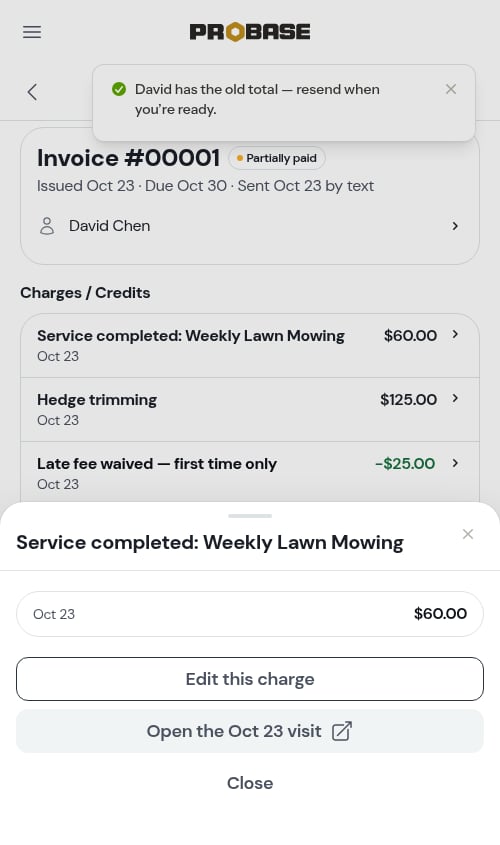
- Charges / Credits — one row per charge with its date, plus any credit you added on this invoice, shown in green at its full amount. Tap a row to see the charge, its day, its amount, and a link to the visit it came from.
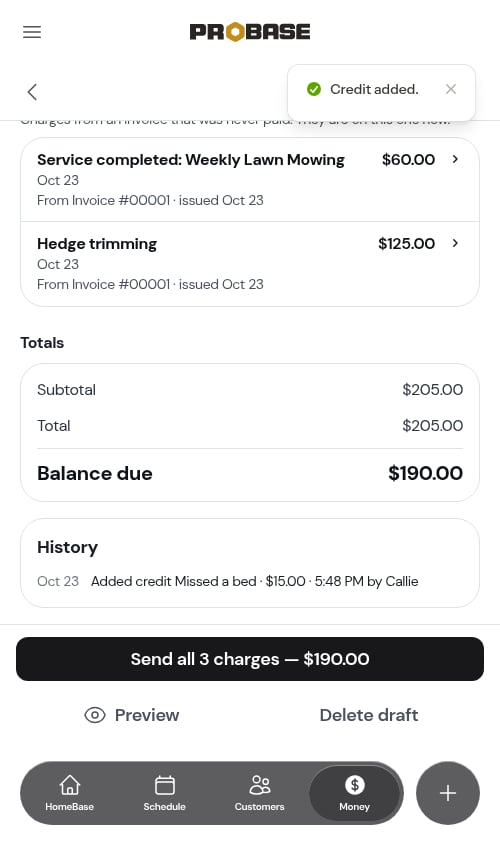
- Prior balance — charges carried over from an earlier unpaid invoice, each saying which invoice it came from.
- Totals — subtotal, discount, tax, total, any deposit applied, payments applied, and Balance due. A Deposit paid line (for example Deposit paid Sep 10 · −$50.00, in green) shows a deposit the customer already paid up front that has been taken off this invoice — it’s dated the day they paid the deposit, and Balance due drops by it. See Deposits on an invoice.
- Payments applied — every payment that landed on this invoice. Tap one to open its details. A refunded payment stays listed, struck through.
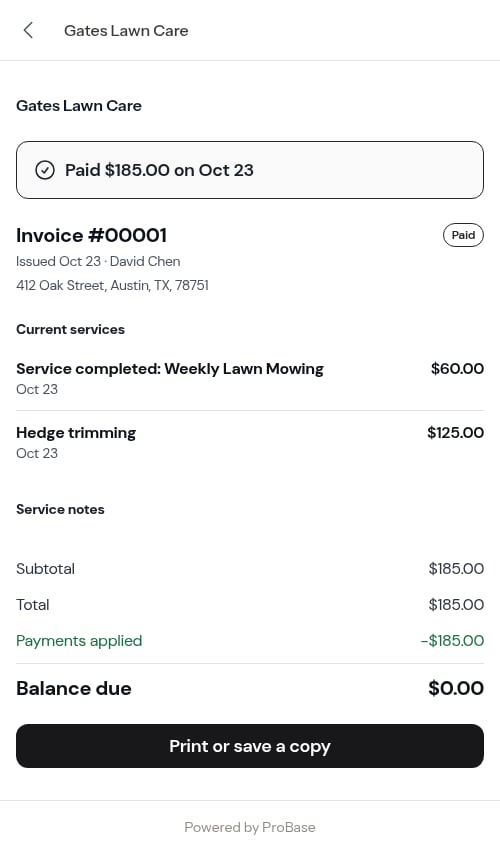
Card fees, for your eyes only. When a customer paid by card, your copy of a paid invoice adds Card fee and Net to you beneath the totals, so you can see what reached your bank. The customer’s copy never shows the fee. The fee normally appears the moment the payment lands; if Stripe hasn’t reported it yet, the two lines are left off and appear on their own once it does (usually within the hour).
History
Once anyone has changed an invoice, a History card appears beneath it. Each line says what changed, what it was before, when, and who did it — newest first. For example:- Changed Hedge trimming · $125.00 → $95.00 · 3:14 PM by Callie
- Added Trip charge · $25.00 · 3:16 PM by Callie
- Removed credit Late fee waived · $15.00 · 3:20 PM by Callie
- The customer has the old total — resend needed
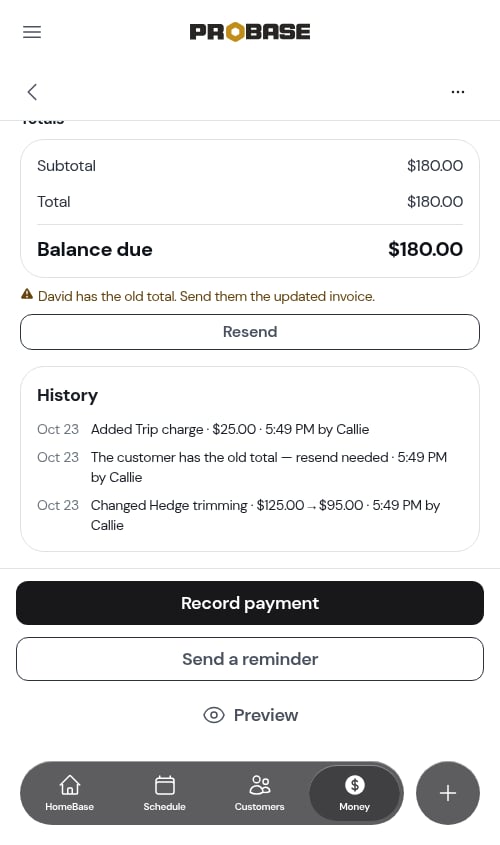
The History card is for you and your team only. Your customer’s copy of the invoice, the printed invoice, and the emailed invoice never show it.
The buttons at the bottom
The bottom of the page always offers the one thing the invoice most needs. The buttons stay pinned just above the bottom navigation as you scroll:
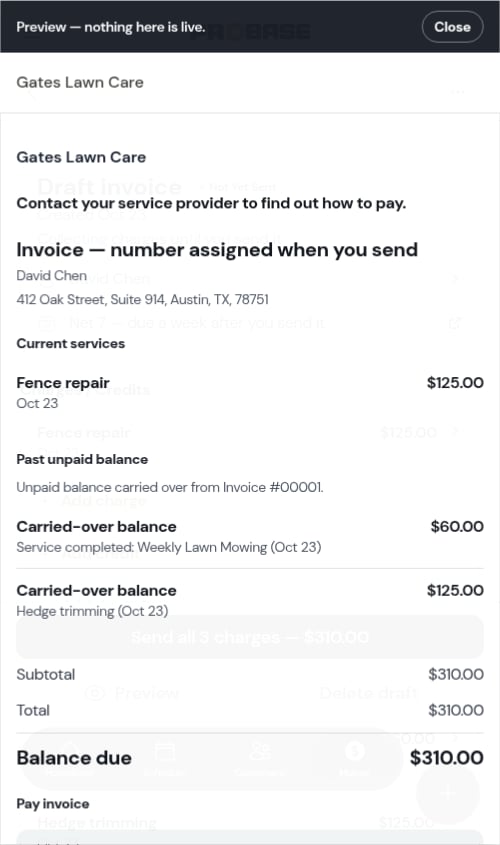
Beneath the main button, a row of links offers Preview — to see the invoice as the customer will — and, on a draft, Delete draft beside it. On a draft, Preview shows only the charges you’ve ticked; on a sent invoice it opens the customer’s real invoice page.
The More menu
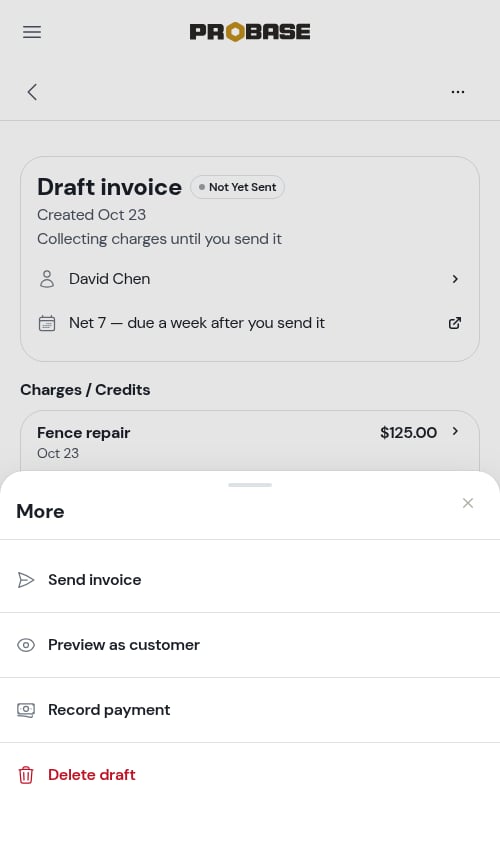
Tap ⋯ for everything else. You only see what fits the invoice’s state and your role:- Send invoice — on a draft
- Resend — on a sent invoice that’s still owed
- Preview as customer — on a draft, a preview inside ProBase; on a sent invoice, opens the customer’s real invoice page (in your phone’s browser, if you use ProBase from your home screen)
- Record payment — while money is owed
- Send a reminder — while money is owed
- Print — on a sent invoice (see Printing invoices)
- Copy customer link — on a paid invoice, opens the customer portal link to share
- Refund — on a sent invoice that a recorded payment covers, whether it reads Paid, Partially paid, or Overdue (see Refunds)
- Archive invoice / Unarchive
- Delete draft — on a draft
Deposits on an invoice
When a customer pays a deposit, the money is held on their account until it’s taken off an invoice — it isn’t counted twice, and it never disappears.- A deposit from a quote — when you require a deposit on a quote and the customer pays it, ProBase takes it off the first invoice that holds that job’s work on its own. If the deposit was paid before any work was billed, it comes off as soon as the job’s first charge lands on a draft; if the work is already on a draft, it comes off the moment the deposit is paid.
- A deposit bigger than the invoice — only as much as the invoice owes comes off. The rest stays held on the customer’s account.
- More work added later — if more of the job’s charges land on the same draft, more of the held deposit comes off, up to what the deposit has left. It’s never applied twice.
- Sending only some charges — if you send only some charges and the job’s work goes on the new invoice, the deposit moves with it.
- A deposit you record by hand — when a customer pays you up front, you can record it as a deposit. It gets its own paid invoice and is held on their account until you add it to an invoice.
- A deposit that hasn’t been paid yet — it stays on its own deposit invoice, still open for the customer to pay, until the job’s work is billed. It never rides onto the job’s invoice as a Prior balance. If they pay it before then, it comes off the job’s invoice the same way. See An unpaid deposit when the work is sent.
Add a held deposit to an invoice
1
Tap Add deposit
On an invoice that still has money owed, Add deposit sits beneath Add charge and Add credit at the bottom of the Charges / Credits card.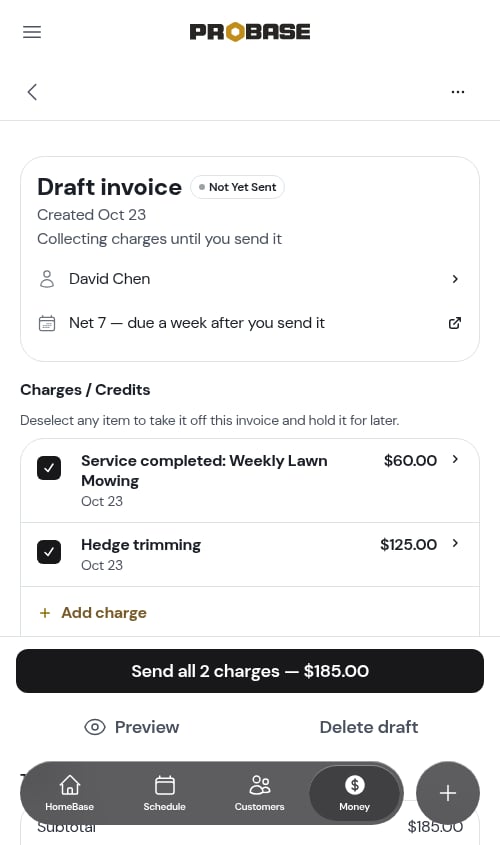
2
Pick the deposit
The sheet lists every deposit still held on the customer’s account — for example Deposit for materials · $500.00 held · Paid Oct 8. Tap one to take it off this invoice.If nothing is held, the sheet says so — No deposits are held on David’s account. Either way, Record a new deposit at the bottom opens Record deposit for this customer; once it’s recorded it goes straight onto this invoice, and the confirmation says Applied to Invoice #00042.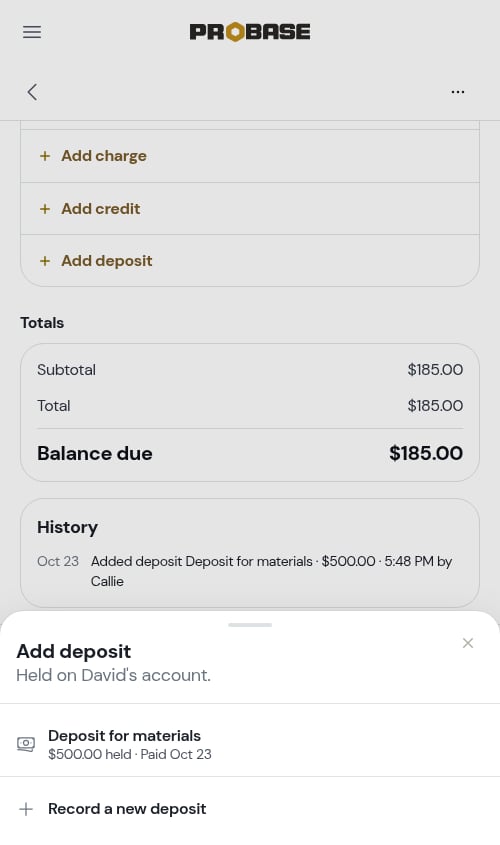
3
Check the totals
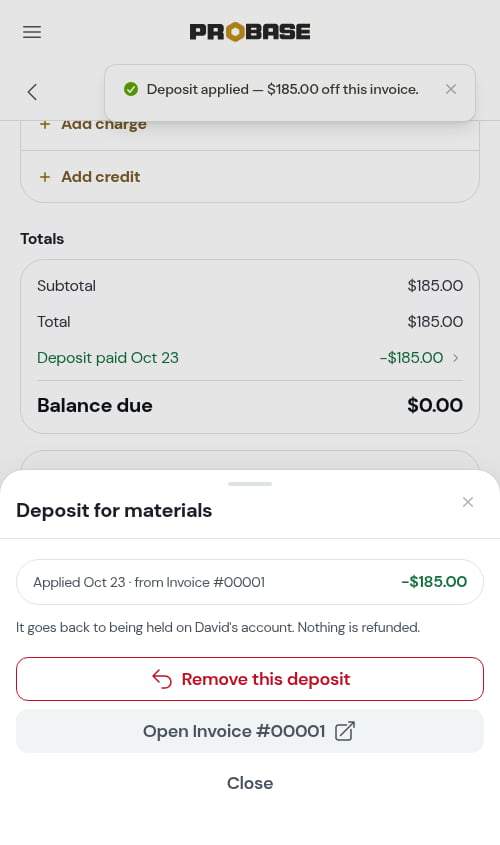
A message confirms it — Deposit applied — $185.00 off this invoice. Only as much as the invoice owes comes off; the rest stays held. The Deposit paid line appears in the totals and Balance due drops by it.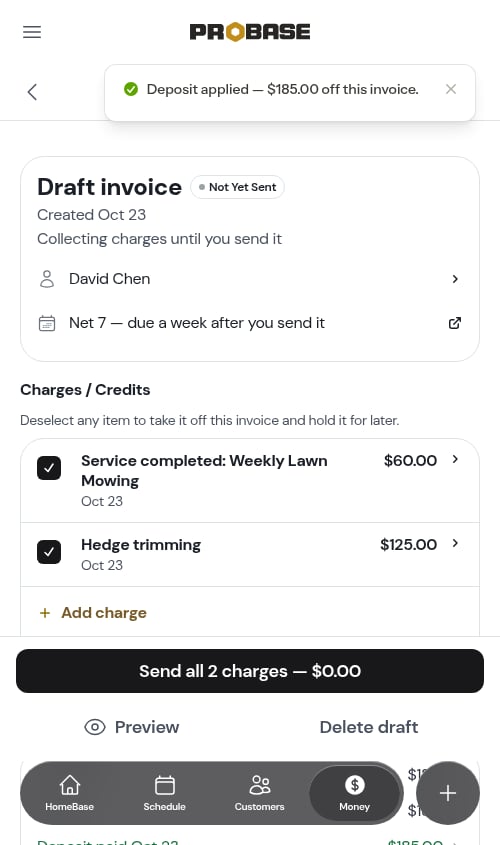
Remove a deposit from an invoice
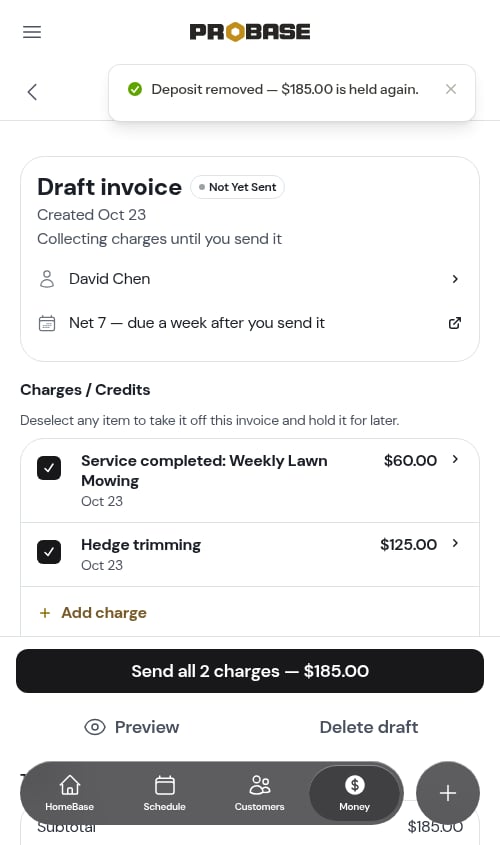
While the invoice can still be edited, tap the Deposit paid line in the totals. The sheet shows the deposit, when it was applied and which invoice it came from (for example Applied Oct 8 · from Invoice #00001), and the amount that came off.- Remove this deposit — takes it off this invoice. It goes back to being held on the customer’s account. Nothing is refunded. A message confirms — Deposit removed — $185.00 is held again.
- Open Invoice #00001 — jumps to the deposit’s own invoice
The deposit’s own invoice
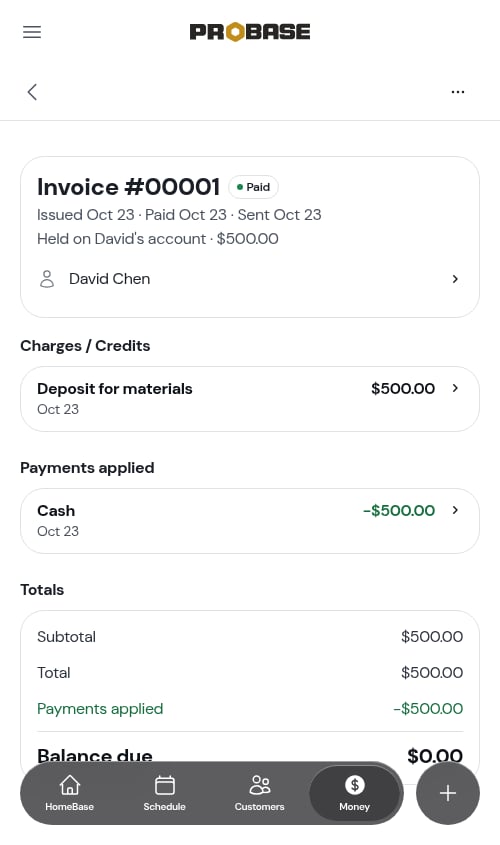
A deposit’s own invoice says where its money is now, beneath its dates:- Held on David’s account · $500.00 — not on any invoice yet
- Applied to Invoice #00042 — all of it has been used
- $185.00 applied to Invoice #00042 · $315.00 held — partly used
- $185.00 refunded · $42.00 kept — you refunded part of it and kept the rest
An unpaid deposit when the work is sent
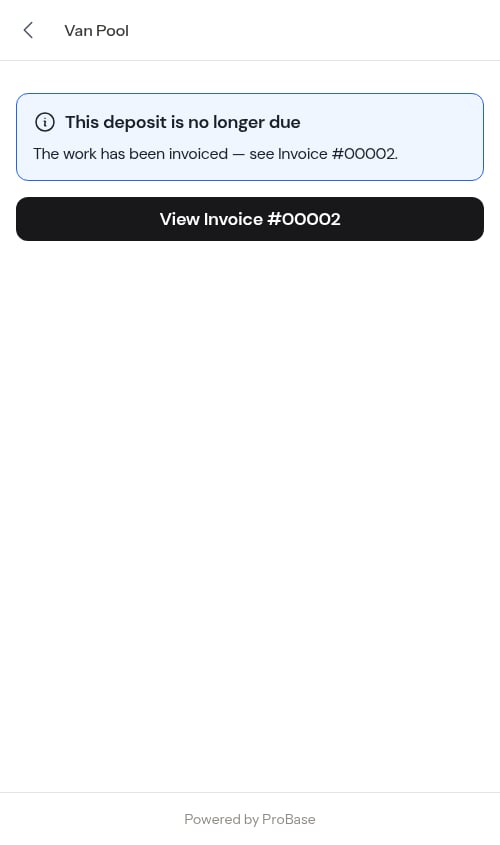
A deposit is only asked for until the work is billed. When you send the invoice that holds the job’s work and the customer still hasn’t paid the deposit, ProBase withdraws the deposit on its own — so a customer who skipped a $250 deposit on a $500 job owes $500 on one invoice, not $750 across two.- The deposit invoice leaves your invoice lists. Its number is kept and never reused.
- If the customer paid part of the deposit, that money moves onto the job’s invoice and counts toward it — nothing is refunded and nothing is lost.
- The job’s invoice gets a line in its History, for example Deposit invoice #00067 withdrawn — never paid · $250.00 · 4:10 PM — automatic*, or *Deposit invoice #00067 withdrawn · $100.00 of $250.00 paid, moved to this invoice when part of it was paid.
- On the quote, the line under the outcome changes to $250.00 deposit withdrawn · billed on Invoice #00068 — tap it to open the job’s invoice.
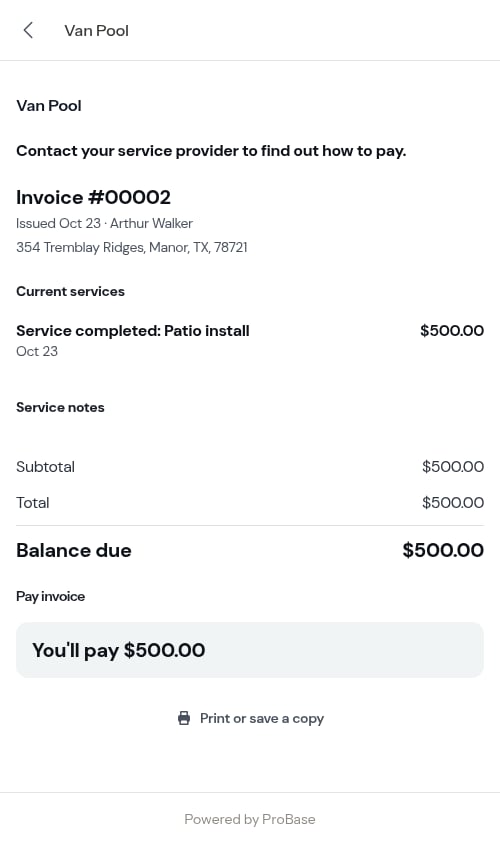
The Deposit paid line shows on every copy of the invoice — yours, the customer’s, the printed one and the email — so the customer can see the money they already paid has been counted.
A $0 service report
When a visit billed nothing (for example, a subscription visit) and you send the report, the “invoice” is really a service report. Its page reads “This is a report, not a bill. Nothing is owed.” with an Open the visit button.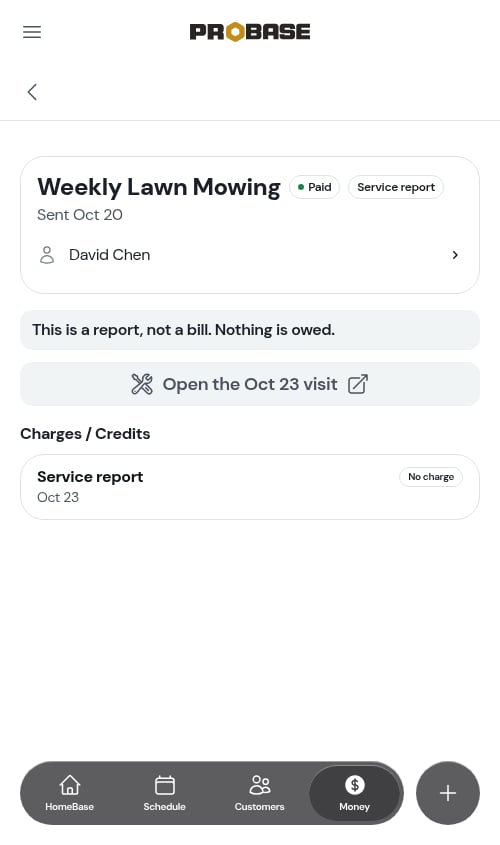
Edit an invoice
You can change an invoice’s charges until money lands on it — while it’s a draft, or after you’ve sent it as long as no payment has been recorded yet. A credit or discount on the invoice doesn’t count as a payment, so it never locks the invoice.Add a charge or a credit
1
Open the invoice
Find it in the Invoices list or from the customer’s billing history.
2
Tap Add charge or Add credit
Both rows sit at the bottom of the Charges / Credits card.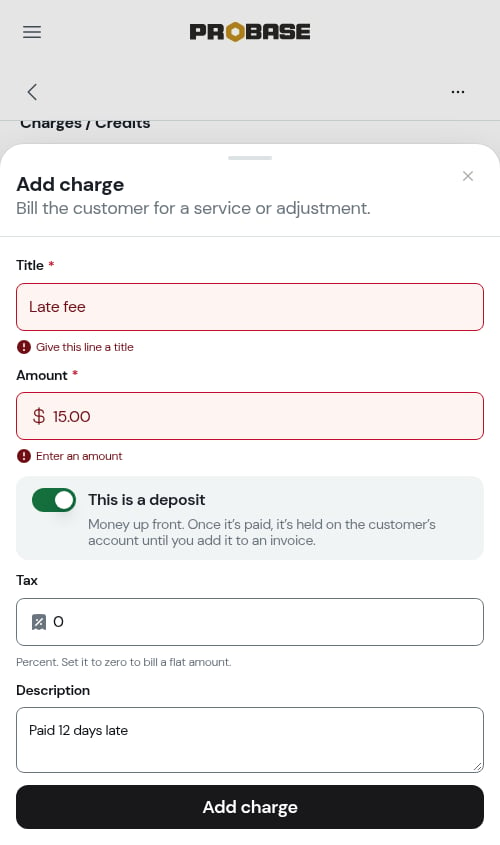
3
Fill it in
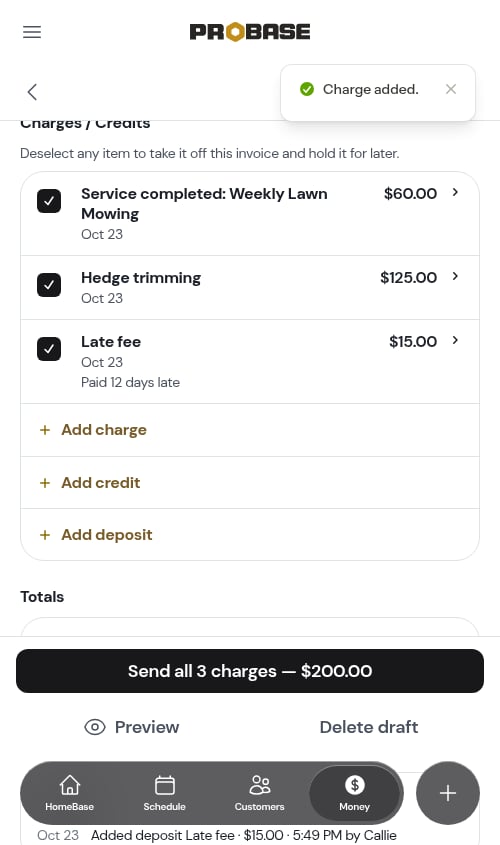
- Title — what the customer reads, like Pool filter replacement or Late fee
- Amount
- This is a deposit (charges only, right under the amount) — marks the charge as money taken up front. Once it’s paid, it’s held on the customer’s account until you add it to an invoice. See Deposits on an invoice
- Tax (charges only) — the tax percentage; set it to zero to bill a flat amount
- Description (optional) — extra detail that shows beneath the title on every copy of the invoice: yours, the customer’s page, the printed one, and the email. Leave it blank and nothing extra shows
4
Add it
Tap Add charge (or Add credit) at the bottom of the sheet. The charge or credit appears on the invoice and the totals update.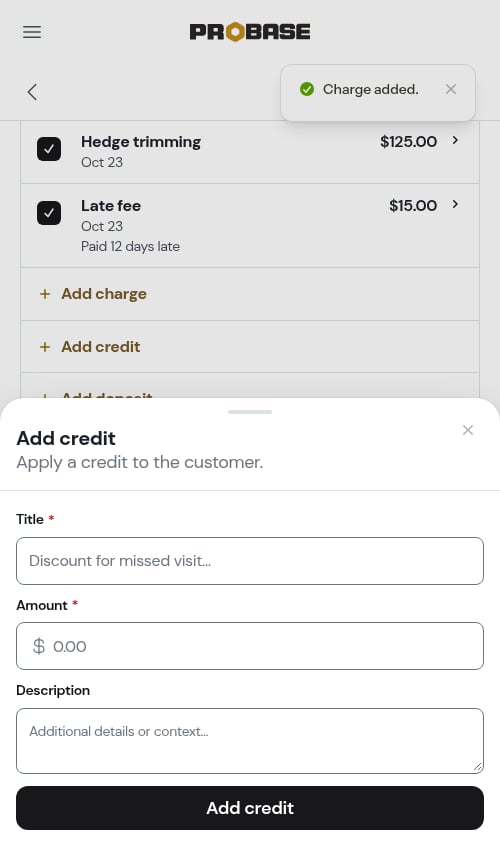
List something at no charge
Handing over a product for free, like a bucket of chlorine tabs? Add it as a charge with an amount of 0. The line shows on the invoice with No charge where the price would be, and it adds nothing to the total, the tax, or the balance due. A description is a good place to say why — for example, Left a bucket by the pump.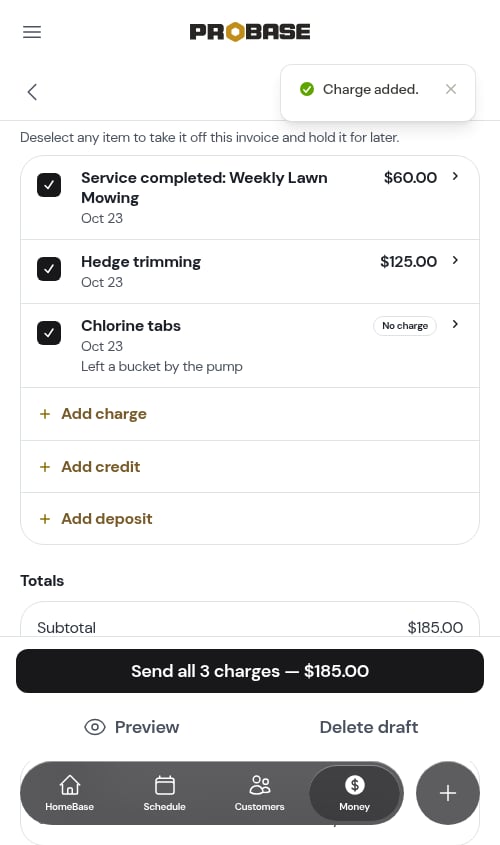
Only charges can be $0. A credit, a deposit, and a late fee always need an amount above zero.
Where a credit shows
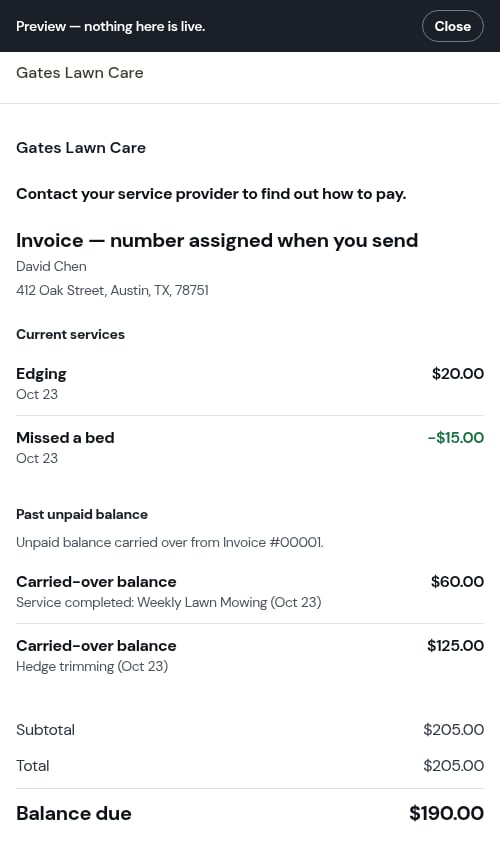
A credit you add on an invoice always appears in that invoice’s Charges / Credits card, in green, at the full amount you typed — even when the invoice also carries a Prior balance. Its money pays off this invoice’s own charges first, oldest first, and only then any prior balance carried over from an earlier invoice. Balance due drops by the credit.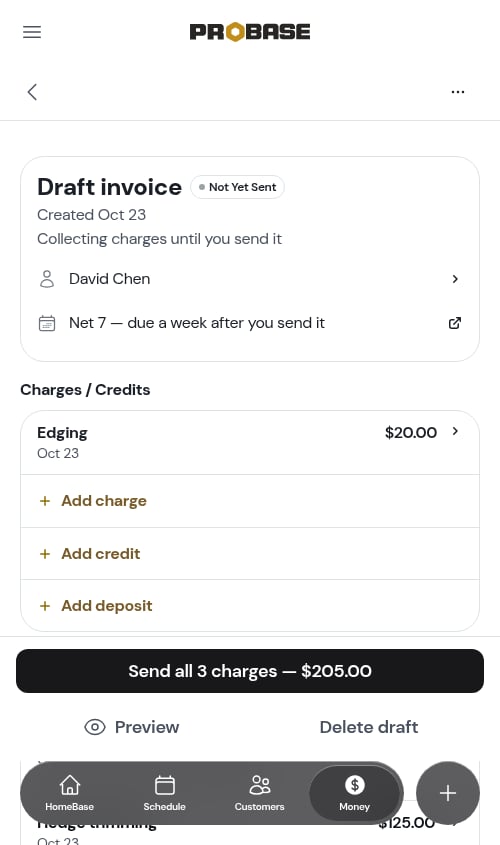
Change a charge
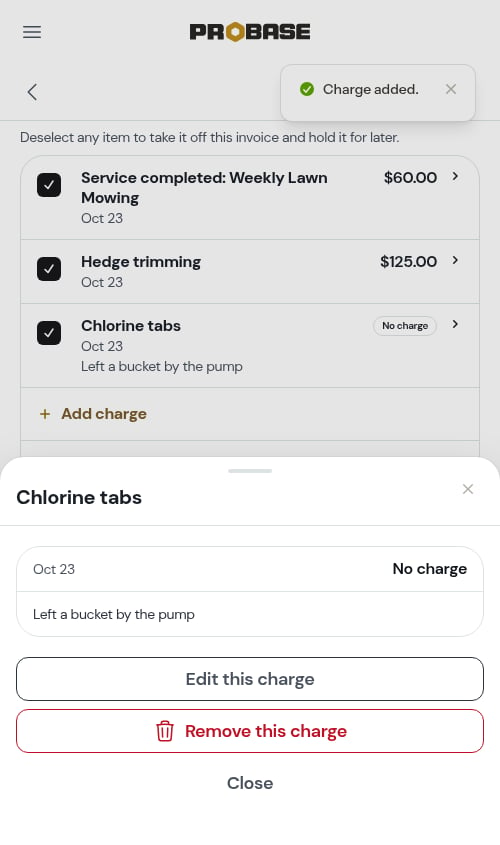
Tap the charge, then Edit this charge. Change the title, amount, or description and tap Save — the customer sees one corrected line, never a correction beside it. A charge that came from a job keeps the job’s tax rate. You can also bring a charge down to 0 to list it at no charge. On an invoice you’ve already sent, the last charge that still has money on it can’t go to $0 — ProBase tells you A sent invoice keeps at least one charge. Archive it instead.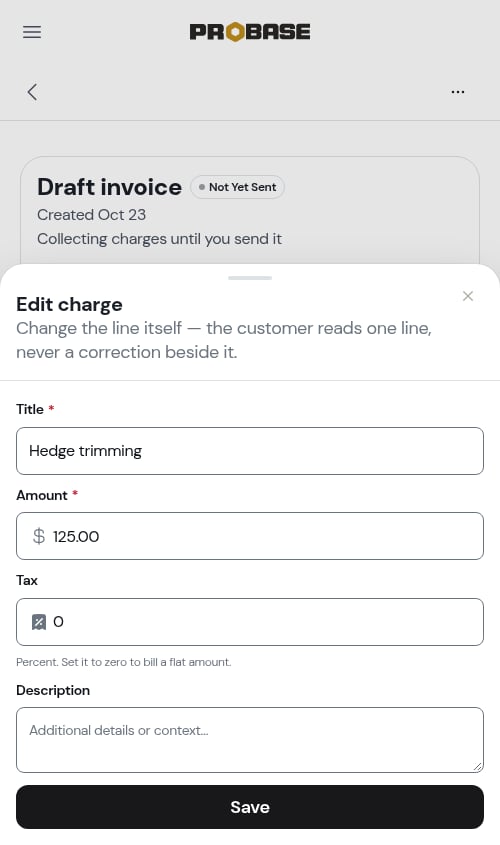
Rename an Included subscription visit
A visit covered by a subscription shows on the invoice as Included with no price. You can’t change its amount, but you can change what it’s called — for example, to say which month’s visit it was.1
Tap the Included line
The line’s sheet opens. Instead of Edit this charge, it offers Edit title.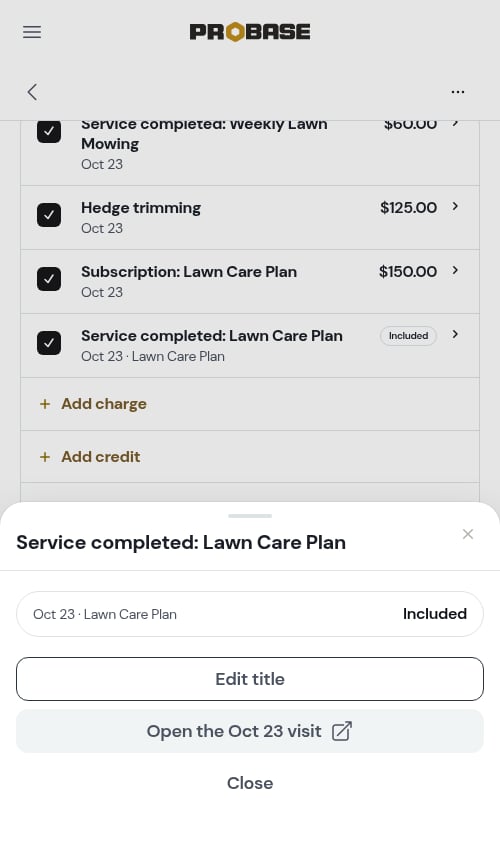
2
Type the new title
The Edit title sheet has only the Title field, filled in with the current name: “Change what this line is called on the invoice. The amount stays Included.”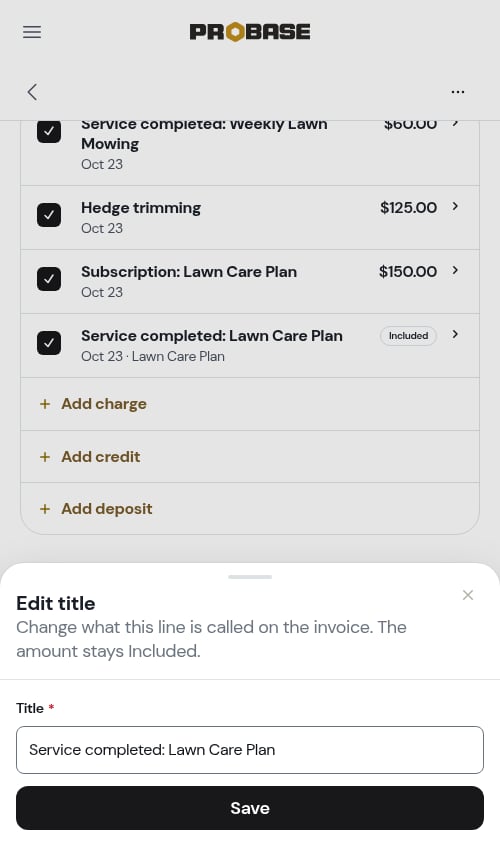
3
Tap Save
The line shows its new title and still reads Included. The job’s service keeps its own name. The change appears in the invoice’s History.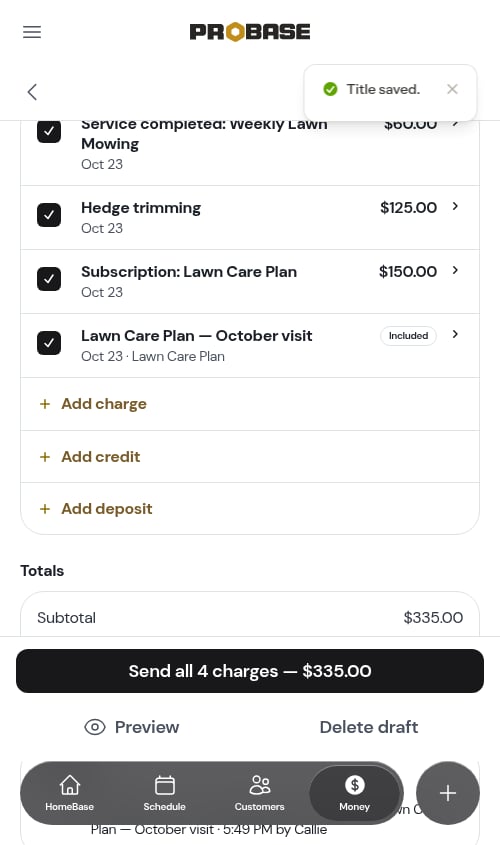
Change a credit
Typed a credit wrong? Tap a credit you added on this invoice, then Edit this credit.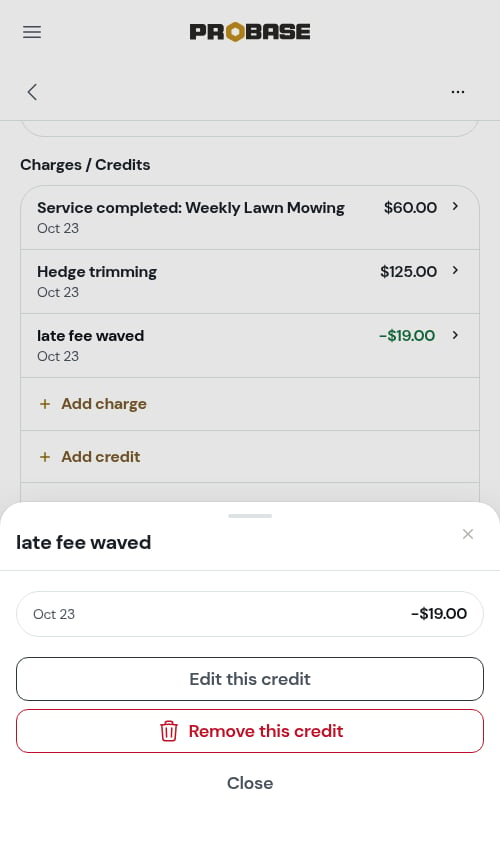
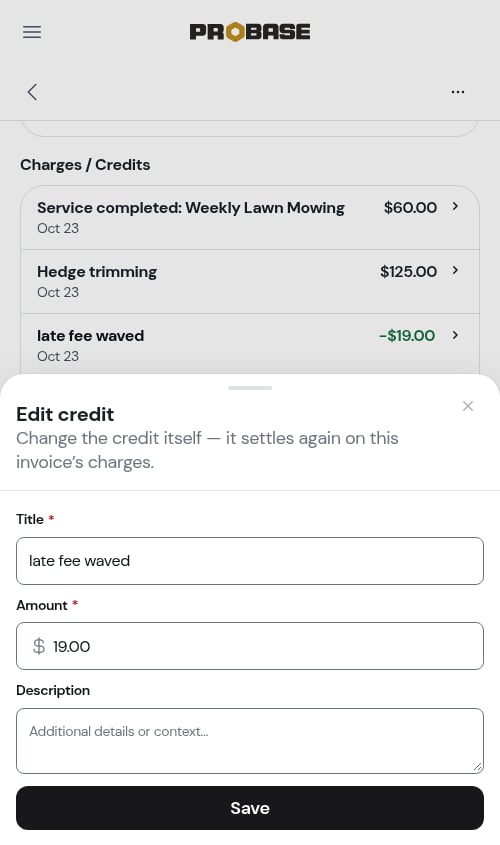
Remove a charge or credit
Added something by mistake? You can take off a charge or a credit that you added by hand on the invoice.1
Tap the line
Open the charge or credit on the invoice. Beneath Edit, tap Remove this charge (or Remove this credit).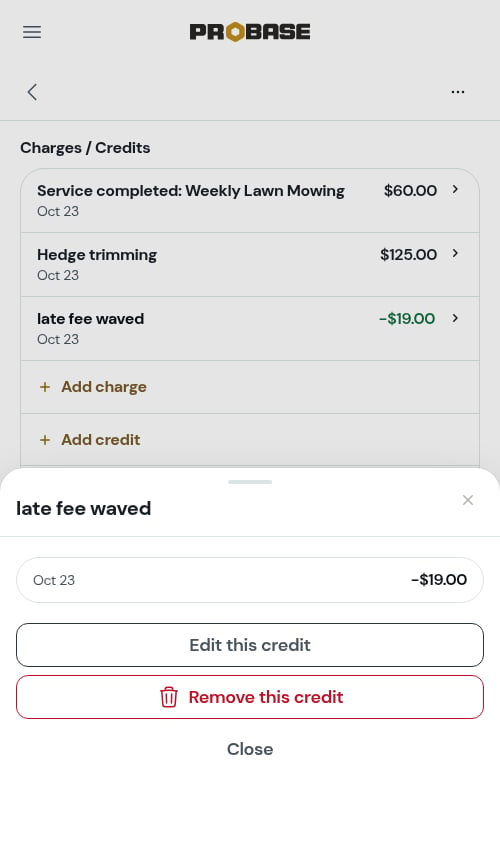
2
Confirm
ProBase asks, for example, “Remove this $19.00 credit?"* and tells you what the customer's balance becomes — *"Their balance becomes $125.00.” Tap Remove credit (or Remove charge) to confirm, or Keep it.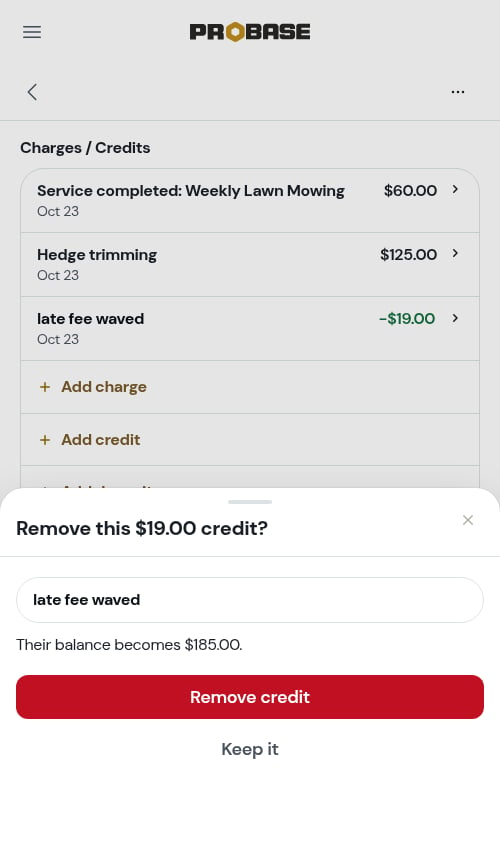
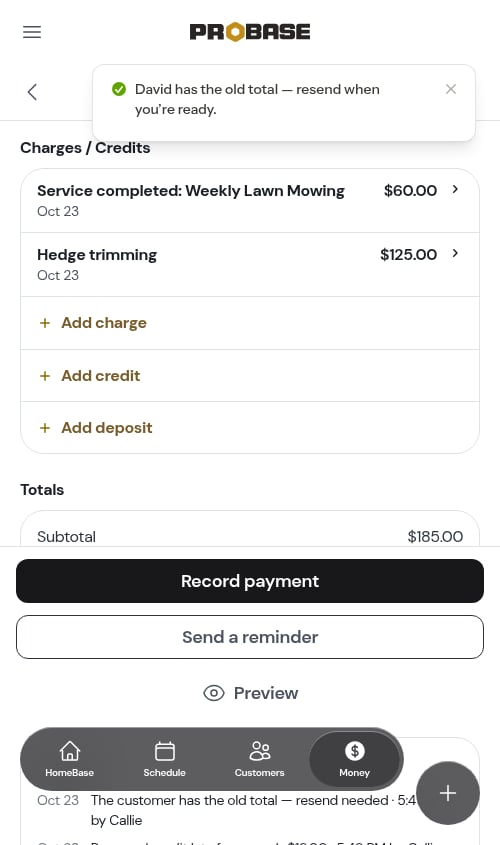
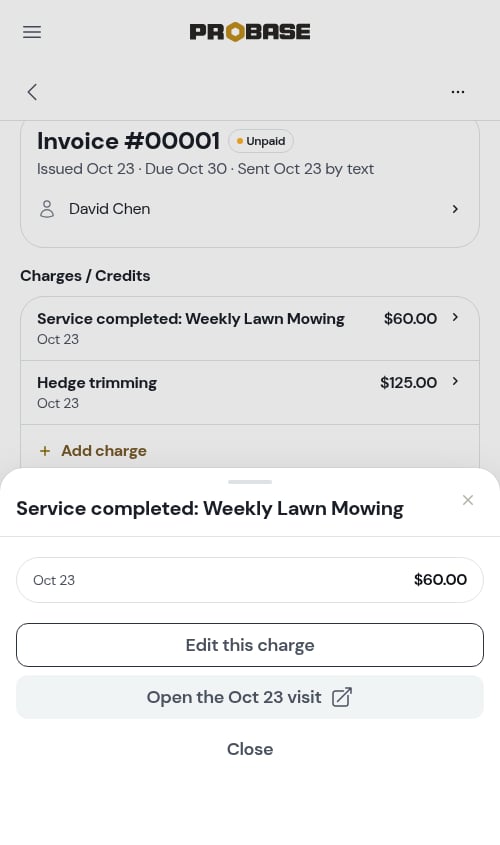
Editing an invoice you’ve already sent. The change saves, and the invoice reminds you: “David has the old total. Send them the updated invoice.” Tap Resend when you’re ready. The invoice number and dates don’t change.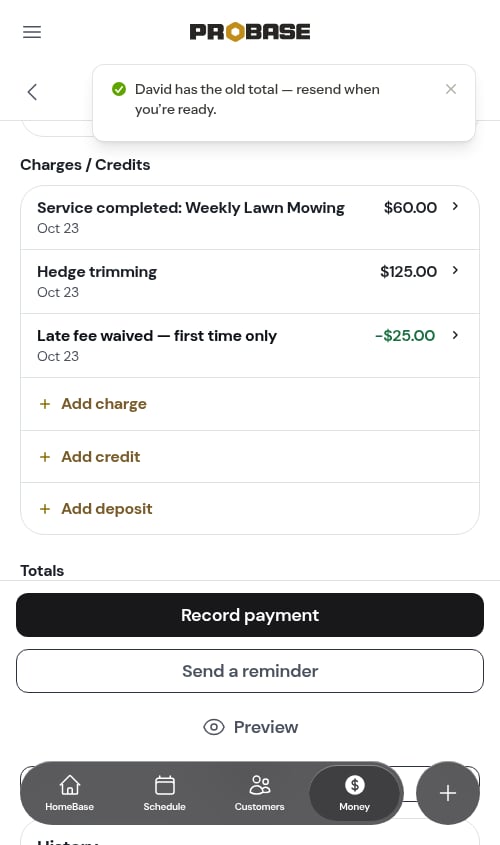
Send only some charges
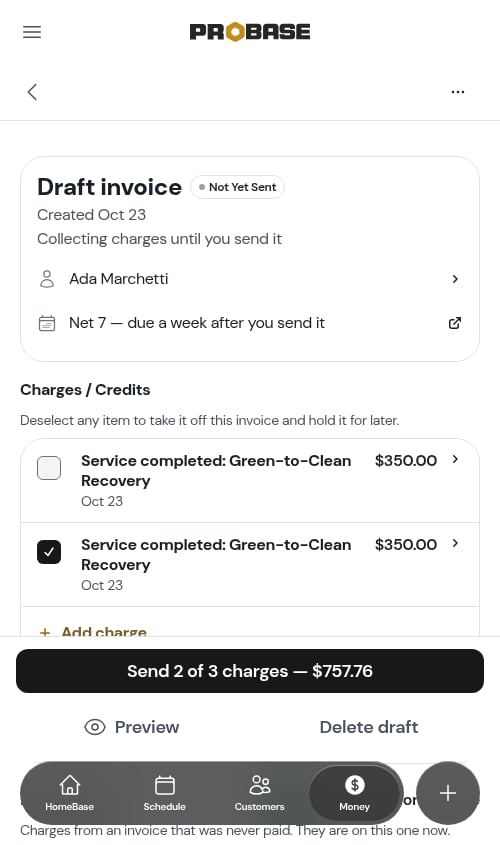
When a draft holds charges from more than one visit (or a charge you added by hand), each charge gets a tick box — “Deselect any item to take it off this invoice and hold it for later.” Untick any charge you’re not ready to bill. The button counts what’s going: Send 1 of 2 charges — $60.00. The unticked charges stay on the draft for next time. The amount on the button is exactly what the customer will be asked to pay — tax included, and any credit or payment already on those charges taken off — so it matches the Balance due on their invoice.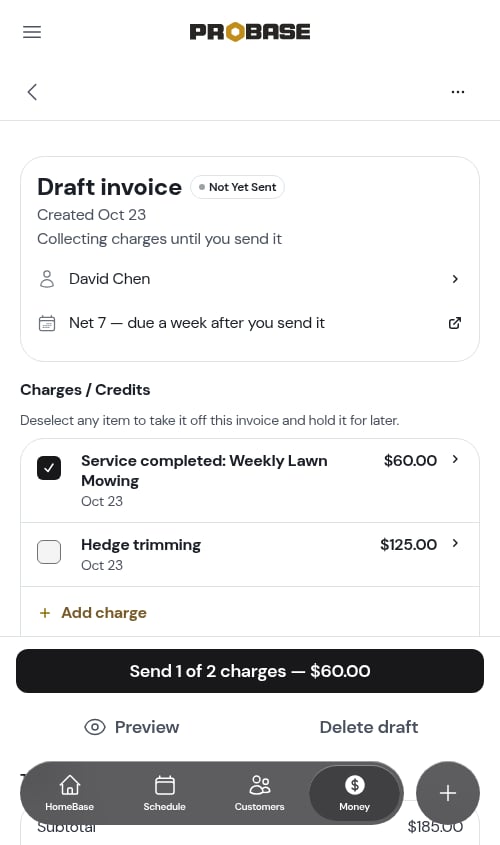
Delete a draft
Tap Delete draft at the bottom of a draft (or in ⋯ More). ProBase tells you what goes with it — for example “Its 2 charges, worth $185.00, go with it — they won't move to a new invoice."* Only the draft's own charges count here. If the draft also carries a **Prior balance**, the sheet tells you that money stays owed — for example *"The $80.00 prior balance stays on Invoice #00041 and carries to your next draft.” It also tells you what the customer’s balance becomes once the draft is gone — for example “Their balance becomes $0.00."* or *"They'll have a $20.00 credit on their account.” If the customer has a subscription, it reminds you that the plan bills again and will start a new draft. Tap Delete draft to confirm, or Keep it.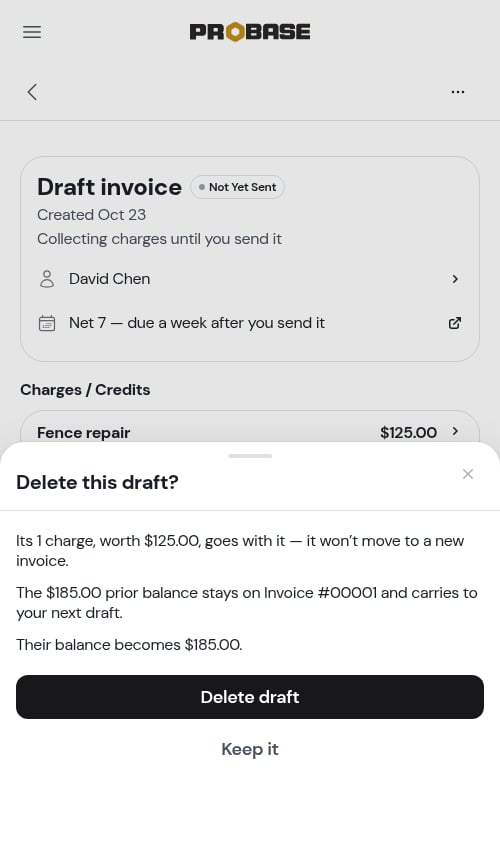
Archive an invoice
Some invoices will never be paid — the customer won’t pay, you can’t reach them, or it isn’t worth chasing. Archiving takes the invoice off your Money screen and follow-up lists without pretending it was paid.1
Open ⋯ More and tap Archive invoice
The sheet shows how much is still owed.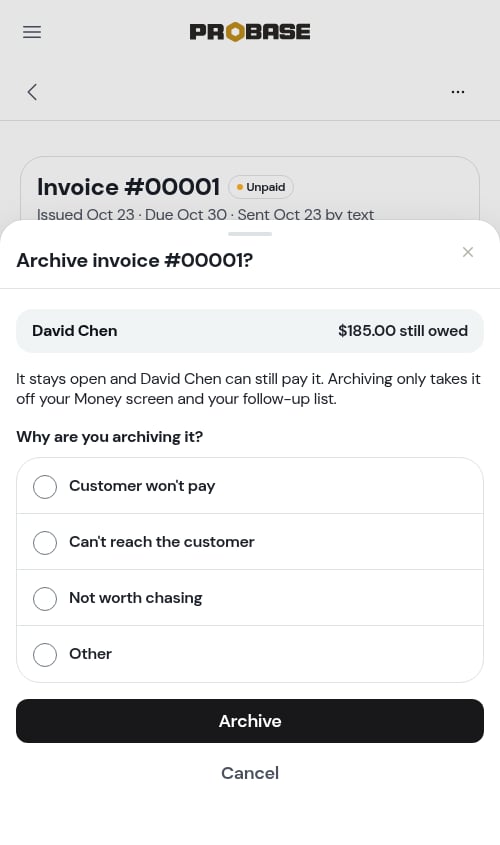
2
Pick a reason
Customer won’t pay, Can’t reach the customer, Not worth chasing, or Other (Other needs a short note).
3
Tap Archive
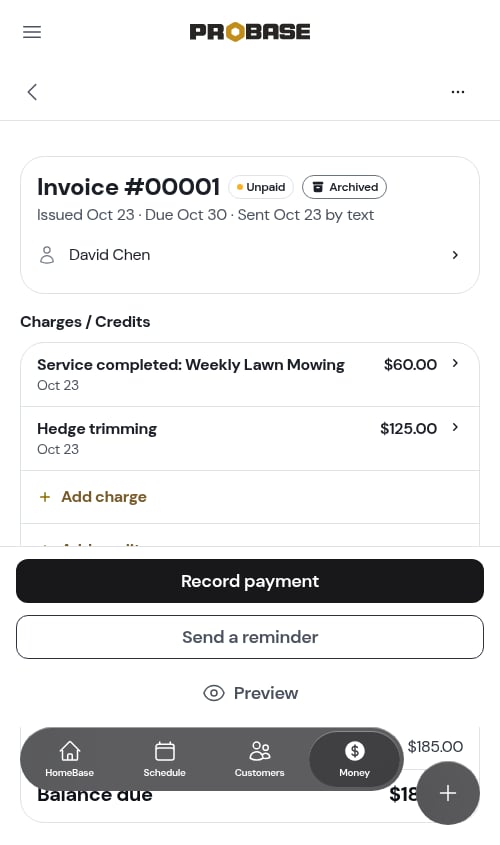
The invoice now wears an Archived tag.
Preview as customer
Tap Preview at the bottom of the invoice (or Preview as customer in ⋯ More, or on the Send invoice screen) to see the invoice exactly as the customer will — with your payment options, tip step and pay button. A banner reads “Preview — nothing here is live.” Nothing can be tapped and nothing is saved; tap Close to go back. On a draft, the preview shows only the charges you’ve ticked.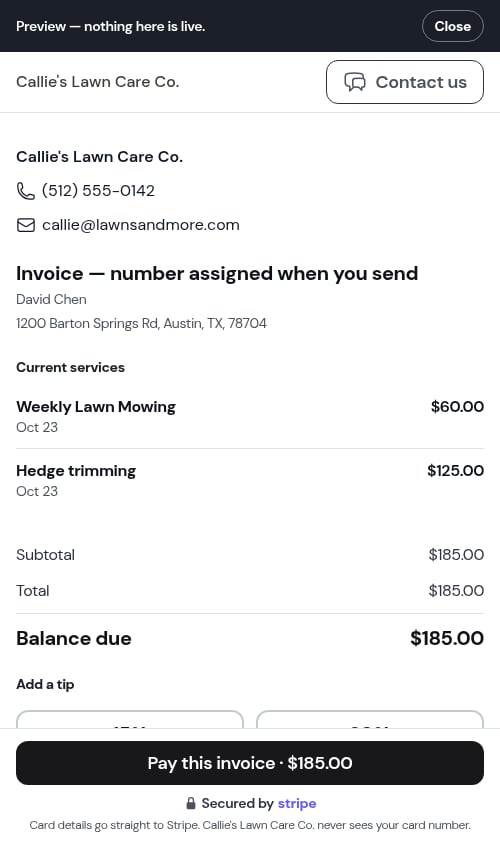
Using ProBase from your home screen? Links that open the customer’s own page — Preview as customer on a sent invoice, Open customer portal, and the report preview on a visit — open in your phone’s browser (Safari or Chrome) rather than inside the ProBase app, so you can close it and land straight back where you were.