Why this matters
Your account is the foundation of your business operations in ProBase. Setting it up correctly ensures you can manage customers, schedule work, and track billing from day one.Create your account
Step 1: Sign up
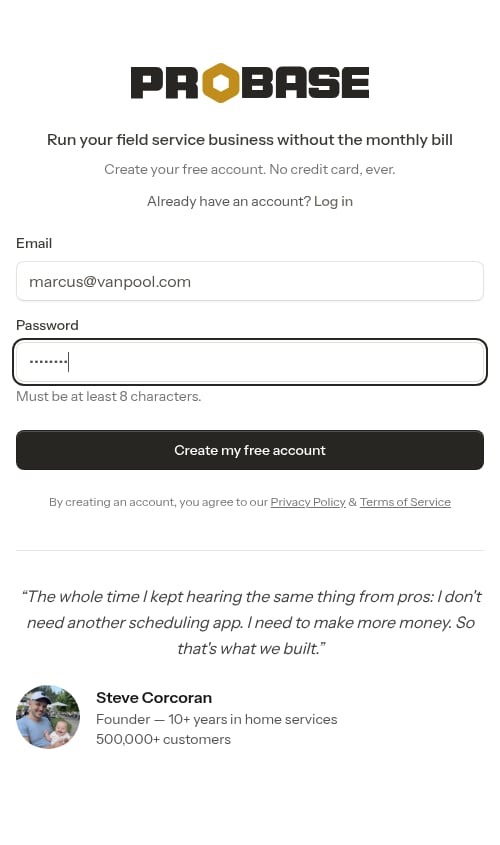
The signup form is intentionally minimal — just your email and a password. You’ll fill in your name, business name, and other details on the onboarding screens that follow. The top of the page reads Run your field service business without the monthly bill with the tagline Create your free account. No credit card, ever.- Go to the ProBase signup page
- Enter your Email
- Create a Password (at least 8 characters)
- Click Create my free account
Sign up with Google: If available, you’ll see a “Sign up with Google” button at the top of the registration form for faster account creation. This lets you create your account using your Google credentials without entering a password.
No credit card required. ProBase is free to start — you won’t be asked for a credit card at signup or during onboarding.
Already have an account?
If you’ve used ProBase before, you don’t need to sign up again. Right under the heading at the top of the signup page is a line that reads Already have an account? Log in — tap Log in to go to the login page instead.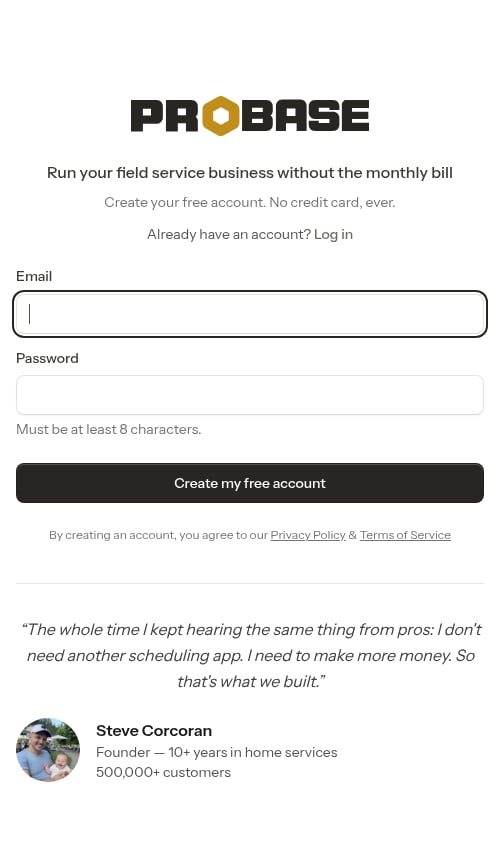
- Log in — opens the login page with your email already filled in, so you only need to enter your password
- Forgot your password? — opens the password-reset page with your email already filled in, so you can send yourself a reset link
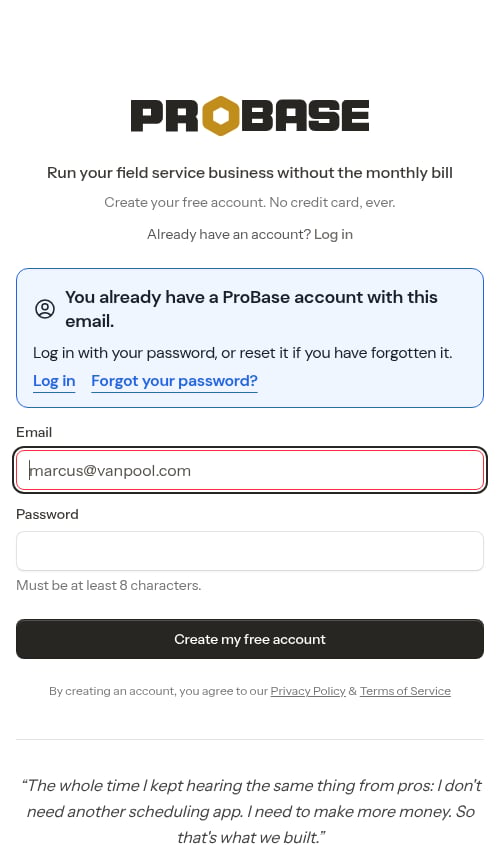
You’ll also see this notice if the Create my free account button got tapped twice and your account was created on the first tap. Your account is there — just tap Log in.
Signing up from a ProBase pro link? Some ProBase campaigns point at a pro signup page (/register-pro) instead. It looks and behaves exactly like the standard signup screen — same heading, same email and password fields, same Create my free account button (and the same Sign up with Google option when it’s available) — but the onboarding step that follows asks you to opt in to text messages explicitly, and your phone number is optional there. See Text message notifications.
Step 2: Complete onboarding
After registering, you’ll be guided through a short onboarding wizard with two information-gathering steps, followed by a “You’re all set” confirmation and an optional step to install the app. A progress bar at the top shows your completion status on the first two steps (Step 1 of 2, Step 2 of 2).Set up your account (Step 1 of 2)
First, you’ll provide your contact information:- Your name (required) - Your full name as the account owner
- Business name (required) - Your company or business name
- Business address (optional) - Your business or home address. Pick it from the autocomplete suggestions — it sets your timezone and puts your address on your invoices. (Routes start from each crew’s own starting address, set on the crew’s page.) You can skip it for now and add it later.
- Phone number (required, formatted as (555) 555-5555) - Used for appointment reminders and customer communication
If you signed up from a pro link, this step looks slightly different: your phone number is optional, and in place of the disclosure you’ll see two tick-box choices — one for marketing texts and one for transactional texts — that are both off until you tick them. See Text message notifications.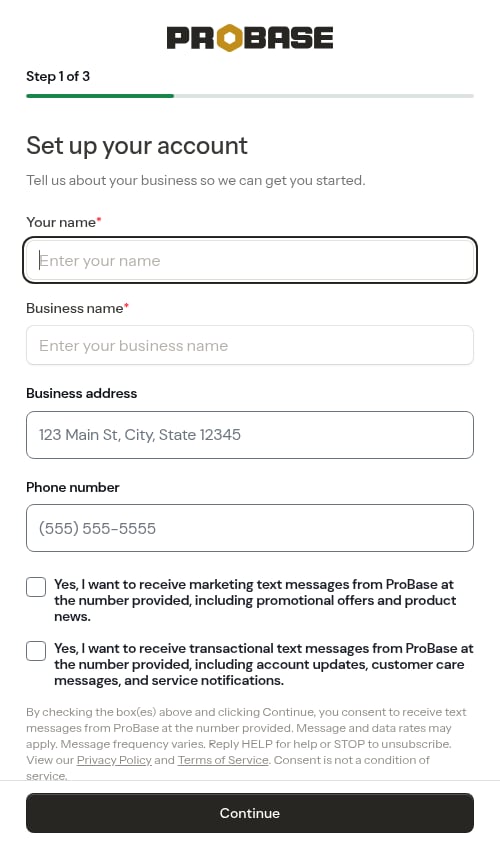
Your progress is saved automatically. If you close the browser during onboarding, you’ll resume where you left off when you log back in.
Phone number format: The phone field automatically formats your number as you type. Enter your 10-digit phone number and it will be formatted as (555) 555-5555.
A few quick questions (Step 2 of 2)
ProBase asks a short series of questions one at a time to customize your account. A counter shows your place — Step 2 · Question X of 6. Tapping an answer advances you to the next question automatically. The first four questions are required; the last two are optional. Each question has a Back button.- What type of work do you do? (required) — Pool and Spa, Lawn Care and Lawn Maintenance, or Other. Choosing Other reveals a text box to describe your work.
- How big is your team? (required) — Just me, 2-5 crews, 6-10 crews, or 10+ crews.
- What’s your current customer count? (required) — Under 25, 25–75, 75–150, or 150+. A quick estimate so ProBase can tailor your experience.
- How do you manage your work right now? (required) — the common options (Pen and Paper, Spreadsheets, Jobber, Housecall Pro, Other) plus any software specific to your trade — Pool businesses also see Skimmer and PoolBrain, Lawn businesses also see Yardbook and LawnPro.
- What should we help you with first? (optional) — a list of common goals, or “Something else”. Tap Skip, or tap an answer to continue.
- How quickly do you want to be up and running? (optional) — your timeline. Again, tap Skip or tap an answer to continue.
You’re all set
You’ll see a personalized confirmation — “You’re all set, [First name].” — letting you know your business is ready to create estimates and jobs. Whenever ProBase pre-configured services for you, this screen also counts them up, previews them, and shows a “~30 minutes of setup, done for you” badge. (This celebration screen doesn’t count as a numbered step, so the progress bar is hidden here.) Tap Open Dashboard → to continue to the install step.Add the app to your home screen (optional)
ProBase works best when installed as an app on your phone. This step, headed Add ProBase to your home screen, walks you through it. ProBase detects your phone and browser, shows a Detected: badge, and gives you the matching steps: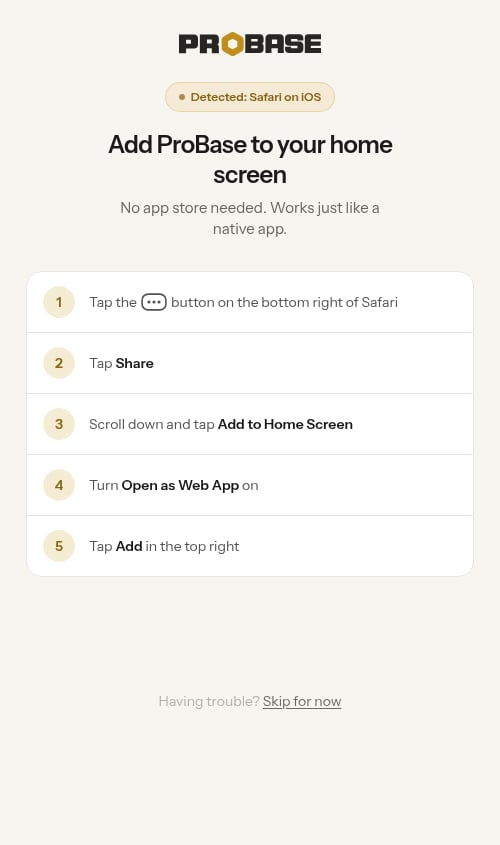
- On Android — tap the single Install the app button and confirm the browser’s prompt. If you closed that prompt without installing, tapping the button again opens the steps for installing from Chrome’s ⋮ menu instead.
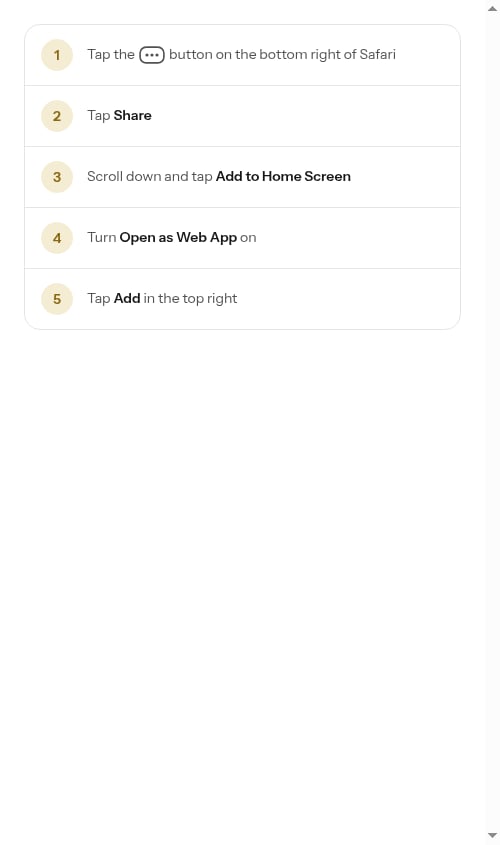
- On iPhone (Safari) — follow the five numbered steps: tap the ••• button at the bottom right, tap Share, scroll down and tap Add to Home Screen, turn Open as Web App on, then tap Add.
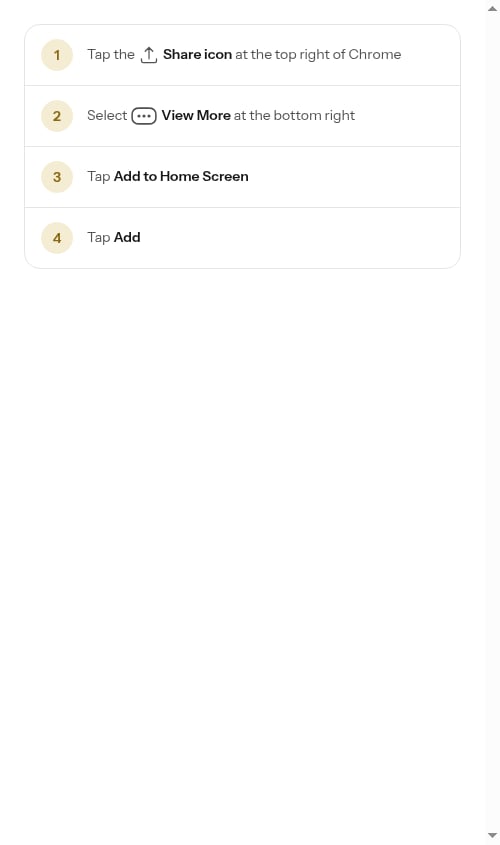
- On iPhone (Chrome) — follow the four numbered steps: tap the Share icon at the top right, select View More, tap Add to Home Screen, then tap Add.
This step only appears on mobile devices. On a desktop or laptop — or if ProBase is already installed and you’re opening it from your home screen — it is automatically skipped and you go straight to your dashboard.

You can install the app later from Install the app under Make it yours → Boost my productivity on your dashboard (on your phone).
- Your account is fully set up
- Industry-specific service templates have been created in your catalog
- A default crew called “My Crew” has been created automatically
- You’re ready to start adding customers and scheduling work
Logging back in
To log in to your account:- Go to the ProBase login page
- Enter your email address in the Username field
- Enter your Password
- Optionally tick Remember me to stay signed in on this device
- Click Log in
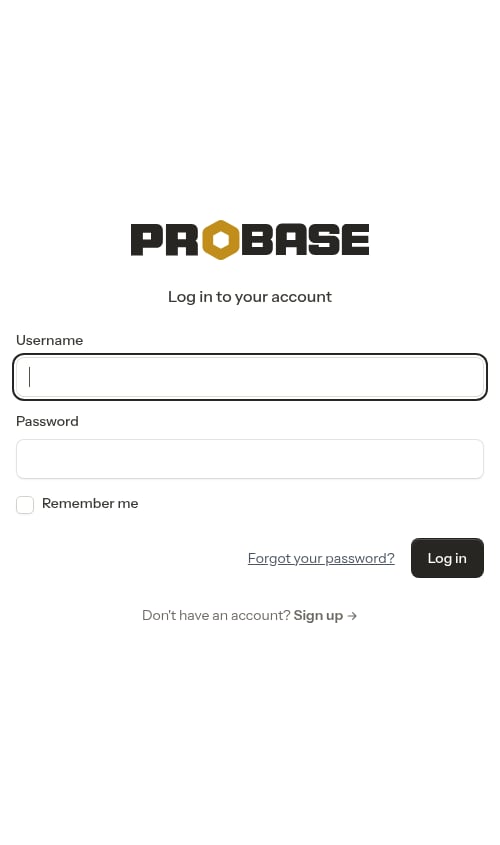
Log in with Google: If your business has Google sign-in enabled, a Log in with Google button appears at the top of the form. Use it if you originally signed up with Google — otherwise log in with your email and password.
Forgot your password? Tap Forgot your password? below the login form to send yourself a password-reset email. The link in that email lets you set a new password and sign back in.
Coming from the signup page? If you tapped Log in or Forgot your password? in the You already have a ProBase account notice, the email you typed on the signup page is already filled in for you.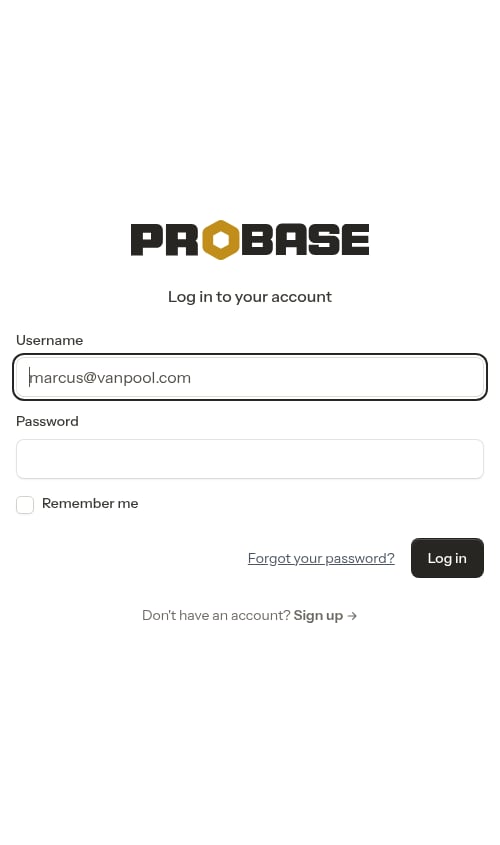
“Your session expired — please try again.” If the login page had been sitting open for a long time — a tab left open overnight, or one your phone put to sleep and woke back up — tapping Log in brings you back to the same page with this amber notice at the top. Nothing is wrong: your email is still in the field, so just enter your password again and tap Log in. The same applies to the sign-up and password-reset pages. See Troubleshooting.
What gets set up automatically
When you complete the onboarding wizard, ProBase automatically sets up your account with:Default crew
A crew named “My Crew” is automatically created for you. This crew is ready to be assigned to appointments right away. You can:- Rename it to match your actual crew name (e.g., “Team 1”, your name if solo, etc.)
- Add start and end locations for route optimization
- Create additional crews if you have multiple field teams
Service templates
Based on your industry selection during onboarding, ProBase automatically creates service templates in your service catalog. Lawn Care and Lawn Maintenance creates 13 starter service templates:- Lawn Mowing - Weekly (subscription, every 7 days)
- Lawn Mowing - Biweekly (subscription, every 14 days)
- Aeration & Overseeding
- Bush Trimming
- Gutter Cleaning
- Junk Removal
- Lawn Fertilization
- Leaf Removal
- Mulching
- Pressure Washing
- Weed Pulling
- Yard Cleanup
- Full Service Yard Care (subscription, every 7 days)
More lawn services are available without being added for you. Fifteen further templates — Aeration, Flower Bed Weeding, Flower Planting, Garden Maintenance, Landscape Design, Landscaping, Lawn Seeding, Mosquito Control, Rock Installation, Shrub or Tree Planting, Sodding, Stump Grinding or Removal, Tree Care, Tree Trimming, and Tree Removal — are kept out of your catalog so it stays short, and you can add any of them from Browse services. See Managing your service catalog.
- Pool Cleaning (weekly, subscription)
- Deep Pool Cleaning
- Pool Open/Close
- Filter Cleaning
- Filter Replacement
- Pump Repair
- Leak Detection
- Pressure Washing
- Standard Service (a one-off visit)
- Monthly Subscription (a recurring plan)
Joining a team as a crew member
If a business owner invites you to join their team, you’ll follow a simplified onboarding flow — no full account setup required.1
Open the invitation link
Click the invitation link you received. You’ll land on the login page. If you already have an account, sign in. If not, click Sign up to create one.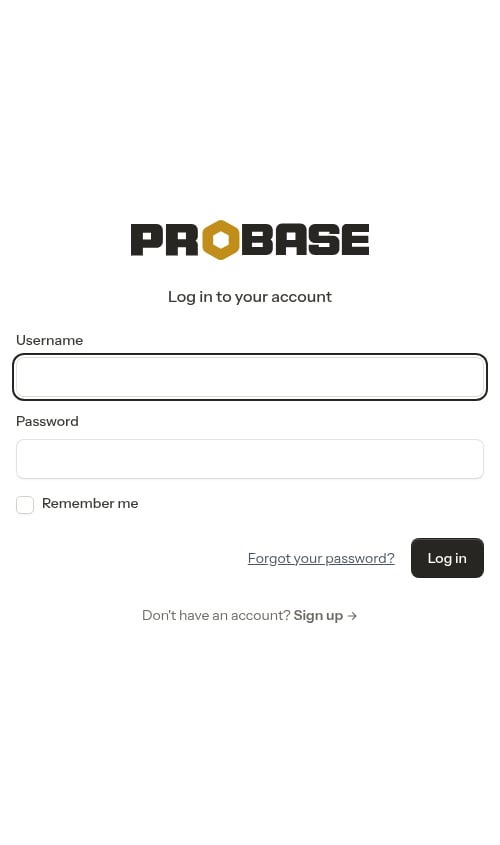
2
Create your account (if new)
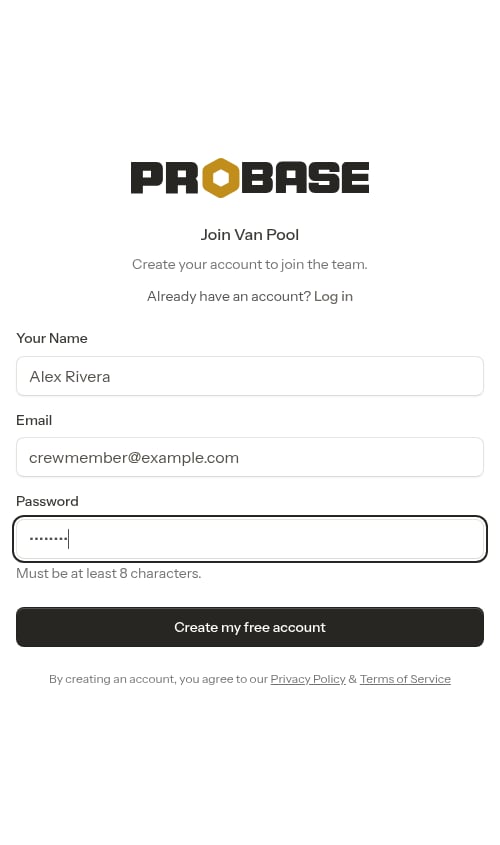
Fill in your name, email, and password on the registration page.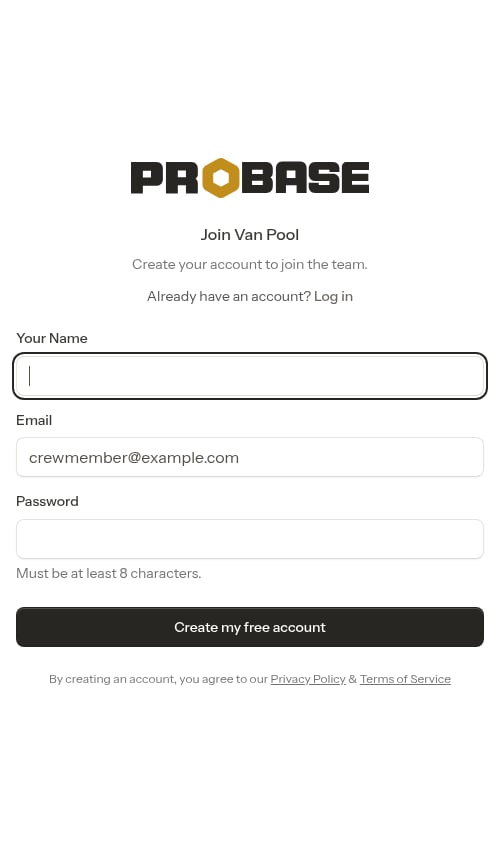
3
Enter your phone number
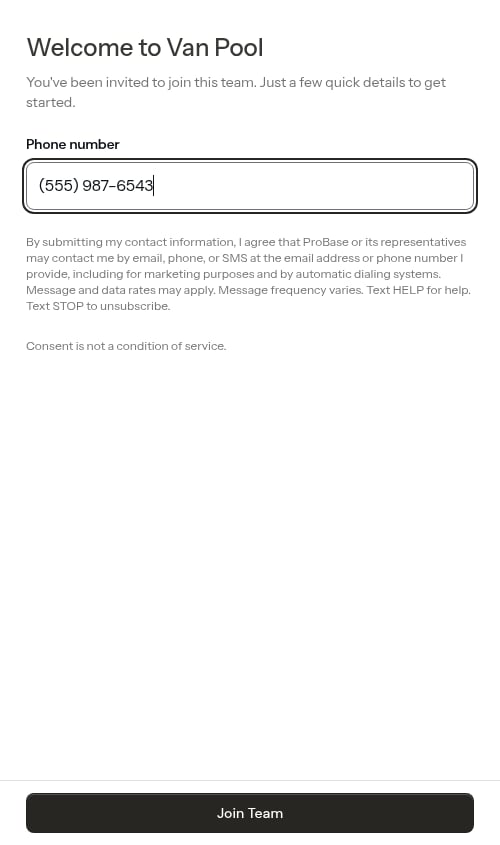
After signing in or registering, you’ll see a simple page asking for your phone number. Enter it to receive appointment notifications and updates from the team.A short disclosure below the field notes that submitting your contact information opts you in to email, phone, and SMS messages from ProBase (including marketing messages and automatic dialing) and that consent is not a condition of service. Submitting the form opts you in to SMS automatically — you can turn it off later from your Profile page. See Notification preferences.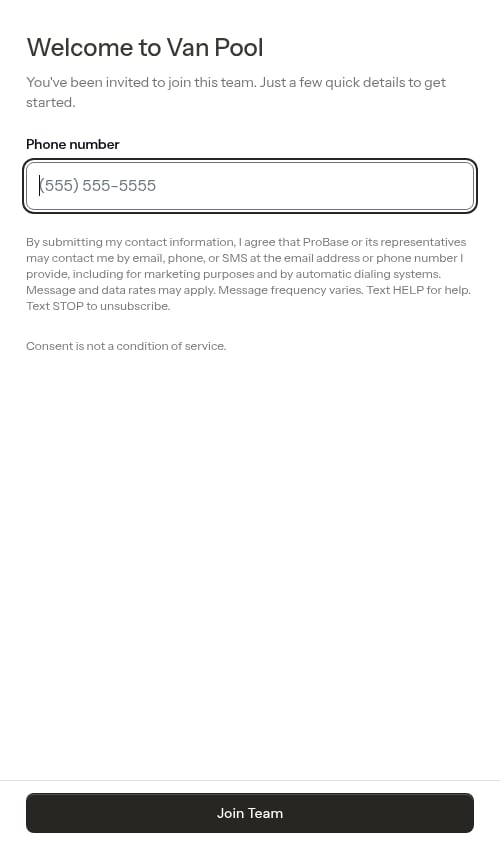
4
You're in
That’s it — you’re immediately added to the team and taken to the dashboard. No full business setup is needed since you’re joining an existing account.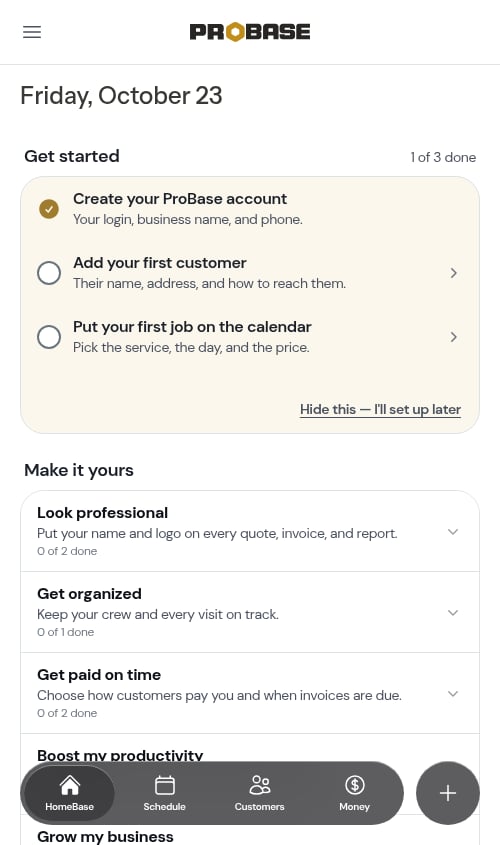
The simplified join flow is for crew members only. Business owners who are creating a new account go through the full onboarding wizard described above.
Next steps
Now that your account is set up, you can:- Choose your text message preferences to control which texts ProBase sends you
- Turn on push notifications to get alerts on your phone
- Use Quick Actions to quickly add customers and jobs
- Manage your service catalog to customize your service templates
- Create jobs to set up customers with services
- Add crews to organize your field teams
- Add your first customer manually