What is customer import?
If you’re switching to ProBase from another app — or have an existing customer list in a CSV, a PDF, or even on paper — you can bring all of it over at once. ProBase uses AI to read your files and pull out:- Contact details — names, addresses, phone numbers, and emails
- Job details — recurring schedules, pricing, service history, and open balances
You can upload CSV files, PDFs, text files, and photos or screenshots of paper notes (JPG, PNG, HEIC, and other common image types). Each file can be up to 20 MB, and you can add up to 10 files to one import.Excel workbooks (.xlsx or .xls) can’t be read yet. If your list is in Excel or Google Sheets, save or download it as a CSV first, then upload the CSV.
Where to start an import
- From the Customers page — tap Import customers in the page header, next to Add customer. On a narrow phone screen the two buttons shorten to Import and Add.
- From Account Settings — open the Bulk data card and tap Import customers.
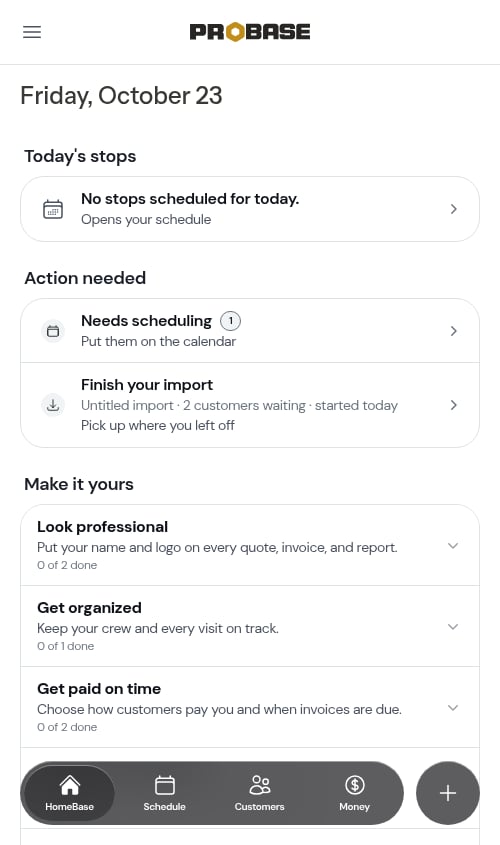
- From HomeBase — the Import the rest of your customers setup in Make it yours, or the Finish your import row in Action needed when you have an import in progress.
Importing is rolling out gradually, and it needs permission on your role. If you don’t see the Import customers button yet, you can still open your imports directly at /customers/imports.
How to import customers
A line across the top of every import screen fills in as you go, so you always know how far along you are.1
Upload your files
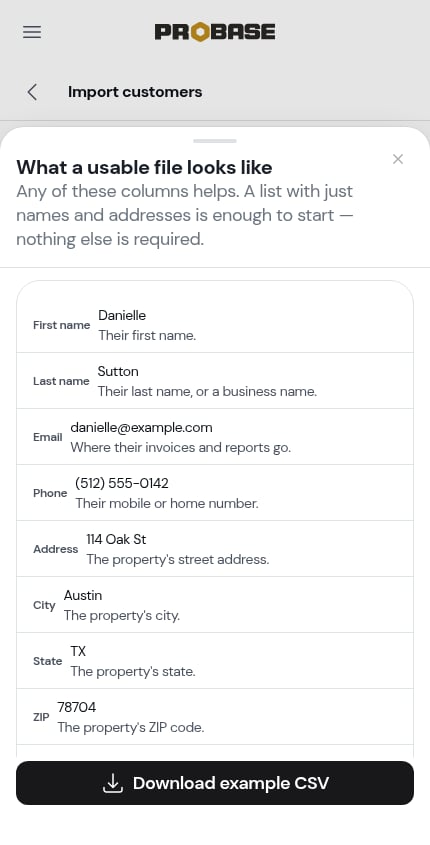
The first screen reads Bring your customer list over. Tap the dashed area to pick your files, or drag them onto it. You can add several files to one import — for example a CSV with names plus a PDF with addresses. To take a file off before uploading, tap the × beside it.Not sure what a good file looks like? Tap See an example file. A sheet lists the columns ProBase can read, with an example of each, and a Download example CSV button. A list with just names and addresses is enough to start — nothing else is required.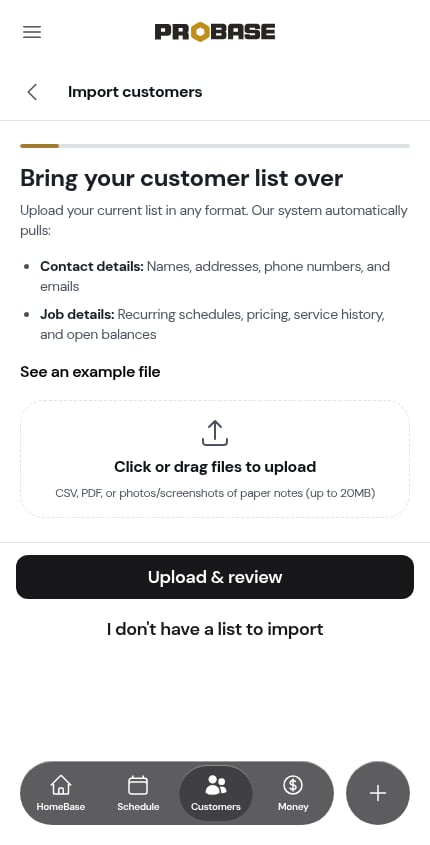
Nothing to bring over? Tap I don’t have a list to import under the button. You’re taken back to HomeBase with the message “Got it — we won’t ask you to import a list.” and HomeBase stops reminding you about importing. You can still start an import from the Customers page any time.
2
Wait while ProBase reads your files
The screen changes to Processing your files and moves through three stages on its own: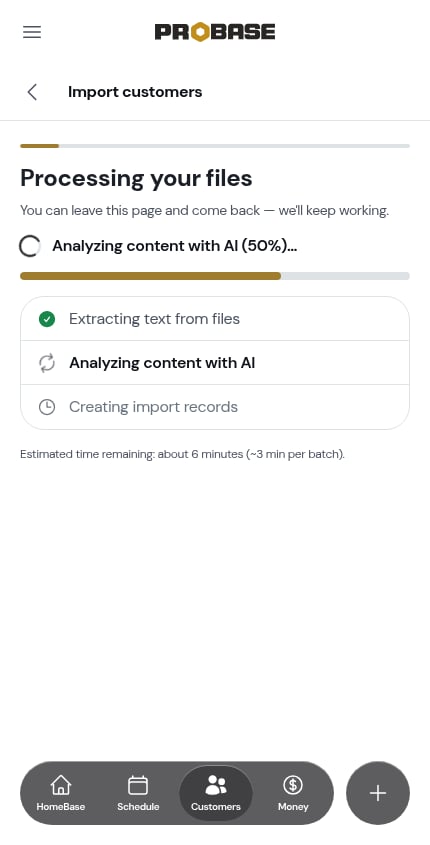
- Extracting text from files
- Analyzing content with AI
- Creating import records
Large lists are handled automatically. ProBase splits a long list into smaller pieces and reads several at once, so even lists with hundreds of customers come through reliably. If one piece of a large list can’t be read, the rest still comes through.
3
Check what we found
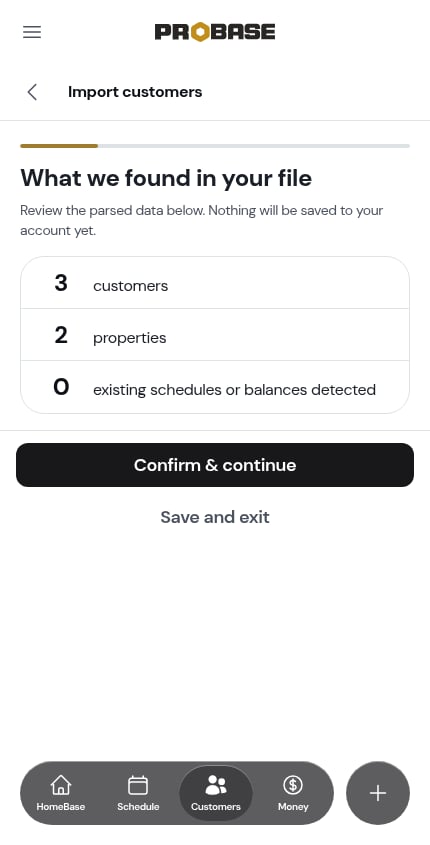
When reading is done, What we found in your file shows the counts: how many customers, how many properties, and how many existing schedules or balances were detected. Nothing has been saved to your account yet.Depending on what’s in your file, a few more lines can appear:
- Balances from before — the dollar total your customers owe you that will come across, for example $1,240.00 in balances from before. This is the same total you’ll see on the summary at the end. It’s hidden when nobody owes anything.
- Rows already paid — not imported — balance rows your file marks as already paid. They’re left out, so nobody is billed twice.
- Visits already done — past visit dates from your file, which come across as history.
- Customers with more than one location — noted beside the properties count, for example (1 client has 3 locations).
-
Matched customers you already have — a link to the customers who look like ones already in ProBase. Tap it to see just those on the review screen. See Customers you already have.
4
Review the records
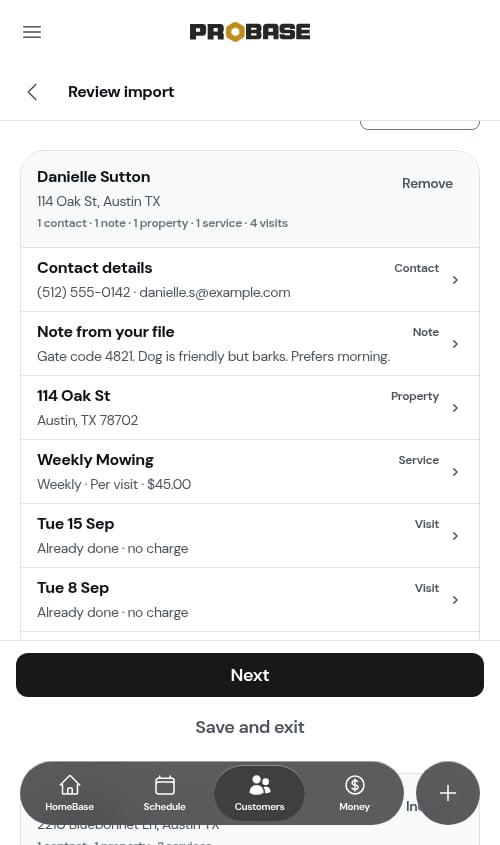
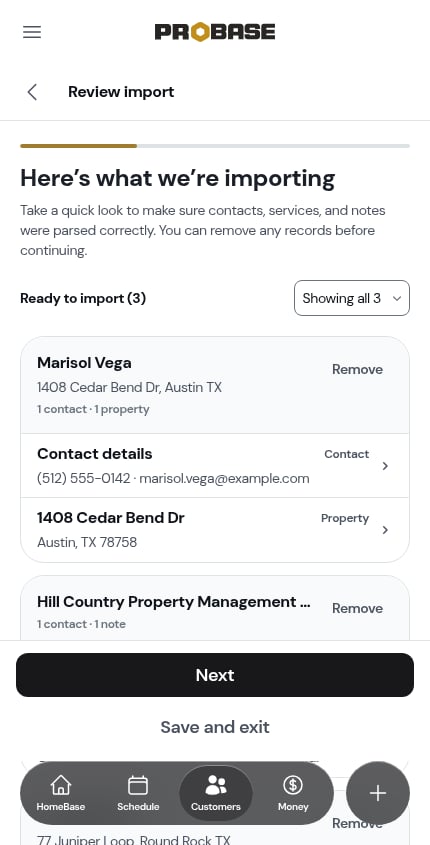
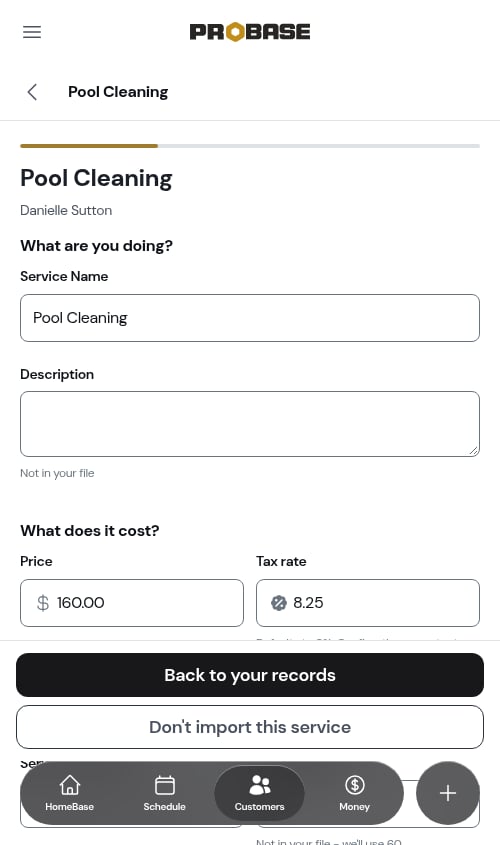
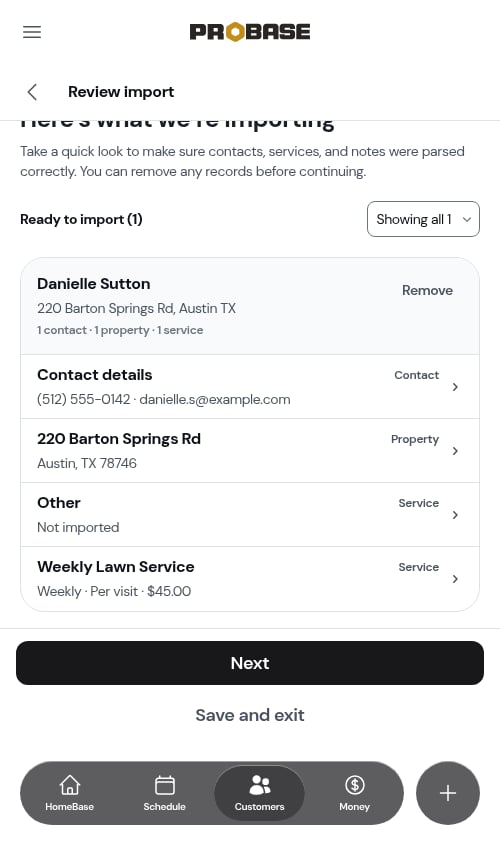
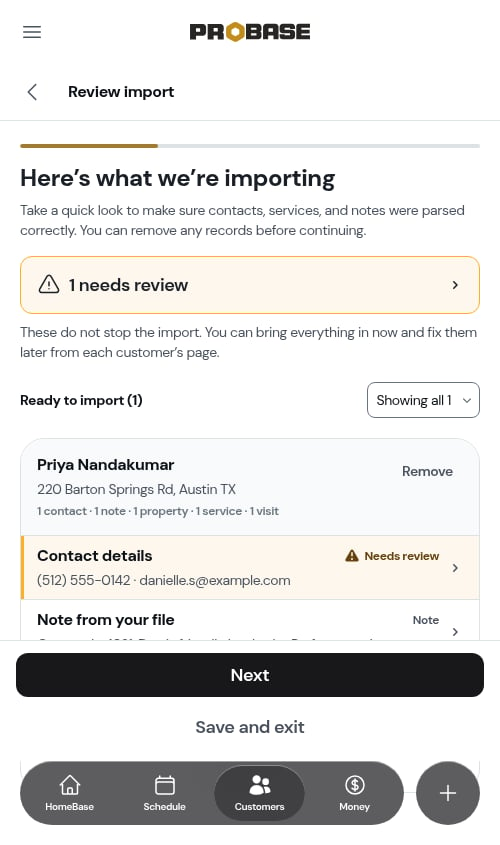
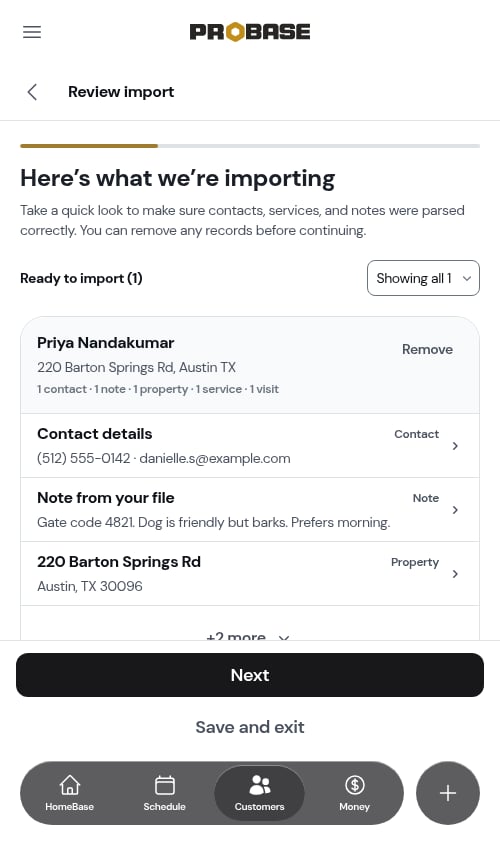
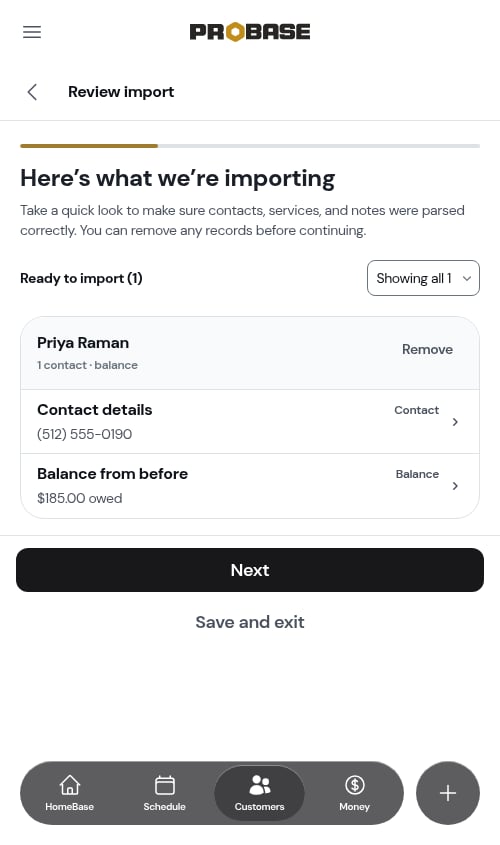
Here’s what we’re importing shows one card per customer, with everything found for them underneath: their contact details, any notes from your file, their property, services, and visits. Tap any row to open it and correct it.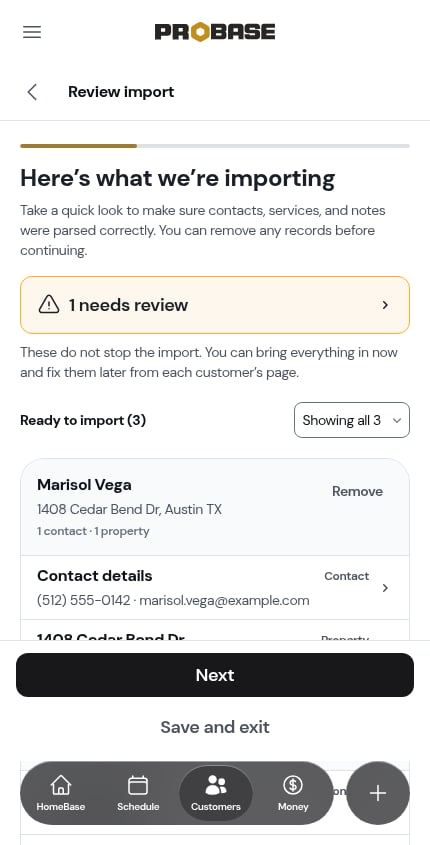
5
Your customers are imported
After Next, ProBase adds your customers. The screen reads Importing your customers while it works — this takes a moment for a large file, and you can leave the page; your imports list shows where it stands.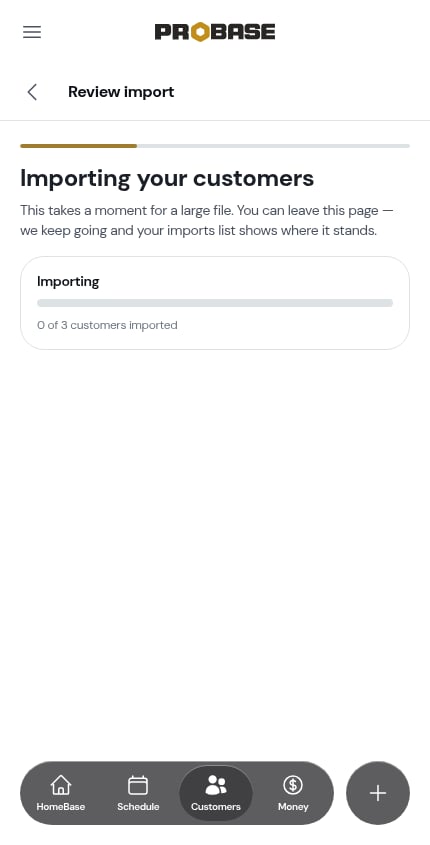
Interruptions heal themselves. Each customer is saved on their own as soon as they’re added. If the process is briefly interrupted, ProBase picks up where it left off and never adds the same customer twice.
6
Set up their recurring services — or skip
Next, a banner confirms how many customers and properties are now in ProBase, and asks Set up their recurring services now?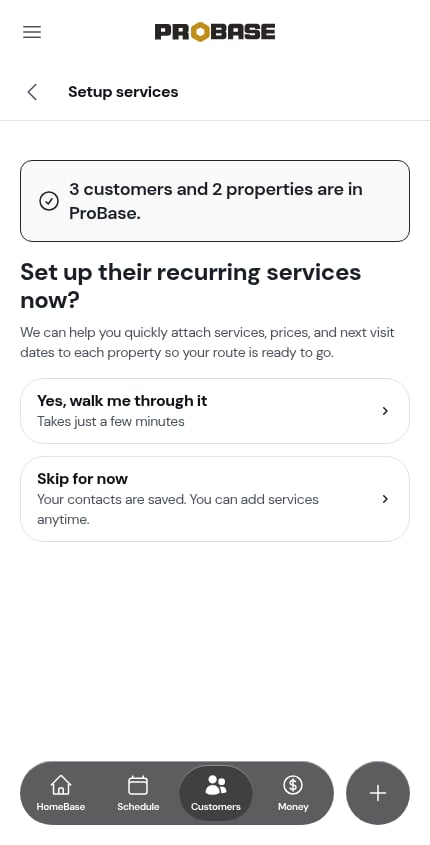
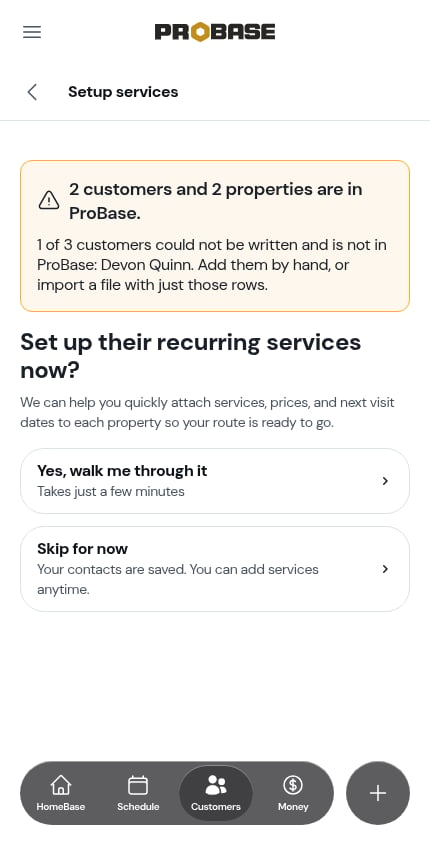
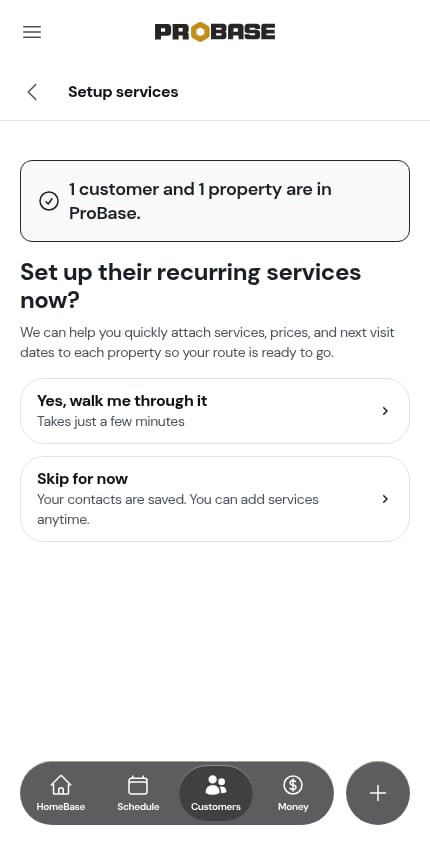
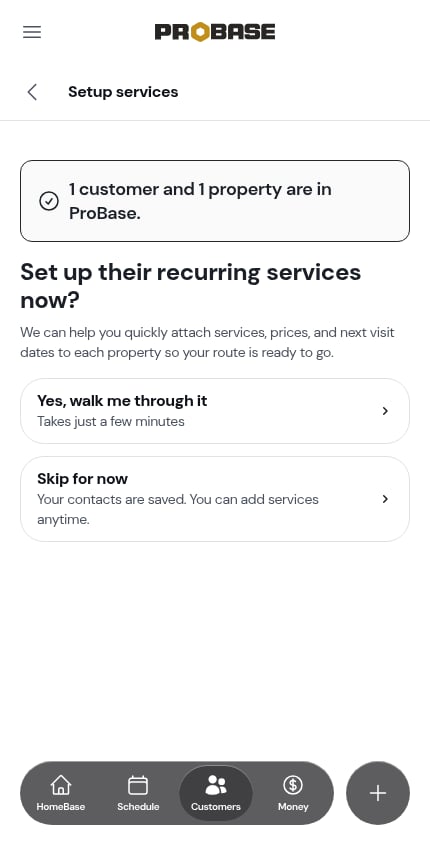
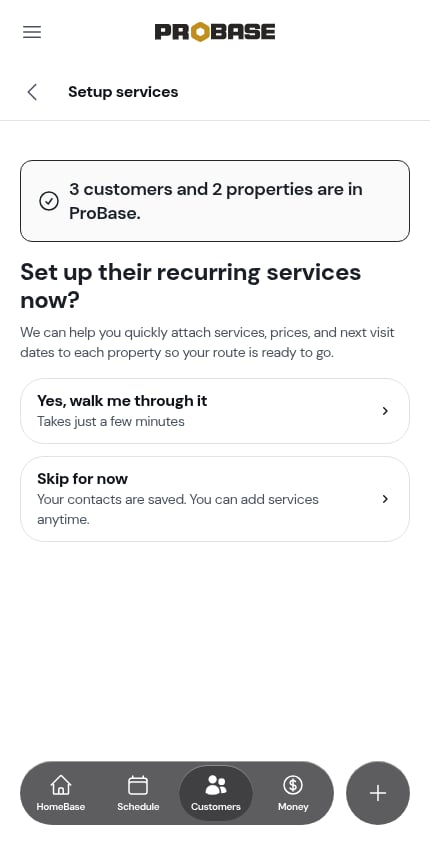
- Yes, walk me through it — attach services, prices, and visit days to your customers in a few minutes (the steps below).
- Skip for now — your contacts are saved and you can add services any time. You go straight to the summary.
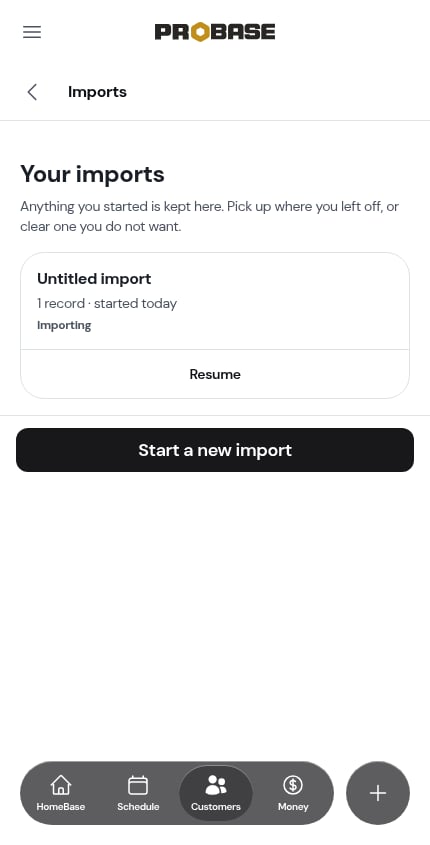
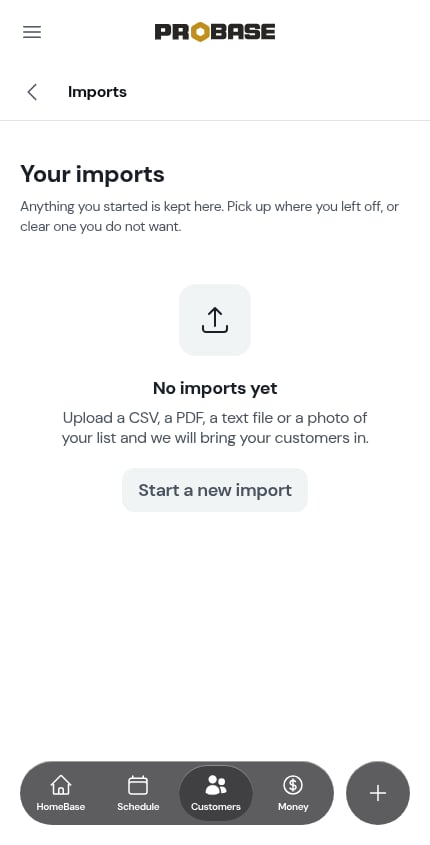
The browser’s Back button takes you to Your imports from here. Once your customers are in, the upload, processing, and review screens are finished, so they’re no longer in your browser history. Pressing Back on Set up their recurring services now? opens Your imports — tap Resume on the import to carry on. During setup itself, Back still works step by step: from Match services to your catalog, for example, it returns you to Set up their recurring services now?
7
Pick the services you offer
Which services do you offer? lists your service catalog. Tick every service these customers get, use the search box to find one, or tap Create custom service to add a new one — saving it ticks it for you and brings you back here.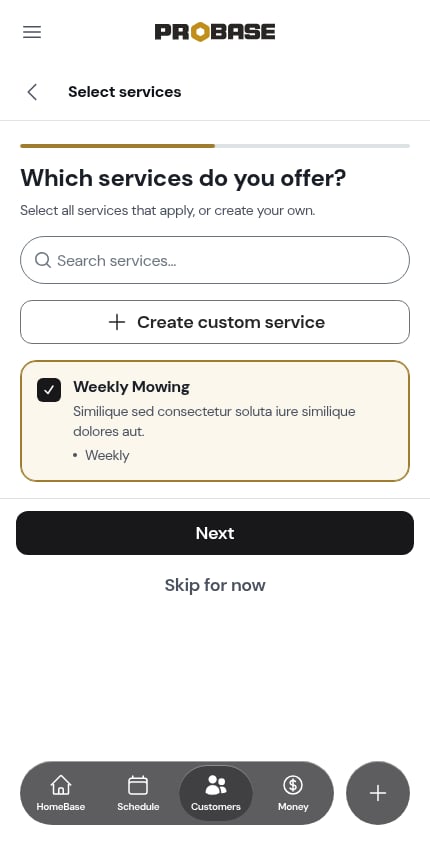
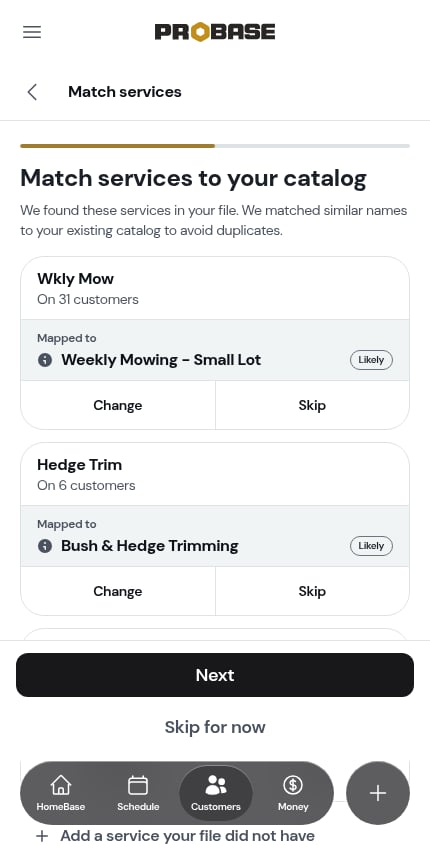
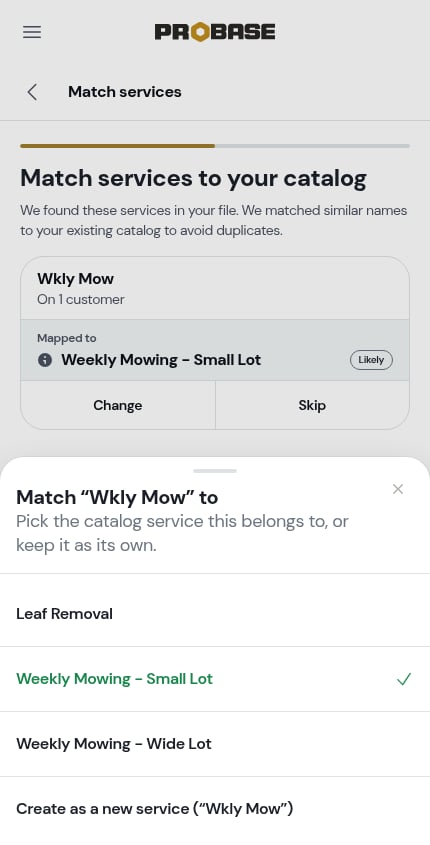
- Change — pick a different catalog service, or create it as a new service under the name from your file
- Skip — don’t bring that service across
-
Add a service your file did not have — offer one more service to these customers
8
Check each service's settings
For each service you picked, ProBase opens its settings — name, description, frequency, billing type, time on site, and price. Make any changes and tap Next - Assign customers.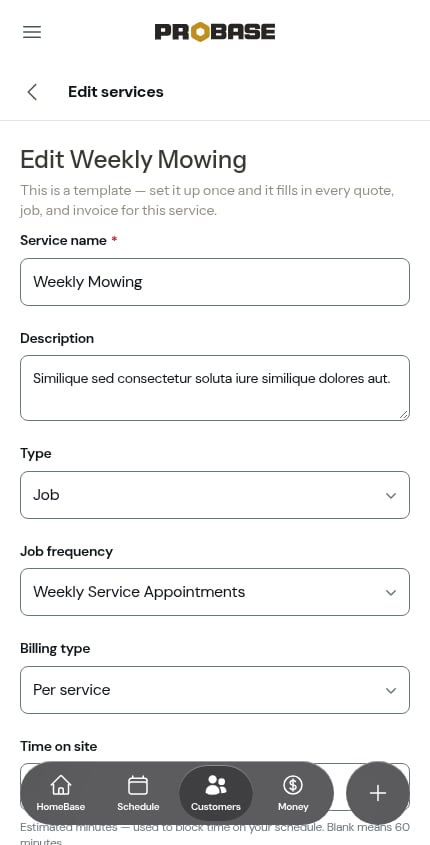
9
Choose who gets each service
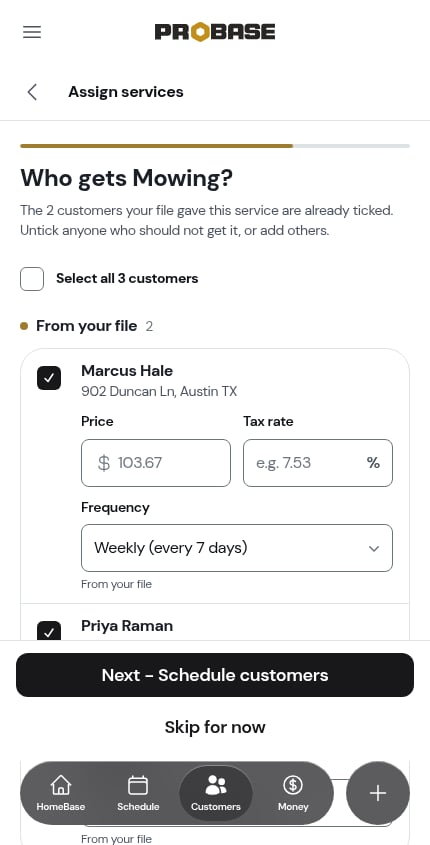
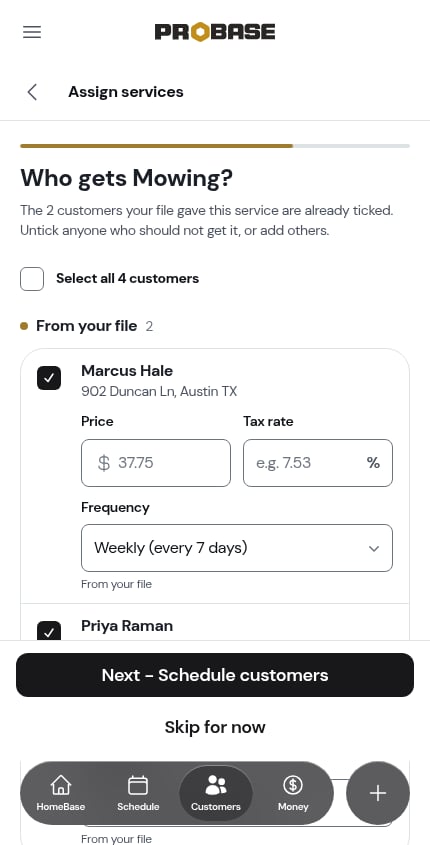
Who gets [service]? lists your imported customers. Tick everyone who receives it, or tick Select all at the top. Each ticked customer opens Price, Tax rate, and Frequency boxes. Price starts from the service’s usual price — change it for anyone who pays a different amount. Frequency starts from the service’s own schedule; change it for a customer you visit more or less often than everyone else.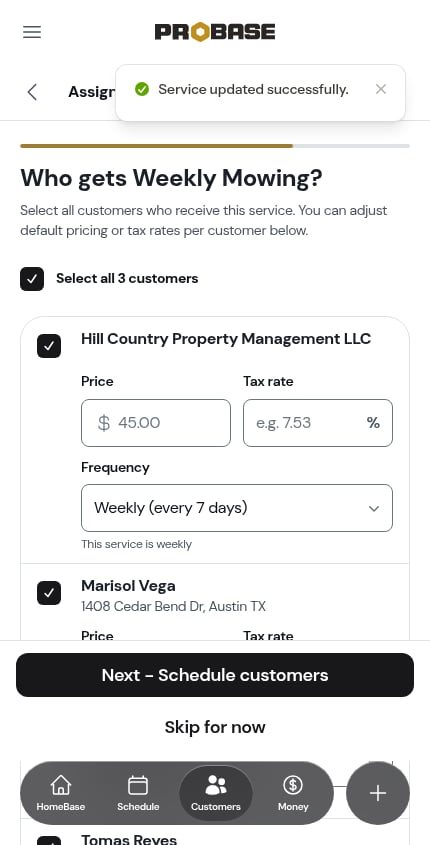
10
Set each customer's visit day
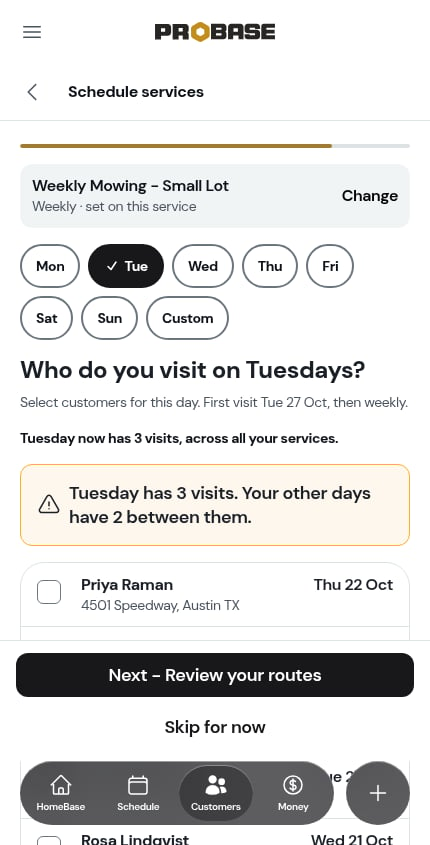
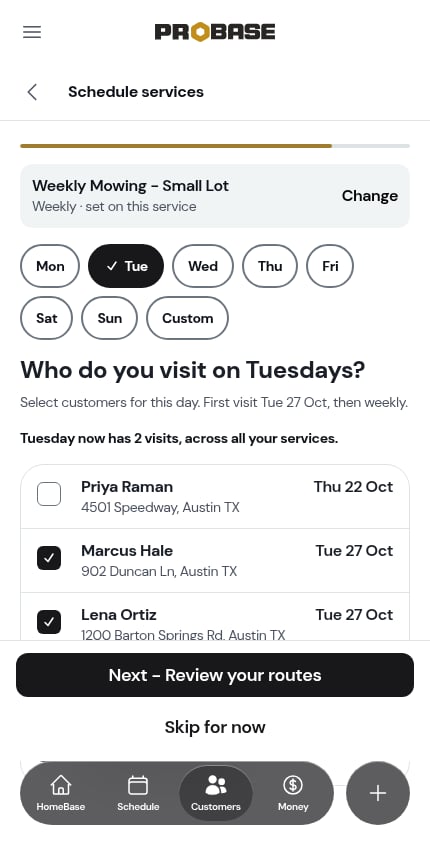
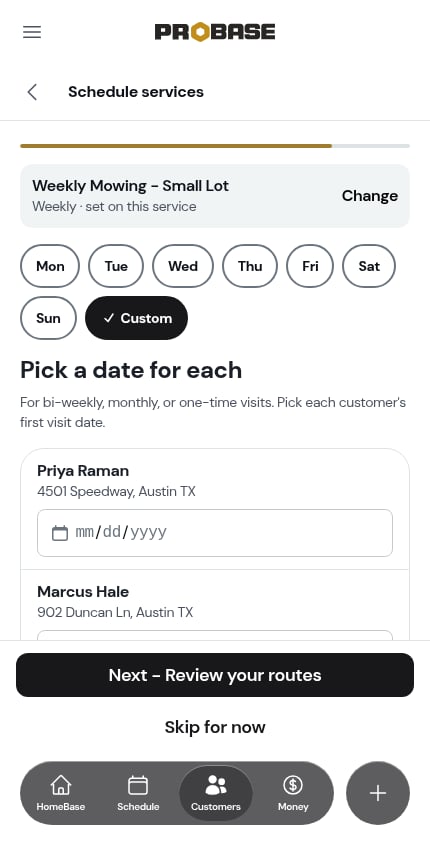
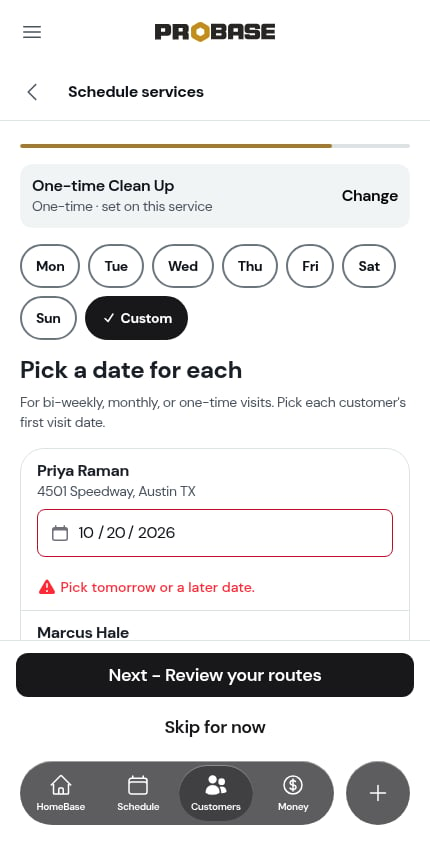
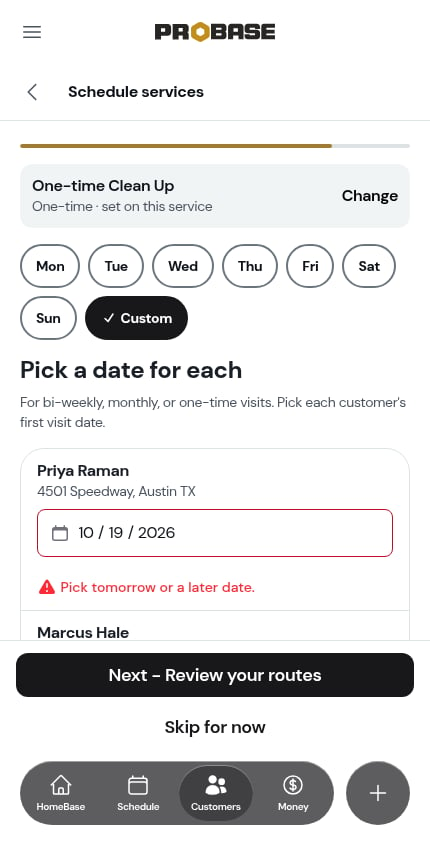
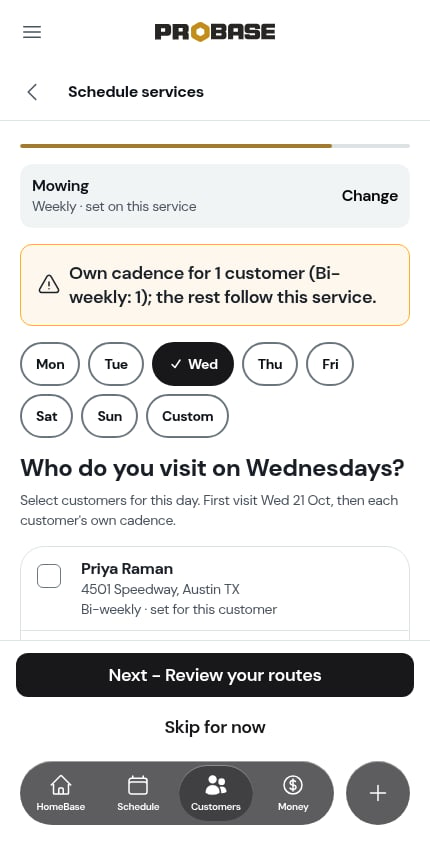
The service’s frequency sits at the top, with Change if it needs adjusting. Below it, tap a day — Mon to Sun — and Who do you visit on [day]s? lists the customers on this service. Tick everyone you visit that day; each ticked customer shows the date of their first visit, and the line above the list tells you how busy that day is now across all your services.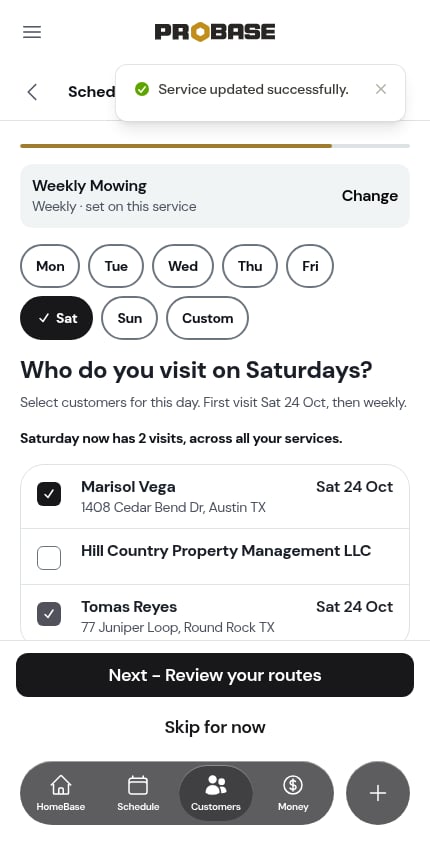
11
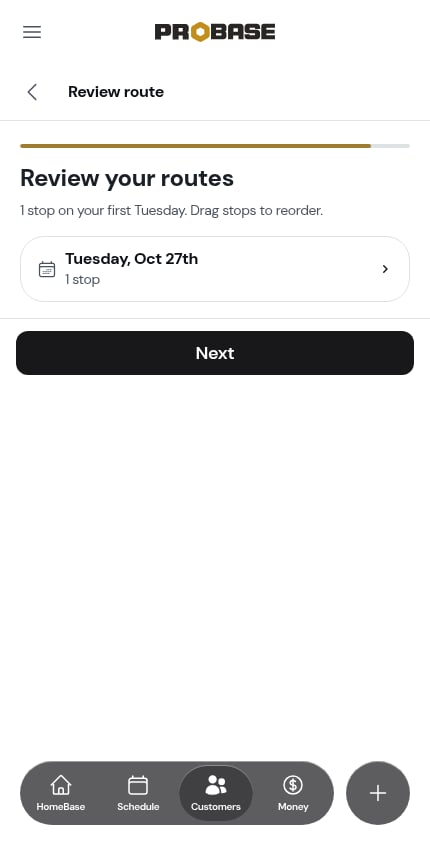
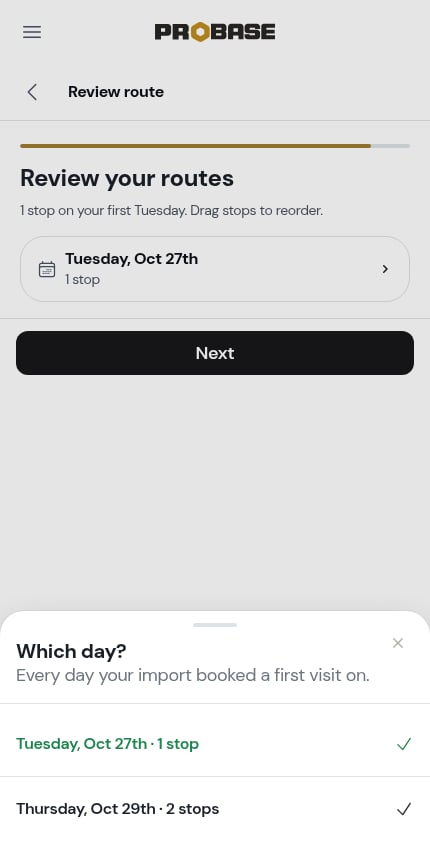
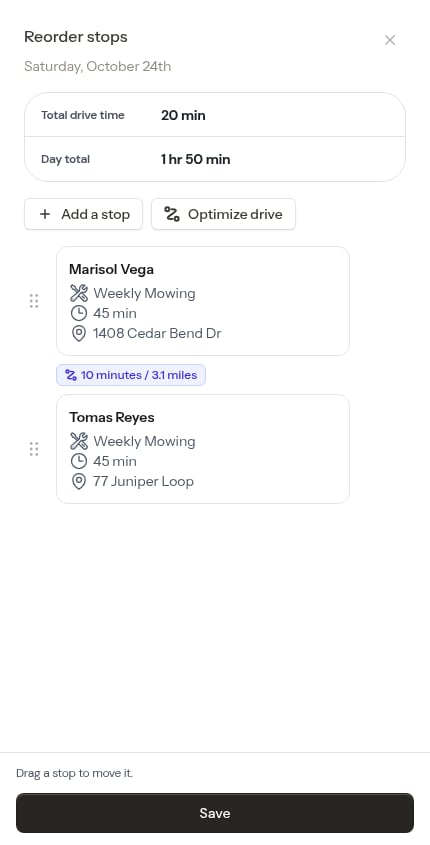
Review your routes
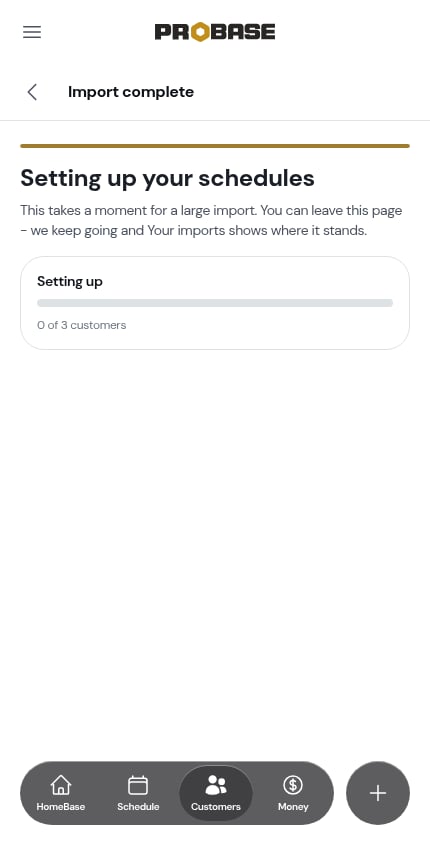
After the last scheduling step, ProBase books your customers’ jobs and visits. For a large import this can take a moment: the screen reads Setting up your schedules with a progress bar counting customers — for example 12 of 40 customers. You can leave the page; ProBase keeps going, and Your imports shows where it stands. The screen moves on by itself once every schedule is set up.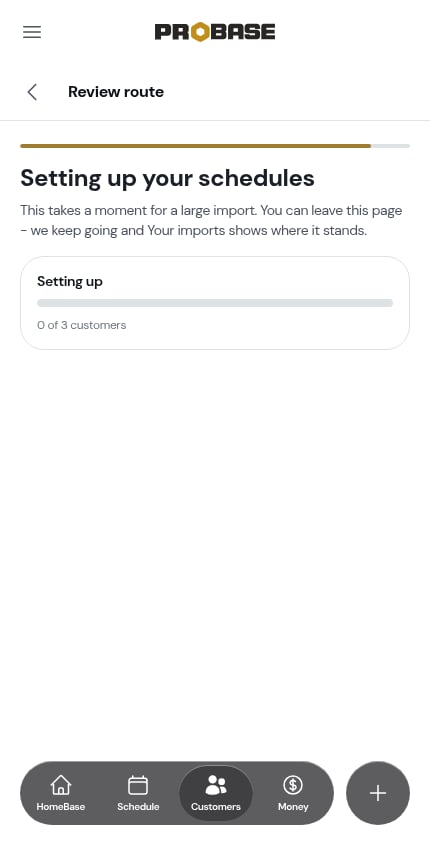
12
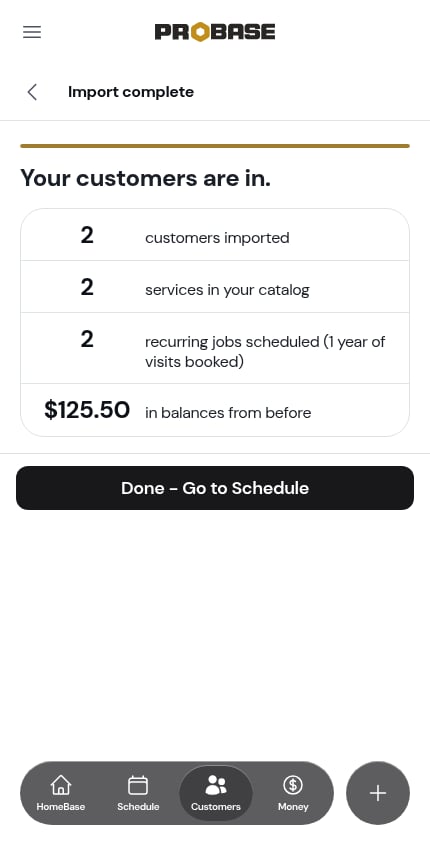
See the summary
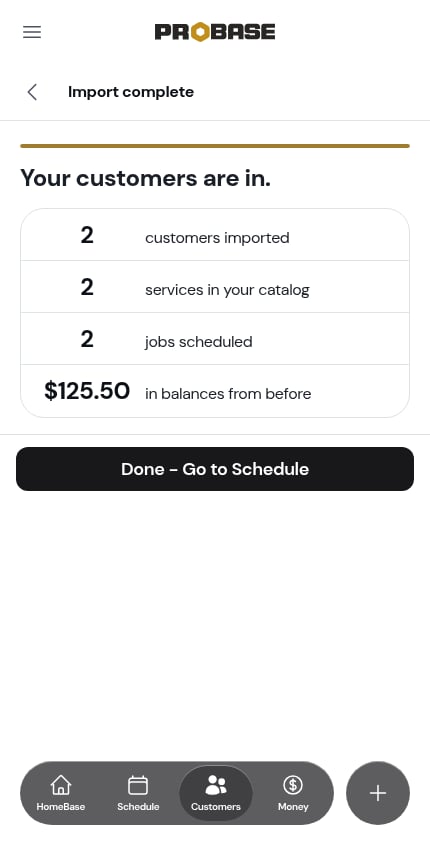
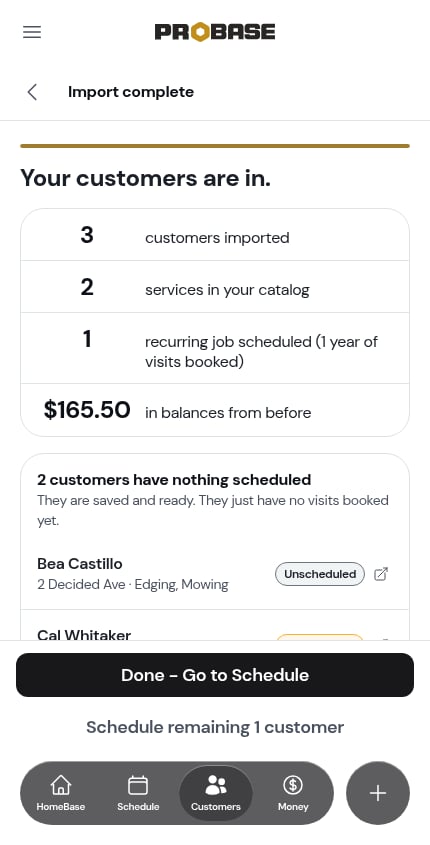
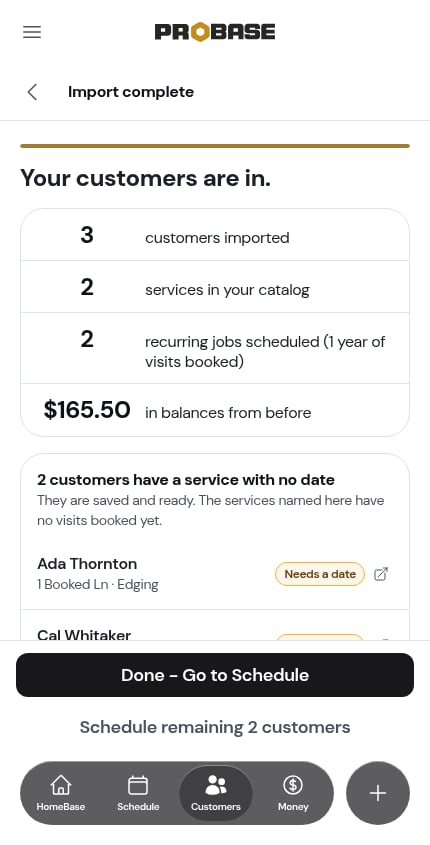
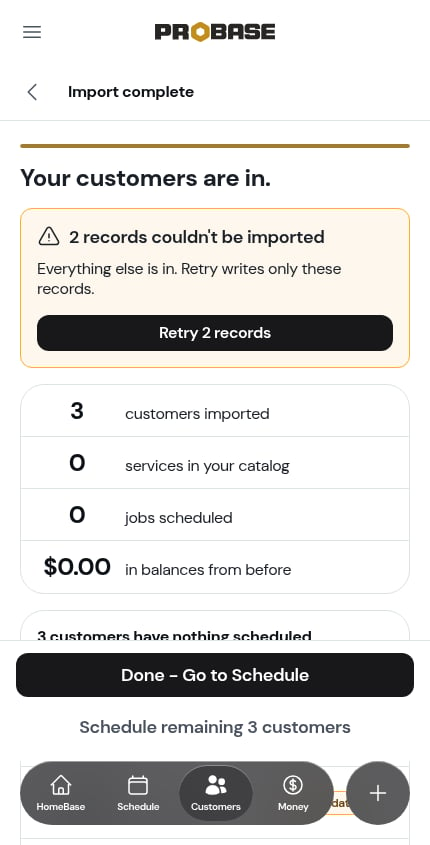
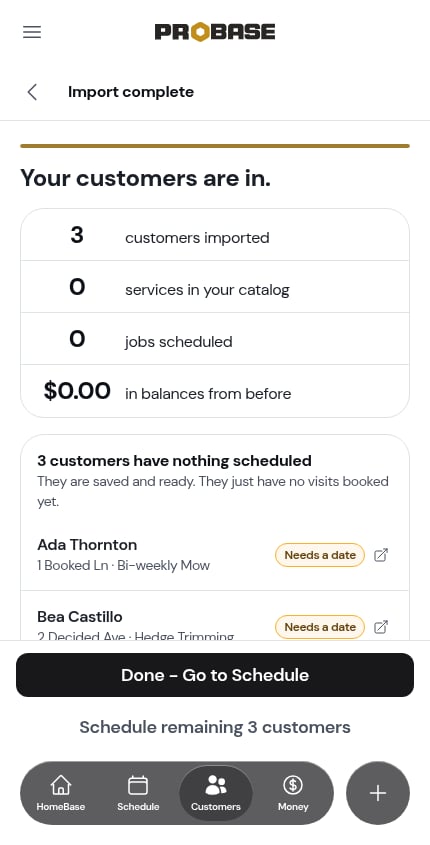
Your customers are in. sums it up: customers imported, services in your catalog, jobs scheduled, and the total of balances from before. When every booked job repeats, the jobs line reads recurring jobs scheduled (1 year of visits booked).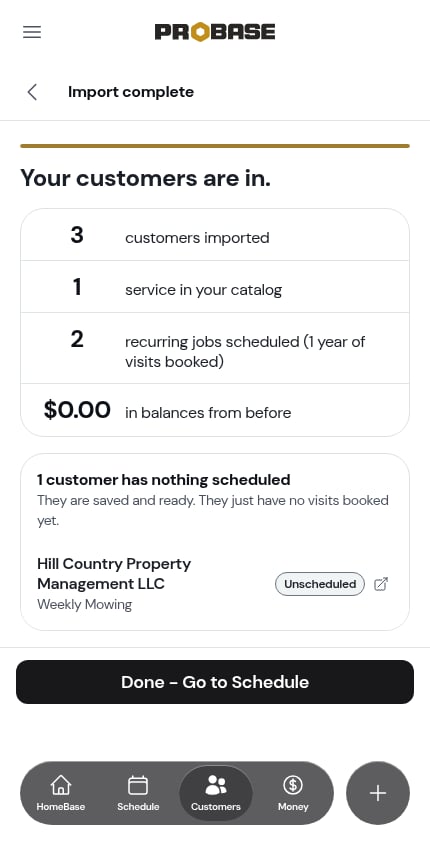
After the import
Each service you assigned becomes a regular job on the customer, just like one you’d add by hand. Its page shows the service, how often it repeats, the first visit date, and the price.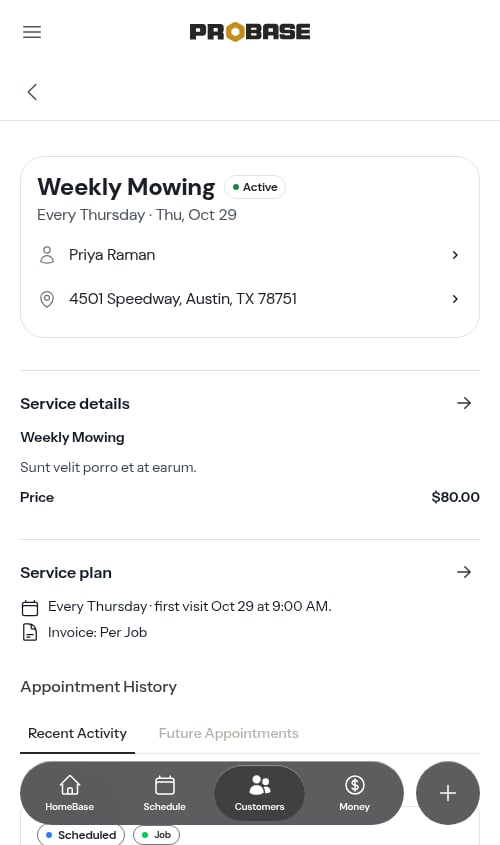
Correcting a record before you import
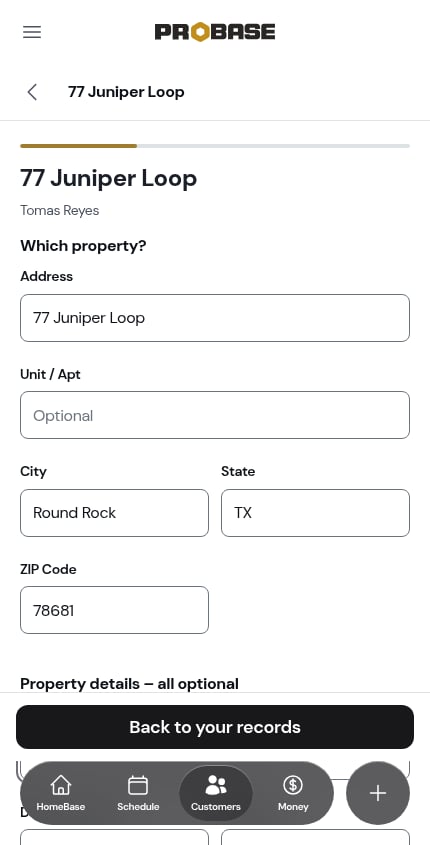
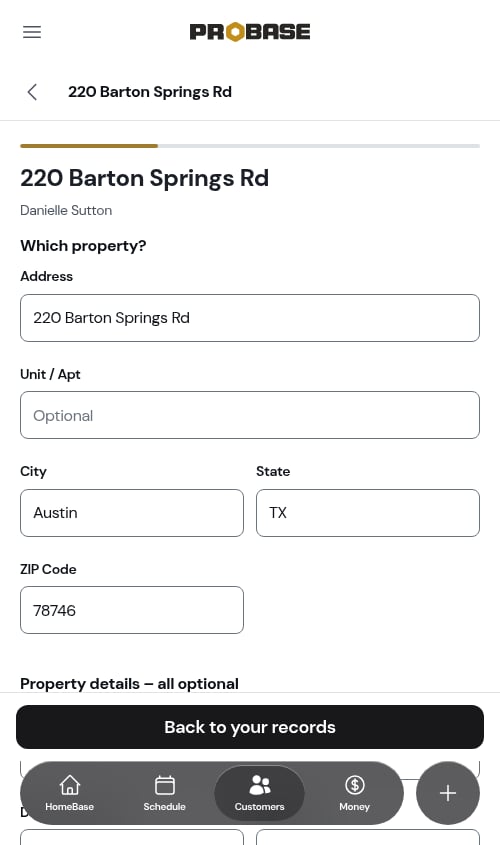
Tapping a row on the review screen opens it on its own page. Each change is saved as you make it; tap Back to your records (or the back arrow at the top of the screen) to return to the list.You don’t need to tap out of a box before you leave. If you type a new price, say, and tap Back to your records — or go on to Save and exit — straight away, what you typed is saved first. When you come back to the import with Resume, the record shows your change.
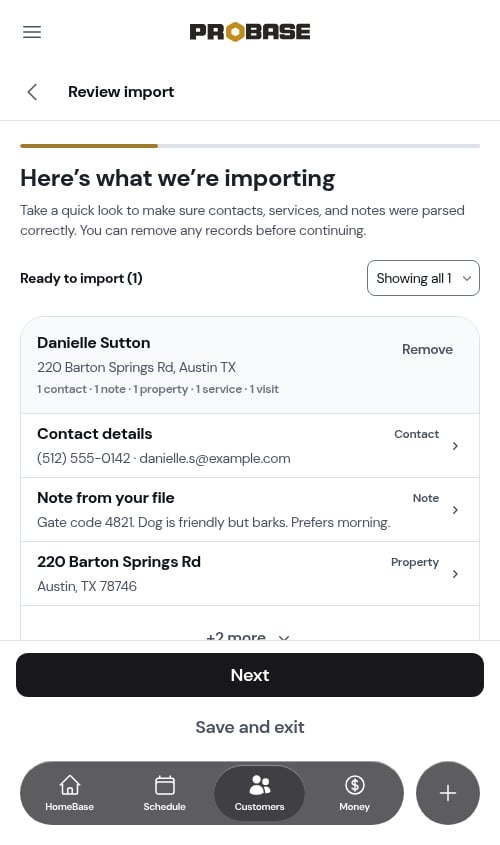
- Contact details — first and last name, phone, email, whether they’ve agreed to texts, and their opening balance. A field your file didn’t have says Not in your file.
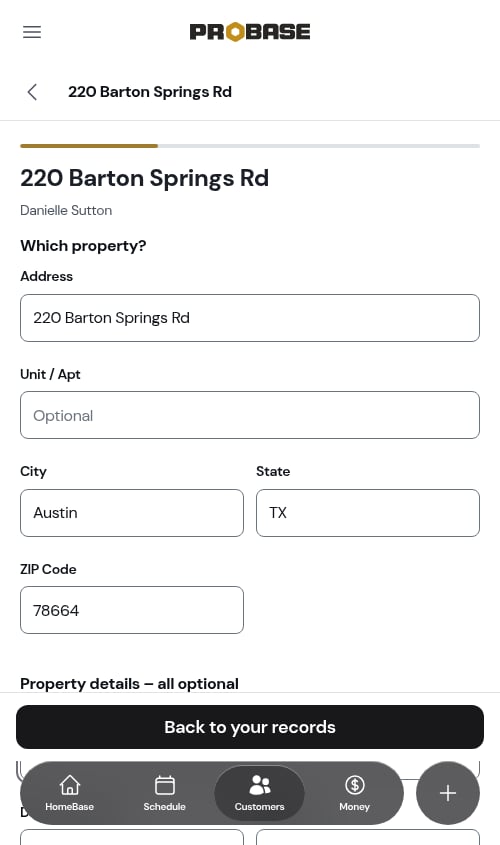
- Property — the address plus optional property details such as lawn size, a locked gate, or a dog on the property.
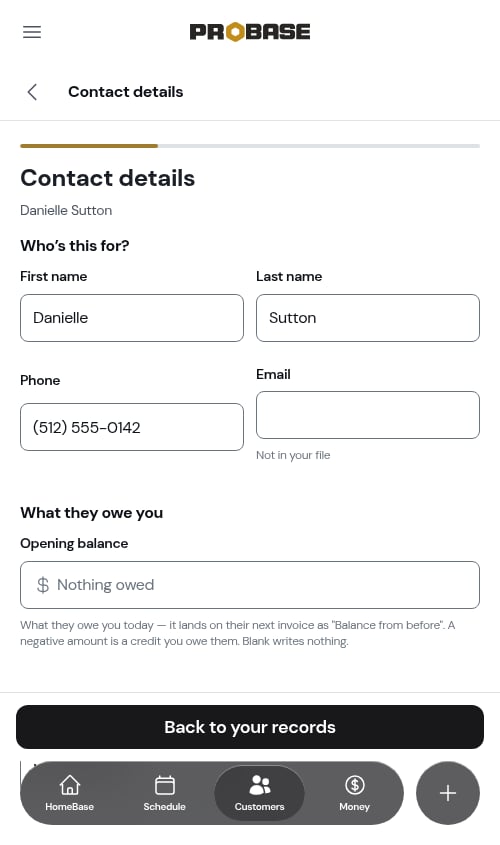
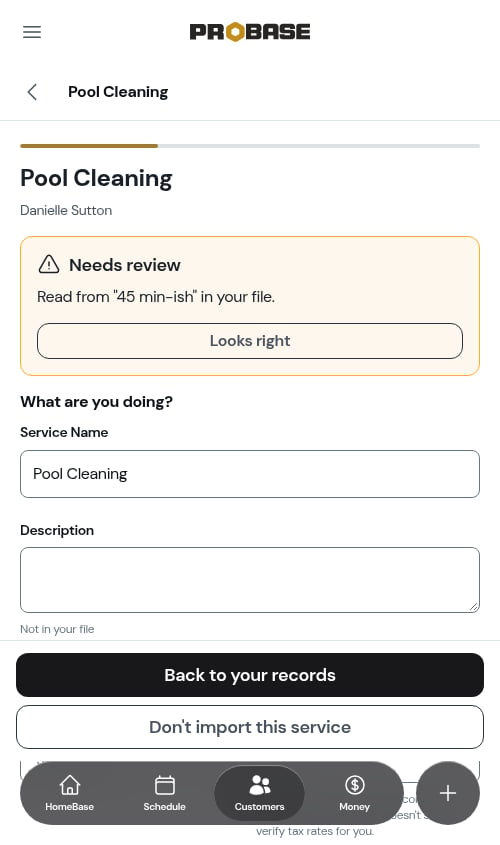
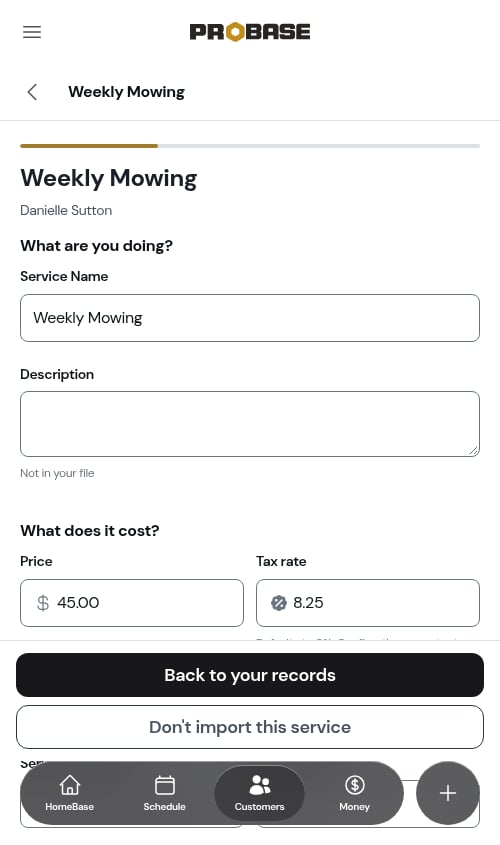
- Service — what you’re doing, what it costs, how often, and how long each visit takes (Duration (min)). If your file had a duration column, or start and end times for a visit, ProBase fills in the length for you. Tap Don’t import this service to leave it out — handy when your old app lists every service a customer ever had, including ones you no longer do.
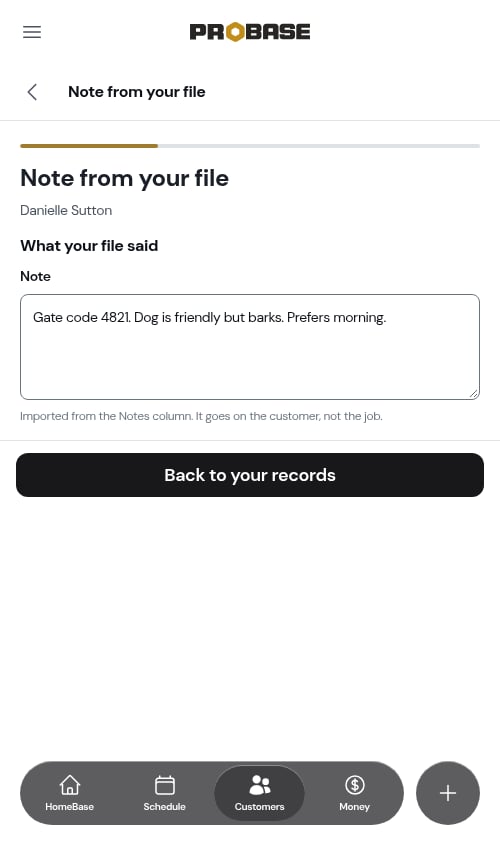
- Note from your file — extra details the AI found, like gate codes or access instructions. The note goes on the customer or property, not the job.
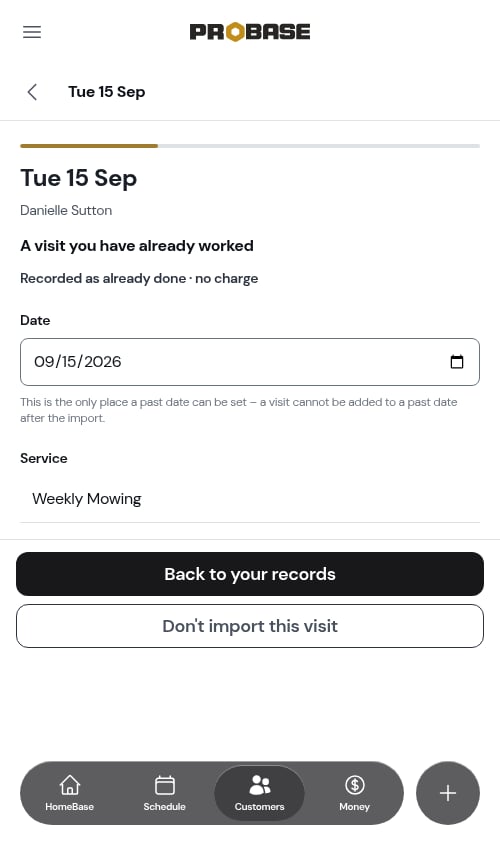
- Visit — a past date from your file is recorded as already done · no charge, so their history comes with them. Tap Don’t import this visit to leave it out. A visit you leave out reads Not imported on the customer’s card. A date after today is filled in as the customer’s first visit when you schedule their service. A visit dated today isn’t recorded as done or booked — pick the customer’s first visit date when you schedule them.
Leaving out a service
When you tap Don’t import this service, the page stays open and a Not imported notice explains that the service and its visits will stay out of the import. Nothing else about the customer changes — their contact details, property, and other services still come across.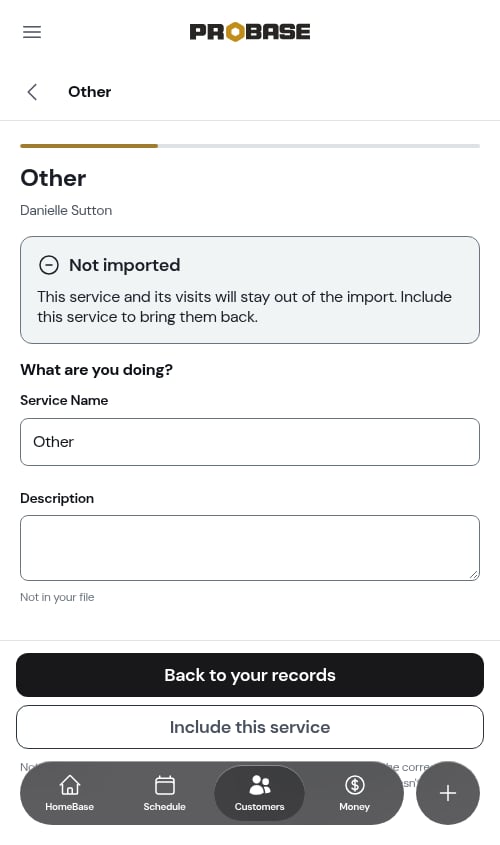
Fixing a record marked Needs review
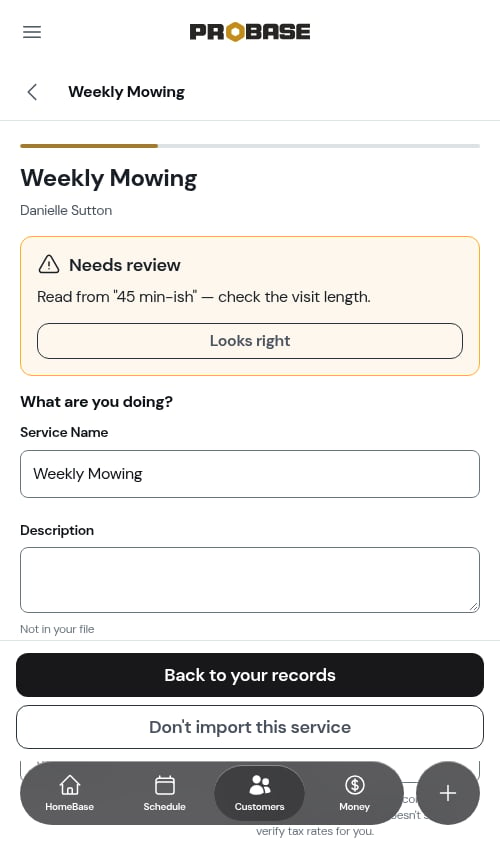
A record that needs a second look shows a yellow Needs review notice at the top of its page, saying what to check — for example “The address has no ZIP code in the file — add it before scheduling.”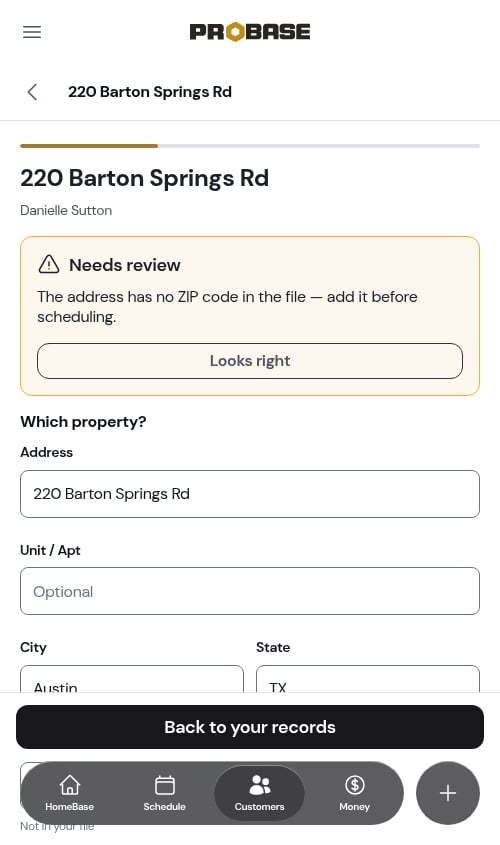
The import is the only place a past visit date can be set. Once the import is done, a visit can’t be added to a past date.
Customers you already have
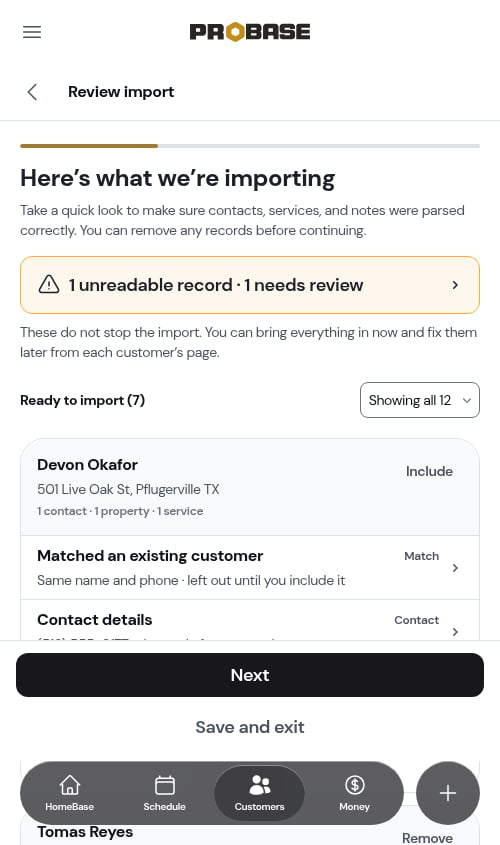
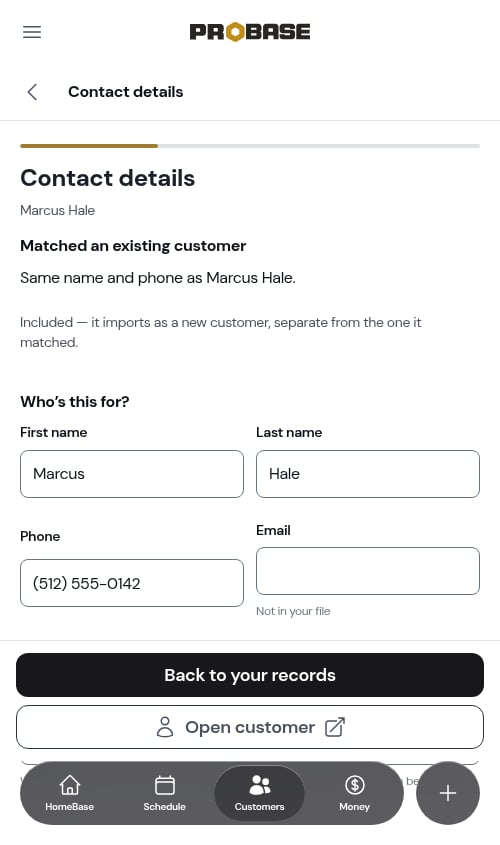
If a customer in your file has the same email, the same name and phone, or the same name and address as someone already in ProBase, their record reads Matched an existing customer and explains why — for example “Same name and phone as Marcus Hale.” Matched customers are left out until you decide. Open customer shows you the existing customer; Include brings this record in as a separate new customer. Nothing is ever merged.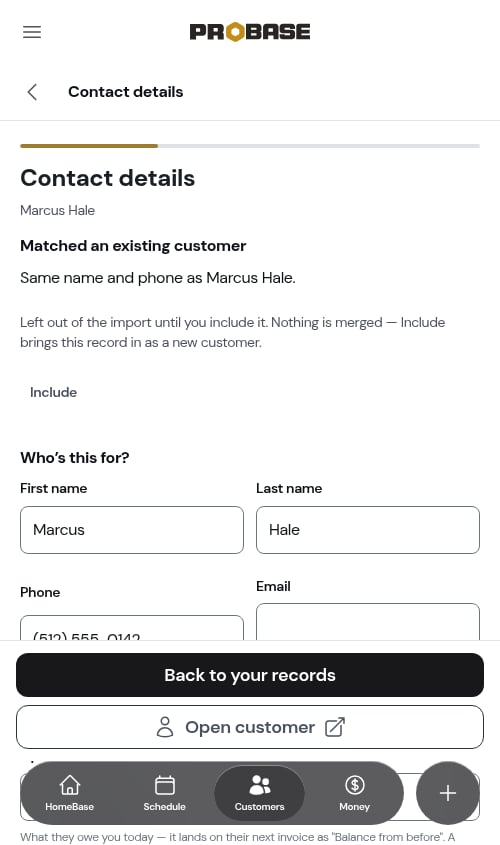
Balances your customers already owe
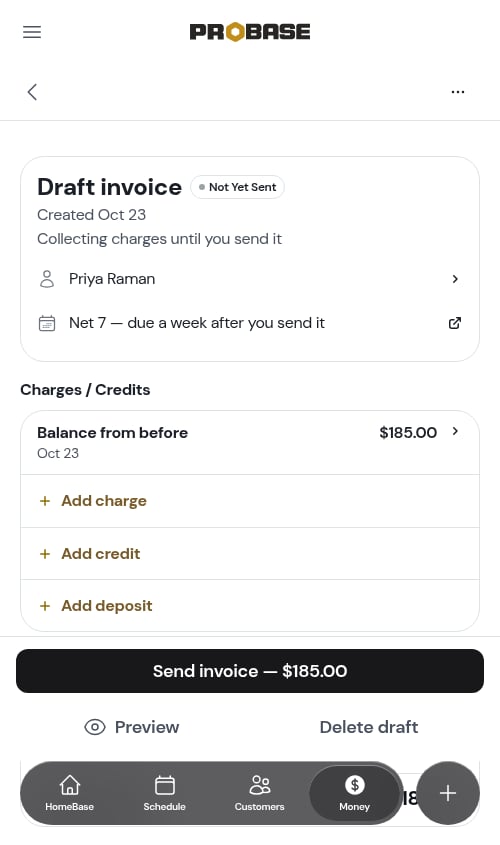
If your file has a balance column, each customer’s amount appears as their Opening balance on their contact details, where you can check or change it.- A positive amount (they owe you) becomes a Balance from before charge on their next invoice
- A negative amount (you owe them) becomes a Credit carried over credit on their next invoice
- A blank amount adds nothing
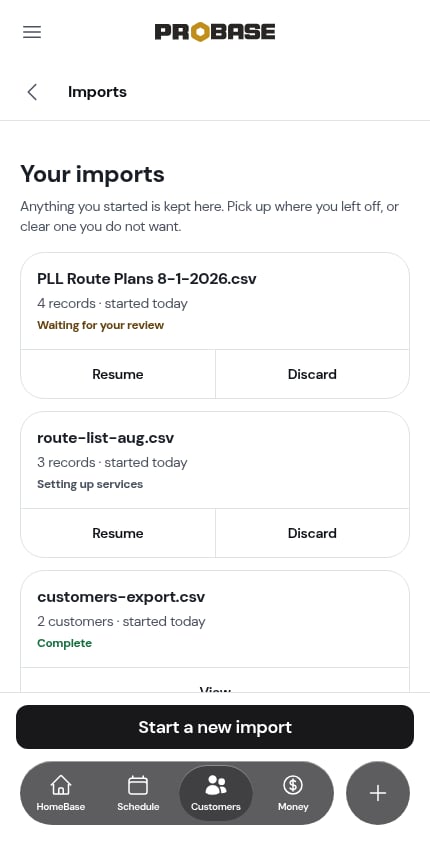
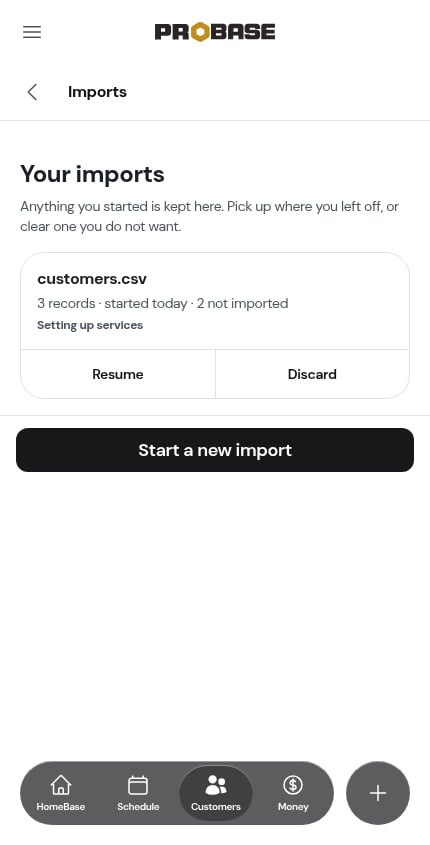
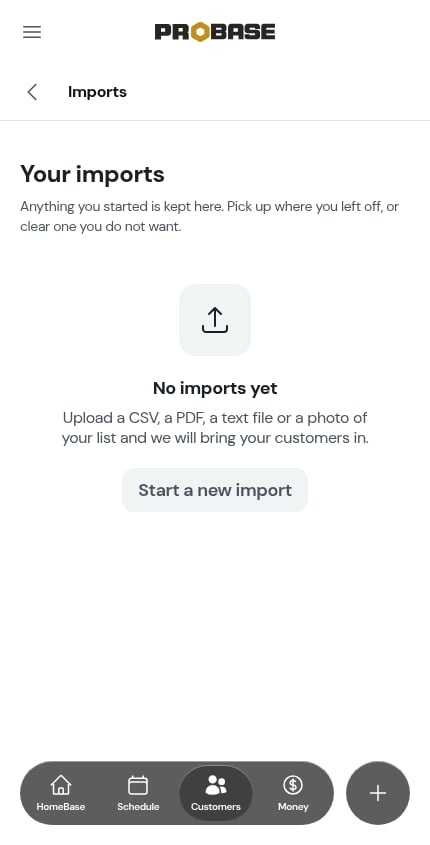
Your imports
Your imports keeps everything you’ve started. Each card shows the file name, how many records it has, when you started it, and where it stands:- Processing — your files are still being read
- Waiting for your review — ready for you to review
- Importing — customers are being added
- Setting up services — your customers are in, and service setup isn’t finished
- Setting up schedules — your customers’ jobs and visits are being booked
- Complete — all done
- Failed — something went wrong
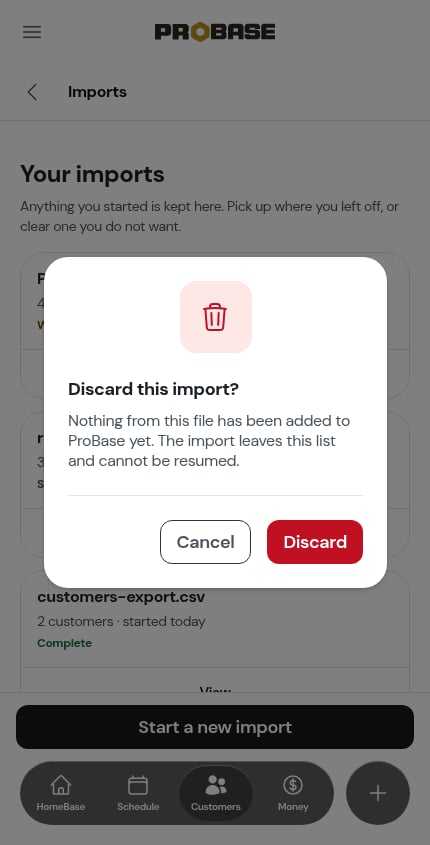
Finding imported customers
On the Customers list, open the status filter and tick From an import to see only the customers that came in through an import. It works alongside the other options — tick Lead as well, for example, to see imported customers you haven’t booked work for yet.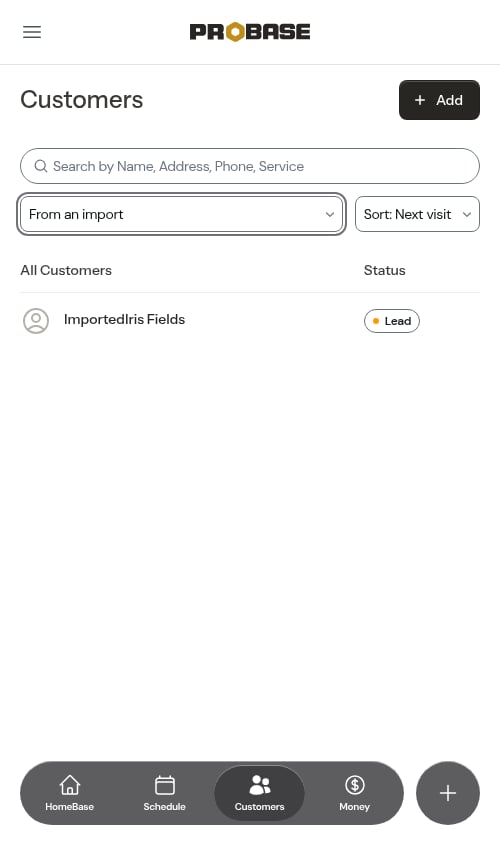
Tips for best results
Include column headers in CSV files. Headers likeFirst Name, Last Name, Email, Phone, Address help the AI understand each column.
Keep services and frequencies in their own columns. If your list has a Services column (with one or more services per customer) and a Frequency column such as Weekly or Every two weeks, ProBase brings in each service for that customer on that schedule, and pre-ticks them when you set up services.
Past visit dates come across as history. If your list has a column like Last visit, Last service, Last mowed, Visited, Service date, or Dates worked, each date in it becomes a visit already done — one visit per date, so a cell reading “2026-10-03; 2026-10-10” brings in two visits. A date with no time is set to 9:00 AM. A Next visit or Next service column is read as the visit coming up. If ProBase had to pick a date out of the column itself, that visit is marked as needing review with a note like “The visit on Oct 3, 2026 was read from the Last visit column — check the date.”
Upload related files together. If your customer data is spread across several files, add them all to one import. The AI reads them together and can match information across files.
You can always edit later. Anything that needs fixing after the import can be changed from the customer’s page.
If the import fails
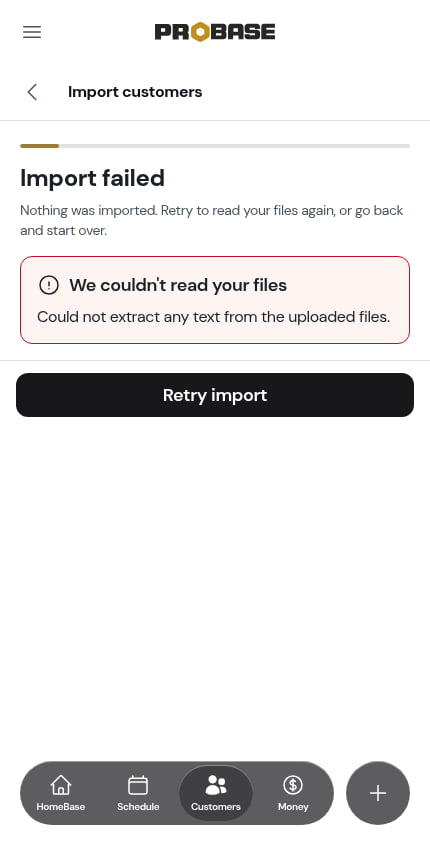
Failures are rare — ProBase reports one only when it can’t read any customer data at all, for example an empty file or one it can’t open. If your file was only partly readable, the import doesn’t fail; you’ll review everything ProBase could read. When it does happen, the screen reads Import failed with a message explaining what went wrong. Tap Retry import to read the same files again — no need to upload them a second time.