Overview
The customer portal is a simple, secure set of pages where customers can read their service reports, view their invoices, see all charges, add a tip, and pay online with a credit card. Each customer gets a unique link that you can share via text or email. No login is required — customers just open the link.To take card payments online, you’ll need to connect your Stripe account first. Without it, customers can still view their invoices — and pay you with Venmo, Cash App or PayPal if you’ve turned them on, or see how to reach you to arrange payment.
How it works
- You send a link to a customer — an invoice from the Send invoice screen, or a service report link when you finish a visit
- Customer opens the link (no login required)
- From any page, the header’s back chevron takes them to their portal home: their invoices, and Your visits
- Customer taps an invoice to view the full breakdown
- For eligible invoices, the customer is first shown a service review page where they rate the service and can optionally add a tip (you can turn this step off — the tip question then moves onto the invoice page)
- Customer pays by card (when Stripe is connected) or with Venmo, Cash App or PayPal (when you’ve turned them on)
- Payment is processed and applied to the invoice automatically
Share the portal link from the customer’s page
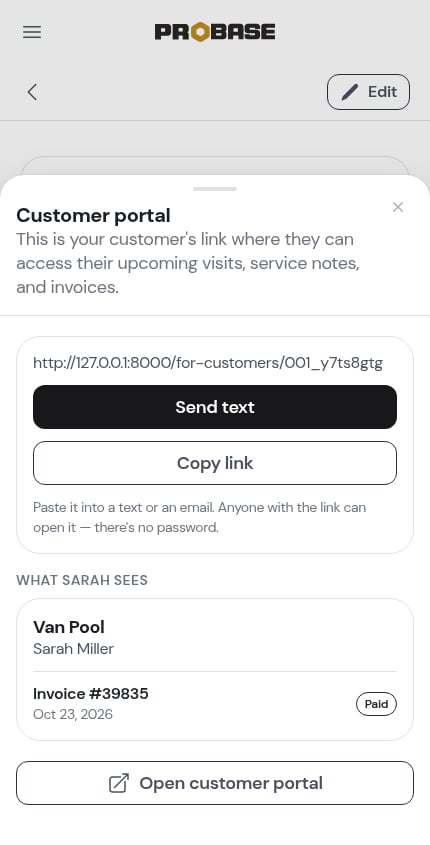
You don’t have to wait for an invoice to go out. Open a customer’s page and, under Pays by on the top card, tap Share customer portal access.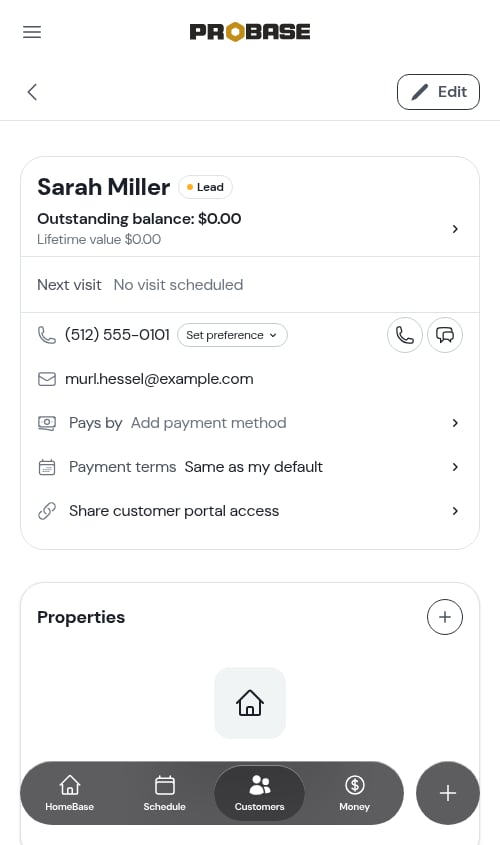
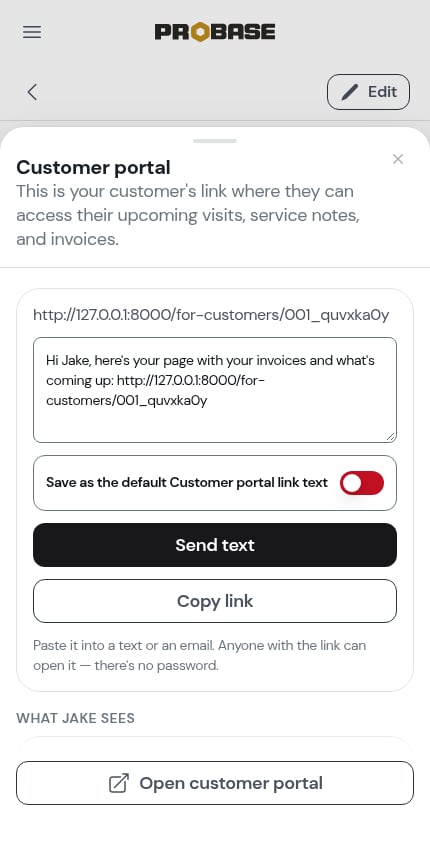
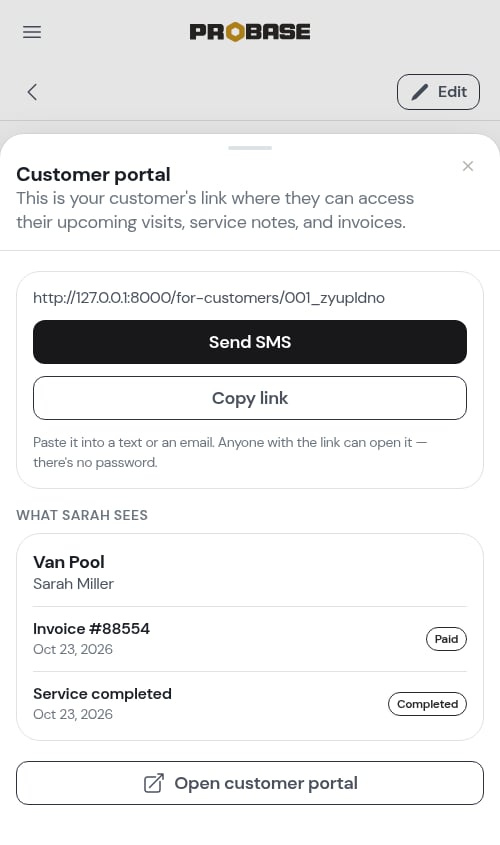
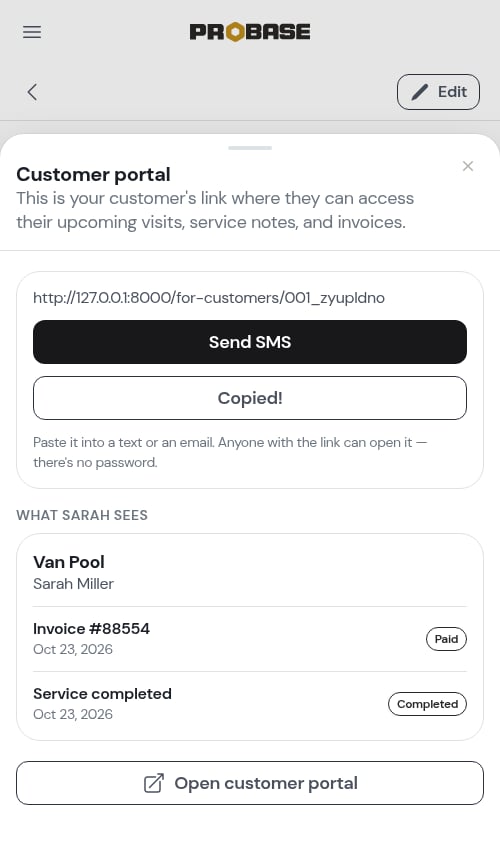
- The link itself, with a Copy link button. Paste it into a text or an email. When ProBase sends texts for your account, a Send text button above it texts the link to the customer for you — see Texting your customers.
- The text — once message templates reach your account, the message that goes with the link appears in an editable box above the buttons, written from your Customer portal link template. Edit it for this customer, or turn on Save as the default Customer portal link text to make your wording the new default.
- What [name] sees — a preview of their portal: your business name, their name, and each invoice or service report with its status badge (Paid, Partially paid, Unpaid, or Completed). If there’s nothing for them to see yet, the preview says so rather than showing an empty page.
- Open customer portal, which opens their page in a new tab so you can check it yourself. If you use ProBase from your home screen, it opens in your phone’s browser instead of inside the app.
The row only appears for team members whose role allows sharing payment links. See Roles and permissions.
Send an invoice
Open the invoice — from Money → All invoices, from the customer’s billing history, or from the Charged row on a completed visit — and tap Send invoice. The Send invoice screen lets you choose Text, Email, or Print / PDF, shows who it’s going to, and lets you Preview as customer before anything goes out. Every invoice you send carries the customer’s own link to this portal. See Sending invoices and reminders for the full walkthrough.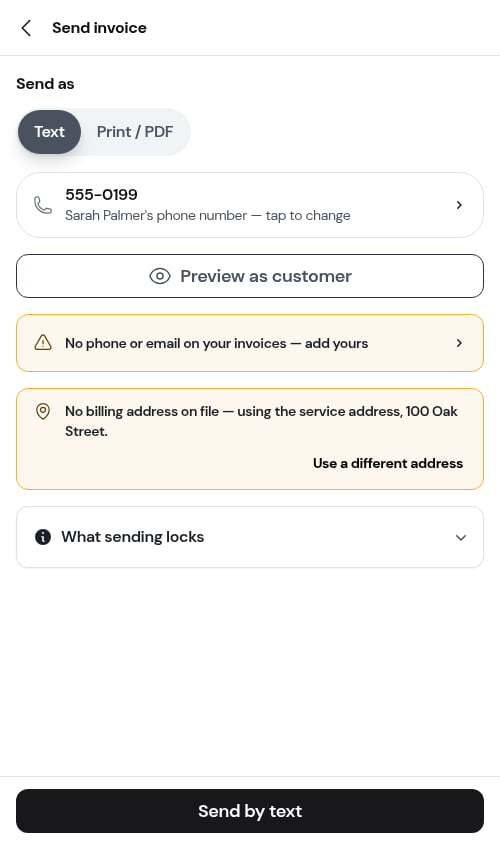
The link always shows the invoice as it stands right now. If you add a charge or record a payment after sending, the customer sees the updated balance the next time they open it.
What customers see
Every page carries the same header
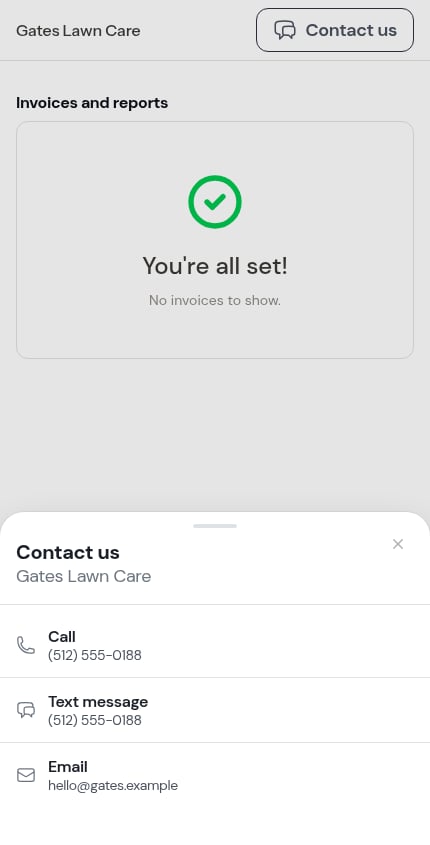
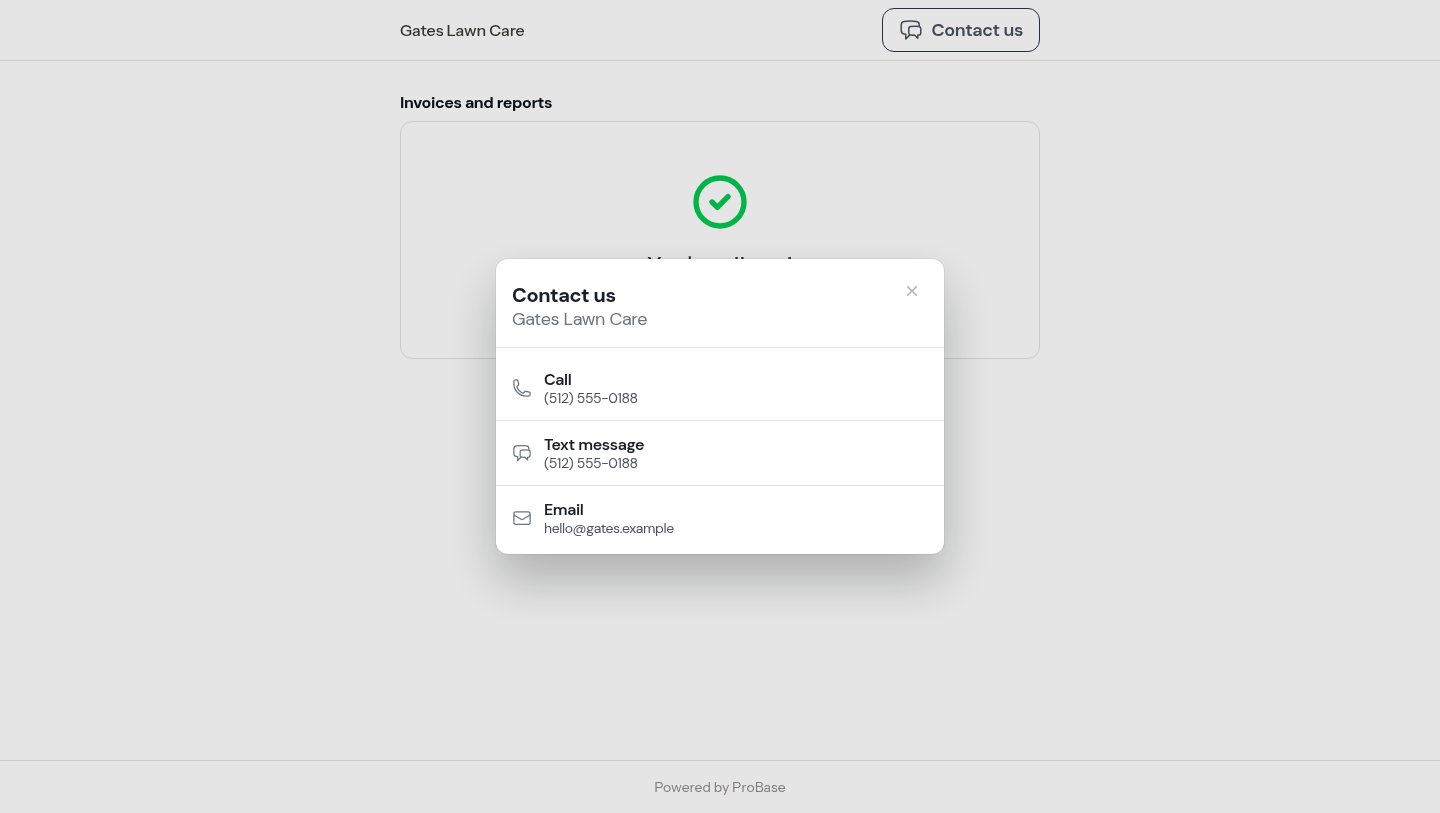
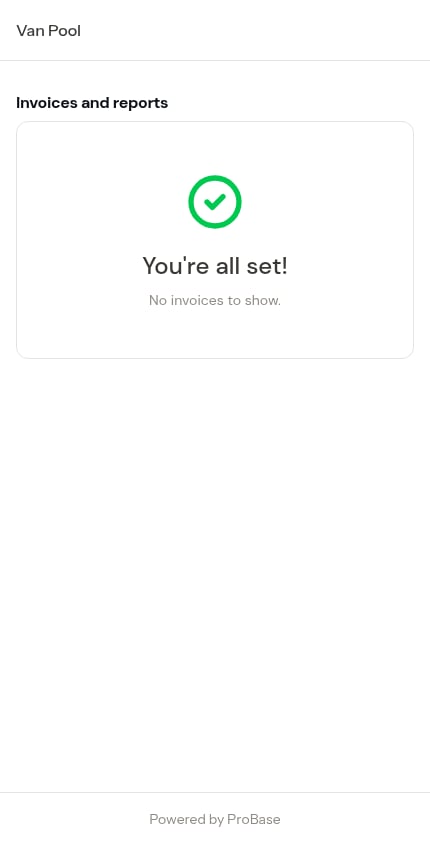
Your business name sits at the top of every portal page, with a back chevron to the customer’s portal home (on every page but the home itself) and a Contact us button.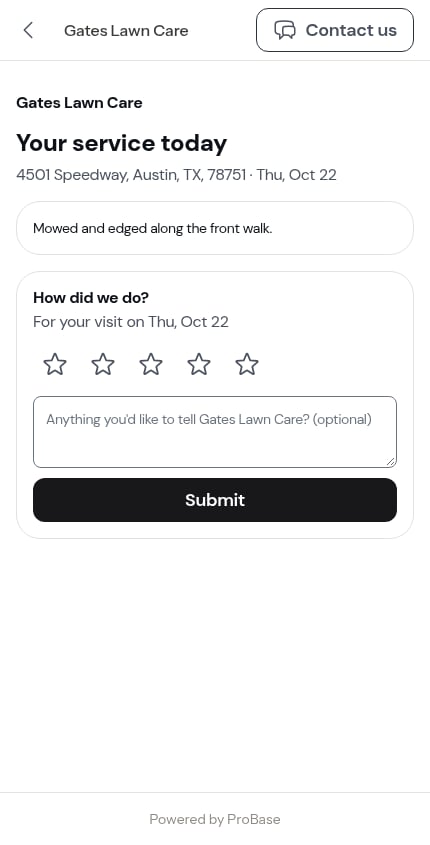
Invoice list
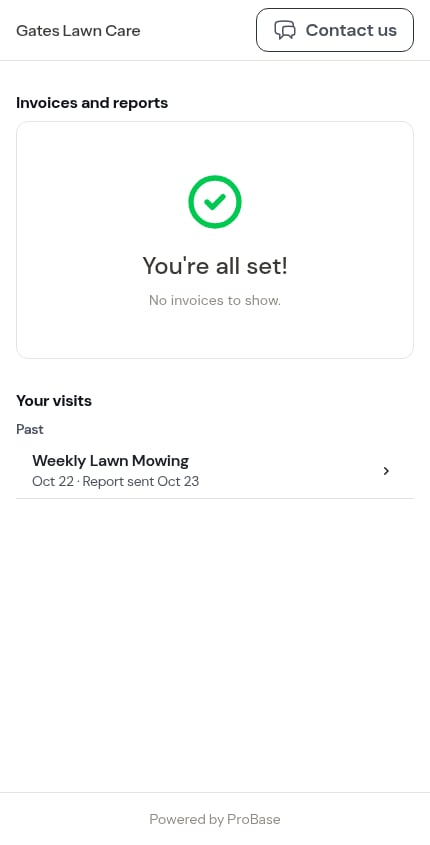
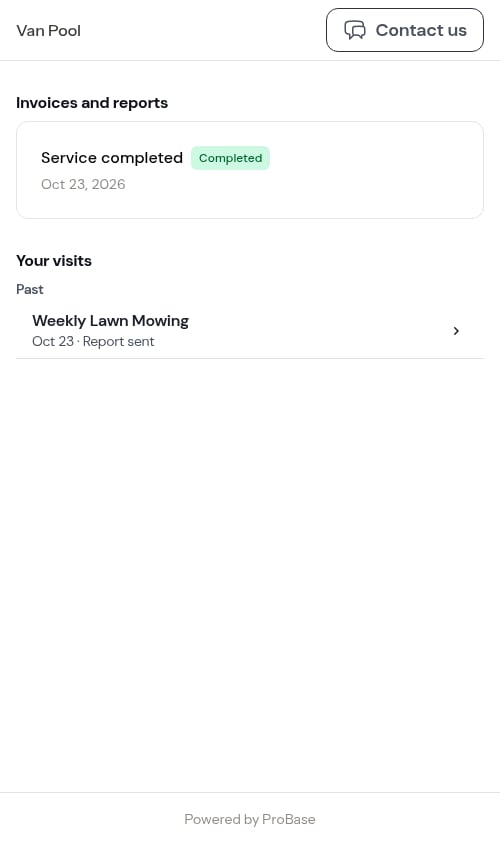
The portal home opens with a list of the customer’s invoices and service reports. Each entry shows one of the following: Invoices (with a dollar amount):- Unpaid — balance is outstanding
- Partially paid — a payment has been made but the full balance is not yet covered (shows the remaining amount owed alongside the original total)
- Paid — fully settled
- Completed — a $0 service visit from a subscription service. No payment is required; tapping it shows the service details.
Your visits
Underneath the invoices sits a Your visits section — the customer’s own record of the work, with no money in it. It has two groups:- Upcoming — the next visit booked for each of their services, soonest first
- Past — the most recent completed visit of each service, newest first
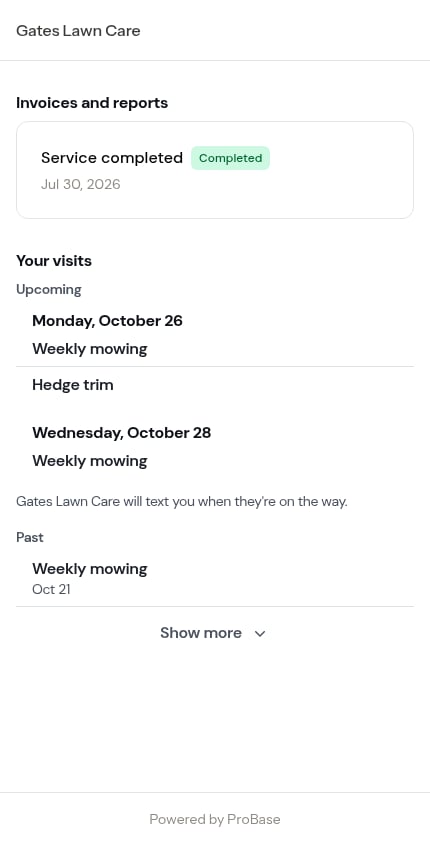
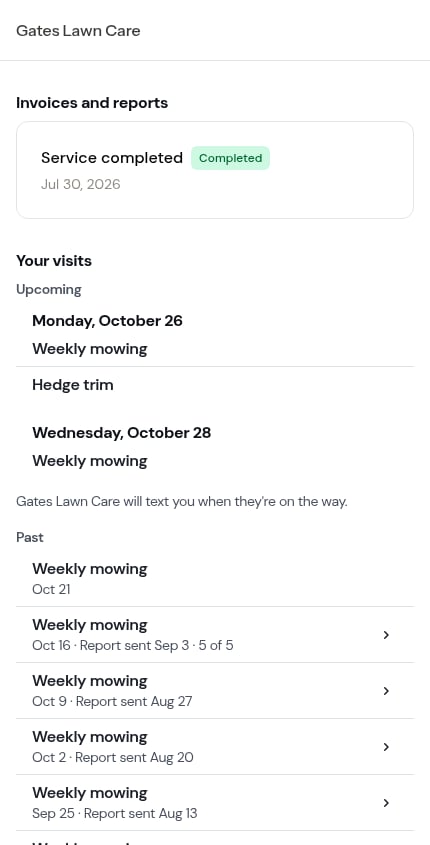
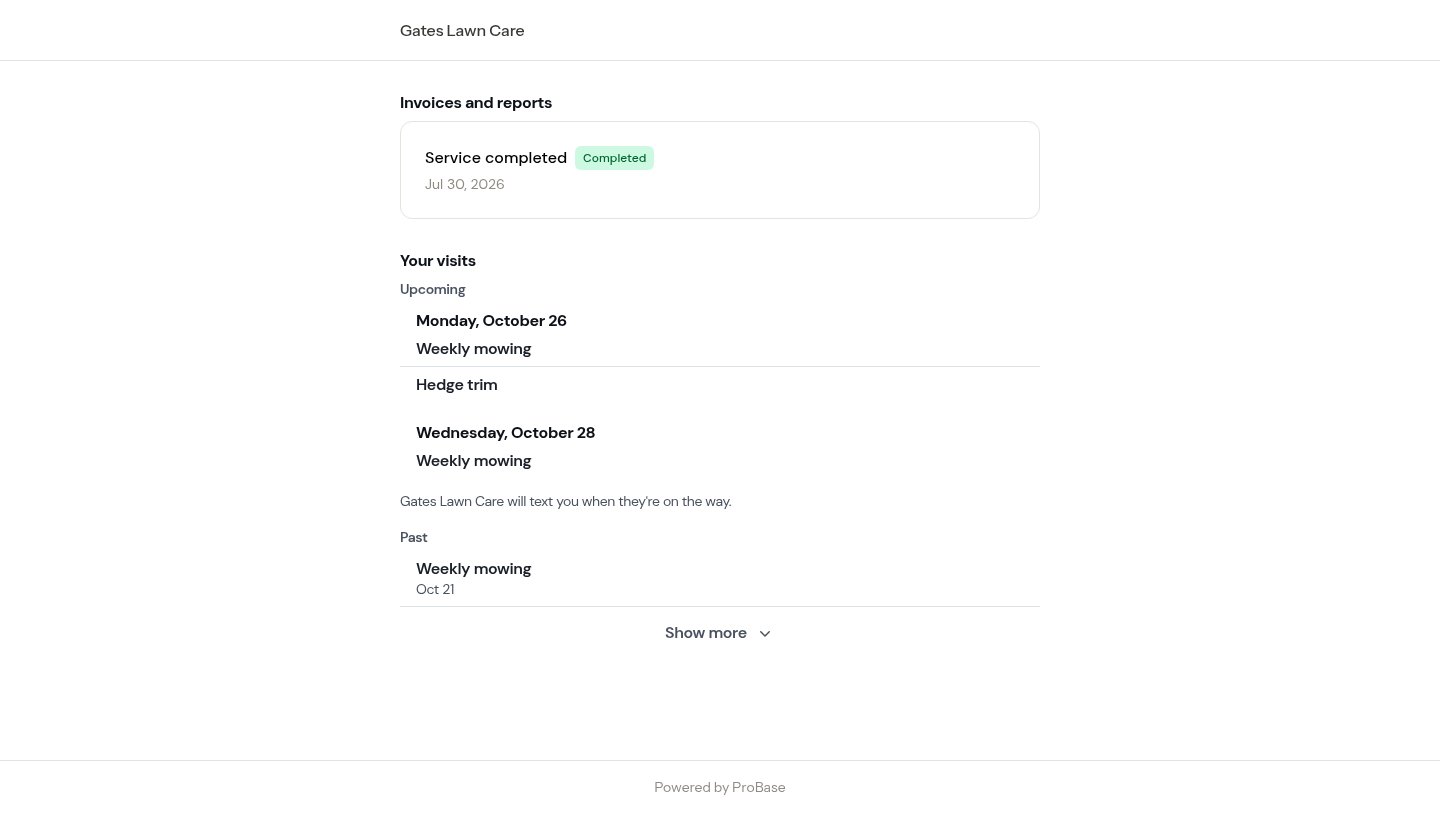
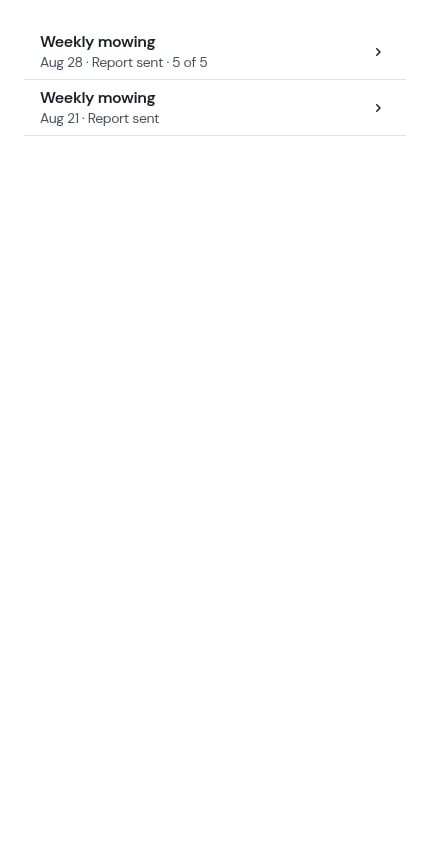
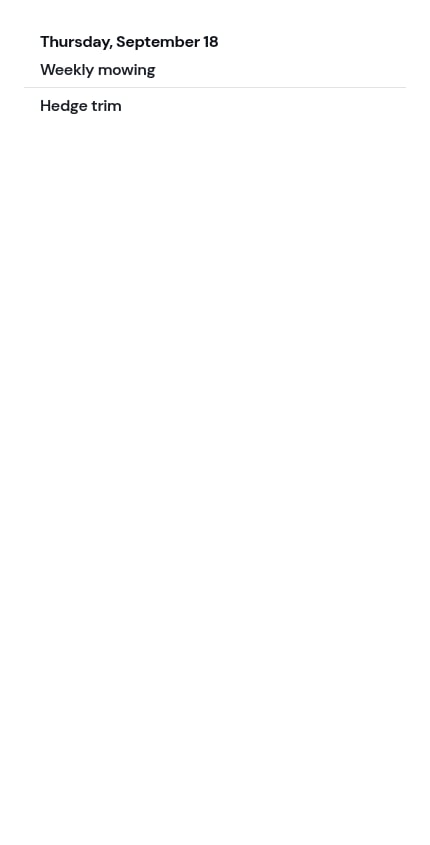
Assessment visits and marketplace visits are never listed here, and neither are cancelled or rescheduled ones.
Service reports
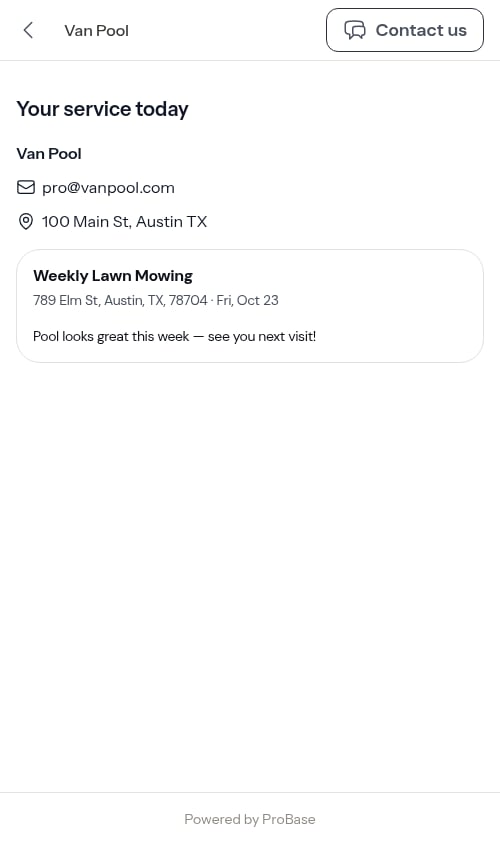
A completed visit’s service report is the customer’s copy of the work: what you did, anything your checklists recorded, the photos, a place to rate you, and the bill if it rode along. It has a page of its own, opened from the link you sent or from Your visits.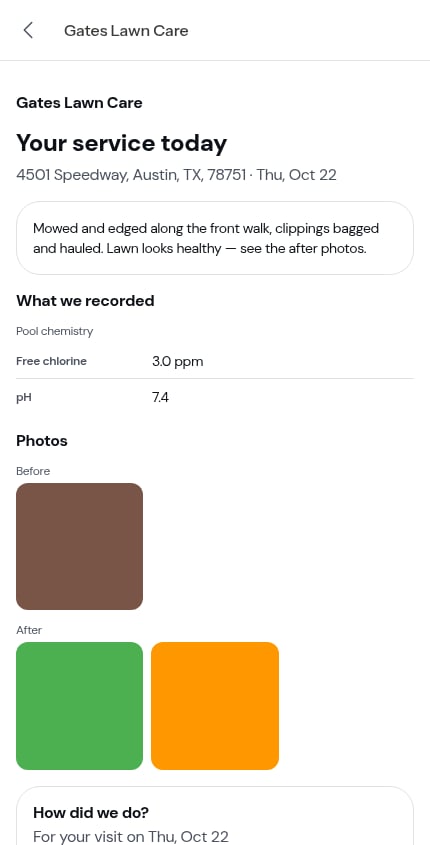
What we recorded
If you use checklists and mark items to include in the customer summary, those filled-in items appear under a What we recorded heading, grouped under the checklist they came from — readings, completed tasks, and even a customer signature (shown as Signed by customer).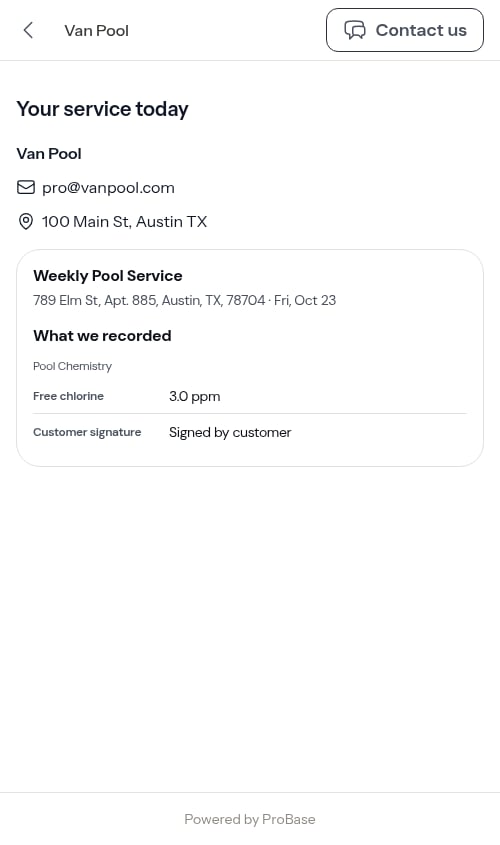
Service review
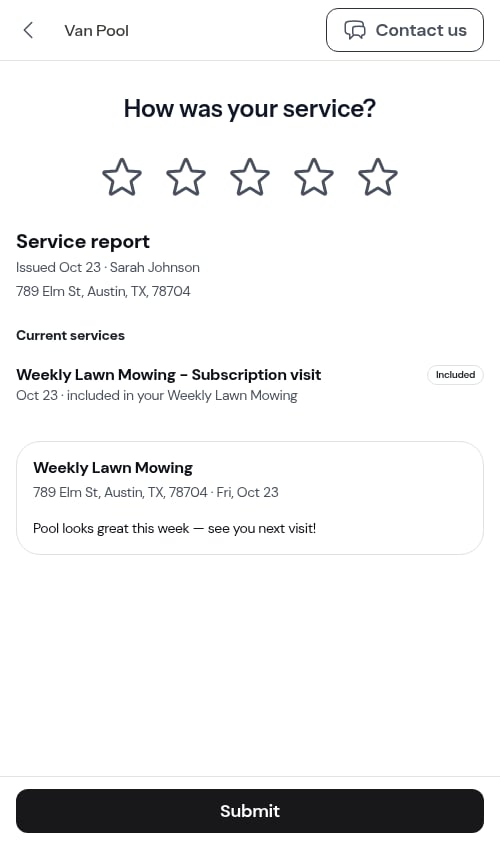
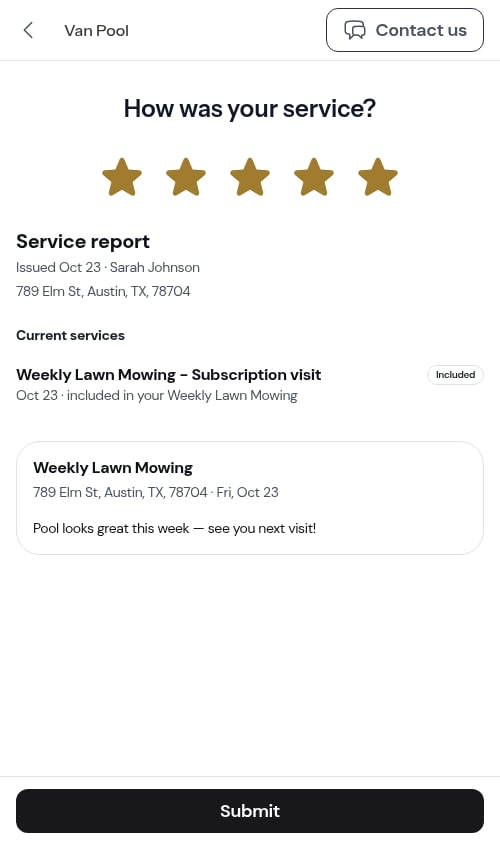
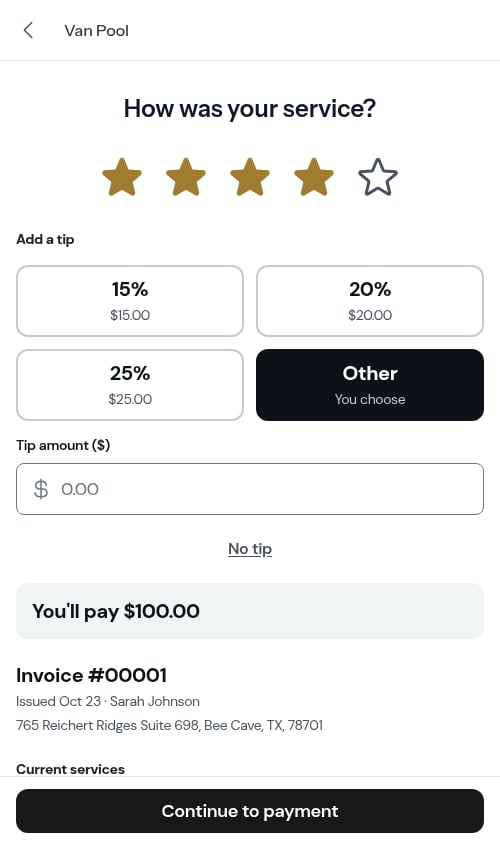
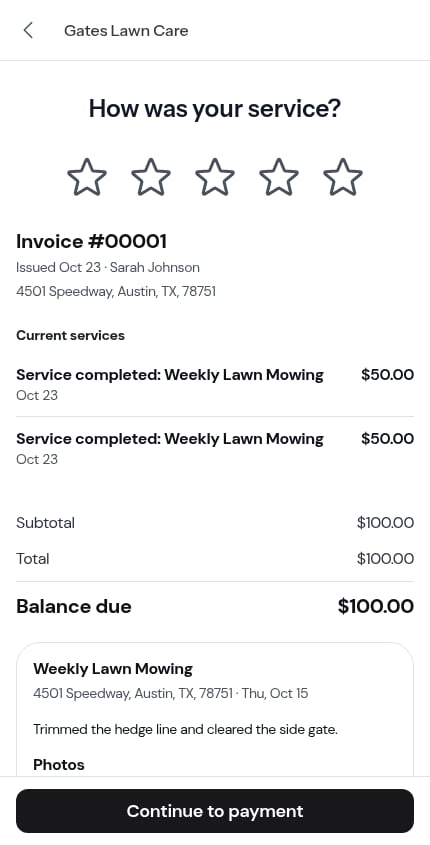
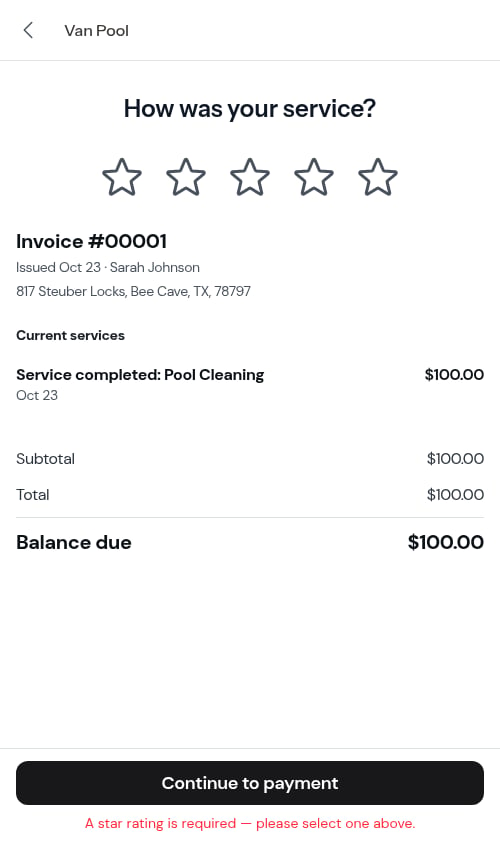
For invoices tied to a completed service appointment, customers are first shown a “How was your service?” page before they can pay. This gives them a chance to rate their experience, optionally add a tip, and preview the full invoice they’re about to pay.This step is on by default but is yours to control — see Service ratings. With it switched off, customers skip straight to the invoice page.
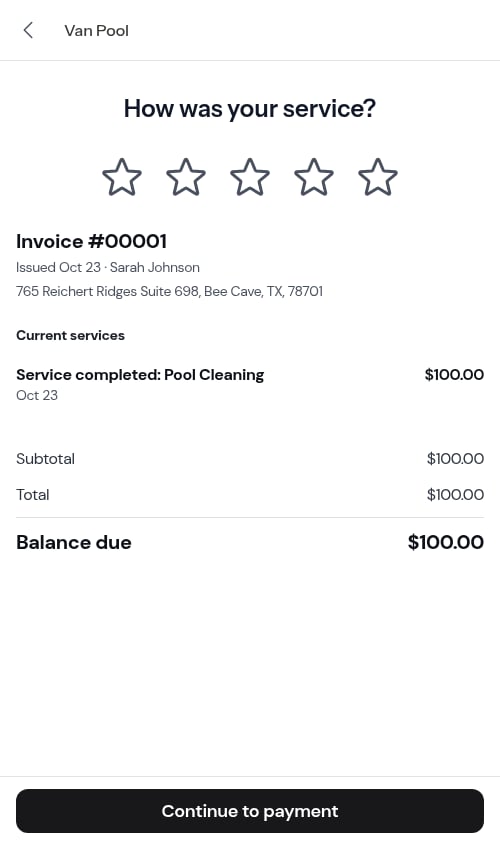
- Star rating at the top. Customers tap 1–5 stars to rate their service. No tip selector is shown until a rating is chosen.
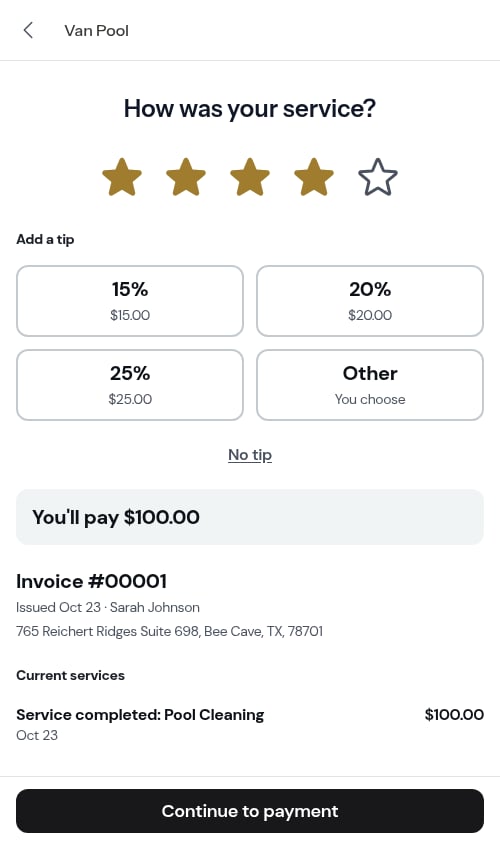
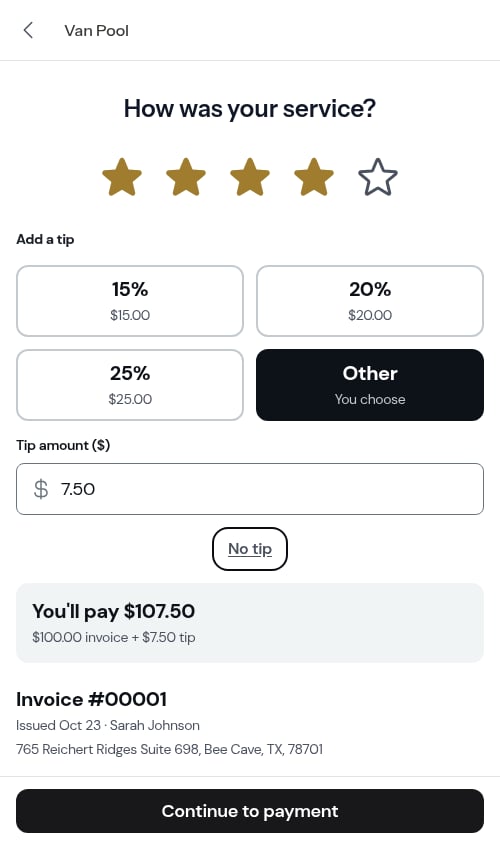
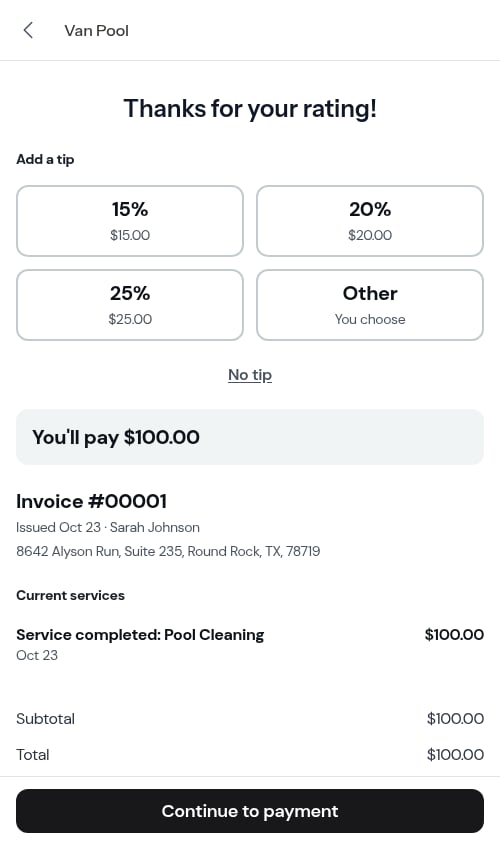
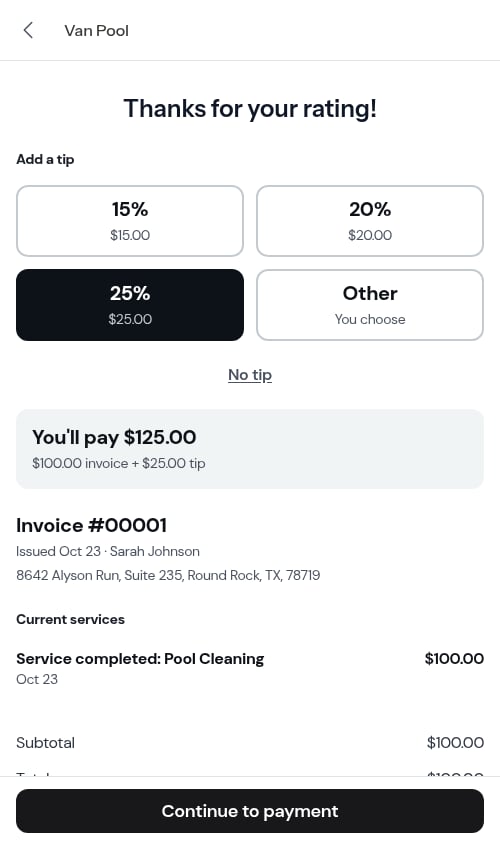
- Tip selector (appears after rating). Once the customer rates, your three suggested percentages appear as buttons — each showing the dollar amount it works out to — alongside a full-width Other button for a custom dollar amount. Nothing is pre-selected, so customers who don’t want to tip simply leave the section untouched. The percentages come from your tipping settings, and the whole section is hidden if you’ve turned tipping off.
- Balance Due card. Directly below the tip selector, customers see the same Balance Due card they’d see on the payment page — their name and billing address, invoice number and dates, line items, totals, and the balance due. They can preview exactly what they’re about to pay before continuing.
- One card per visit. Below the Balance Due card, each visit the invoice covers gets its own bordered card — the service name, the property address and the date, the plain-language summary of the work, What we recorded, and the photos in their Before and After groups. A visit with nothing to report draws no card. These always render last, beneath the balance and payment area.
- Floating “Continue to payment” button. The CTA sticks to the bottom of the screen on mobile and desktop so it’s always within reach.
Invoice detail and payment
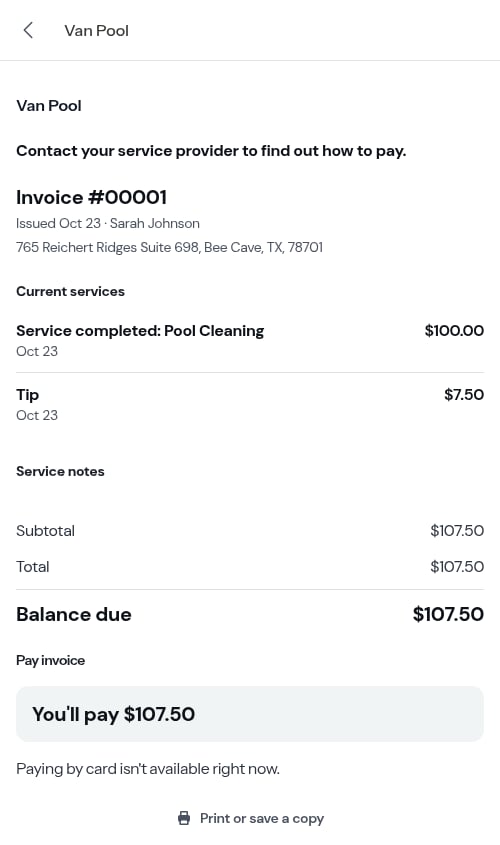
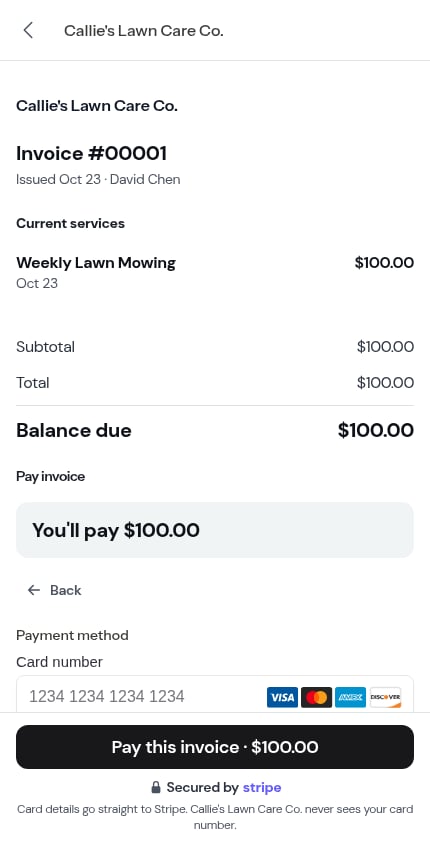
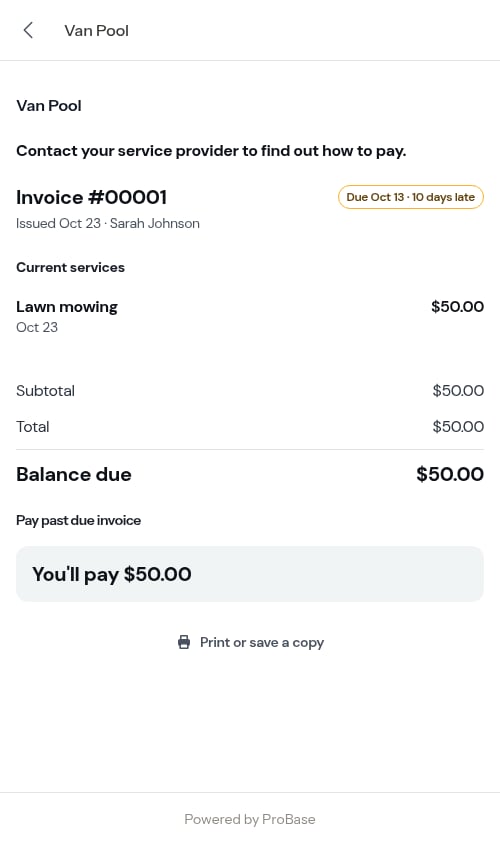
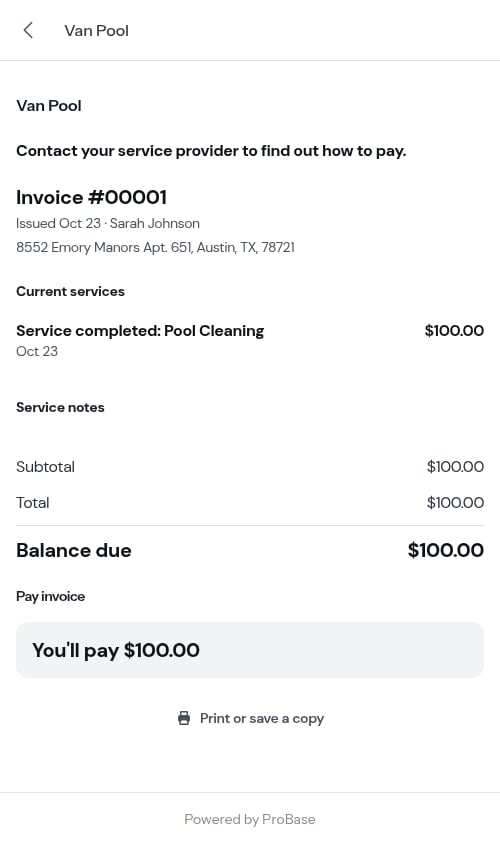
When a customer opens an individual invoice, the page is laid out top-to-bottom as:- Your business information (logo, name, address, phone, email, and website — whatever you’ve configured in Business Profile settings)
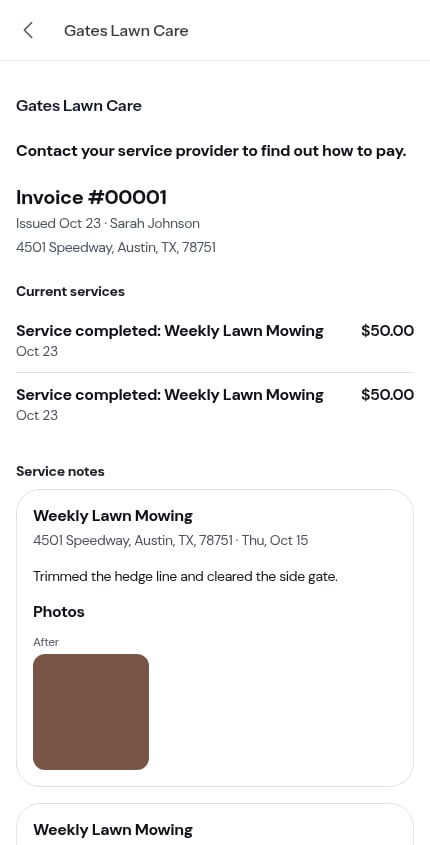
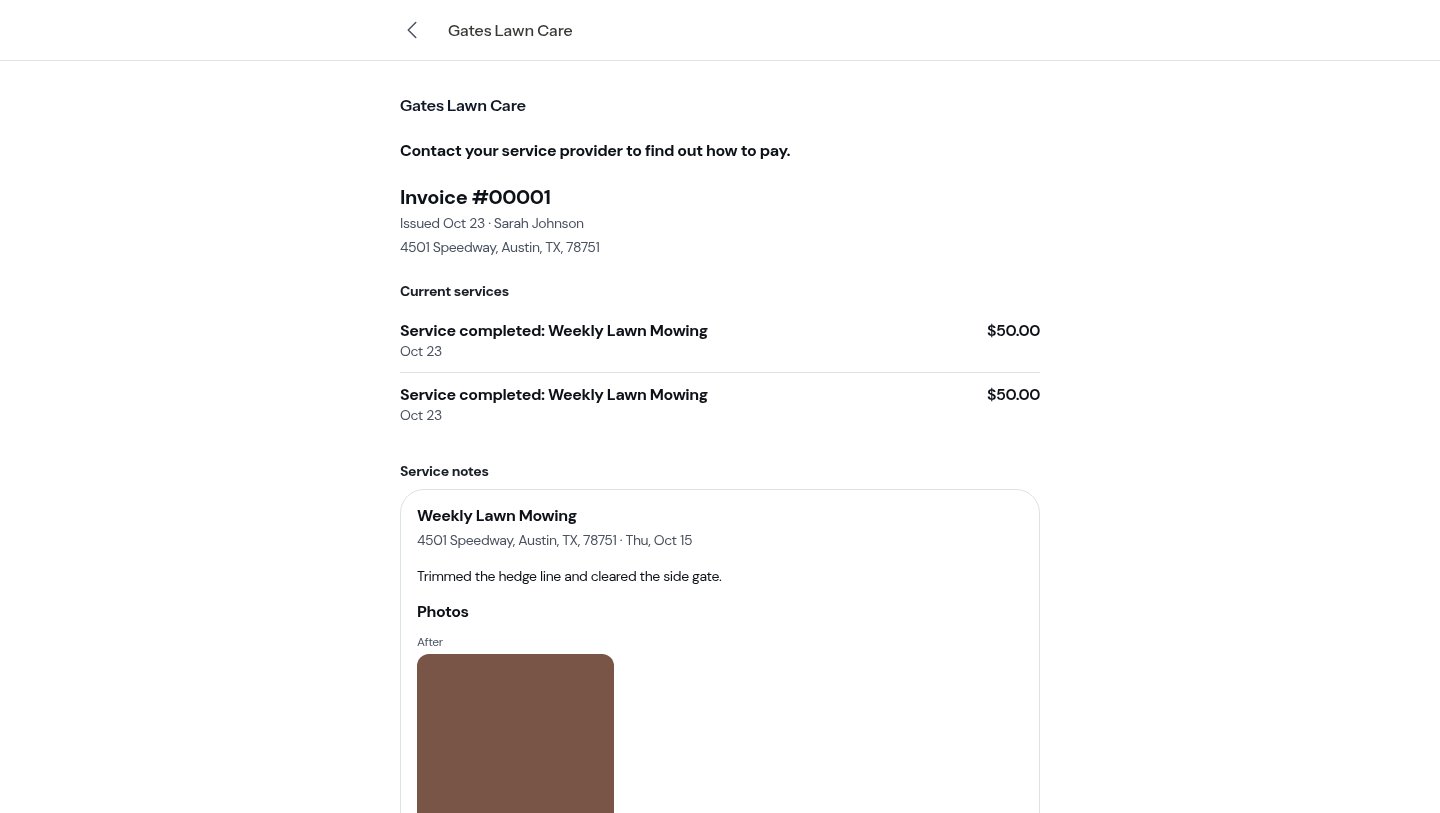
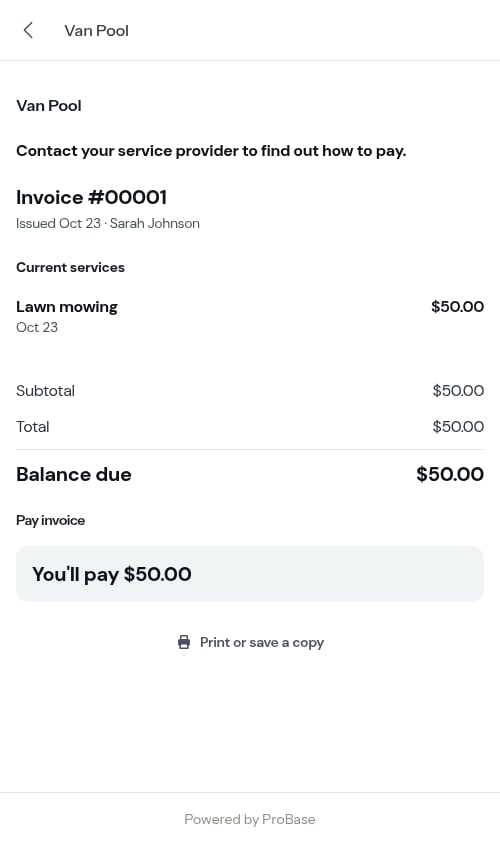
- The invoice itself: the invoice number, the Issued date (plus the Due date, if you’ve opted into showing overdue status), and Current services — one line per charge, each with its date
- Any unpaid balance carried over from an earlier invoice, in its own section
- Service notes — one card per visit the invoice covers (when there’s anything to show): the service name, the property address and the date, the description of what was done, What we recorded from your checklists, and the photos. These come before the price, so the customer reads what was done before what it cost
- The totals — subtotal, any discount, tax, total, payments applied, and Balance due
- The payment area, then a Print or save a copy link
How customers pay
What the payment area shows depends on how you take payments. You take cards (Stripe connected). If the rating step is off and tipping is on, the customer first sees Add a tip — your three percentages, each with the dollar amount it works out to, an Other button for their own amount, and No tip — with a You’ll pay total that updates as they choose. They tap Continue to payment to move on. (The tip question is skipped when a tip is already on the invoice, when tipping is off, or when you don’t take cards.)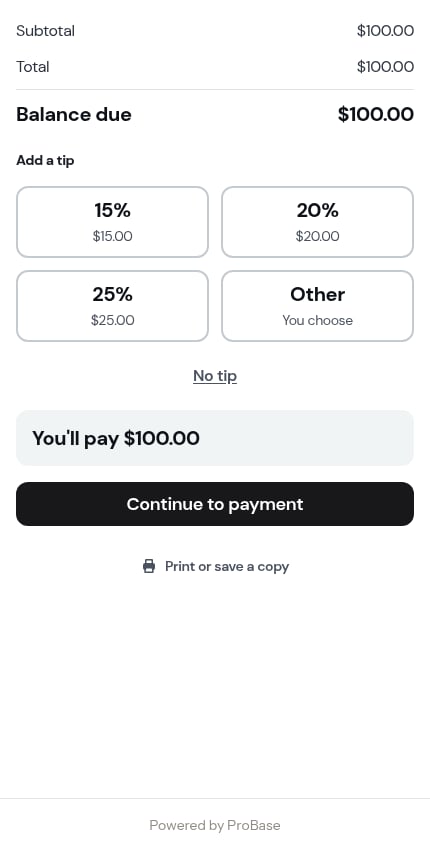
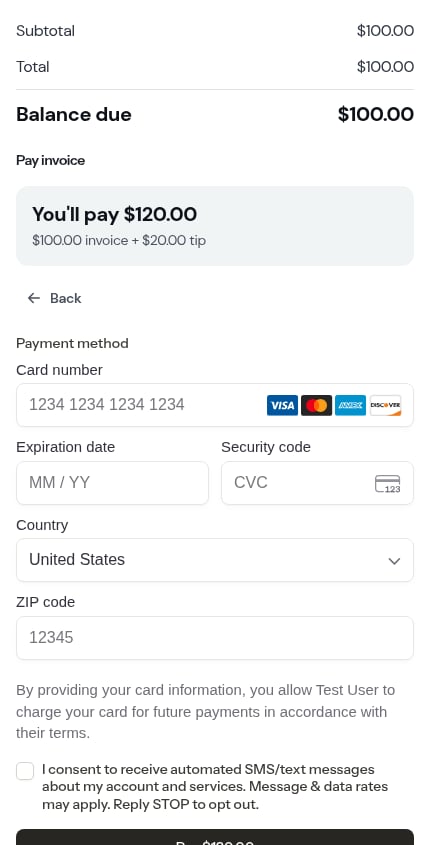
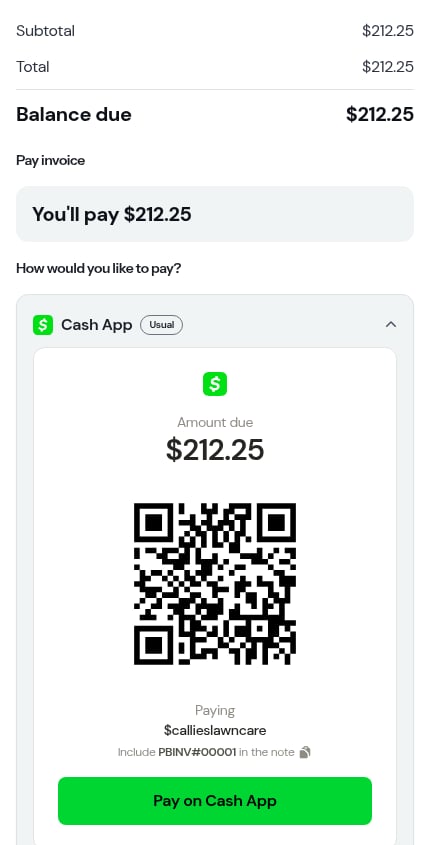
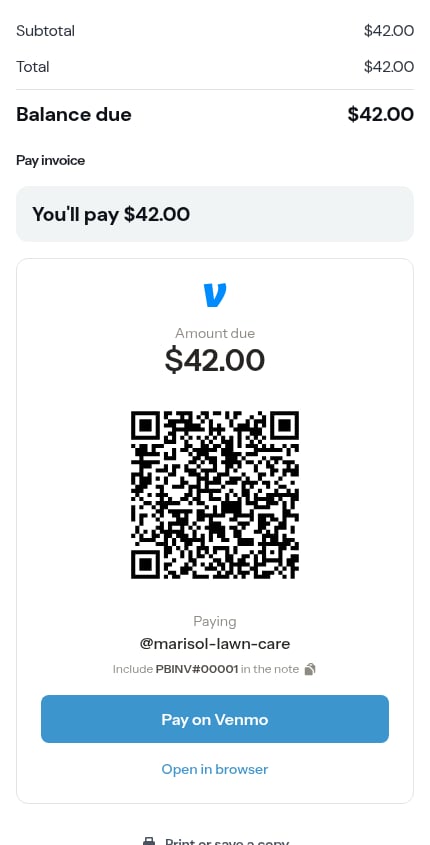
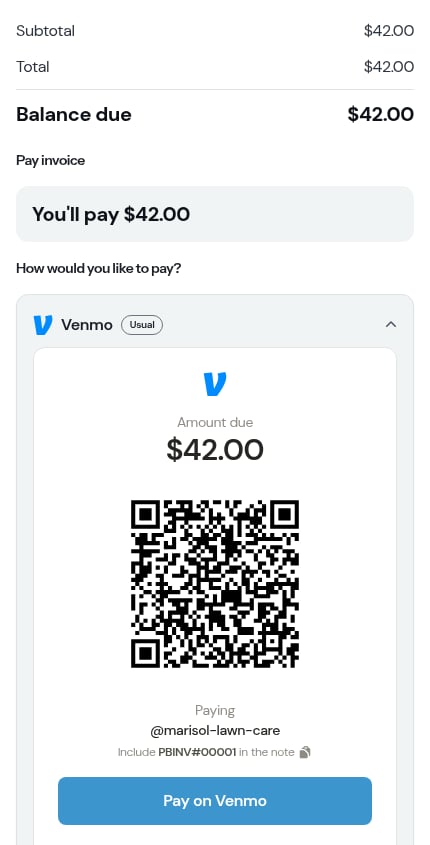
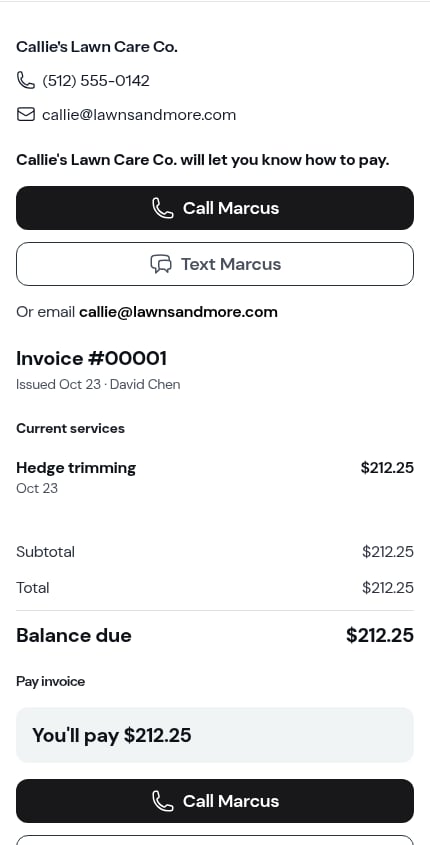
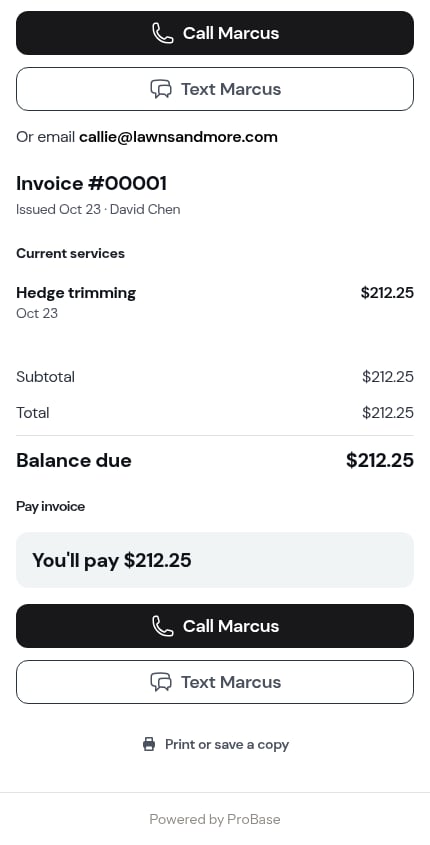
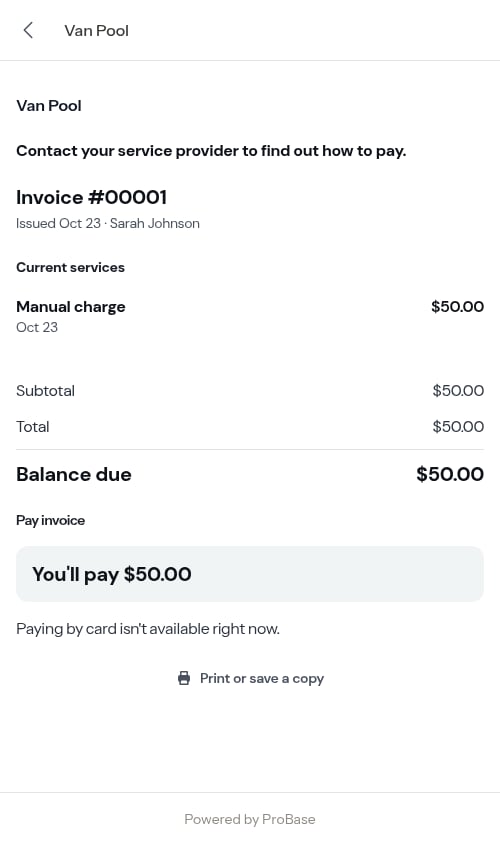
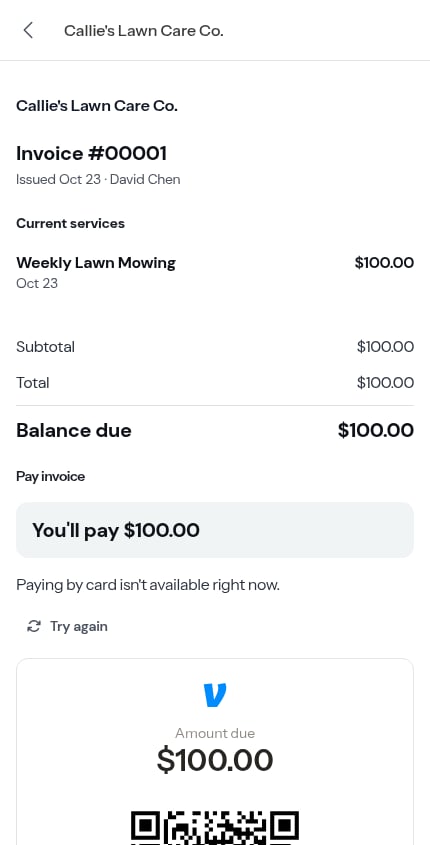
If your Stripe connection has a problem and the card form can’t load, the customer sees Paying by card isn’t available right now. and ProBase shows whatever else you offer — your payment app blocks, or the Call and Text buttons. The pinned Pay this invoice bar is hidden too, so it never points them at a card form that isn’t there. Check your connection under Payments — see Setting up payment processing.
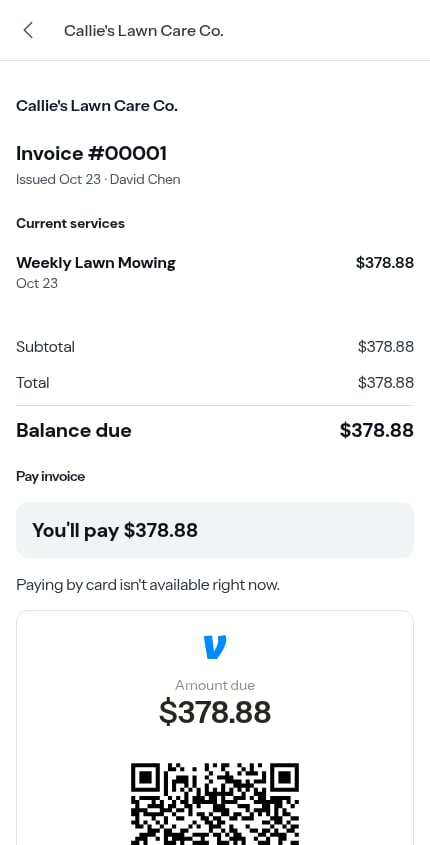
The card form
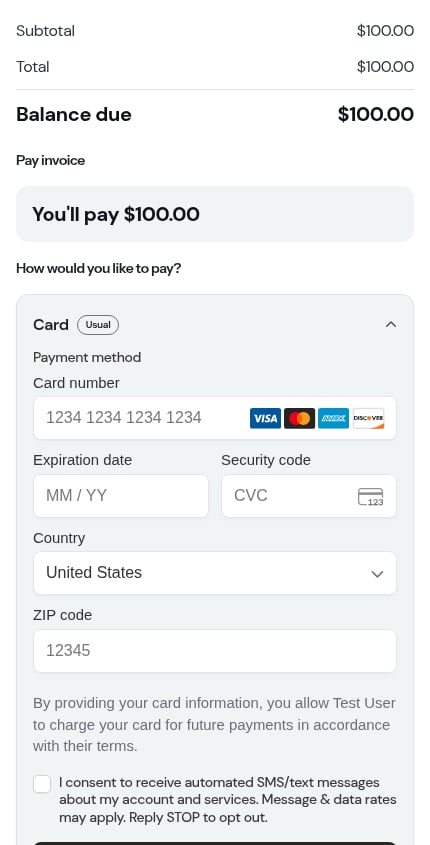
The card form is powered by Stripe and is fully PCI-compliant. Card details are never sent to ProBase — they go directly to Stripe, and the line under the pay button says so: Card details go straight to Stripe. [Your business] never sees your card number. The card fields load from Stripe a moment after the rest of the page, so the pay button only works once the card fields are ready. On a slow connection that can take a second or two. Once tapped, the button shows a spinner while Stripe checks the card. If something goes wrong, a short red message appears just under the card fields — the reason from Stripe (for example a declined card), or We could not process your payment. Please try again. if the payment couldn’t be attempted at all. Either way the customer can simply try again.Going back and forward works too. If a customer taps their phone’s Back button and then returns to the invoice, the card fields reload themselves so the form is live again. They don’t need to reload the page or reopen the link.
After the invoice is paid
A paid invoice leads with a green receipt — for example *Paid $96.00 on Sep 18*, with *$80.00 invoice + $16.00 tip* beneath it when they tipped. The invoice shows a **Balance due** of $0.00, and the one button is Print or save a copy. There’s nothing left to pay and no tip question. A customer who comes back to the link later lands here.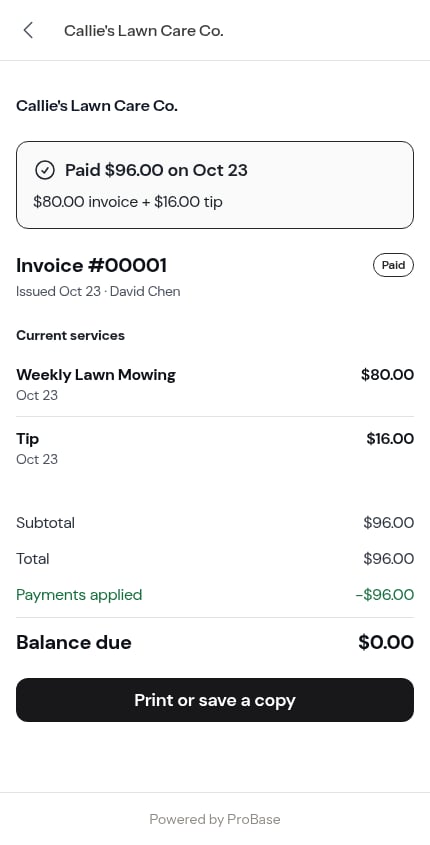
Customers can print their invoice
Print or save a copy opens the customer’s own print dialog, so they can print a copy for their records or save it as a PDF — without asking you for one. On an unpaid invoice it’s a link under the payment area; on a paid one it’s the main button.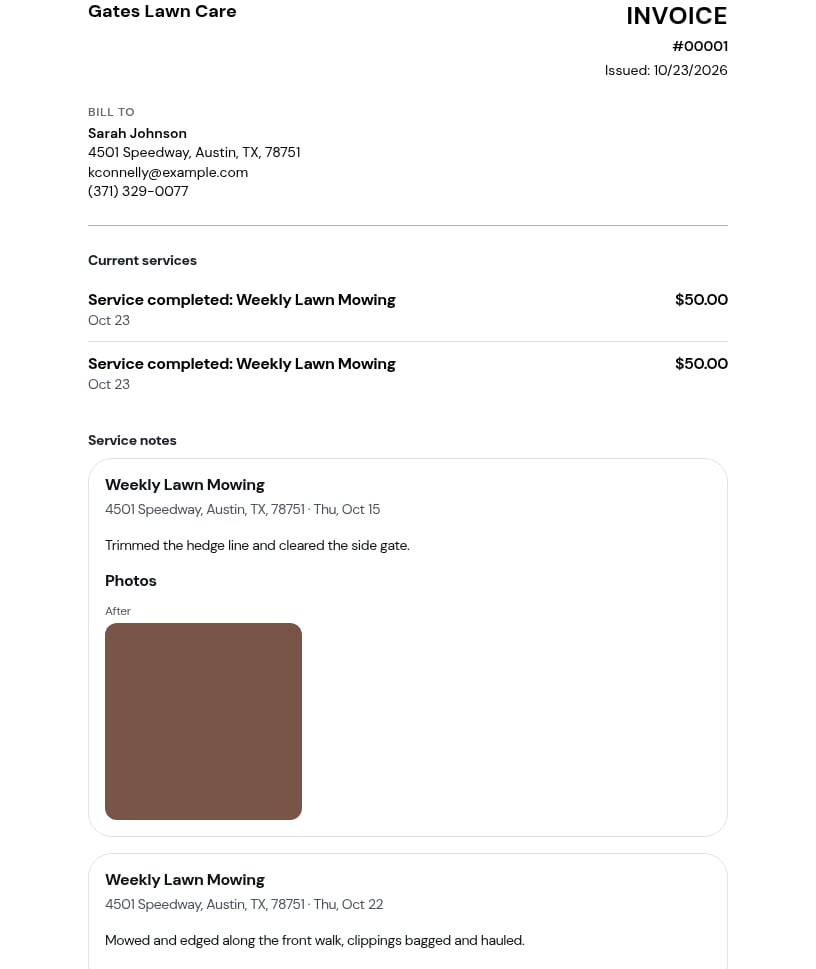
Quote links
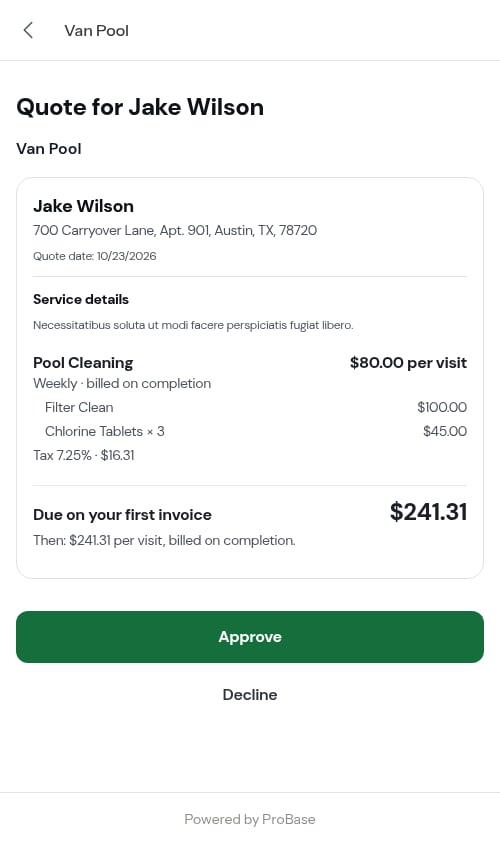
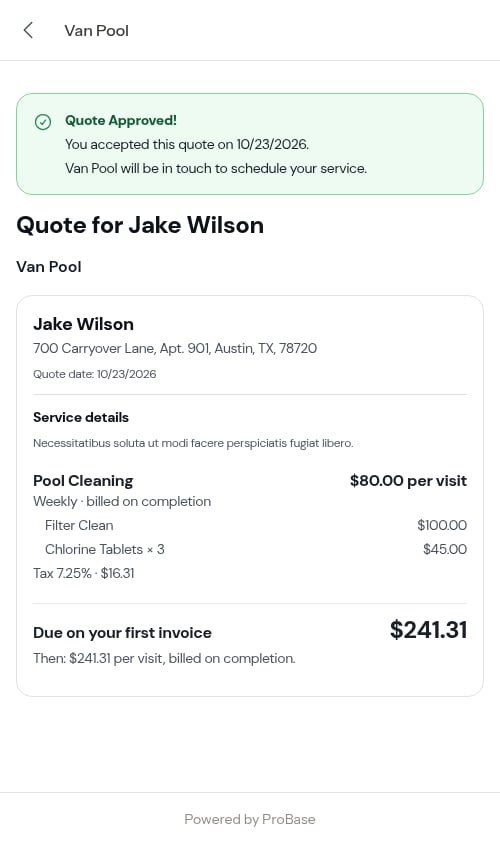
In addition to payment links, you can also share quote links with customers. A quote link lets customers view the full quote details and approve or decline it on their own — no login required. When a quote is in Sent status, a customer quote link appears on the quote detail page in ProBase. Copy and share that link via text, email, or any other method. Customers can:- Review the quote details and full pricing breakdown — base service, any additional line items, subtotal, tax, and total
- Tap Approve to accept the quote (the confirmation shows the full total including line items and tax)
- Tap Decline and select a reason (Too expensive, Found another provider, etc.)
Best practices
- Send after completing work — The send report step opens as soon as you complete a visit; turn the invoice switch on and the customer gets what you did and what they owe in one message
- Follow up on overdue invoices — Use Send a reminder on the invoice when following up on outstanding balances
- Let customers bookmark it — The link never expires, so customers can return anytime to check their balance