Why this matters
ProBase offers two billing methods: per-service billing (bill when work is done) and subscription billing (bill on a schedule). Understanding the difference helps you choose the right approach for your business and customers.Per-service billing
Bill customers when work is completed. How it works:- Crew completes the visit
- Charges are created automatically — the service’s own price, plus a separate charge for each of the job’s standing charges and for every charge you added on the visit
- Customer’s balance updates immediately
- Share the payment link with customers to view their balance
- One-time jobs (spring cleanup, mulch installation)
- Customers who want to pay per visit
- Variable services where work isn’t always the same
- Customer has weekly mowing service
- Crew completes mowing on Monday
- Billing line item created for $40
- Customer balance shows the new charge
Subscription billing
Bill customers on a recurring schedule, regardless of when individual visits are completed. How it works:- Set up the service with a billing interval (weekly, monthly, quarterly, semi-annual, or annual). ProBase works out the recurring billing day for you — there’s no extra input to fill in.
- On each billing date, ProBase automatically creates a billing line item for the subscription amount
- Work is performed separately from billing — completing a visit does not create a charge for the base subscription service or for the job’s standing charges (those are part of the recurring amount and are billed on its schedule). Any charges you added on the visit itself, however, are still billed when the visit is completed
- Flat-rate monthly services
- Customers who want predictable monthly bills
- Seasonal contracts billed monthly
- Customer pays $160/month for weekly mowing
- You create the service on the 7th, so ProBase automatically creates a $160 billing line item on the 7th of each month
- Work is performed weekly throughout the month
- Customer sees one monthly charge on their payment link
Every billing period gets its own charge
The subscription charge is added once per billing period, every period — finishing a visit never takes its place. If a visit is completed partway through a month, its $0 “Service completed” entry and that month’s subscription charge both show up in the customer’s Billing History under Not invoiced yet.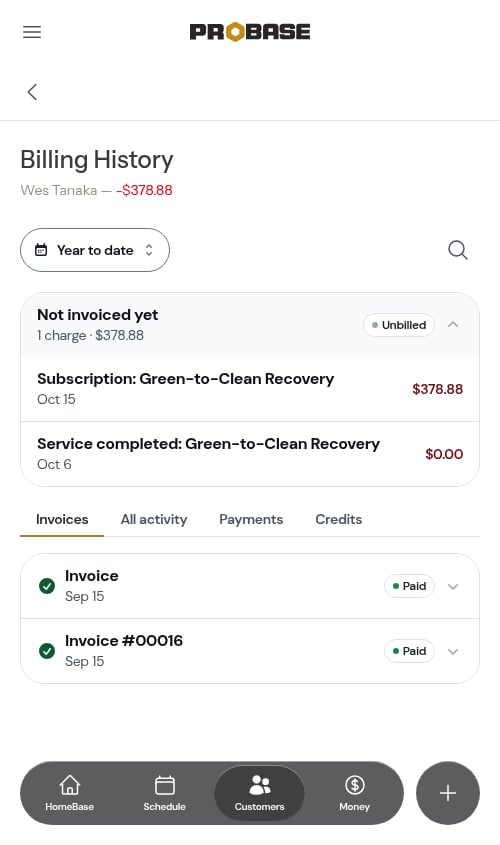
Billing intervals for subscriptions
The recurring billing day is set automatically — no extra input needed. For weekly, monthly, and annual intervals it follows the day you created the service; quarterly and semi-annual charges land on a fixed calendar cycle instead. Pick the interval that matches how the customer wants to be billed: Weekly- Billed on the same weekday each week — whichever weekday you created the service on
- Good for customers who pay weekly
- Example: Create the service on a Monday, the customer is billed every Monday after that
- Billed on the same day of the month each month — whichever day you created the service on
- Most common for residential customers
- Example: Create the service on the 7th, the customer is billed on the 7th of each month
- Billed once every three months, on the 1st of each calendar quarter — January 1st, April 1st, July 1st, and October 1st
- Good for customers on a quarterly maintenance plan
- Example: Create the service on March 15th, and the first charge lands on April 1st, then July 1st, October 1st, and so on
- Billed twice a year, on the 1st of each calendar half — January 1st and July 1st
- Good for spring/fall or open/close style contracts
- Example: Create the service on March 15th, and the first charge lands on July 1st, then January 1st
- Billed on the same day of the year each year — whichever day you created the service on
- Good for seasonal contracts paid upfront
- Example: Create the service on March 1st, the customer is billed every March 1st
Quarterly and semi-annual charges land on the same dates for every customer — the 1st of January, April, July, and October for quarterly, and the 1st of January and July for semi-annual. The date you created the service doesn’t shift them. Weekly, monthly, and annual intervals are the ones that follow your creation date.
Set up per-service billing
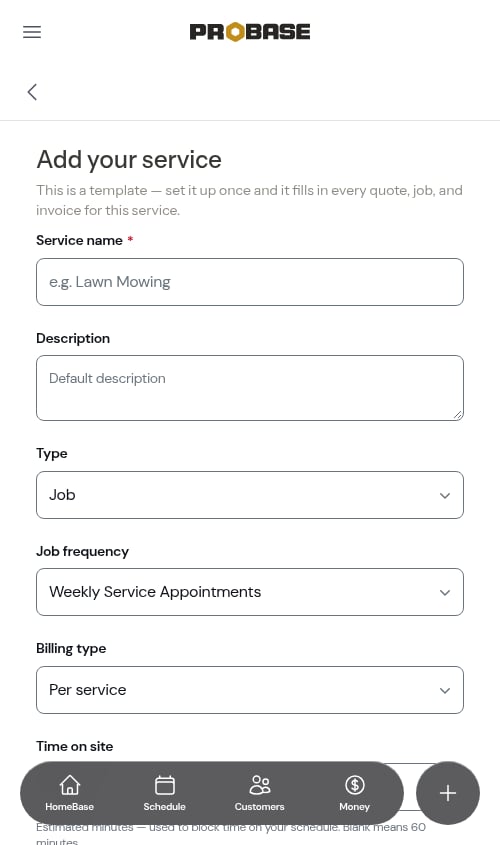
Billing is set on the service template in your catalog, and every job created from it inherits it.- Open Services in the navigation drawer (under Business)
- Tap Add service to build a new one, or open an existing service and tap Edit
- Set Billing type to Per service
- Fill in the Starting price
- Tap Save
Set up subscription billing
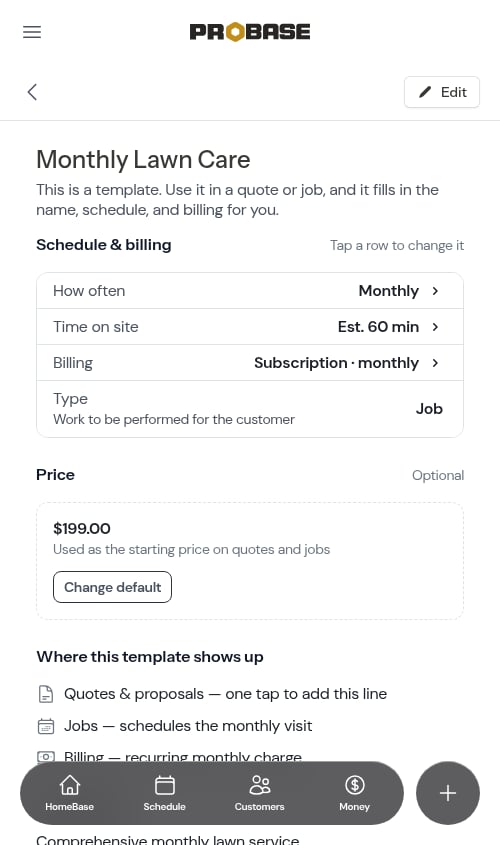
- Open Services in the navigation drawer (under Business)
- Tap Add service, or open an existing service and tap Edit
- Set Billing type to Subscription
- Pick the Billing interval that appears — Weekly Charges, Monthly Charges, Quarterly Charges, Semi-annual Charges, or Annual Charges
- Fill in the Starting price
- Tap Save
Update pricing for a customer’s service
Each customer’s service has its own price and tax rate that can be updated independently. To update pricing for a specific service:- Go to Customers
- Click on the customer’s name
- Navigate to their property
- Click on the service
- Tap the → button in the top-right of the Service details section
- Update the Price and Tax rate in the Change Pricing window
Billing type and billing interval are set when the service is created and cannot be changed afterward. If you need a different billing type, you’ll need to cancel the existing service and create a new one.
Combining both methods
You can use both billing types for the same customer: Example:- Weekly mowing: Per-service billing ($40 per visit)
- Monthly fertilization: Subscription billing ($60/month)
Viewing charges
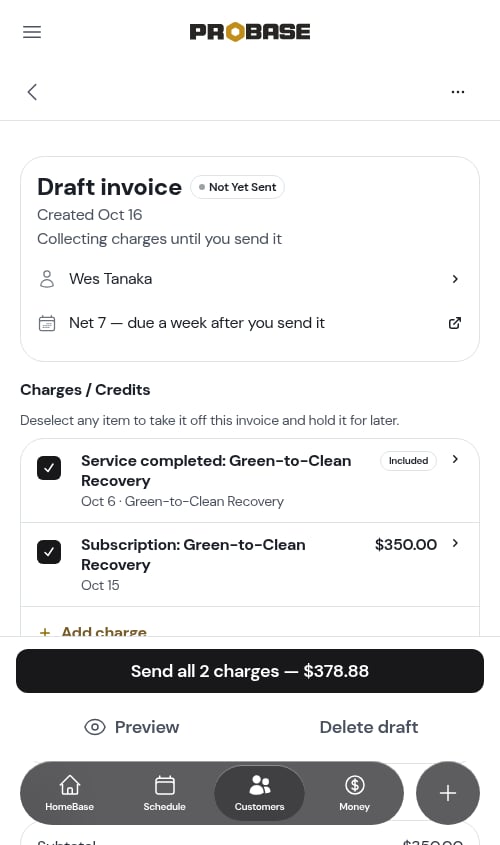
For both billing types:- Charges land on the customer’s draft invoice and appear in their billing history (under Not invoiced yet until you send the invoice)
- Customer balance updates automatically
- Send the invoice so customers can view and pay it online
- On the invoice, a subscription visit that’s covered by the plan shows an Included tag instead of a price, with the subscription named underneath