Overview
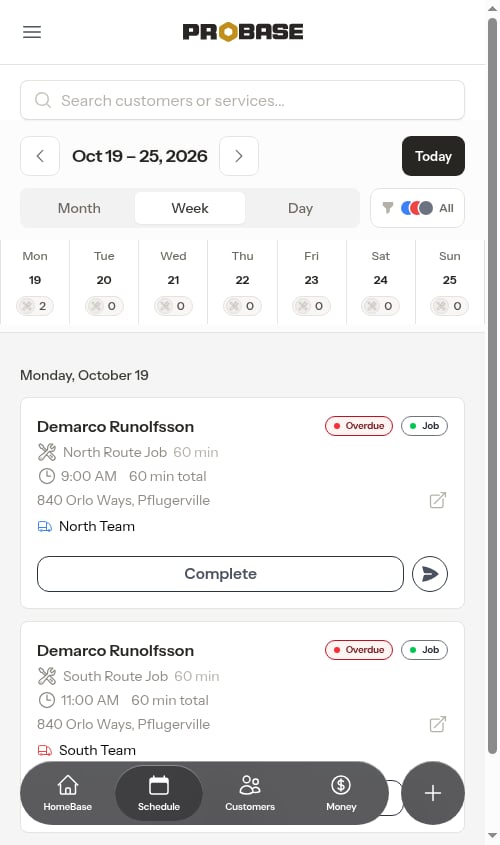
The Week view lays out a whole week — Monday through Sunday — on a time grid, like a calendar app. Each appointment sits in its column at the time it’s scheduled, so you can see how your days stack up, spot gaps and clashes, and balance work across crews at a glance. It’s the best view for planning ahead and office work.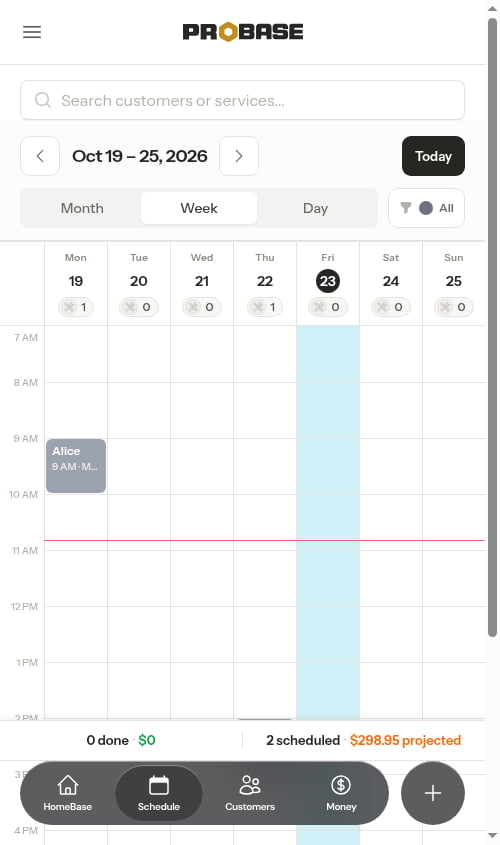
Open the Week view
Click Schedule in the sidebar, then tap Week in the Month / Week / Day view picker at the top of the page.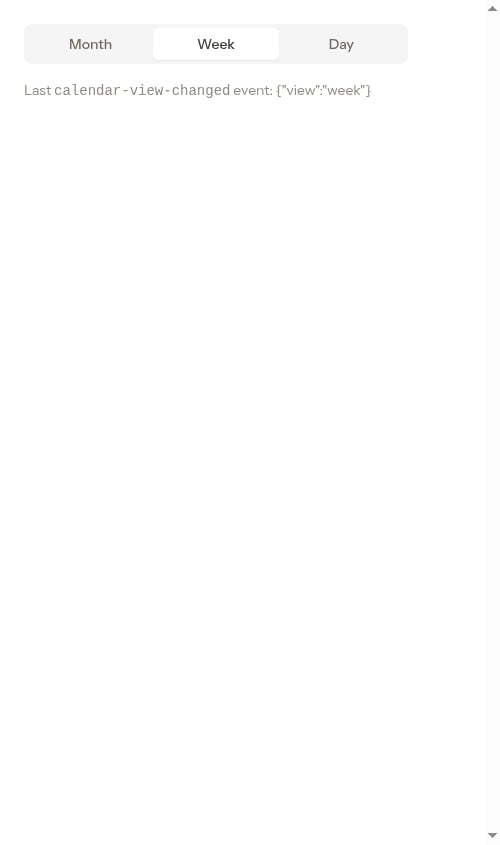
Reading the week grid
The grid has one column per day and a time axis down the left side (running from early morning to evening, and stretching automatically if you have work outside those hours).- Day headers across the top show each day’s date and a small pill with the number of stops scheduled that day. Today’s date is marked with a filled circle.
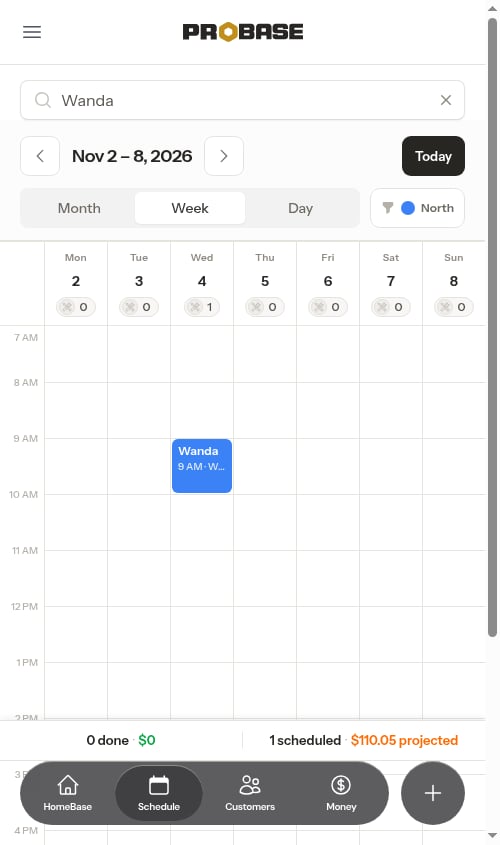
- Appointments appear as colored boxes positioned at their start time. The color matches the assigned crew, so you can read who’s working when. Each box shows the customer’s first name, the time, and the service.
- Non-service stops (lunch breaks, supply runs, drive time) appear as their own boxes, labelled with the stop name and duration.
- A red line runs across the grid at the current time, so you can see at a glance how the day is progressing against what’s booked.
- Marketplace jobs carry the marketplace’s small brand mark (its logo) at the start of the box, so work that came from a connected marketplace is easy to pick out. The same mark appears in the day overview panel. See Marketplace jobs.
- Assessment visits carry an Assessment pill beside the customer’s name. Regular jobs carry nothing — a calendar is almost entirely jobs, so only the exception is marked. On a short visit, or in a narrow column where there’s no room for the pill, the badge shrinks to a small dot. See Assessments.
Busy days collapse into a cluster
When three or more items overlap in the same part of a day, they collapse into a single cluster box showing the count (e.g. “3 items”) above a row of crew color dots, so you can still tell who’s involved. Tap the cluster to open a panel listing just those jobs and stops in time order — see Day overview below. The panel that opens from a cluster shows the time window that group covers — from the earliest start to the latest finish across everything in the cluster (for example, “9:00 AM - 10:30 AM”) — right under the date. That tells you at a glance how long that block of work runs, without opening each job. Non-service stops in the cluster count toward the window too, so a 30-minute supply run at 8:30 AM stretches the start time back to 8:30.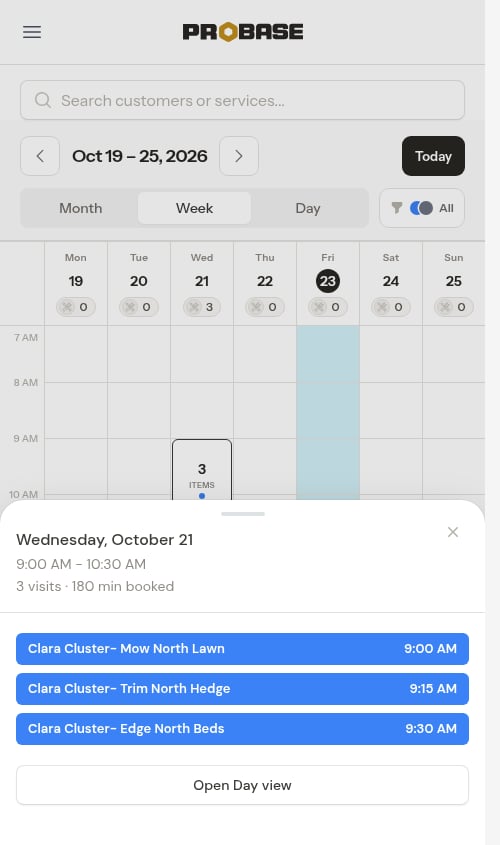
Revenue rollup strip
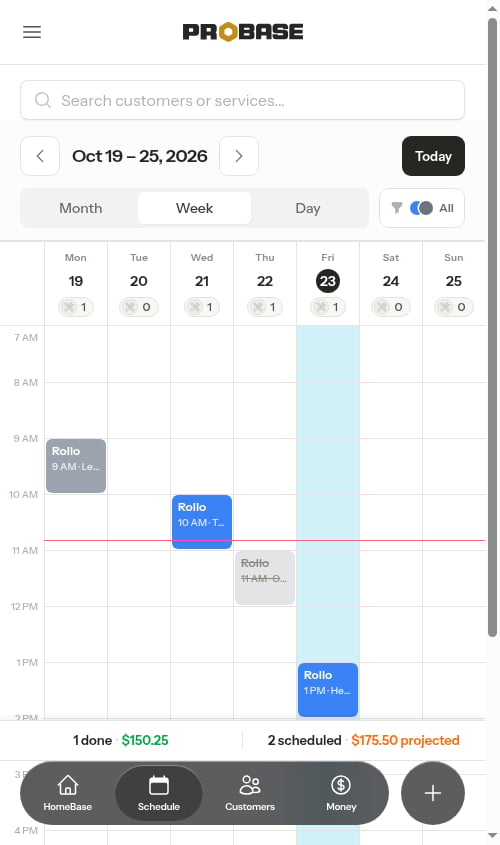
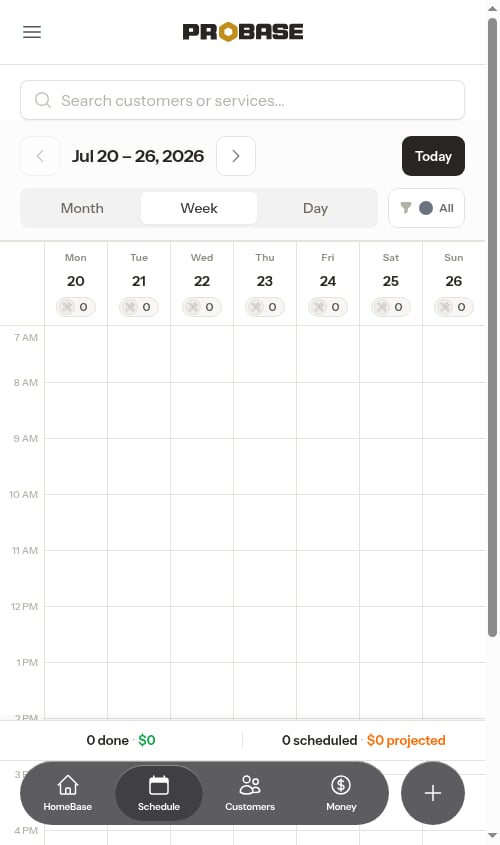
A summary strip pinned below the grid totals the week’s revenue at a glance:- Done — how many appointments are already completed, and the revenue they earned (in green).
- Scheduled — how many are still on the books, and the revenue they’re projected to bring in (in orange).
Day overview panel
Tap any day header (or a cluster box) to open the day overview — a bottom drawer on your phone, or a side panel on a wider screen. It lists that day’s jobs and stops in start-time order, with the job count and total time booked, so you can scan the day without leaving the week.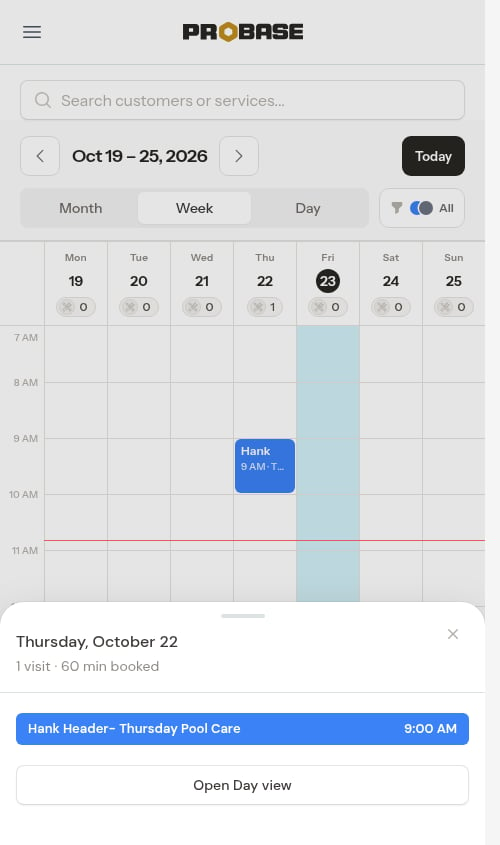
- Tapped a day header — you get the date on its own, followed by the day’s job count and total time booked. That’s everything on the day.
- Tapped a cluster box — the same date, plus a start-to-finish time window for just the jobs in that cluster, so the group reads differently from the whole-day panel.
- Tap any job in the list to jump to its visit page.
- Tap Open Day view to drill into that day’s full Day view, where you can complete or reschedule jobs and reorder stops.
- Tap the ✕, tap outside the panel, or press Esc to close it — the week stays exactly where it was. On a phone you can also drag the drawer down by its grab handle to flick it closed.
Add work from an empty slot
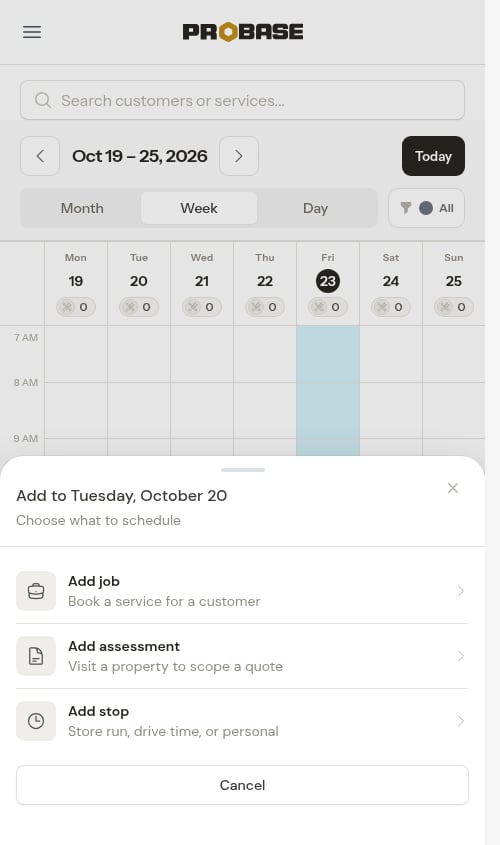
Tap any empty cell on the grid to open a quick menu for scheduling something new at that day and time:- Add job — book a service for a customer.
- Add assessment — visit a property to scope a quote.
- Add stop — a store run, drive time, or personal block.
When your week is empty
A week with nothing on the books still shows the full grid with a zeroed-out rollup strip, so you always know exactly what’s scheduled — there’s no separate empty message on the Week view. You can tap any empty cell to add work straight into that day and time.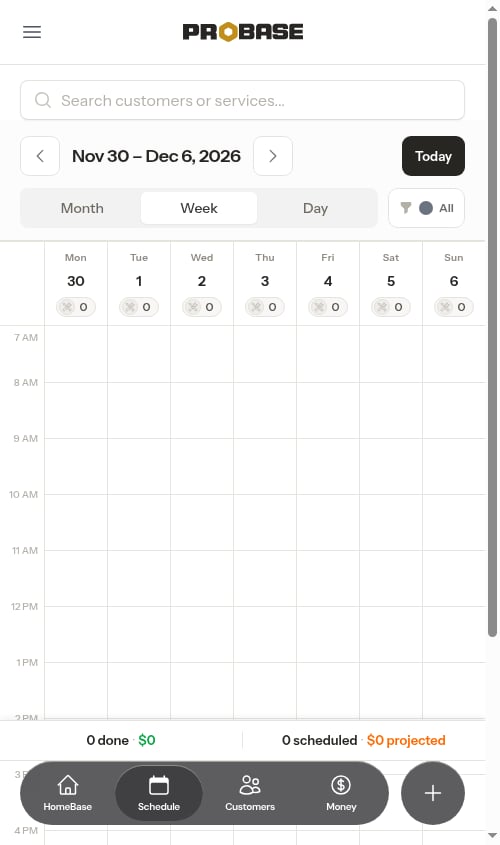
-
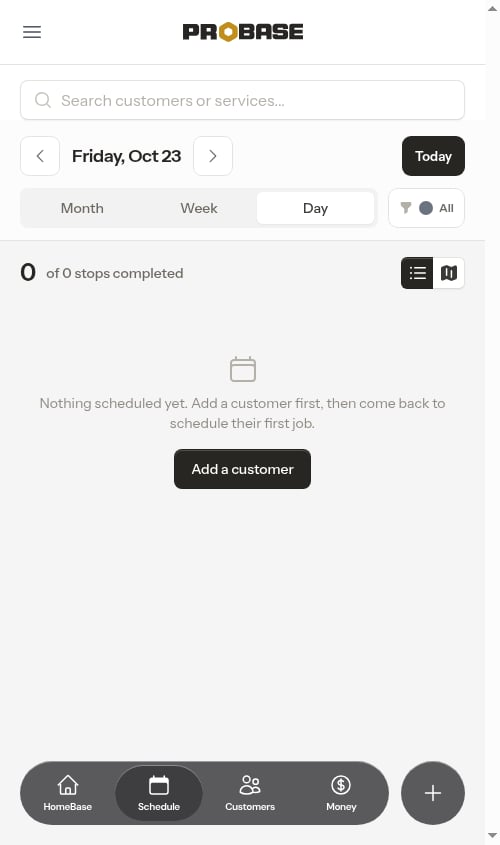
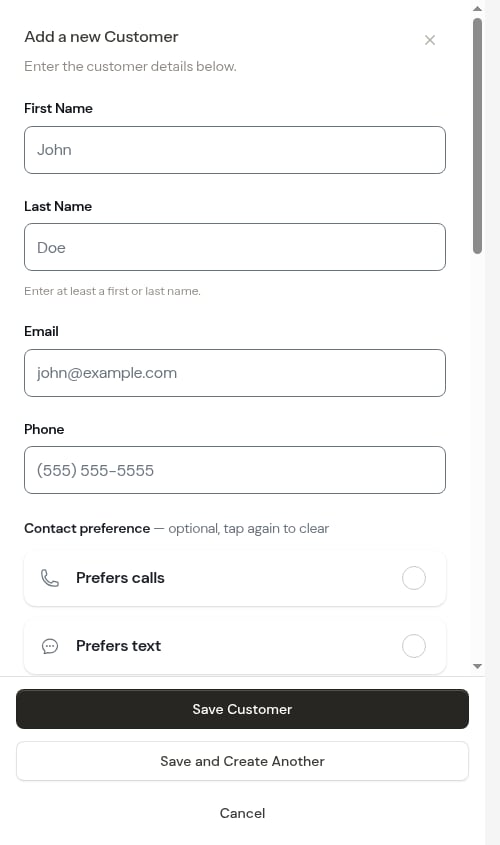
You haven’t added any customers yet — the prompt reads “Nothing scheduled yet. Add a customer first, then come back to schedule their first job.” and shows an Add a customer button. Tapping it opens the customer creation form right on the schedule, so you can add your first customer without leaving the page.
-
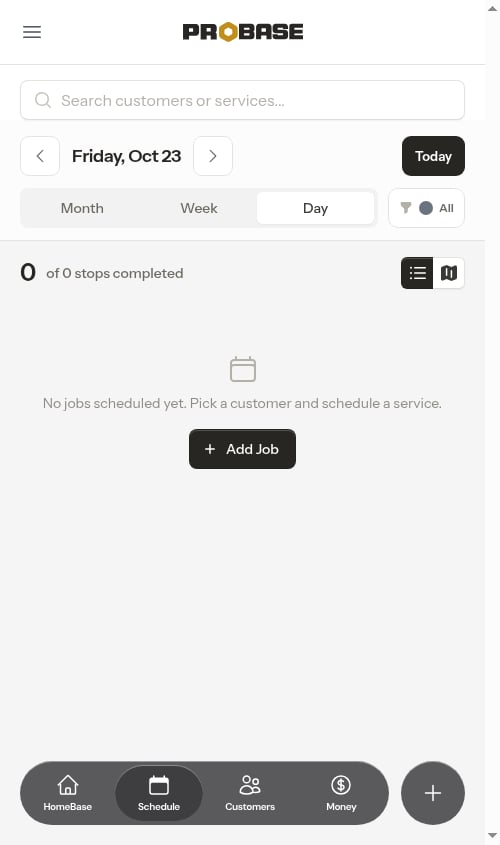
You have customers but nothing booked — the prompt reads “No jobs scheduled yet. Pick a customer and schedule a service.” and shows an Add Job button that takes you straight into the job creation wizard.
- You’re a crew member — the prompt reads “No appointments scheduled for your crew(s).” so it stays focused on your own crew’s work rather than business setup. An Add Job button appears only if your role lets you create jobs.
If you’ve never scheduled a job at all, a Tour demo card sits below that button, separated by a small or — tap it to drop into the Schedule of a fully-loaded sample business instead. See Tour demo from an empty screen.
Filter appointments
Filter by crew
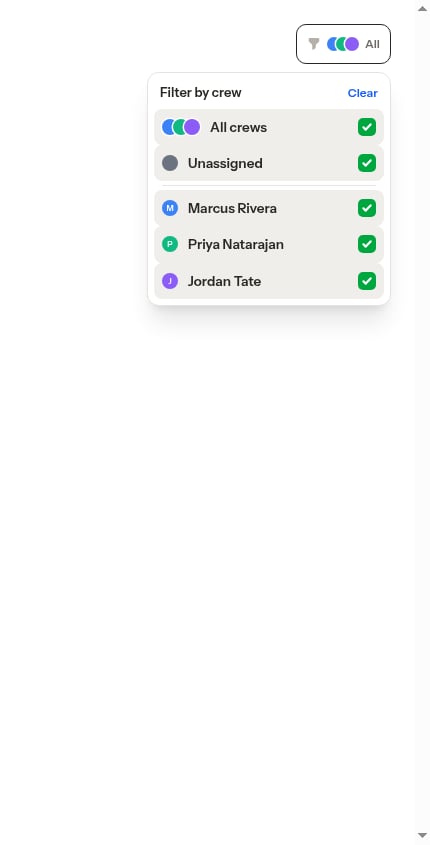
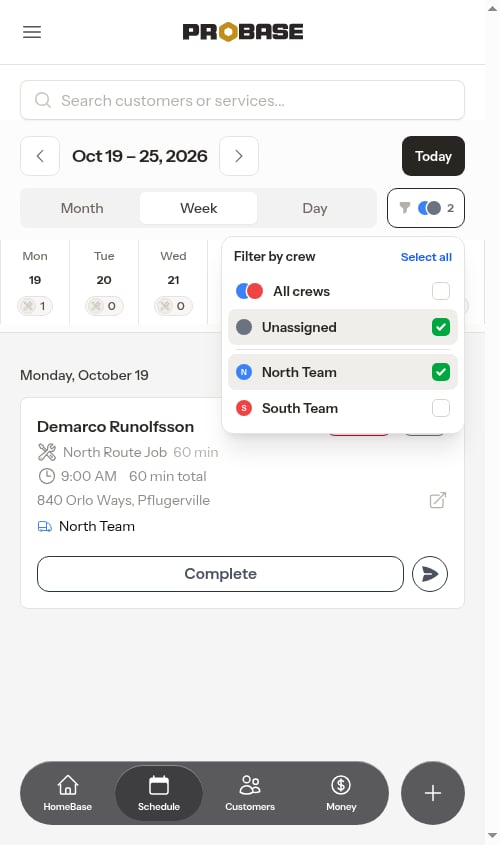
Tap the crew filter (the funnel icon with colored circles) to choose which crews appear on the calendar. It’s a multi-select list, so you can show one crew, a handful, or all of them at once:- Tap any crew to toggle it on or off. The calendar updates immediately and the dropdown stays open, so you can fine-tune your selection in one go.
- Tap All crews (or Select all / Clear in the top corner) to show or hide everything at once.
- An Unassigned option lets you isolate jobs that don’t have a crew assigned yet.
Search
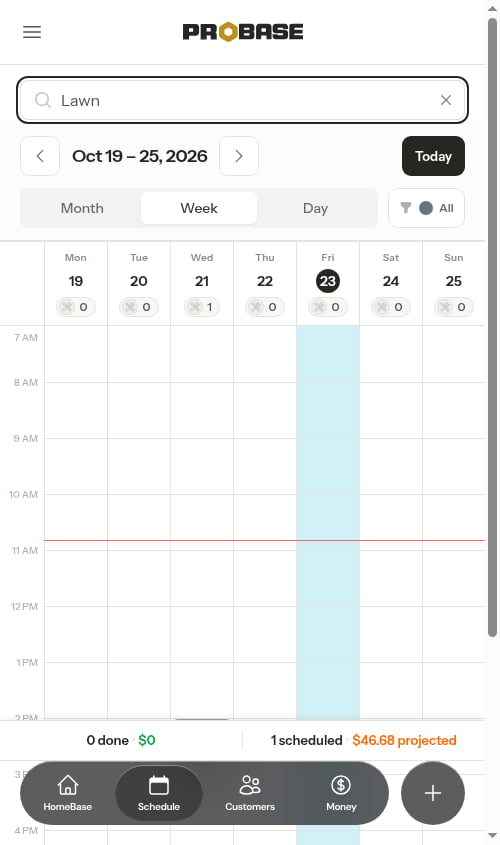
Type in the search box to filter appointments by customer name or service name. Results update as you type, making it easy to find specific appointments.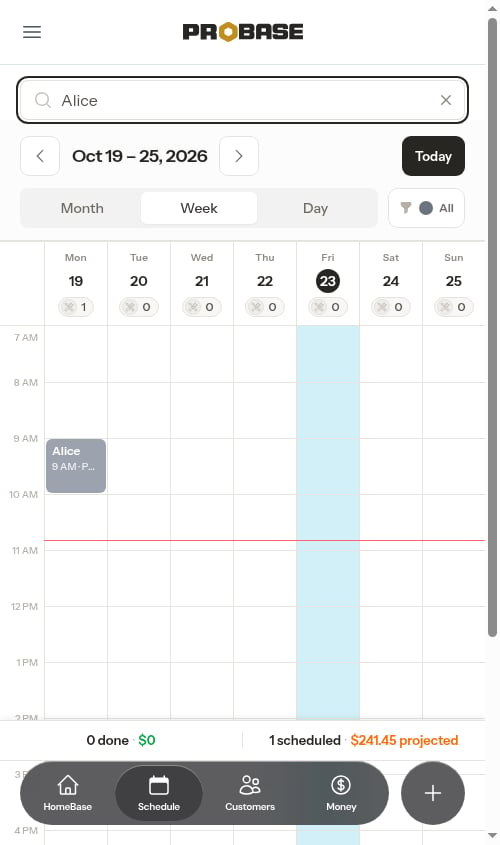
Move between weeks
The date controls at the top of the page work the same across all three views:- Tap the left and right arrows to step back and forward one week at a time.
- Tap the date label in the middle to open a calendar and jump to any week.
- Tap Today to snap back to the week containing today.

Where the controls sit
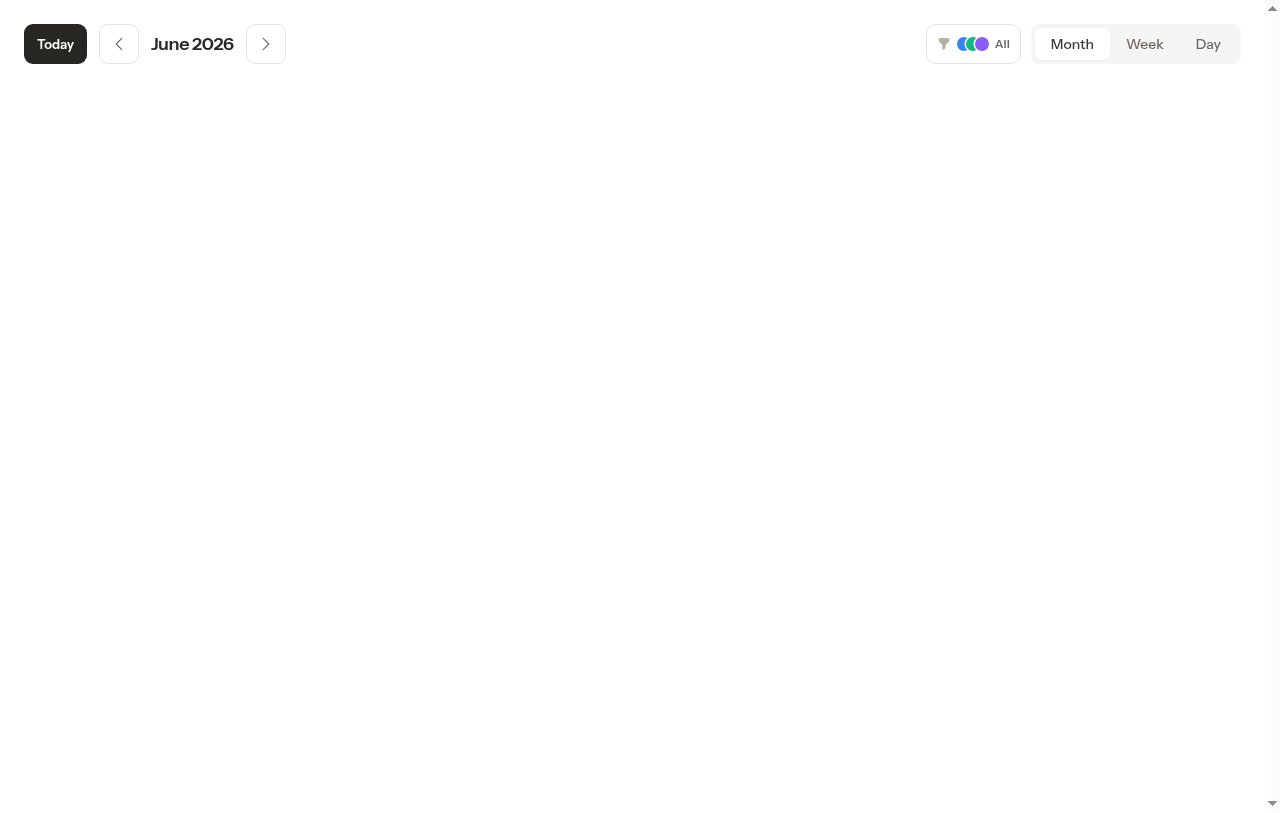
The same four controls — Today, the date arrows and label, the Month / Week / Day picker, and the crew filter — rearrange themselves to fit the screen:-
On a computer they sit on one row: Today leads on the left with the date arrows and label next to it, and the crew filter and view picker sit together on the right.
-
On a phone they stack into two rows: the date arrows and label on the left with Today on the right, then the view picker stretched across the row below with the crew filter beside it.
How far you can browse
The calendar covers a fixed window: up to one year ahead and three months back. When you reach either edge, the arrow in that direction dims and stops — there’s no scheduling data beyond those points to show.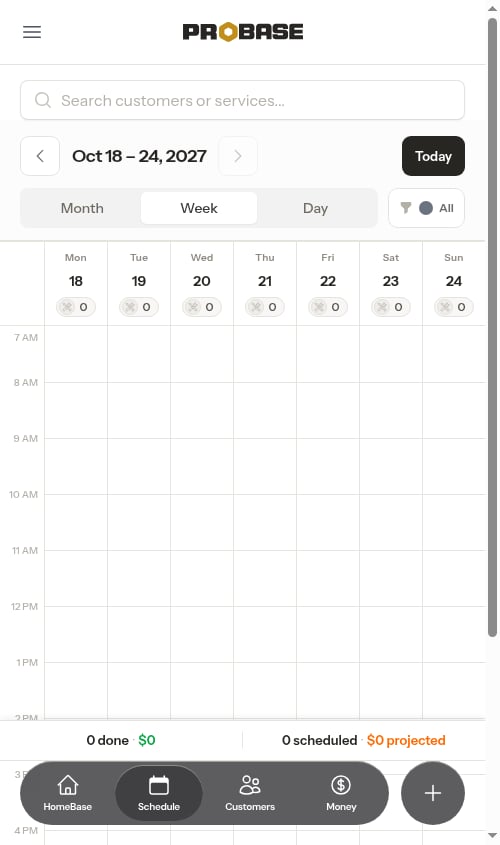
Switching views keeps your place
Switching between Month, Week, and Day keeps whatever date you’re currently looking at — only the layout changes. If you’ve browsed ahead to a future week and switch to Day view, you stay on that date.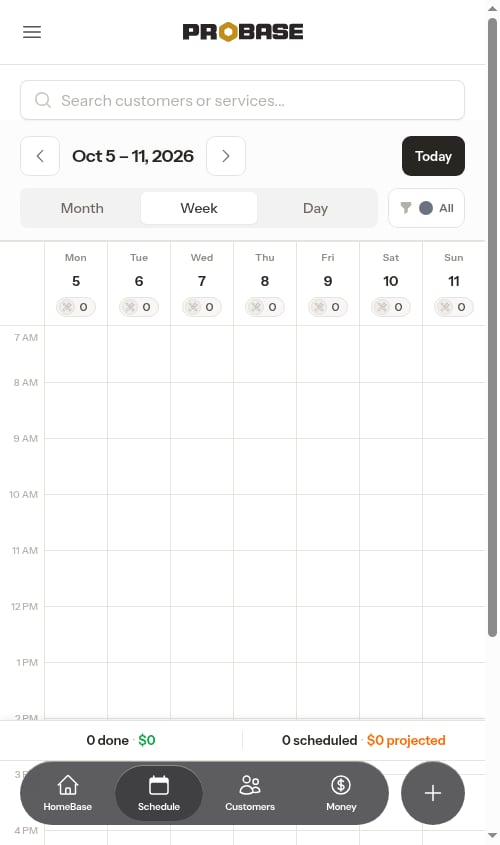
When you open a job from the week and then tap the back arrow on the appointment detail page, ProBase returns you to the exact view you came from — the same week, crew filter, and search. You won’t lose your place or have to re-apply filters after checking a job.
Day, Week, and Month views
ProBase offers three calendar views to fit different workflows. Switch between them with the Month / Week / Day picker at the top of the Schedule page.Day view
Best for field crews and daily operations:- Shows a single day’s work at a glance
- Progress tracking (e.g., “1 of 3 stops completed”)
- Card and map views — toggle between them on a phone, or see the stop list and route map side by side on desktop
- Filter by crew or search for specific appointments
- Reorder stops and add non-service stops
Week view
Best for planning and office work:- See a whole week on a time grid
- Read crew workload by color across the days
- Revenue rollup — done vs. projected
- Add work from any empty slot
- Search and filter by crew
Month view
Best for the big picture:- See a whole month of appointments on one grid
- Crew-colored bars make busy and quiet days obvious at a glance
- Tap any day to open its day overview, then drill into the Day view
Drag a visit to another day
On a computer, pick a visit’s box up with the mouse and drop it on another day or another half-hour slot. ProBase asks you to confirm — “Move Sarah’s visit to Thu, Sep 3?” — and nothing is written until you tap Move visit.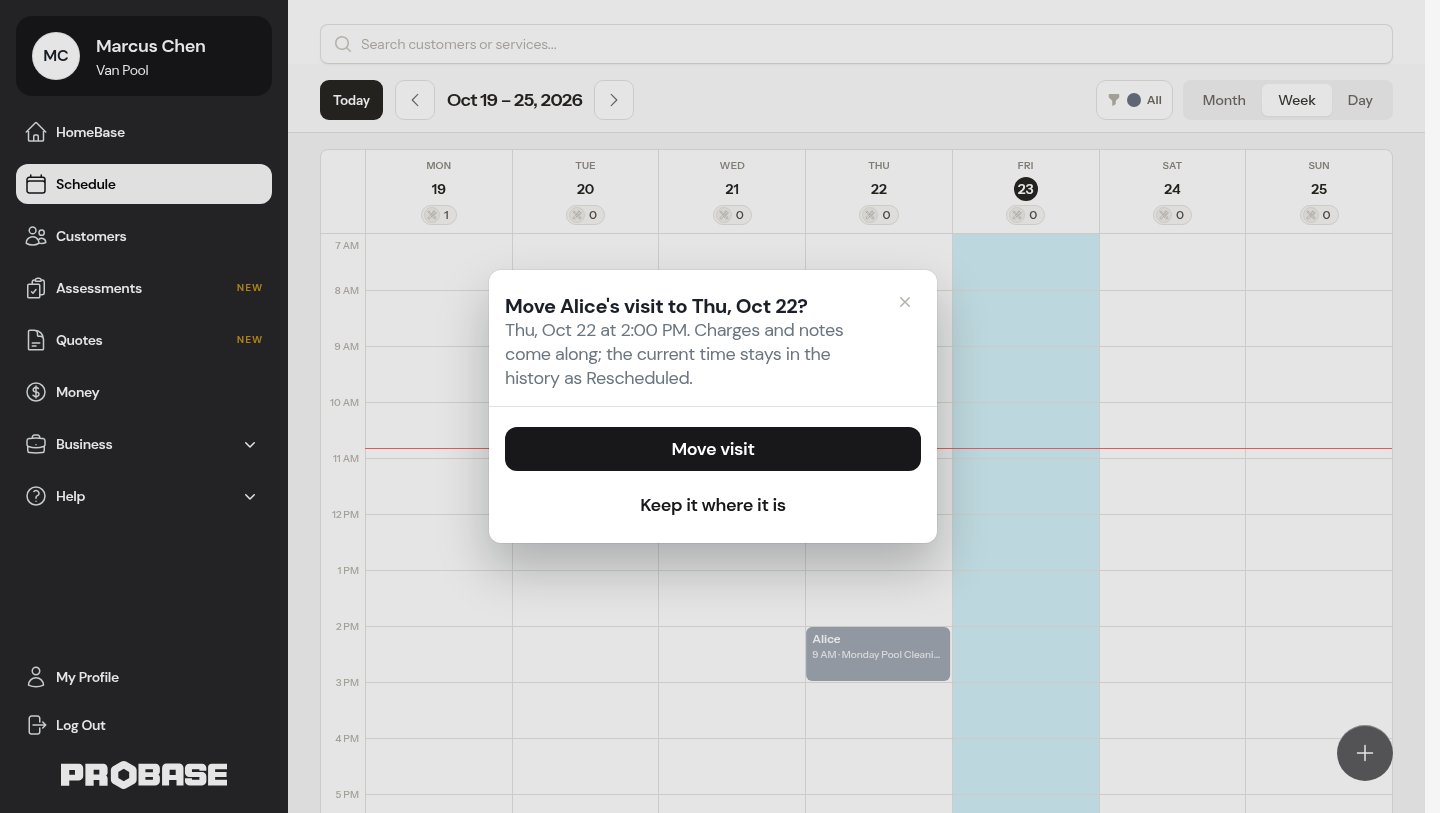
Reorder stops and add stops
Reordering a crew’s stops is done from the Day view: switch to Day view, navigate to the day you want, then use the Reorder stops button. It’s always available — if the day is showing several crews, ProBase asks which crew’s route you want before the panel opens. See Reordering stops for full instructions. You can add a non-service stop straight from the week grid using the Add menu on any empty slot, or from the Day view — see Daily crew schedules for details.Next steps
- View daily schedules for today’s work
- Month view for the big picture
- Optimize routes to plan efficient driving routes
- Complete appointments when work is done
- Create appointments to add new work to the schedule