The whole schedule, planned up front
When you create a recurring service (weekly, bi-weekly, monthly, every 2 months, quarterly, every 6 months, or a custom cadence like every 10 days), ProBase doesn’t just book the next visit — it pre-schedules the entire chain of future appointments at once. Every visit from your start date through the end date appears on the calendar immediately, so customers and crews can see exactly what’s coming.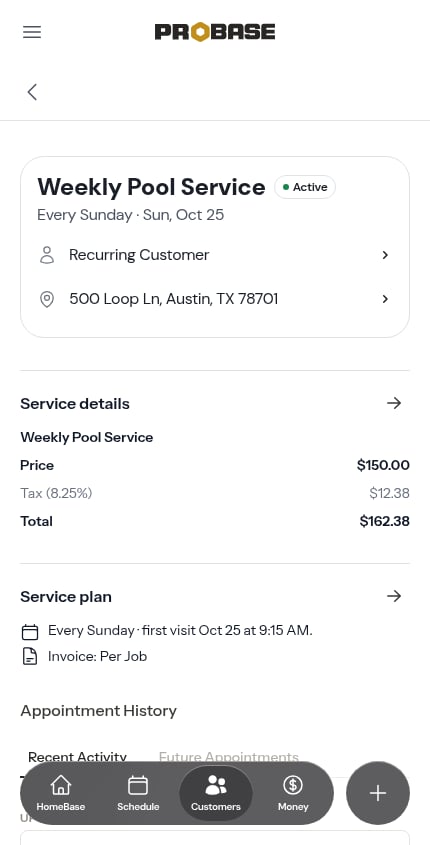
- If you set an End Date when creating the job, visits run up to that date.
- If you leave the End Date blank, the chain runs for one year from the start date.
- One-time services get a single appointment on the start date — there’s no chain.
Jobs that start without a date
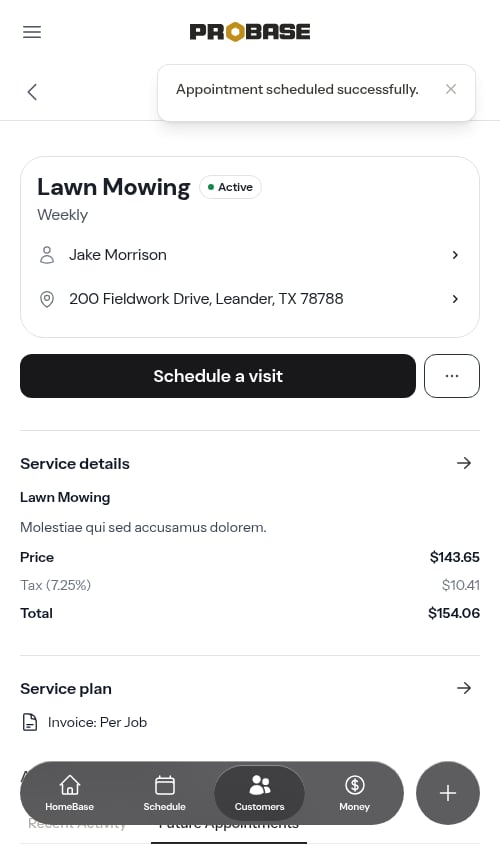
A recurring job can exist with no start date at all — most often one created by accepting a quote whose services had no dates on them. There’s nothing on the calendar yet, so the job waits in Needs scheduling on HomeBase. Booking its first visit is what starts the clock. Open the job and tap Schedule a visit, then pick the day and time.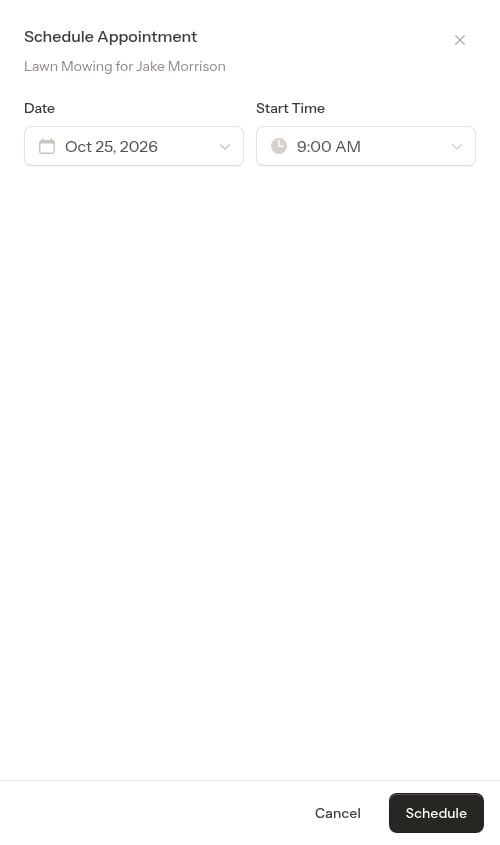
Recent Activity and Future Appointments
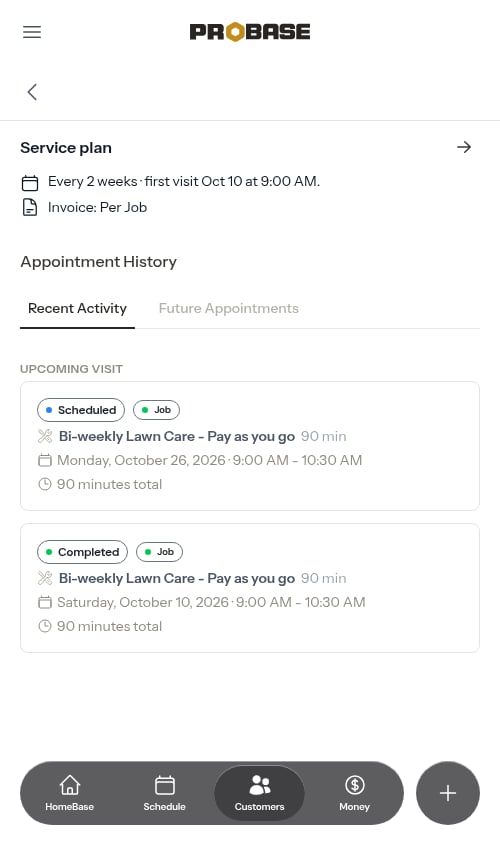
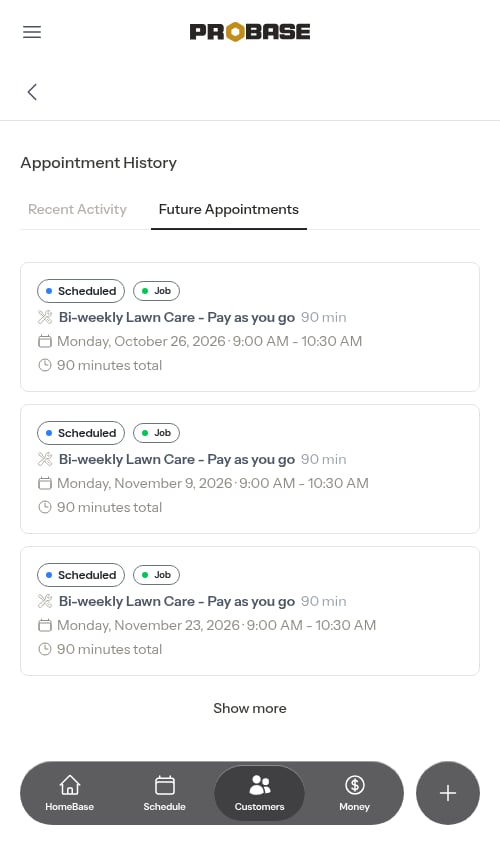
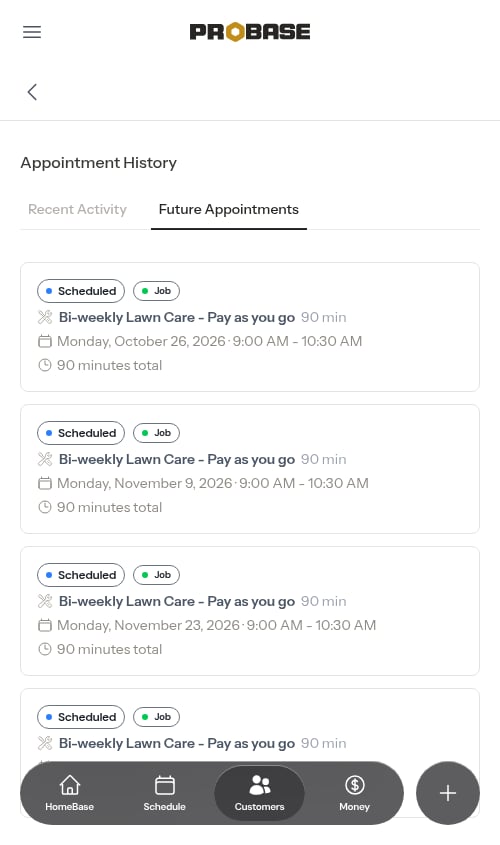
On the service details page, the Appointment History section splits appointments across two tabs so the long visit chain stays easy to scan:- Recent Activity — what just happened: completed, rescheduled, and cancelled visits, plus the next upcoming visit pinned at the top under an Upcoming visit label. This is the tab you land on.
- Future Appointments — every upcoming scheduled visit, soonest first.
Changing the schedule rebuilds the chain
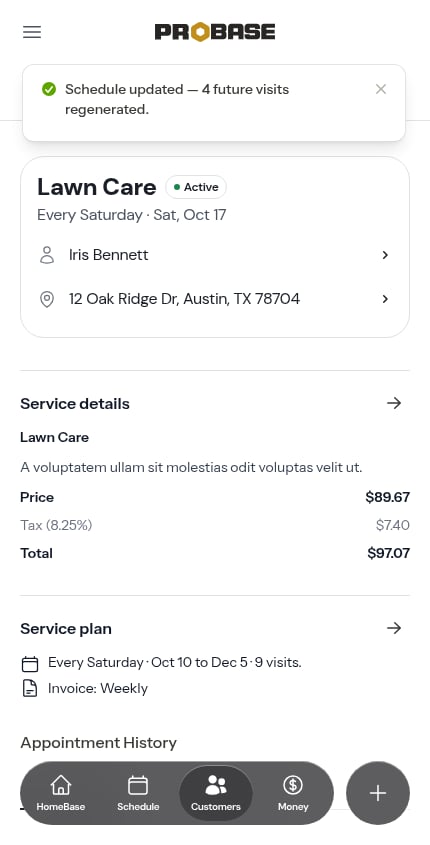
When you edit a recurring service’s schedule from the Change Schedule modal, ProBase keeps the future chain in sync with your changes:1
Open Change Schedule
On the service details page, tap the → button in the top-right of the Service plan section.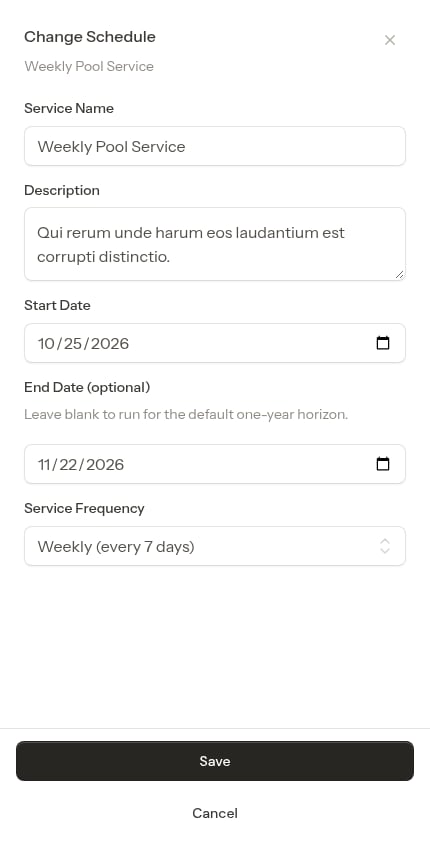
2
Edit the schedule fields
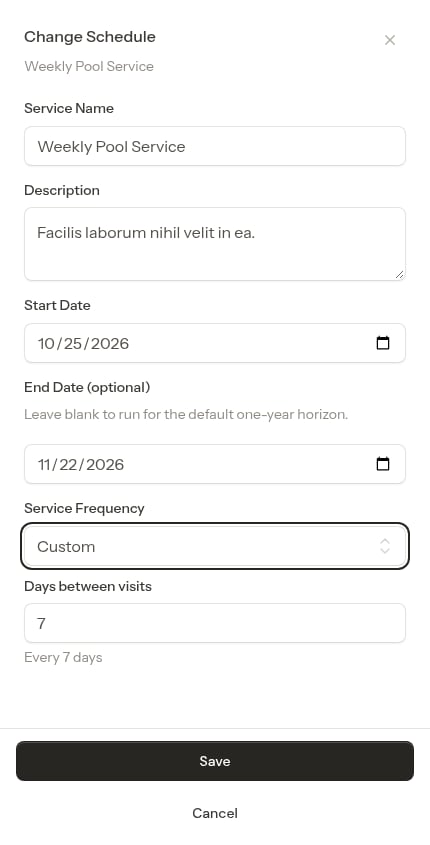
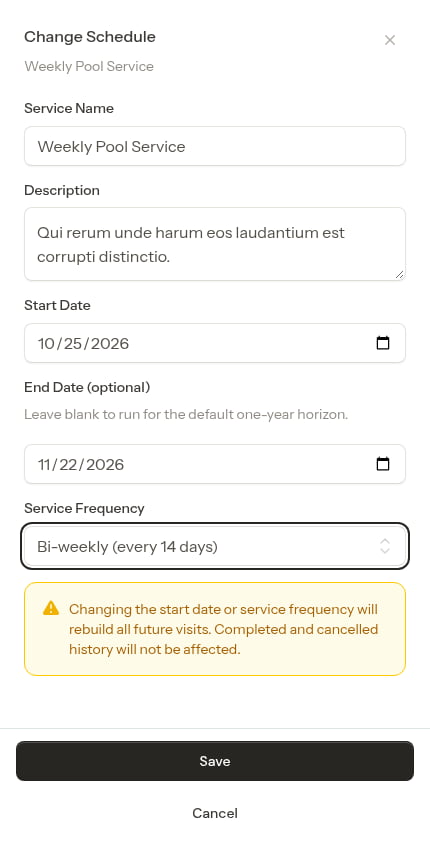
You can change the Service Name, Description, Start Date, End Date, and Service Frequency.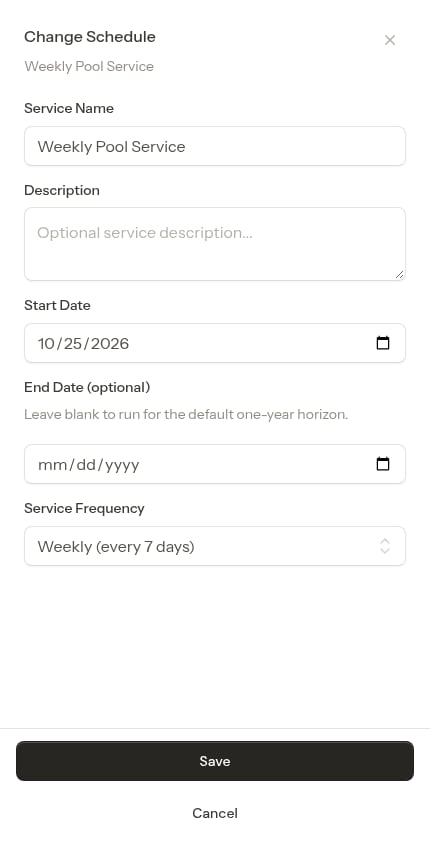
3
Save
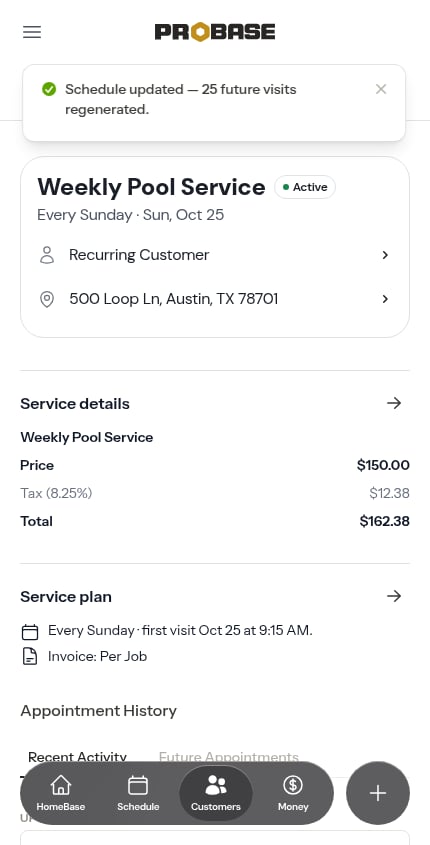
Tap Save. ProBase reshapes the chain and shows a green confirmation of how many visits changed.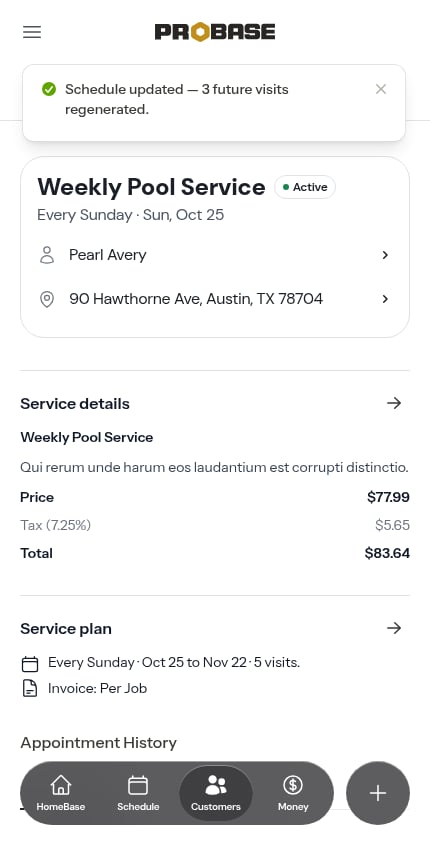
- Start date or frequency changed — future scheduled visits are rebuilt from scratch on the new cadence. Visits you’ve already started work on are kept (see below).
- End date pushed out (or cleared) — ProBase fills in the additional visits up to the new horizon.
- End date pulled in — visits scheduled past the new end date are removed, unless work has already started on them.
Visits you’ve already started are kept
An upcoming visit that already has work on it stays put when you change the schedule, even though it’s still marked scheduled. That covers a visit where someone has:- started the timer
- saved a checklist answer or photo
- typed into the notes pad
- added a note
- added a charge or a discount to that one visit
Working through the visit chain
Because the whole chain already exists, the everyday actions you take on a single visit behave a little differently than booking one at a time.Completing a visit
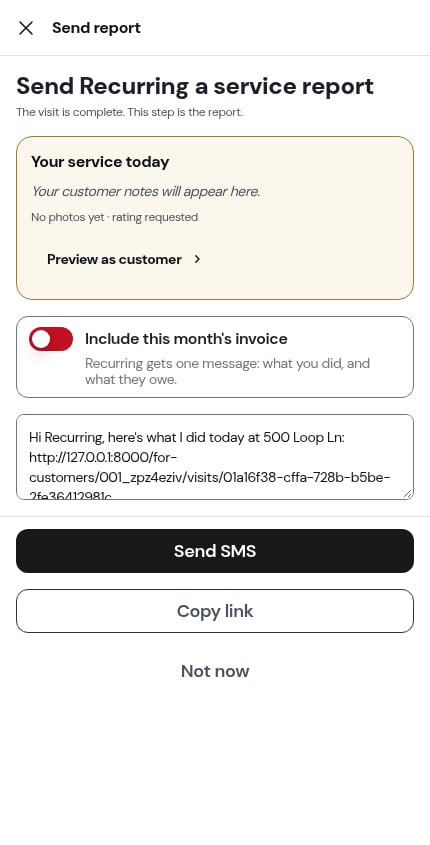
The completion form shows a Next visit line naming the date already on the calendar, so you finish the job and move on — there’s no extra step asking you to book the next one. See Completing appointments.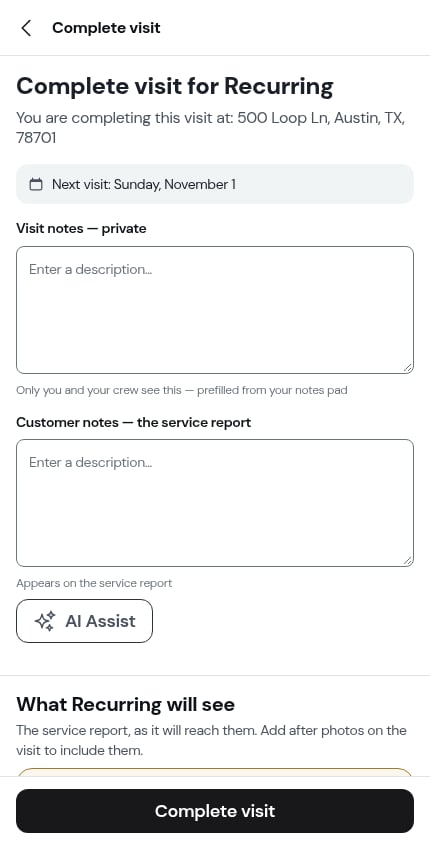
Calling off one visit
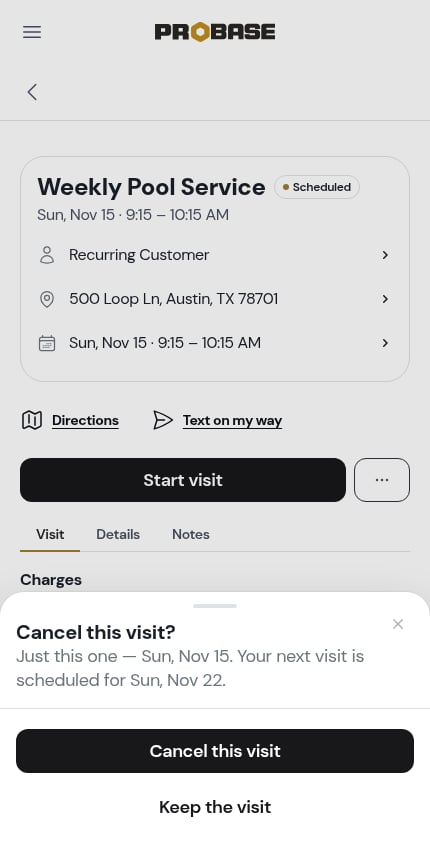
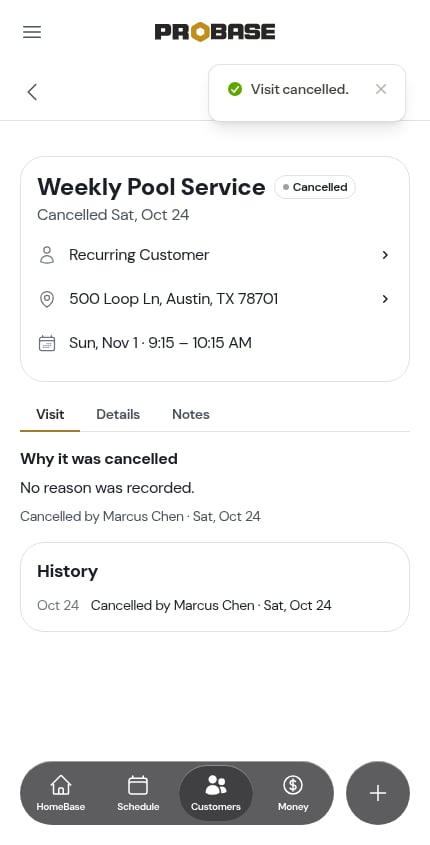
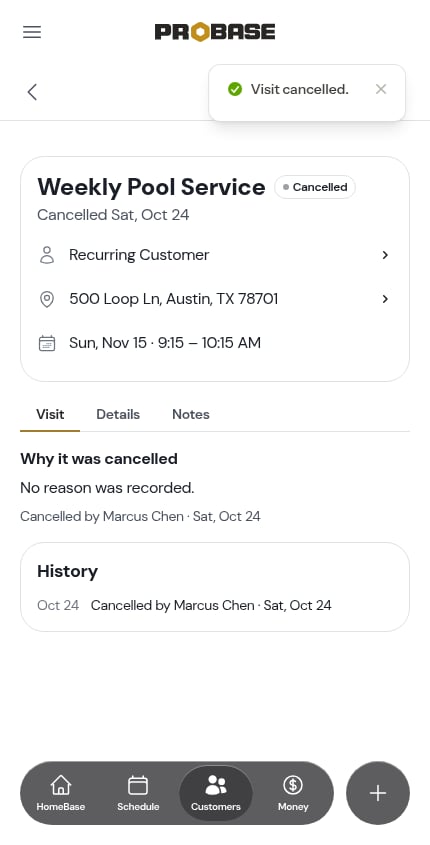
Open the visit, tap ⋯ More, and the Cancel this visit row names the next visit in the chain before you tap it — Just this one — Fri, Aug 28. Your next visit is scheduled for Fri, Sep 4.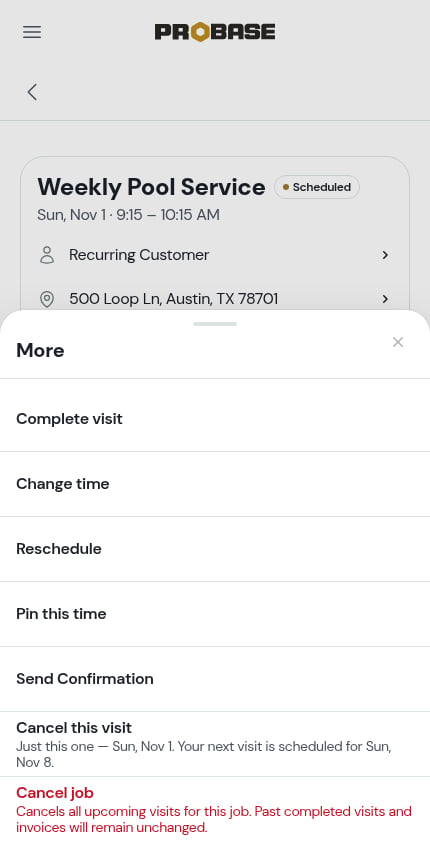
Rescheduling a visit
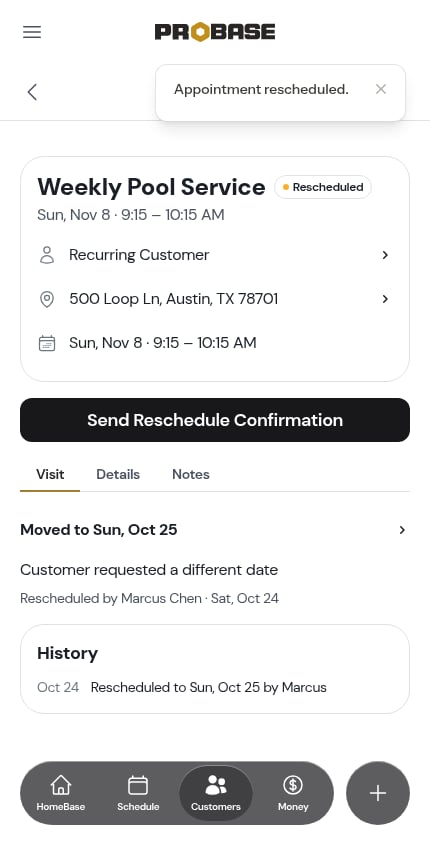
Rescheduling moves that one visit to a new date — the rest of the chain stays exactly where it is. The original visit is kept as history and marked Rescheduled. See Rescheduling jobs.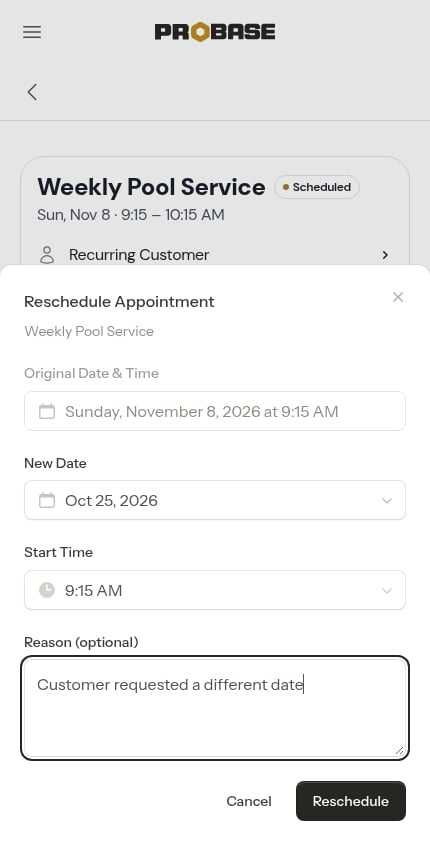
Assigning a crew
You can assign a crew to just one visit or to every future visit at once. See Assign or change the crew.Cancelling the whole job
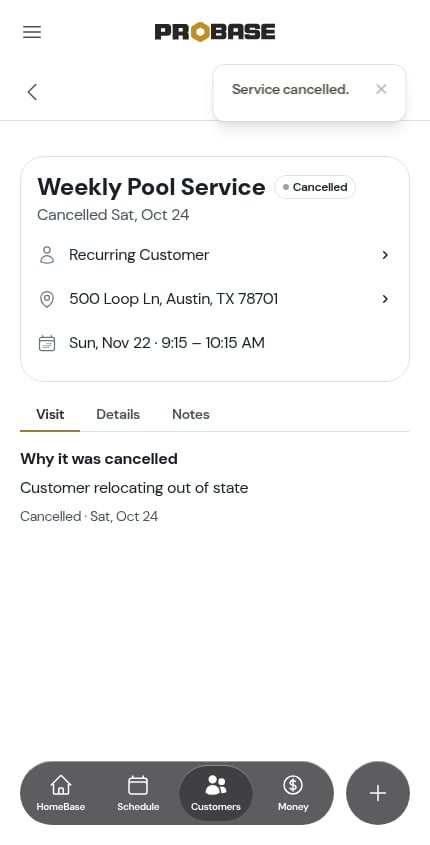
Cancel job — the last row of the visit’s ⋯ More sheet, in red — ends the job and cancels every upcoming visit in the chain at once. Past completed visits and their invoices are untouched. See Cancel job.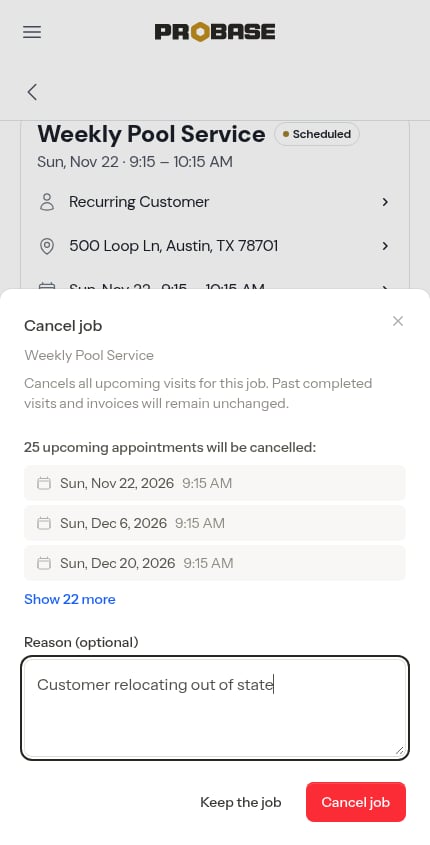
Marketplace services don’t work this way. A service that came from a connected marketplace has its recurrence set by the marketplace, so ProBase never builds a chain for it — each visit arrives as the marketplace schedules it. The Change Schedule control isn’t available on those services either. See Marketplace customers.
Next steps
- Creating jobs — set the start and end dates that drive the chain
- Managing customer services — edit pricing, schedule, and cancel services
- Completing appointments — mark visits done as you work through the chain