Overview
Customers you’re matched with through a connected marketplace appear in your ProBase customer list alongside your own customers, so your whole book is in one place. They’re read-only: the marketplace owns the relationship, sets what the job pays, and bills the customer, so ProBase shows the record and points you to the marketplace app for anything that changes it. You never add them yourself: claim a job in the marketplace app and its customer is usually in ProBase within a few minutes, announced by a New LawnStarter Customer! update. See New customers arrive on their own.The customer page
A marketplace customer’s page is laid out like any other customer’s. Under their name sits a LawnStarter pill (naming whichever marketplace they came from) alongside their status, and below that the Last synced line with a Refresh link.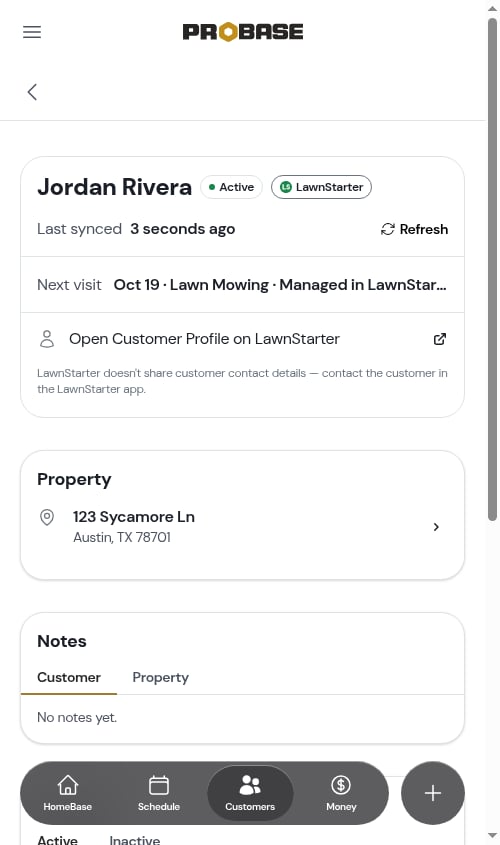
- Name and a Property card with the service address — tap it to open the property
- Open Customer Profile on LawnStarter — a full-width button that opens that customer’s profile in the marketplace app, where their contact details and message thread live. Underneath is a line reminding you that the marketplace doesn’t share contact details: LawnStarter doesn’t share customer contact details — contact the customer in the LawnStarter app.
- Services showing what each visit pays you and how often it repeats — Weekly, Bi-weekly, Monthly, and so on — each with a Managed in LawnStarter tag next to it
- Visits — that customer’s appointments, with Upcoming and Previous tabs
- Phone number and email — contact details never cross over from the marketplace; you reach the customer in the marketplace app instead
- Account balance, card on file, and Billing History — the marketplace bills the customer and pays you, so there’s no balance to collect here. Your marketplace earnings live on the marketplace’s own record instead
- Edit, and the + beside Services that books a new job on your own customers — new marketplace work arrives by claiming it in the marketplace app, not by scheduling it in ProBase
Open Customer Profile on LawnStarter only needs the customer, so it’s there from the moment they sync in — you don’t need a job on the books first. From their marketplace profile you can message them and see everything the marketplace holds for that customer.
The property page
A marketplace property shows the address, map, and services, with the LawnStarter pill and the Last synced line under the address at the top. The Edit action and the option to add a new service to that property are not available — properties and services come from the marketplace.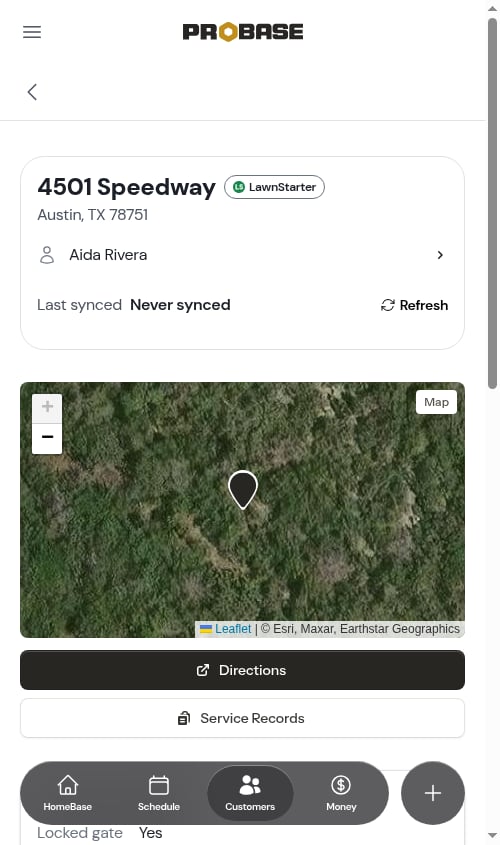
The service page
A marketplace service is a short page: the service name, how often it repeats, what the visit pays you, and the appointment history — with a LawnStarter pill beside the service’s status at the top and the Last synced line, and its Refresh link, below.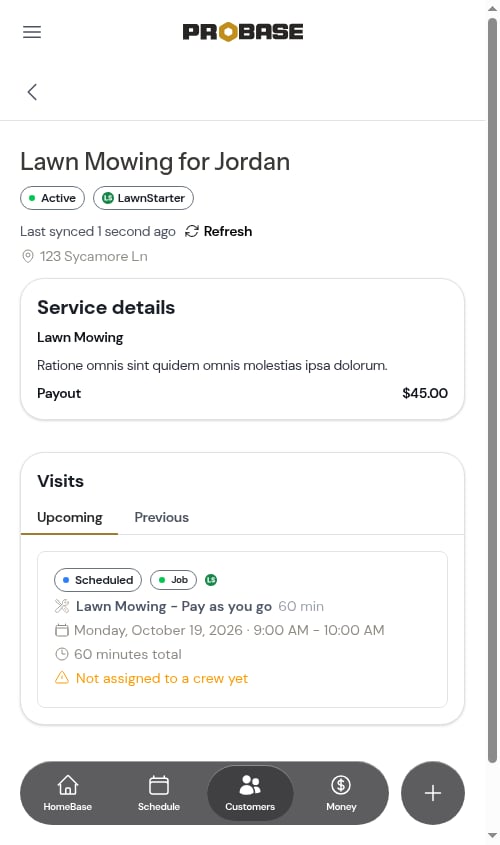
- The service name — and its description, if the marketplace sent one. A quality-issue return visit reads Fix for … and a quote visit reads Quote for …, the same as in the LawnStarter app — see How a marketplace job is named
- Frequency — how often the marketplace has this service repeating, in plain words: Weekly, Bi-weekly, Monthly, Every 2 months, and so on. It’s there to read, not to change — see How often a marketplace service repeats below
- Payout — what the marketplace pays you for one visit of this service. It’s shown for reference only and can’t be edited, and there are no charges to add
The amount on a marketplace service is your money, not the customer’s bill — it’s the per-visit payout the marketplace sends you, which is why the row reads Payout instead of Price. What the marketplace charges the homeowner never comes across to ProBase. See Marketplace earnings & payouts.
- No Service plan section — that’s the block on your own services where you’d change the frequency, the invoice type, and the schedule. The marketplace owns all of it, so it isn’t shown; the frequency you can read sits in Service details instead
- No + Schedule Appointment button — new visits arrive from the marketplace; you can’t add one in ProBase
- No pricing edit — the payout comes from the marketplace
- No Cancel — a customer or marketplace cancellation syncs back to ProBase on its own
How often a marketplace service repeats
The marketplace decides the cadence — every week, every other week, once a month — and ProBase copies it across so you can see it without opening the marketplace app. It shows up in three places:- On the service page, as the Frequency row under Service details
- On the service cards on the customer and property pages, next to the payout, alongside a Managed in LawnStarter tag
- On the job detail page, in that job’s Service details — and, on visits that aren’t due today, in the line under the job title next to the date
If a service doesn’t show a frequency, the marketplace didn’t send one for it. The service then simply reads Managed in LawnStarter where the cadence would be, rather than guessing.A finished or cancelled marketplace service can read One-time even though it used to repeat — once the marketplace stops running a service, it stops reporting a repeat cadence for it. The visit history on the page is the reliable record of what actually happened.
What the status on a marketplace service means
The status beside the LawnStarter pill at the top of the service page is the marketplace’s, not something you set — ProBase reads across whatever state the marketplace has the job in:- Active — the marketplace is still running the job and more visits are expected. A job the marketplace has paused reads Active too, because a pause can be lifted and the visits pick up again where they left off.
- Completed — a one-time job whose visit has been done. That’s finished work, so it’s kept as a record rather than reading as a cancellation.
- Cancelled — the customer or the marketplace ended the job. A repeating job the marketplace has stopped reads Cancelled as well, since no more visits are coming for it.
In your customer list
Marketplace customers appear in your normal customer list and search results, so you can look someone up whether they came from the marketplace or from your own book. You can tell them apart at a glance by the round icon at the start of the row: your own customers show the plain grey person icon, while a marketplace customer shows the marketplace’s logo in its place. Same size, same spot, so the list still lines up neatly — the logo simply replaces the person icon rather than being added alongside the name.In the New Job and New Quote wizards
Marketplace customers also show up in the customer picker of the New Job and New Quote wizards — but they can’t be selected. Each one is dimmed, shows the marketplace’s logo in place of the person icon, carries a lock icon on the right, and reads Managed by LawnStarter — not schedulable here where the address would normally be. Tapping one shows This customer is managed by LawnStarter and can’t be scheduled here. and the wizard stays on the customer step. This is on purpose: the marketplace sets the price and the schedule for its own customers, so adding a ProBase job or quote on top of one would create work the marketplace doesn’t know about. New marketplace work reaches your schedule by claiming it in the marketplace app — see Available to claim.The marketplace’s own record
Alongside the people you serve, you’ll also see a record named after the marketplace itself — a customer called LawnStarter (or Lawn Love / Home Gnome). That’s not a homeowner: it’s where ProBase keeps the money side of the relationship. Its Billing History holds what the marketplace has earned you and what it has deposited, so it’s the one marketplace record that does have a balance and a billing page. Because it stands for the marketplace rather than a person, it has no Open Customer Profile on LawnStarter button — there’s no customer profile to open on the marketplace side. See Marketplace earnings & payouts for how to read it.Notes
Notes that came from the marketplace are read-only wherever they appear — the property’s access details, and anything the customer told the marketplace about how the job should be done. Those instructions belong to the service, so they show up on every visit of it, in the visit’s Job notes briefing. The access note on a marketplace property is put together from whatever access details the marketplace holds for that address — a Gate code, the Community name and its Community code, Community instructions, and free-text Access instructions such as where to park or a dog in the yard. Only the details the marketplace actually has are listed: one it doesn’t hold, or one that’s been cleared, is left out rather than showing an empty line — you’ll never see a bare label with nothing after it — and the note disappears altogether once all of them are gone.You can’t add your own notes to marketplace records
Notes on a marketplace customer’s records are the marketplace’s, so ProBase keeps the whole set read-only:- The Property Notes panel — on both the customer page and the property page — shows a Read-only badge where the + normally sits. There’s no way to add, edit, or delete a note there
- The visit’s Job notes briefing carries the same Read-only badge
- Customer-level notes live inside the customer Edit view, and marketplace customers have no Edit — so there’s no customer notes panel on them either
Any notes you or your team added to a marketplace property before it became read-only are still there to read, and they’re still folded into the job’s briefing — they just can’t be edited or deleted any more.
Next steps
- Marketplace jobs — working the visit
- Marketplace payouts — what the marketplace is paying you
- How marketplace syncing works — refreshing a record