Overview
Every visit has a clock. Tap Start visit when you get to the property, Pause when you step away, Resume when you’re back, and Complete visit when you’re done. ProBase adds up only the time you were actually working, and keeps the result on the visit for good. You never have to time a visit — a visit completes perfectly well without the clock ever being started. But when you do use it, you get an honest number for how long the job took against what you estimated, which is the quickest way to find out whether your pricing matches your day.The clock is yours and your crew’s. Customers never see the timer, the working windows, or how long you took.
Starting the clock
Open the visit and tap Start visit — the solid button on the action row.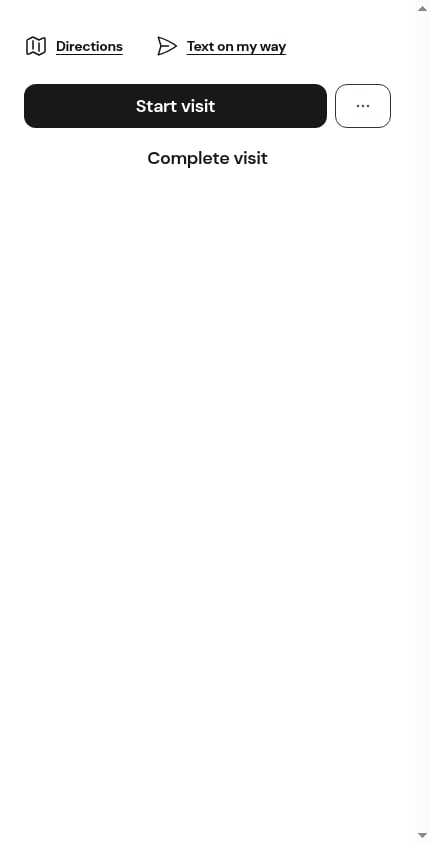
- The state pill in the header reads Working, and the line underneath it becomes Started 12:15 PM
- The timer panel appears under the buttons and starts counting
- The solid button becomes Complete visit, with Pause as the quiet action underneath
- Directions and Text on my way move into the ⋯ More sheet — you’re already there, so they stop taking up the top of the screen
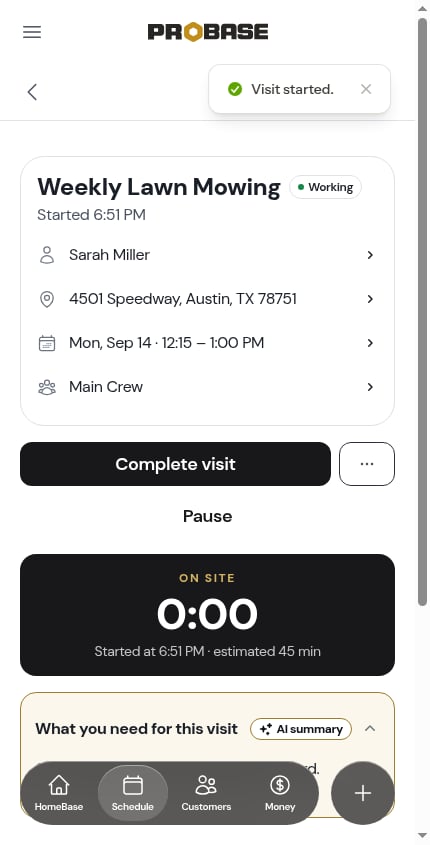
You can start a visit whenever you like — including one scheduled for a future day. ProBase doesn’t stop you working ahead.
The timer panel
The dark panel under the buttons is the live readout.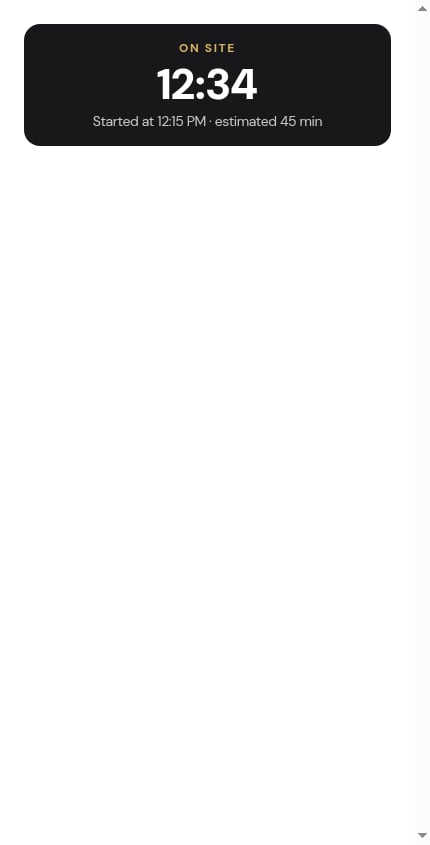
- ON SITE across the top while the clock is counting
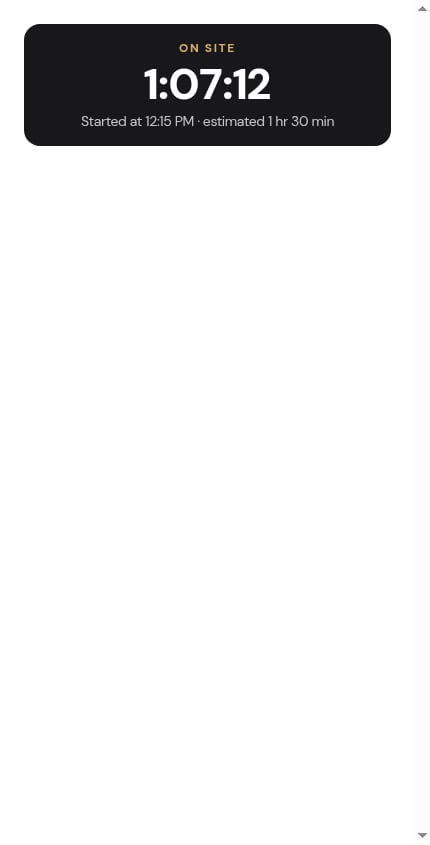
- The big number is the working time so far —
12:07under an hour,1:07:12once you pass one - The line underneath reads Started at 12:15 PM · estimated 45 min, so you can see at a glance whether you’re ahead of or behind the time you allowed for the job
Pausing and resuming
Tap Pause — the quiet action under the main buttons — when you stop working: a supply run, lunch, a phone call, waiting on a gate to be opened.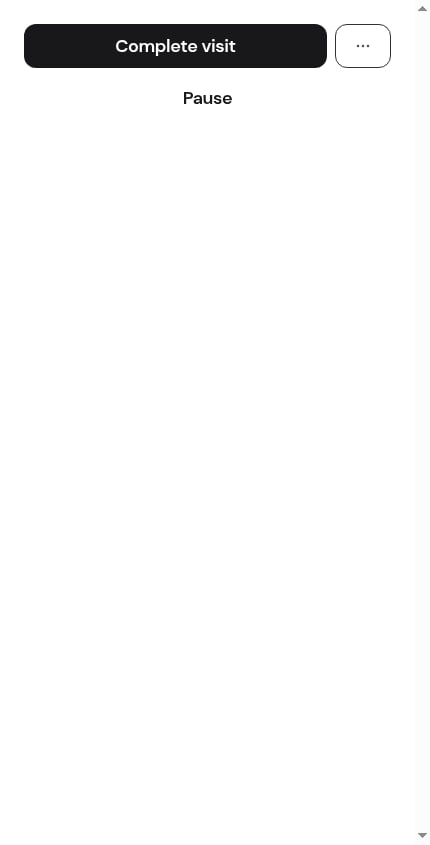
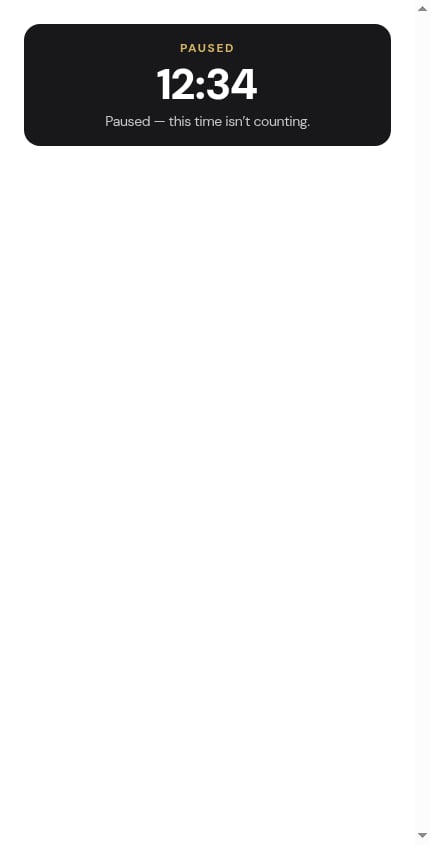
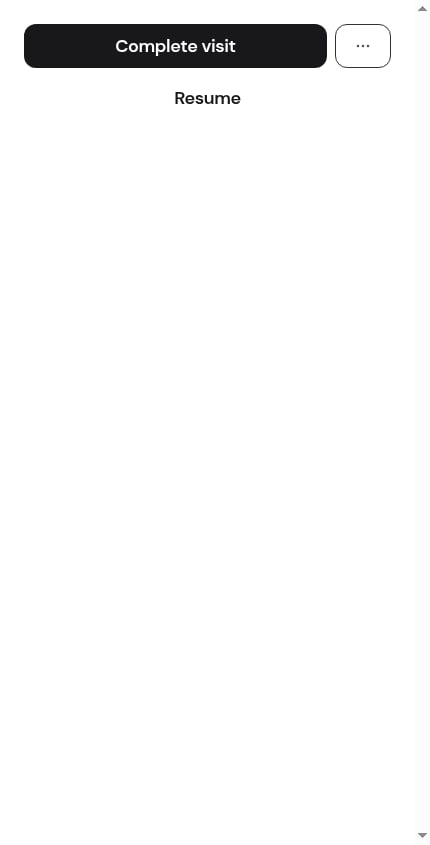
Pausing doesn’t change the visit’s status for anyone else — the job is still yours and still on the day’s schedule. It only stops the clock.
Finishing
Tap Complete visit and the clock stops for good. You go straight into the completion flow; the elapsed time is stamped on the visit whether you finish the completion form now or come back to it. If you never started the clock, Complete visit works exactly the same way — the visit simply carries no timing, rather than a misleading0:00.
What happened, after the visit
Once the visit is complete, the timer is replaced by a What happened block between the header and the buttons. It’s three plain facts: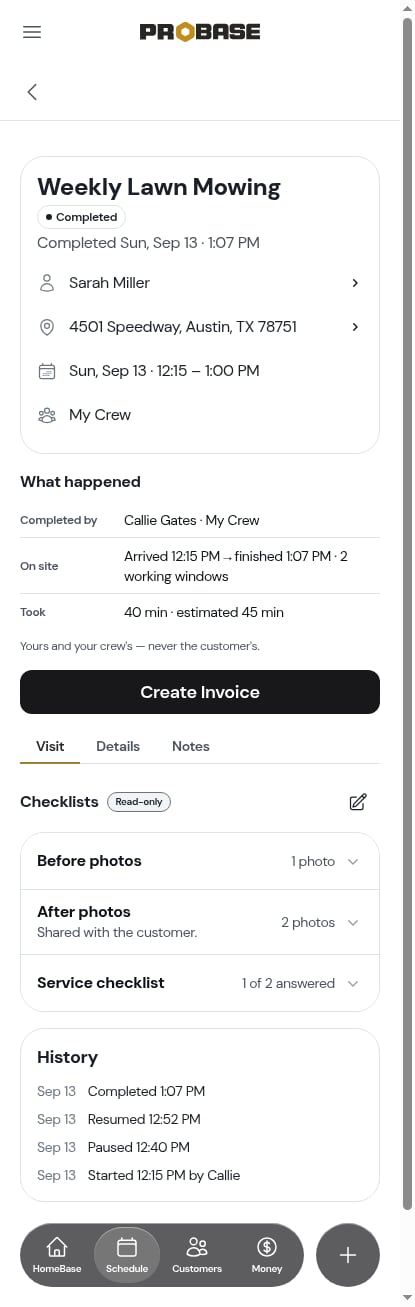
The History card
At the bottom of the Visit tab on a completed or cancelled visit, a History card lists everything that happened on the visit, newest first:- Started 12:15 PM by Callie
- Paused 12:40 PM
- Resumed 12:52 PM
- Completed 1:07 PM
- Checklist reopened and Checklist edited after completion, if you went back in
- Cancelled by Callie Gates · Wed, Aug 26
A visit that was finished before the clock existed has no history to show, so no card appears — you won’t see an empty History heading.
Timing an assessment visit
Assessment visits time the same way. Tap Start visit, and the solid button becomes Mark assessment complete with Pause underneath.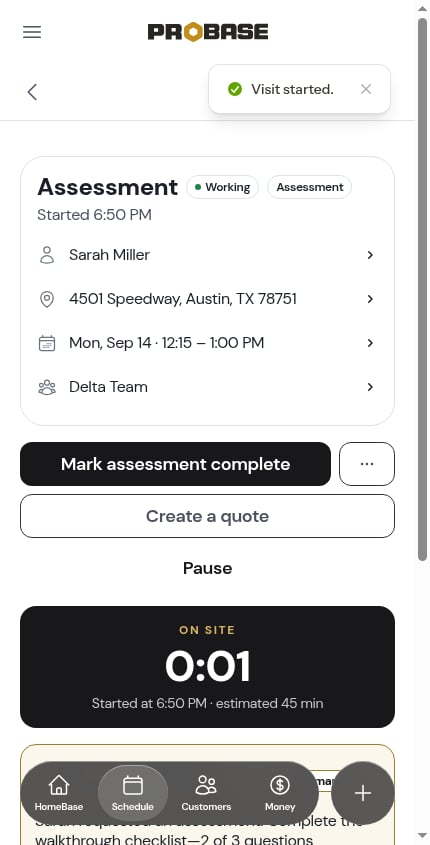
Timing a marketplace visit
You can run your own clock on a marketplace visit too — it’s your time, so ProBase tracks it for you even though the visit itself is completed in the marketplace app. Once the marketplace tells ProBase the visit is no longer scheduled (because it was completed, cancelled or moved), a running clock is stopped automatically so it doesn’t keep counting on a job that’s already finished.Who can use the clock
Starting, pausing and resuming needs the same permission as completing a visit, and only on a visit assigned to a crew you work. If your role can’t complete visits, the buttons simply aren’t shown — nothing is greyed out. See Roles and permissions.Next steps
- The visit page — everything else on the screen
- Completing a visit — the flow Complete visit opens
- Charges on a visit — bill for the extra you did
- Cancelling a visit — when the visit doesn’t happen