What are industries?
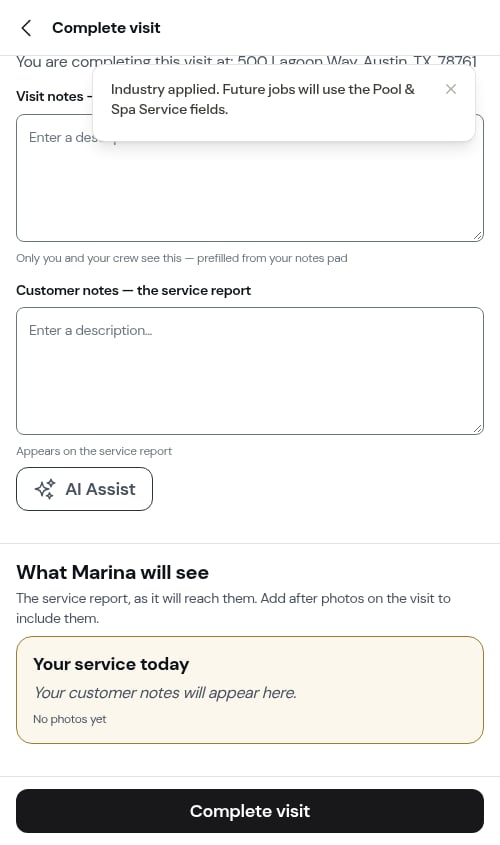
An industry is the trade a service belongs to. ProBase ships with a large, ready-made list of trades — Pool & Spa Service, Lawn Care, Landscaping, Pest Control, House Cleaning, Pressure Washing, HVAC, Plumbing, Electrical, Roofing, and many more. You pick from this list (you can’t invent your own), and you don’t have to use all of them — most businesses only ever touch the one or two trades they actually work in. Tagging your services by trade lets ProBase tailor the experience to the work you do:- Trade-specific fields at job completion — a Pool job asks for chemical readings and adjustments, while every other trade keeps a simpler, observations-only completion. ProBase shows the right fields for the right work instead of one generic form for everyone. (Pool is the only trade with its own completion fields today; the rest use the standard completion.)
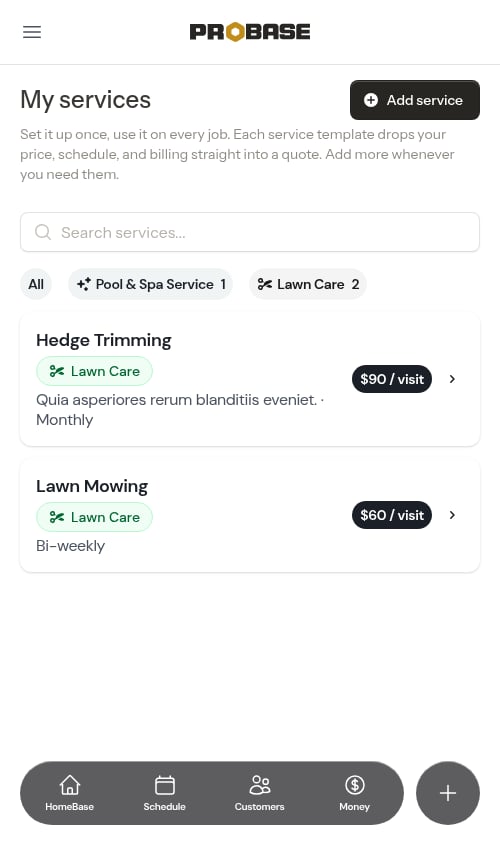
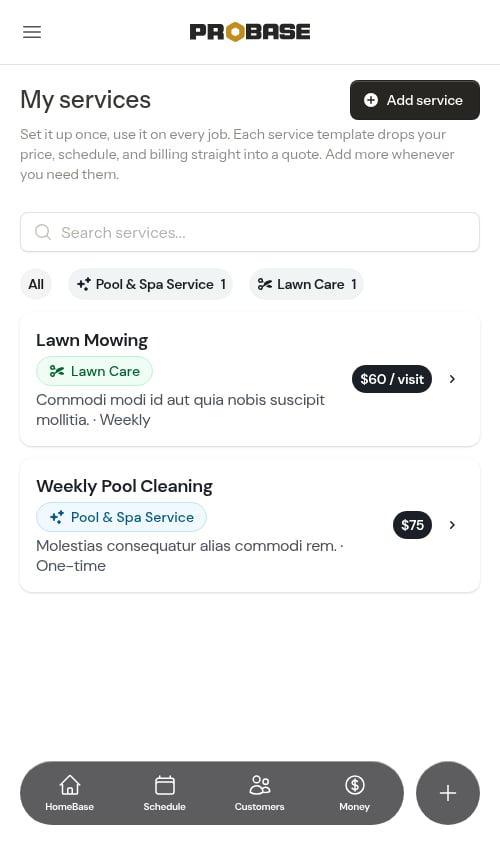
- An organized catalog — your service list shows a small colored chip for each service’s trade, and you can filter the list down to a single trade with one tap.
- At-a-glance context on jobs — overdue jobs, job cards, and the job detail page show the trade so you know what kind of work each visit is before you arrive.
Industries are a newer capability that may need to be turned on for your account. If you don’t see trade options during onboarding, an Industry field on your services, or the Manage Industries card in your Business Profile, your account isn’t set up for trades yet — everything else in ProBase works the same with or without them.
Choosing your trades during onboarding
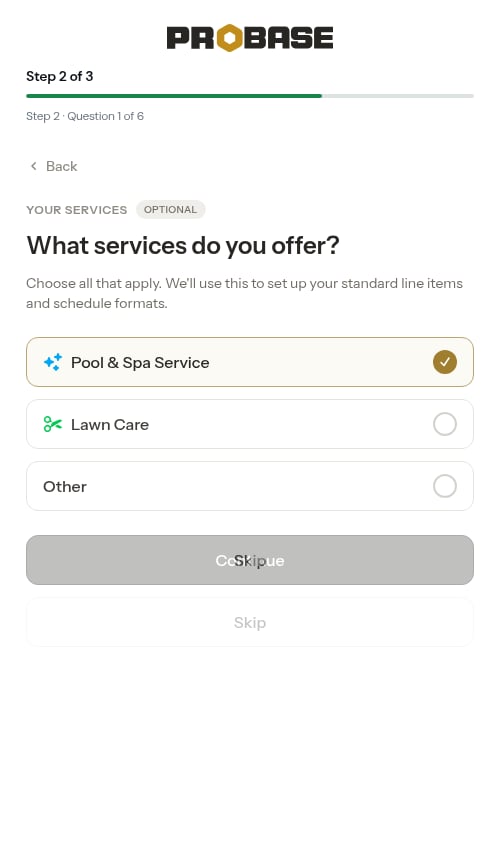
When trades are enabled, the first work question in the onboarding wizard asks “What services do you offer?” under a YOUR SERVICES heading, with the note “Choose all that apply. We’ll use this to set up your standard line items and schedule formats.” Pick all that apply — this is a multi-select, so you can choose more than one. To keep onboarding quick, this step only offers the two most common trades — Pool and Lawn — and the ones you pick set up your starter catalog. The rest of the trades are available later from your Business Profile (see Managing your trades later).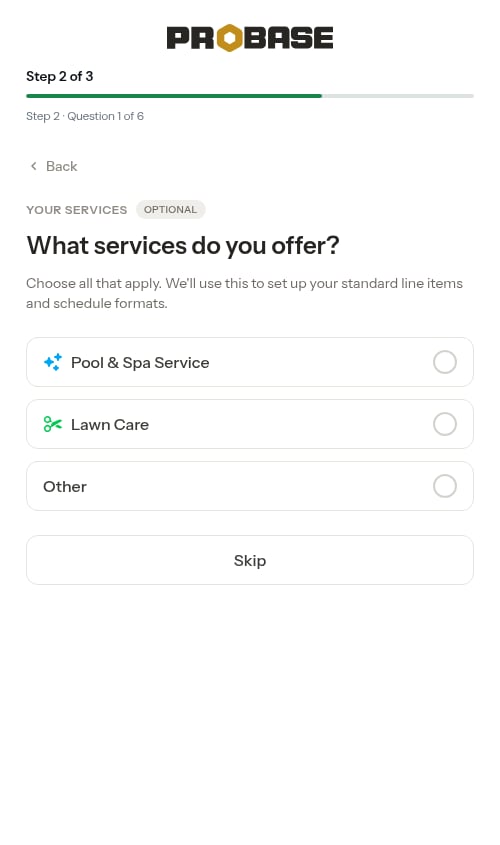
If you don’t do Pool or Lawn
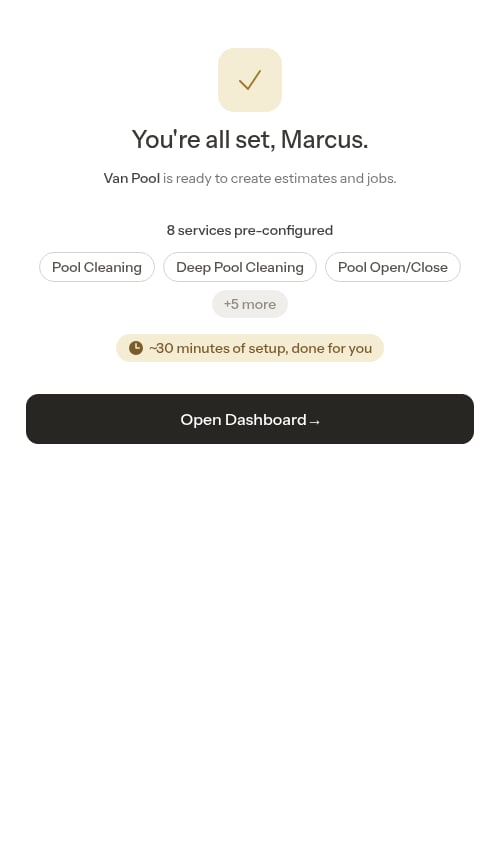
Below the Pool and Lawn cards there’s an Other card for businesses that don’t fit either trade. Tapping Other is a deliberate “none of these” choice — it lets you move on with Continue (no need to Skip), declares no trade, and seeds no starter catalog. You’ll finish onboarding on a simpler “You’re all set” screen with no service summary, ready to build your own catalog from scratch.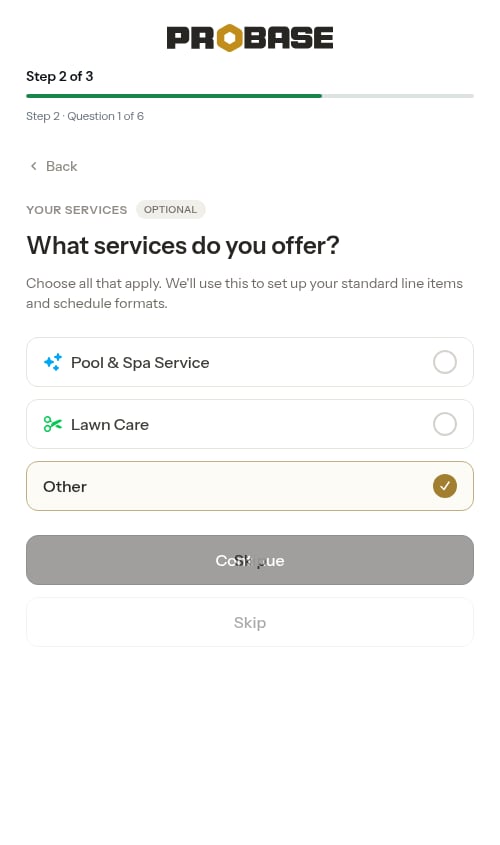

Managing your trades later
You don’t have to decide everything during onboarding. Go to Settings in the sidebar (under Business) and find the Manage Industries card to add or remove trades at any time. Unlike onboarding’s short Pool/Lawn list, the Add a trade picker here offers the full catalog of trades ProBase supports, so this is where you’d declare something like Pest Control, Pressure Washing, or HVAC.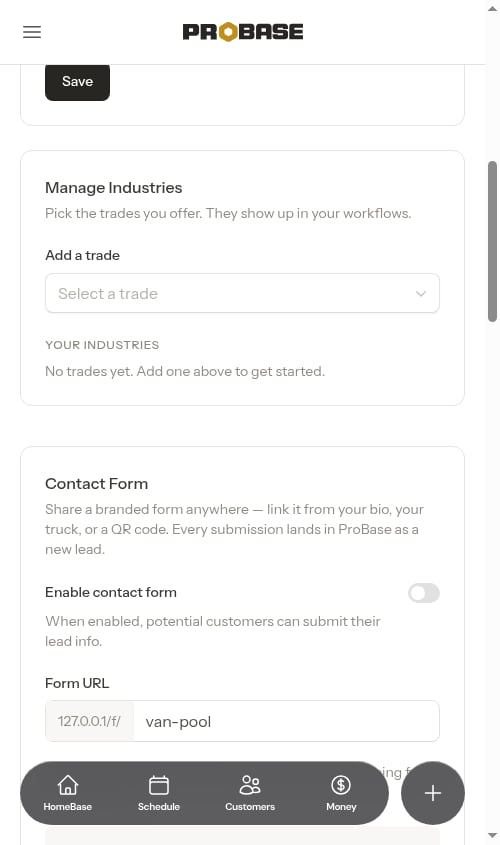
Adding a trade
-
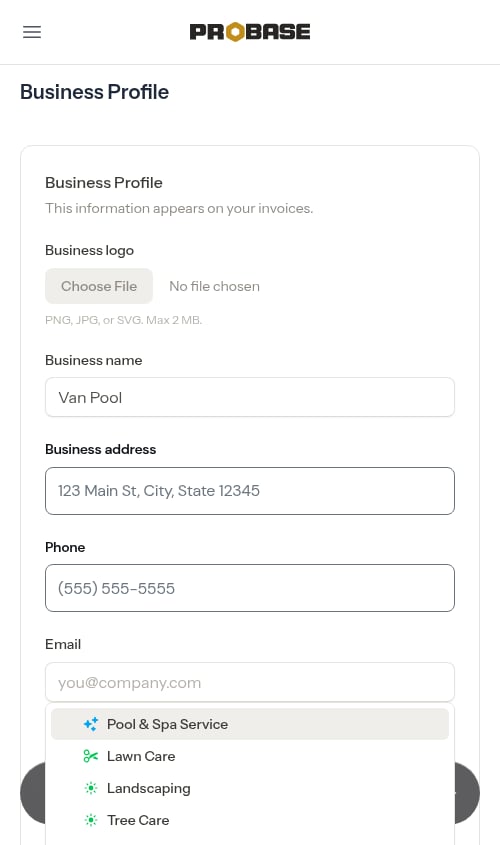
Open the Add a trade picker and choose a trade.
-
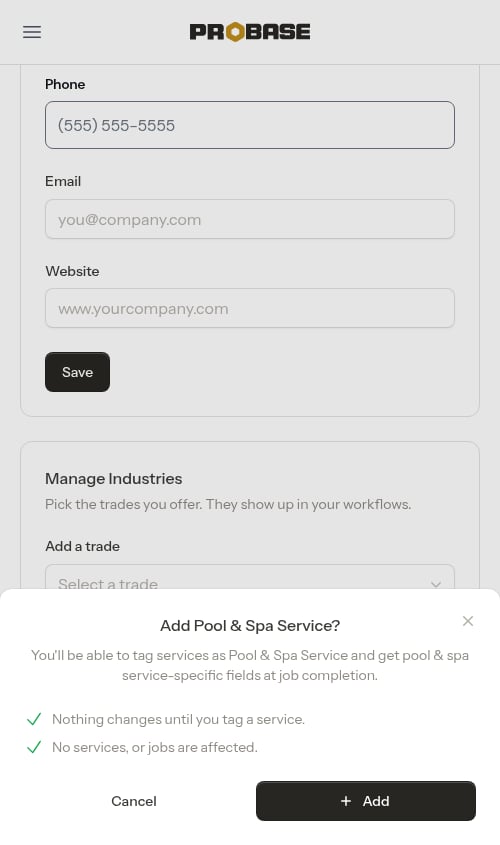
Confirm in the card that appears. Adding a trade simply unlocks it — you’ll be able to tag services with it and get trade-specific fields at job completion. Nothing changes until you tag a service, and no existing services or jobs are affected.
-
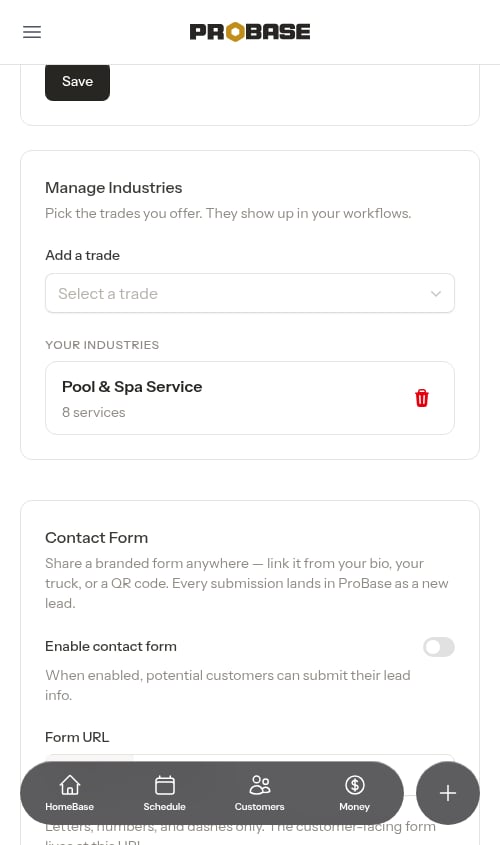
The trade now appears under Your industries, with a count of how many of your services use it.
Removing a trade
Removing a trade is handled from the same Your industries list — tap the trash icon next to a trade. ProBase always confirms first and tells you exactly what will happen.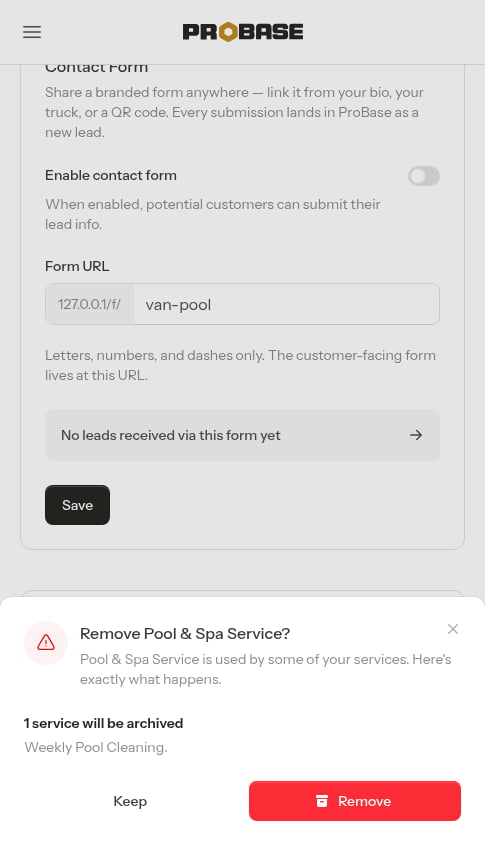
Tagging a service with a trade
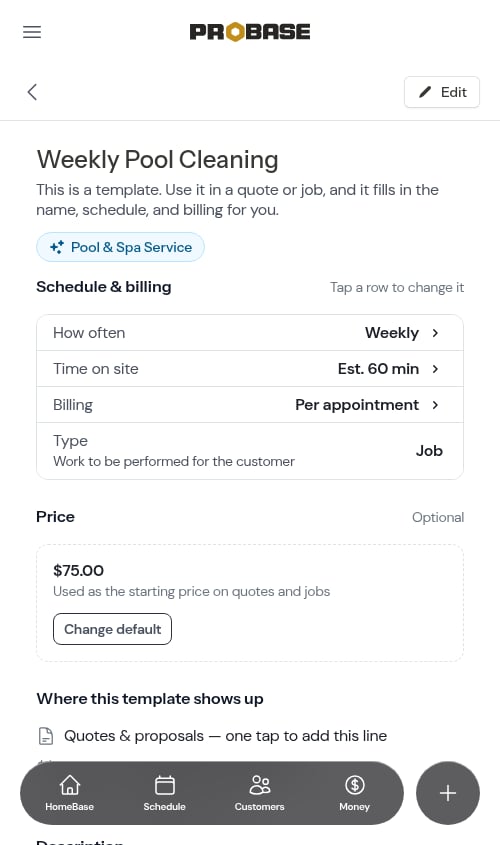
Each service in your service catalog can carry one industry. The Industry field sits just below the service name on both the create and edit forms. It’s optional and single-select — you choose from the trades your business has set up (the ones you declared during onboarding or added from your Business Profile), and each option shows how many of your services already use that trade.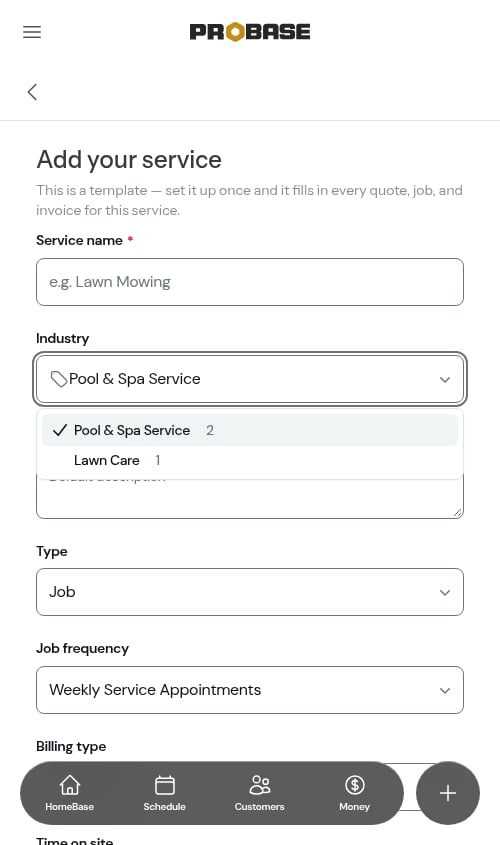
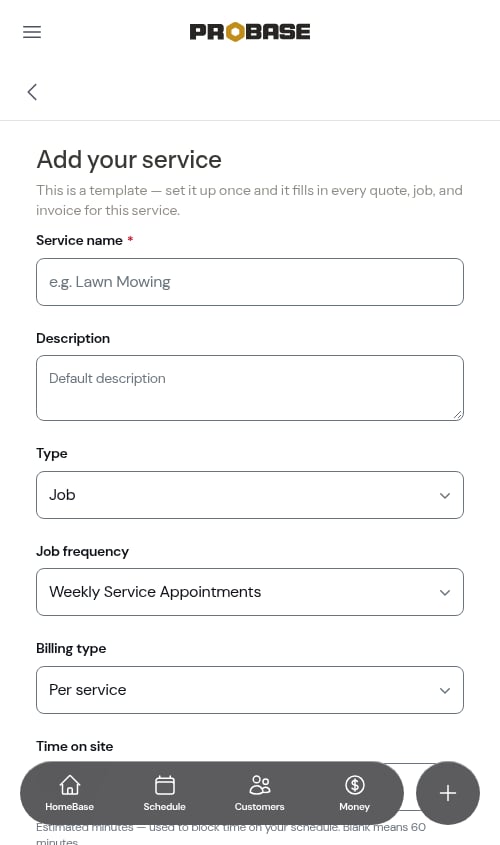
The Industry field only appears once your business has declared at least one trade. If you haven’t set up any trades yet — neither during onboarding nor from the Manage Industries card in your Business Profile — the create and edit forms hide the field entirely and new services save with no trade. Declare a trade first (see Managing your trades later) and the field appears so you can start tagging.
Suggested trades while you type
When you name a new service, ProBase watches for trade keywords and suggests a matching industry. Type “Weekly Pool Cleaning” and a prompt appears: “Assign the Pool & Spa Service industry?” Tap Assign Pool & Spa Service to fill in the field for you, or Not now to dismiss it. The prompt names whichever trade it matched, so a lawn service name suggests Lawn Care instead.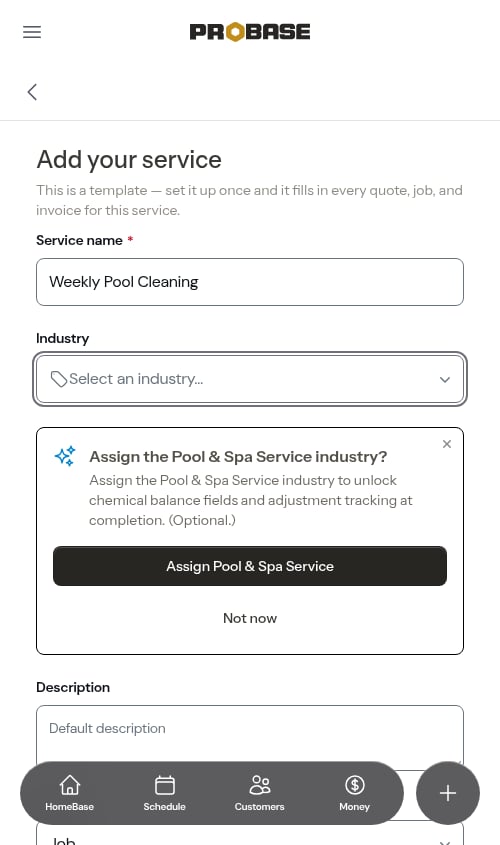
Choosing a trade when creating a job
You can also set a job’s trade right when you book the work. An Industry field appears alongside the service name in the job creation wizard, in the quick “new service” form on a property, and in the Change Schedule editor — so the trade is captured up front instead of only on the catalog.- Pick a service from your catalog and the trade fills in for you. If the catalog service is already tagged, that trade carries over to the job automatically. Choose Custom instead and the field clears so you can set the trade yourself.
- The field only shows when you have more than one trade. If you do a single trade, ProBase tags every new job with it automatically and keeps the field hidden — there’s nothing to choose. Teams with two or more trades see the picker.
- It’s still optional. Leave it blank if a job doesn’t fit a trade, and change it later from Change Schedule on the job’s detail page.
Seeing trades across ProBase
Once your services are tagged, the trade shows up wherever it’s useful.On your service catalog
Your My services list shows a colored chip for each service’s trade. Above the list, filter pills let you narrow the catalog to a single trade — each pill shows how many services it covers.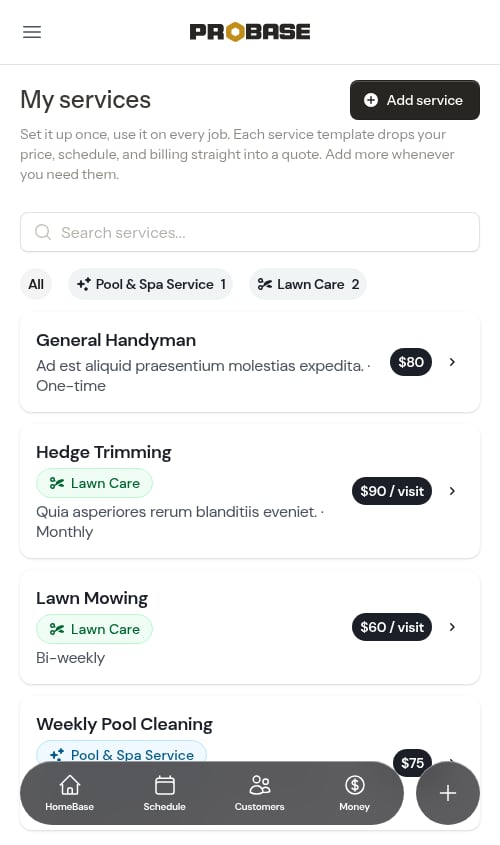
On your jobs
The trade for a job is shown as a chip on the overdue jobs list and on the job detail page, so you can tell at a glance what kind of work each visit is.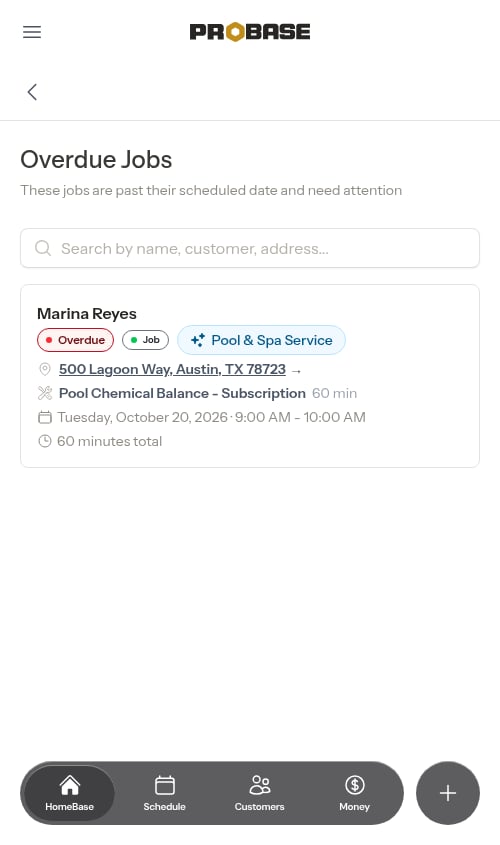
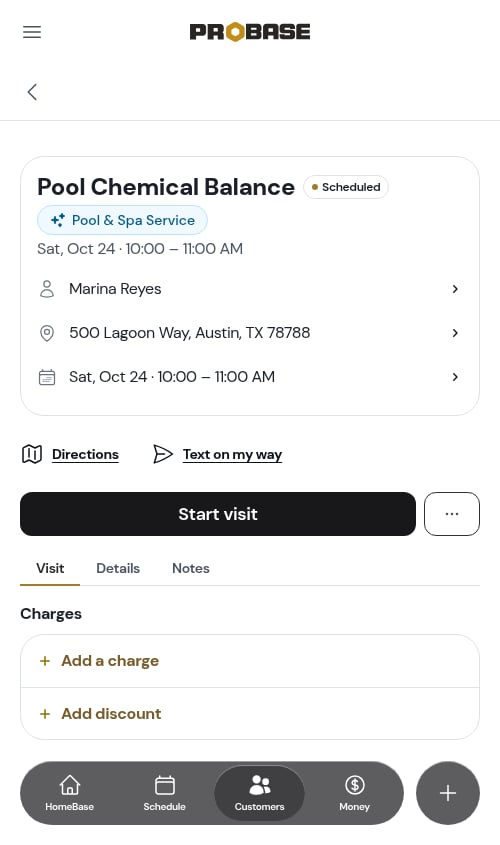
ProBase figures out a job’s trade from the services on it. When every service on a job belongs to the same trade, that trade is shown. If a job mixes trades, or has services with no trade, no chip appears.
What a trade changes on the work itself
Tagging your services pays off where the work gets captured:- Ready-made checklists. A trade’s ProBase checklists are attached to every new service offering in that trade — a pool business gets Chemical Readings and Chemical Adjustments without building them. See ProBase system checklists.
- Structured records. Answers on those checklists commit to the visit’s service records, so a property builds a chemistry history on its own.
- A trade chip at completion. The completion form shows the job’s trade at the top, so you can see at a glance which kind of work you’re signing off.
The completion form itself is the same for every trade — you write what you did in plain language and AI Assist pulls the readings, materials and observations out of it. There are no trade-specific fields to fill in by hand.
A nudge to set a trade at completion
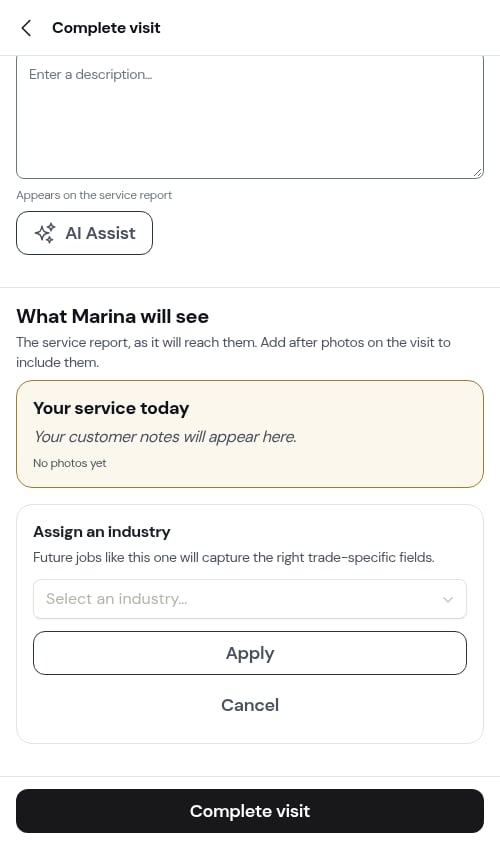
If you’re completing a job whose service doesn’t have a trade yet, ProBase shows a gentle prompt — “Set an industry for this service” — so you can tag it on the spot.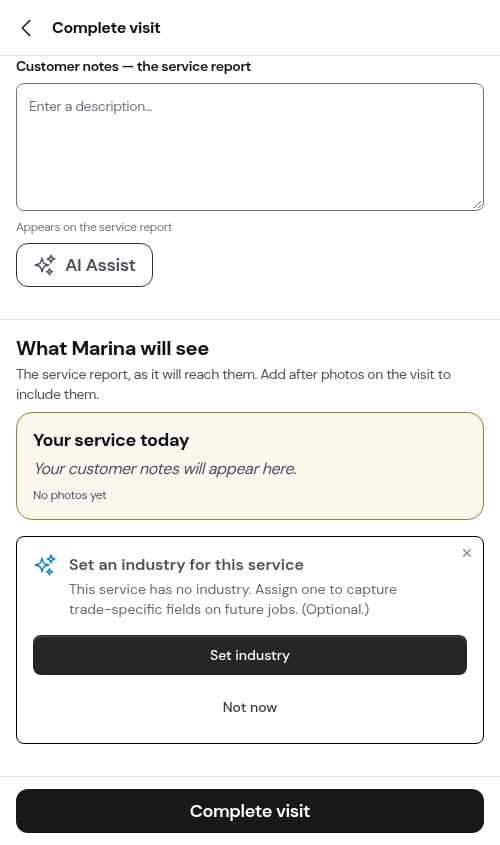
Next steps
- Manage your service catalog and tag your services by trade
- Complete a job and capture service records from your notes
- Business Profile settings — add or remove trades from the Manage Industries card