Add a property
1
Go to the customer page
Go to Customers and click on the customer’s name.
2
Open the Add a new Property form
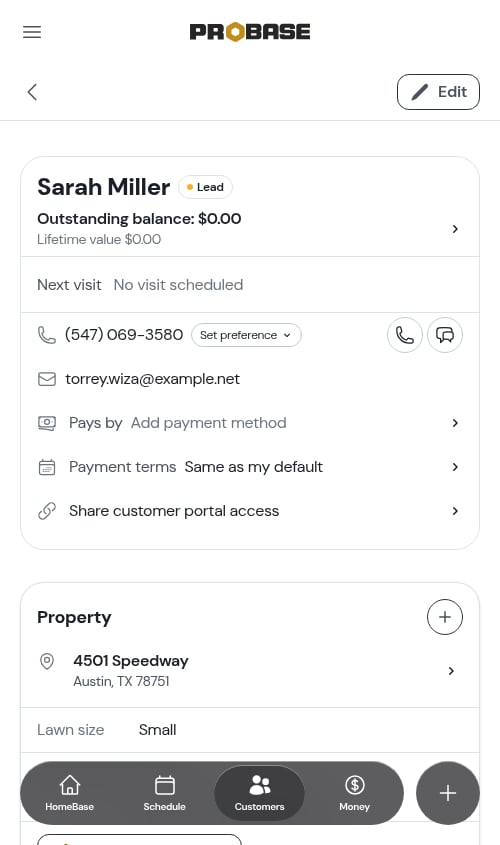
Find the Properties section and click the + button in the section header.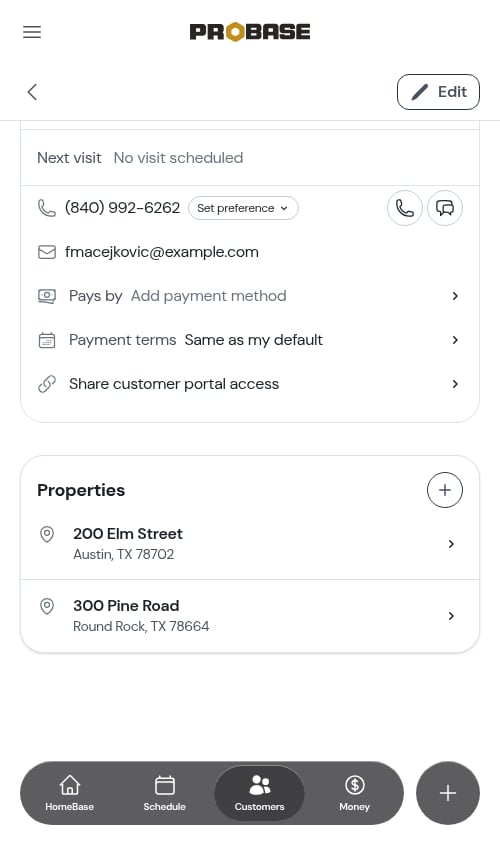
No + in the header? Either your role isn’t allowed to add properties, the customer is archived, or the customer came from a connected marketplace — marketplace customers get their properties from the sync, so they can’t be added by hand. See Marketplace customers.
3
Enter the address
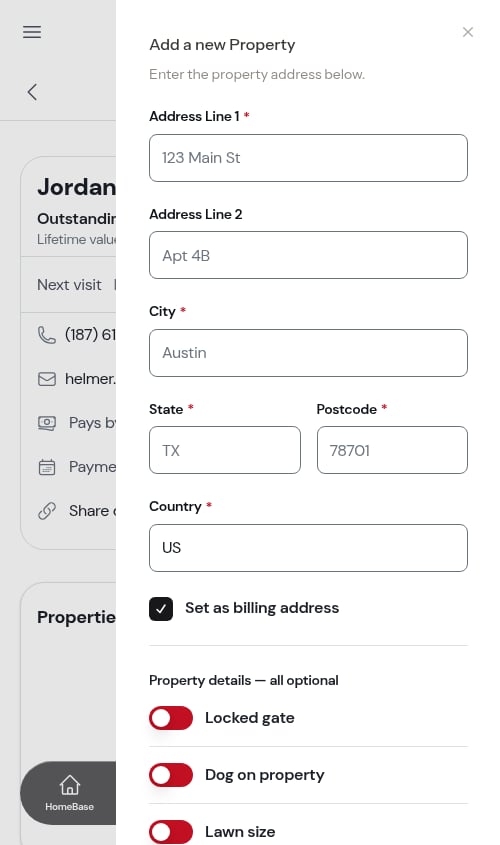
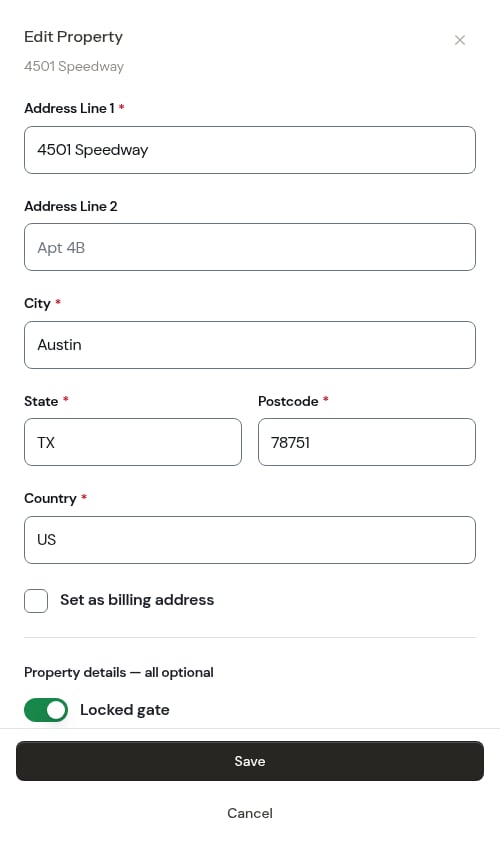
Fill in the property address:
- Address line 1 — Start typing the street address and suggestions will appear. Select one to fill in the rest of the address for you — see Address suggestions as you type.
- Address line 2 (optional — apartment, suite, etc.)
-
City, State, Postcode, Country — Filled in automatically when you select an address suggestion, or enter manually
4
Optionally set as billing address
Check the Set as billing address box if you want this property address to appear as the billing address on the customer’s invoices. This is useful when the service address and billing address are the same.
The billing address can also be added or changed any time by editing the customer directly. See Adding new customers for how to update billing address through the customer edit form.
5
Save
Click Save Property. ProBase looks the address up on the map so it’s ready for routing, then takes you to the new property’s page.One tap is enough. On a slow connection the form can stay on screen for a moment while that page loads — extra taps in that gap are ignored, so a double tap never adds the property twice. See Saving and form issues.
The property page
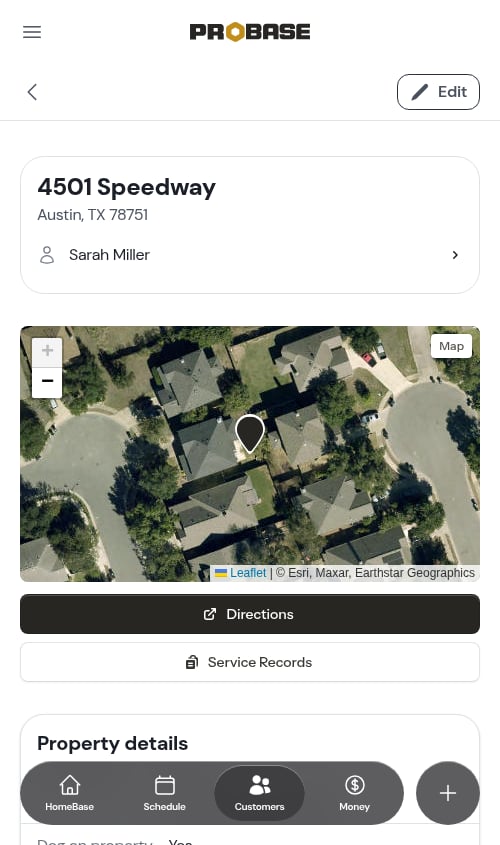
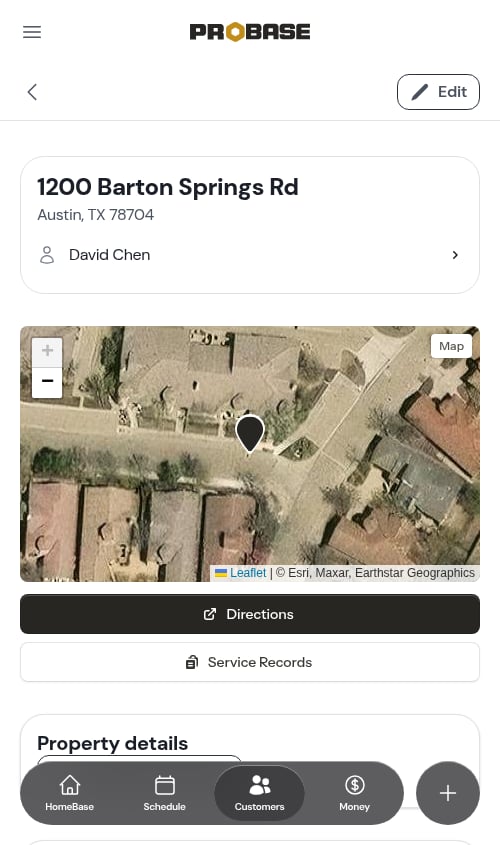
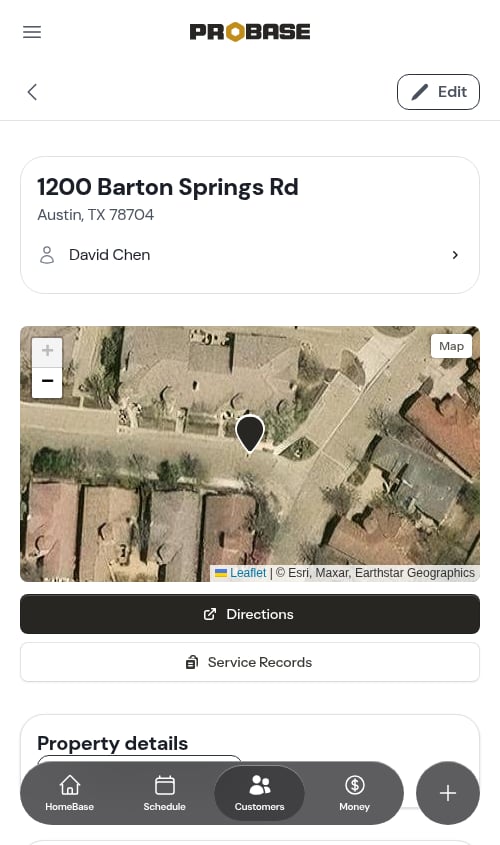
Each property has a page of its own. It opens with the address card, and the map, property details, notes and visits sit underneath it.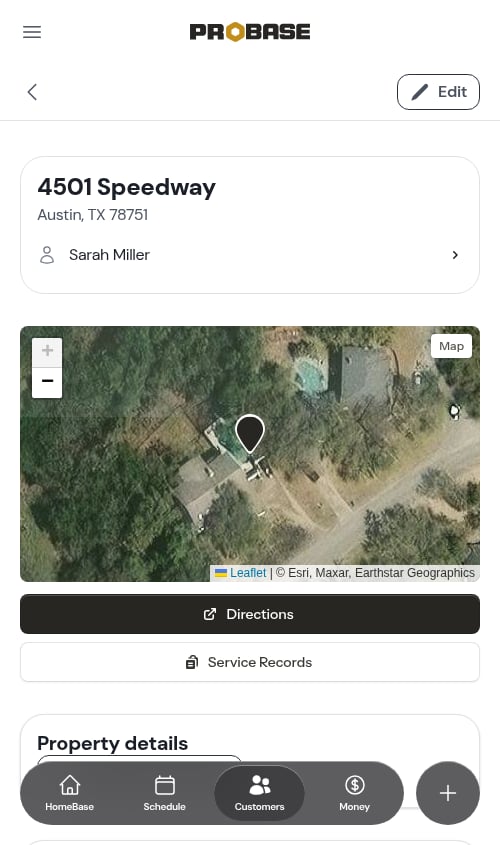
- The street address as the page title, with the city, state and postcode on the line beneath
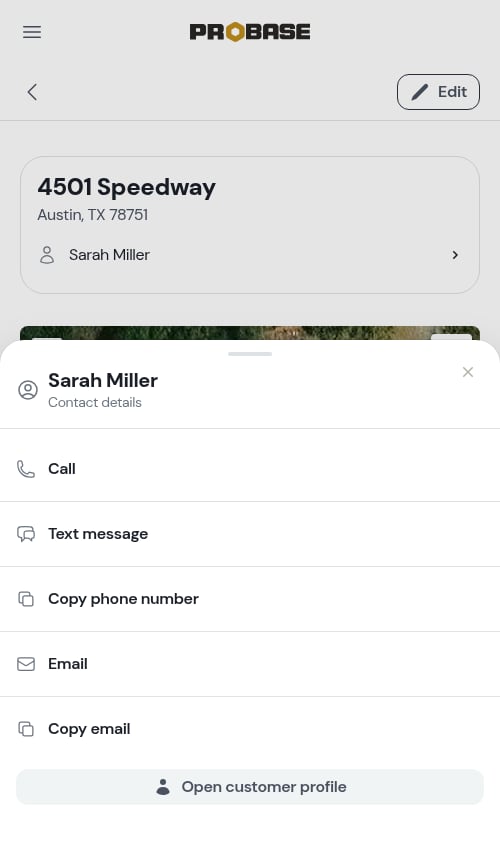
- One row for the customer this property belongs to. Tap it to open their contact sheet — Call, Text message, Copy phone number, Email and Copy email, with Open customer profile at the bottom to leave for their page
A property that came from a connected marketplace carries the marketplace’s badge on the card and a Last synced … Refresh row, and its address is theirs to change — see Marketplace customers.
Address suggestions as you type
Every address field in ProBase suggests real addresses while you type, so you can fill a full address in a couple of taps instead of typing it all out. You’ll find it on the property form, the customer’s billing address, a crew’s starting and ending address, the address on an Add stop form, your home address, and your business address in Settings.1
Start typing the street address
Type at least two characters. A small spinner appears at the right-hand end of the field while ProBase looks up matches, then a list of up to five matching addresses drops down under the field. Keep typing to narrow the list — it refreshes as you go.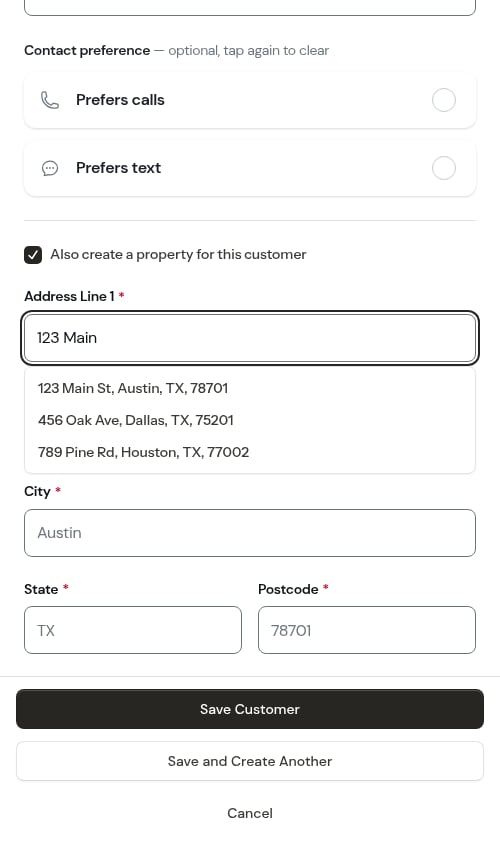
2
Pick the right one
Tap the address you want. On a computer you can also use the ↑ / ↓ arrow keys to move through the list and press Enter to choose. Press Esc, or tap anywhere outside the list, to close it and carry on typing by hand.
3
Check what got filled in
On a form with separate address fields, Address Line 1 keeps just the street part — “123 Main St” — and the City, State, Postcode, and Country fields below it are filled in for you.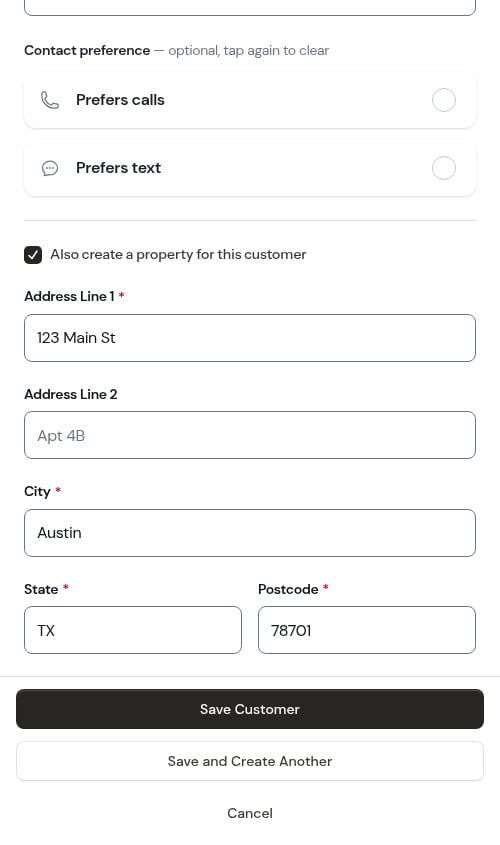
4
Save
Save the form as usual. The address lands on the record exactly as it was filled in, ready for mapping and routing.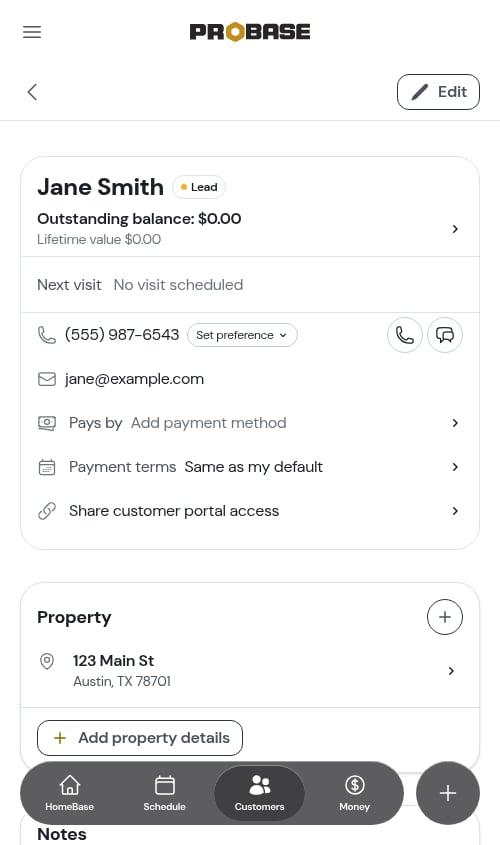
Inside a pop-up window
Some address fields sit inside a pop-up window rather than a full page — the Add stop form on the schedule, for example. There the list of suggestions floats on top of the window instead of pushing it around, so the form doesn’t jump or start scrolling while you pick an address, and the buttons at the bottom stay where you left them.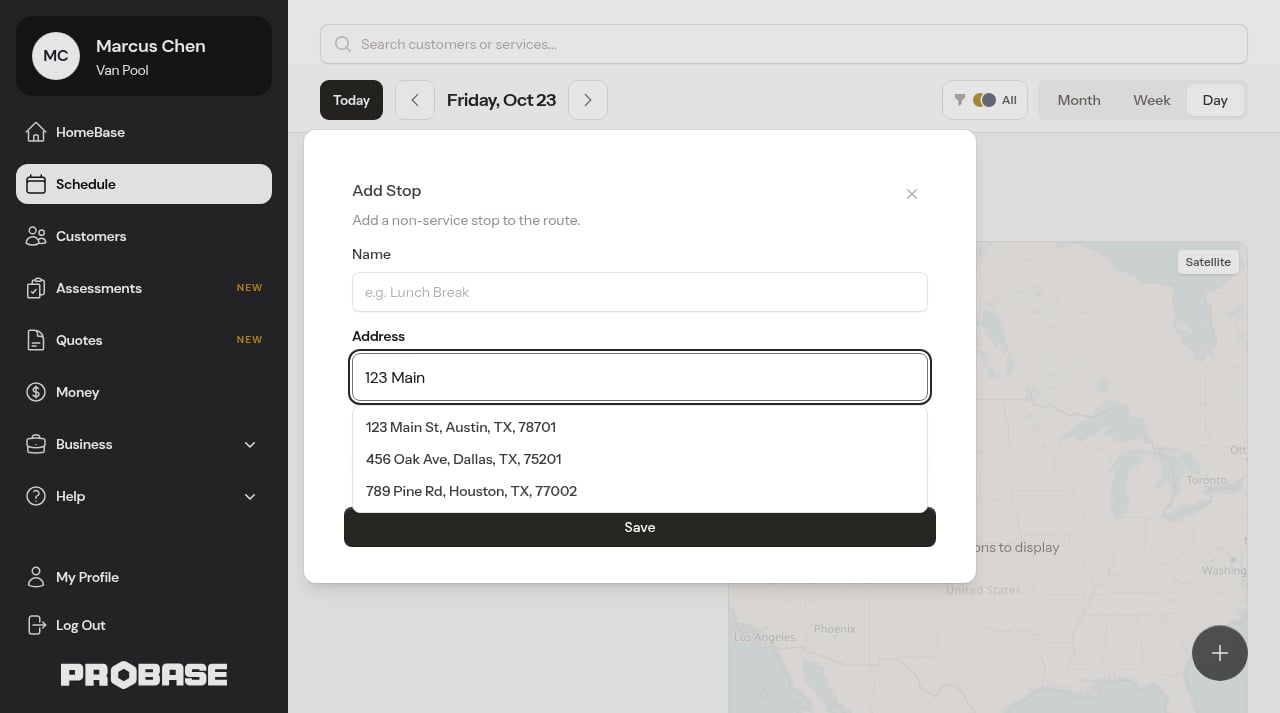
Suggestions are ranked around your business address from Business Profile settings, so addresses in your own service area come up first. Only US addresses are suggested.
Suggestions are a shortcut, never a requirement. If nothing matching comes up — a brand-new build, a rural address, a patchy connection — keep typing the address by hand and fill in the city, state, postcode, and country yourself. What you type is saved exactly as entered.A momentary hiccup in the address lookup is retried for you automatically, so most blips sort themselves out before you notice. When one doesn’t, the list simply doesn’t drop down — the field never blocks you or clears what you’ve typed. See Address issues if it keeps happening.
Property details
Under the address fields, every property form carries three optional questions — the things a crew needs to know before they get out of the truck. All three are off until you answer them, and you can fill them in when you add the property or any time afterwards.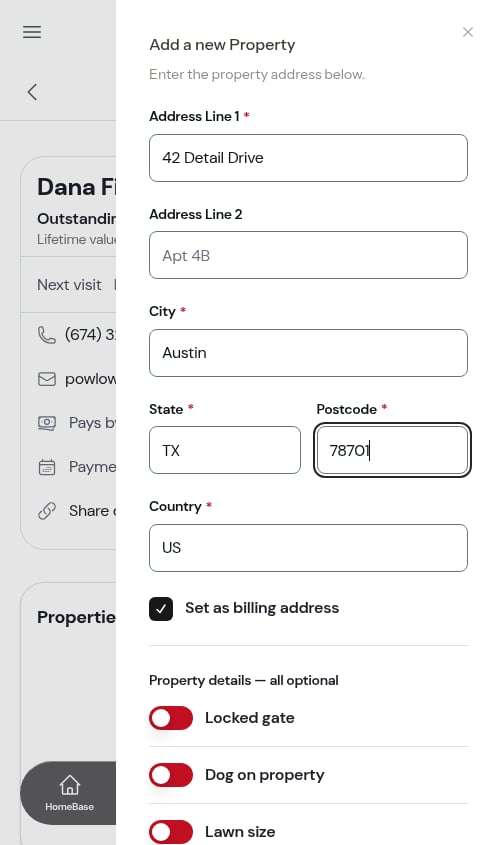
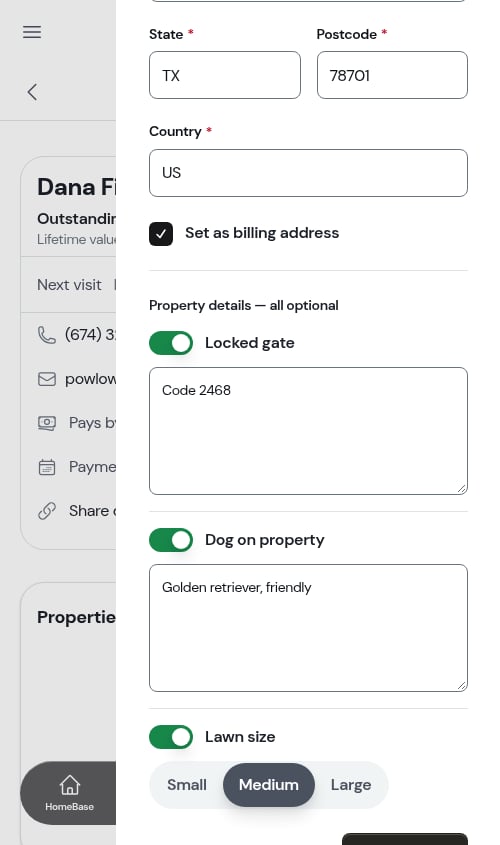
Lawn size only appears if your business does lawn work. Pool-only businesses never see the question.
Where the details show up
Only the questions you actually answered get a row — an unanswered question is left off rather than shown as a blank or a “No”.-
On the property page, in its own card
-
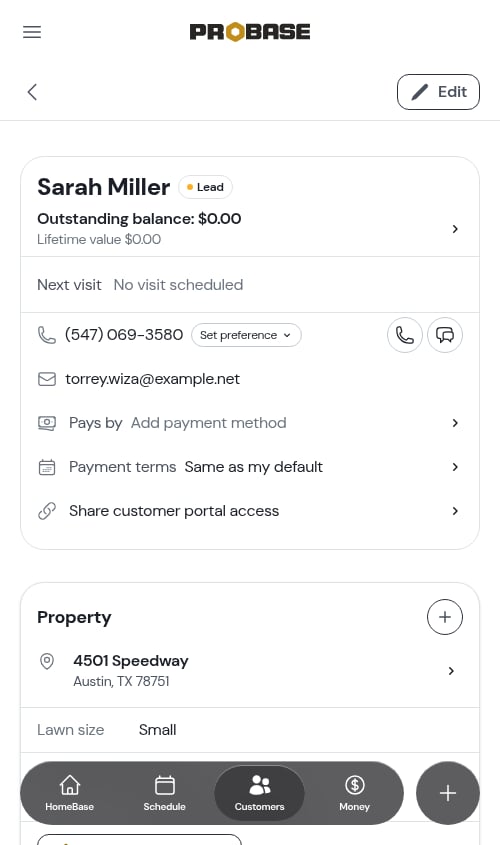
On the customer page, inside the Property card, when the customer has a single property
- On the Details tab of every visit at that property, so the crew has the gate code on the screen they’re already working from
Editing them in place
On the property page and the customer page, the way to change the details sits with them:- Edit property details under the rows, when something’s already set
- Add property details when nothing is
No Add property details or Edit property details row? Either your role can’t edit properties, the customer is archived, or the property came from a connected marketplace — those details belong to the marketplace. Any details already set still show; only the way to change them is hidden.
View property location on map
Properties are automatically geocoded when created or updated. The property page shows a map with the property location marked by a single pin. The map opens zoomed all the way in on the property, in satellite view so you can see the rooftop and lot.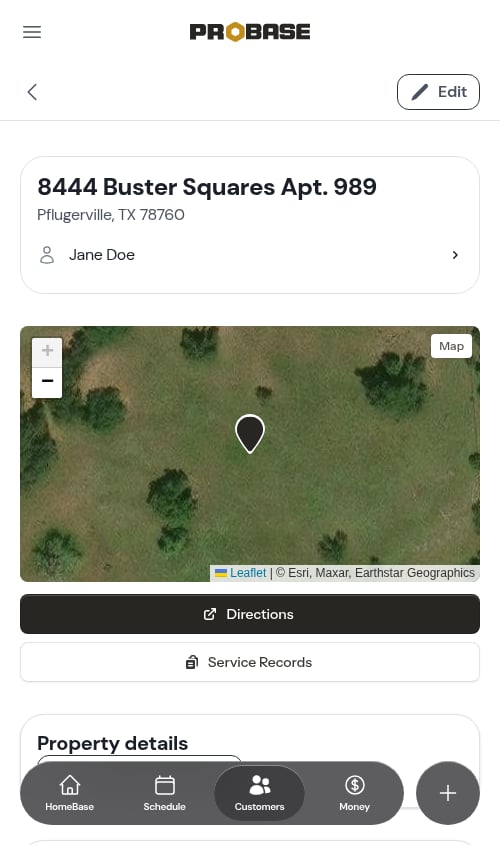
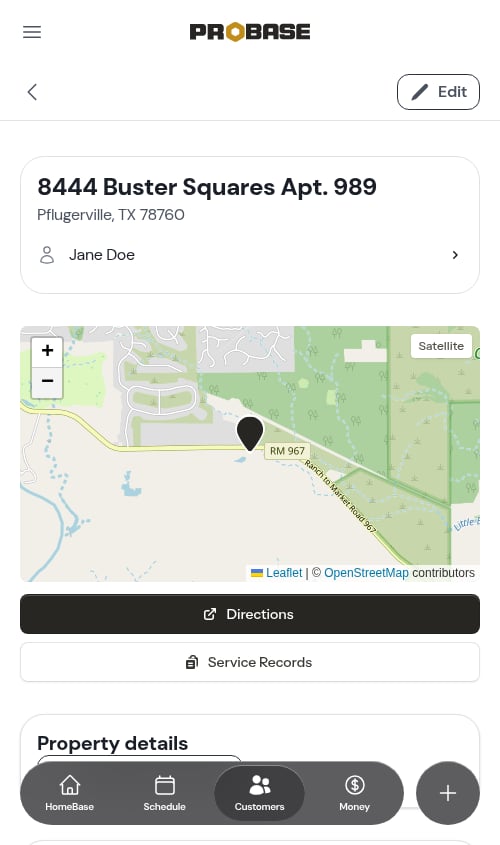
- Click on the property from the customer’s page
- View the map on the property details page
- If the location is wrong, edit the address and save again
View property service records
Tap the Service Records button in the map section of the property page to open that property’s full service history across all services:- Observations, measurements, materials, and service records
- Searchable by content, service name, or entry details
- Ordered by most recent first
- Click any entry to view the associated service
Add property notes
Notes are for anything about the property that doesn’t fit the property details questions — access instructions, hazards, where to park, what the customer asked for last time. A locked gate, its code, and a dog on the property each have their own field, so those are better set there than buried in a note. To add a note about a property:- Go to the property page
- Scroll to the Notes card and choose the Property tab — it’s labelled with the property’s street address
- Tap Add note at the bottom of the list
- Enter your notes in the editor
- Optionally attach photos or documents
- Tap Save
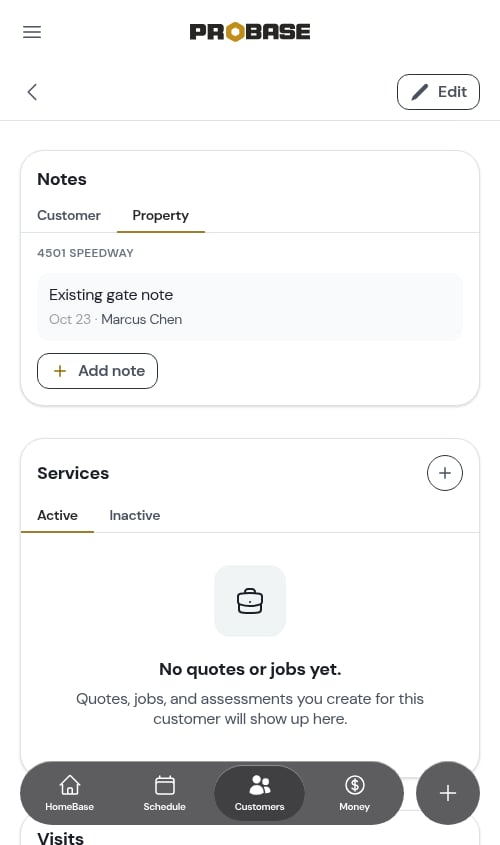
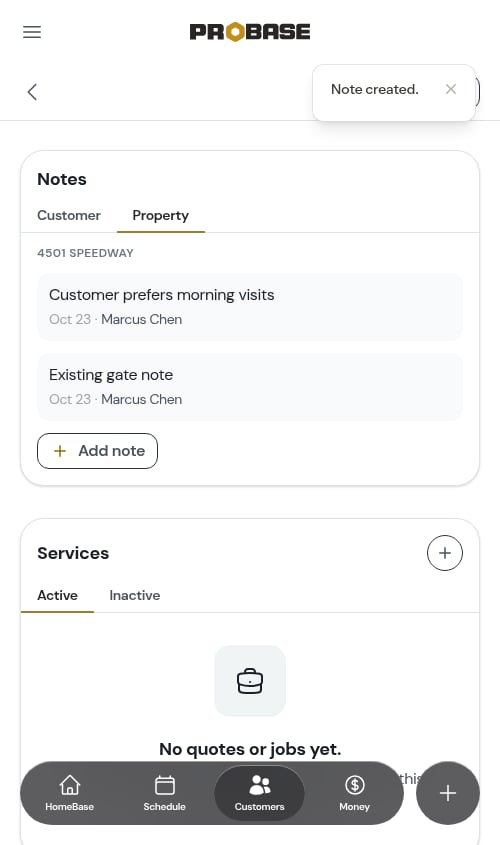
If the customer has only one property, the same Notes card appears on their customer page too, so you don’t have to click through.
On a property that came from a connected marketplace, the Notes panel is read-only: it shows a Read-only badge where the + normally sits, and there’s no Edit on the property either. Those access details belong to the marketplace. See Marketplace customers.
The property’s visits
At the bottom of the property page sits a Visits card listing the appointments booked at this address — a customer’s other properties never bleed into it. It has two tabs:- Upcoming — scheduled visits, soonest first. This is the tab you land on
- Previous — completed visits, most recent first, each carrying the completion notes you wrote and any photos from the visit
For a customer with only one property, this same card appears on their customer page instead — see Customer history. Rows on an archived customer are shown but aren’t tappable.
Add multiple properties
- On the customer’s page, click Add property again
- Enter the second property address
- Repeat for each additional property
Edit property information
1
Go to the property
Navigate to Customers > click the customer name > click the property address.
2
Tap Edit
Tap Edit at the top of the property page. The editor opens over the page rather than taking you somewhere else.
3
Update the address or the details
Make your changes to the address fields, and to the property details questions underneath them. You can also check Set as billing address to use this property address as the billing address on the customer’s invoices.
4
Save
Tap Save. The property is re-geocoded with the updated address.