Scheduling issues
Appointments not appearing on calendar Possible causes:- Appointment doesn’t have a date set
- Page needs to be refreshed
- Click on the appointment and verify date is set
- Refresh the page
- Check that the service is active (not cancelled)
- Customer doesn’t have a service set up
- Service is cancelled
- Go to the customer’s page and navigate to their property
- Verify they have an active service
- If service is cancelled, you can still complete existing appointments but cannot add new ones
- Create a new service if needed
- “This service is inactive, so its schedule can’t be changed.” — the service was cancelled, most likely in another tab or by a teammate while you had the window open.
- “The end date can’t be before the start date.” — the End Date you entered lands earlier than the Start Date.
- “A start date is required.” — the Start Date field was left empty.
- “Schedule could not be updated.” — something else went wrong on the way through.
- Reload the service page so you’re looking at its current state, then reopen Change Schedule.
- If the service is cancelled, its schedule can’t be edited. You can still work its remaining visits — set up a new service if the customer wants the work to continue.
- For date problems, correct the dates and save again.
- If a plain “Schedule could not be updated.” keeps coming back, contact support.
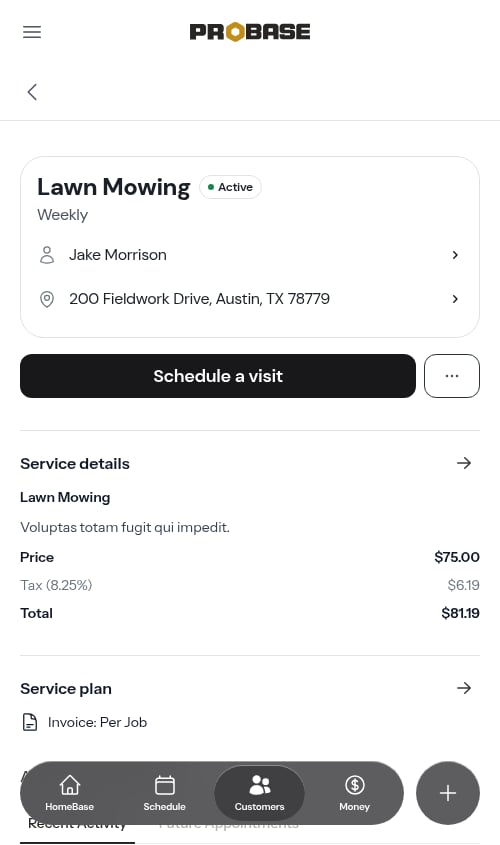
- Properties don’t have valid geocoded addresses
- Crew doesn’t have a start location configured
- Too few appointments to optimize (need at least 2)
- Verify all property addresses are complete and correct (system automatically geocodes addresses)
- Go to Team Roster → Crews, click the crew name, then click Edit to set their start address
- Ensure there are at least 2 appointments assigned to the crew for that date
- Check that all appointments have valid property addresses
A crew with no ending address is fine — that’s a supported setup, and the route just finishes at the last job. If leaving the ending address empty ever stopped optimization from working for you, that’s fixed; nothing needs changing on the crew.
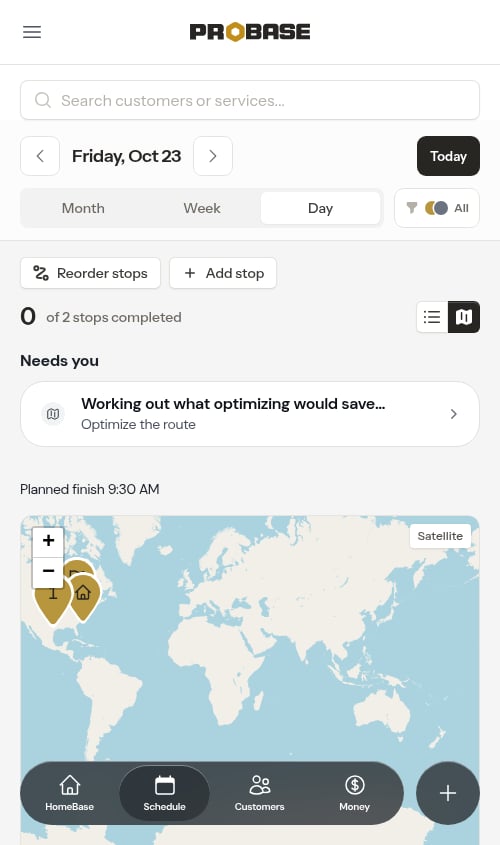
- A property address is mis-typed and was matched to a spot that isn’t reachable by road
- A stop is on an island or somewhere only a ferry can reach
- An address was matched to the wrong country or continent — usually a typo in the street or city, or a missing state — putting an impossibly long drive between two of the day’s stops
- A crew start or end address is wrong
- Look at the pin positions on the map — a pin that landed far from where the job actually is, or in the middle of open water, is the usual culprit. If the map zooms out to fit a whole country or continent, the stop that’s off on its own is the address to correct
- Open that customer’s property and correct the address
- Check the crew’s start and end addresses on the crew detail page (Team Roster → Crews, click the crew name, then Edit)
- Reload the Day view — the line redraws once the stops can be connected by road
Billing issues
Billing line item not created For per-service billing:- Ensure the appointment was marked Complete
- Check that the service has a price set
- Verify the service status is Active (not cancelled)
- Check that the billing interval is set
- The recurring billing day is set automatically from when the job was created — weekly, monthly and annual subscriptions charge on that day, and quarterly and semi-annual ones on the 1st of the cycle month. See One-time vs. subscription billing
- Open the job and check the Invoice row on its plan card for how often it bills
- If per-service, mark the visit complete — that’s what creates the charge
- If subscription, remember that completing a visit doesn’t create a charge; the charge lands on the billing day
- Open the invoice and read the line under its number — it says when and how it was sent, for example Sent Sep 18 by text. If ProBase sent it for you and the text couldn’t be delivered — or the email bounced — the invoice says so, and it’s listed under Couldn’t be delivered on your Invoices list
- Check the customer’s phone number and email — on the Send invoice screen you can tap who it’s going to and correct it
- Send it again with Resend (or Resend this invoice at the bottom, when it couldn’t be delivered), or try another way, such as email instead of text. See Sending invoices and reminders
- The link always shows the invoice’s current balance when opened
Customer payment portal issues
Customer says payment link doesn’t work Solutions:- Verify the link was copied correctly (check for any cut-off characters)
- Send it again: open the invoice (Money → All invoices) and tap ⋯ More → Resend, or Send a reminder — the customer gets a fresh message with their current link. See Sending invoices and reminders
- Make sure the invoice has been sent (draft invoices are not visible to customers — tap Send invoice on the draft to send it)
- Stripe account not connected
- Stripe account status is restricted or pending
- Go to Payments in the sidebar (under Business) and check your Stripe connection status
- If not connected, click Connect with Stripe to set up payment processing
- If status is “Pending” or “Restricted”, read the reason and the Stripe still needs: list on the card, then click Continue Setup or Update Information to supply those items
- If the card says Stripe rejected the account, use Contact Stripe Support — setup can’t be reopened from ProBase
- Once Stripe status is “Active”, customers will be able to complete payments
- Until then, arrange payment via cash, check, or another method and record it against the invoice
- Ask them to read the short red message that appears just under the card fields — a declined card, an expired card, or an incorrect ZIP is reported there in Stripe’s own words
- If it reads We could not process your payment. Please try again., the payment was never attempted — tapping Pay again is safe and won’t double-charge
- If they had navigated away and come back, the card fields reload themselves; they can enter the card again and pay without reopening the link
- Check the invoice in ProBase before asking them to retry — a payment that succeeded shows the invoice as Paid
Marketplace connection issues
These apply if you’ve connected a marketplace account like LawnStarter, Lawn Love, or Home Gnome. Marketplace jobs or customers aren’t showing up Possible causes:- The connection has expired, so nothing new is coming across
- The change is newer than the last sync (ProBase re-reads each account about every 15 minutes; a brand-new customer is usually caught sooner, by the head-count check that runs every few minutes)
- Open Integrations in the sidebar under Business and check the badge on the card. An Expired badge stops syncing entirely — tap Reconnect and sign in to the marketplace again. You’ll also see an amber banner at the top of HomeBase when this happens
- On the customer, property, service, or job that looks stale, tap Refresh next to Last synced
- Still off? Tap Full re-sync on the account’s card to pull the whole book again. It works in the background and takes a few minutes — the card shows a progress bar counting your customers through, and updates itself when it’s done, so there’s no need to reload
- If the card reads The last full re-sync didn’t finish, the run stopped early — tap Try again to start a fresh one
- If the card is still reading Syncing… long after you tapped it, the run never got going. ProBase releases the card on its own after about half an hour and puts Full re-sync back, so you can start a clean run — nothing is stuck permanently. See If the card seems stuck on Syncing
- Use Test on the card to confirm ProBase can still reach the marketplace and is looking at the right account
A card that reads Syncing… when nobody tapped anything isn’t a fault. ProBase starts a pull for you whenever its few-minute check finds your marketplace book and your ProBase book out of step — usually because you just claimed a job. Let it finish rather than starting another run on top of it.
- Open the customer record named after the marketplace, then Billing History, and tap Refresh next to Last synced
- Or run Full re-sync on the account’s card, which forces the money feeds along with everything else
- If the entry is there but has no property, service, or visit attached, that’s normal — bonuses, general adjustments, and earnings from work that was never on your ProBase schedule are full ledger entries, they just have no job to link to
- If an older entry is in the ledger but doesn’t seem to be reflected in the balance, that’s expected: the balance only counts what came after your most recent deposit. See Reading the balance
- Wait for the run to finish. On Integrations, a Syncing… spinner or a progress bar means it’s still working
- Reload the Billing History page once the run is done — the total corrects itself
- Still off? Tap Refresh next to Last synced on that page, which re-pulls the money feeds and re-adds the balance
- A refresh also re-checks how each entry already in your ledger is filed. If a deposit had been sorted as something else it wouldn’t have settled the earnings above it, which throws the total off — the refresh puts it right and works the balance out again. Amounts and dates are never changed, so it’s safe to run
- Open the job in the marketplace app and confirm all three — you’re the pro on it, the visit is assigned to you, and it has a day on it. That screen is the truth; ProBase can only show what the marketplace hands over
- An offer you haven’t accepted yet is not your job, so it never syncs, and neither do its visits. Claim it first — see Available to claim. Work the marketplace has on another pro doesn’t sync either
- Run Full re-sync on the account’s card under Integrations to pull your whole book again
- Check the synced counts on that card. If the marketplace’s count and ProBase’s agree, the marketplace isn’t handing that visit over yet
- Still missing with all three conditions met? Contact support with the customer’s name, the address, and the date the visit should be on — support can check what the marketplace is actually sending for that customer and which condition isn’t met
- Tap View jobs in LawnStarter and work from the list in the app — that list is always the truth
- If the card has disappeared entirely, there’s nothing open to claim right now (or ProBase couldn’t reach the marketplace when it last checked — it hides the card rather than showing a wrong number)
- Work already on your schedule never appears here; check your calendar for jobs you’ve already claimed
Crew and team issues
Crew not showing scheduled appointments Solutions:- Check that appointments are assigned to that crew
- Verify the date range you’re viewing
- Refresh the page
Data issues
Balance doesn’t look right Solutions:- Review all billing line items on the customer’s page
- Remember: charges are negative (customer owes), payments and credits are positive (they reduce what’s owed)
- Balance = charges + tax, offset by payments and credits — a negative balance means the customer owes money
- When a customer pays more than they owe, the extra is applied as a credit by default, so their balance shows a credit. If you chose Record as tip instead, the tip is deliberately left out of the balance and the account settles at $0.00 — see Recording payments
- Archived customers keep recalculating too, so a charge, credit, or payment you add to an archived customer updates their balance the same way it would for an active one
Saving and form issues
I pressed Save and nothing happened On a long form — the role builder, a new customer, a quote, a job — the Save button sits at the bottom of the screen while the field that needs your attention can be far above it, out of sight. When a save can’t go through, ProBase takes you straight to the problem: the page scrolls the first field that needs fixing into the middle of the screen, puts your cursor in it, and shows the reason in red underneath.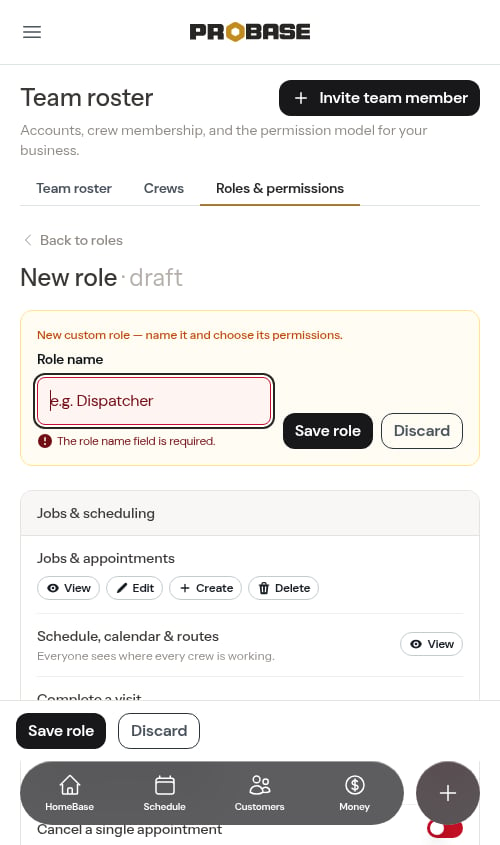
This applies to ProBase’s forms throughout the app — on phone and desktop, and on forms inside pop-up windows. If the field was already on screen nothing moves; your cursor simply lands in it. If your device has “reduce motion” turned on, the page jumps to the field instead of scrolling smoothly.ProBase doesn’t jump around while you’re still typing — it only happens when you press a Save or Continue button.
- Tap Save once. The button shows its spinner.
- The old form may sit there for a moment. Nothing you tap on it will register — that’s deliberate.
- The new page appears and everything is live again.
This covers saves inside ProBase once you’re signed in. Creating your account is a separate sign-up form, where a double tap can still bring back “You already have a ProBase account with this email.” — that means the account was created on the first tap, so just log in. See Account access issues.
Address issues
Address suggestions aren’t appearing Address fields suggest real addresses once you’ve typed two characters (see Address suggestions as you type). If no list drops down:- Type a little more. One character is too short to search on, and a very generic street name in a big city may need the house number before anything useful comes back.
- Check your connection. The lookup happens as you type, so a dropped signal in the field means no suggestions. A brief hiccup is retried automatically; a longer outage isn’t.
- Expect gaps in coverage. Brand-new builds, rural routes, and private roads often aren’t in the address database yet. Only US addresses are suggested.
If the street filled in but the City, State, and Postcode stayed blank, the address details lookup didn’t come back. Fill those fields in yourself — nothing you’ve entered is lost.
Copying links and messages
“Copy failed. Try again.” ProBase has Copy buttons in a few places — Copy and Copy Message in the pre-filled text-message window (for invoices, quotes, and balance reminders), and Copy customer link in a paid invoice’s ⋯ More menu. Occasionally your device refuses the copy — most often on a phone, when the tap lands while another app, a browser prompt, or a notification still has hold of the screen. When that happens ProBase tells you with a red “Copy failed. Try again.” message rather than pretending it worked. Solution: Tap the button again. Bring ProBase back to the front first if something else is on top of it, and the second attempt almost always goes through.The Copied! confirmation only appears when the text really did land on your clipboard. If you see it, the link or message is ready to paste.
Mobile issues
How to refresh the page on mobile On mobile devices and tablets, you can refresh the page by pulling down from the top:- Make sure you’re scrolled to the top of the page
- Pull down with your finger
- You’ll see a circular indicator with an arrow appear
- Keep pulling — the arrow flips direction once you’ve pulled far enough
- Release to refresh
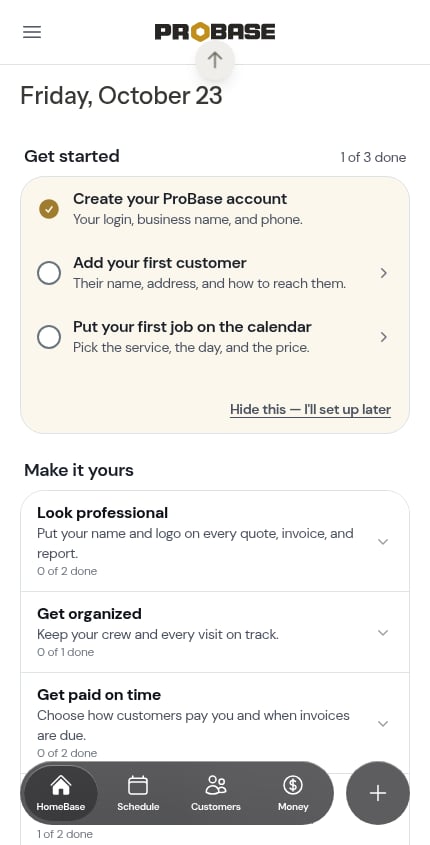
Pull-to-refresh only works when you’re at the top of the page. If you’re scrolled down, scroll to the top first.
- Tap Open in Safari (iPhone) or Open in Chrome (Android)
- If nothing happens, tap the menu button in the corner of the Facebook or Instagram screen and choose Open in Safari, Open in Chrome, or Open in browser
- Or tap Copy link and paste it into your browser’s address bar
- Sign in with the same email and password — your account comes with you — and install from there
- Check internet connection
- Try rotating your device (some views work better in landscape)
- Clear browser cache
- Try a different browser
- Restart the device
- Weak or no cellular signal out in the field
- The pick was very large — a dozen shots in one go on a poor signal
- Nothing is lost — you don’t need to take the photo or type the answer again
- Once you have signal, open that visit again. What’s kept is sent on its own while the visit is open, or tap Retry now in the Not sent yet box at the top of the checklists
- Kept work is only sent from the visit’s own page — open it before you finish for the day
- Don’t want a waiting photo? Tap the red ✕ on its tile and it won’t be sent
- Stay on the visit page until an upload finishes — a photo still in flight when you navigate away may not be saved
- No internet connection, or no cellular data available
- A very slow connection — a file takes a moment to send
- Check your internet connection
- Attach one file at a time
- Wait for the attachment to appear before tapping Save
- The photo was added before that conversion existed and hasn’t been viewed since
- The photo hadn’t finished uploading when the page was loaded
- Open the visit’s photo row, give it a moment, then reload the page — older iPhone photos are converted in the background the first time that row is opened, and there’s nothing for you to do
- Reload the page (or pull down to refresh on a phone) to pick up a photo that was still uploading
- You do not need to change your iPhone to Most Compatible in Settings → Camera → Formats; ProBase handles the format for you
- The file isn’t a photo — Save shows “We could not read that file as a photo” under the circle
- You picked an iPhone HEIC photo and the circle showed no preview, so it looked like nothing happened — it hasn’t been saved yet
- Pick a photo from your camera roll or photo library rather than a document or other file
- For a HEIC photo, tap Save even though there’s no preview — the photo appears in the circle once it’s saved
- Nothing is lost when a save is refused — your previous picture stays exactly as it was
- The alerts themselves are still being switched on — if you’ve never received one, this is the most likely reason, and nothing is wrong with your phone
- ProBase isn’t installed on your home screen — on an iPhone, notifications aren’t available in a plain browser tab
- You haven’t tapped Enable notifications yet on this particular phone
- The Push notifications toggle in Notification Preferences on your profile is switched off for this device
- Notifications are blocked for ProBase in your phone’s settings
- Focus or Do Not Disturb is holding notifications back
- Open ProBase from the icon on your home screen, not a browser tab
- Look for Enable notifications under Boost my productivity in the Make it yours section of HomeBase and tap it, then tap Allow (or switch on Push notifications under My Profile → Notification Preferences)
- If you see “Notifications are blocked”, open your phone’s Settings app, find ProBase, switch notifications back on, then reopen ProBase
- Check Focus / Do Not Disturb is off
- Remember permission is per device — a second phone or tablet needs its own Enable notifications tap
- Open My Profile → Notification Preferences and check the Push notifications toggle is on for this device
Nothing is lost while notifications aren’t reaching you. Everything ProBase would have sent is still waiting behind the bell — see Updates.
Text messages are a separate setting. If it’s texts you’re missing, check the SMS notifications toggle on your profile — see Text message notifications.
Performance issues
ProBase is slow Solutions:- Check your internet connection speed
- Close other browser tabs
- Clear browser cache and cookies
- Try a different browser
- Restart your device
- The photos were taken before previews were introduced, so the first view of that row still pulls the full-size pictures
- The photos are older iPhone HEIC pictures, whose preview is made the first time the row is opened
- Slow or patchy signal out in the field
- Open the row, let it finish, then open it again — ProBase makes previews for older photos in the background while you look, so the second visit is quick and there’s nothing for you to do
- Leave rows you don’t need closed — a closed row downloads none of its pictures
- On a weak signal, wait for the tiles rather than tapping them to open full size; the full pictures are much bigger files
- Refresh the page
- Clear browser cache
- Try a different browser
- Wait a few minutes and try again
- What you just saved is saved. The reload happens after ProBase has processed and stored your change — a note you typed, a checklist answer, a charge you added.
- It happens once, not on every tap.
- Anything you’d typed but hadn’t saved yet — text half-entered in a field — isn’t kept, so finish what you’re typing before you step away if you can.
- Tapping Back mid-reload cancels that reload, so ProBase asks for it again straight away — you still end up on the current version.
- Time in the background doesn’t count. If you switch apps or lock your phone while the reload is pending, ProBase only judges it once you’re looking at the page again.
ProBase was updated — A newer version of ProBase is ready. Reload to keep everything in sync — nothing you saved is lost.Solution: Tap Reload now. As with the automatic reload, anything you’d already saved is saved; only text you’d typed and not yet saved is lost. Until you tap it, the page keeps working as best it can rather than going silent.
Account access issues
“Your session expired” prompt with a Reload button If you leave ProBase open in the background for a while — especially on a phone where the browser or app has been backgrounded — your login session can time out for security. The next time something on the page tries to save or refresh, ProBase shows a clear in-app message: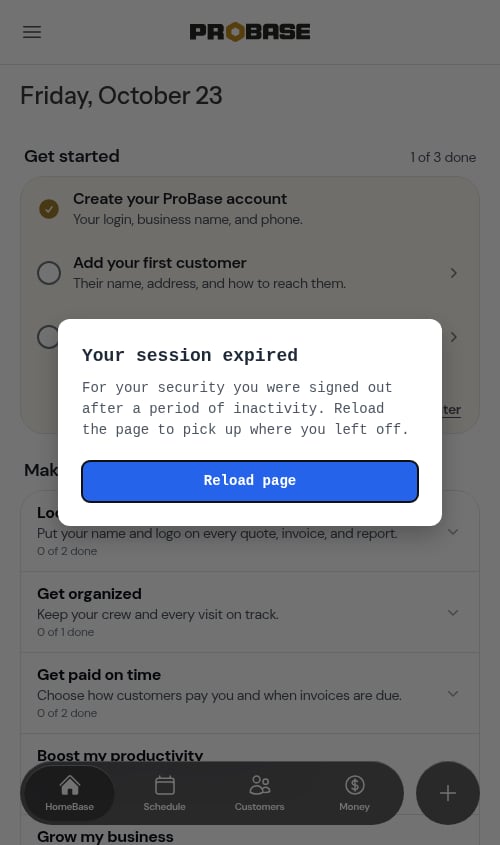
Your session expired — For your security you were signed out after a period of inactivity. Reload the page to pick up where you left off.Solution: Tap Reload page. Reloading signs you back in fresh and picks up where you left off. This is expected behavior, not an error — you don’t need to log out manually or clear anything. If the prompt keeps reappearing, close the tab completely and open ProBase again.
This pop-up is the one you get while you’re signed in and working. If you see a similar message on the login or sign-up screen instead, see “Your session expired — please try again.” on the login or sign-up page below.
Your session expired — please try again.Nothing is wrong with your account, and nothing was submitted. What you typed is still in the fields — your email address is right where you left it — so you only have to fill the password boxes in again. Solution: Re-enter your password and tap Log in (or Create my free account) again. The second attempt goes through.
Password boxes are deliberately cleared when this happens — they’re never carried across for security. Everything else you’d typed is kept so you don’t start over.
This replaces the bare 419 | PAGE EXPIRED browser error some people used to hit on a long-open login tab. If you still see that plain error page, refresh the page once and sign in again.
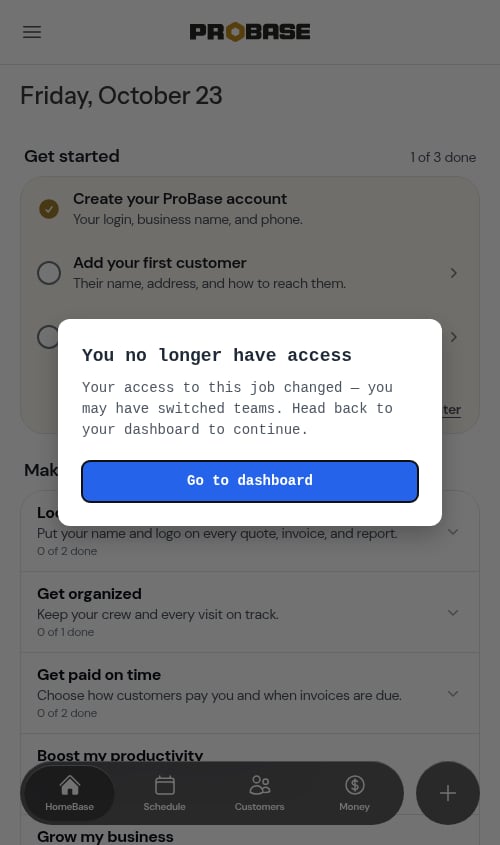
You no longer have access — Your access to this job changed — you may have switched teams. Head back to your dashboard to continue.Solution: Tap Go to dashboard. Unlike the session-expired prompt, reloading won’t help here — the job belongs to a different business, so ProBase sends you back to your current business’s dashboard where everything works normally. This is expected behavior, not an error. Stuck on a redirect loop, blank page, or “session expired” after an update This is almost always a stale browser session — your device is holding on to an old login token that the server no longer recognises. Solution: Visit
/logout directly in your address bar (for example https://manage.probaseapp.com/logout). This signs you out cleanly and drops you on the login page so you can sign back in. If support sends you a “recovery link” by email or text, this is the same thing — clicking it is safe and just clears your session.
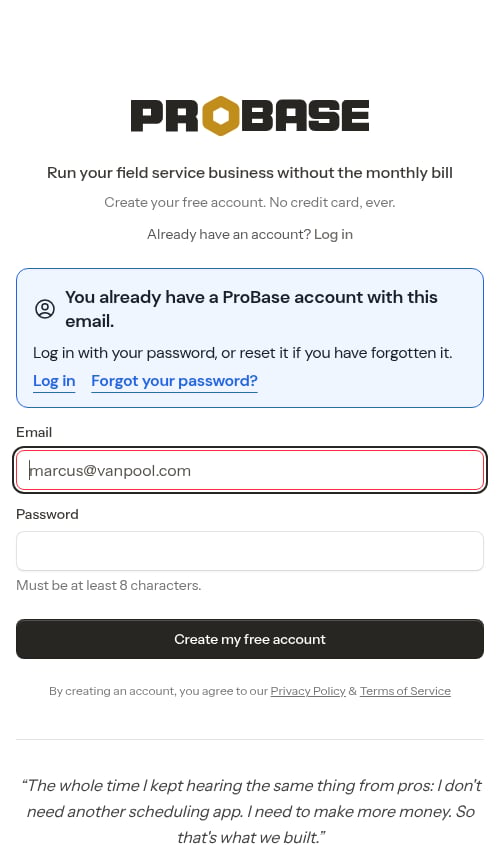
“You already have a ProBase account with this email.” when creating an account
An account already exists for that email address. It’s also what you’ll see if the Create my free account button gets tapped twice — some in-app browsers (opening ProBase from a link inside Facebook, for example) submit the form twice on a slow connection, and the second attempt lands after the account was already created on the first.
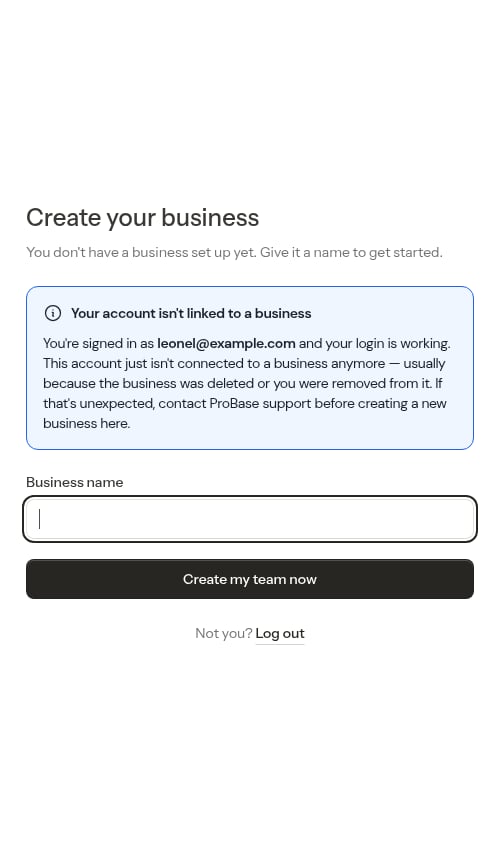
Your account isn’t linked to a business — You’re signed in as your@email.com and your login is working. This account just isn’t connected to a business anymore — usually because the business was deleted or you were removed from it. If that’s unexpected, contact ProBase support before creating a new business here.
Your password is fine. This screen is not a sign-up form and it isn’t telling you to make a new account. You are already signed in — the email address shown in the panel is proof of it. Resetting your password won’t change what you see here, because the password was never the problem.
- You expected this (you deleted your old business on purpose, or you’re starting over). Enter a Business name, tap Create my team now, and you land on the dashboard of a fresh, empty business.
- You didn’t expect this. Contact support before creating a new business — your old data may be recoverable, and creating a new business here does not bring it back. A new business starts empty; it isn’t a copy of the old one.
- That’s not your email in the panel. Tap Log out under the button (next to Not you?) to return to the login page and sign in with the right account.
If somebody invited you to their business in the meantime, signing back in drops you straight onto that team’s dashboard and you never see this screen. So if you’re waiting on an invitation, ask the business owner to send it and then log in again rather than creating a business of your own — see Inviting team members.
Demo account issues
Something doesn’t work while I’m in the demo Check the top of the screen first: if an orange bar reads “You are currently viewing a demo — experiment here without making changes to your own account” (or just Viewing a demo on a phone), you’re in the sample account, not your own. Parts of ProBase are deliberately switched off there:- Tapping Connect on an Integrations card leads to a “page not found”
- Customer payment screens show the payment app options instead of card entry, and no card payment can be taken
- No email or automated text message is sent to anyone
- The business and user-account delete options are hidden
- The Email field on My Profile is read-only — that address is what links the sample account back to your real ProBase
- Schedule a call, the Talk to Us card, and every demo invitation (the Explore a demo account row on HomeBase, the Tour a demo menu item, the empty-screen Tour demo cards) are hidden — those all belong to your real account
General troubleshooting steps
When something isn’t working:- Refresh the page - Many issues are resolved by refreshing (on mobile, pull down from the top to refresh)
- Check your internet - Slow or unstable connection causes issues
- Try a different browser - Browser-specific issues are common
- Log out and back in - Resets your session
- Clear cache and cookies - Removes corrupted data
- Check for updates - Ensure your browser is up to date
- What you were trying to do
- What happened instead
- Any error messages you saw
- Your browser and device type
- Screenshots if possible