Overview
Every invoice you send gives the customer a link to a page where they can see what they owe and pay. You can send it by text or email, or print it. Once it’s out, you can follow up with a reminder, resend it, and see whether the message reached the customer.To let customers pay by card on that page, connect Stripe. Without it, the page still shows the invoice and tells the customer how to pay you — by Venmo, Cash App or PayPal if you’ve turned them on, or by contacting you.
Send an invoice
1
Open the draft invoice
From Money, tap 7 invoices to send or All invoices, then open the draft. You can also open it from the customer’s billing history, or from the Charged row on a completed visit.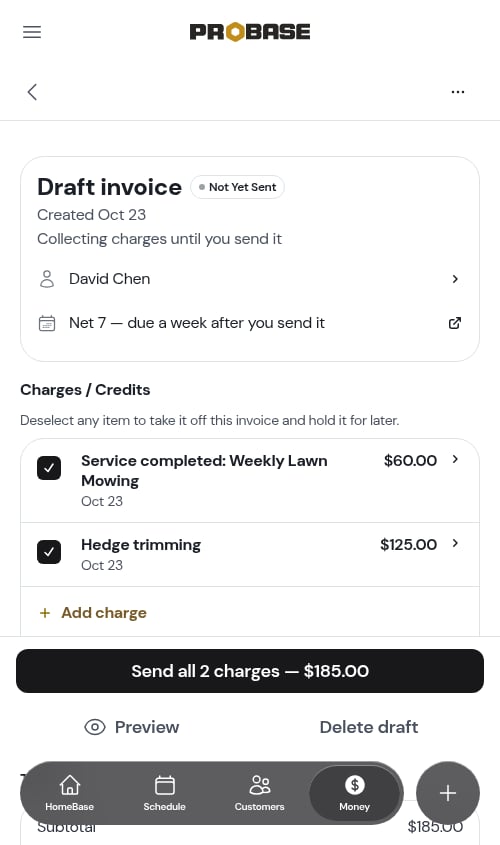
2
Tap the send button
Tap Send all N charges — $185.00 at the bottom (or ⋯ More → Send invoice). If you’ve unticked any charges, only the ticked ones go — see Send only some charges.
3
Choose how to send it
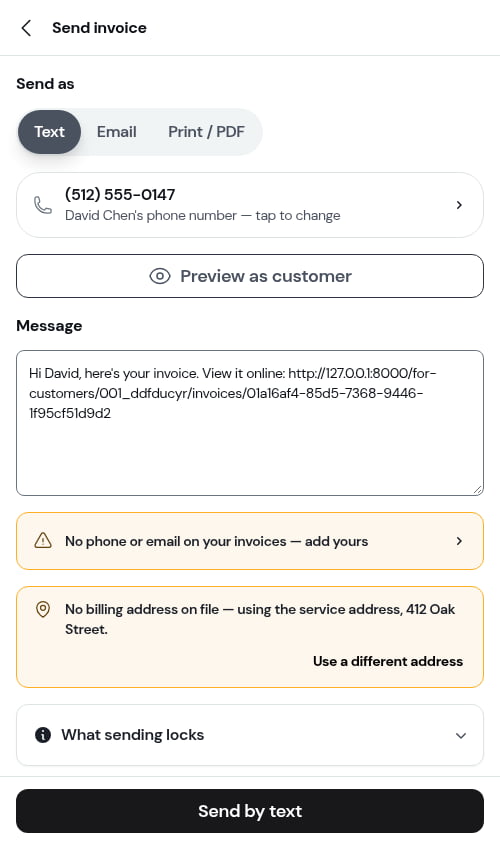
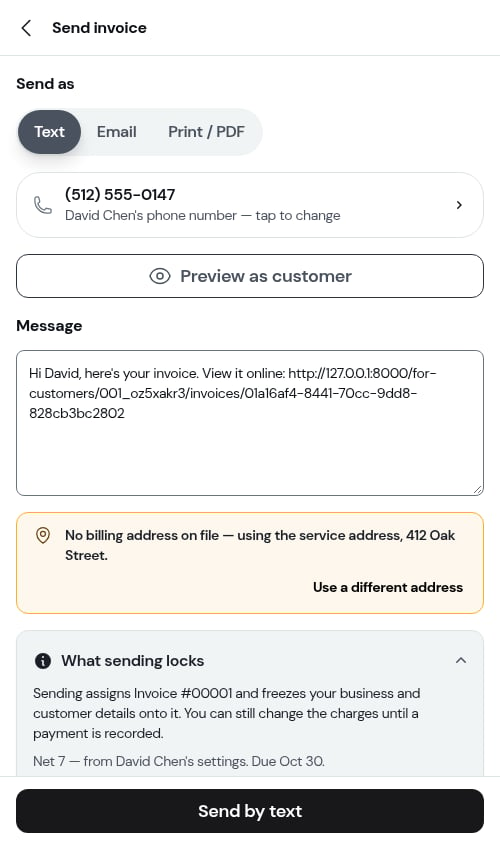
The Send invoice screen opens. Under Send as, pick:
- Text — to the customer’s phone number
- Email — to the customer’s email (only shown when ProBase can email for your account and the customer has an email on file)
-
Print / PDF — numbers the invoice and opens your device’s print dialog, where you can print it or save it as a PDF
4
Check the details
- The recipient — the number or email it goes to. Tap it to pick another or add one. Changing it here changes it on the customer’s record.
- Preview as customer — see exactly what the customer will see.
-
Message — when ProBase sends texts for you and Text is selected, the invoice text appears here, ready to edit. ProBase writes it from your Invoice message template; whatever you change goes out to this customer only, unless you turn on Save as the default Invoice text underneath.
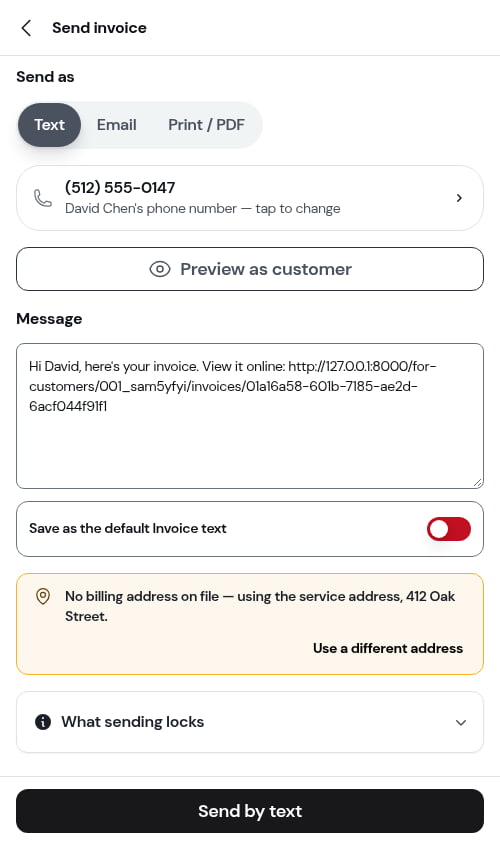
- No phone or email on your invoices — add yours — shows when your business has no contact details. Tap it to add a business phone or email so customers know how to reach you.
-
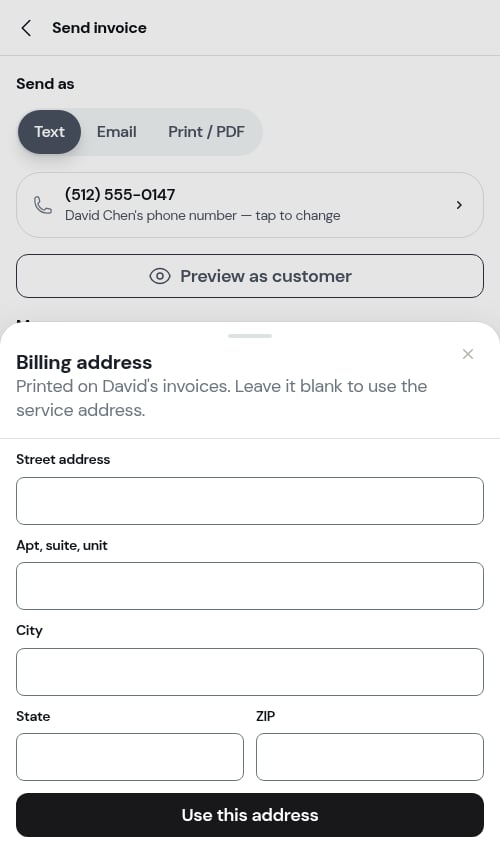
No billing address on file — using the service address — tap Use a different address at the end of the line to enter a billing address. (If your role can’t edit customers, the line is shown without the link.)
-
What sending locks — opens to explain what happens: sending assigns the invoice number (it names the number, for example assigns Invoice #00042 — you can choose where numbering continues from) and freezes your business and customer details onto it, and shows the payment terms and due date it will use. You can still change the charges until a payment is recorded. Spotted something to fix first? Tap Edit invoice at the bottom of the box — the Send invoice screen closes and you’re back on the draft, with nothing sent.
5
Send
Tap Send by text (or Send by email, or Generate PDF). The invoice is numbered, gets its issued and due dates, and moves to Unpaid.
When your phone does the texting
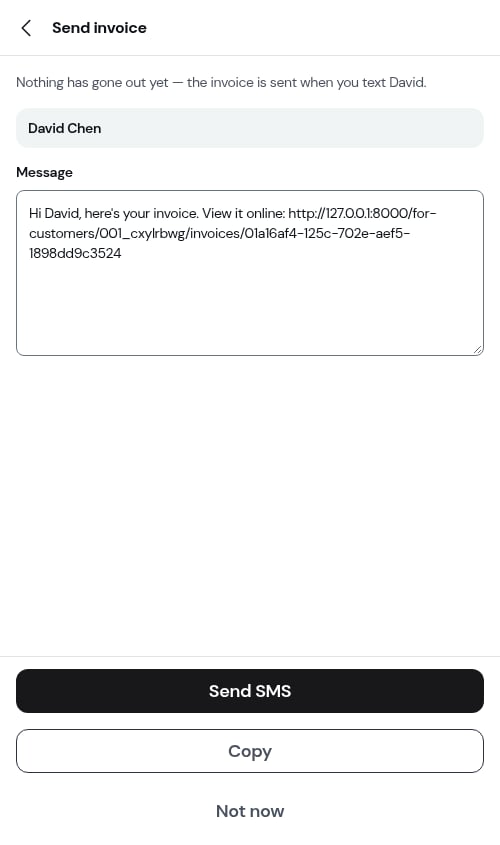
Depending on your account, ProBase either sends the text for you from its own number, or hands it to your phone. When it’s your phone, tapping Send by text opens a ready-made message with the customer’s link:- Send SMS — opens your messaging app with the message filled in (shown when a phone number is on file)
- Copy Message — copies the message, when there’s no phone number on file
- Copy — copies the message so you can paste it anywhere
When ProBase sends the text for you, it starts the message with your business name and ends it with This number does not accept replies. Call or text [your business phone] instead. An emailed invoice ends with your business name, plus your phone and email when you’ve added them. See Texting your customers.
Sending by email
An emailed invoice comes from ProBase but carries your business name, and replies go to your business email. It shows the invoice’s charges and totals and a View and pay invoice button.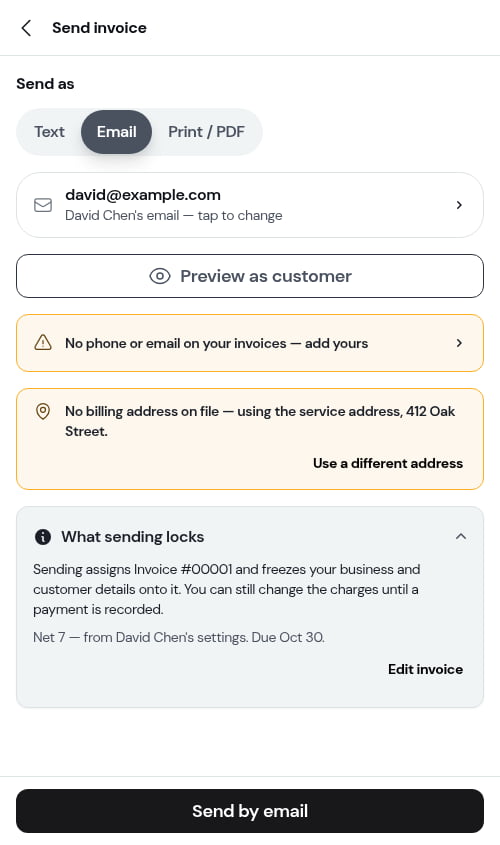
Sending the invoice for a completed visit
There are two ways to bill a visit you just finished:- With the service report — the send report step has a switch to include the invoice, so the customer gets one message with what you did and what they owe. When the draft holds charges from several visits, you can tick which charges go with the report.
- On its own — tap the Charged row under What happened on the completed visit. It opens the invoice, where you send it as above.
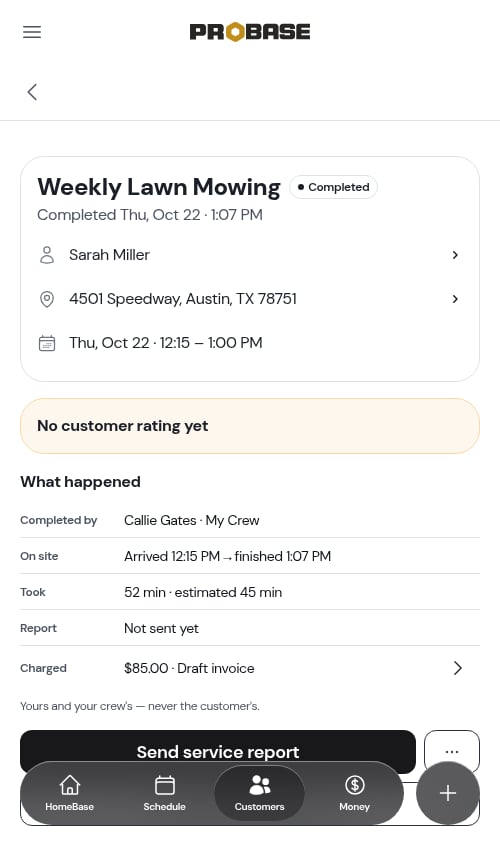
A visit that billed nothing — a subscription visit, or a $0 job — has no Charged row. The service report is what the customer gets. See One-time vs subscription billing.
Send a reminder
When an invoice is unpaid, overdue, or partly paid, tap Send a reminder at the bottom of the invoice (or in ⋯ More, or Text David on its Invoices list card). The reminder screen works like the Send invoice screen: pick Text or Email, check the recipient, and edit the message if you like. ProBase writes a polite first draft for you — for example “Hi David, just a reminder that invoice #00041 for $80.00 was due Sep 25. You can pay here: …” Tap Send reminder by text (or email). The draft comes from your Payment reminder template. To make the wording you’ve just written the new starting point for every reminder, turn on Save as the default Payment reminder text before sending.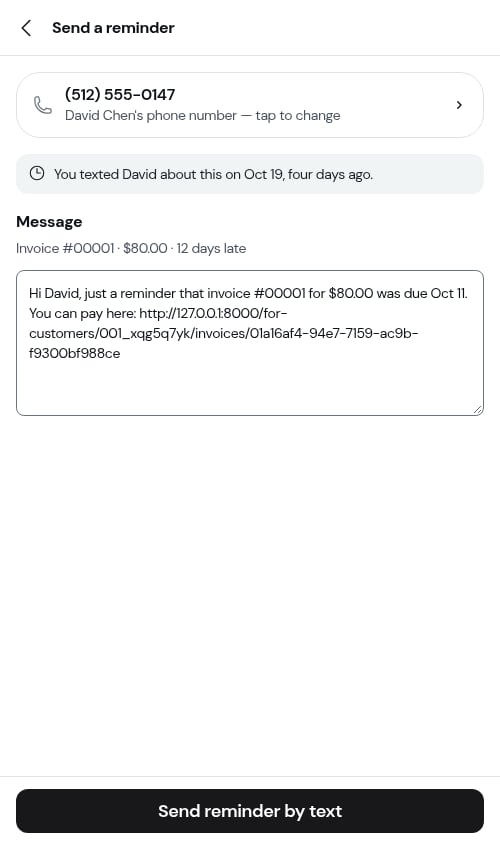
If you’ve already contacted the customer about this invoice recently, the screen says so — “You texted David about this on Sep 18, two days ago.” — so you don’t nag by accident. Within the hour, the button reads Send it again.
Resend an invoice
Need to send it again — because the customer lost it, or you changed a charge after sending? Tap ⋯ More → Resend. The invoice number, dates, and details stay the same.Delivery status
Once an invoice is sent, its page shows how it went out — Sent Oct 1 by text, or Sent 2 times · last Oct 3 by text. When ProBase sends the text for you, it also shows what the carrier reported:- Delivered — the text reached the customer’s phone
- Delivery failed — it didn’t

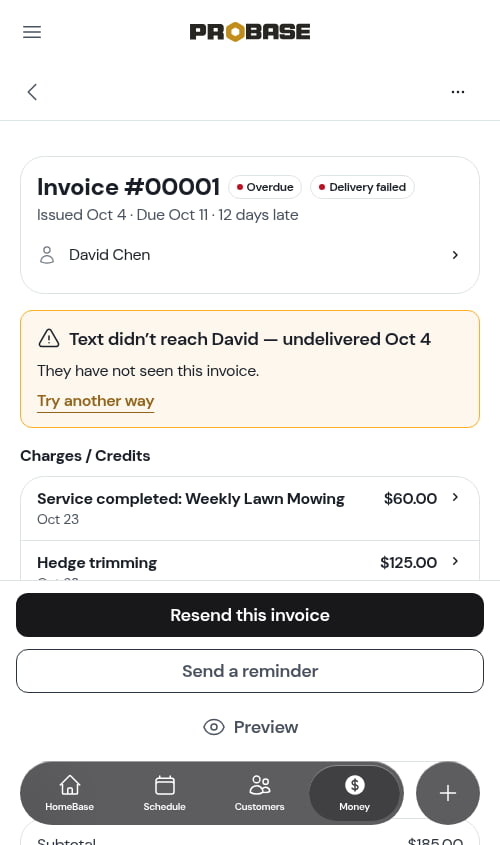
A bounce can take a little while to come back from the customer’s email provider, so an emailed invoice may read Sent at first and switch to Couldn’t be delivered later.
What customers see
The customer opens a page with your business details, the invoice, and the ways they can pay — by card, by Venmo, Cash App or PayPal, or how to reach you if you don’t take payments online. See Customer payment portal.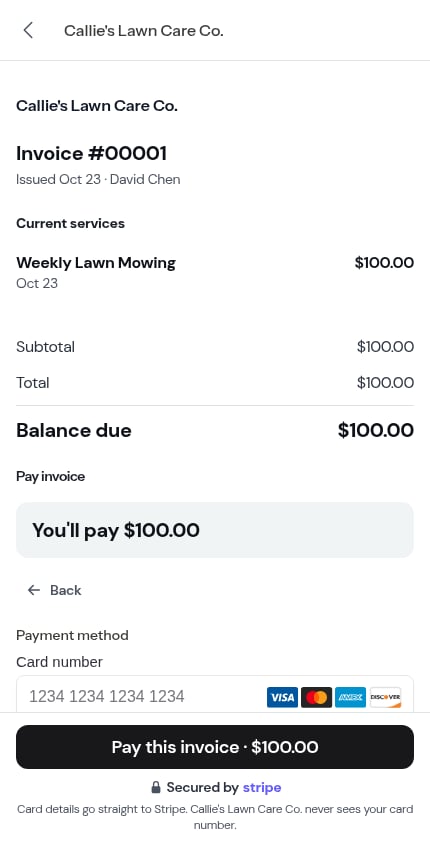
On paper, the same link travels as a QR code. When you print an invoice that still has money owed and you take payments online, the printout carries a QR code the customer can scan to land on this same page. See Printing invoices.