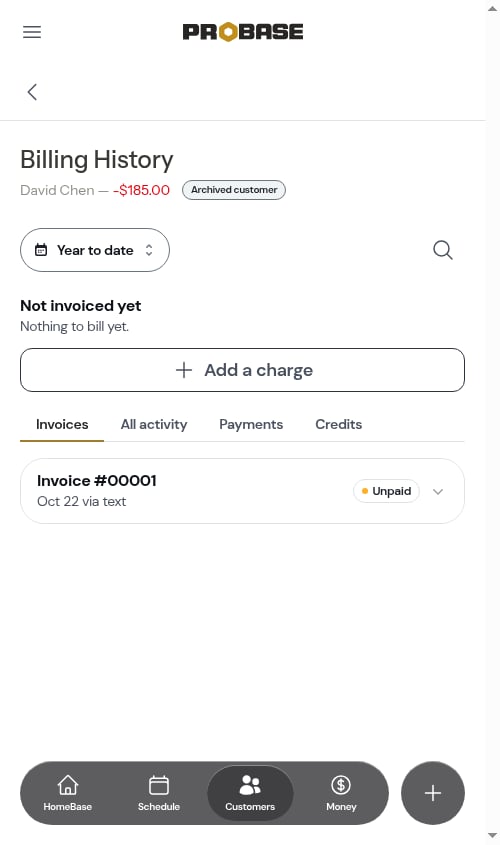
Understanding balances
Each customer has a balance worked out from everything on their account — charges, credits, and payments.- A negative balance (like -$150.00) — the customer owes you money
- $0.00 — the account is paid in full
- A positive balance (like $25.00) — the customer has a credit that comes off their next invoice
The marketplace’s own record is the one exception. If you’ve connected a marketplace account, the customer record named after that marketplace — LawnStarter, for example — holds your earnings and payout history instead of charges you collect. See Marketplace earnings & payouts.
See who owes you
The Customers list shows Owes $85.00 beneath the name of every customer with money to collect. To put the biggest balances at the top, choose the Owes most sort.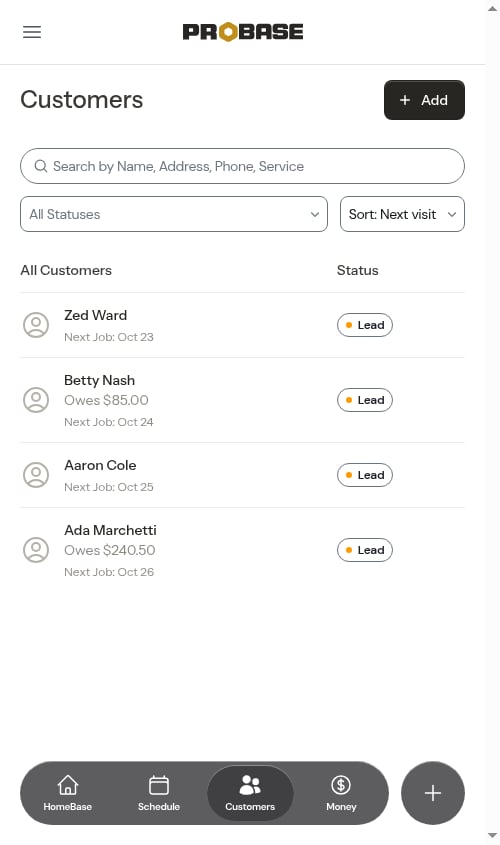
View a customer’s balance
Open the customer from the Customers list. The top card shows Outstanding balance with their Lifetime value beneath it. If the customer has deposits waiting to be added to an invoice, a line like Deposits held · $500.00* sits under the balance — held deposits are kept apart from what they owe. The billing history heading shows the same figure, for example *· $500.00 in deposits held. Tap that row to open their billing history.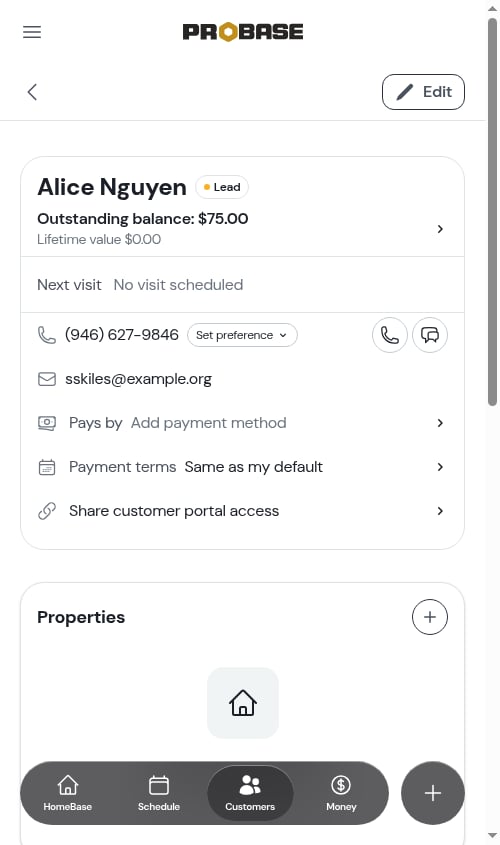
Billing history
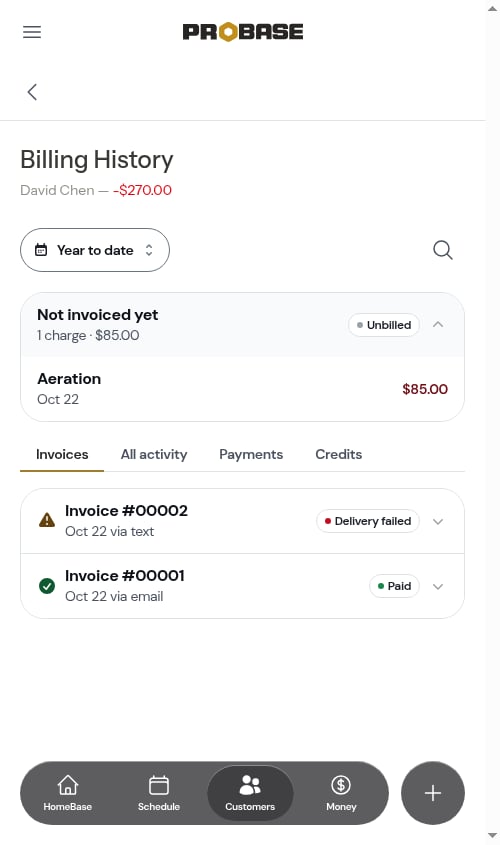
The Billing History page shows the customer’s name and balance at the top, then everything they’ve been billed and paid.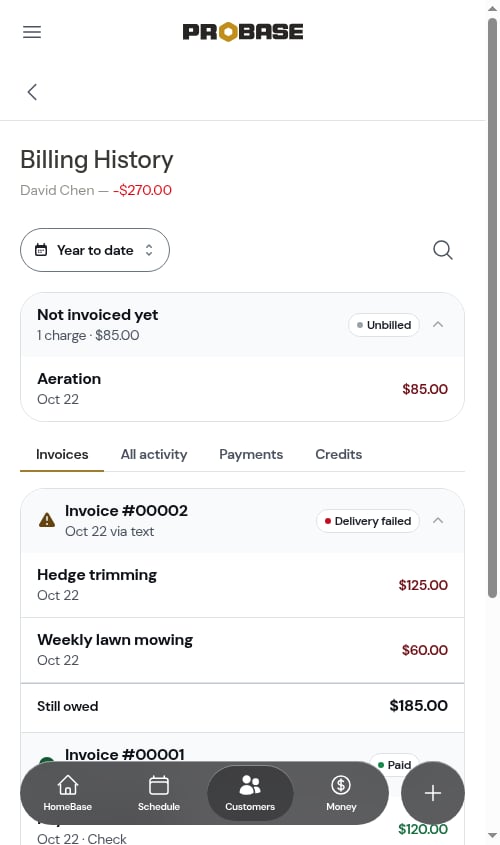
Not invoiced yet
The first card is the customer’s draft invoice — Not invoiced yet, marked Unbilled — listing the charges waiting to be sent. Tap its header to open the draft, where you can add charges and send it. When there’s no draft, the card reads Nothing to bill yet. with an Add a charge button. Adding a charge creates the draft and opens it.Tabs
Below, pick what to see:- Invoices — one card per invoice with its state (and a Delivery failed pill if the message didn’t arrive). Tap a card to open or close it and see its charges, payments and what’s still owed; tap its header to open the invoice.
- All activity — every charge, credit, payment, tip and refund
- Payments
- Credits
Period and search
The chip at the top sets the period (Year to date, This month, All time, a custom range, and more). Tap the magnifying glass to search the history. The Not invoiced yet card always shows, whatever the period or search.Entry details
Tap a payment to open its payment details, where you can edit or remove a payment you recorded. Tap a charge, credit, or tip to see its full breakdown — subtotal, tax, total, whether it’s paid, and what it was applied to.Add charges, credits, and payments
These all start from the invoice or the Money screen, not the billing history:- Add a charge or credit — open the customer’s draft (or an unpaid invoice) and tap Add charge or Add credit. See Edit an invoice.
- Record a payment — tap Record payment on Money or on the invoice. See Recording payments.
- Send the invoice — open the draft and tap the send button. See Sending invoices and reminders.
Archived customers
An archived customer keeps their money. Their billing history still opens — with an Archived customer tag beside their balance — their unpaid invoices stay on Money, and their invoice links keep working, so you can still collect and record payments.