What are Quick Actions?
The Quick Actions button (also called the FAB - Floating Action Button) is a circular button with a plus icon that appears in the bottom-right corner of most pages. It gives you instant access to the most common tasks you perform every day. On a phone it sits at the end of the bottom bar, level with the tabs, so creating something and switching screens live side by side. On a computer it floats in the bottom-right corner of the page.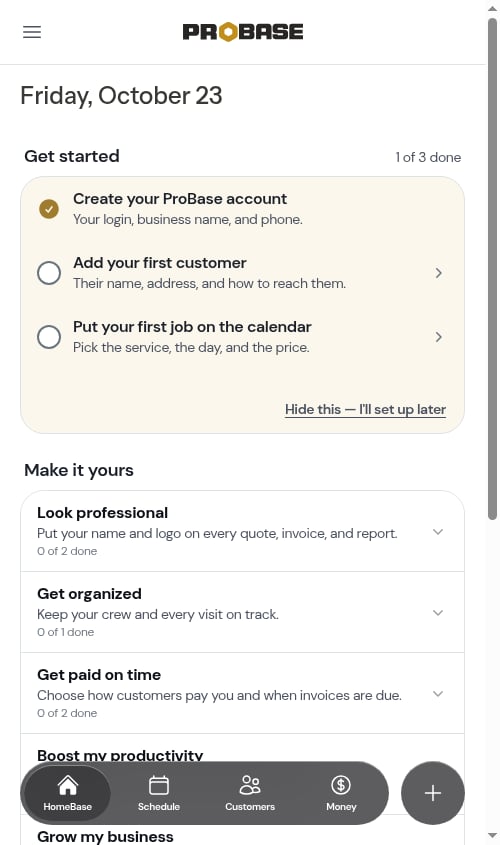
Using Quick Actions
1
Click the Quick Actions button
Look for the floating button with a plus icon in the bottom-right corner of your screen.
2
Choose an action
When you click the button, a menu expands showing the available actions: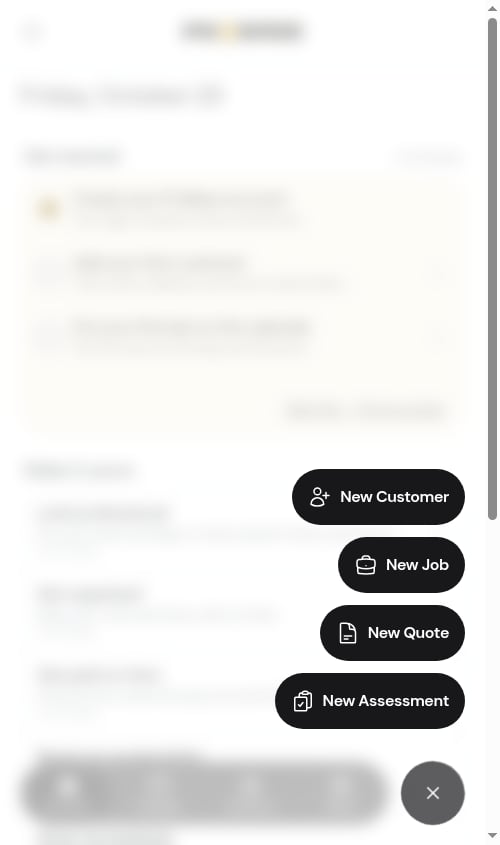
- New Customer - Add a new customer with optional property details
- New Job - Create confirmed work (customer + property + service + appointment)
- New Quote - Start a quote for a customer and property
-
New Assessment - Start an assessment when you need a look before you can price the work
3
Complete the form
After selecting an action, a form opens right on top of the page you were already on. Fill in the required information and follow the steps — if you close it without finishing, you stay exactly where you were.
Click the dimmed page behind the menu, or press the ✕, to close the menu without selecting an action.
You only see the actions your role allows. If your role can’t create quotes, for example, New Quote simply isn’t in the menu.
Available actions
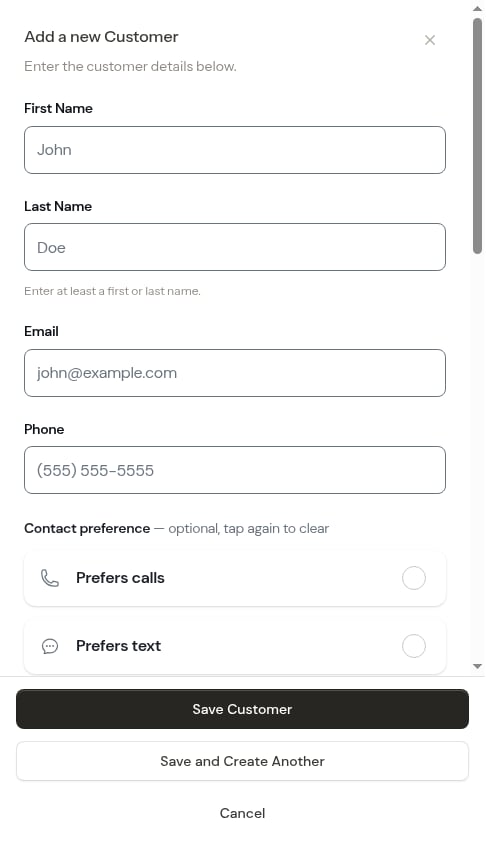
New Customer
Opens the customer creation form where you can:- Enter customer contact information
- Optionally add their first property
- Save and continue to set up services
New Quote
The New Quote action starts a quote for a customer and property. It asks two questions — Who’s this for? and Which property? — and then drops you on the new quote’s own page, where you add the services you’re quoting.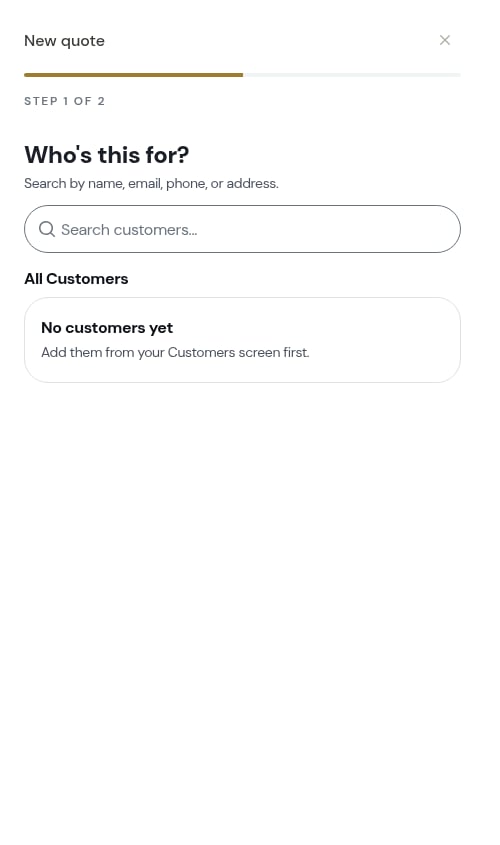
New Assessment
The New Assessment action starts an assessment — use it when you need photos or an on-site visit before you can put a number on the work. It asks who it’s for and which property, then how you want to assess the work.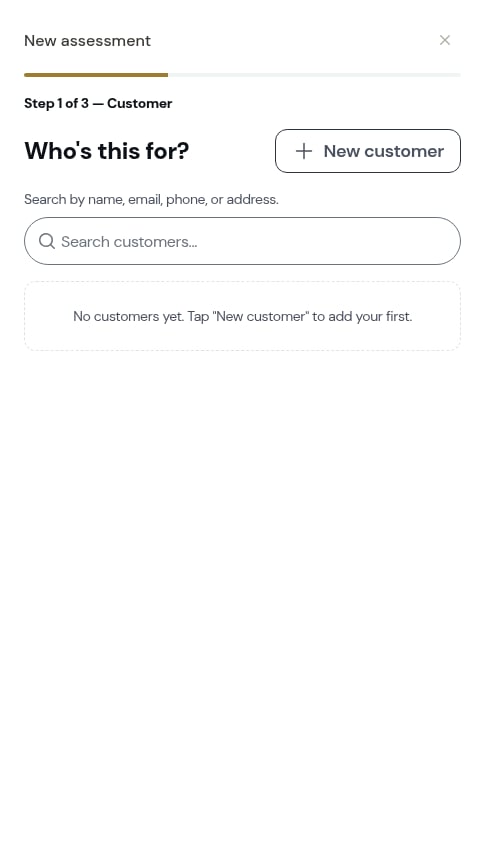
New Job
The New Job action creates confirmed work using a multi-step wizard, one question per screen:- What would you like to do? — schedule the job, or switch to an assessment or a quote instead
- Who’s this for? — pick an existing customer or add a new one
- Which property? — choose one of their properties or add a new address
- What are you doing? — pick a service from your catalog, or type a custom one
- What does it cost? — price, tax rate, extra charges, and any discount
- When should this job be scheduled? — frequency, start date, crew, start time and length
- When should this job be billed? — per visit or subscription
- Confirm and create job — the whole job read back as a receipt, with a pencil on every row
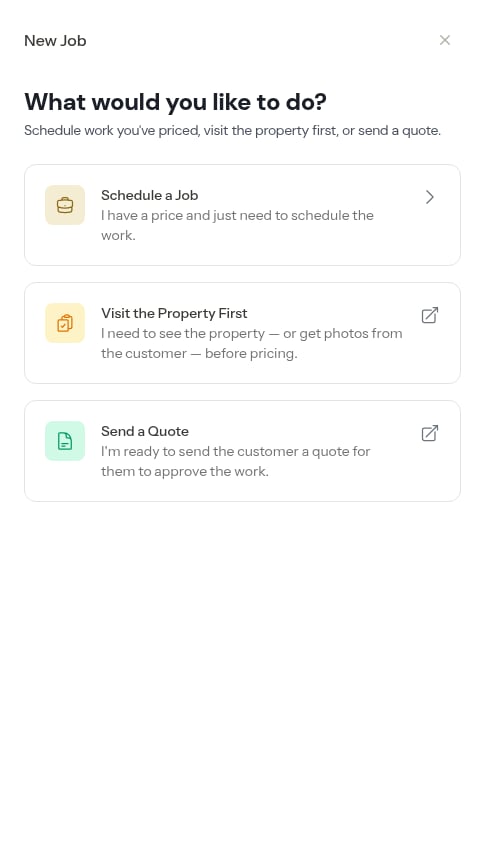
- Work is confirmed and doesn’t need a quote or assessment
- You know the pricing and scope upfront
- You’re ready to schedule and start immediately
Other common actions
These actions aren’t in the Quick Actions FAB but are easily accessible from the relevant pages:- Record payment — A button on the Money page, on any invoice that’s still owed, and in a completed visit’s ⋯ More menu. See Recording payments.
- Send invoice — On any draft invoice. From a completed visit, reach it through the Charged row — or send it with the service report. See Sending invoices and reminders.
- Add charge / Add credit — Rows on the invoice itself, while it’s a draft or sent but not yet paid. See Invoices.
Where the Quick Actions button appears
The Quick Actions button is on every page once you’re logged in — bottom-right on a computer, at the end of the bottom bar on a phone — so it’s always in reach no matter where you are in the app.The creation flows open as a full-screen window over the page you were on, so the button sits behind them while you’re filling one in. Close the window and it’s back where it was.
Next steps
- Add your first customer - Use the New Customer action to get started
- Create a job - Use the New Job action for confirmed work
- Create quotes and assessments - Use the New Quote action for quotes and assessments
- Send invoices - Send an invoice by text or email, or print it