Overview
The Business Profile page lets you update your business information and control how scheduling works for your team. Go to Settings in the sidebar under Business to access it.Bulk data
At the very top of the page, a Bulk data card offers to bring your existing customer list into ProBase — upload a spreadsheet, CSV, or a photo of a list and we’ll turn it into customer records. Tap Import customers to open your imports and start a new one. See Importing customers in bulk.This card only appears if bulk import is switched on for your account and your role allows importing.
Business Profile
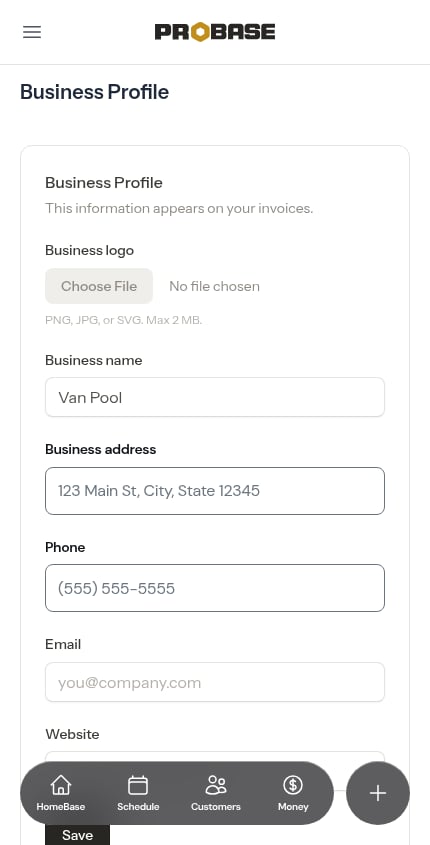
The Business Profile section lets you set up the contact details and logo that appear on your invoices and customer-facing communications.Business logo
Upload your business logo to have it displayed on every invoice you send. Customers will see it in the header of their invoice alongside your business name and contact details.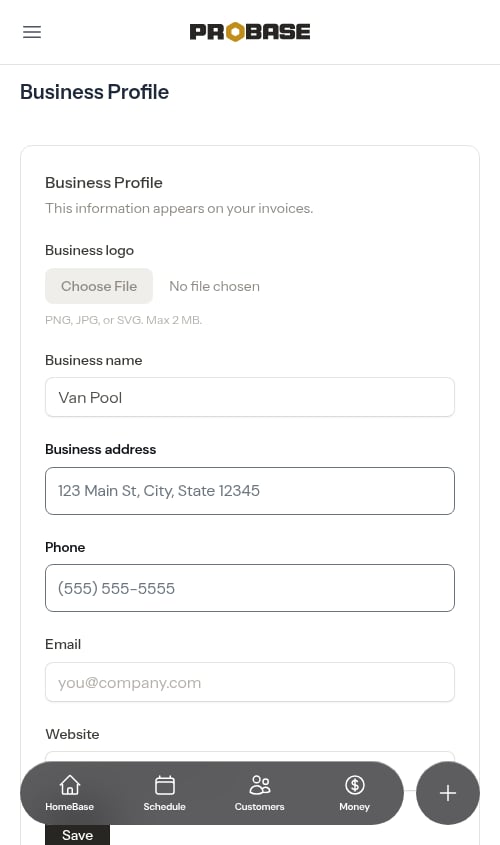
1
Choose a logo file
Click the file picker under Business logo and select an image. Accepted formats: PNG, JPG, or SVG.A preview of your selected image will appear immediately.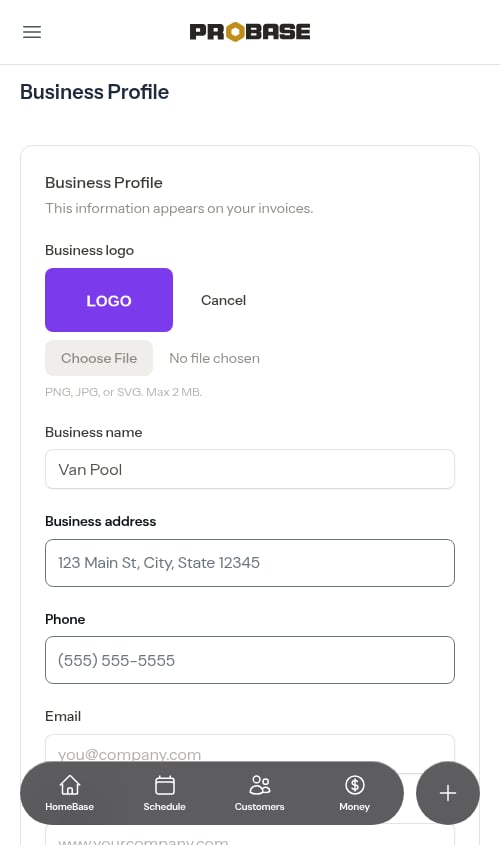
2
Save
Click Save to upload and apply your logo.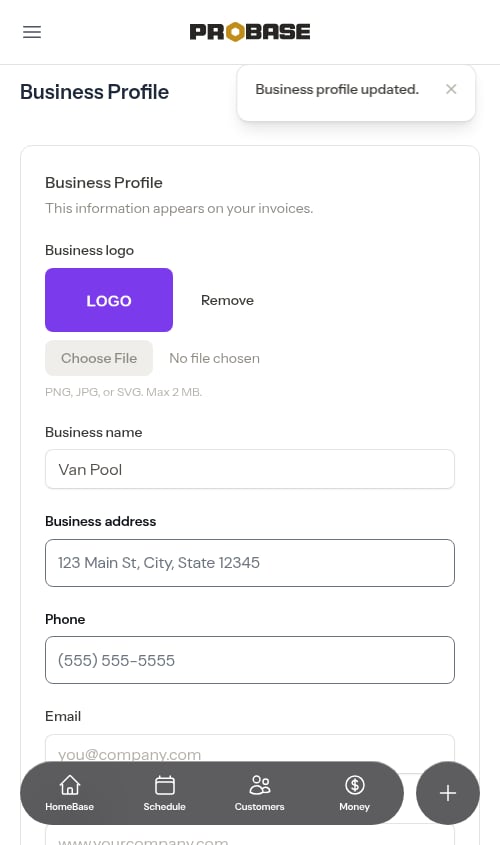
If the upload fails: If the file you picked can’t be read as an image — for example, a corrupted file or a non-image file with a renamed extension — you’ll see an inline error under the file picker asking you to upload a PNG, JPEG, or SVG. Pick a different file and click Save again.
Removing your logo
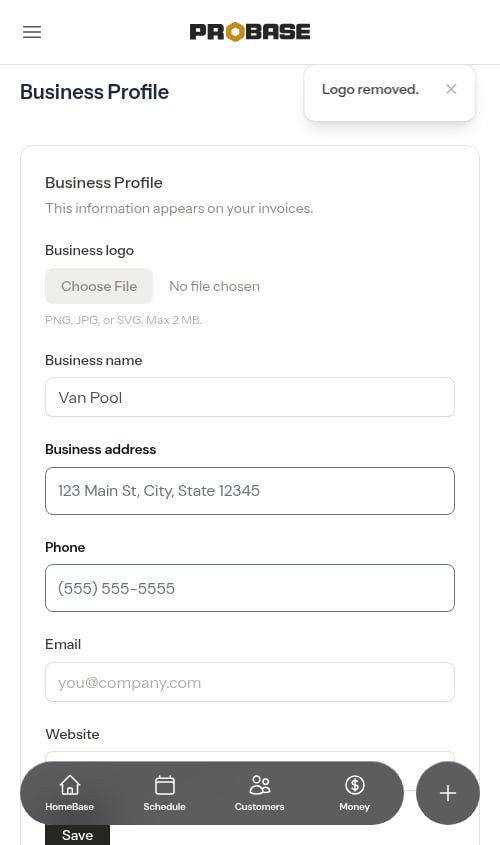
If you want to remove your logo:- Click the Remove button next to the current logo preview
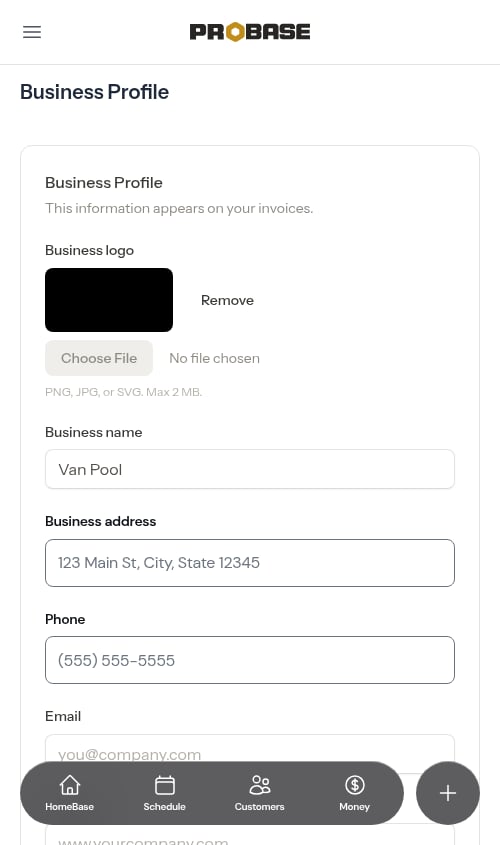
- Confirm when prompted — the logo is removed immediately
Other fields
- Business name — Your company name as it appears on invoices
- Business address — Your primary business address. Start typing and address suggestions will appear — select one to fill in the full address. This address also decides which addresses come up first everywhere else you type one, so suggestions favor your own service area. See Address suggestions as you type.
- Phone — Your business phone number, shown on invoices and customer-facing pages.
- Email — Your business email address, shown on invoices
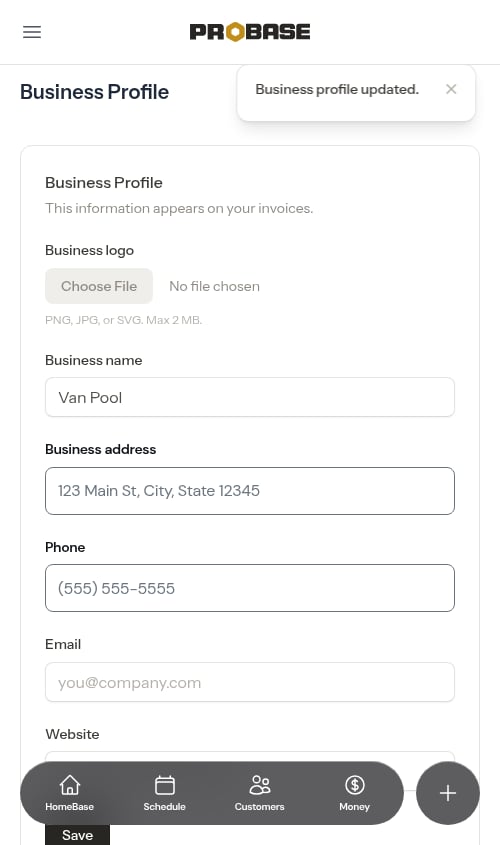
- Website — Your website URL, shown on invoices
Entering your website
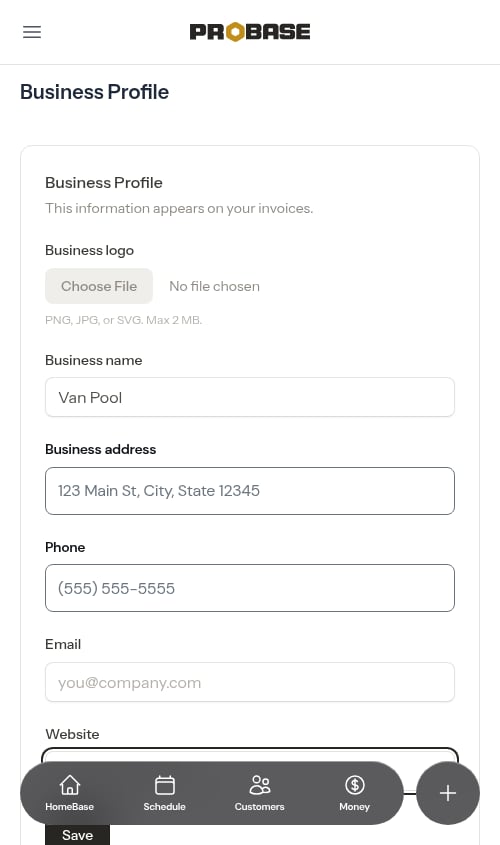
You can type your website with or without thehttps:// prefix — both work. If you enter a bare domain like mycompany.com, ProBase saves it as https://mycompany.com automatically.
Manage Industries
If trades (industries) are enabled for your account, the Business Profile section also includes a Manage Industries card where you can add or remove the trades you do. The Add a trade picker offers ProBase’s full catalog of trades — Pool, Lawn, Pest Control, Pressure Washing, HVAC, and many more.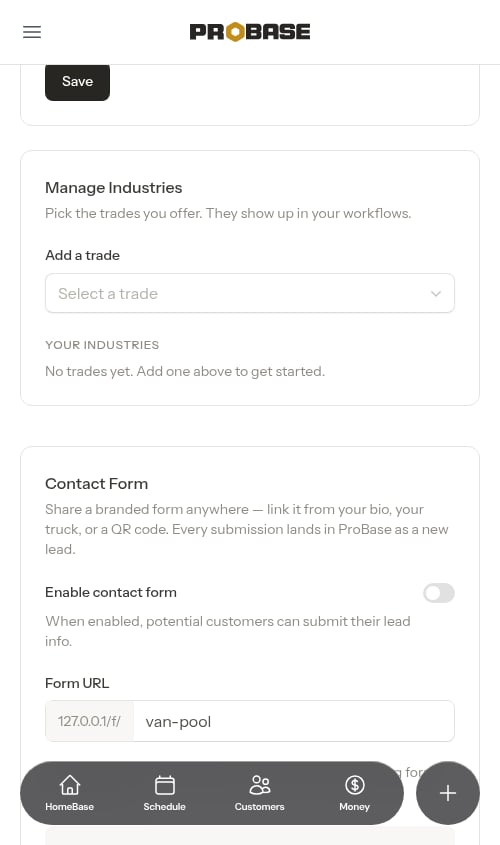
- Add a trade to tag services with it and get trade-specific fields at job completion. Adding a trade changes nothing on its own — no existing services or jobs are affected until you tag a service.
- Remove a trade (trash icon) to stop offering it. ProBase confirms first and lists exactly which services will be archived.
Contact Form
The Contact Form section lets you turn on a branded web form that captures new leads. Share its link or QR code anywhere, and every submission lands in ProBase as a new lead.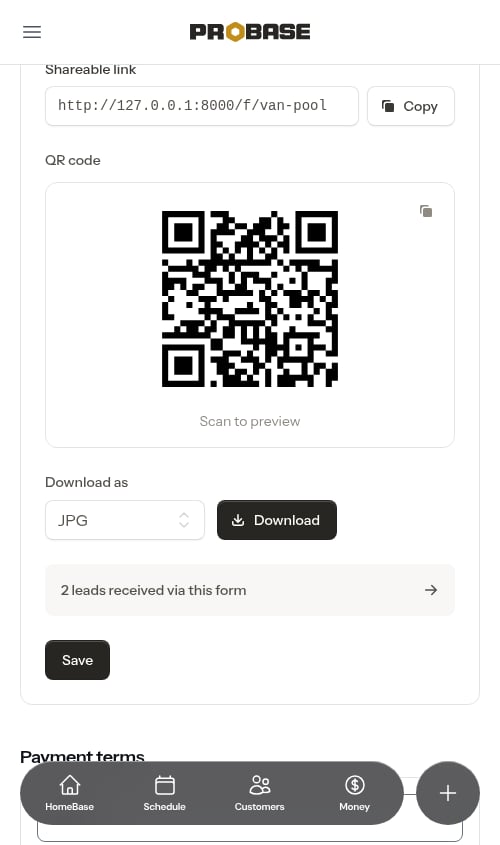
Invoice Settings
An Invoice Settings section controls what an invoice looks like to your customer. It sets when an unpaid invoice starts counting as overdue — Upon receipt, Net 7, Net 15, Net 30, or Custom for your own number of days (1–180) — sets the number your next invoice will take — handy when you’re continuing from another system’s numbering — and holds three more switches: whether customers see the due date and past-due wording, whether they must rate your service before paying, and how they’re asked for a tip. Once Google reviews reaches your business, a Reviews group inside the section also holds the Ask happy customers for a Google review switch. Everything saves together with one Save button. The same section appears on the Payments page, under Invoice settings. See Payment terms and due dates, Service ratings, Google reviews, and Tips and gratuity.Quote terms
A Quote terms section holds the terms and conditions attached to every new quote you write, so you only type them once. Edit the Terms box and tap Save — a Quote terms saved. message confirms it.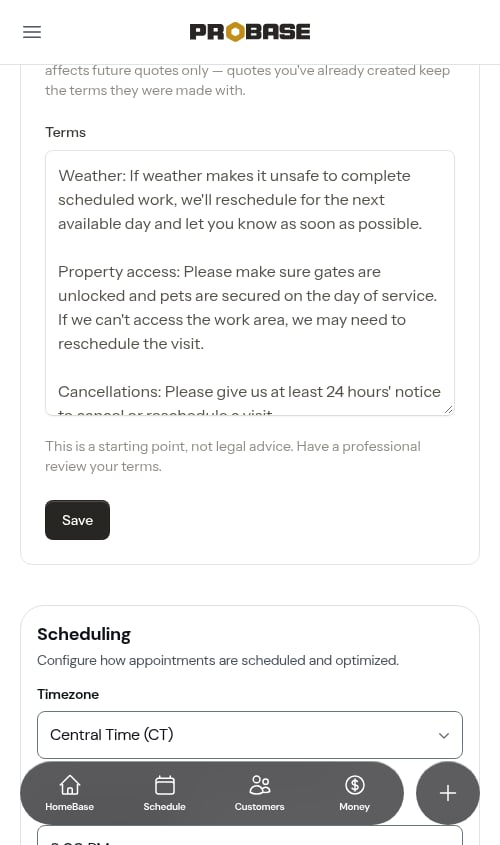
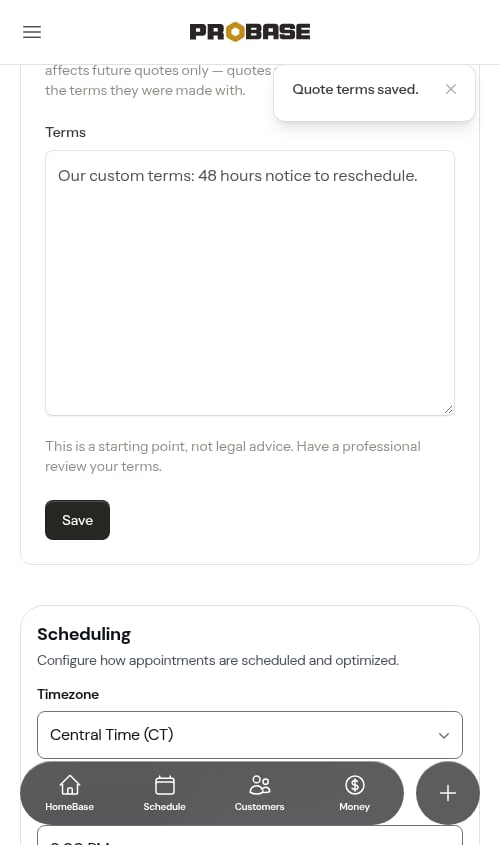
Saving affects future quotes only. Quotes you’ve already created keep the terms they were made with, so changing your wording never rewrites a quote a customer has already seen.
Scheduling
The Scheduling section controls your timezone, when visits show as overdue, and route optimization behavior for your team.Timezone
Set your team’s timezone so that appointment times, calendar views, and scheduling all display correctly for your location.- Click the Timezone dropdown
- Select your timezone from the list — the common US timezones come first, then every region and city, then UTC (Coordinated Universal Time) at the end
- Your selection is saved automatically
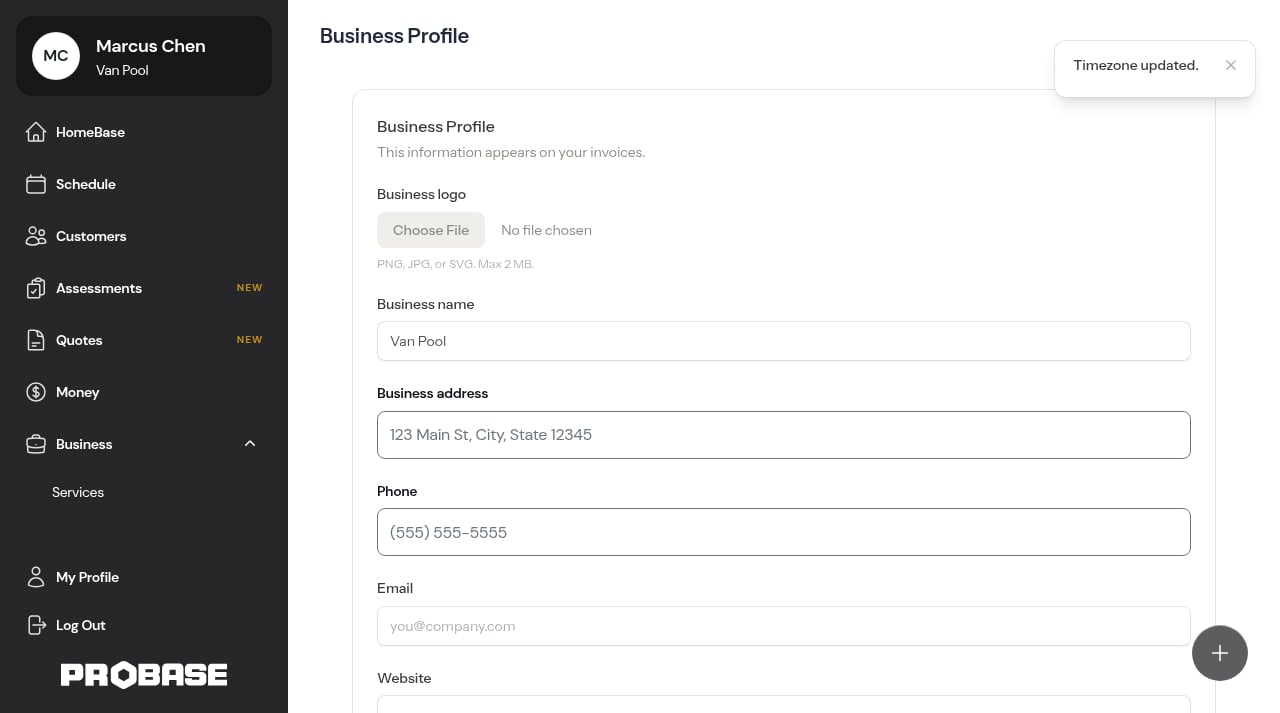
Setting the correct timezone is important — appointment times are stored in UTC and displayed based on your team’s timezone. An incorrect timezone will cause appointment times to appear shifted on your calendar.
Mark visits Overdue at
Choose the time of day when a visit that’s still scheduled on its date starts showing as Overdue. The default is 9:00 PM. You can pick any hour from 12:00 PM (noon) to 11:00 PM, or Midnight — the end of the visit’s day, for crews that regularly work late. The line under the dropdown sums it up: “A visit still scheduled at this time on its date shows as Overdue everywhere. Midnight means the end of the visit’s day.” Anyone on your team who can change the Timezone can change this setting too.- Click the Mark visits Overdue at dropdown, just below Timezone
- Pick a time
- Your selection saves right away, and a message confirms it — for example, “Visits now show as Overdue at Midnight.”
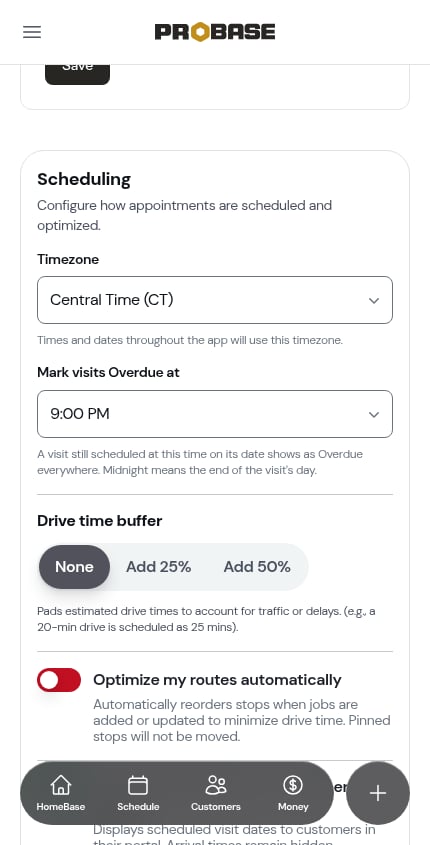
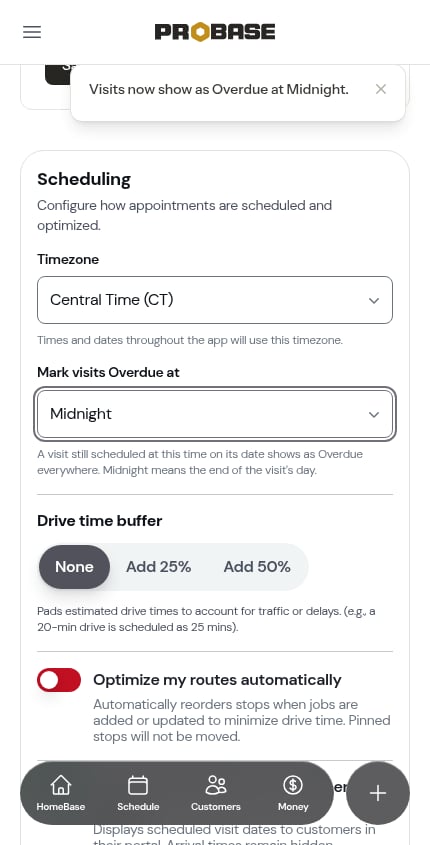
The time uses your business’s timezone. With Midnight, a visit booked for today reads Today all day and only turns overdue once the day is over.
Drive time buffer
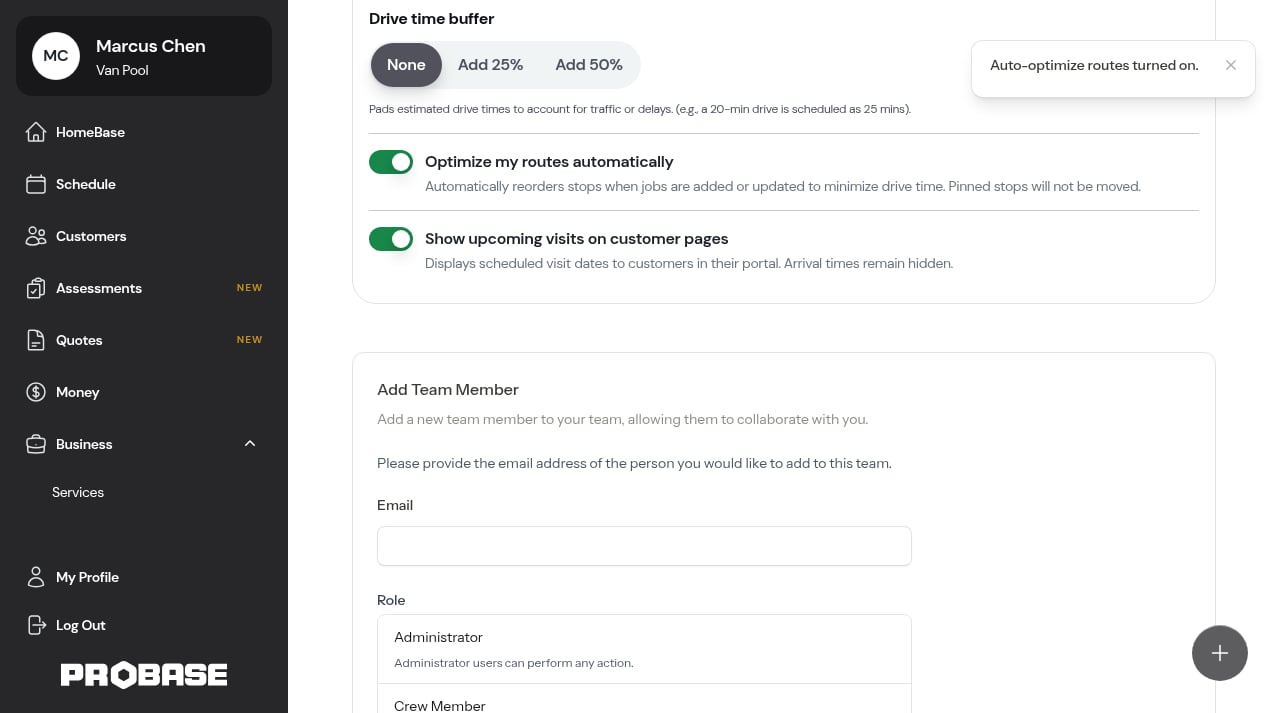
Real driving takes longer than the map says — traffic, parking, a gate to get through. The buffer pads every drive time ProBase plans with, so the schedule it builds is the one your crews can actually keep. Three choices: None, Add 25%, Add 50%. “Pads estimated drive times to account for traffic or delays. (e.g., a 20-min drive is scheduled as 25 mins).”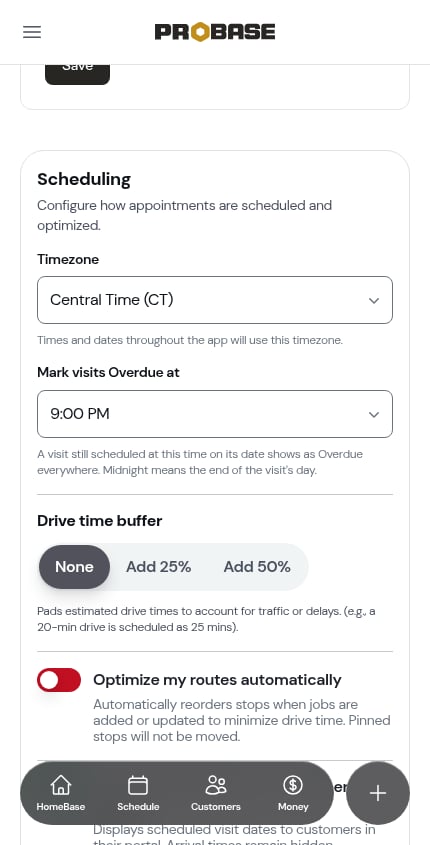
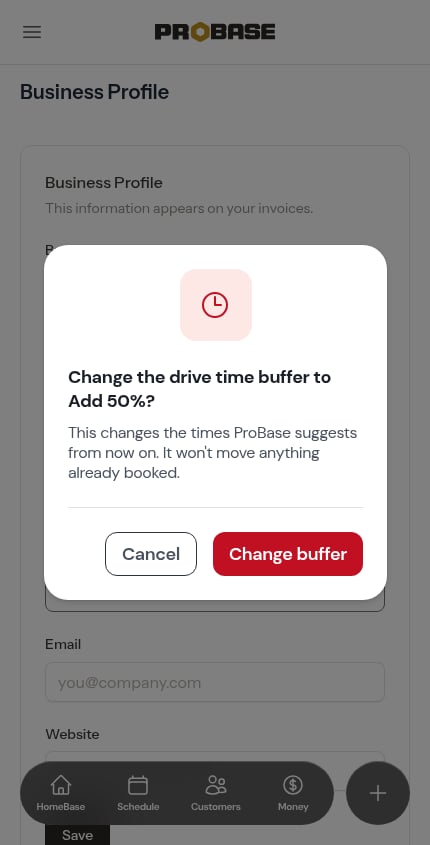
Change the drive time buffer to Add 25%? This changes the times ProBase suggests from now on. It won’t move anything already booked.Change buffer saves it; Cancel puts the pills back on the value you had.
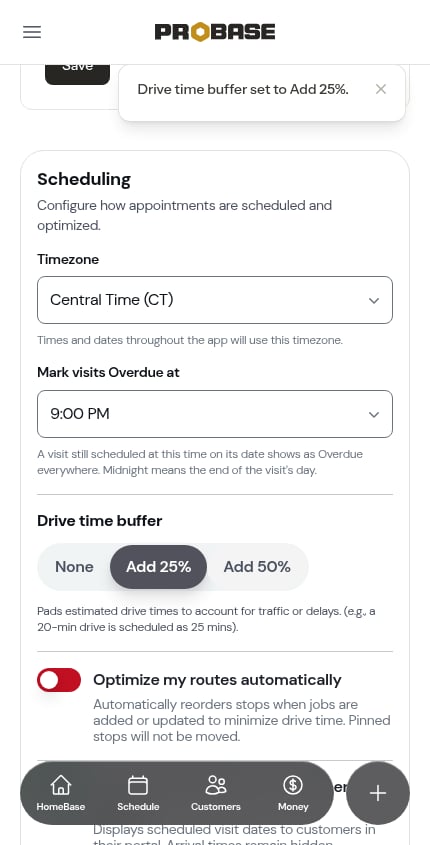
Nothing already on the calendar moves when you change the buffer. Only times ProBase works out from that point on use the new value.
Optimize my routes automatically
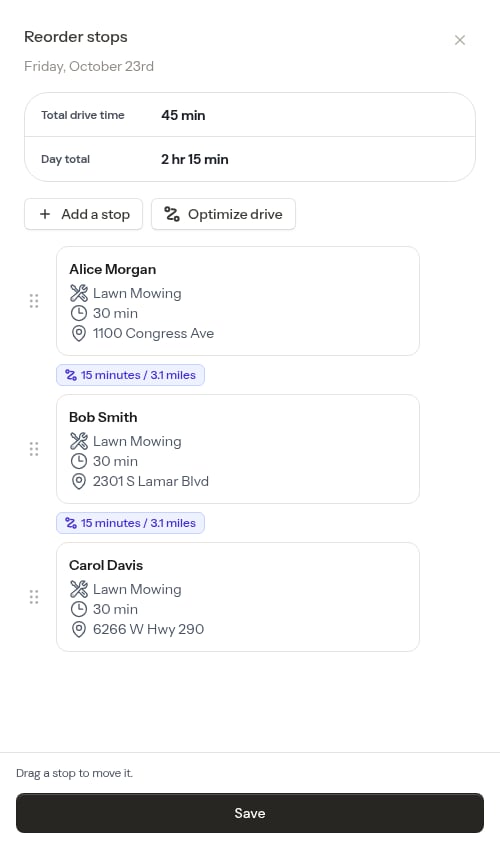
When this is on, ProBase reorders a crew’s day in the background as jobs are added or updated — “Automatically reorders stops when jobs are added or updated to minimize drive time. Pinned stops will not be moved.”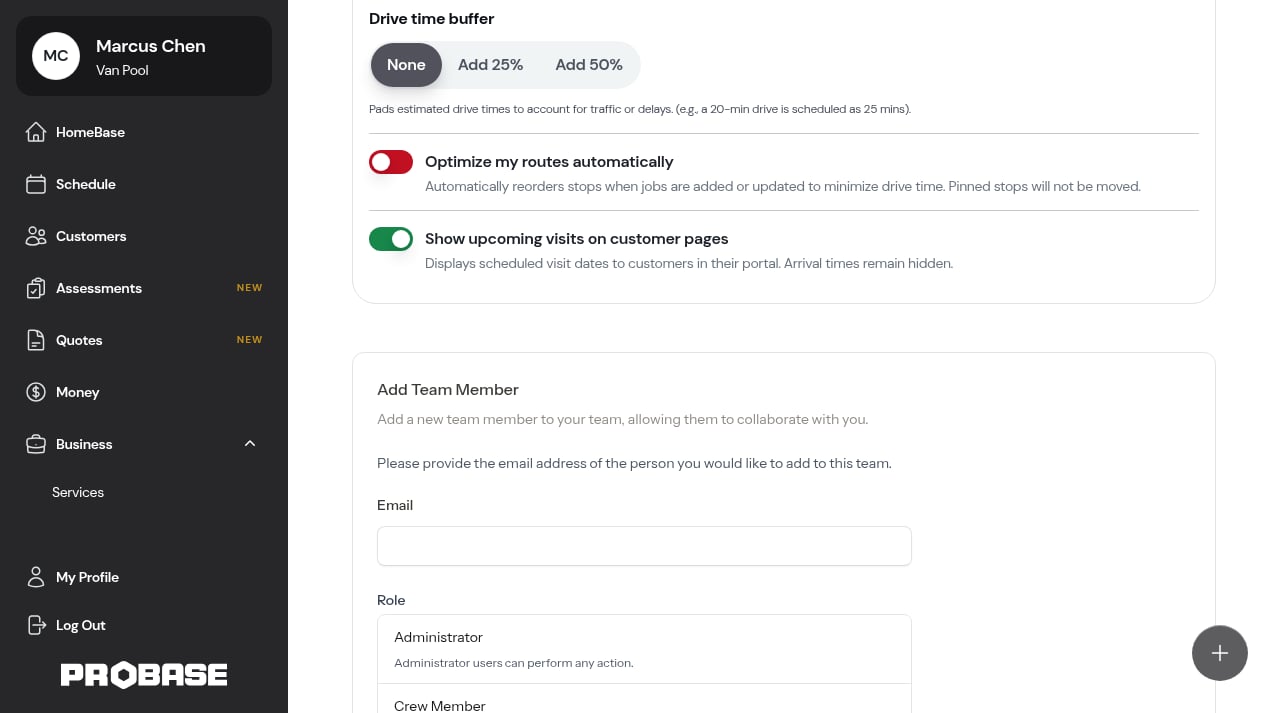
Automatic optimization needs the crew to have a start address saved and properties with addresses ProBase can find. See Adding crews.
Show upcoming visits on customer pages
Controls whether your customers can see their scheduled visit dates in the customer portal — “Displays scheduled visit dates to customers in their portal. Arrival times remain hidden.” On by default. Arrival times are never shown either way.The Drive time buffer, Optimize my routes automatically and Show upcoming visits rows only appear to roles allowed to manage route settings. If your role can only edit the business profile, you’ll see the Timezone and Mark visits Overdue at rows alone.
Customer texts
The Customer texts card — Customize default text messages sent to customers — opens your Message templates, where you can change the starting wording of every text ProBase writes for your customers. The row underneath shows how many templates there are and how many you’ve customized.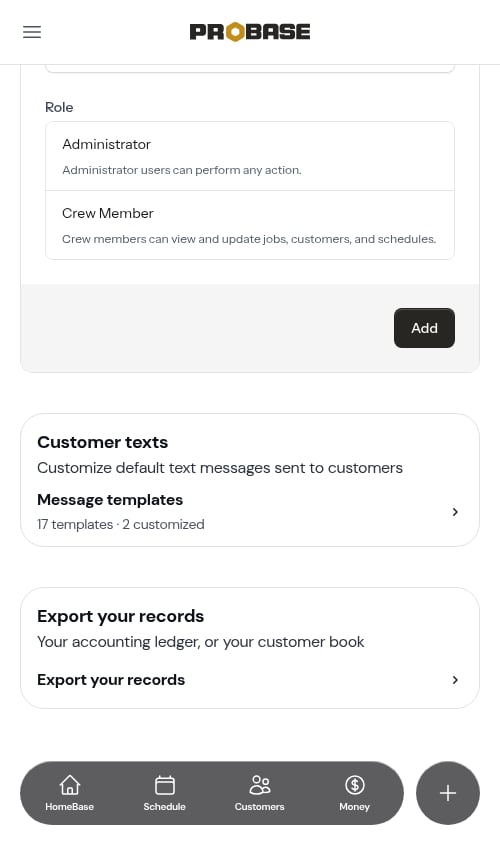
This card is rolling out gradually, and only appears to team members whose role lets them change billing defaults. See Message templates for the full walkthrough.
Export your records
At the foot of the page, just above Delete Business, the Export your records card lets you download your accounting ledger or your customer book as a CSV file. Tap the Export your records row to choose a file and a period.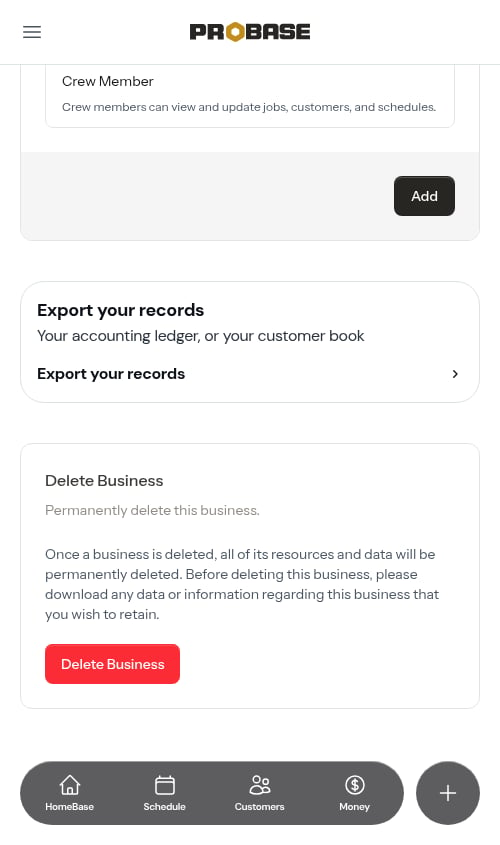
Only the business Owner sees this card. See Exporting your records for the full walkthrough.
My Profile
Your Business Profile settings cover the whole company. Your own personal details live on a separate page: open the navigation drawer and tap My Profile in the footer at the bottom.Everything on My Profile is yours alone. Changing your name or photo here doesn’t change your business name or logo, and it doesn’t affect anyone else on your team.
Profile Information
The Profile Information section holds your photo, your name, and your email address.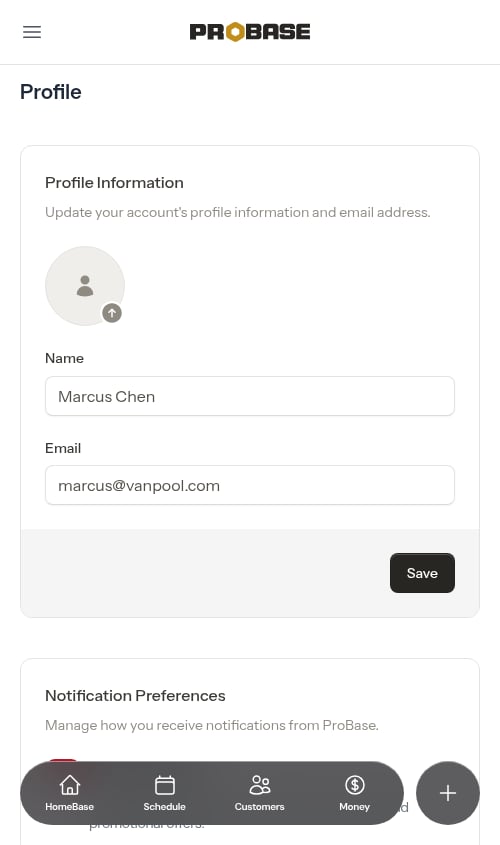
1
Tap the photo circle
The round avatar at the top of the section is the picker — tap it (or drag an image onto it) and choose a photo from your phone or computer. A photo straight off your phone’s camera is fine, including an iPhone photo in HEIC format and a full-size camera shot — there’s no file-size limit to worry about.
2
Check the preview
Your photo replaces the placeholder icon straight away so you can see how it will look before you commit to it.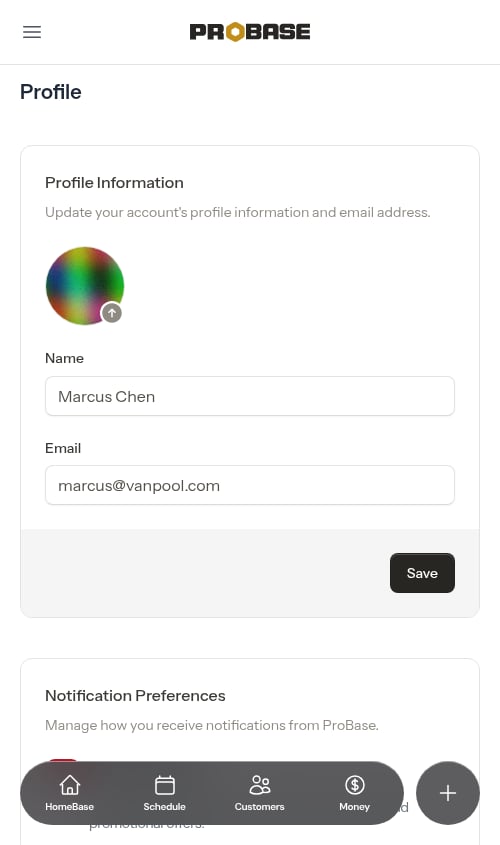
An iPhone HEIC photo doesn’t preview in the circle — the icon stays put after you pick it. That’s expected: tap Save anyway and ProBase converts it to a regular photo as it saves.
3
Save
Tap Save. A Saved. confirmation appears next to the button, and the circle now shows your saved photo — trimmed to a square and sized down so it loads quickly. It stays there every time you come back to My Profile.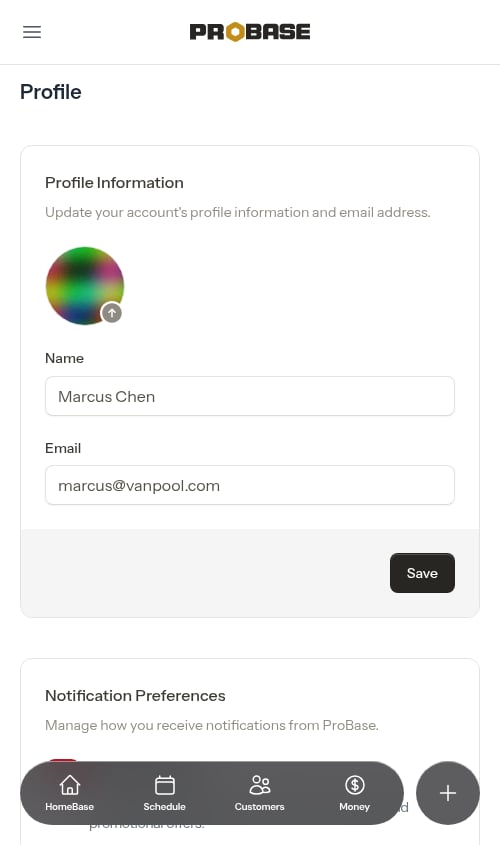
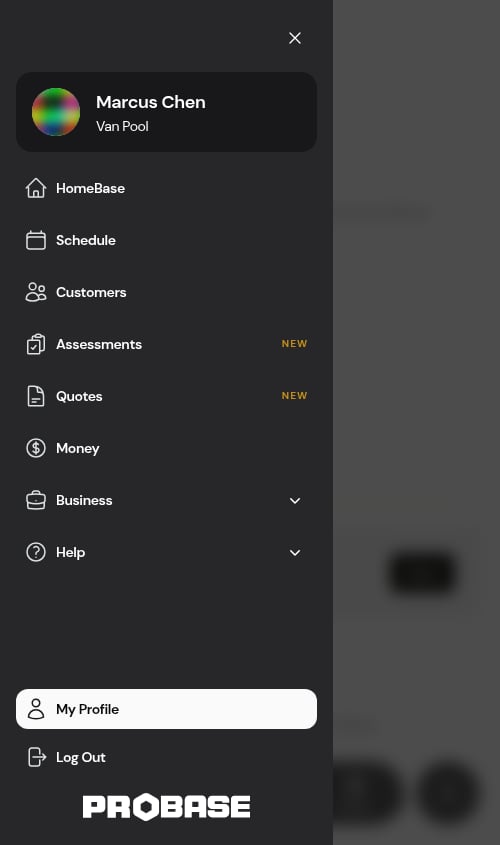
Inside the demo account the Email field is read-only, with a line below it explaining that it can’t be changed there. Your photo, name, and password are still editable in the demo — though like everything else there, those edits are wiped overnight.
Password and security
Below Profile Information are the security sections:- Update Password — enter your current password, then your new one twice. ProBase asks for a reasonably strong password and confirms when it’s changed.
- Two Factor Authentication — add a second step at login using an authenticator app on your phone. Tap Enable, confirm your password, scan the QR code with your authenticator app, then type the six-digit code it shows to finish switching it on. ProBase also gives you recovery codes — store them somewhere safe, as they’re the way back in if you lose your phone. Once it’s on, you can Show Recovery Codes, Regenerate Recovery Codes, or Disable it (each asks for your password first).
- Browser Sessions — shows where you’re currently signed in. Tap Log Out Other Browser Sessions and enter your password to sign out everywhere except the device you’re on. Useful if you’ve logged in on a shared or lost device.
- Delete Account — permanently deletes your user account and its data. This can’t be undone.
The delete-account option is hidden inside the demo account, so the sample world stays available for your next visit.
Maps app preference
My Profile is also where you choose whether Get directions links open Google Maps or Apple Maps. See Choosing your maps app.Notification Preferences
Your personal notification preferences also live on the My Profile page described above.SMS notifications
The Notification Preferences section lets you turn SMS notifications on or off. When enabled, you’ll receive transactional and marketing text messages from ProBase, including account updates, service notifications, and promotional offers.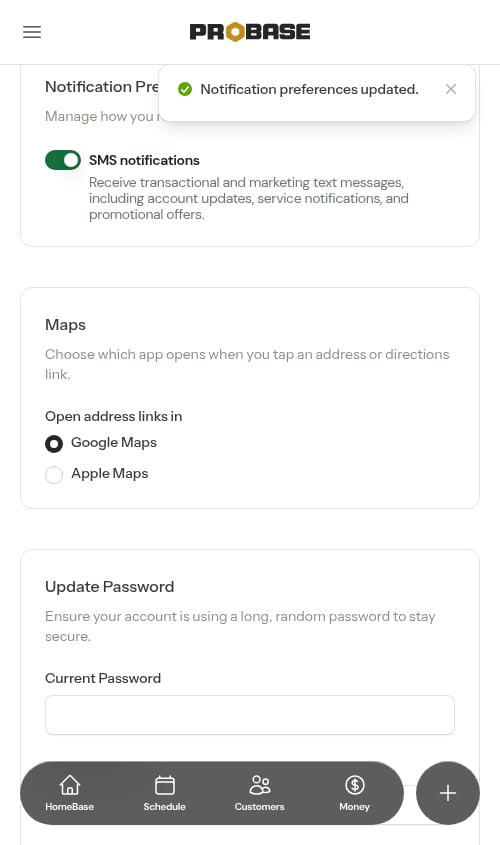
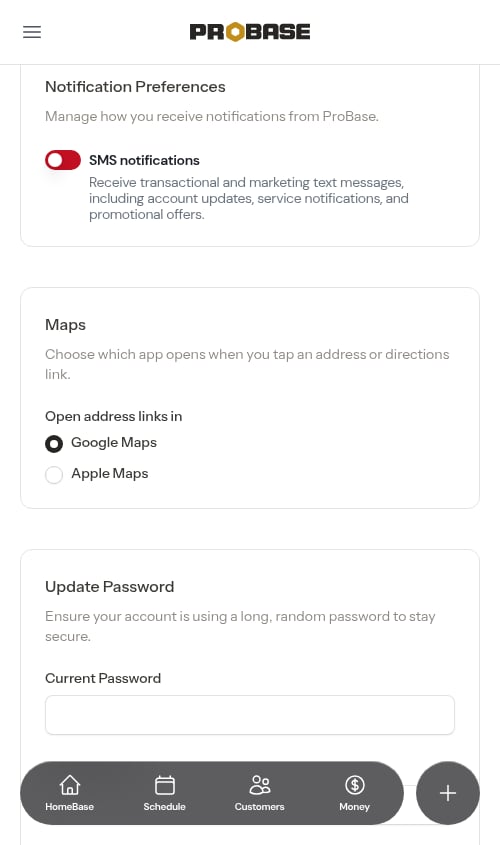
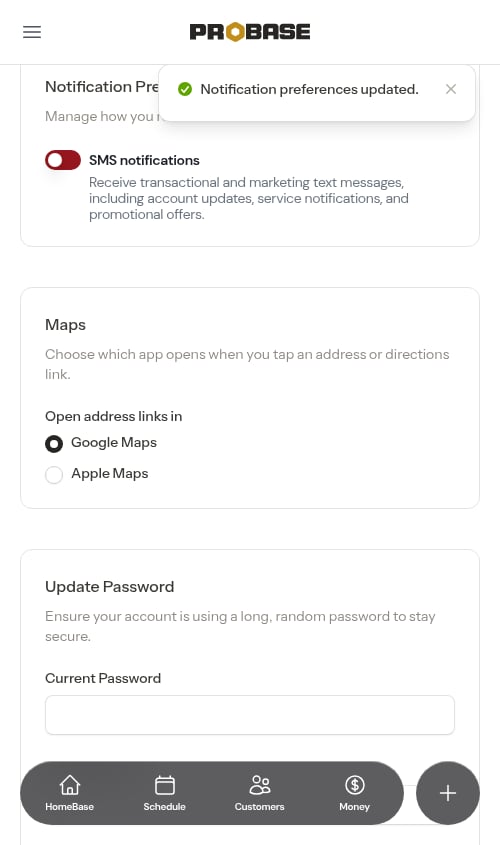
Most new accounts are opted in to SMS notifications when they finish the business step of onboarding. If you signed up through a ProBase pro link, this toggle starts on only if you ticked the marketing text messages box during onboarding — ticking only the transactional box leaves it off. Either way, this toggle is where you change it. See Text message notifications for the full picture.
Push notifications
Once updates are switched on for your account, a second toggle appears in the same section: Push notifications — “Get updates as push notifications on this device.” This one is per device. Turning it on for your phone doesn’t turn it on for your tablet, and the toggle always shows the state of whichever device you’re looking at.- Switching it on asks your phone for permission, the same as tapping Enable notifications elsewhere in the app. Once you tap Allow, the toggle settles into the on position.
- Switching it off stops alerts reaching this device. Your other devices keep theirs.
- If you’ve previously blocked notifications for ProBase, the toggle can’t turn itself on — a line appears underneath: “Notifications are blocked for ProBase in your browser settings — allow them there first.” Change it in your phone’s Settings app, then come back.
- On a device that can’t receive push notifications at all — a plain browser tab rather than the installed app — the toggle is greyed out.
Next steps
- Add your crews and set their start locations for route optimization
- Route optimization — learn about on-demand and automatic route optimization