Overview
Every person on your team has a role, and the role decides exactly what they can see and do — which screens they can open, whether they see customer contact details or money, and whether they can manage other people. Open it from Team Roster in the sidebar, then the Roles & permissions tab. You’ll see an All roles list with each role and how many people hold it.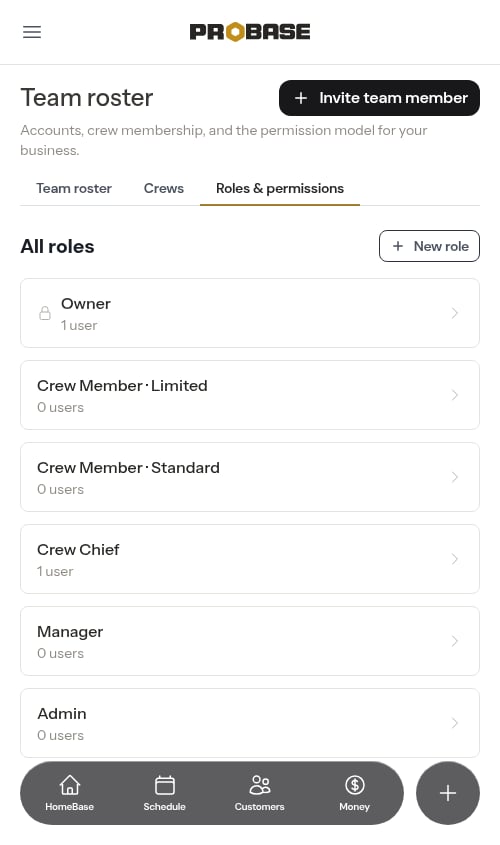
The built-in roles
ProBase ships with five ready-to-use roles, plus the protected Owner. Each role includes everything the one below it can do, and adds more — so they form a ladder from most limited to most trusted.Field roles (Limited, Standard, Crew Chief) act only on their own crews. Managers and admins act across all crews.
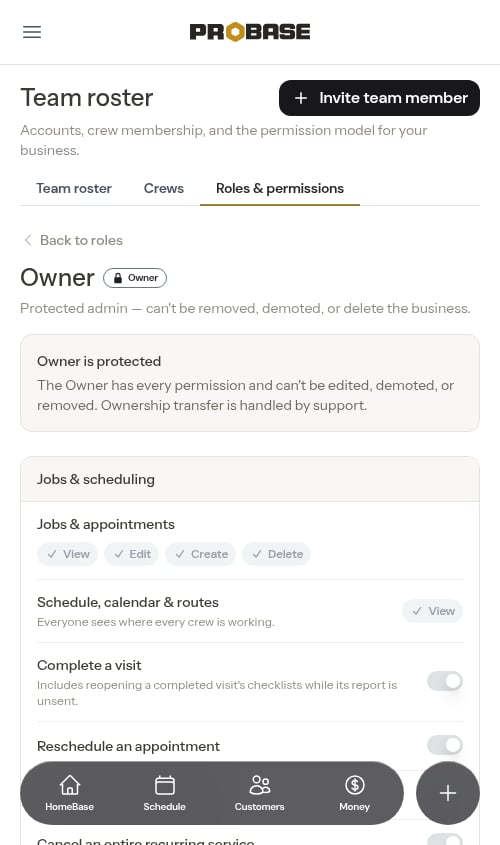
The Owner is protected
The business Owner isn’t a role you can change. The Owner has every permission and can’t be edited, demoted, or removed. Every role’s permission grid ends with an Owner protections section — things only the Owner can do. They show as locked switches marked Owner only: switched on in the Owner’s grid, switched off in every other role’s, and they can’t be given to any other role, custom roles included:- Transfer ownership — handled by the ProBase support team
- Delete the business — removes every record for good
- Export your records — the accounting ledger and the customer book, as CSV files. See Exporting your records
Viewing what a role can do
Click any role to open its detail page. Permissions are grouped into eight cards so they’re easy to scan:- Jobs & scheduling
- Sales pipeline
- Customers & properties
- In-job records
- Money
- Reviews
- Business config
- Team & crews
Sending the report and sending the invoice are separate. Send a service report for your own visit — under Team & crews — lets someone tell the customer what was done, with photos. Putting the bill in the same message still needs the invoice permission, so a role that can report can’t quietly start invoicing. Everyone from Crew Member (Limited) upwards can send a report for their own crew’s work.
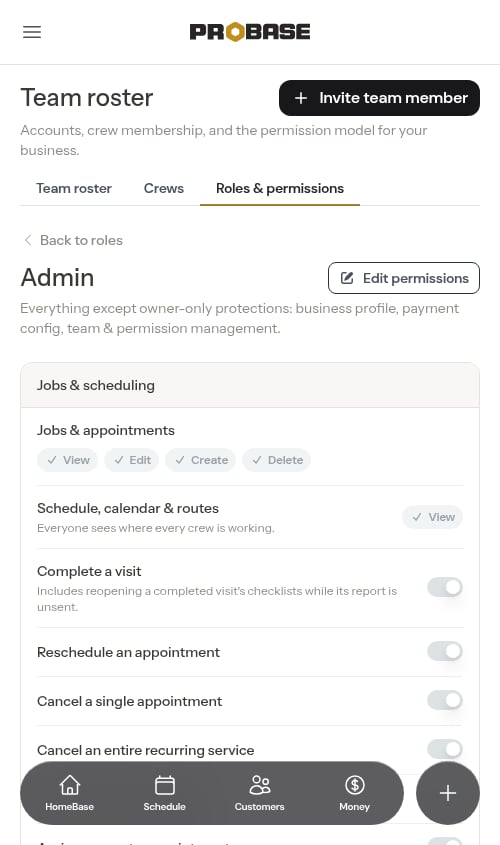
Some permissions are linked. For example, turning off See customer contact info for a role also hides that person’s on-my-way texts, invoices, and calls to customers.
Creating a custom role
If none of the built-in roles fit, build your own.1
Start a new role
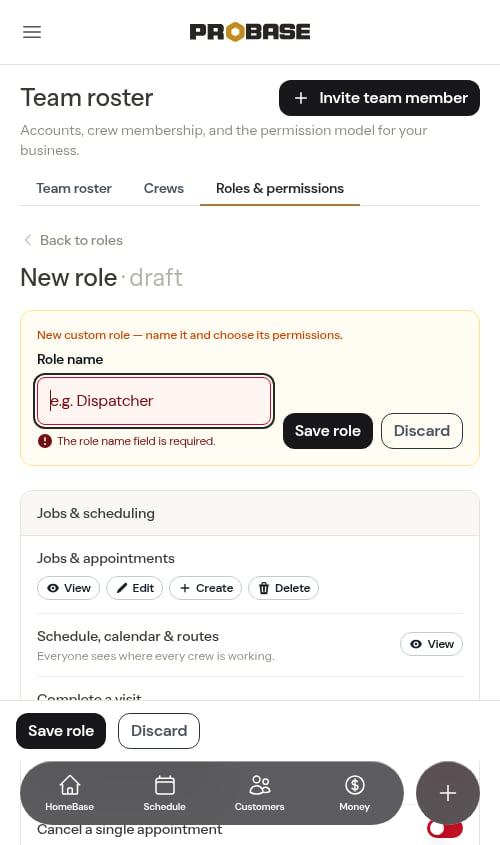
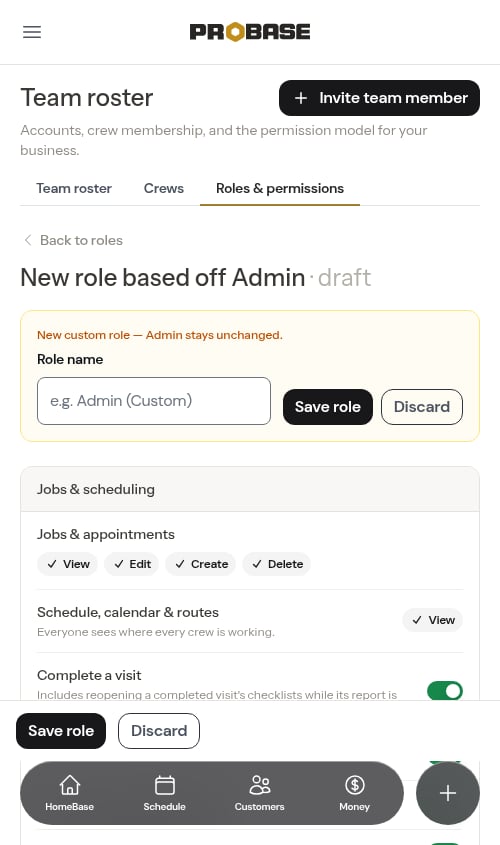
On the Roles & permissions tab, click New role. A blank draft opens.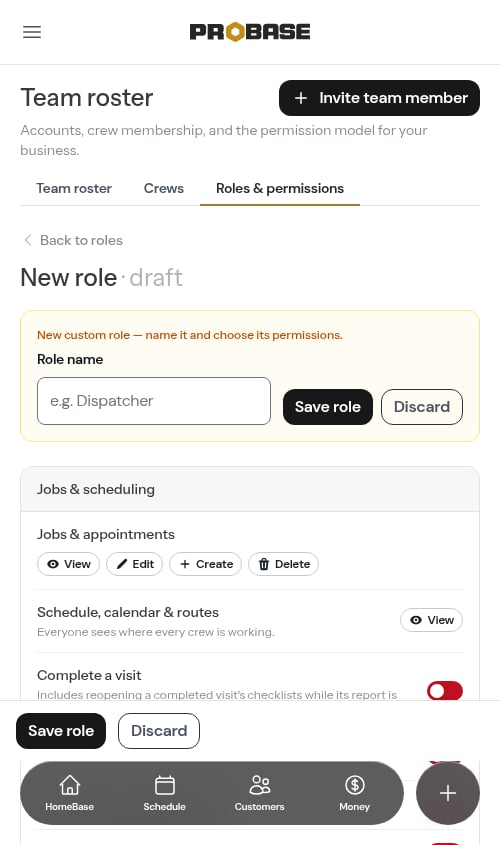
2
Name it and pick permissions
Give the role a Role name (for example, “Dispatcher”), then switch on the permissions it should have across the eight groups.The name is required, and it has to be different from every other role you already have — including the built-in ones.
3
Save
Click Save role. Your new role appears in the list and can be assigned to members right away.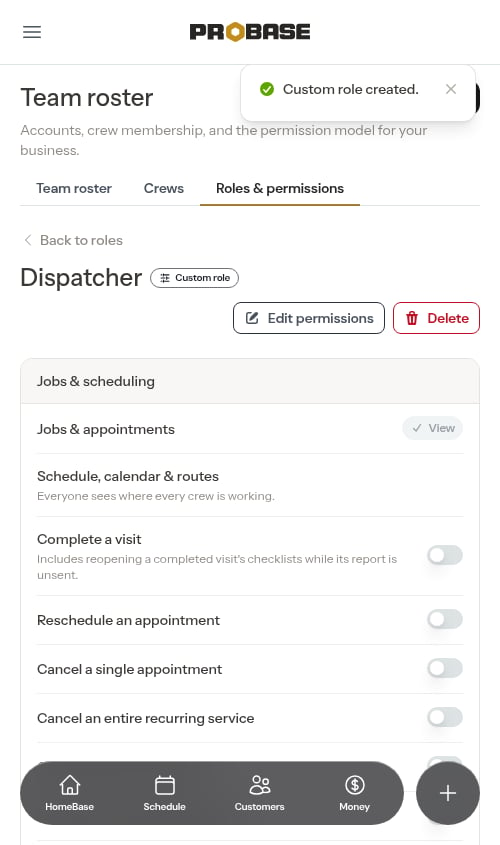
Building on a built-in role
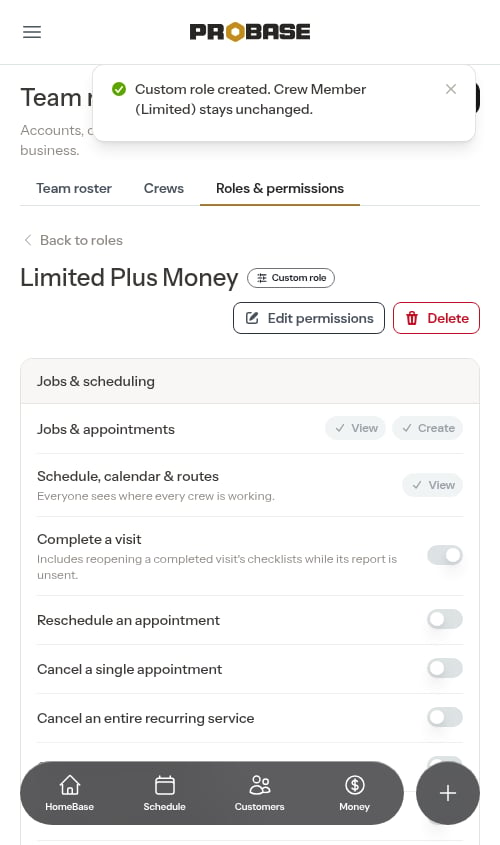
Rather than starting from scratch, you can base a custom role on a built-in one. Open a built-in role and click Edit permissions — ProBase creates a new custom role pre-filled with that role’s permissions, ready for you to adjust and rename. The original built-in role is never changed.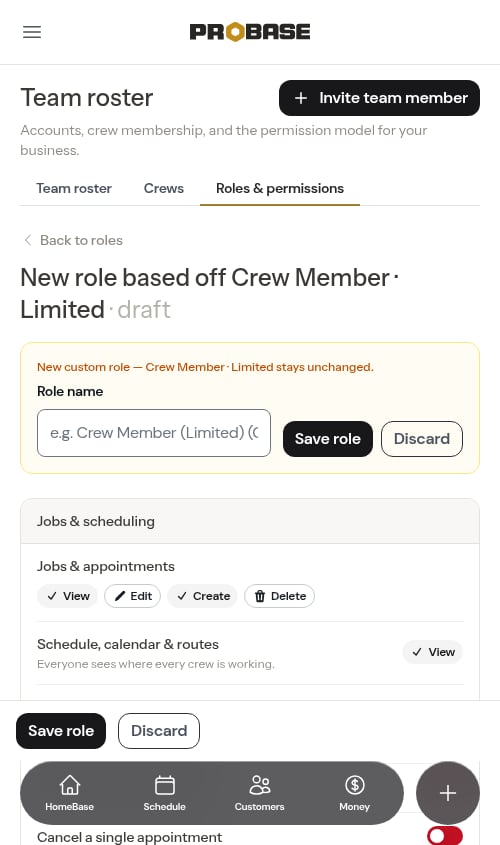
Some permissions are reserved
A few high-trust permissions can’t be given to custom roles. In the builder those appear locked, with a short label explaining why:- Admin only — powers like issuing a refund, adding a credit, assigning roles, inviting users, or deactivating members stay with the Admin role and Owner
- Not allowed — adding a charge and seeing cost/margins can’t be granted to a custom role
Editing and deleting custom roles
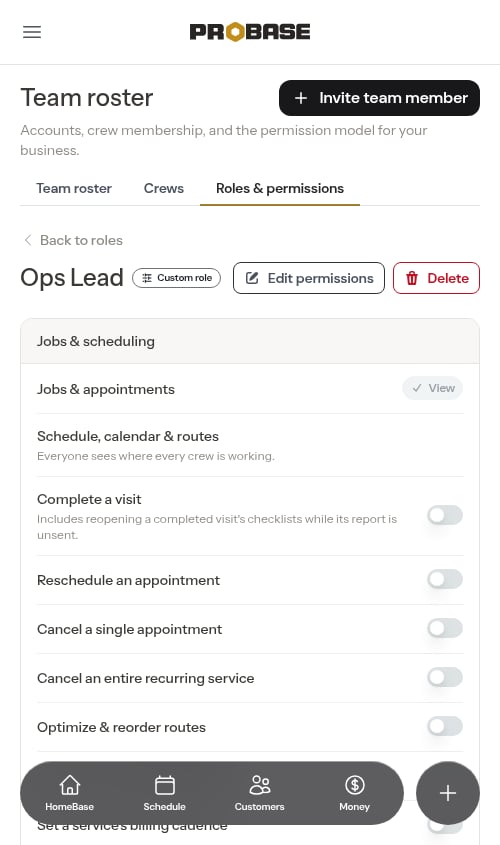
- Edit a custom role — open it and click Edit permissions. Changes take effect immediately when you save.
- Delete a custom role — open it and click Delete (or use the role’s actions menu). If anyone still holds the role, you’ll need to move them to a different role first. Built-in roles can never be deleted.
Whenever you change a role — or change a member’s role from the roster — the new permissions apply the next time that person acts, no re-login needed.