Overview
Service records let you record structured details about work performed during appointments. Unlike general notes, service records capture specific data points like measurements, materials used, and observations in a consistent, searchable format. Service records are always linked to a specific appointment, making it easy to track what was done during each visit.Want to see what a filled-in field log looks like before you record your own? In the demo account, a customer’s most recent completed visit already carries service records for that trade — pool chemistry readings and applications, lawn materials, or a handyman’s notes and parts — visible on both the job detail and the property’s Service Records page.
Types of service records
Every record carries a badge naming its kind, so a visit’s field log reads at a glance.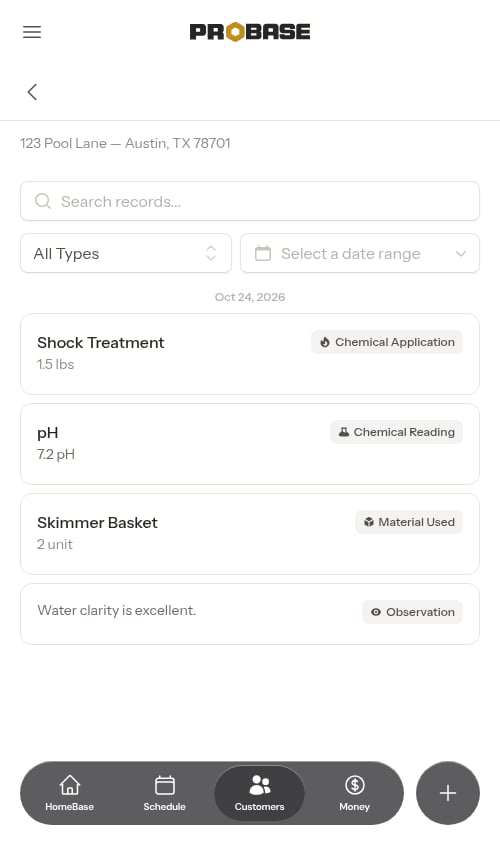
Observations
General notes about what you noticed during the visit:- Pool condition (“Pool water is crystal clear”)
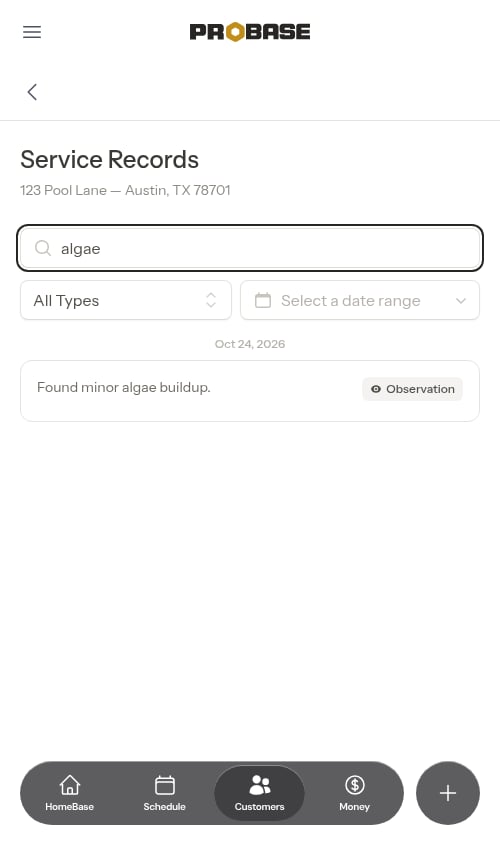
- Issues found (“Found minor algae buildup in corners”)
- Customer requests (“Customer asked about weekly service”)
- Weather conditions affecting service
- Equipment status notes
Chemical readings
Track chemical test results and measurements:- pH levels
- Chlorine levels (free, total, combined)
- Alkalinity
- Hardness
- CYA (Cyanuric Acid)
- Other water chemistry readings
- Reading type (what was measured)
- Value (numeric measurement)
- Unit (pH, ppm, etc.)
- Optional notes
Chemical applications
Document chemicals or products added during service:- Pool shock
- Chlorine tablets
- Muriatic acid
- pH increasers/decreasers
- Algaecides
- Chemical name
- Amount added
- Unit (lbs, oz, fl oz, gal, qt, ppm)
- Optional notes about where/why applied
Materials
Track other materials or supplies used on a completed appointment:- Parts installed (e.g., “Filter cartridge”)
- Equipment replaced
- Supplies consumed (not chemicals)
- Amount and unit (unit, lbs, oz, gal, bags, cu yd, qt)
- Optional notes
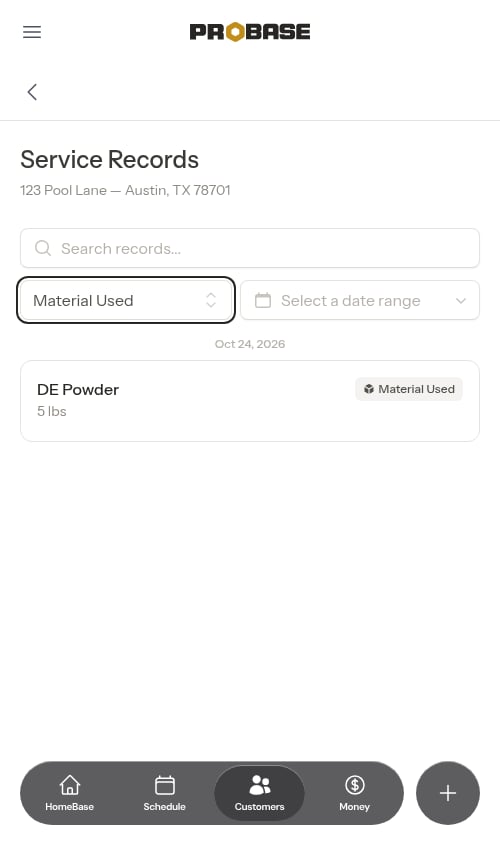
Materials recorded here are a note to yourself, not a charge. For anything you want the customer billed for, add it to the visit as a charge instead.
How service records get created
There are two ways a record lands on a visit, and neither one is a form you fill in by hand.From your notes, with AI Assist
Write what you did in plain language — in the visit’s notes pad while you work, or in Visit notes on the completion form — then tap AI Assist (✦). ProBase reads your text and pulls the records out of it. A note that parses well:“pH was 7.2, chlorine at 3 ppm. Added 2 lbs shock. Pool looked clear, no algae.”becomes four records:
- Reading: pH → 7.2 pH
- Reading: Chlorine → 3 ppm
- Adjustment: Shock → 2 lbs
- Observation: “Pool looked clear, no algae”
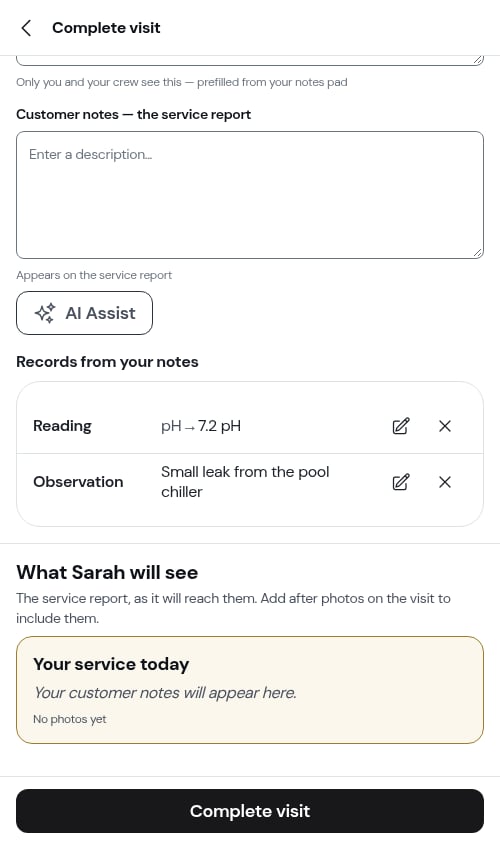
- Edit (pencil) opens that one record on its own screen. Correct the value and tap Done.
- Remove (✕) drops it before it’s saved.
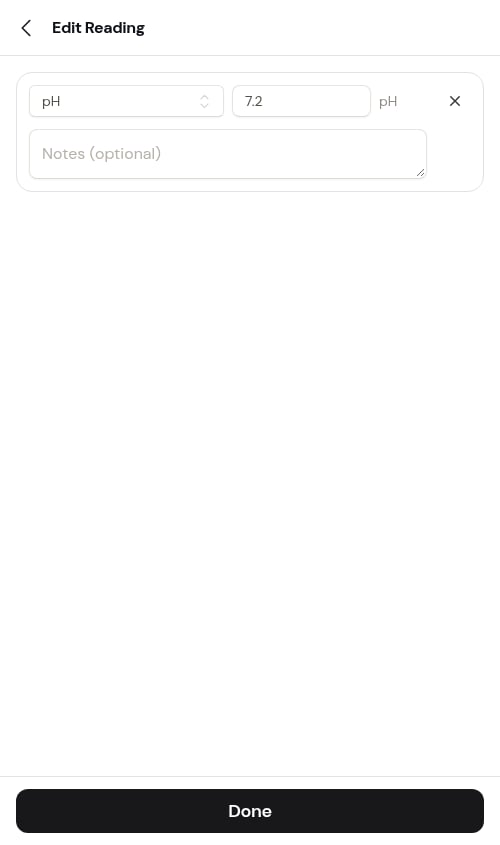
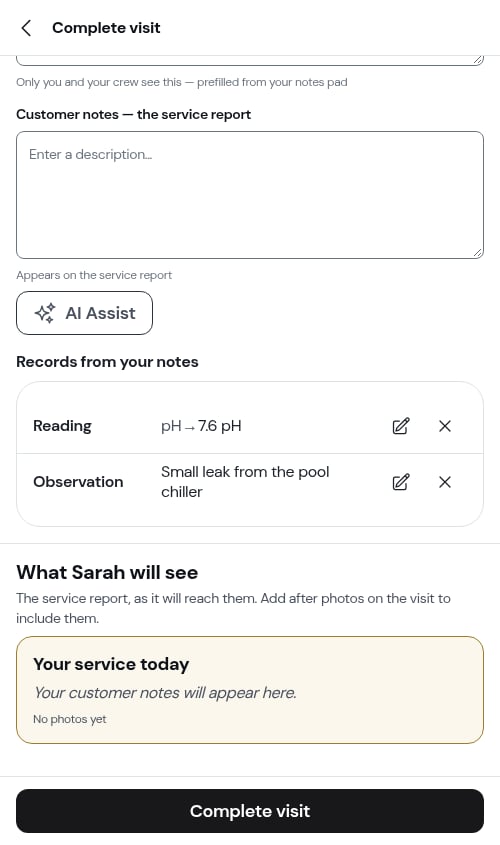
Check the parsed rows before you complete. This is the moment to correct a reading — once the visit is complete, the records are a fixed part of its history.
From a checklist
When a checklist question is marked Include in service record, its answer is saved as a record automatically when you complete the visit — a numeric “pH” answer becomes a chemical reading without you entering it twice. This is how pool chemistry reaches the service history on accounts using the ProBase pool checklists. See Answers that become service records.If AI Assist already drafted a record for the same reading, ProBase saves it once — and keeps the version you reviewed on the completion form, including any correction you made. See One record per reading, even with AI Assist.
What each type holds
Observation
- Notes — what you observed
Chemical reading
- Reading type — what was measured (pH, Chlorine, Alkalinity, and so on)
- Value — the numeric measurement
- Unit — set from the reading type (pH, ppm)
- Notes — optional context
Chemical application
- Chemical name — what you added
- Amount and Unit — how much (lbs, oz, fl oz, gal, qt, ppm)
- Notes — optional context
Material
- Product name, Quantity and Unit (unit, lbs, oz, gal, bags, cu yd, qt)
- Notes — optional context
Materials you want to charge for aren’t service records. Add them to the visit as a charge — a name and a price — so they reach the customer’s invoice. Service records are your own history of the work, not a billing tool.
Records are fixed once the visit is complete
Completing a visit locks its records, the same way it locks its checklist answers. They become the permanent account of what happened on that day. If you spot a mistake immediately after completing, you can still reopen the visit’s checklists while the report is unsent — see Going back in to fix a checklist. Otherwise, record the correction as an observation on the next visit so the history shows both what was measured and what was found later.Service records don’t apply to marketplace jobs. Those visits are worked and completed in the marketplace app, so there’s no ProBase completion for records to be filed against. Keep your notes for a marketplace visit on the customer or property instead — see Marketplace customers.
Viewing service records
Service records appear in multiple places:On the property’s Service Records page
Every property has a Service Records page listing every record captured there, with filtering and search. To open it:- Go to the customer’s page
- Find the property in the Properties section
- Tap Service Records on the property page
- A type badge (Observation, Chemical Reading, Material Used, or Chemical Application)
- The main information (reading value, material used, observation text, etc.)
- Which service the record belongs to
- When the work was recorded and who recorded it
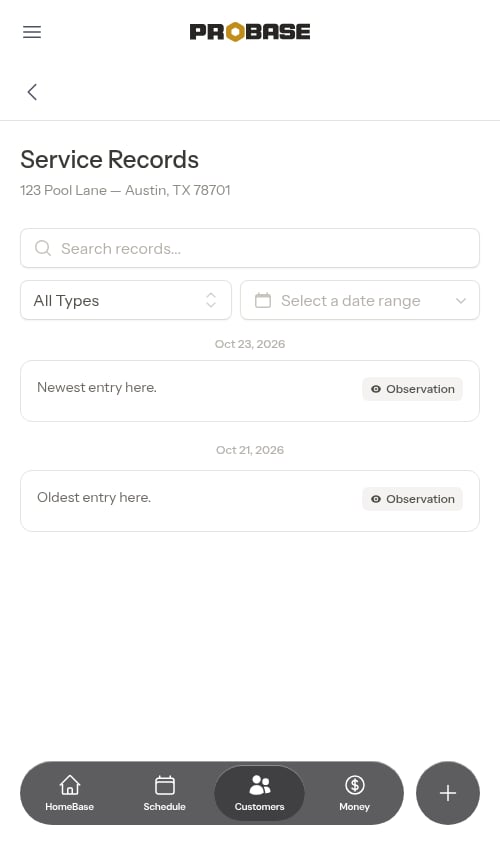
The filtering and search controls stay visible at the top of the page while you scroll through records. This sticky behavior lets you refine your search without scrolling back up, making it faster to find what you need.
Date separators
The list groups records under date headings (e.g., “Feb 4, 2026”), with a new heading each time the date changes as you scroll.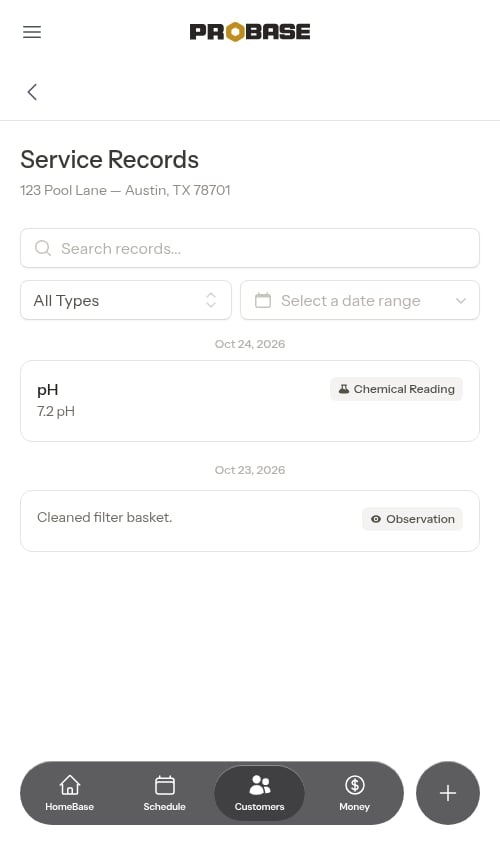
Filtering and searching
Filter by type
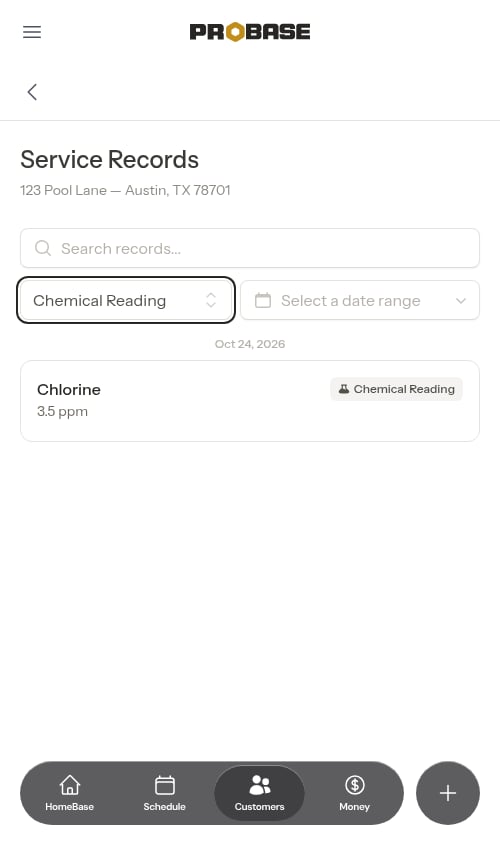
Use the type dropdown to show only specific types of records:- All Types (default)
- Observation
- Material Used
- Chemical Reading
- Chemical Application
Search records
Use the search box to find records by:- Notes or descriptions
- Service name
- Property address
- Measurement names (e.g., “pH”, “chlorine”)
- Material or chemical names
- Any text in the entry details
Combine filters
You can use both type filtering and search together to narrow down exactly what you’re looking for.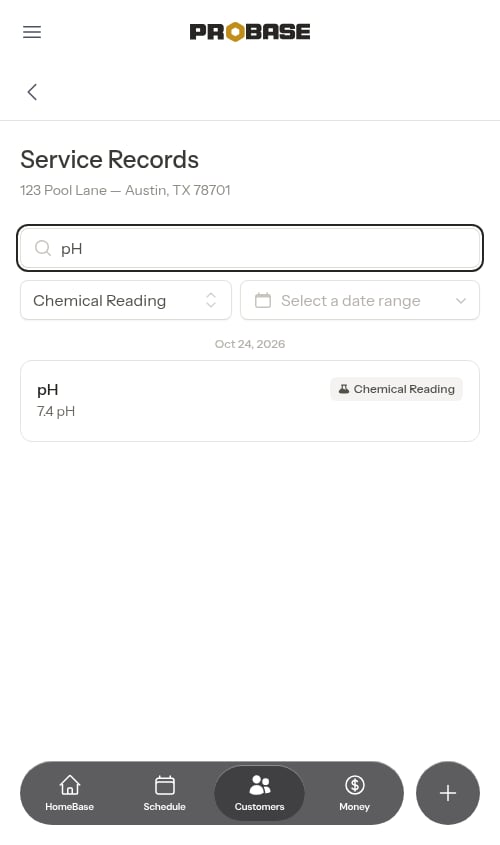
Date range filtering
Use the date picker to filter records by date range. Pick a start and end date, or choose one of the built-in presets (such as this week, this month, or year to date) to quickly narrow the list to a specific time period. Leave the range empty to show all records.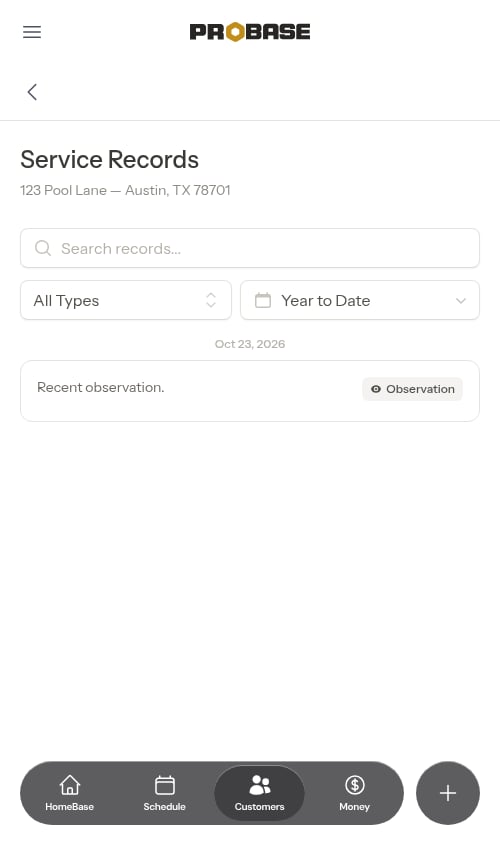
- Reviewing recent work for quality control
- Generating reports for specific time periods
- Finding records from a particular service visit
- Tracking trends over time
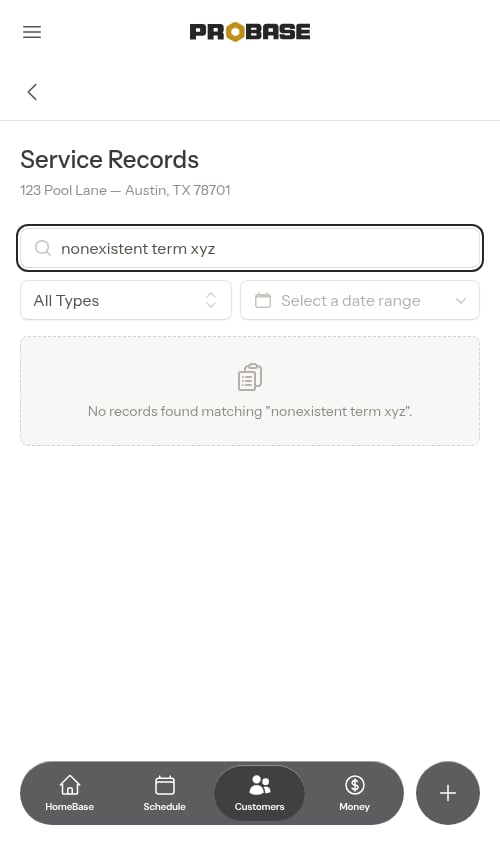
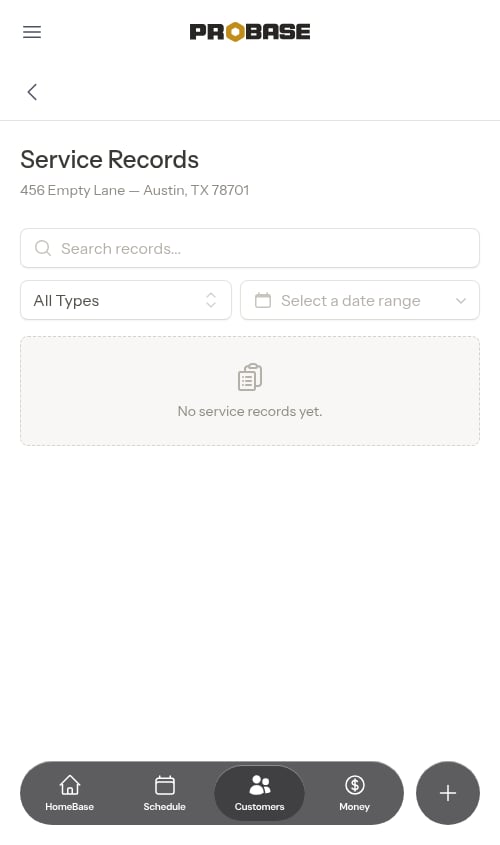
Empty states
If no records match your filters, you’ll see a message explaining what to do next.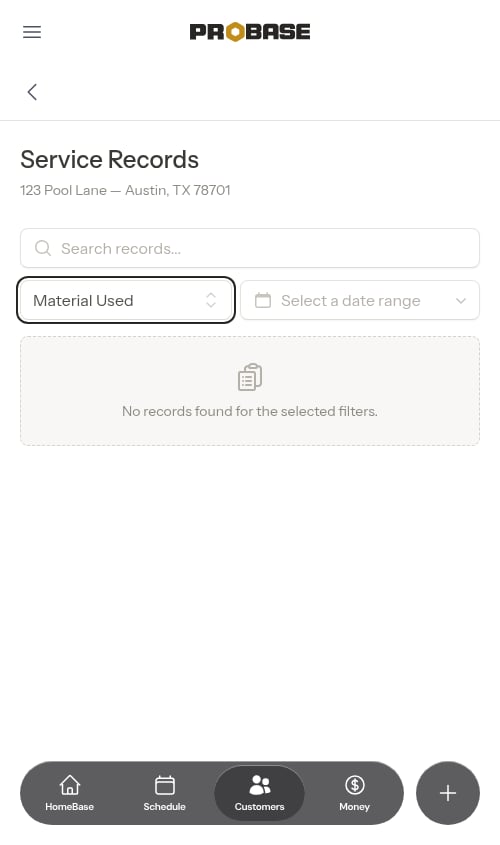
Best practices
Be consistent: Use the same terminology and units across entries. For example, always use “pH” (not “ph” or “PH”) and “ppm” for chlorine readings. This makes historical data easier to review. Use AI parsing: Write natural notes and let AI create the entries. It’s much faster than manual entry and reduces data entry errors. Record measurements before and after: For chemical readings, note values before and after adjustments to track changes and validate your work. Document issues: Use observations to record problems found, even minor ones. This helps identify recurring issues and demonstrates thoroughness. Track all materials: Record everything used, not just chemicals. This helps with inventory management and can support billing for materials. Review before completing: Check parsed entries for accuracy before clicking Complete. AI is good but not perfect - always verify the extracted data. Be specific with service records: Instead of “Fixed pump”, write “Replaced impeller seal on main circulation pump”. Specific details help with warranty tracking and future troubleshooting.Service records vs. notes
Service records are for structured, searchable data:- Chemical readings and test results
- Chemical applications and treatments
- Materials and parts used
- Specific observations about service conditions
- General customer preferences
- Access instructions
- Long-form documentation