What are proposals?
Proposals are formal quotes that you send to customers for review and approval. They include all service details, pricing, and scheduling information. Proposals have their own workflow with statuses (Draft, Sent, Accepted, Declined) that help you track the sales process. When a customer accepts a proposal, it automatically converts to an active Job service with the first appointment scheduled. Use proposals for:- New customer inquiries where you know the pricing
- Standard services where you can quote without a site visit
- Formal quotes that need customer approval before starting work
- Creating a paper trail of customer acceptance
Two ways to create proposals
Method 1: Create a proposal directly
Use this when you can provide accurate pricing without visiting the property:- Click New Quote from the dashboard, Quick Actions menu, or from a customer/property page
- Select Proposal as what you want to create
- Choose or create the customer (skip if coming from a customer page)
- Choose or create the property (skip if coming from a property page)
- Fill in proposal details (pricing, service information, scheduling)
- Click Create Proposal
Method 2: Create a proposal after an assessment
Use this when you need to visit the property before providing accurate pricing:- Create an Assessment service for the customer (see Creating quotes and assessments)
- Schedule and complete the assessment appointment
- During the completion wizard, you’ll go through 2 steps:
- Step 1: Assessment - Enter notes about what you observed during the site visit and upload photos
- Step 2: Create Proposal - Fill in the formal proposal with pricing and service details
- The proposal form is pre-filled with information from the assessment
- Customize the pricing, service name, billing details, and scheduling as needed
- Click Complete & Create Proposal
Reviewing and sending proposals
When a proposal is created, it starts in “Draft” status. The proposal won’t be visible to customers yet.View open proposals
To see all proposals in Draft or Sent status that need your attention:- Go to HomeBase (the main dashboard)
- In the Action needed section, tap the Open proposals action item
- The Open Proposals page lists all Draft and Sent proposals
- Search by name, customer name, or address using the search bar
- Tap any proposal to open its detail page
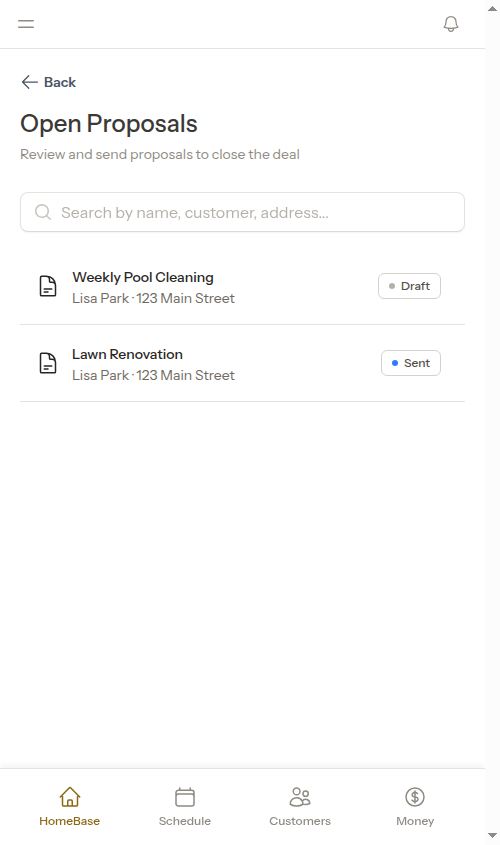
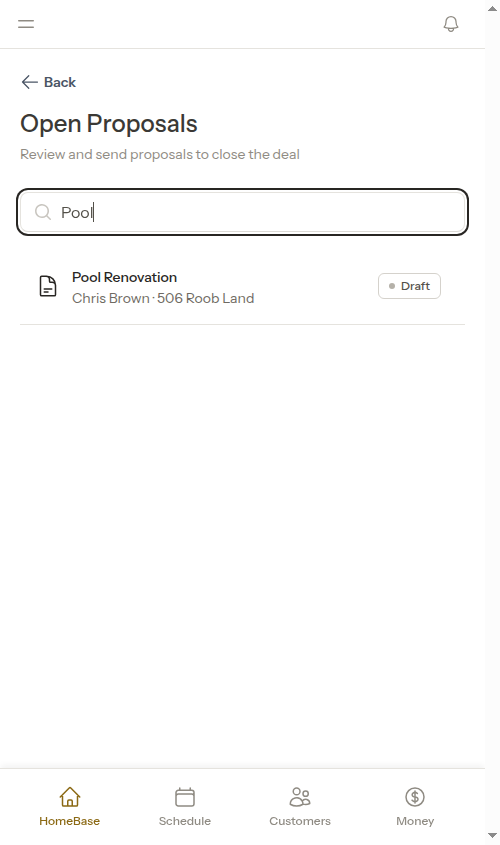
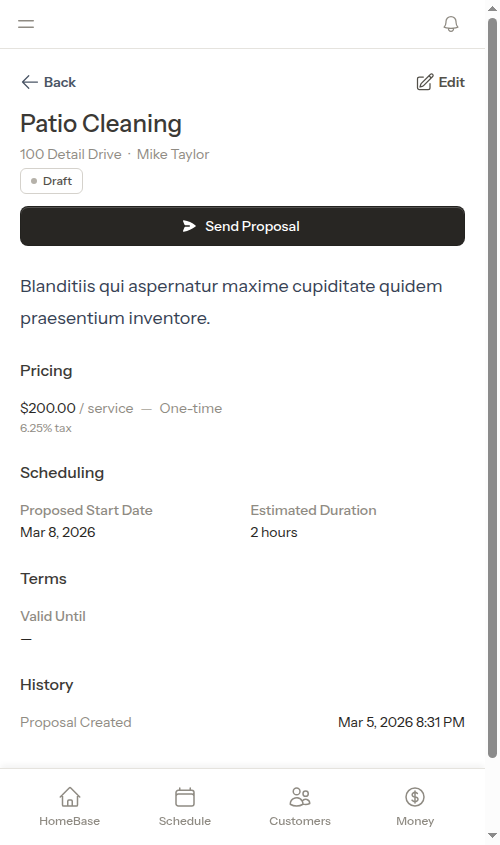
The Open Proposals page shows only Draft and Sent proposals — the ones actively needing follow-up. Accepted and declined proposals are accessible from the service detail page of the linked assessment or job.
Send a proposal
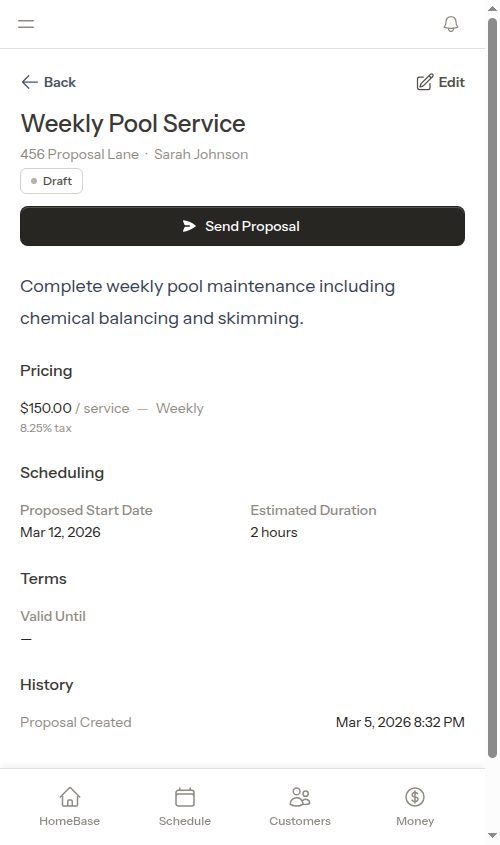
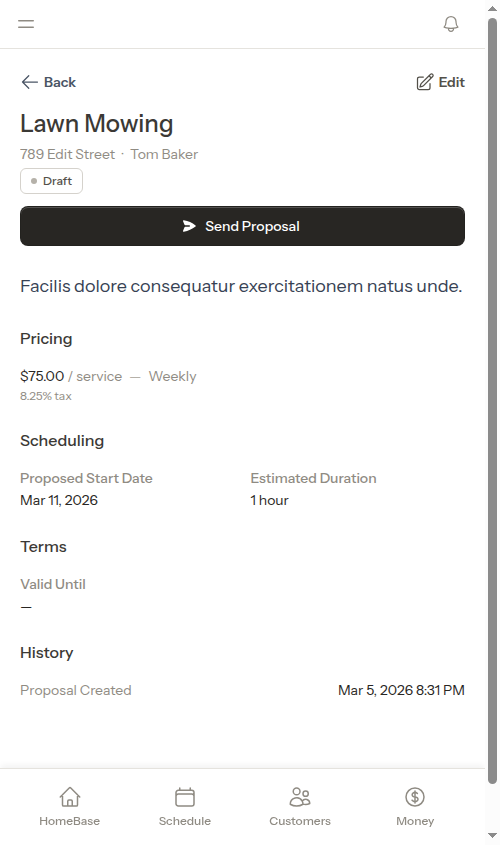
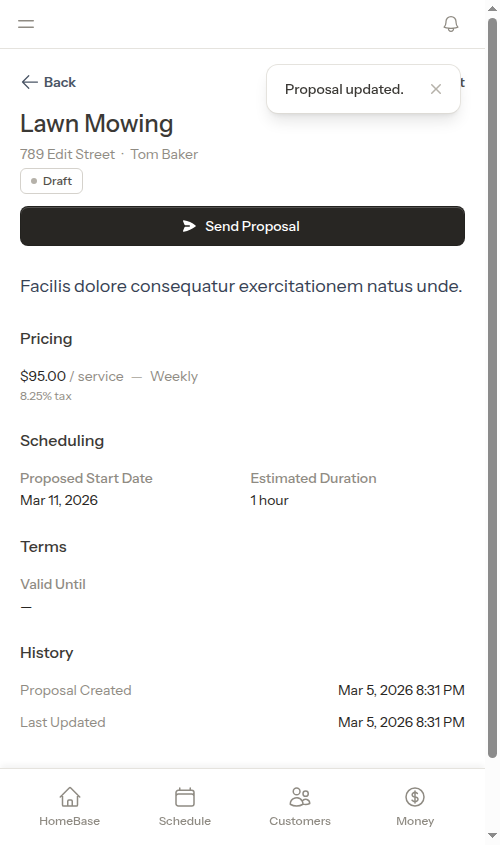
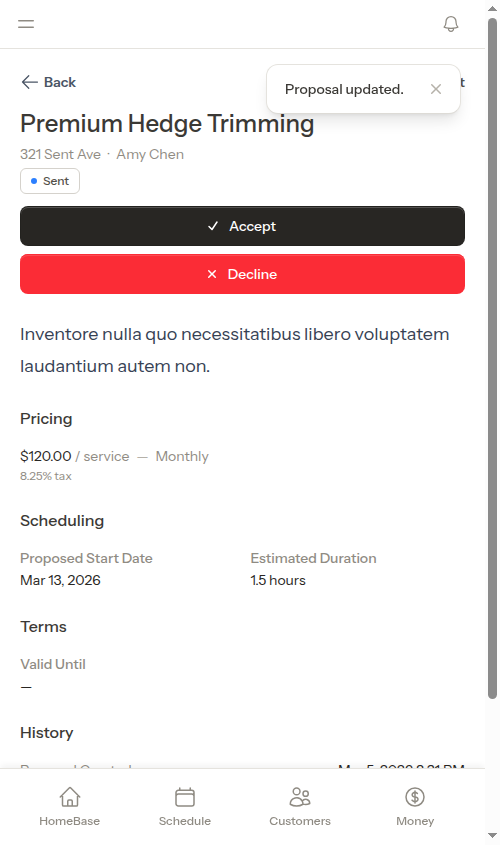
To send a proposal to a customer:- Click on the proposal to open the details page
- Review all information for accuracy:
- Service details and description
- Pricing and billing configuration
- Proposed start date and duration
- Valid until date (expiration)
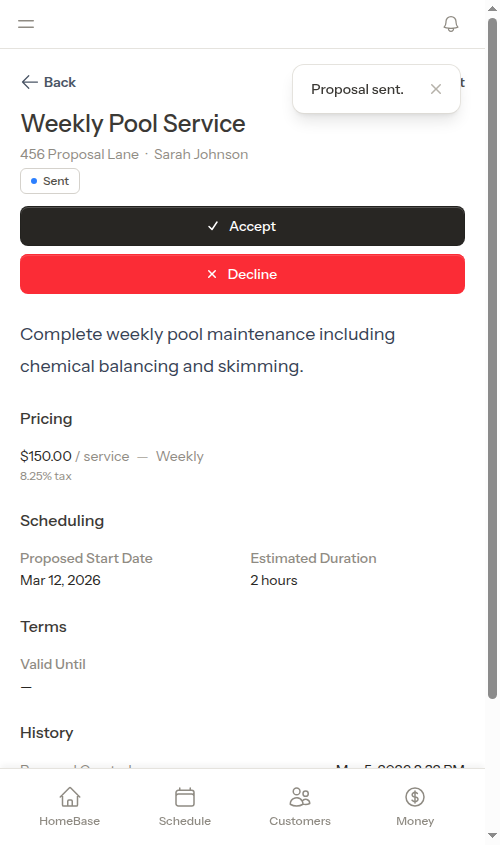
- Click Send Proposal to change the status to “Sent”
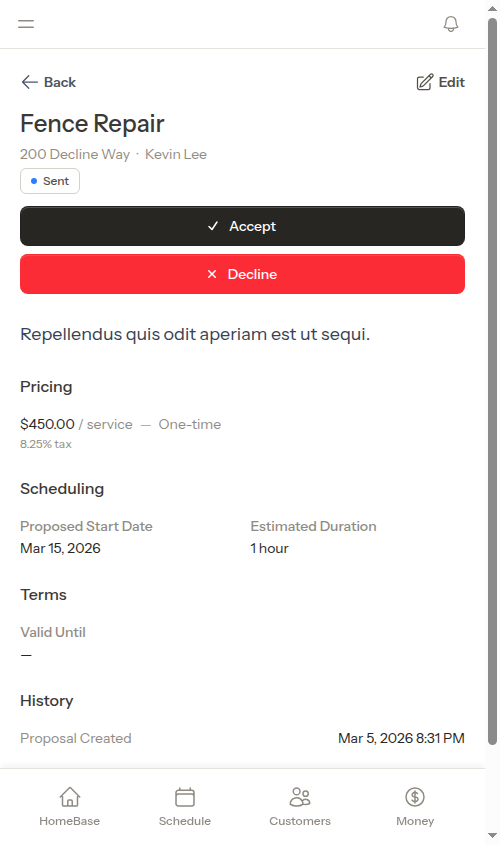
- Accept the proposal on behalf of the customer
- Decline the proposal if the customer rejects it
- Edit the proposal to make changes (status stays “Sent”)
Accepting proposals
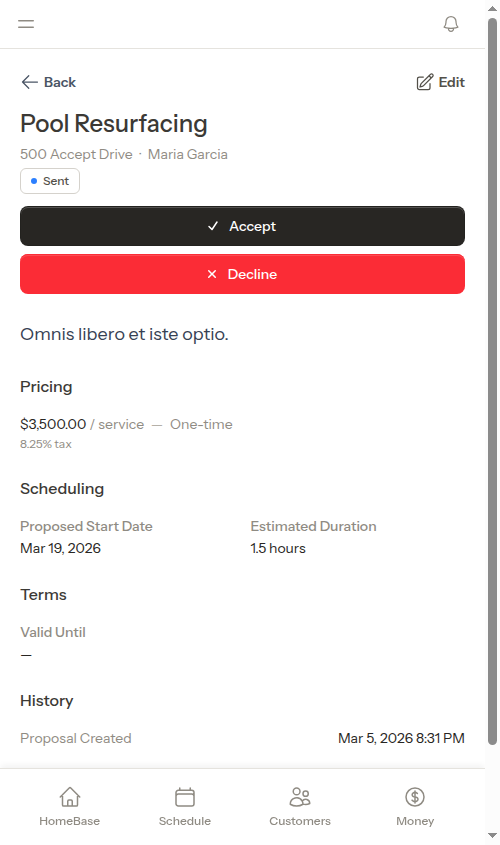
When a customer agrees to your proposal (either verbally, via email, or through another method):- Open the proposal details page
- Click Accept
- Fill in scheduling information:
- Start date for the first appointment (required)
- Start time and End time for the appointment
- Estimated duration in minutes (if not already set from the proposal)
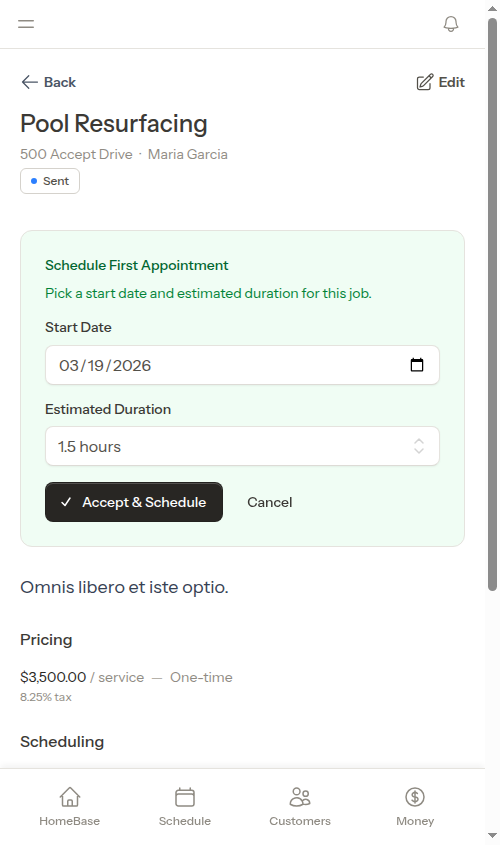
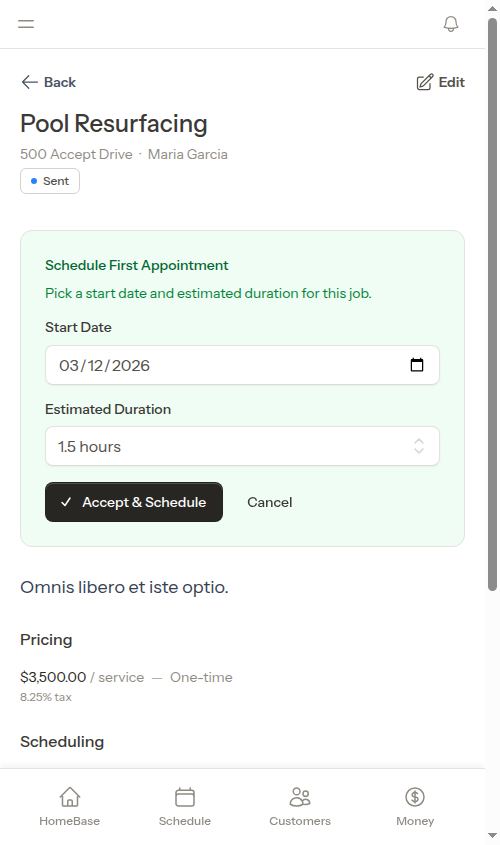
- Click Accept & Schedule
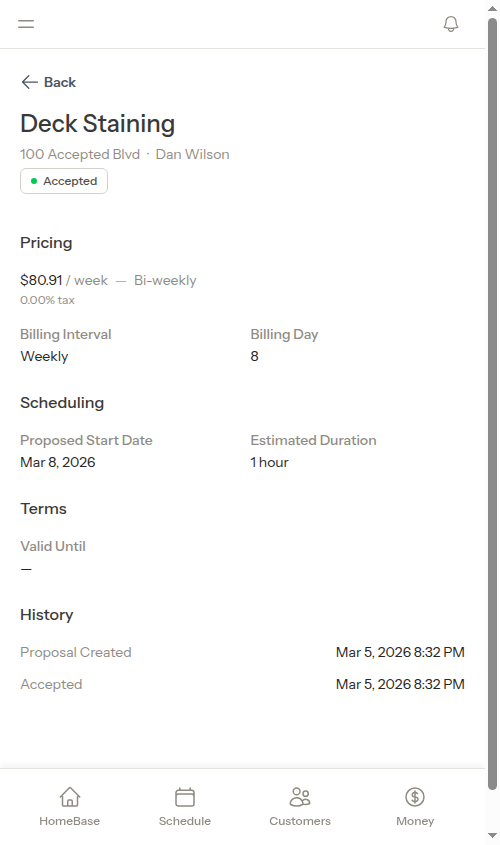
- The proposal status changes to “Accepted” with a timestamp
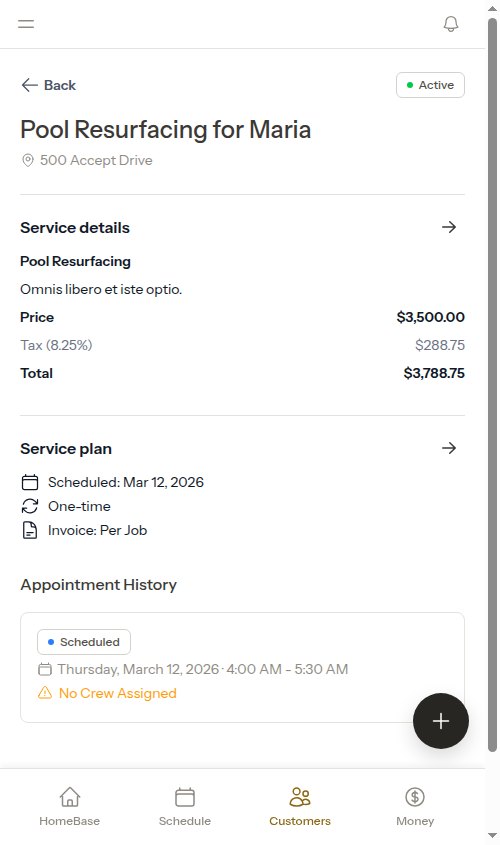
- A new Job service is created with all the proposal details (pricing, billing, frequency)
- The first appointment is automatically scheduled with the date and time you specified
- You’re redirected to the new job’s service details page
- The proposal remains linked to the job for reference
- If the job has a crew assigned and auto-optimization is enabled, routes may be automatically optimized
Declining proposals
If a customer declines your proposal or decides not to move forward:- Open the proposal details page
- Click Decline
- The proposal status changes to “Declined” with a timestamp
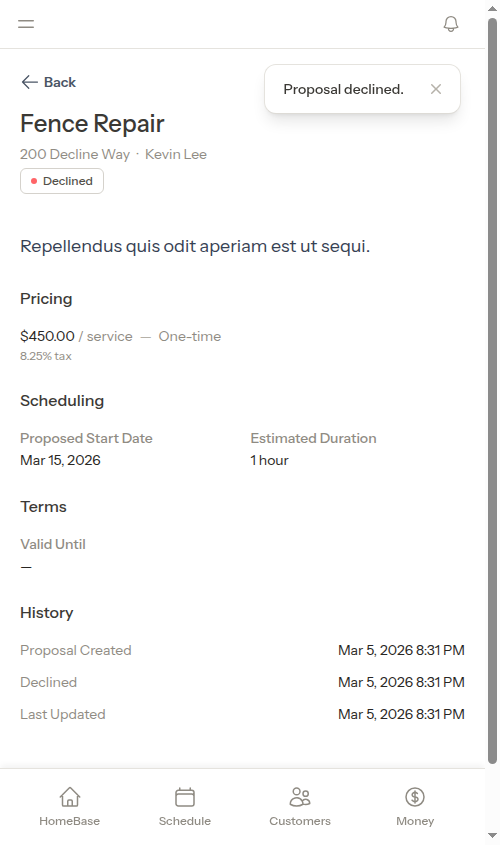
- Remain viewable in your proposals list for historical reference
- Cannot be edited or sent again
- Do not create any job services
- Help you track your quote-to-close ratio
Editing proposals
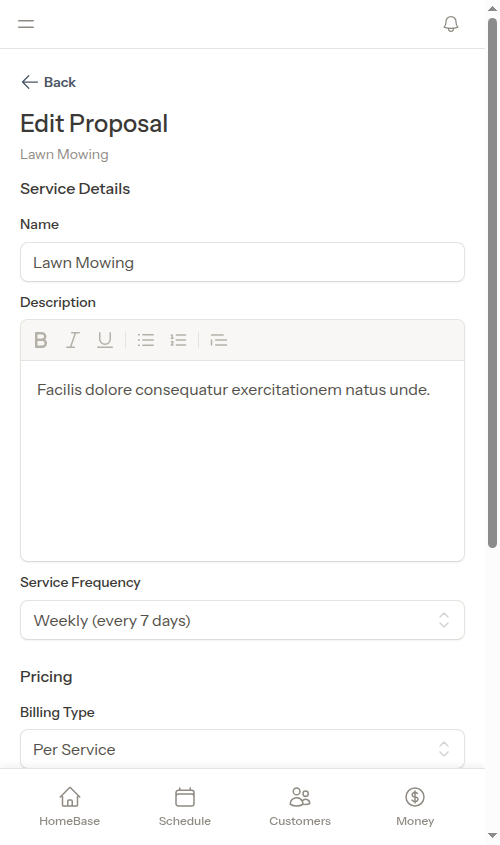
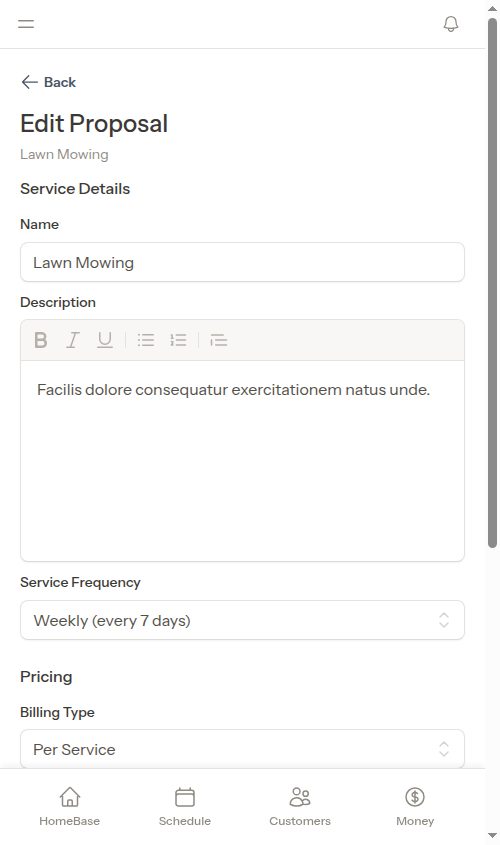
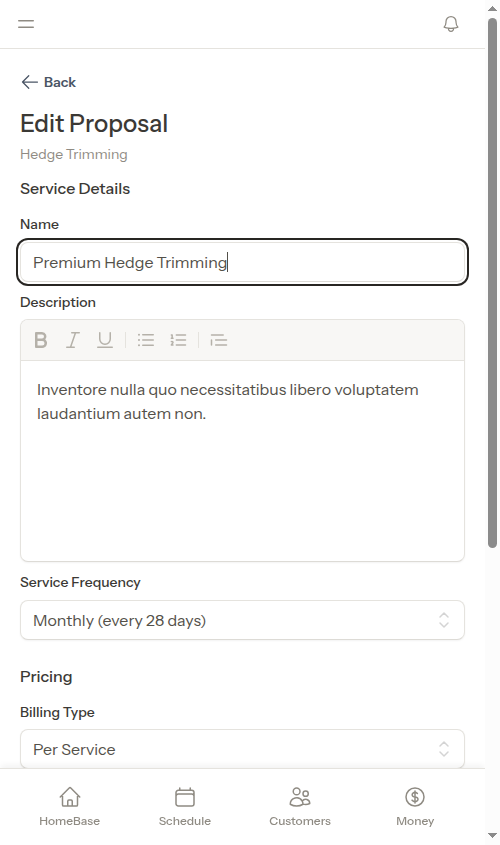
You can edit proposals that are in “Draft” or “Sent” status:- Open the proposal details page
- Click Edit
- Update any fields:
- Service details (name, description, frequency)
- Pricing (price, tax rate, billing type, billing interval)
- Scheduling (proposed start date, estimated duration, valid until date)
- Click Save Changes
Once a proposal is accepted or declined, it cannot be edited. The proposal becomes a historical record of what was agreed upon or rejected.
Proposal statuses
Proposals move through these statuses:| Status | Description |
|---|---|
| Draft | Created but not sent to customer yet. Can be edited or sent. |
| Sent | Sent to customer for review. Awaiting acceptance or decline. Can still be edited. |
| Accepted | Customer accepted the proposal. A job service was created and first appointment scheduled. |
| Declined | Customer declined the proposal. No service was created. |
Understanding proposal workflow
Proposals move through a clear workflow to help you track the sales process:Proposal lifecycle
- Initial status when created
- Proposal is being prepared and reviewed
- Not visible to customers
- Can be edited or deleted
- Can be sent to customer
- Proposal has been shared with the customer
- Awaiting customer decision
- Can still be edited (useful for negotiation)
- Can be accepted or declined
- Customer agreed to the proposal
- Creates a Job service with first appointment scheduled
- Cannot be edited (historical record)
- Linked to the created job for reference
- Customer rejected the proposal
- No job service is created
- Cannot be edited (historical record)
- Helps track quote-to-close metrics
Best practices
Be detailed in descriptions - Include what’s included in the service, frequency, and any important details customers need to know. Set valid until dates - Add an expiration date for time-sensitive proposals to create urgency. Use proposed start dates - Suggest when work can begin to help customers plan. Track reasons for declines - Note why customers decline to improve future proposals. Review before sending - Double-check all details while the proposal is in “Draft” status.Next steps
- Creating quotes and assessments - Detailed guide to the quote creation wizard
- Managing services - Understand jobs and assessments
- Creating appointments - Schedule work
- Customer status - How proposals affect customer status