Overview
ProBase keeps track of every payment your customers make:- Card payments through Stripe are recorded automatically.
- Everything else — cash, check, Venmo, Cash App, PayPal, Zelle, bank transfer and so on — you record yourself with Record payment.
Online payments through Stripe
When you’ve connected Stripe, customers can pay by card from the invoice you send them:- You send the invoice (or include it with the service report)
- The customer opens the link and pays by card
- ProBase records the payment and any tip, and the invoice updates
- Stripe deposits the money in your bank account, minus its fee
You’ll hear about it either way
ProBase drops an update in the bell for everyone on your team who can see money when a card payment goes through — and when one doesn’t:- Payment received — the card cleared, whichever way it was taken
- Payment failed — the card was declined, so the invoice is still owed
- Card on file removed — the saved card is gone, so nothing can be charged automatically until the customer enters a new one
- Payment disputed, then Dispute won or Dispute lost — the customer challenged a charge with their bank
Record a payment
Use Record payment whenever a customer pays you outside of a card payment on their invoice. You’ll find it:- On the Money screen
- At the bottom of any invoice that’s still owed (the customer and invoice are filled in for you)
- On an invoice card in the Invoices list
- In ⋯ More on a completed visit
1
Who paid you?
Type at least two letters of the customer’s name, email, phone, or address. Each result shows what they owe — Owes $85.00*, *$20.00 credit, or Nothing owed. Tap the customer.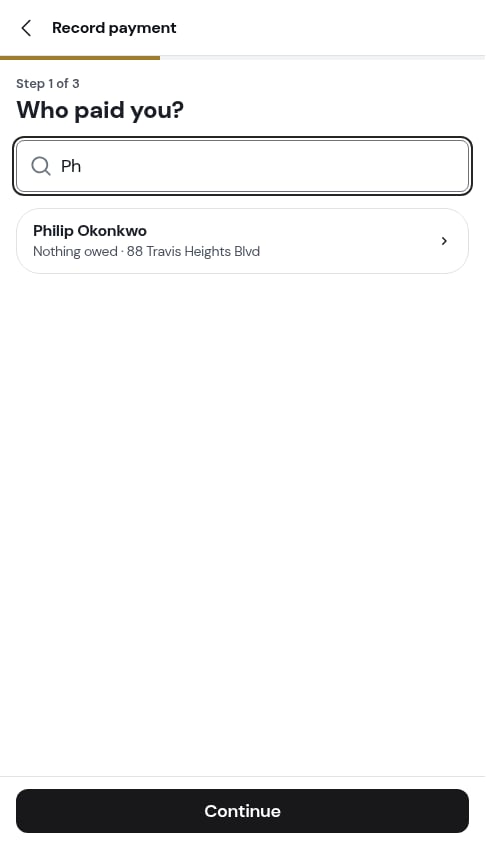
2
What is it for?
Pick where the money goes: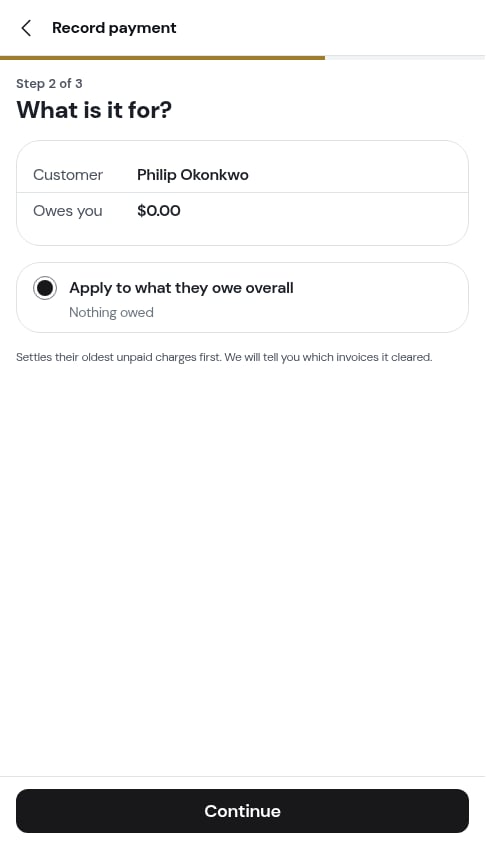
- Apply to what they owe overall (selected by default) — settles their oldest unpaid charges first. ProBase tells you afterwards which invoices it cleared.
- A specific invoice — each open invoice is listed oldest first with its date and what’s left. Pick one to settle that invoice only.
3
How much, and how?
- Amount — what you received.
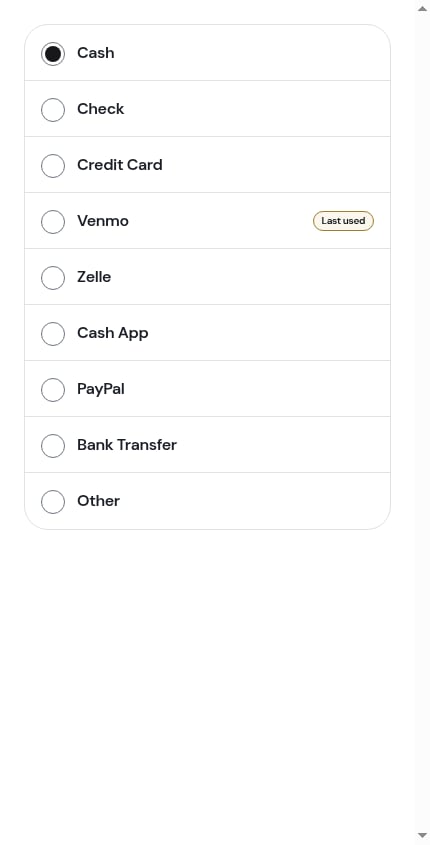
- How they paid — Cash, Check, Credit Card, Venmo, Zelle, Cash App, PayPal, Bank Transfer, or Other (type what it was). The method this customer used last time is marked Last used and already selected.
- Notes (optional) — a check number, a reference, anything worth remembering.
4
Record payment
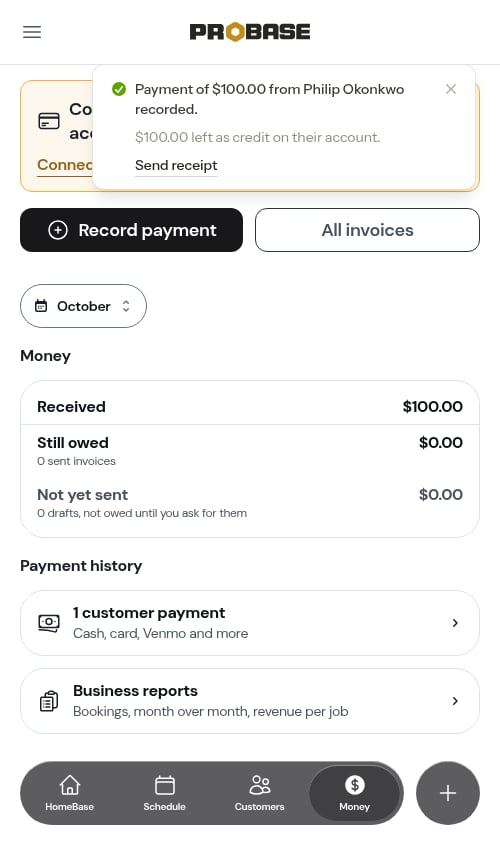
Tap Record payment. A message confirms it — “Payment of $60.00 from David Chen recorded.” — and, when you paid down what they owe overall, which invoices it settled. From there you can tap:
- Send receipt — sends the customer a short receipt by text (or email if there’s no phone number)
-
View invoice — opens the invoice
Recording a payment never sends an invoice. If you record a payment against a draft, the money is applied to its charges, but the draft stays a draft until you send it.
If a customer pays you through the Pay on Venmo, Pay on Cash App or Pay on PayPal button on their invoice, the money lands in that app — ProBase doesn’t see it. Record it here with the matching method. See Venmo, Cash App and PayPal.
When they pay more than they owe
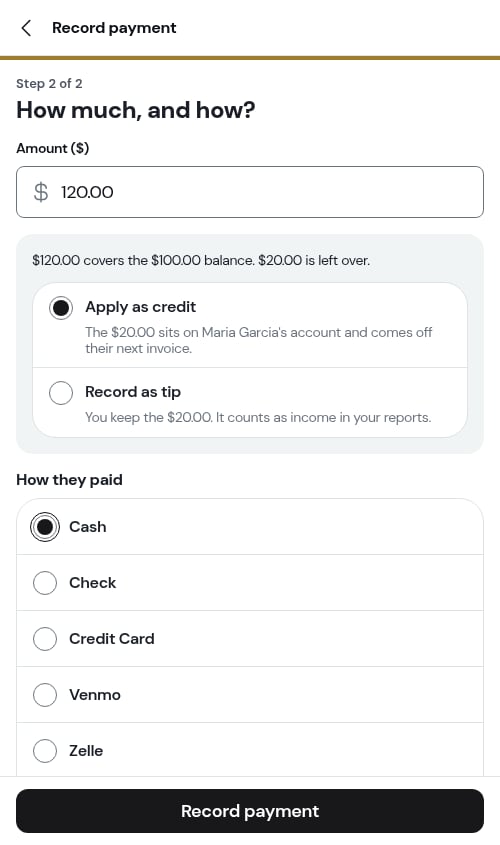
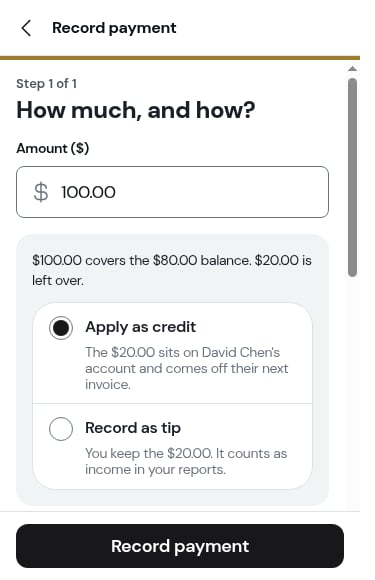
If the amount is more than the balance, a box appears right under it — “$120.00 covers the $100.00 balance. $20.00 is left over.” — with two choices:- Apply as credit (the default) — the extra sits on the customer’s account and comes off their next invoice. Best for a customer who paid twice by mistake.
- Record as tip — you keep the extra as a tip. It counts as income in your reports.
Recording a deposit
Sometimes a customer hands you money up front for work you haven’t billed yet — say $250 at the gate to hold a fence job. Record it as a deposit so it’s held for that work instead of floating as a credit.1
Start a payment for a customer who owes nothing
Tap Record payment, pick the customer, and continue past What is it for? (it reads Nothing owed). Enter the amount.
2
Switch to a deposit
Under the amount, the box offers “Holding this for a job? Record it as a deposit instead.” Tap Record it as a deposit instead.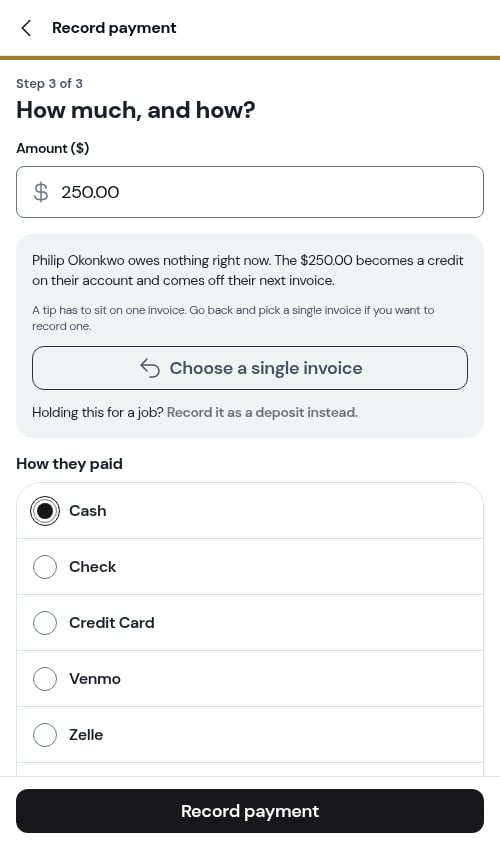
3
Pick how they paid
The flow becomes Record deposit, keeping the customer and amount you already entered. Choose the payment method. The closing line explains what happens — “This records the deposit on its own invoice and holds it on Philip’s account. Nothing is sent to Philip.”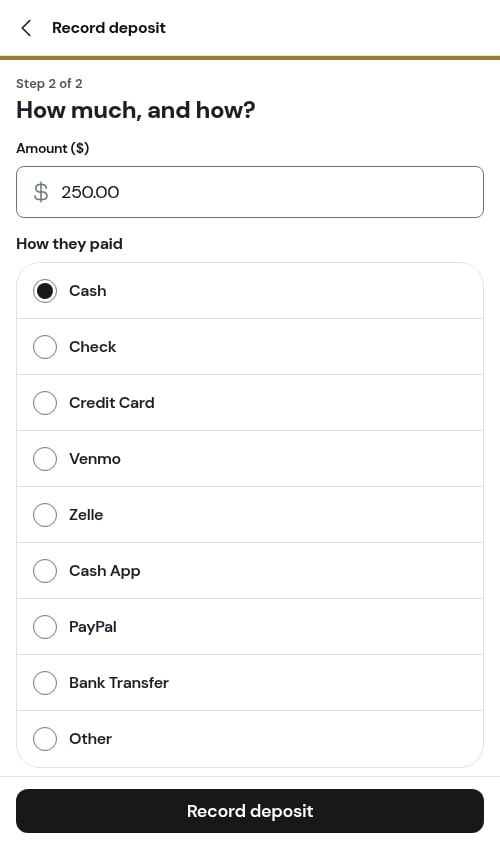
4
Record deposit
Tap Record deposit. A message confirms it — “Deposit of $250.00 from Philip Okonkwo recorded. Held on their account until you apply it to an invoice.” — with View invoice to open the deposit’s own paid invoice.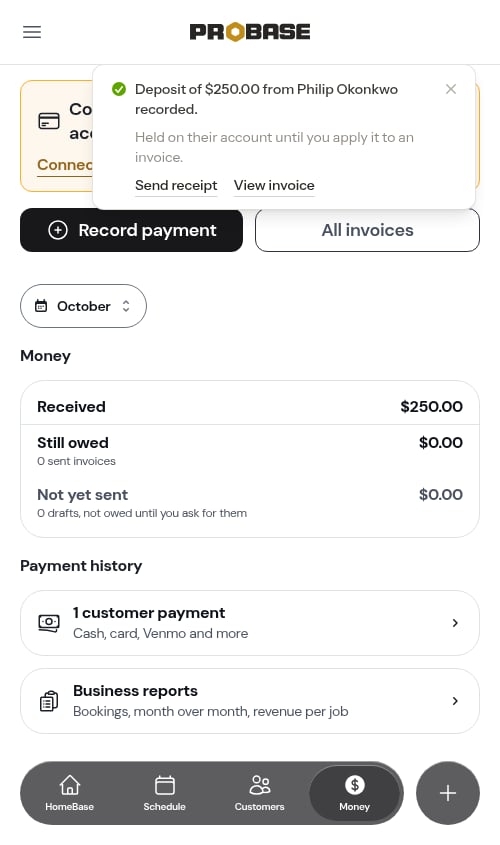
Recording a deposit takes permission to add charges as well as record payments, so team members who can only record payments won’t see the option.
The Payments list
Tap N customer payments on the Money screen to see every payment in one list, newest first.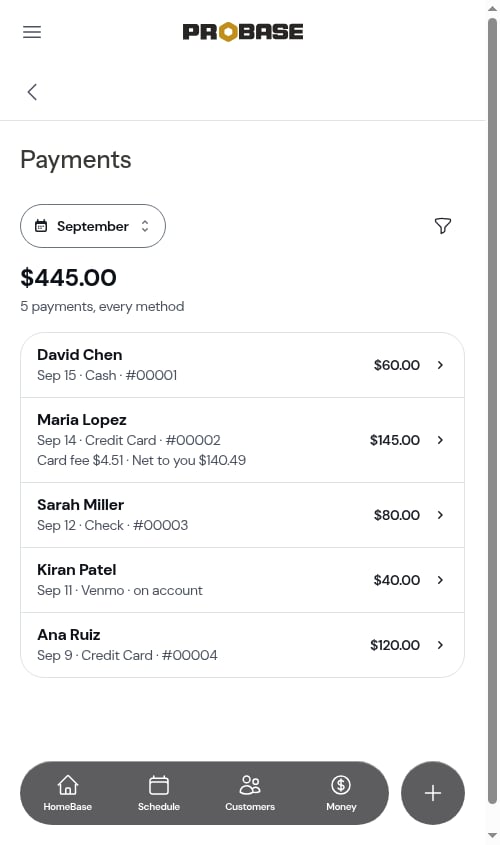
- The period chip at the top sets which payments show — the same choices, and the same period you picked on Money.
- The heading shows how many payments and their total, like 5 payments, every method.
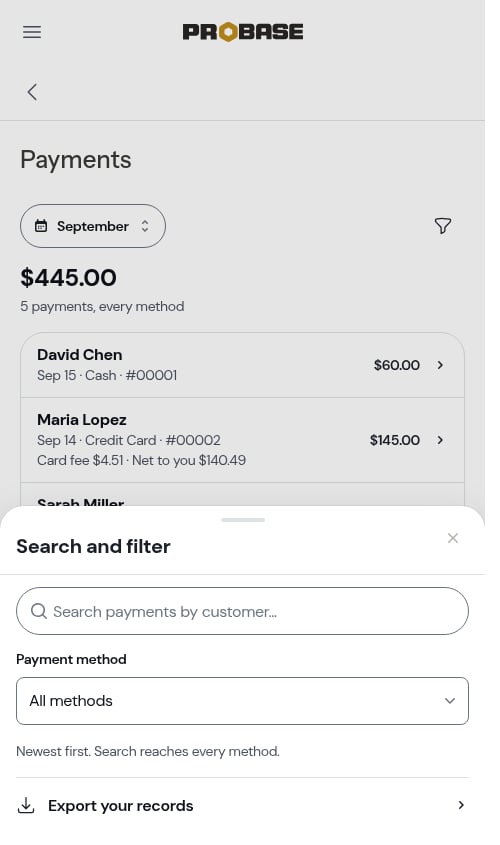
- The filter button opens Search and filter: search by customer name and pick a Payment method. At the bottom, Export your records takes you to exporting your records.
Payment details
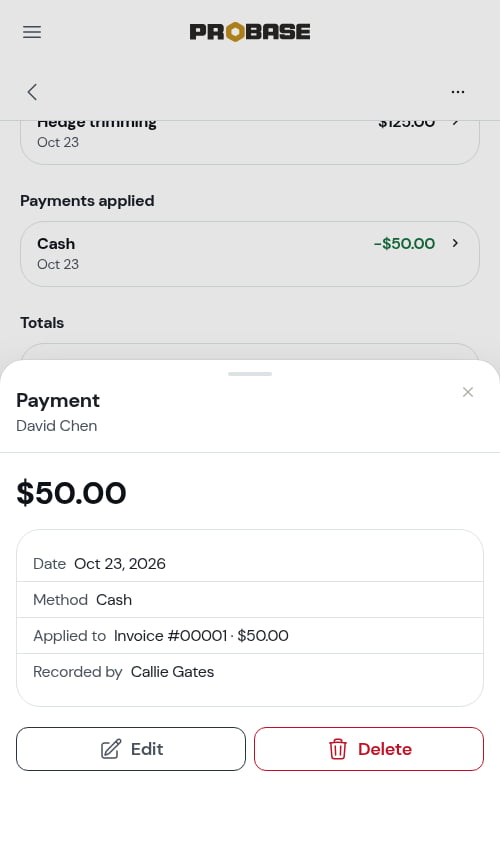
Open a payment from the Payments list, from Payments applied on an invoice, or from a Payment row in the customer’s billing history. You’ll see:- The amount
- Date and Method
- Note, if you added one
- Applied to — which invoices it settled, and any amount left as credit
- Recorded by
Edit or remove a payment
If you recorded a payment by mistake, tap Edit to change the amount, method, or note, or Delete to remove it. Before removing, ProBase tells you what the customer’s balance will become — “Remove this $60.00 cash payment from David Chen? Their balance becomes $140.00.”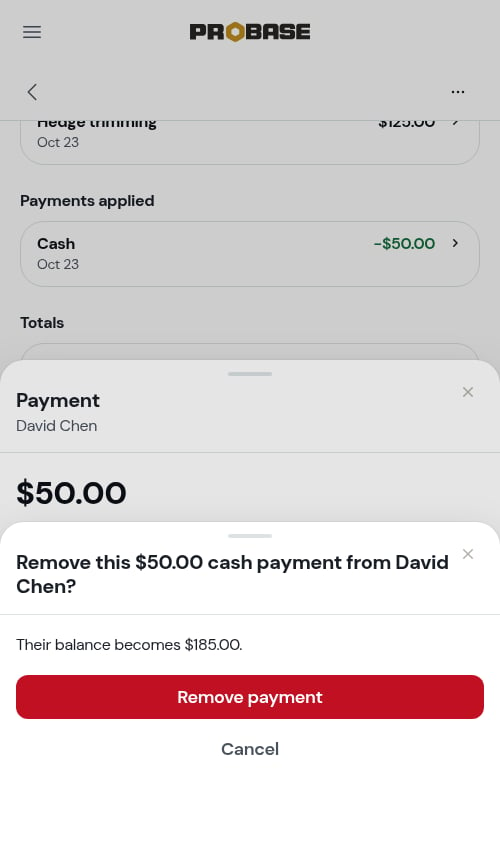
Refund a payment
If you gave money back for a payment you recorded by hand:1
Open the invoice and tap ⋯ More → Refund
Refund appears on any sent invoice that a payment you recorded still covers — whether it reads Paid, Partially paid, or Overdue. An invoice that’s paid off only by a credit, or already fully refunded, doesn’t offer it.On a deposit’s own invoice, Refund is offered only while the whole deposit is still held. If any of it has been added to another invoice, remove it from that invoice first.
2
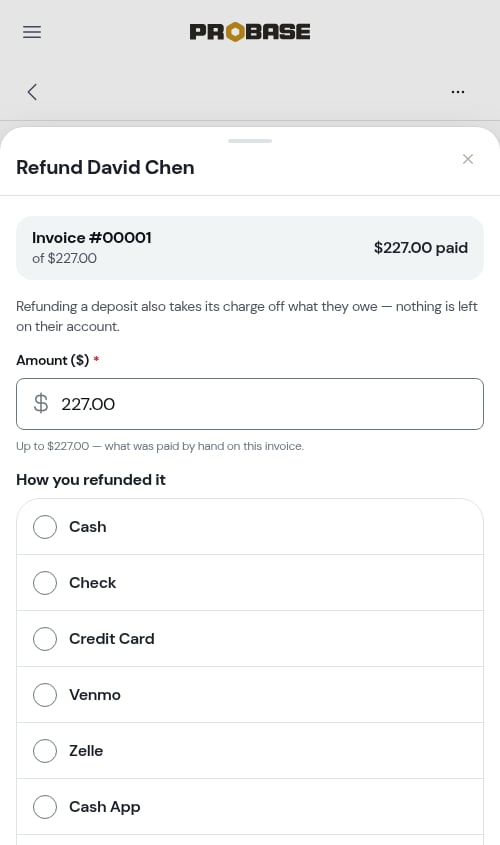
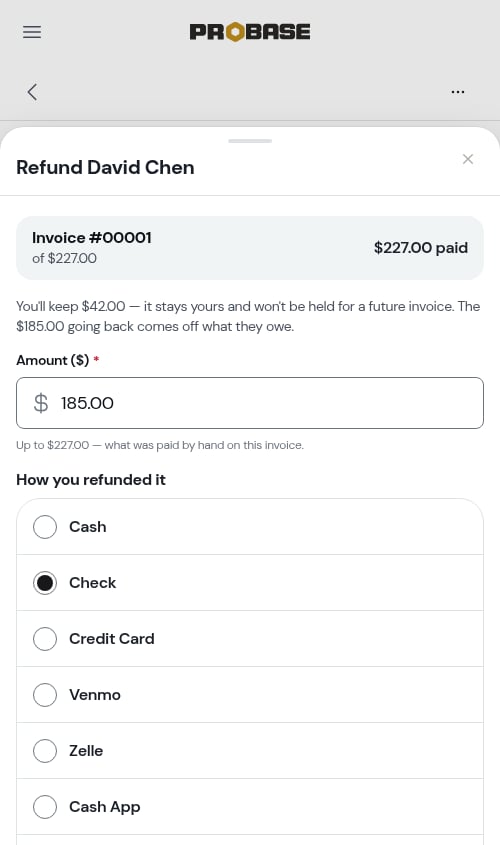
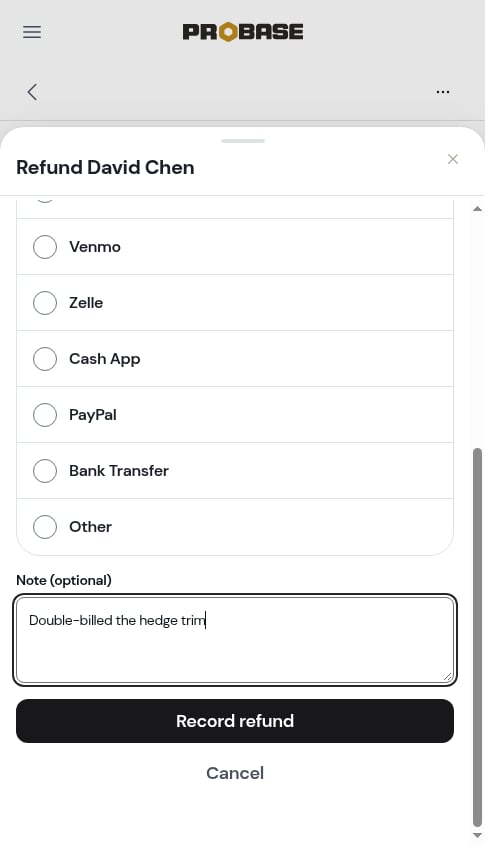
Fill in the refund
- Amount ($) — filled in with what was paid by hand; lower it for a partial refund
- How you refunded it — the method you used to give the money back
- Note (optional)
3
Tap Record refund
The invoice goes back to Unpaid or Partially paid (or Overdue, if it’s past its due date), a line under its number reads, for example, Refunded Sep 20 · $80.00 · Check, and the refunded payment stays listed, struck through. Nothing is deleted.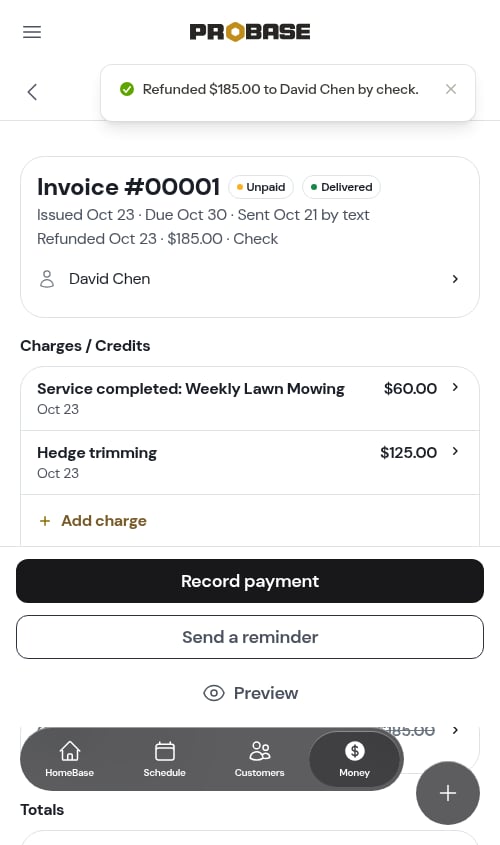
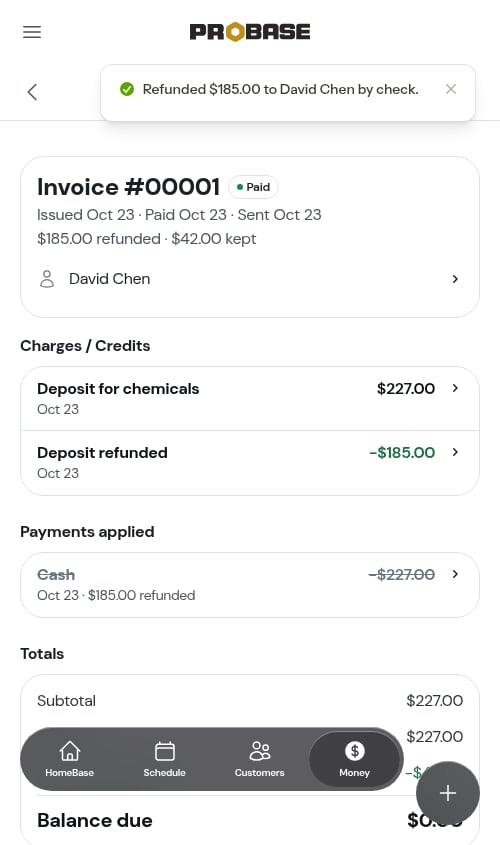
Card payments are refunded in your Stripe dashboard and ProBase picks up the refund automatically. Refunds are available to Admins.
Payment status on charges
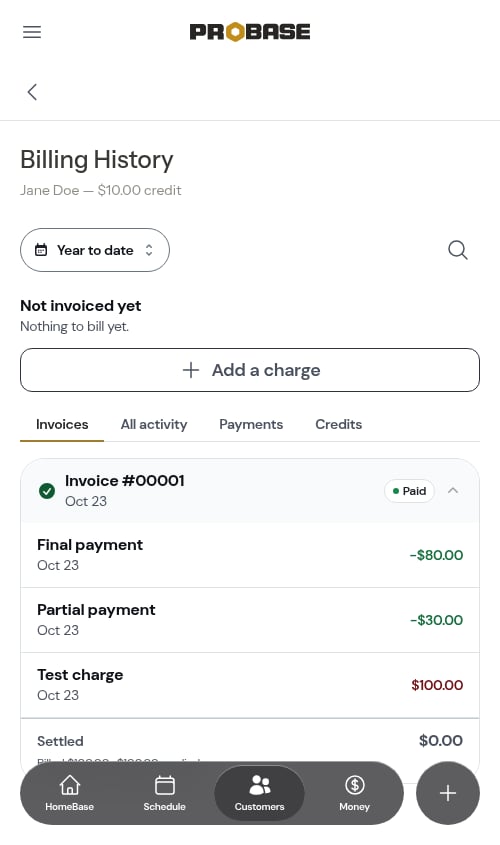
Behind every invoice, each charge is tracked as Paid or Unpaid. When a payment or credit lands, ProBase covers the oldest charges first. If it’s for a particular invoice, it pays off that invoice’s own charges first, then any prior balance carried onto it. A partial payment leaves a charge Unpaid until the rest is covered.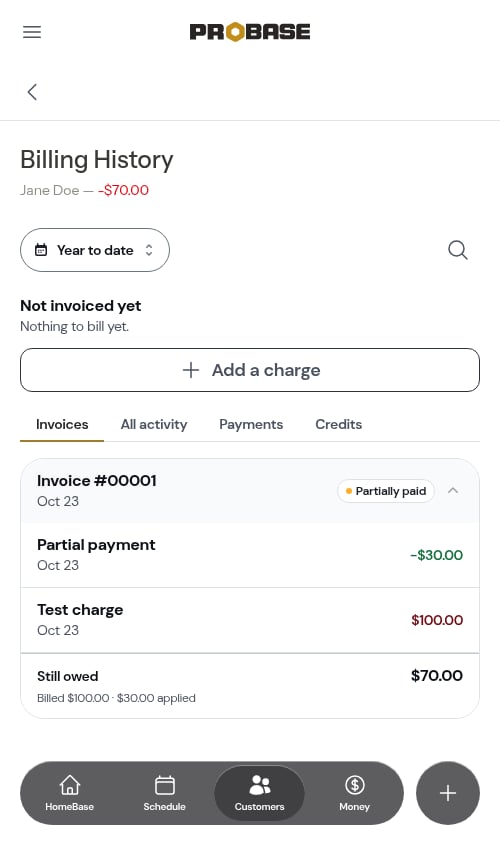
Payment methods compared
Card payments require you to connect Stripe first.