Overview
Once a marketplace account is connected, ProBase keeps a copy of that work so it sits on your schedule next to your own jobs. Syncing is one-way: the marketplace is the source of truth, and ProBase reads from it. Nothing you do in ProBase is pushed back out to the marketplace. That’s why marketplace records are read-only in ProBase — the real actions (starting, completing, rescheduling, cancelling, contacting the customer) happen in the marketplace app, and the result comes back to ProBase on the next sync.What comes across
How often it refreshes on its own
You don’t have to do anything to keep marketplace work current:- Every few minutes — ProBase does a quick head-count check on each connected account: how many customers the marketplace has for you, against how many it has synced. If the two disagree, it pulls that account’s whole book straight away. This is what catches a brand-new customer — the one that arrives with a job you just claimed — so they land in ProBase within a few minutes rather than waiting for the next full check. See New customers arrive on their own.
- Every 15 minutes — ProBase re-reads each connected account’s customers, properties, services, and jobs, so changes to work already on your books — a completion recorded in the marketplace app, a status change, a rescheduled visit, a changed access note — come across on their own.
- Every night — a full refresh runs in the early morning, local to your business, so your book is clean by the time you start the day. The nightly run also brings across your earnings and payout deposits.
- Right after you leave for the app — when you tap a button like Open in LawnStarter or Complete in LawnStarter, ProBase starts checking that one job much more often, so whatever you do in the app shows up in ProBase quickly without you asking. It watches closely for the first twenty minutes or so — long enough to cover the visit you just went off to handle — then keeps a slower watch on that job for several hours afterwards, in case the marketplace records your completion later in the day. After that it goes back to the normal 15-minute rhythm.
The money side refreshes on a slower rhythm than your schedule. The 15-minute check keeps your customers and jobs current; earnings and payout deposits come across with the nightly refresh, with a Full re-sync, or when you tap Refresh on the marketplace record’s Billing History. So a deposit that lands mid-morning may not appear until you refresh or until that night.
The marketplace can’t notify ProBase the instant something changes, so there’s always a short lag. If you need the very latest, use Refresh below.
New customers arrive on their own
When you claim a job in the marketplace app, that job’s homeowner becomes a new customer on your marketplace account — and ProBase has to notice them before their visit can appear on your schedule. That’s what the few-minute head-count check is for. Here’s what happens, without you doing anything:1
ProBase spots the difference
The next head-count check sees the marketplace has one more customer than ProBase has synced.
2
It pulls the account's book
ProBase refreshes that whole account in the background — the same pull as a Full re-sync, just started for you. If you happen to have Integrations open you’ll see the card switch to Syncing… and run its progress bar through, without anyone tapping anything.
3
The customer and their work land
The new customer appears in your customer list with their property, service, and visits, and the visits take their place on your calendar and daily route.
4
You get an update
A New LawnStarter Customer! update (naming whichever marketplace it came from) lands in your Updates feed, with the customer’s name underneath — Dana Whitfield was added to your customers from LawnStarter. Tap it to open their page.
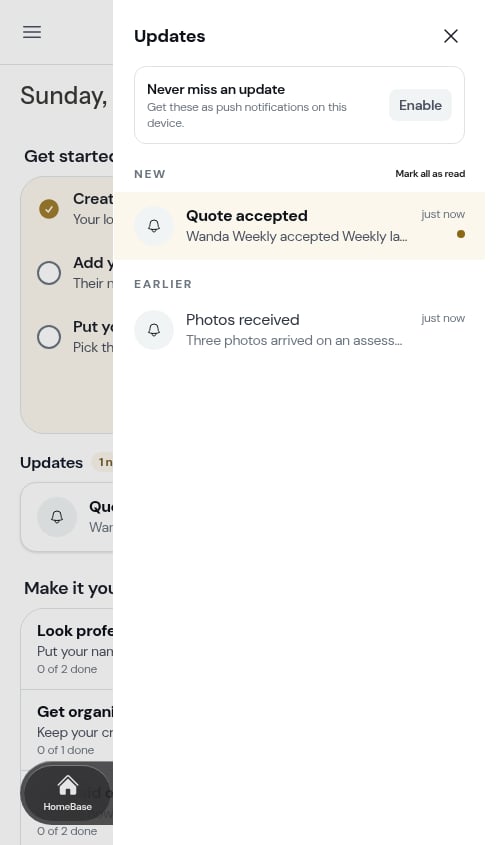
Connecting an account for the first time is silent. That first import brings your entire existing book across at once, so ProBase deliberately doesn’t announce every customer in it. Updates start once the account is set up and a genuinely new customer arrives.
Refresh one record now
Every marketplace-synced screen — customer, property, service, job, and the marketplace record’s Billing History — shows a small Last synced … line with a Refresh link next to it.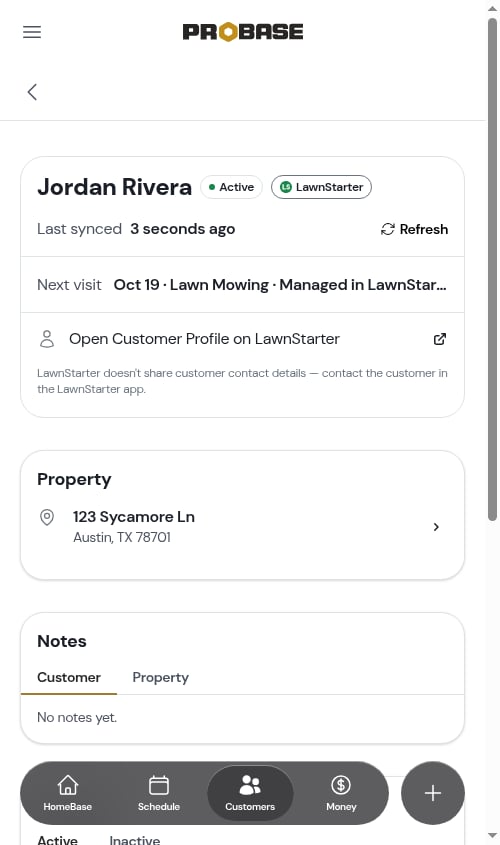
- While it reads Syncing… the link can’t be tapped again, so you can’t set a second pull going on top of the first.
- Hover (or long-press) the timestamp to see the exact date and time of the last sync.
- If the refresh can’t complete, the line turns into a short message with a Try again link.
- On a job, refreshing over and over is throttled — tap too fast and you’ll see “Just refreshed — give it a moment before trying again.” Wait a minute and try again.
How old is “Last synced”?
The timestamp counts up on its own while you’re looking at the page — Last synced 12 seconds ago becomes 13 seconds ago, then rolls over to 1 minute ago, 2 minutes ago, and so on, without you reloading anything. So the age you see is always the real age, even if you’ve left the job open on your phone for a while.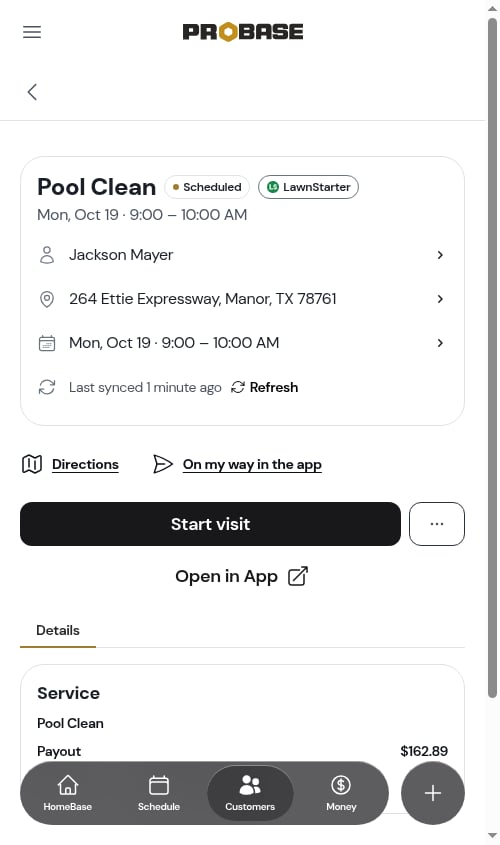
Refresh everything for an account
To pull your entire marketplace book again rather than one record, use Full re-sync on the connected card under Integrations. See Sync status and a full re-sync.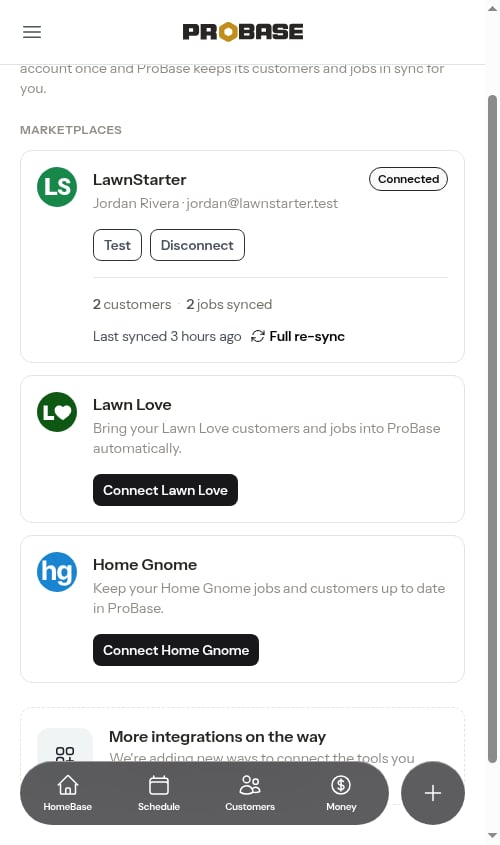
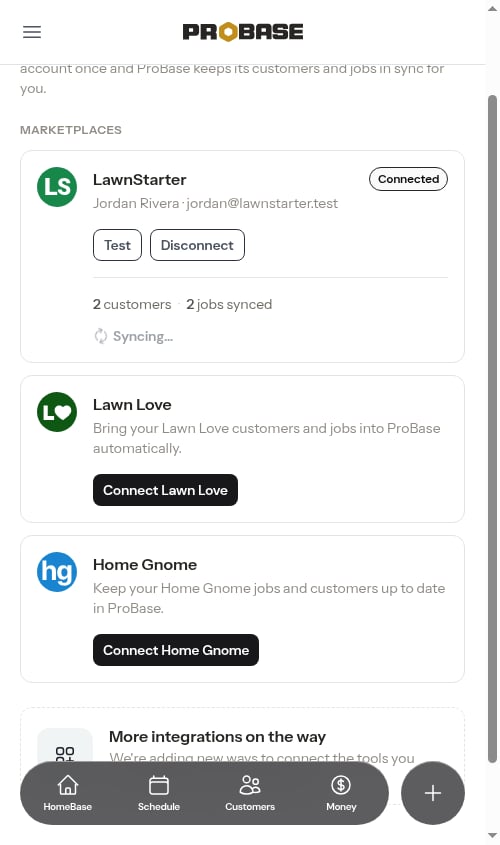
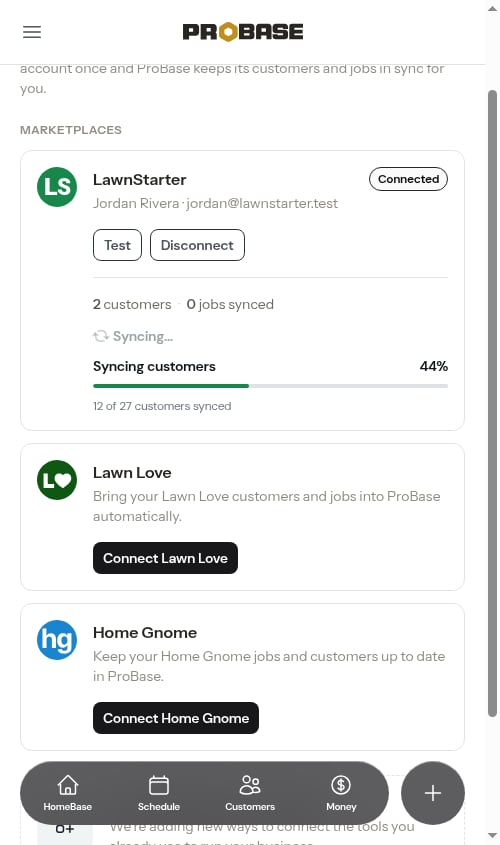
A card can start syncing on its own. ProBase runs the same pull for you whenever its few-minute head-count check finds your marketplace book and your ProBase book out of step — usually because you just claimed a job. Seeing Syncing… on a card you didn’t touch is normal; nothing is wrong, and there’s no need to start another one on top of it.
When something looks wrong
1
Check the connection isn't expired
Open Integrations in the Business group. An expired connection stops syncing entirely until you reconnect — you’ll also see an amber banner on HomeBase. See Reconnecting an expired account.
2
Refresh the record
On the customer, job, or service that looks stale, tap Refresh next to Last synced.
3
Run a full re-sync
Still off? Tap Full re-sync on the account’s card to pull the whole book again. It works in the background — the card reads Syncing…, then shows a progress bar counting your customers through, and updates itself when it’s done. If it reads The last full re-sync didn’t finish, tap Try again. If you’ve just reconnected the account, running it right away is fine — it will pick up everything that changed while the connection was down.
4
Test the connection
Use Test on the card to confirm ProBase can still reach the marketplace and is looking at the right account. See Testing a connection.
A job that was cancelled on the marketplace side changes status in ProBase on the next sync; one that’s no longer assigned to you disappears from it. Either way you don’t need to clean it up by hand — see Work that disappears from the marketplace.
Why a marketplace job might not appear at all
A visit that’s on your marketplace account but has never shown up in ProBase is a different situation from one that vanished. ProBase only takes on work it can confidently put on your schedule, so a visit crosses over when all of these are true:- The job is yours. ProBase takes on a job when the marketplace has you as the pro on it — or when one of its recent visits was assigned to you, which is how a job the marketplace has since cancelled keeps its history in your book even after it takes your name off it. Another pro’s work never crosses over, and neither does an offer still waiting for you to accept it: work sitting in the marketplace’s pool becomes yours once you claim it in the app, and syncs in from there. See Available to claim.
- The visit is assigned to you. A visit the marketplace hasn’t put a pro on yet, or has handed to a different pro, stays out of ProBase rather than sitting on your schedule as work you might not end up doing. If one you’d already seen becomes unassigned or moves to another pro, it’s removed on the next sync.
- The visit has a day. The marketplace owns the date, so a visit with no day on it yet can’t be placed on a calendar. It waits until the marketplace gives it one, then arrives on the next sync with your start time and length filled in — see Where the start time comes from.
The job itself can be in ProBase while one of its visits isn’t. If the service shows on the customer’s page and most of its visits are on your calendar but one is missing, it’s usually that single visit that isn’t assigned or isn’t dated yet — not the whole job.
1
Confirm it in the marketplace app
Open the job in the marketplace app and check the marketplace shows you as the pro on it, that the visit is assigned to you, and that it has a date. That screen is the source of truth — ProBase can only show what the marketplace hands it.
2
Run a full re-sync
On the account’s card under Integrations, tap Full re-sync to pull your whole book again. See Refresh everything for an account.
3
Compare the synced counts
The card shows how many customers the marketplace has for you against how many ProBase has synced. If the two agree but the job still isn’t there, the marketplace isn’t handing that visit over yet.
4
Contact support
If all three hold and a re-sync doesn’t bring it in, contact support with the customer’s name, the address, and the date the visit should be on. Support can check what the marketplace is actually sending for that customer and tell you which of the three conditions isn’t met.
Work that disappears from the marketplace
Syncing keeps ProBase matching the marketplace in both directions: it adds what’s new and removes what’s gone. If a customer, property, service, or visit is no longer on your marketplace account — the customer was reassigned, a duplicate visit was cleaned up, the job was pulled — the matching record disappears from ProBase on the next sync.Jobs that are no longer assigned to you
A visit only appears in ProBase while the marketplace has it assigned to you. If it stops being yours — taken off you, handed straight to another pro, or returned to the pool while it waits to be picked up — it’s removed from ProBase on the next sync rather than being left on your schedule as something you still owe. Work that was never assigned to you doesn’t sync in at all.- A cancelled visit is different: it stays on your schedule marked Cancelled, so you keep the record.
- The removal happens even if the visit was already hidden in ProBase — for example because you’d archived that customer.
- If the same work is assigned back to you later, it syncs in again as a new job.
What’s never removed
- Only marketplace-synced records are removed this way. Customers, properties, services, and jobs you created yourself in ProBase are never touched, and neither are records from a different marketplace account.
- Your history is safe. Past visits that have already aged out of the marketplace’s recent window stay in ProBase, so your completed-work record and earnings history don’t thin out over time.
- Your earnings record is never removed. The customer record named after the marketplace — the one that holds your earnings and payout ledger — isn’t one of the marketplace’s own customers, so this cleanup always skips it. Your money history stays put no matter how your customer book changes.
- If the marketplace can only be reached partway during a sync, ProBase skips the removal step entirely for that run rather than risk deleting work that’s simply missing from a half-finished response.
Next steps
- Marketplace jobs — what you can and can’t do on a synced visit
- Marketplace customers — the read-only customer, property, and service pages
- Marketplace earnings & payouts — earnings and deposit history