Overview
Sometimes a visit doesn’t happen. The customer is away, the weather turns, the gate is locked, the holiday lands on the service day. Cancelling takes that one visit off the books and leaves the rest of the job’s schedule exactly where it is. Cancelling is the only way to call off a visit. There’s no separate “skip” — one action covers it, and it asks you the one question that actually matters: what should happen to the work already sitting on this visit?If you just need the work on a different day, reschedule it instead. Rescheduling keeps the visit and moves it; cancelling ends it.
Cancelling one visit
1
Open the visit and tap ⋯ More
Open the visit from your schedule, the calendar, HomeBase, or the job page, and tap the outlined ⋯ More button beside the main action.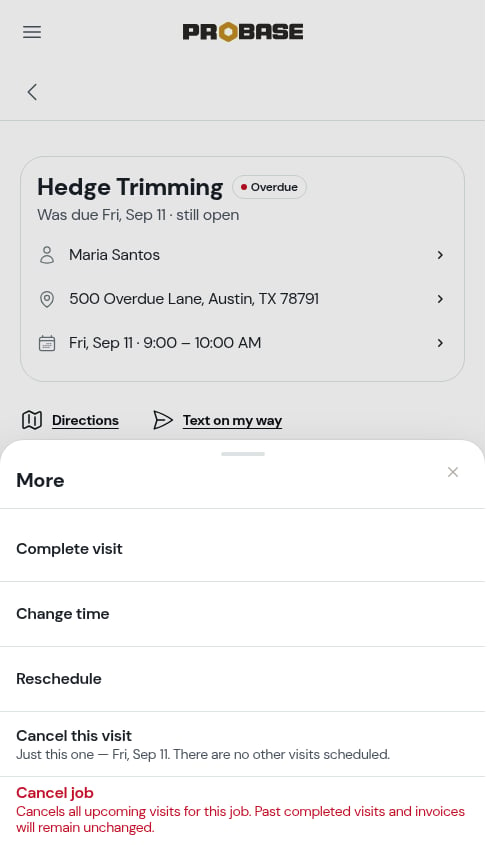
2
Tap Cancel this visit
It’s second from the bottom of the sheet, with a line underneath naming the dates involved — Just this one — Fri, Aug 28. Your next visit is scheduled for Fri, Sep 4. — so you know what you’re ending and what’s still standing before you tap.If this is the last visit on the books, the line reads Just this one — Fri, Aug 28. There are no other visits scheduled.
3
Confirm
A sheet slides up headed Cancel this visit?. Tap the solid Cancel this visit to go ahead, or Keep the visit to back out — nothing is written until you confirm.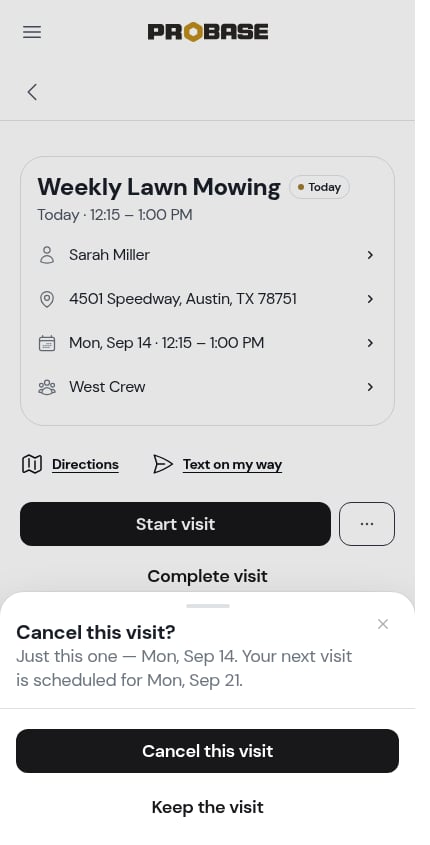
Moving charges and notes forward
If the visit has its own charges or notes on it, and another visit is already scheduled, the sheet asks what to do with them rather than quietly throwing them away:This visit has Hedge trim · $35.00 and notes on it. Move them to the next visit — Fri, Sep 4?
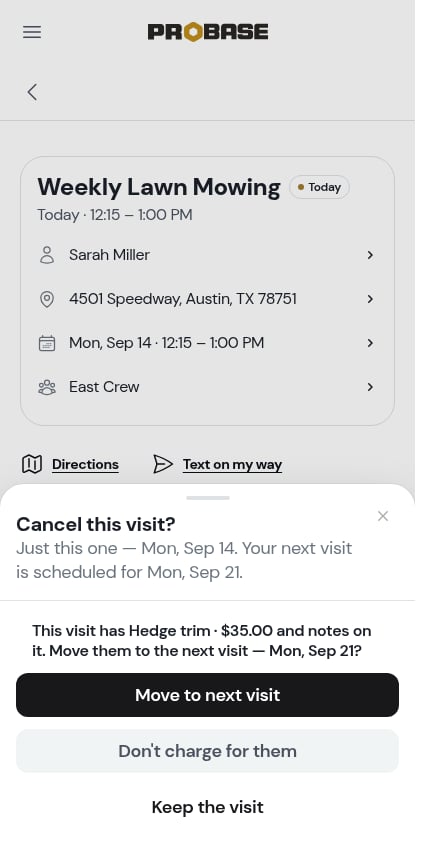
- Move to next visit — the charges and your notes are re-parented onto the next scheduled visit. They’ll be billed when that visit is completed. The cancelled visit records why: Items moved to Fri, Sep 4.
- Don’t charge for them — the visit is cancelled and the charges go with it.
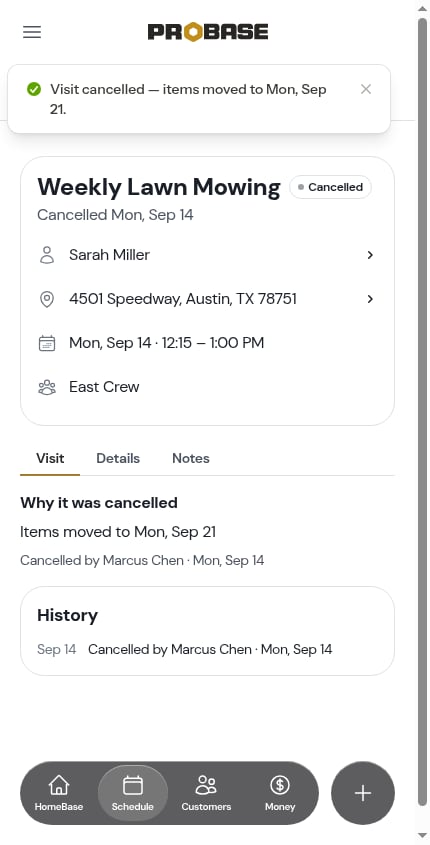
The question is only ever asked about the visit’s own charges. A standing charge on the job rides every visit anyway, so it isn’t something to move — which is why most cancels ask nothing at all and go straight to the confirm.
Nothing is billed for a cancelled visit
ProBase bills a visit when it’s completed, so a cancelled visit never creates a charge. That’s true whether or not you moved the charges forward — if you moved them, they’re billed once, when the next visit completes.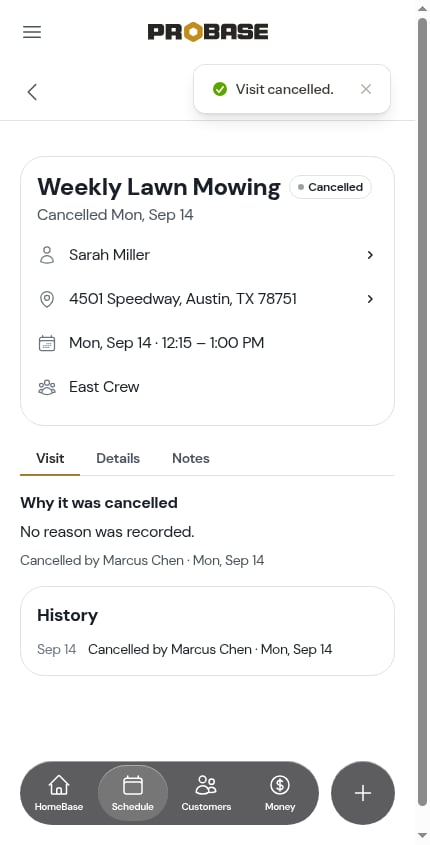
Offering a credit on a subscription job
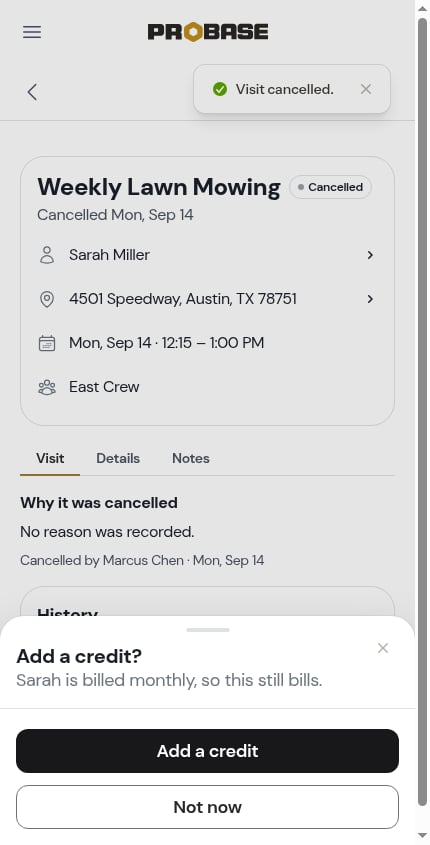
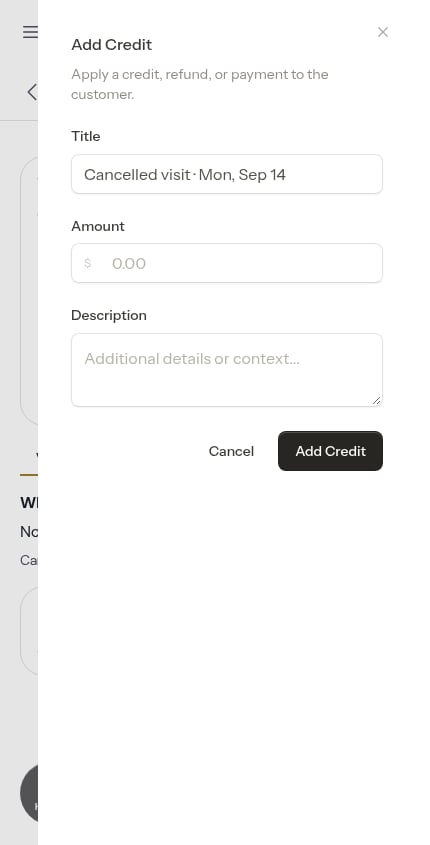
Customers on a subscription job are billed on their own schedule, whether or not a particular visit happened. So after cancelling a visit on a subscription job, ProBase offers you the chance to put that right:Add a credit? Sarah is billed monthly, so this still bills.
Cancelling the whole job
Cancel job is the last row of the ⋯ More sheet, in red. It ends the job, not just this visit.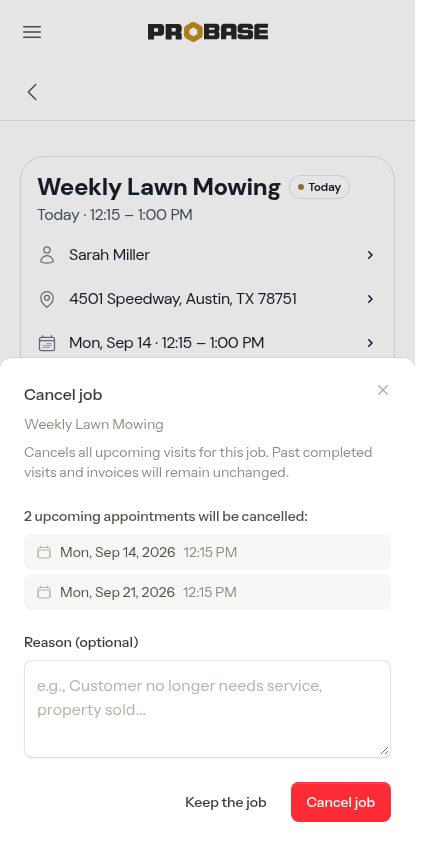
- Every upcoming visit for the job is cancelled
- Past completed visits and the invoices for them are untouched
- You can add an optional reason
What a cancelled visit looks like
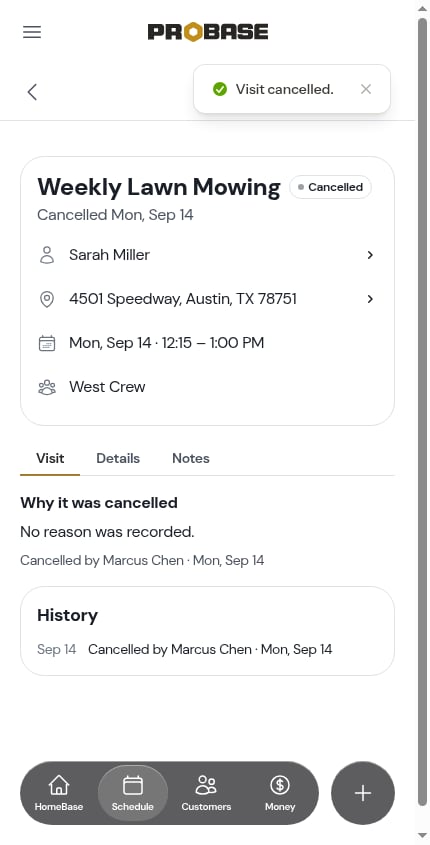
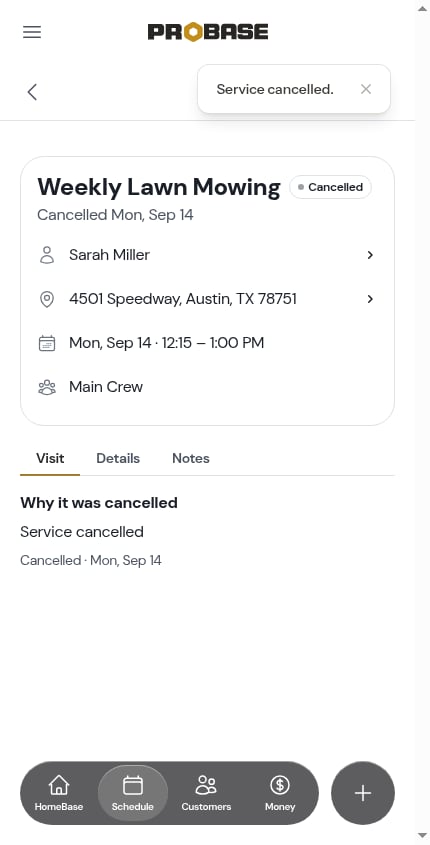
A cancelled visit keeps the same page, but everything that captures work drops away — no timer, no briefing, no checklists, no charge row. There’s nothing to do on it any more. The Visit tab leads with Why it was cancelled: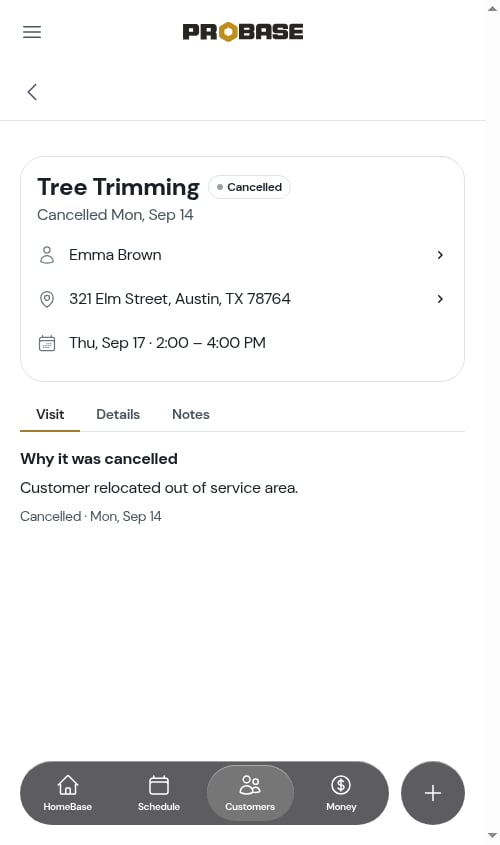
- The note ProBase recorded — for example Items moved to Fri, Sep 4 — or the reason entered when the job was cancelled
- No reason was recorded. when there’s nothing to say
- The history line underneath: Cancelled by Callie Gates · Wed, Aug 26
Visits marked Skipped on older jobs still show correctly wherever they appear — that status is part of your history. New visits are cancelled rather than skipped.
Cancelling from the day’s list
You don’t have to be on the visit page. Overdue visits can be cleared the same way — open the visit from Overdue Jobs, tap ⋯ More → Cancel this visit, and the list drops it.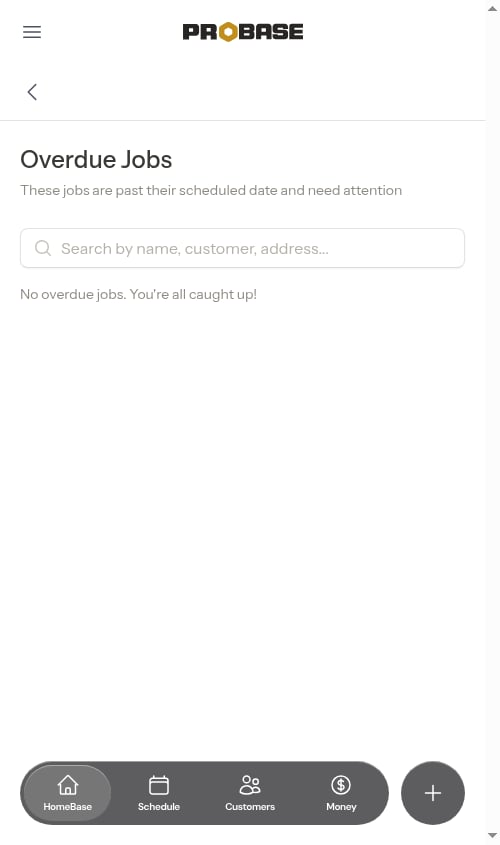
Who can cancel
Cancelling a visit needs the cancel permission, and only on a visit assigned to a crew you work. Roles that can’t cancel don’t see the row in the sheet at all. Cancel job needs permission over the job itself. See Roles and permissions. Marketplace visits can’t be cancelled from ProBase — that happens in the marketplace app. See Marketplace jobs.Next steps
- Rescheduling jobs — move a visit instead of ending it
- Charges on a visit — what gets moved forward
- Managing services — cancelling a job from the job page