Repeating on chosen days
Some customers want more than “every 7 days”. A pool might need cleaning every Monday and Thursday. A lawn might be mowed every other week on Wednesday. A monthly inspection might fall on the 1st and 3rd Friday. ProBase lets you pick those exact days, and every visit is booked on them. You can choose days in four places:- the New Job wizard (the When should this job be scheduled? step)
- the Change Schedule window on an existing job
- a quote’s service editor
- a service template in your catalog, so every new job from it starts on those days (see Set days of the week)
Choosing days is rolling out to accounts a few at a time. If you don’t see a row of day buttons labelled On under Service Frequency, your account doesn’t have it yet. You can still use the presets and Custom with a number of days, as described in Custom frequencies.
Picking days of the week
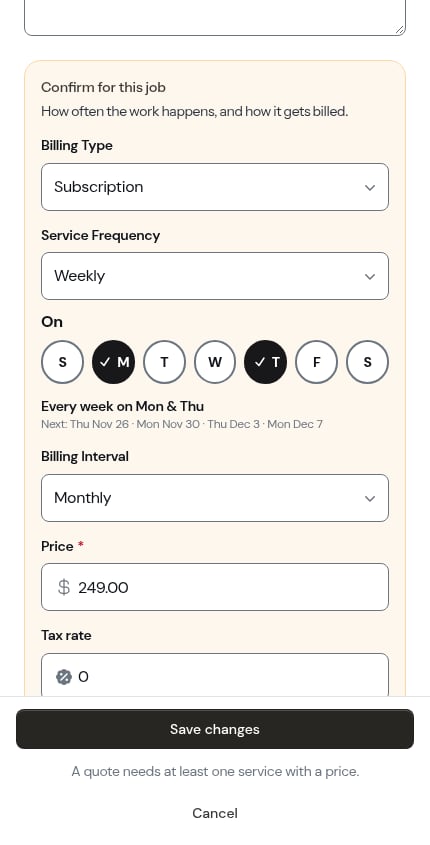
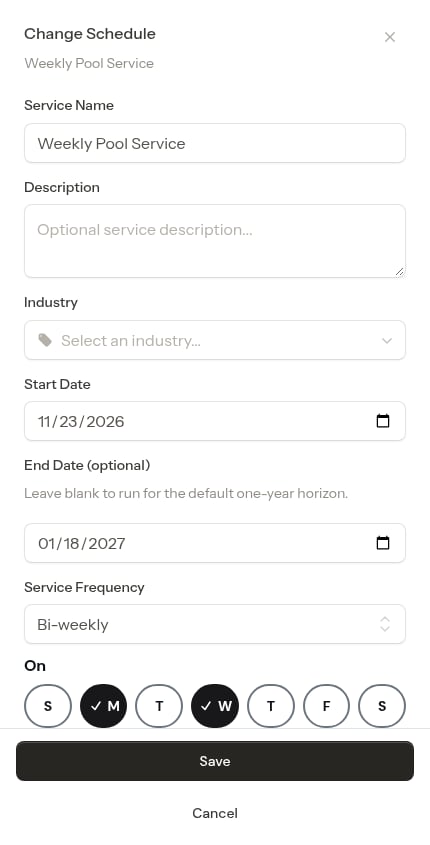
Pick Weekly or Bi-weekly under Service Frequency. A row of seven day buttons labelled On appears, Sunday to Saturday. ProBase ticks the start date’s weekday for you. Tap any other day to add it, and tap a ticked day to remove it.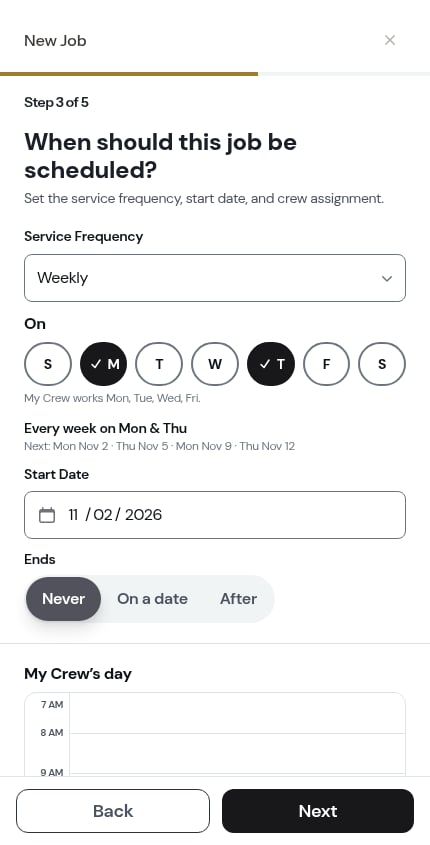
- Which days the crew works — for example My Crew works Mon, Tue, Wed, Fri.
- A summary in plain words — for example Every week on Mon & Thu
- The next four visit dates — for example Next: Mon Nov 2 · Thu Nov 5 · Mon Nov 9 · Thu Nov 12
Every few weeks
To repeat every 3 weeks, every 4 weeks and so on, pick Custom. A Repeat every box appears next to Days, Weeks and Months. Choose Weeks, type the number (up to 12) and tick your days. Repeat every goes up to 12 for Weeks and Months. Days takes any number from 1 to 365, so every 45 days still works. A number out of range shows Pick a number from 1 to 12. (or 1 to 365 for days) next to the box. When you switch from a preset to Custom, the box starts on the gap you already had. Weekly and Bi-weekly open as 1 or 2 Weeks. Any other preset opens in Days with the same number. For example, Monthly opens as 28 Days, and the summary reads Every 28 days. Switch to Months yourself if you want visits on set days of the month. The week holding your Start Date is week 1. For example, every 2 weeks on Mon & Wed starting Monday, Nov 16 books Nov 16 and Nov 18, skips the next week, then books Nov 30 and Dec 2.Picking days of the month
Pick Custom, then Months next to Repeat every. Type how many months apart the visits are (1 for every month, up to 12). Then choose how the days are set:- Day of the month — a date, from the 1st to the 28th, or Last day. Example: the 1st and the 15th.
- Day of the week — a position and a weekday: 1st, 2nd, 3rd, 4th or Last, then Monday to Sunday. Example: the 1st and 3rd Friday.
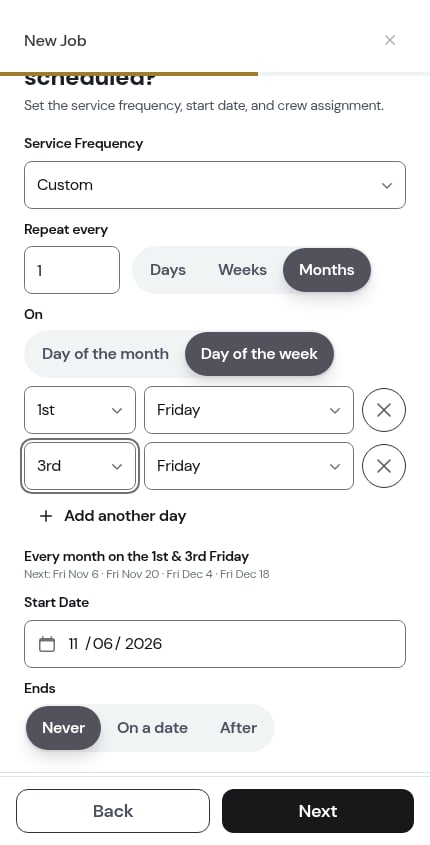
Dates stop at the 28th so that every month has the day you chose. Pick Last day if you want the end of every month.
Choosing when it ends
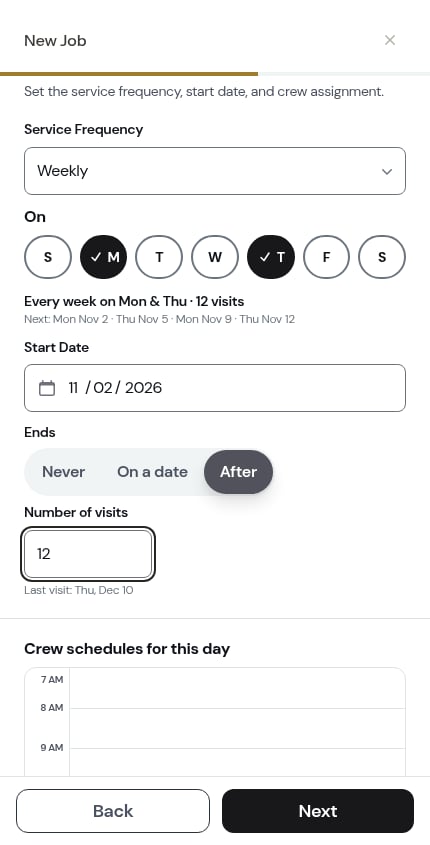
In the New Job wizard, Ends sits under the start date:- Never — the job keeps going (ProBase books a year ahead and keeps the calendar topped up)
- On a date — pick an end date
- After — type a Number of visits. ProBase shows the date of the final visit underneath, for example Last visit: Thu, Dec 10, and the summary adds the count: Every week on Mon & Thu · 12 visits
When a day is the crew’s day off
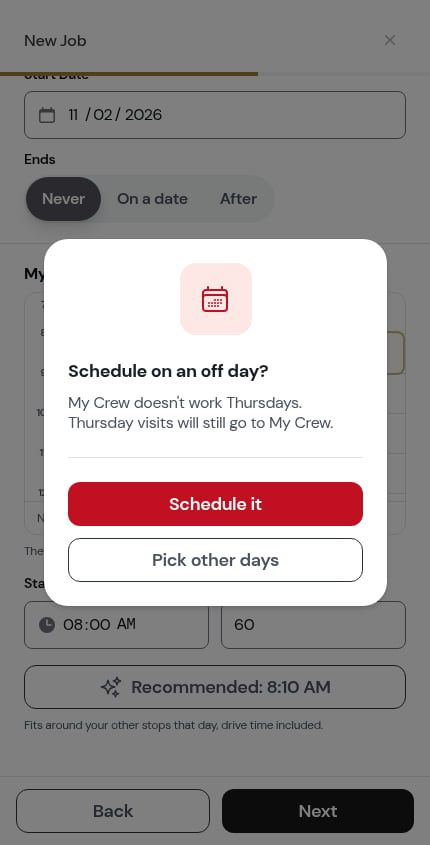
If one of the days you picked is a day the crew doesn’t work, ProBase asks once before saving. For example: Schedule on an off day? My Crew doesn’t work Thursdays. Thursday visits will still go to My Crew.- Schedule it — keep the days. Those visits still go to that crew.
- Pick other days — go back to the day buttons and change them.
The receipt
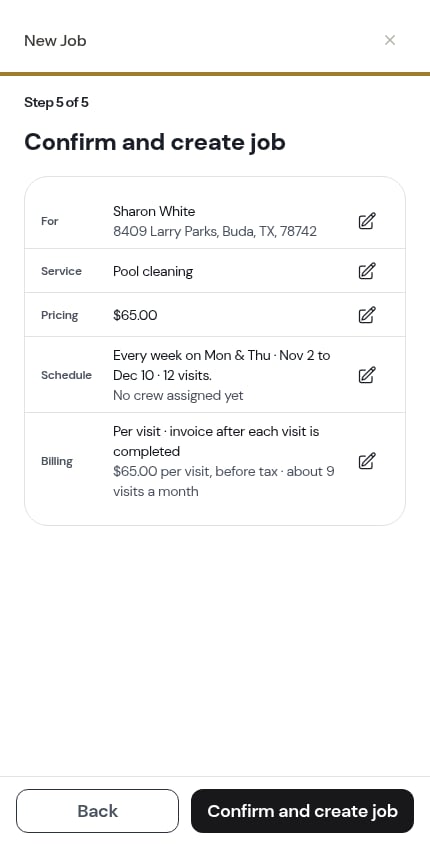
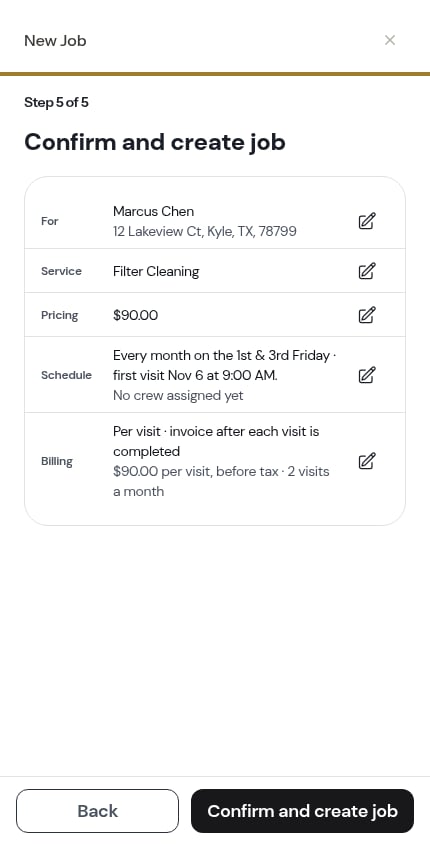
On the Confirm and create job screen, the Schedule row reads the whole pattern and the first visit — Every week on Mon & Thu · first visit Nov 2 at 8:00 AM. The first visit is the first chosen day on or after your start date. On a per visit job, the Billing row also gives a rough visit count, so you can see what a month looks like — $75.00 per visit, before tax · about 9 visits a month. Subscription jobs don’t show it.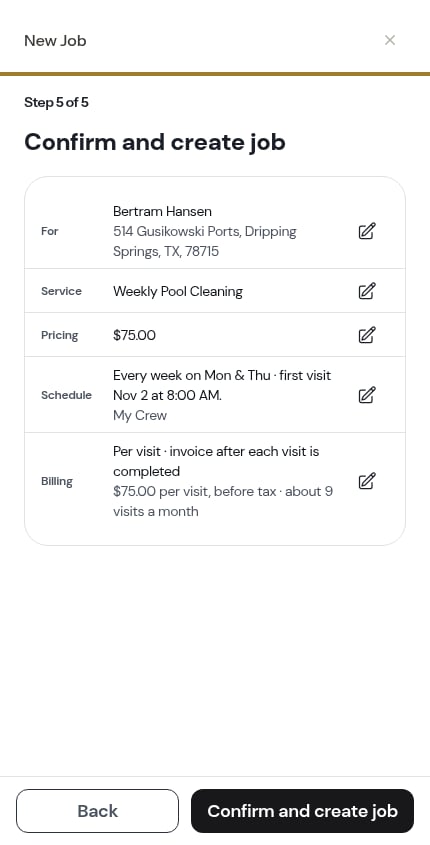
Changing the days on an existing job
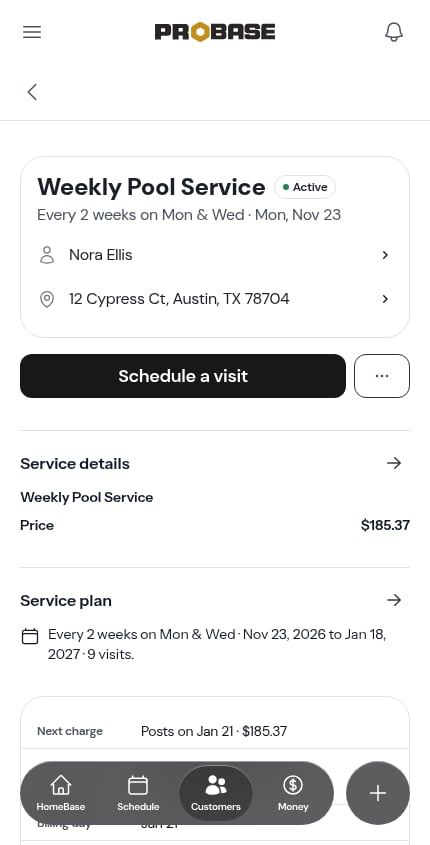
Open the job, tap the → next to Service plan to open Change Schedule, and change the days the same way. For example, switch a Monday job to Bi-weekly and tick Wednesday as well.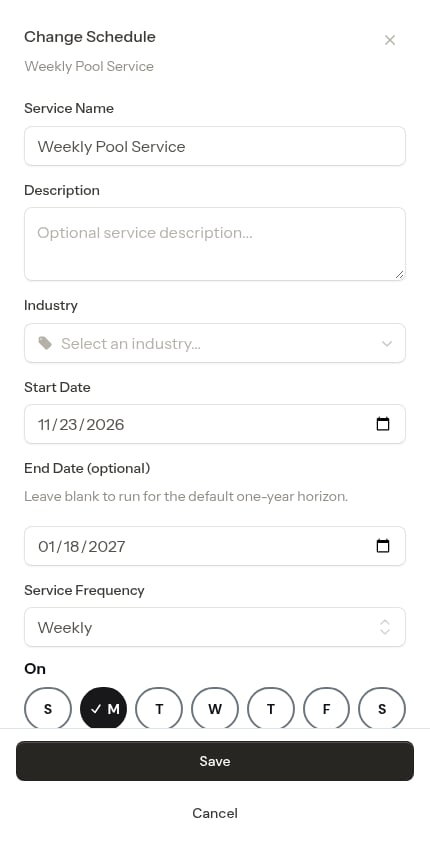
- 8 upcoming visits will be rebuilt
- Your Monday visits become Mon & Thu visits (89 upcoming). — or, for a bigger change, From now on: Every month on the 1st & 15th (24 upcoming).
- Visits move to the other weeks: next Mon is Nov 9, not Nov 16. — when a new start date moves an every-other-week job onto the other weeks
- 1 visit you moved stays where it is. / 1 pinned visit keeps its time. / 1 visit you added stays. / 1 visit with work on it stays.
- Completed and cancelled visits don’t change.
Choosing days on a quote
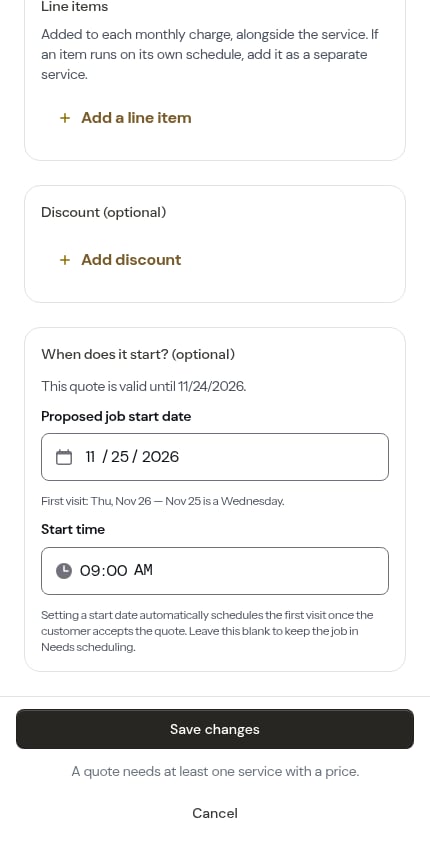
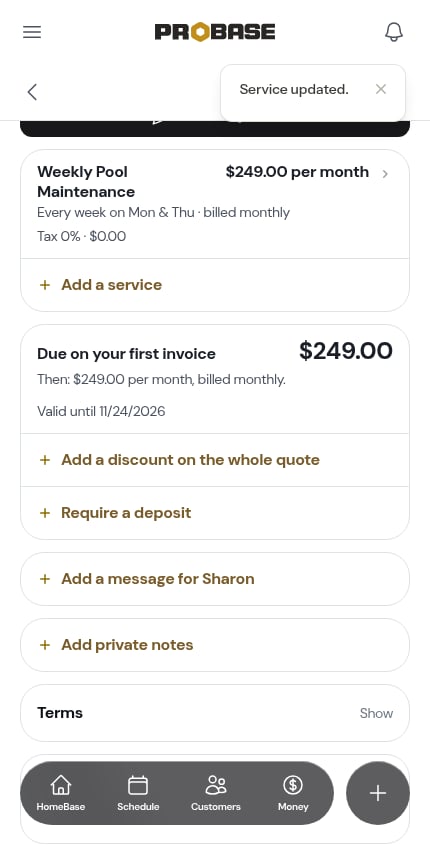
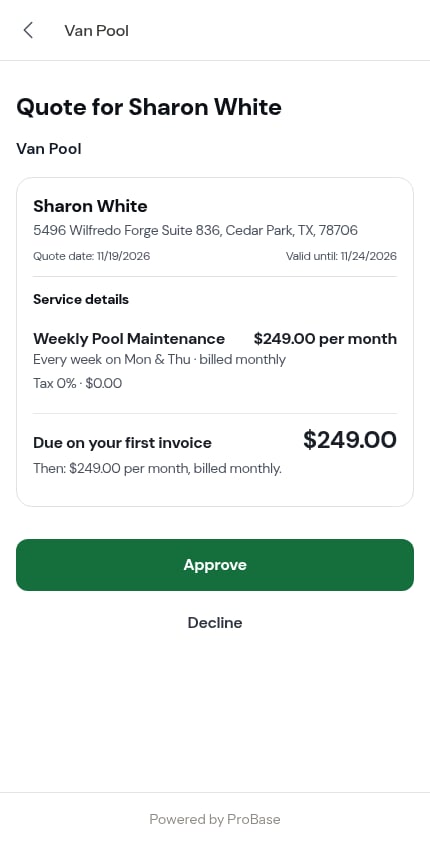
In a quote’s service editor, the Service Frequency picker in the Confirm for this job box works the same way. Tick the days, and the summary and next dates appear underneath.