What this is
Before your crews leave, HomeBase tells you what’s worth a minute of your time: a job nobody’s driving to, a day that runs past the crew’s end time, and a route that could be shorter. These sit as rows in the Action needed section of HomeBase, each one a tap away from the screen that fixes it.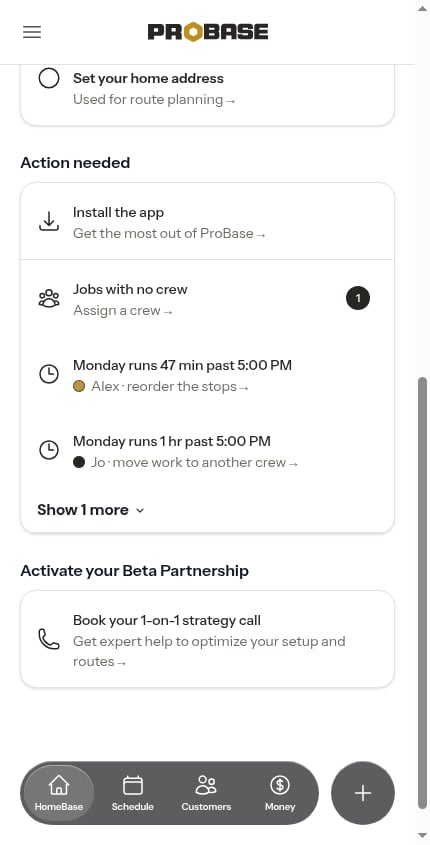
Which day is being planned
ProBase plans today until 6:00 PM, then switches to tomorrow. The idea is simple: in the morning you’re fixing the day you’re about to drive, and by the evening you’re setting up the next one. You never have to tell it which day you mean.The rows, in order
The rows always appear in the same order — blockers first, then how the day fits, then what you could save. They’re never sorted by when something changed, so you learn where to look.Jobs with no crew
A count of the jobs on the planned day that nobody is assigned to, with Assign a crew underneath. Tap it to open Jobs that need a crew scoped to that day, where you can hand them out one at a time or let ProBase assign and route them all at once. This row only appears on teams with more than one crew — with a single crew, new work is assigned automatically.How the day fits
“Tuesday runs 47 min past 5:00 PM” — the crew’s planned work and driving add up to more than the hours you gave them. Underneath is the fix ProBase thinks will help:- Reorder the stops — a better order would bring the day back inside the hours. Opens Reorder stops for that crew.
- Move work to another crew — no reordering can make this day fit, so the work needs to go somewhere else. Opens Rebalance this day.
Save about 40 min of driving
What reordering that crew’s route would save. Tap the row and the Optimize route preview opens for that crew, already worked out. ProBase doesn’t calculate this in advance — it works it out when you open HomeBase. While it’s thinking, the row reads “Working out what optimizing would save…”.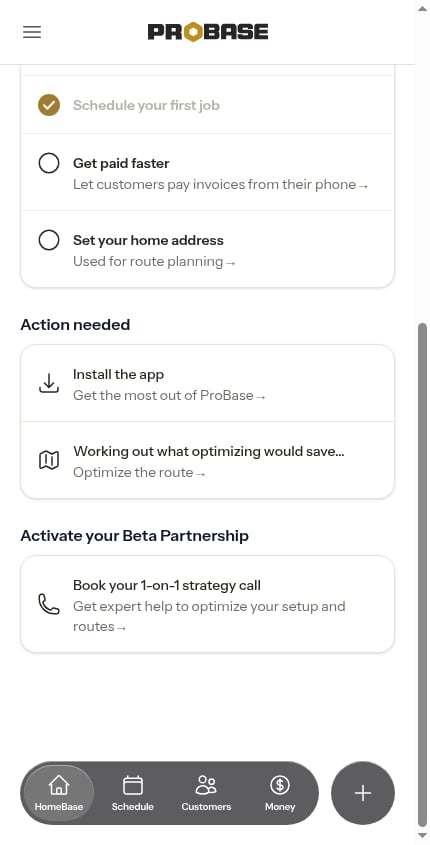
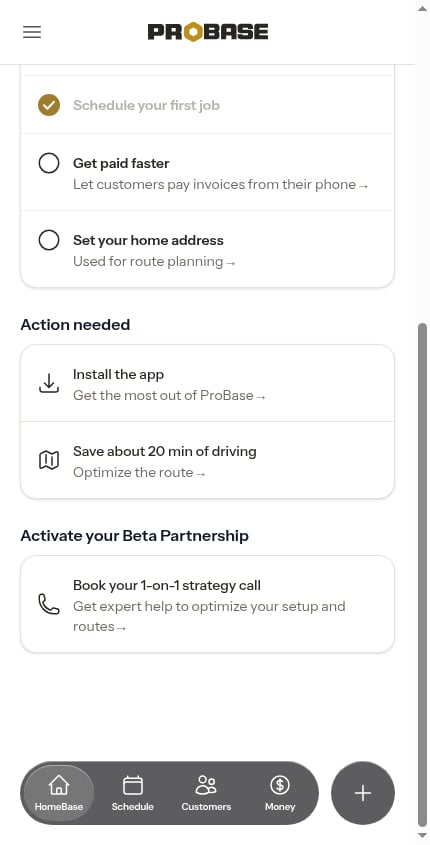
Once you’ve applied an optimization — or told ProBase to Keep current route — that crew’s day stops being offered again, until the stops on it change. A day you’ve already reviewed isn’t nagged about.
More than three rows
Only the first three rows show. Anything beyond that collapses behind Show N more; tap it to see the rest, and Show fewer to fold them away again.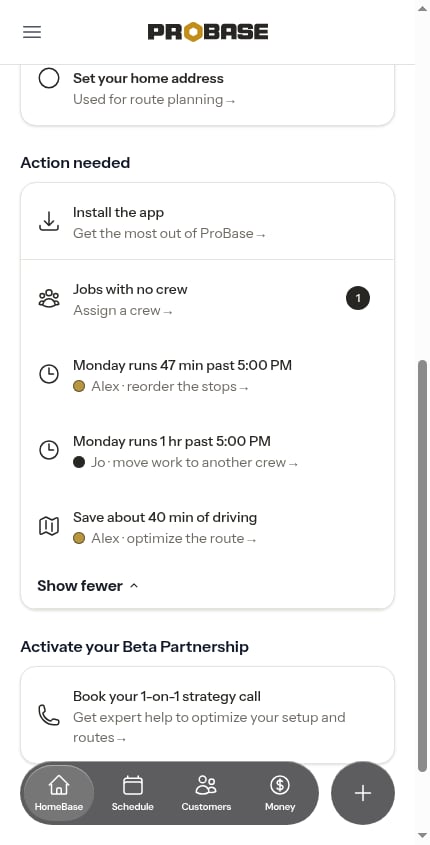
When nothing is wrong
If there’s nothing to fix, the rows are replaced by a single line summarising the day — “Today’s set — 9 stops, 6:30 AM to 3:10 PM.” (or “Tomorrow’s set” after six in the evening).Which crew a row is about
On a team with more than one crew, each crew row carries that crew’s colour dot and names the crew in its own line — “Alex · reorder the stops”. One problem on two crews is two rows, so you always know who you’re fixing. On a single-crew team the crew name is left out.Crew rows only appear to people whose role lets them plan routes, and only for the crews they’re allowed to plan for. See Roles and permissions.
Next steps
- Optimize a route — review and apply a better stop order
- Rebalance the day — move work between crews
- Jobs that need a crew — hand out unassigned work
- Daily crew schedules — the same warnings, on the day itself