Overview
Customers can rate a visit in two places:- On the visit’s service report — the page they open from the link you send when you finish a job. Stars, an optional comment, and a Submit button.
- On the “How was your service?” screen ProBase can show before an invoice’s payment form. They tap 1–5 stars, optionally add a tip, and then continue to pay.
A visit is rated once. Whichever screen the customer used, the rating sticks — the report’s card locks to what they left, and the invoice screen stops asking. There’s no way for a rating to be overwritten or counted twice.
Where to find the setting
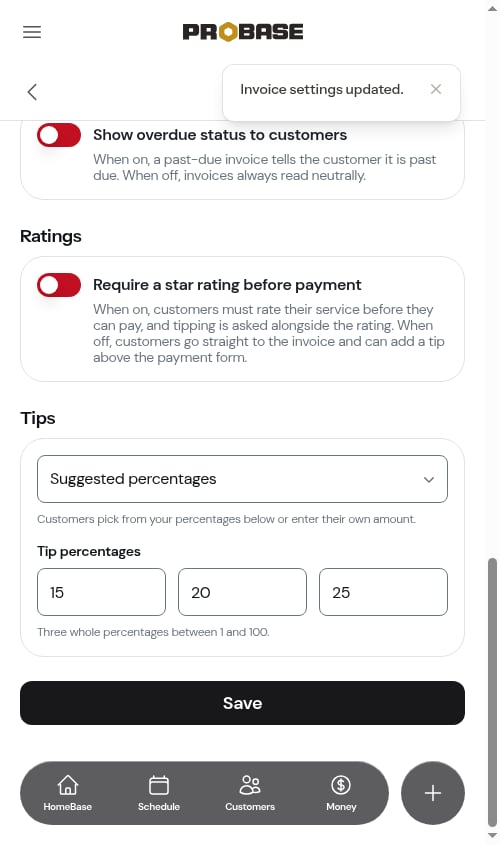
Click Payments in the sidebar under Business and scroll to the Invoice Settings card at the bottom of the page. The switch is called Require a star rating before payment, and it sits between the past-due switch and the tipping options.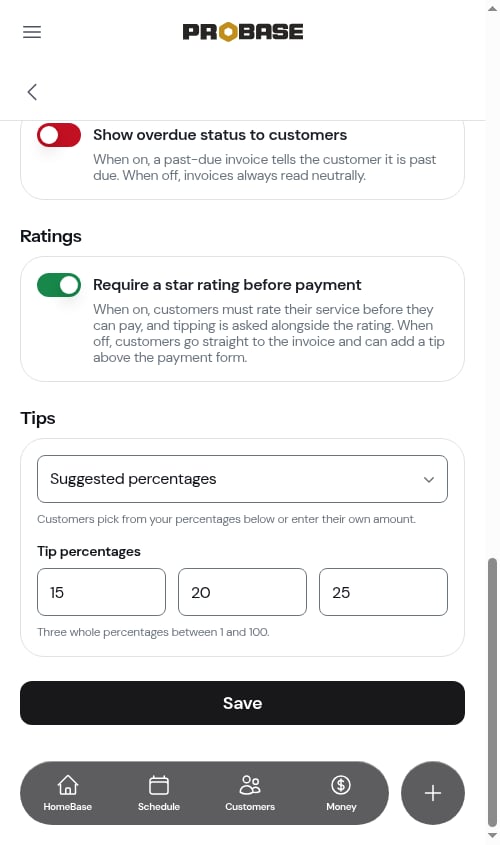
Payments only appears in the sidebar for the Admin role and the business Owner. See Roles and permissions.
With the rating required (the default)
The customer taps their invoice and lands on the review screen first. Stars come first; the tip options appear underneath as soon as a rating is chosen, and the invoice they’re about to pay is previewed below that. The rating really is required — if they tap Continue to payment without choosing stars, a short red message appears directly under the button: A star rating is required — please select one above. Nothing else happens until they rate.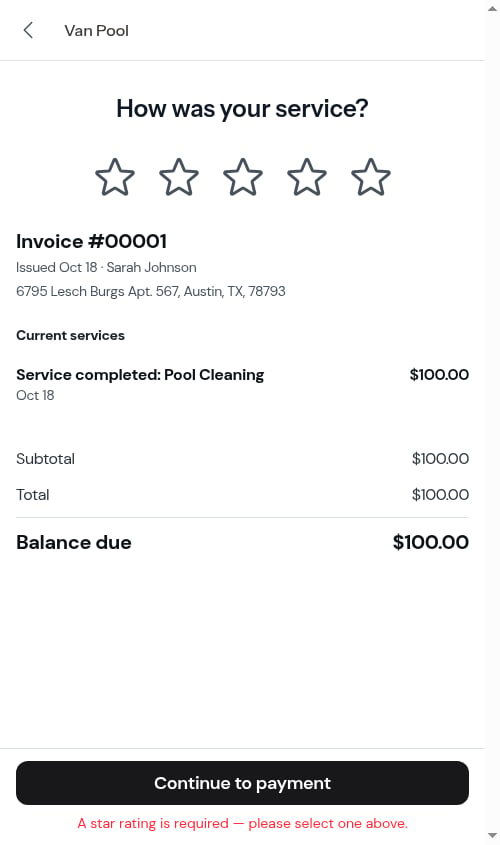
Some invoices skip the review screen no matter what this setting says — ones that aren’t tied to a completed appointment, ones the customer has already rated, and ones that are already paid.
When the visit was already rated on its report
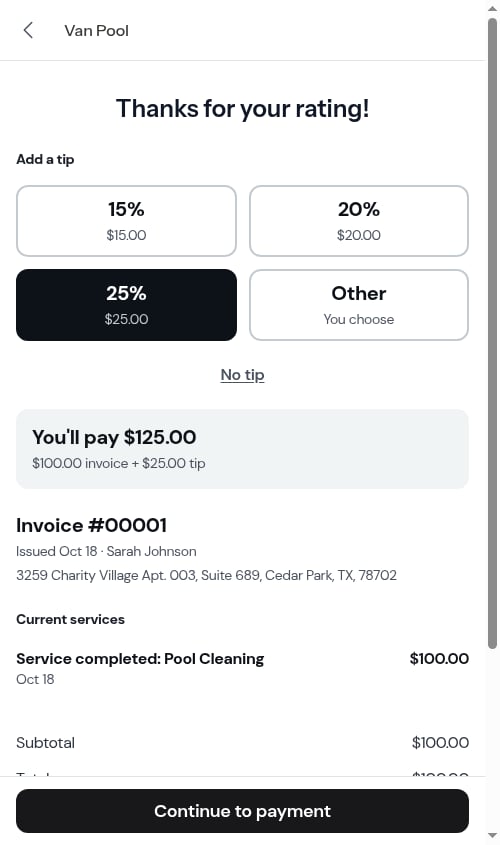
If the customer already left stars on the visit’s service report, the screen doesn’t ask again. It leads with Thanks for your rating! and shows the tip question alone — and if you don’t take tips, they land straight on the invoice.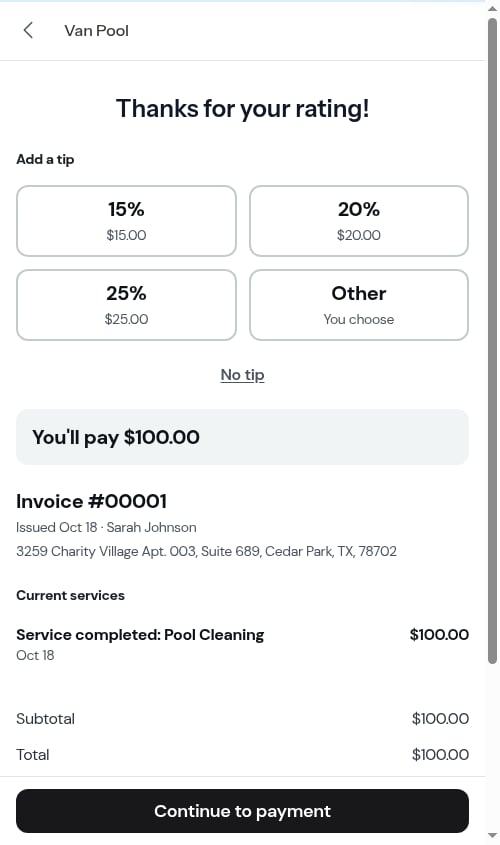
With the rating turned off
Tapping an invoice takes the customer straight to the payment page. There’s no “How was your service?” screen and no stars are asked for.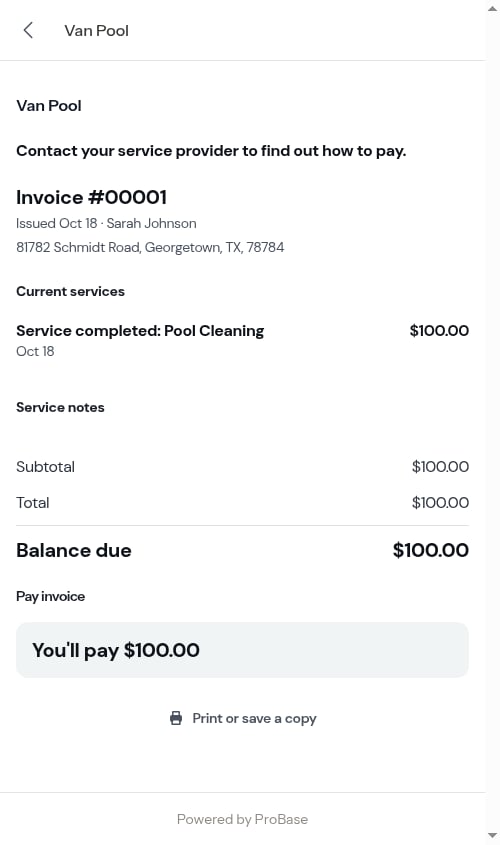
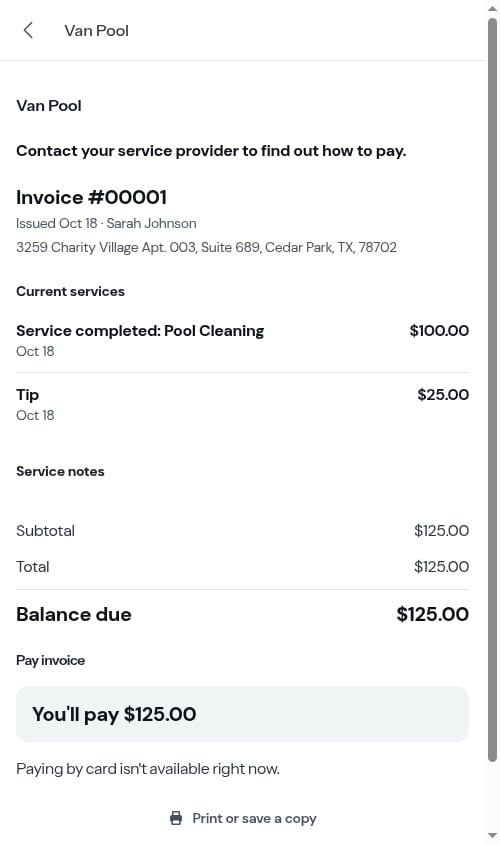
The tip selector on the invoice page is skipped when a tip has already been added to that invoice, when tipping is turned off, or when Stripe isn’t connected.
Which should I choose?
- Keep it on if the feedback is worth the extra tap — it’s also the layout where tipping gets the most attention, because it sits on a screen of its own before the payment form.
- Turn it off to make paying as short as possible, for example for commercial accounts or repeat customers who pay several invoices a month.
Where ratings show up
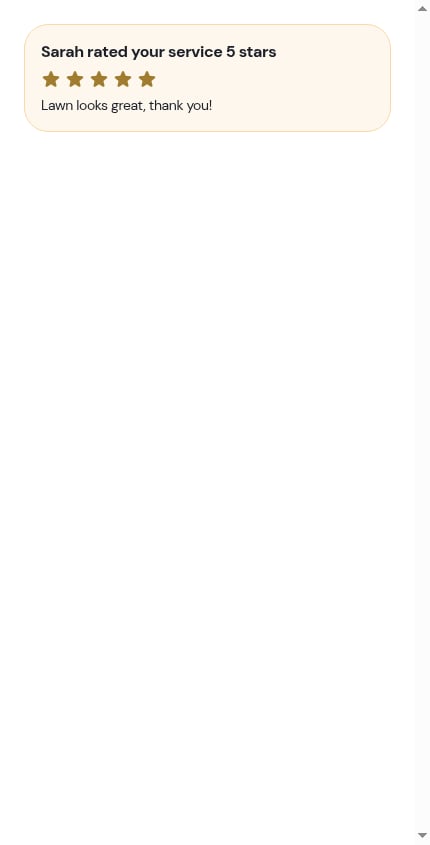
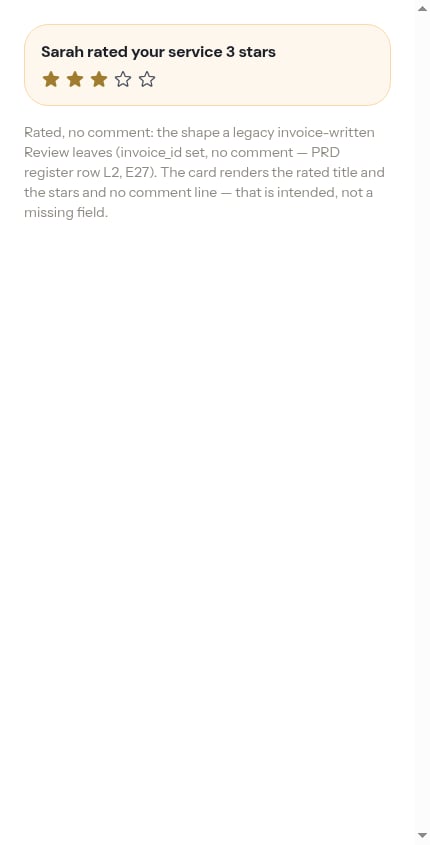
A rating you’ve been left appears in these places:- On the visit itself, as a card under the header — [First name] rated your service 5 stars, with their comment if they left one
- In your updates feed, for everyone whose role can see reviews
- On the customer’s portal home, beside the visit — Aug 28 · Report sent · 5 of 5
- On the Reviews page, alongside your Google reviews, when Google reviews is available for your business
Related
- Google reviews — turn 5-star ratings into Google reviews
- The customer’s service report — the other place customers rate you
- Tips and gratuity — what the tip section offers on each screen
- Payment terms and due dates — the rest of the Invoice Settings card
- Customer payment portal — the whole customer-side experience
- Sending invoices and reminders — getting the invoice to the customer