Overview
Once customers rate your visits, ProBase can help those ratings grow your business:- Customers who give 5 stars see a Leave a Google review button that takes them straight to your Google Business Profile.
- Customers who give 1–3 stars get a private box to tell you what went wrong. Only your team sees it, never Google.
- The Reviews page puts your Google reviews and your ProBase ratings in one list.
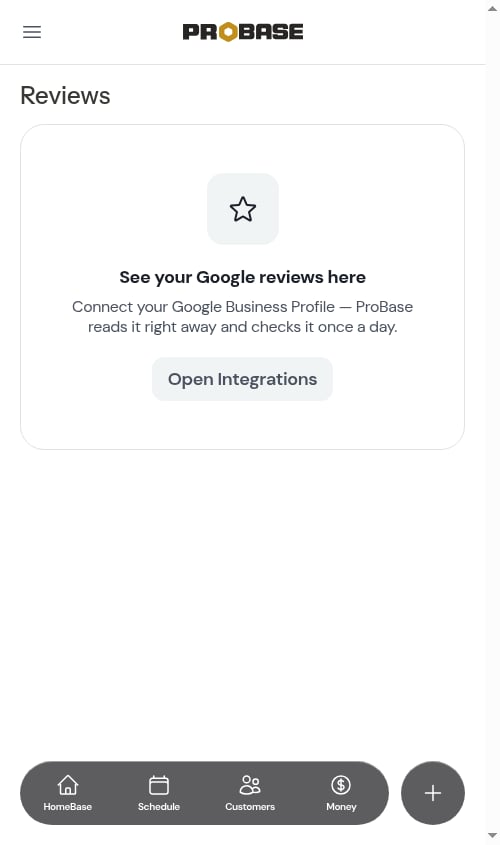
Google reviews is being rolled out gradually. If you don’t see the Google Business Profile card on Integrations or Reviews in the sidebar, it hasn’t reached your business yet.
Connecting your Google Business Profile
Open Integrations from the Business group in the sidebar. Under Reviews you’ll find the Google Business Profile card: Ask happy customers for a Google review right after they rate a visit, and read your reviews in ProBase.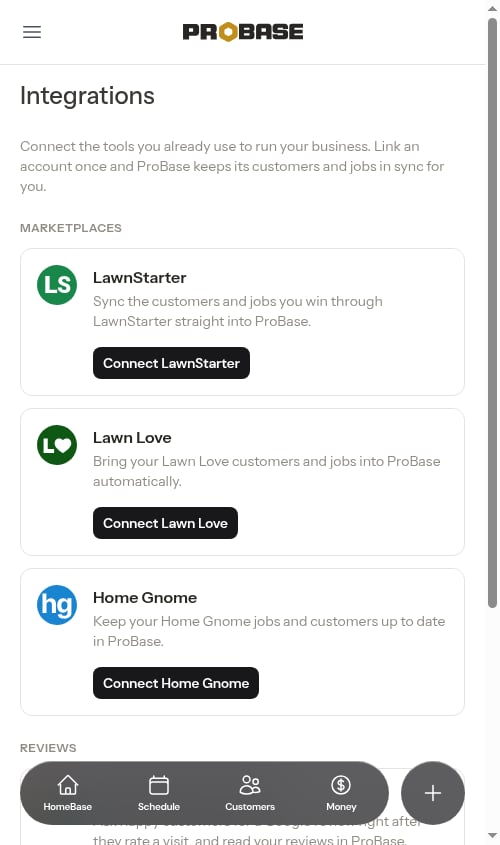
1
Open the search
Tap Connect Google Business Profile. A Find your business on Google screen opens.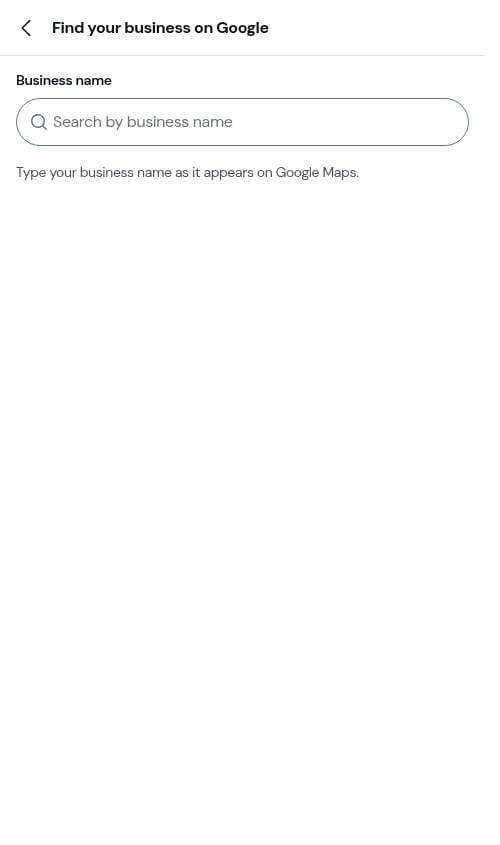
2
Search for your business
Type your business name as it appears on Google Maps. Matching businesses near you appear as you type.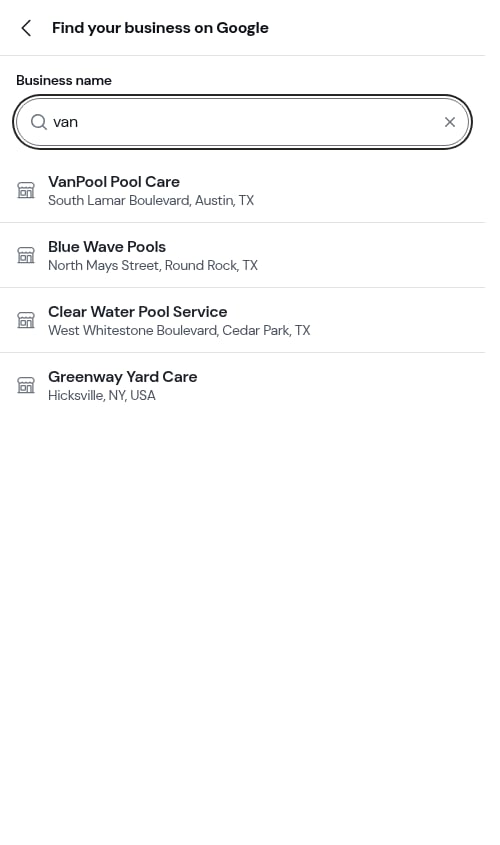
3
Pick your business
Tap your business in the list. ProBase links it and confirms with a Connected to … message. The card now shows a green Connected badge, with your business name and address from Google. If your Google profile hides its address, the card shows your business name on its own.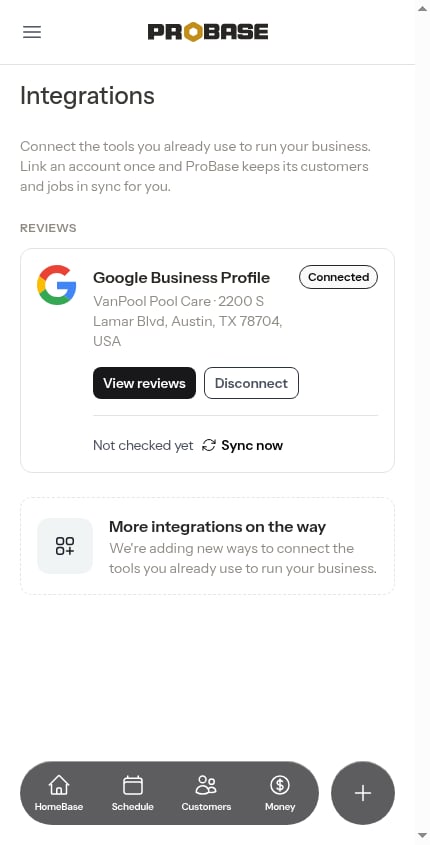
If you don’t have a profile yet
Businesses that serve customers at their homes and keep their address hidden on Google (service-area businesses) show up in the search too, so a hidden address isn’t a reason your profile is missing. If the search finds nothing, try typing your business name exactly as Google Maps shows it. If still nothing comes up, you’ll see You don’t have a Google Business Profile yet — A profile is how customers find you on Google and Maps. Creating one is free. Tap Create one on Google to set one up on Google, then come back and connect it.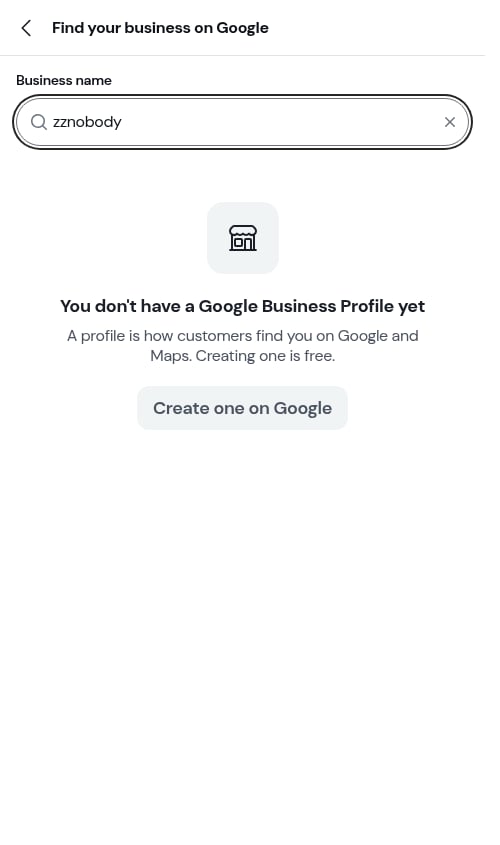
Pick your business, not your street address. If you tap an address, ProBase says That’s an address, not a business listing and asks you to pick your business from the results.
Switching to a different business
Connecting another business replaces the one you had. ProBase tells you so — The business you had before, and its reviews, were removed — and starts reading reviews for the new one.What the card shows
Disconnecting
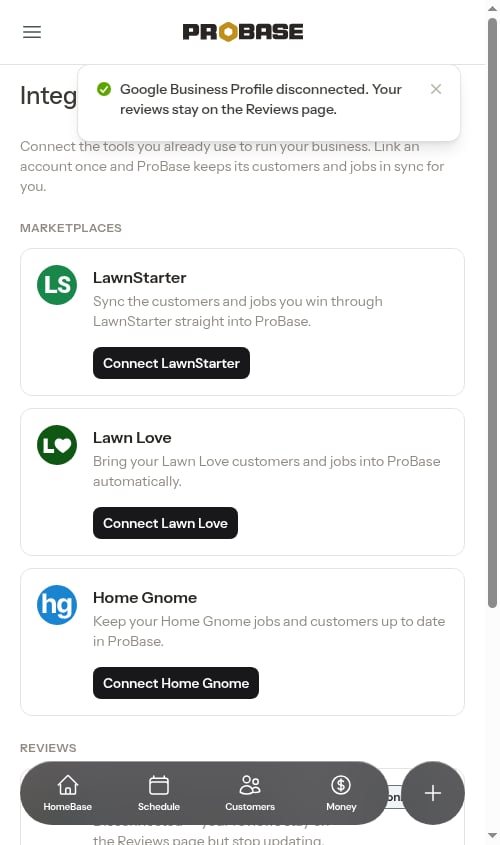
Tap Disconnect on the card. A sheet asks Disconnect Google Business Profile? — Your customers stop seeing the Google request and ProBase stops checking for new reviews. Reviews already read stay on the Reviews page. Tap Disconnect to confirm, or Keep it connected to back out.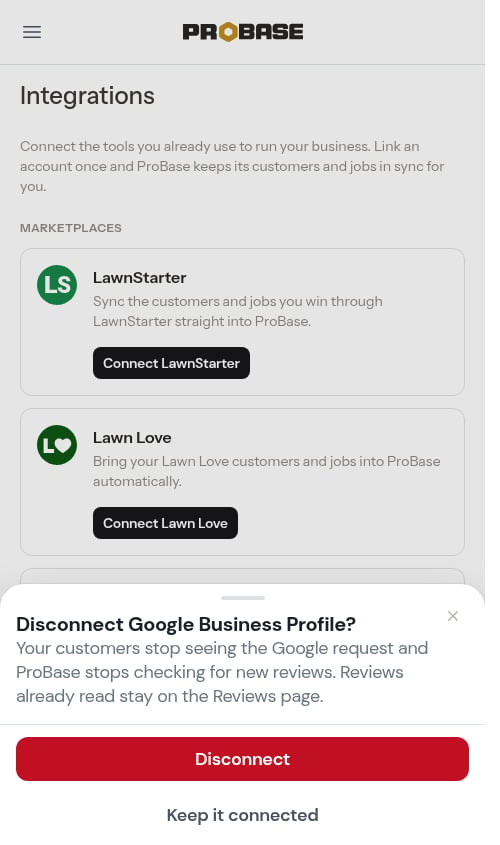
Asking happy customers for a Google review
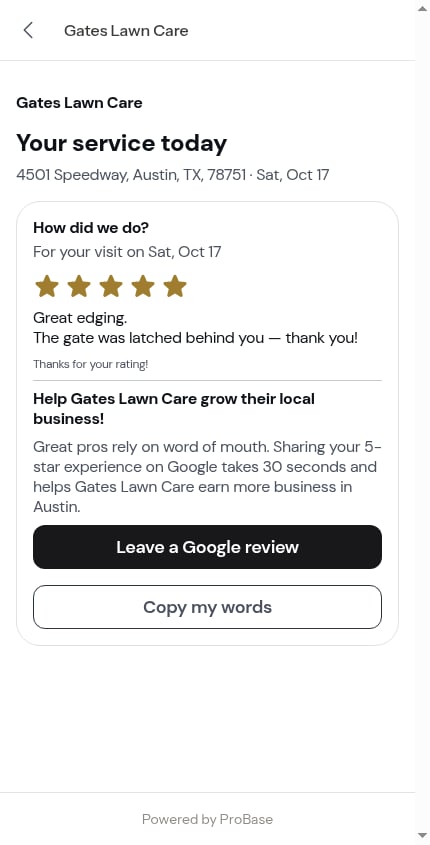
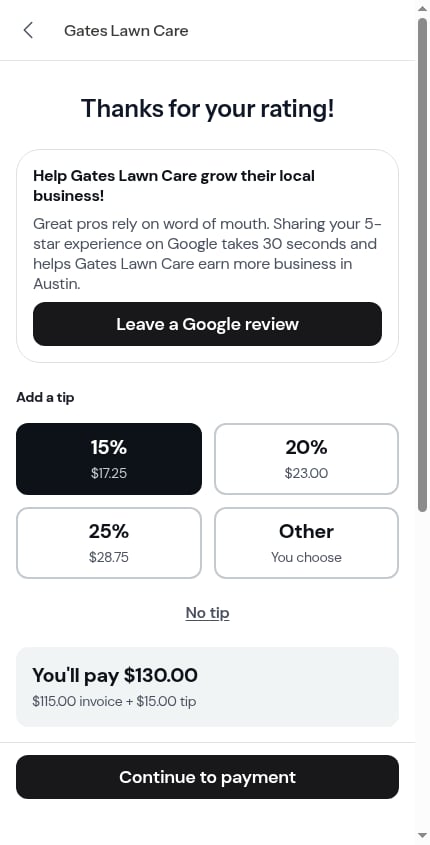
When a customer gives a visit 5 stars, the thank-you on their service report grows a Google request: Help [your business] grow their local business!, a short line saying it takes 30 seconds, and a Leave a Google review button that opens your Google review page.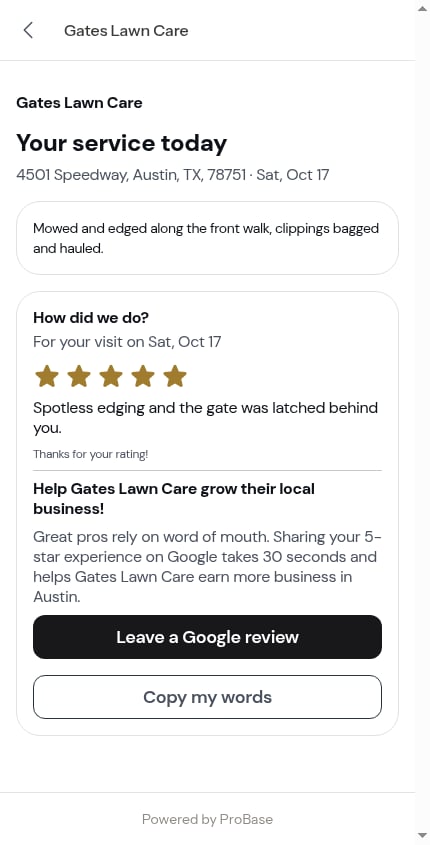
Who gets asked
A customer sees the Google request only when all of these are true:- Your Google Business Profile is Connected
- The Ask happy customers for a Google review switch is on (see below)
- They rated the visit exactly 5 stars — 4 stars or fewer never shows it
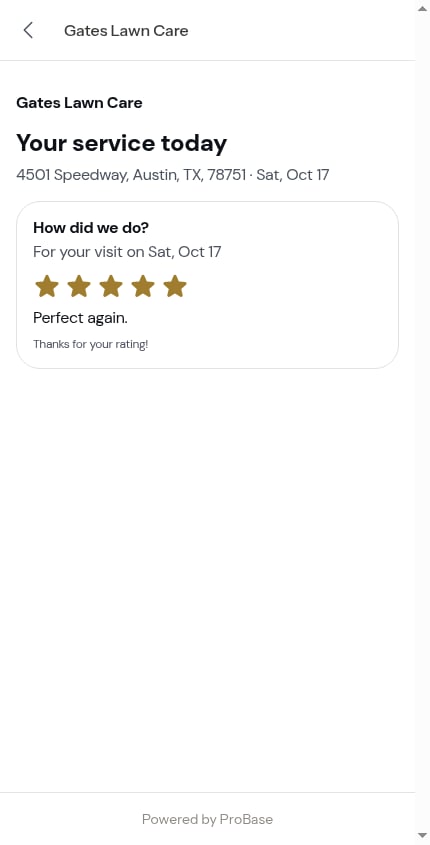
- They haven’t already tapped Leave a Google review on any earlier visit
Turning the request on or off
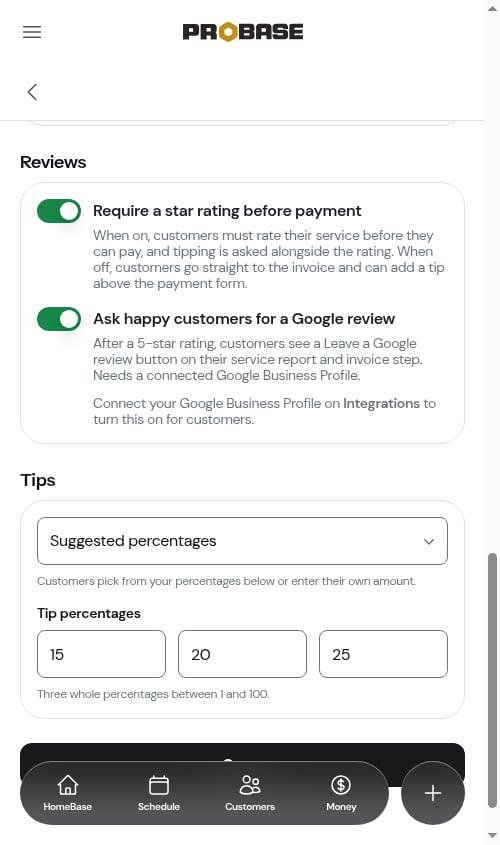
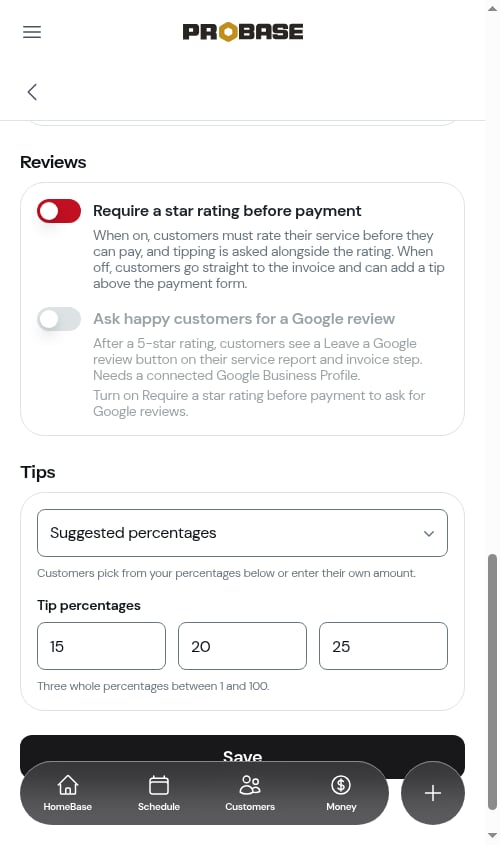
Click Payments in the sidebar and scroll to Invoice Settings. The Reviews section holds two switches:- Require a star rating before payment — see Service ratings
- Ask happy customers for a Google review — After a 5-star rating, customers see a Leave a Google review button on their service report and invoice step. Needs a connected Google Business Profile.
Hearing privately from unhappy customers
When a customer rates a visit 1, 2 or 3 stars on their service report, a second box appears under their locked rating: What went wrong? — Tell [your business] what happened — only they will see this. They type what happened and tap Send to [your business].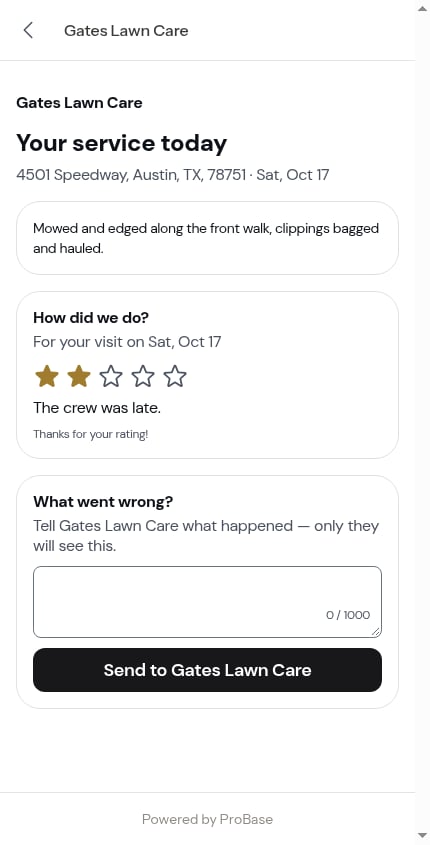
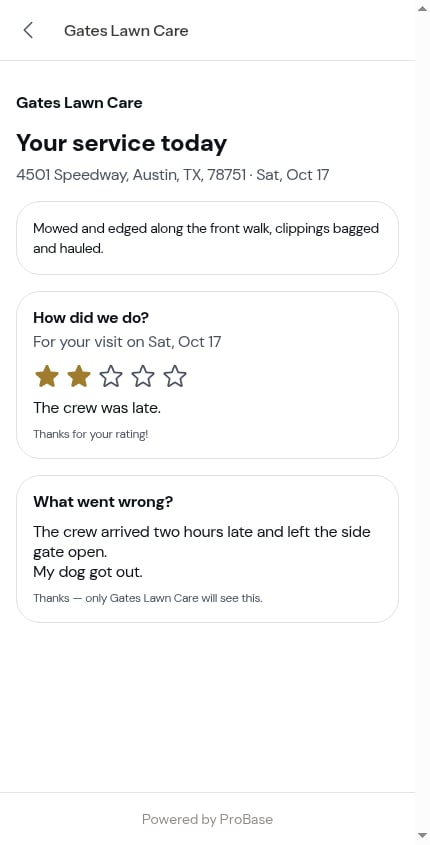
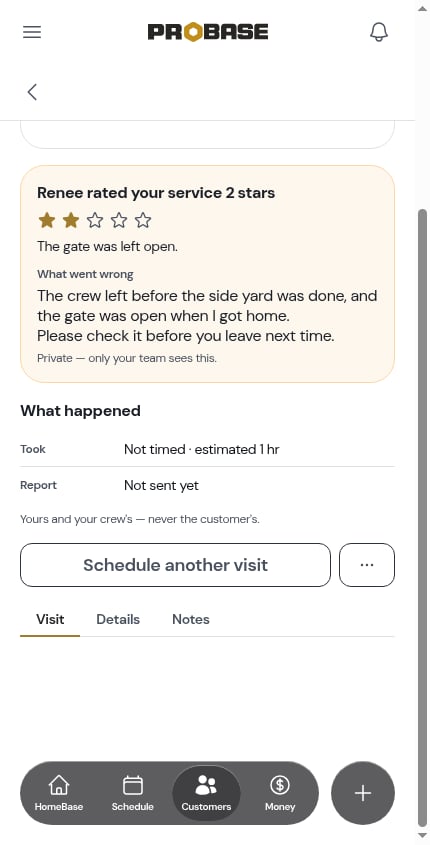
- On the visit’s rating card, under What went wrong, marked Private — only your team sees this.
- In your updates feed — Maribel left private feedback on their 2-star rating. Tap it to open the visit.
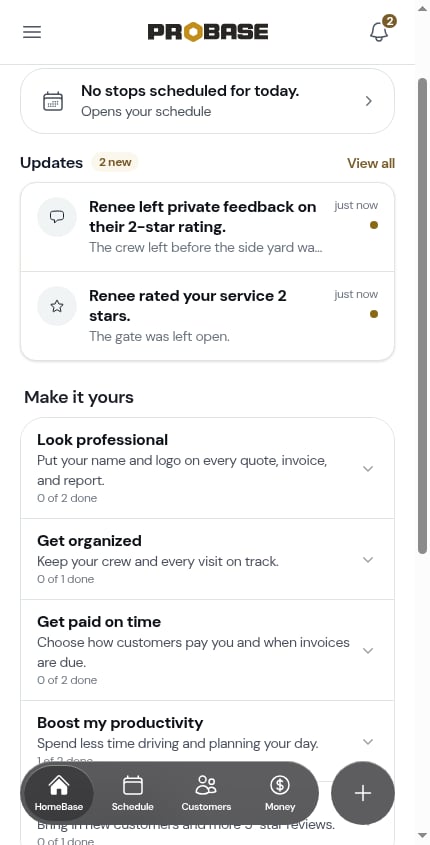
Private feedback is limited to 1,000 characters.
The Reviews page
Open Reviews from the Business group in the sidebar (or tap View reviews on the Google card).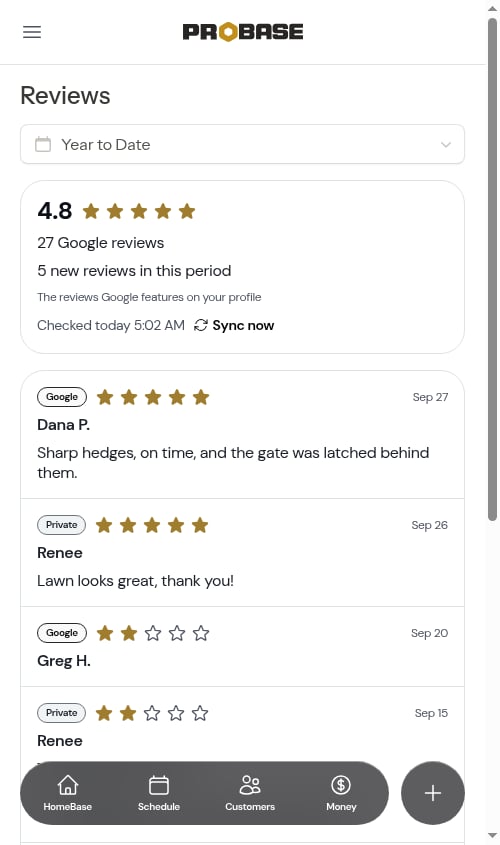
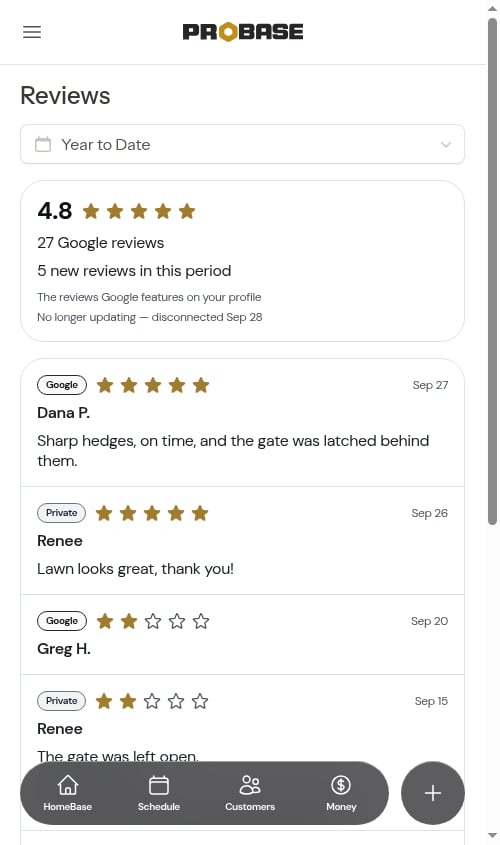
- Your Google star average and total number of Google reviews
- How many new reviews arrived in the period you picked
- When ProBase last checked Google — for example, Checked today 5:02 AM
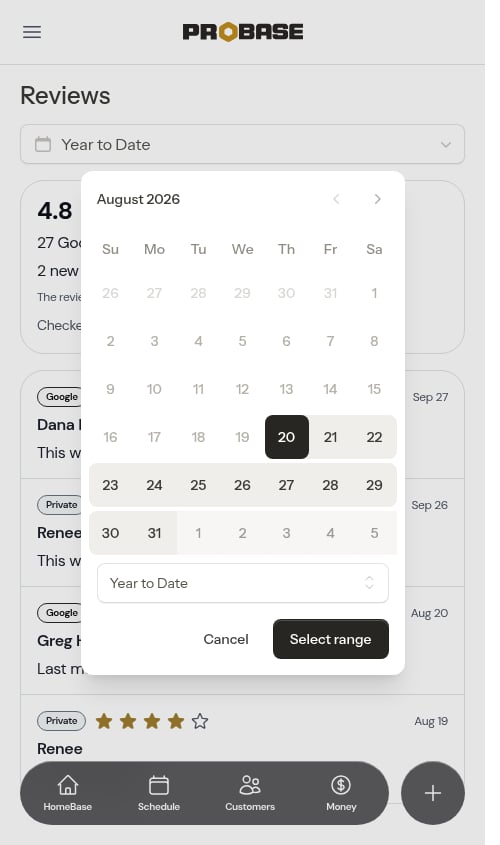
Google only shares the handful of reviews it features on your profile, so the list shows those — not every review you’ve ever had. The total on the summary card is your full Google count. ProBase checks Google once a day, early in the morning, and you can check sooner with Sync now.
Checking Google now
Don’t want to wait for the morning check? Next to the Checked … line on the summary card, tap Sync now. The same link sits on the Google Business Profile card on Integrations.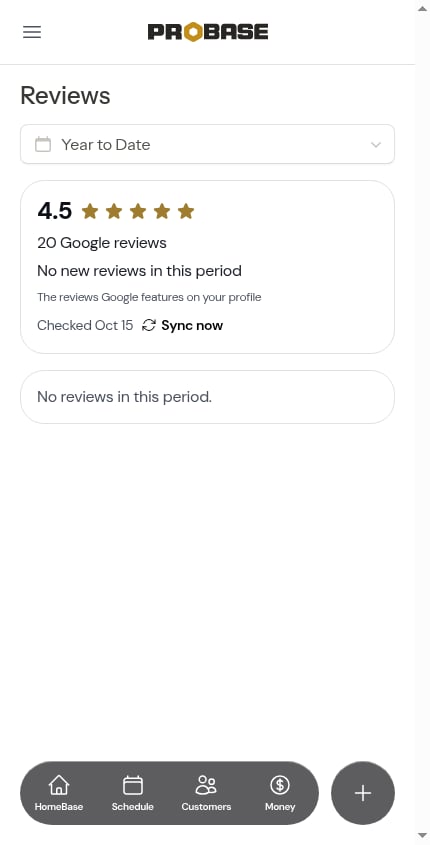
1
Tap Sync now
The link changes to Checking Google… while ProBase asks Google for your latest rating and reviews.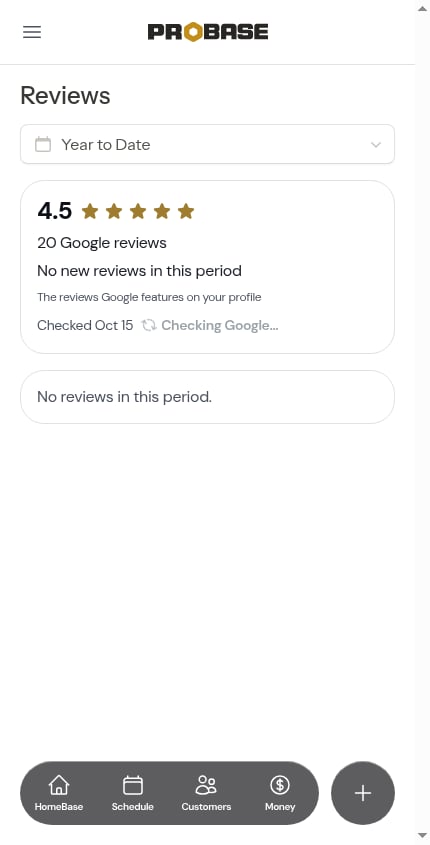
2
See the page update
When the check finishes, the page updates on its own — no need to refresh. The line reads Checked today with the time, and your star average, review count and new reviews appear.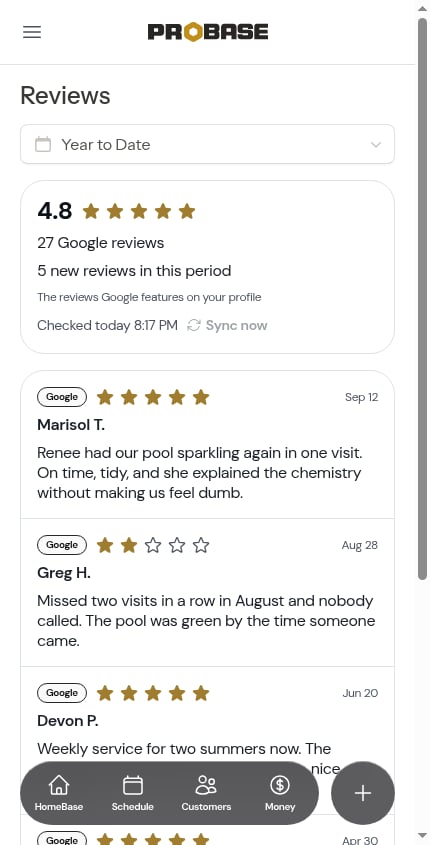
Who can do what
- Connecting and disconnecting Google is on Integrations, which the Owner and Admins can reach. Sync now shows only for people who can reach Integrations.
- The Reviews page is visible to anyone whose role can see reviews.
- The Google request switch is on the Payments page, which the Owner and Admins can reach.
Related
- Service ratings — where ratings come from
- The customer’s service report
- Updates
- Connecting marketplace accounts — the other cards on Integrations