Overview
If you get work through a marketplace like LawnStarter, Lawn Love, or Home Gnome, you can link that account to ProBase. Once connected, the customers and jobs you get through the marketplace flow into ProBase automatically, so you manage everything in one place instead of jumping between apps. Open Integrations from the Business group in the sidebar.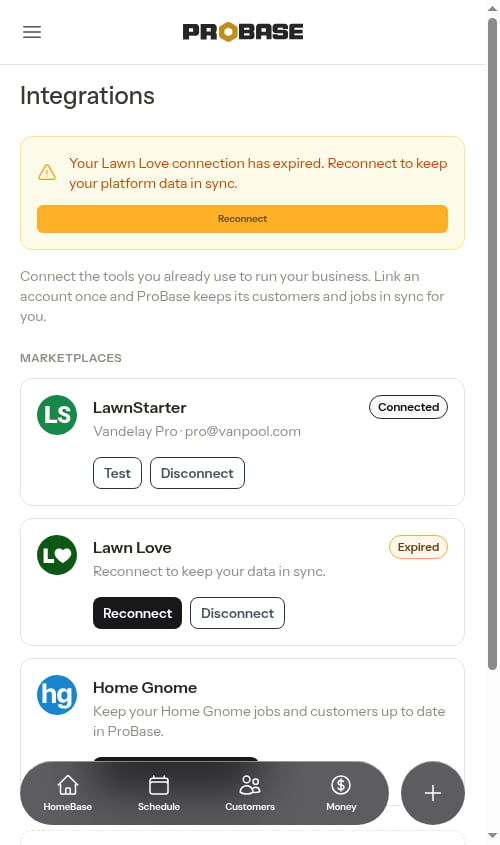
Integrations is available to business owners and admins — the same people who can reach your other business settings. If you don’t see it in the sidebar, your account either doesn’t have the connection feature turned on yet or your role doesn’t include business settings access.
Connecting an account
Each marketplace gets its own card under MARKETPLACES. A card that hasn’t been linked yet shows a button naming that marketplace — Connect LawnStarter, Connect Lawn Love, or Connect Home Gnome.1
Tap Connect
Find the card for your marketplace and tap Connect LawnStarter (or the button for whichever marketplace you use). ProBase takes you to that marketplace’s sign-in page.
2
Sign in and approve
Sign in to your marketplace account and approve the connection when prompted. This tells the marketplace it’s okay to share your customers and jobs with ProBase.
3
You're connected
ProBase brings you back to the Integrations page and shows a confirmation. The card now displays a green Connected badge along with the name and email on the linked account.
If you change your mind on the marketplace’s sign-in screen and cancel, nothing is linked — ProBase simply returns you to the Integrations page and you can try again whenever you’re ready.
Testing a connection
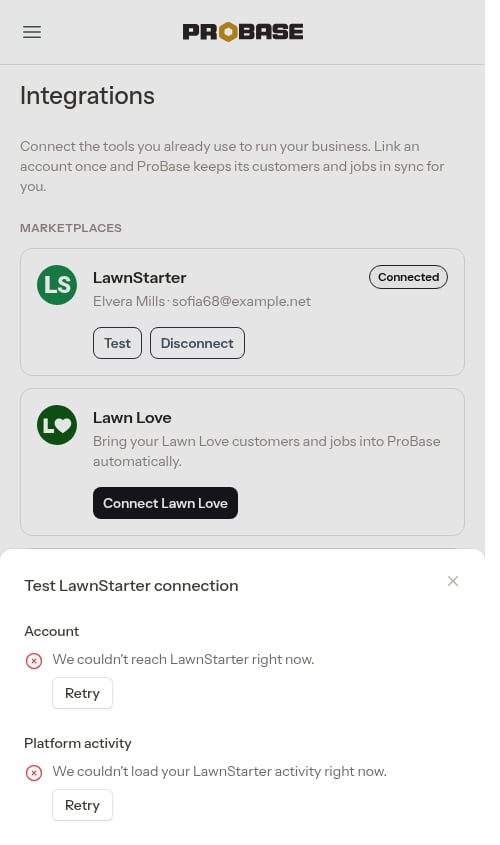
Once an account is linked, its card shows a Test button next to Disconnect. Use it any time you want to confirm ProBase can still reach the marketplace and see what’s on your account — handy if you suspect syncing has stopped. Tap Test to open the Test LawnStarter connection window (headed with whichever marketplace you’re checking). It looks at two things and fills each in as soon as it finishes:- Account — the business name, contact name, email, and location on your linked marketplace account. Seeing your own details here confirms ProBase is talking to the right account.
- Platform activity — a quick snapshot from the marketplace: your number of completed jobs, your average rating, and how many of your marketplace customers are available to sync into ProBase. That customer count is your real number on the marketplace — an easy way to confirm the connection can see your whole book of business before you import it.
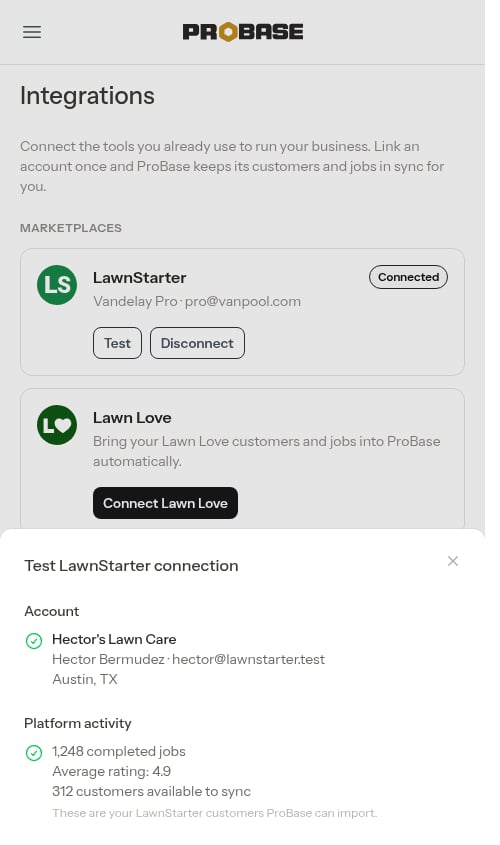
Each section loads on its own, so one may show its results a moment before the other. That’s normal.
Connection statuses
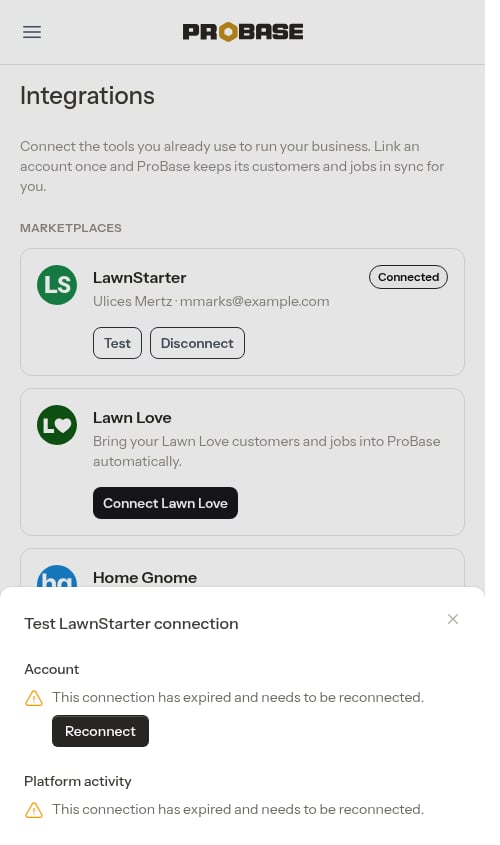
Each card shows the current status of that marketplace connection:- Connected (green) — ProBase is actively syncing data from that account. The card shows the linked account’s name and email, and offers Test and Disconnect.
- Expired (amber) — the connection stopped working and needs to be re-established. The card reads Reconnect to keep your data in sync and offers Reconnect and Disconnect. See Reconnecting an expired account below.
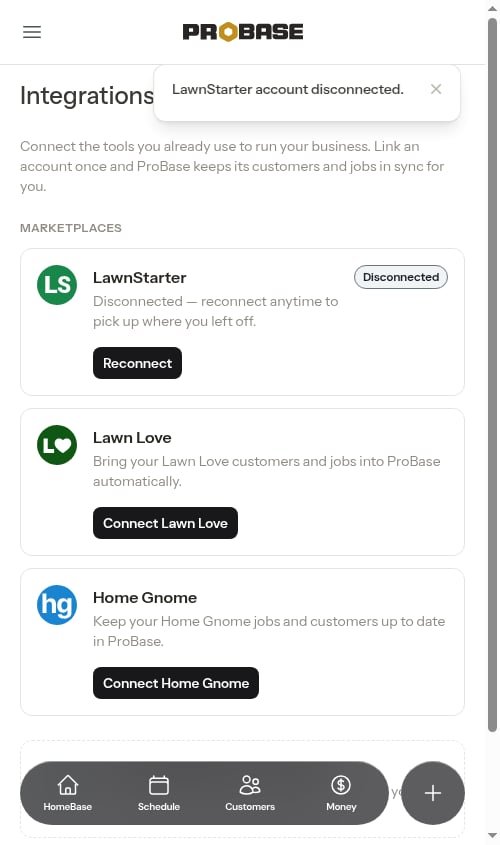
- Disconnected (grey) — you unlinked the account. The card reads Disconnected — reconnect anytime to pick up where you left off and offers Reconnect.
What lands in ProBase after you connect
Once a card says Connected, ProBase starts pulling your marketplace work in on its own — you don’t have to import anything:- Customers you’ve been matched with, with their name and service address
- Properties for those customers, with the map and any access notes the marketplace has on file
- Services with the payout the marketplace pays you per visit, and how often each one repeats
- Jobs (visits) on your schedule, alongside your own ProBase jobs
- Earnings and payout deposits, on a customer record named after the marketplace — see Marketplace earnings & payouts
Sync status and a full re-sync
A connected card also shows how much has come across and when it last happened:- Counts — how many customers and jobs have synced from that account so far — for example 18 customers · 42 jobs synced
- Last synced — how long ago ProBase last pulled from the marketplace
- Full re-sync — pulls your whole marketplace book again from scratch
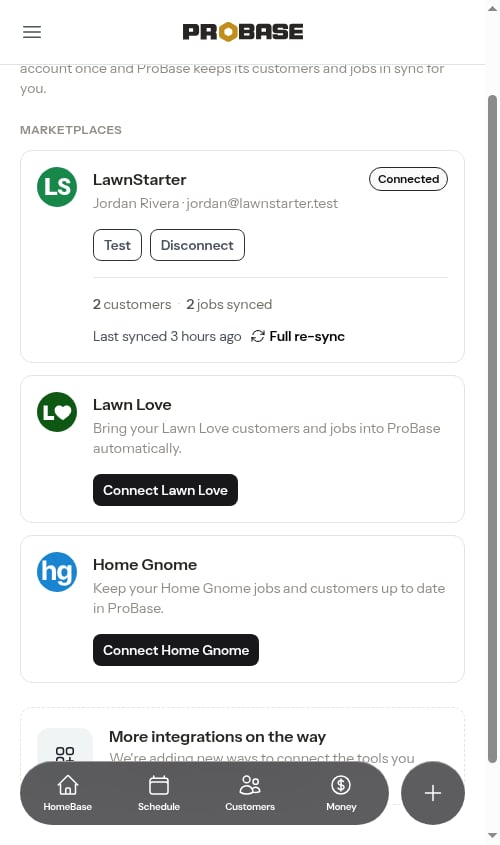
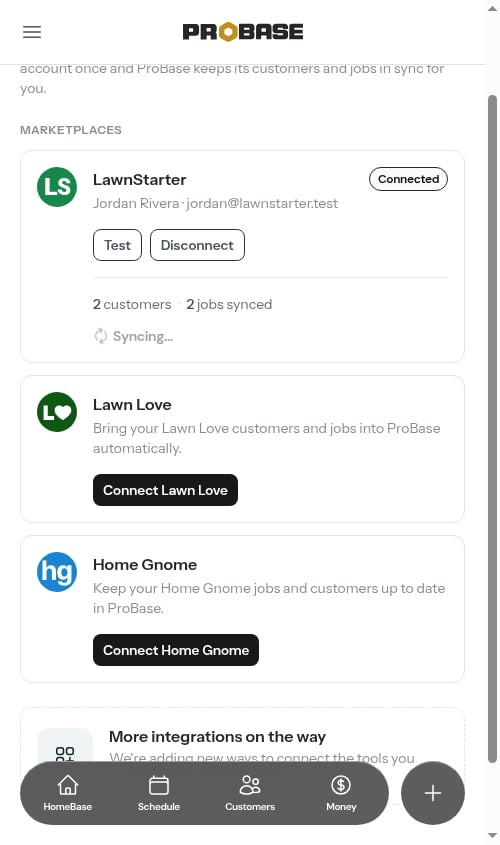
You rarely need to do this by hand. ProBase already syncs in the background and refreshes overnight — see How marketplace syncing works.
Watching the progress
Once ProBase has worked out how big your book is, a progress bar appears under the counts so you can see how far along the run is rather than just that it’s busy. It’s headed Syncing customers with the percentage on the right, and the running tally sits underneath — for example 12 of 27 customers synced at 44%. It fills in as each customer’s properties, services, and visits come across.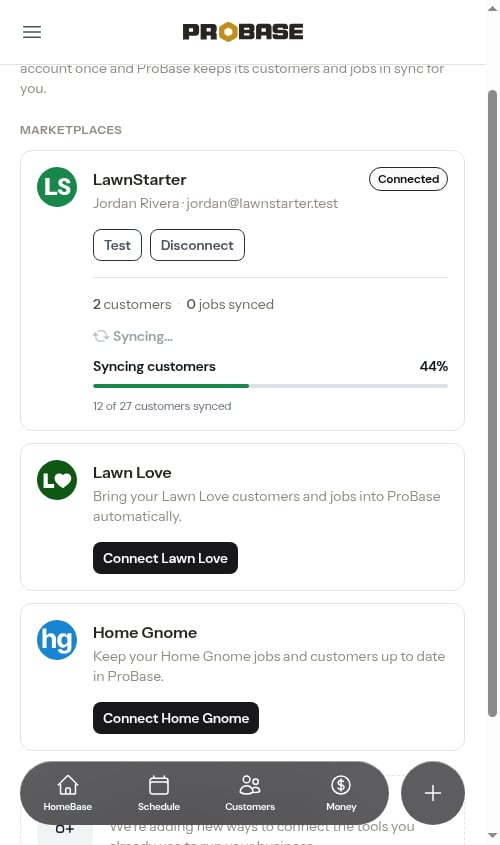
The progress bar counts customers, because that’s how ProBase works through your book — each customer brings their properties, services, and visits with them. Your earnings and payout deposits come across as part of the same run.
- The overnight refresh is still working through your account when you open the page.
- ProBase’s few-minute head-count check found your marketplace book and your ProBase book out of step — most often because you just claimed a job and its customer is new to you — so it pulled the book to bring them across. See New customers arrive on their own.
If a re-sync doesn’t finish
If a run stops before it completes, the card replaces Last synced with The last full re-sync didn’t finish. and the control becomes Try again. Tap it to start a fresh run.A re-sync that didn’t finish hasn’t broken anything — the customers it already brought across are saved, and the next run picks up your whole book again from scratch. If Try again keeps failing, use Test on the card to check the connection is still good.
If the card seems stuck on Syncing
Occasionally a re-sync you asked for never actually gets going — ProBase is unusually busy, or the run was turned away because the connection had just changed. The card can’t get stuck on Syncing… because of it: if nothing has started within about half an hour, ProBase stops waiting on that run and puts the Full re-sync control back so you can try again. You don’t have to do anything to unstick it — leave the page and come back, and the card will be back to normal.Disconnecting an account
To stop syncing from a marketplace:1
Tap Disconnect
On a connected card, tap Disconnect.
2
Confirm
ProBase asks you to confirm. Tap Disconnect again in the dialog to unlink the account.
Reconnecting an expired account
Marketplace connections can expire on their own after a while — this is normal and doesn’t mean anything is wrong with your account. When a connection expires, it can’t renew itself, so you’ll need to reconnect to keep your data flowing. When a connection expires, ProBase makes it easy to fix — you’ll see the prompt without having to go looking for it:- An amber banner appears at the top of the Integrations page — Your LawnStarter connection has expired. Reconnect to keep your platform data in sync — with a Reconnect button.
- A Some jobs may be missing warning appears at the very top of HomeBase, above the date, naming the marketplace and with a Reconnect button (when more than one marketplace has expired, each gets its own, such as Reconnect LawnStarter).
Once the card reads Connected again you can tap Full re-sync straight away to catch up on everything that changed while the connection was down — you don’t have to wait for the next background sync.
Next steps
- How marketplace syncing works — how often data comes across and how to refresh it
- Marketplace jobs — working a marketplace visit
- Marketplace earnings & payouts — what the marketplace owes you and what it has deposited
- HomeBase — where expired-connection reminders show up