Overview
The service report is the customer’s copy of the visit: a plain-language description of what you did, the photos you took, anything your checklists recorded, and a place for them to rate you. It lives on a web page of its own, and you send them the link. The send step opens by itself the moment you finish a visit, so telling the customer is the last thing you do on the job rather than something you remember later in the van.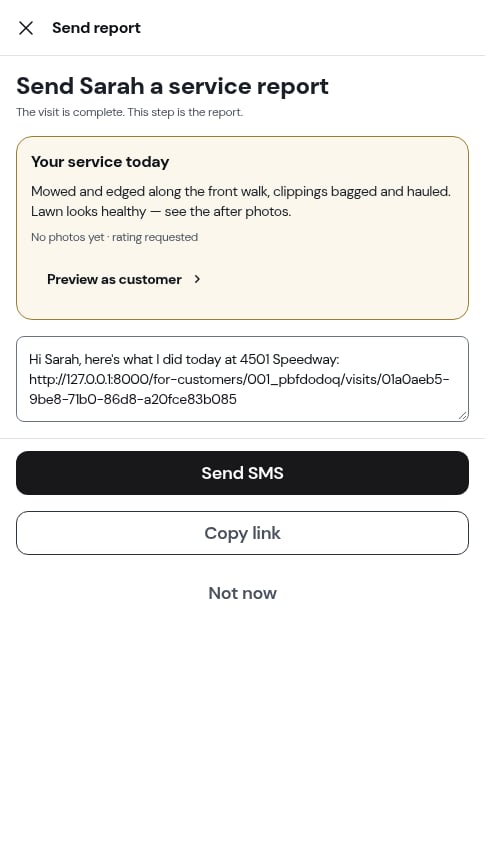
ProBase never sends the text for you. It writes the message and opens your phone’s Messages app (or copies the link) — you decide who it goes to and when you press send.
Where the step comes from
Three doors open the same screen:
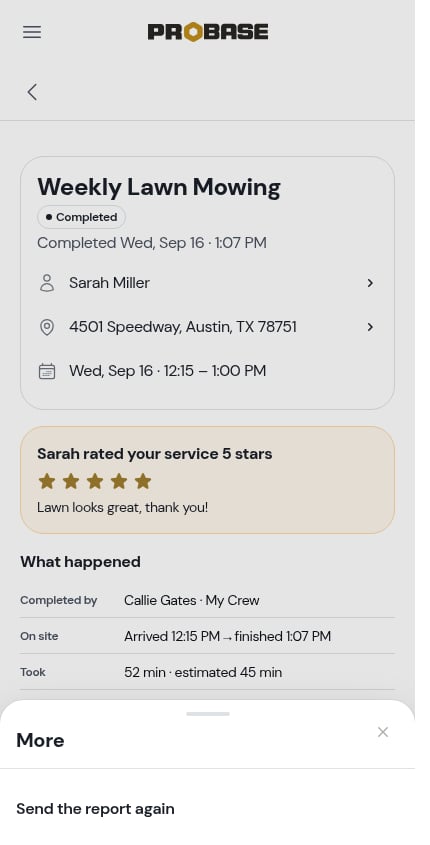
The row in the sheet reads Send the report again once the report has actually gone out, and Send service report if it hasn’t — a customer can rate you from an invoice without ever having been sent one.
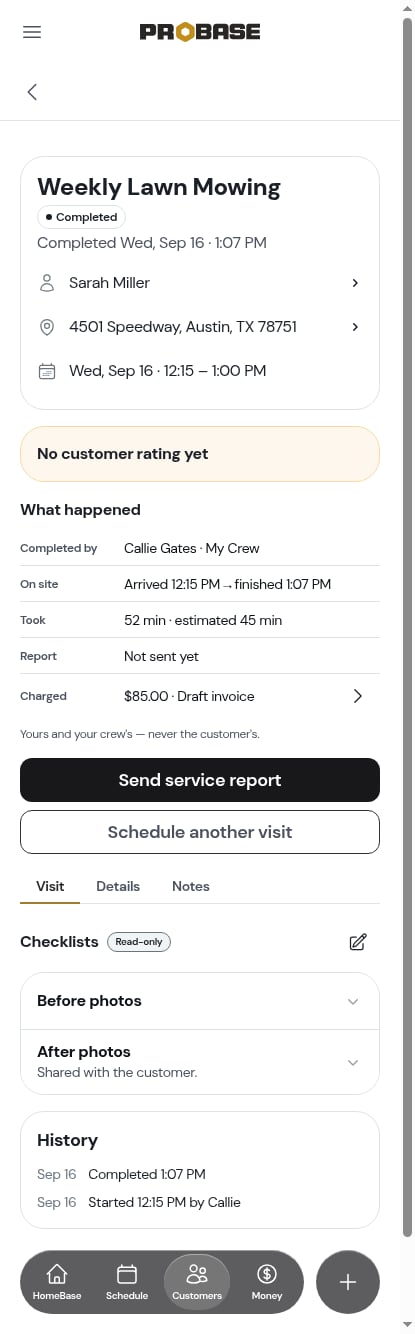
Assessment visits and marketplace visits have no service report — the marketplace looks after its own customers, and an assessment isn’t work you did yet. Neither one offers the step.
What’s on the send step
Top to bottom:1
Your service today — the preview card
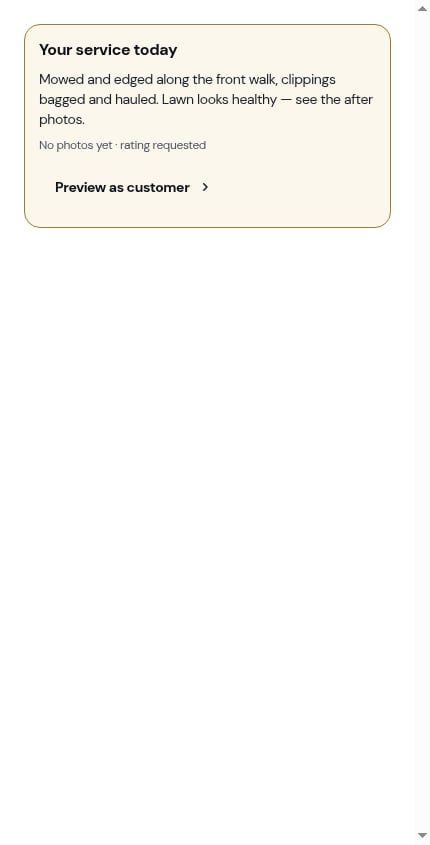
The cream card is the report exactly as the customer will read it: your Customer notes in full, and the After photos as tiles. Underneath, a short line counts them — 3 photos · rating requested.If you never wrote customer notes, the card says so in muted text rather than showing a hole. The customer’s own page simply leaves that block out.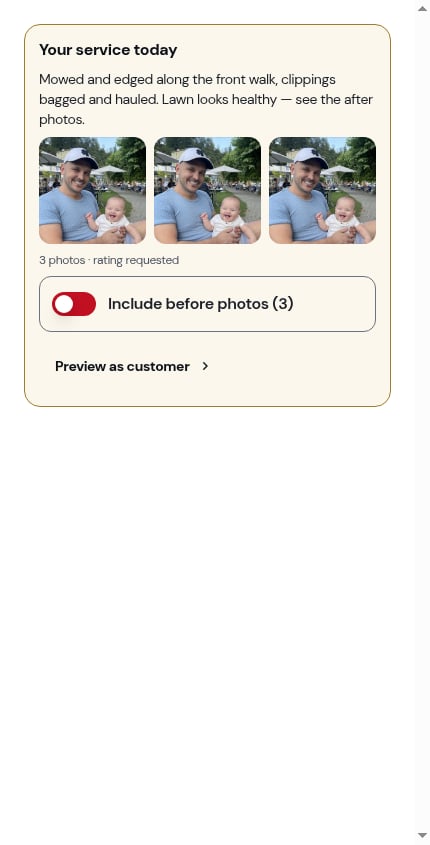
2
Include before photos
If you took Before photos on the visit, a switch offers to send those too — headed Include before photos (N). It’s off unless you turn it on, and the customer’s page then shows two labelled groups, Before and then After.Your choice is saved with the send, so re-sending the link later shows the customer the same thing.
3
Preview as customer
A row at the bottom of the card opens the real report page in a new tab, exactly as the customer will get it. Use it before you send if you want to check the wording.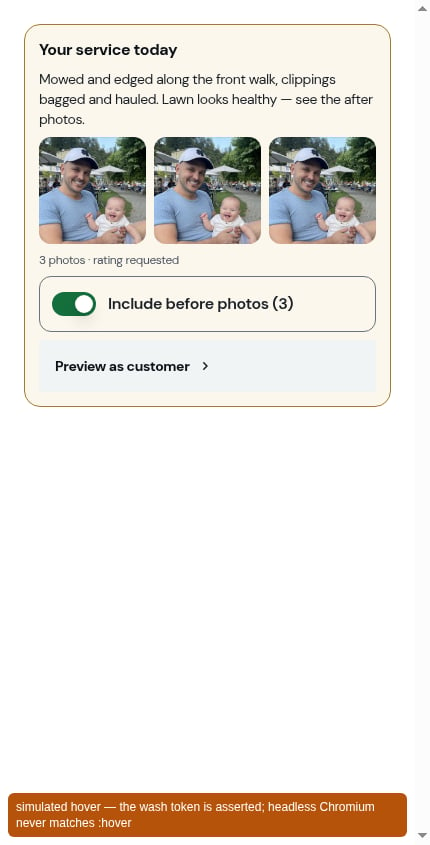
4
The invoice switch (only when there's money on the table)
If there’s something to bill, one switch appears above the message. It has two forms: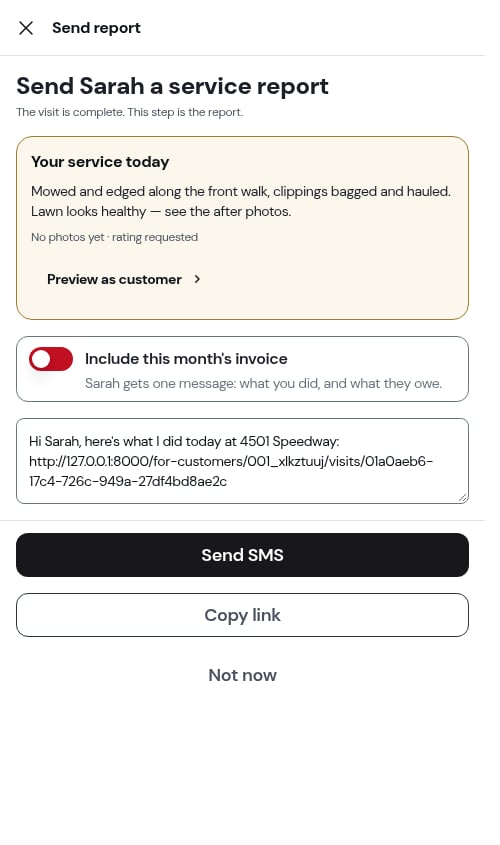
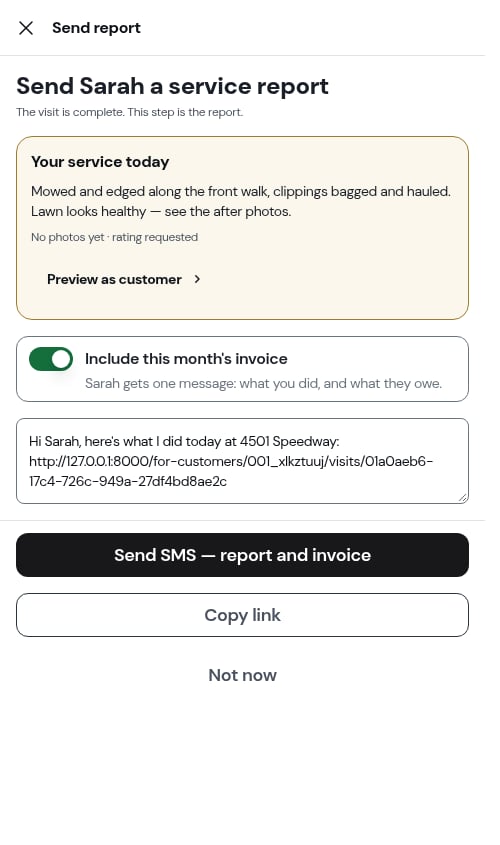
- Include this month’s invoice — the visit’s charge (or the month’s subscription bill) is sitting on a draft invoice. [First name] gets one message: what you did, and what they owe. Turning it on sends that invoice along with the report.
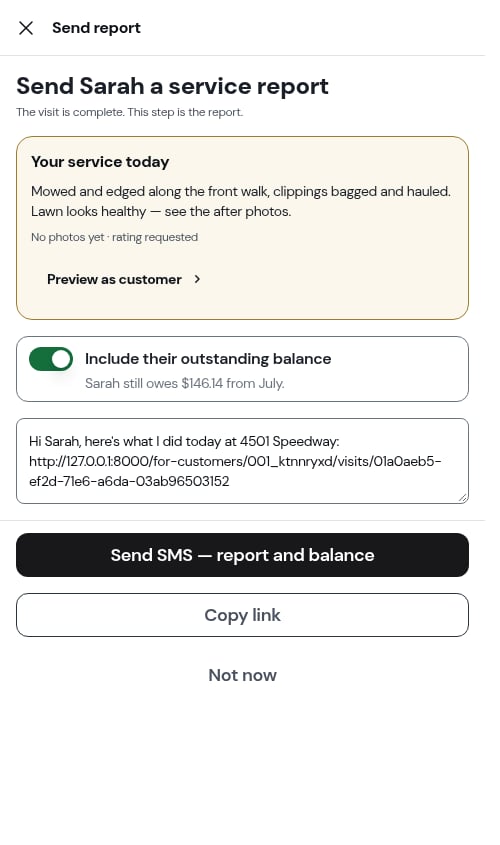
- Include their outstanding balance — nothing new is due, but the account still owes from before. [First name] still owes $120.00 from July. Turning it on links their oldest unpaid invoice; nothing is re-sent.
The invoice switch only appears if your role is allowed to send invoices. Sending the report itself is a separate, lower permission — see Roles and permissions.
5
The message
A text box holds the message, already written: Hi Sarah, here’s what I did today at 128 Maple St: [link]. Edit it however you like before you send.
6
Send it
Three actions close the step:
- Send SMS — opens Messages on your phone with the message and link ready. A short toast reminds you: Opens Messages on your phone — ProBase never sends for you.
- Copy link — puts the report link alone on your clipboard, so you can paste it into an email, WhatsApp, or wherever else you talk to this customer. The button reads Copied! for a moment.
-
Not now — closes the step and writes nothing. The visit stays completed; the report is still there to send later.
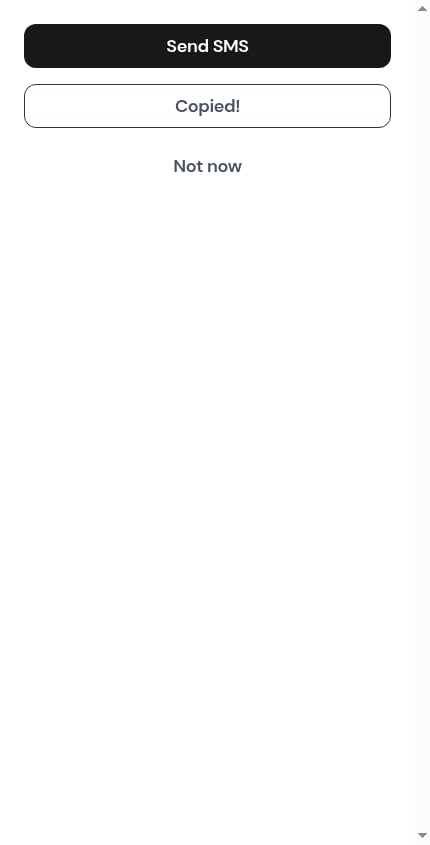
Without a phone number on file the solid button becomes Copy link and there’s no SMS option — there’s nothing to text.
Once it’s sent
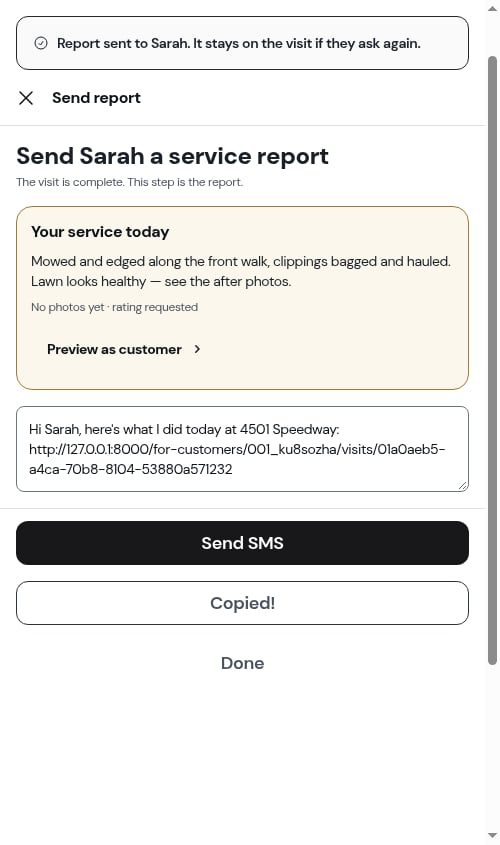
A green banner appears at the top of the step — Report sent to Sarah. It stays on the visit if they ask again. — and the dismiss button changes from Not now to Done.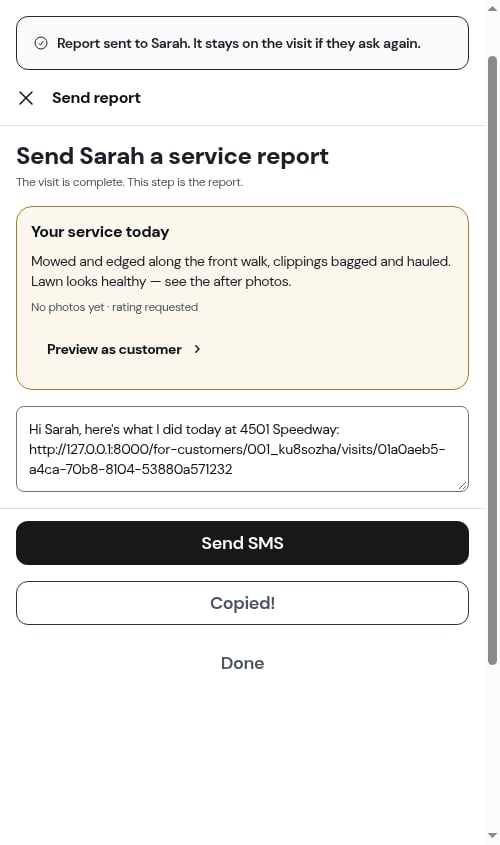
When the customer rates you
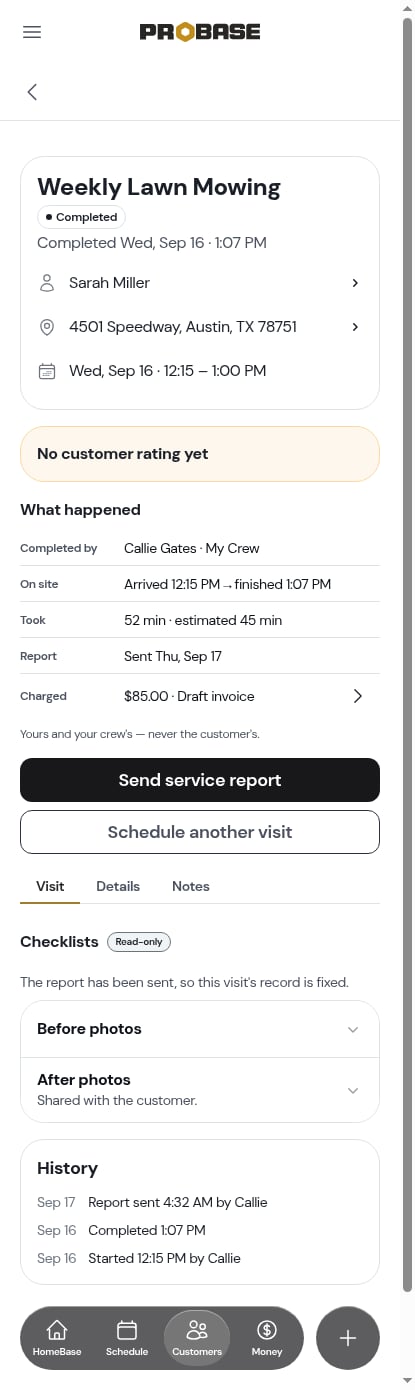
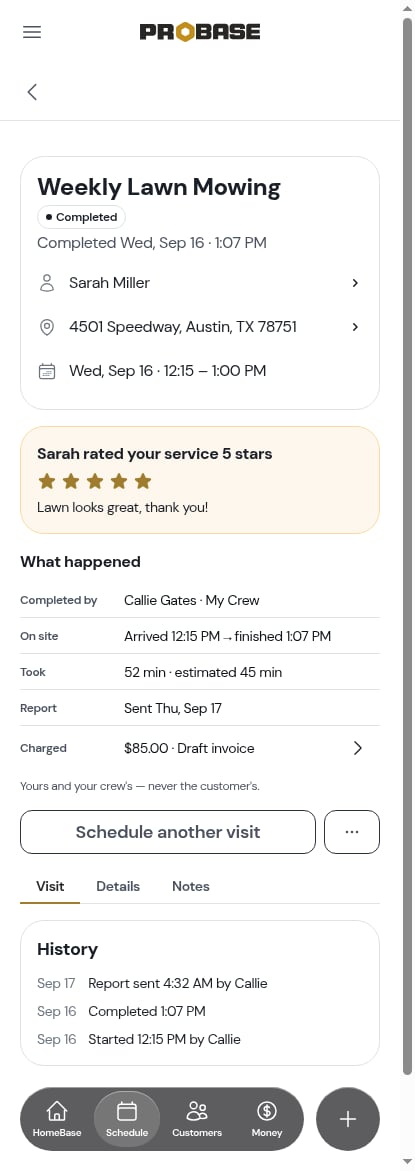
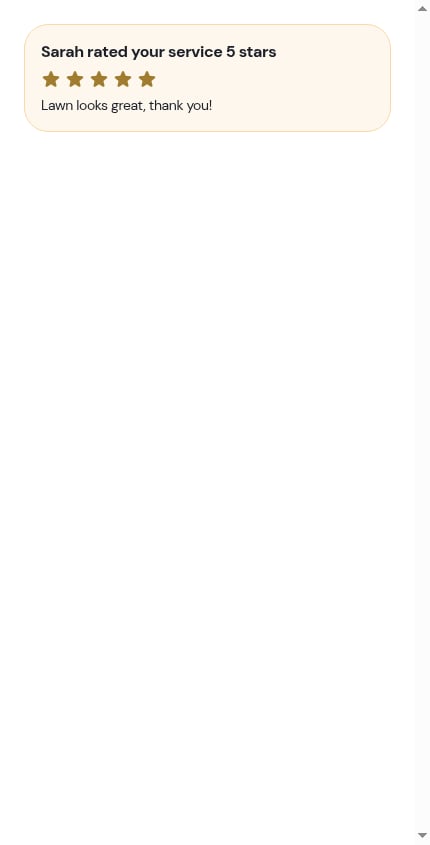
The report page ends with How did we do? — stars and an optional comment. When the customer submits it:- The visit picks up a rating card directly under its header — Sarah rated your service 5 stars, the stars, and their words if they left any
- An update lands in your feed with the same line and the comment underneath
- Send service report steps back into the ⋯ More sheet as Send the report again — the rating is the evidence the report arrived, so the button stops taking up the top of the screen
Sending the invoice on its own
The report is not the only way to bill. If you’d rather send the invoice by itself — or you skipped the switch — open it from the Charged row on the completed visit and use Send Invoice there. See Sending payment links.Next steps
- Completing a visit — the step before this one
- The customer’s service report — what the customer opens
- Before and after photos — how photos get onto the report
- Service ratings — the other place customers can rate you