On-demand jobs
Some work doesn’t happen on a calendar. You plow after it snows, or you go out when a customer calls. An On demand job is made for this kind of work. It has a Start Date and an optional End Date, but ProBase doesn’t book any visits by itself. You add a visit when the job needs one, either one at a time or many at once with Dispatch.On-demand jobs and Dispatch are rolling out gradually. If you don’t see On demand in the Service Frequency list yet, it hasn’t reached your account.
Creating an on-demand job
1
Start a new job
Tap the + button and choose New Job, then pick the customer, property and service as usual. See Creating jobs.
2
Pick On demand
On the When should this job be scheduled? step, open Service Frequency and choose On demand. The helper reads “No set schedule. Visits are created on demand when requested or dispatched.”The step now asks only for a Start Date, an optional End Date and the crew. There’s no visit day, start time or length, because no visit is booked yet. With no End Date, the job stays open until you cancel it.The Start Date is filled in with tomorrow. A line under the field says which day you’ve picked, in words: Starts today., Starts tomorrow. or a date such as Starts Mon, Nov 9. Check it before you go on, because a billing plan starts on that day.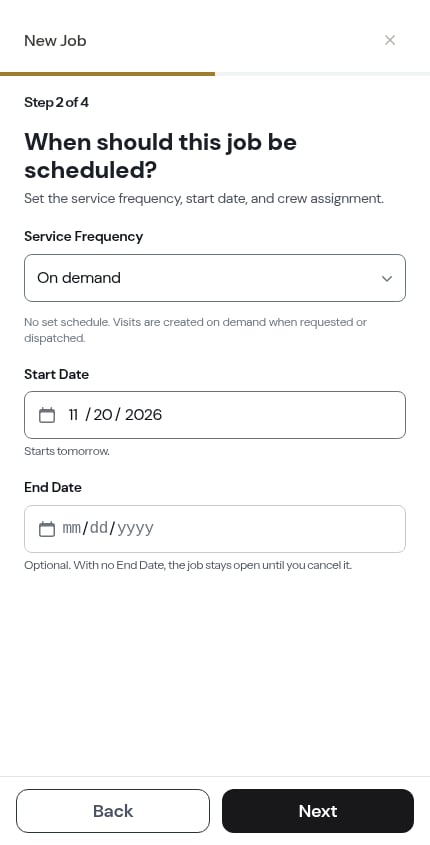
3
Choose how to bill it
On-demand jobs skip the usual Pricing step and go straight to billing. See Billing an on-demand job below.
4
Confirm and create
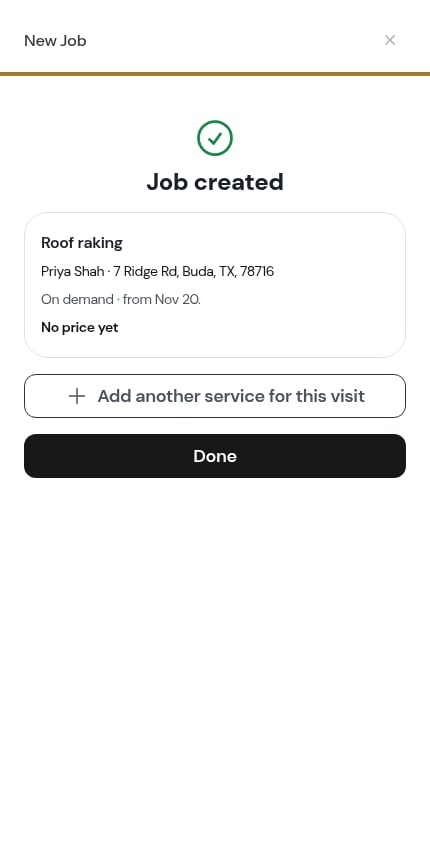
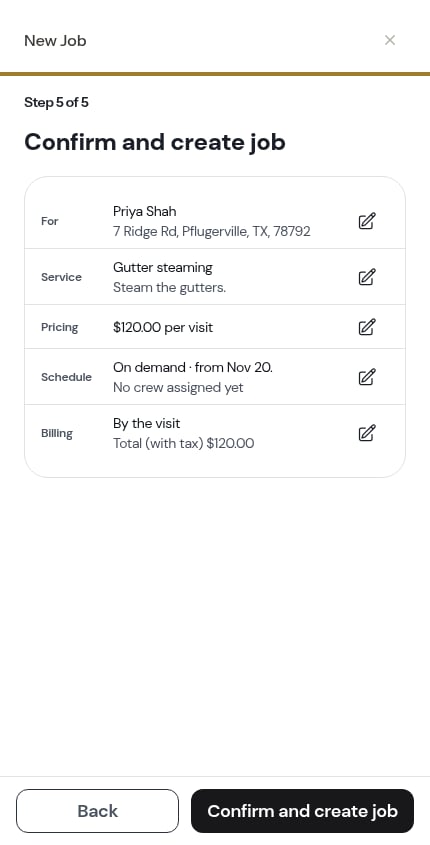
Review the summary and tap Create. The job is saved with no visits, and its page reads On demand.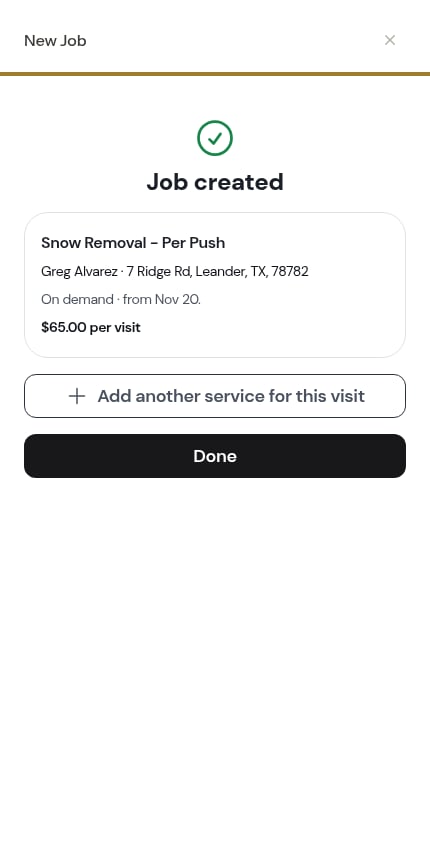
Using a custom service
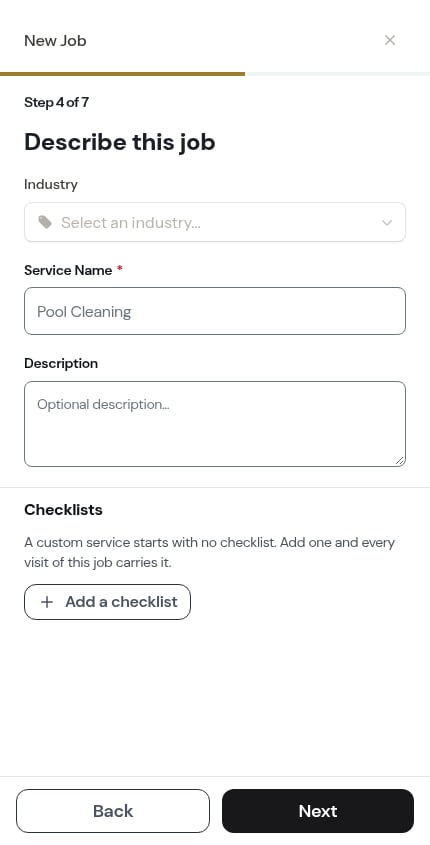
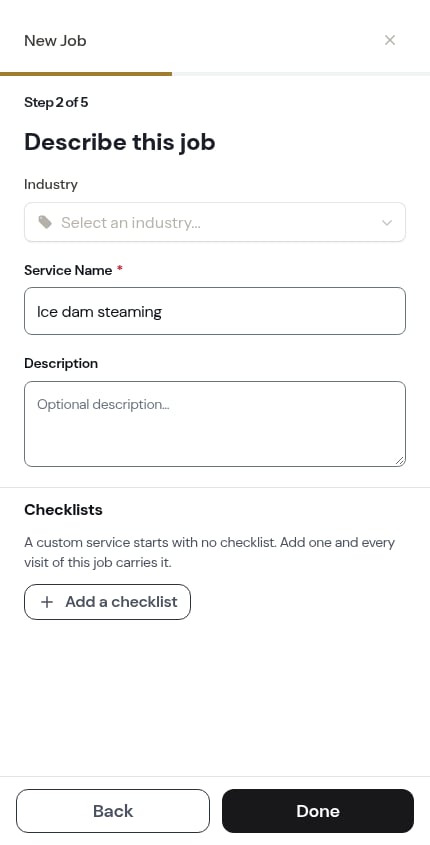
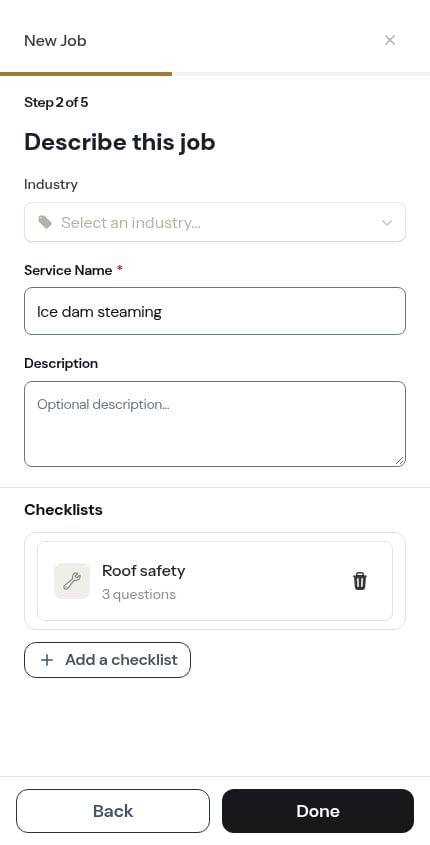
If you pick Custom service instead of a service from your catalog, ProBase still needs a name for the job. When the job is already set to On demand (for example, when you start it from the Dispatch explainer), the step after the service reads Describe this job. It asks for:- Service Name (required), such as “Roof raking”
- Description (optional)
- Industry, if you work in more than one trade
- Checklists, if you want every visit of this job to carry one
Changing a custom on-demand job before you create it
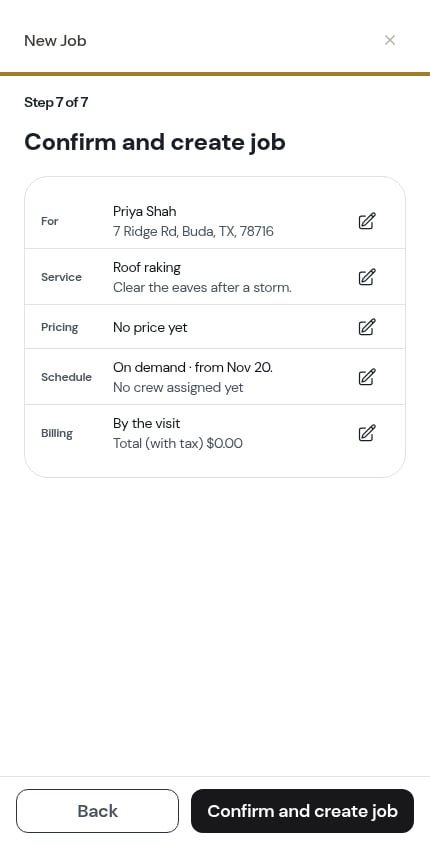
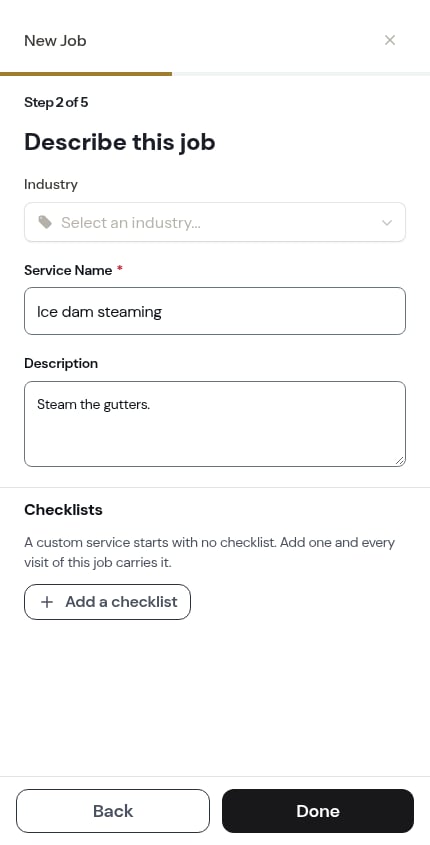
You can also start a custom job the usual way — fill in What does it cost? with a name and price — and then set Service Frequency to On demand on the Schedule step. Either way, once a custom job is On demand, the confirmation sends you back to Describe this job to change it:- Tap Edit on the Service row to change the name or description.
- Tap Edit on the Pricing row — it opens Describe this job too, because an on-demand job’s price lives on its billing.
- Tap Edit on the Checklists row to add or remove a checklist.
Billing an on-demand job
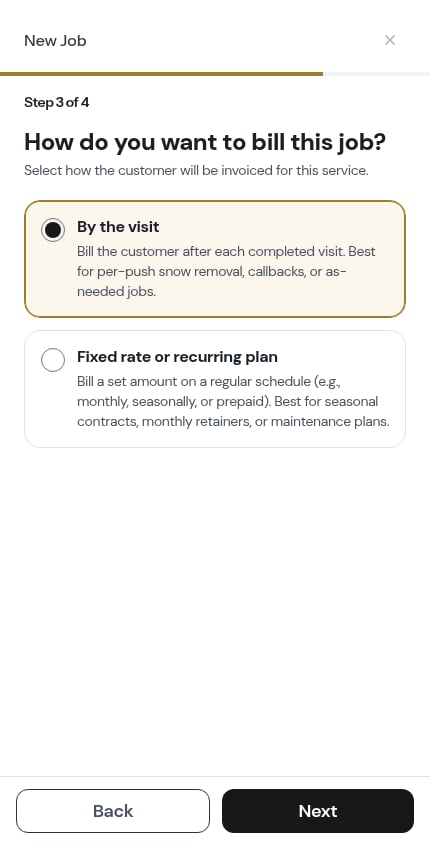
The first billing question is How do you want to bill this job?- By the visit — bill the customer after each completed visit. Best for per-push snow removal, callbacks or as-needed jobs.
- Fixed rate or recurring plan — bill a set amount on a regular schedule, such as monthly or seasonally. Best for seasonal contracts and maintenance plans. You then pick how often it bills.
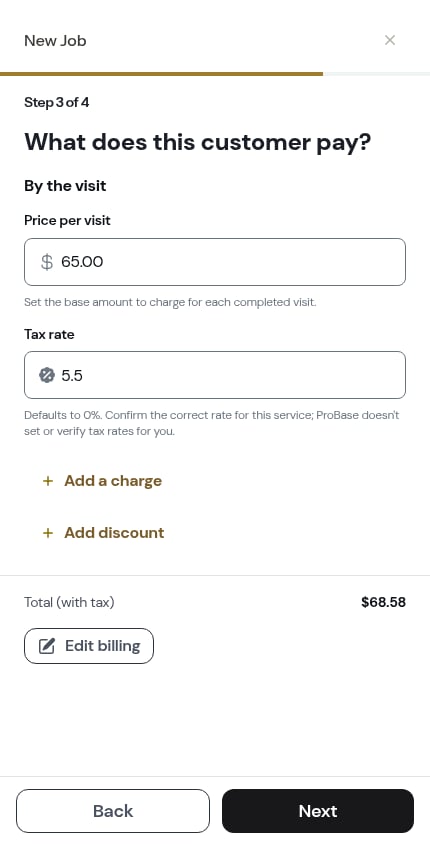
- The price can be left blank. The job shows No price yet. A visit on an unpriced by-the-visit job doesn’t add a charge, but any other charges on the job still bill.
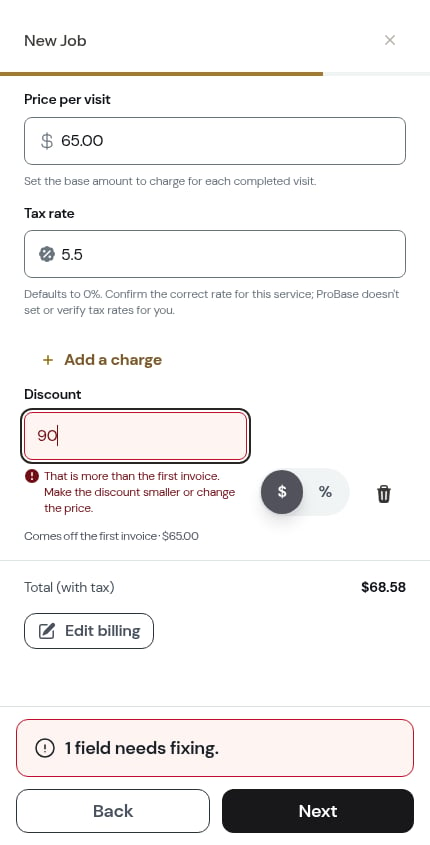
- A discount applies once, to the first invoice, and can’t be more than that invoice.
- Fix anything marked. If you tap Next with a problem, the field is marked and the footer tells you how many fields need fixing.
Per-visit charge on a plan
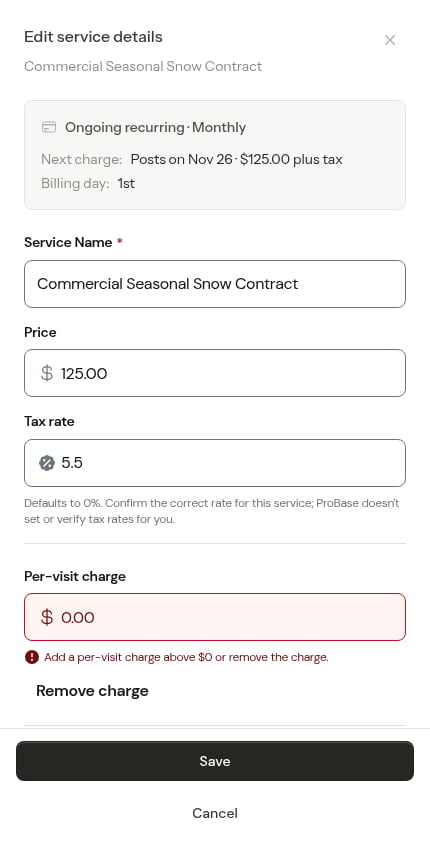
A recurring plan can also add a fixed amount for each completed visit, for example “$125.00/month + $60.00 per visit”. The field’s note reads Added to the invoice each time a visit is completed. For example, $125/month plus $60 per visit. — the same note on the job’s billing, the job’s Edit pricing page and a quote line. The per-visit charge must be more than $0. The job’s total then reads Total (subscription only), because per-visit charges are added and taxed on each invoice.When a plan bills
An on-demand plan bills from its first charge day through its End Date, and only while the job is open:- If the Start Date is later than today, the first charge is on the Start Date. Otherwise it’s the day you create the job.
- Later charges repeat from that first day, for example on the 1st of each month.
- The last charge is on or before the End Date.
Saving the billing to the service
If the service has no billing setup yet, the confirmation offers Save this as [service]‘s billing for new jobs. It starts checked. Leave it on and the next on-demand job for that service starts with the same billing. You need permission to edit services to see this box.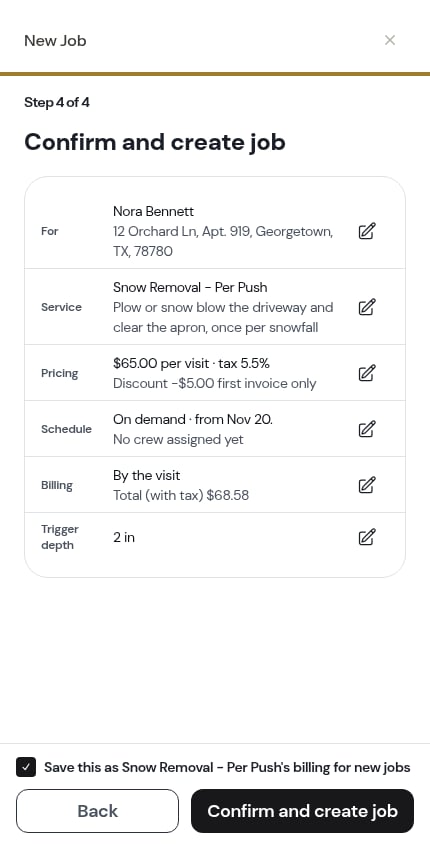
Snow Removal details
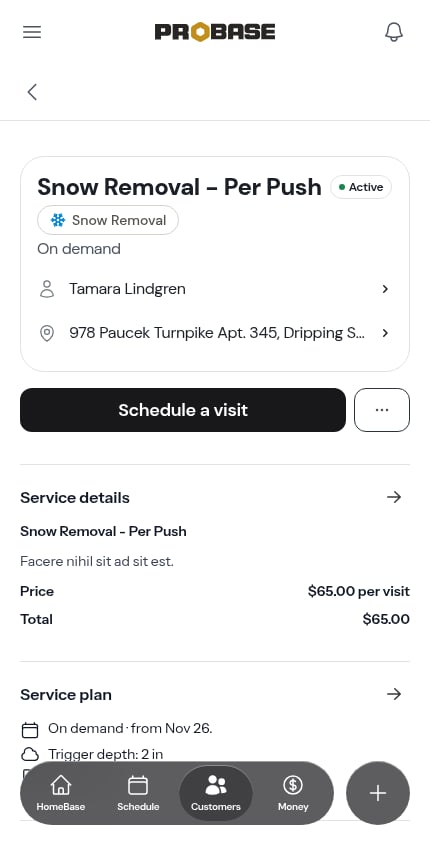
When an on-demand job uses a Snow Removal service, it carries two extra details:- Trigger depth — how many inches of snow it takes before you go out. It fills in from the service’s default, and you can change it on the confirmation (where it reads, for example, 2 in) or later through Change Schedule. Dispatch uses it to leave out jobs that aren’t due yet.
- Area treated — the size of the area in square feet, under Visit defaults on the job page.
The job page
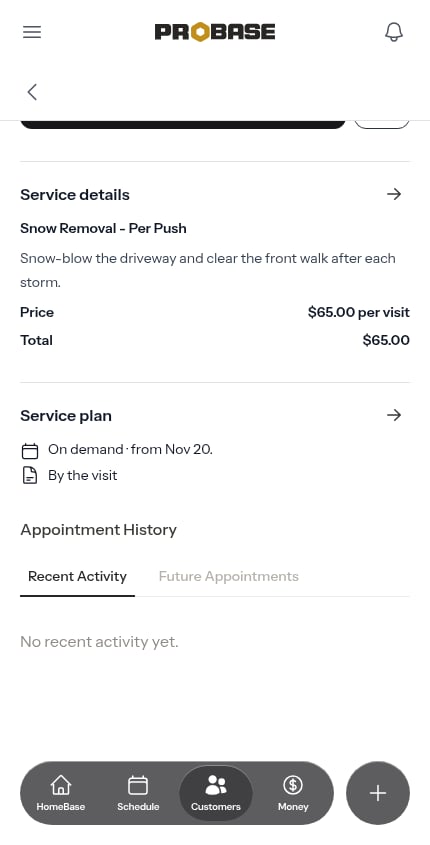
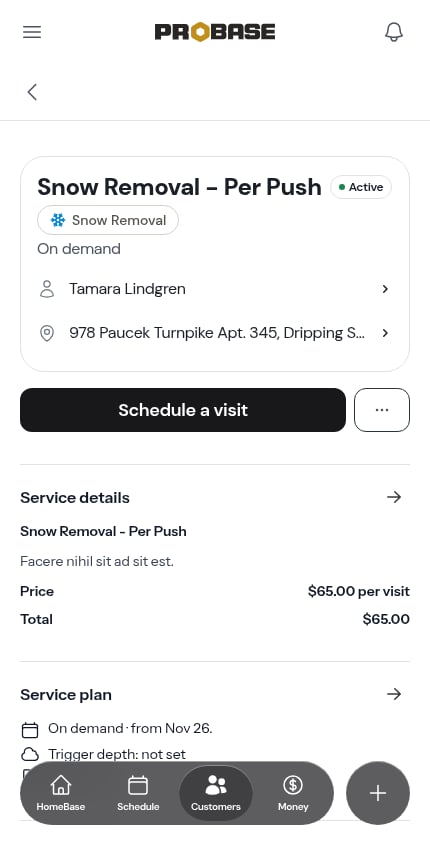
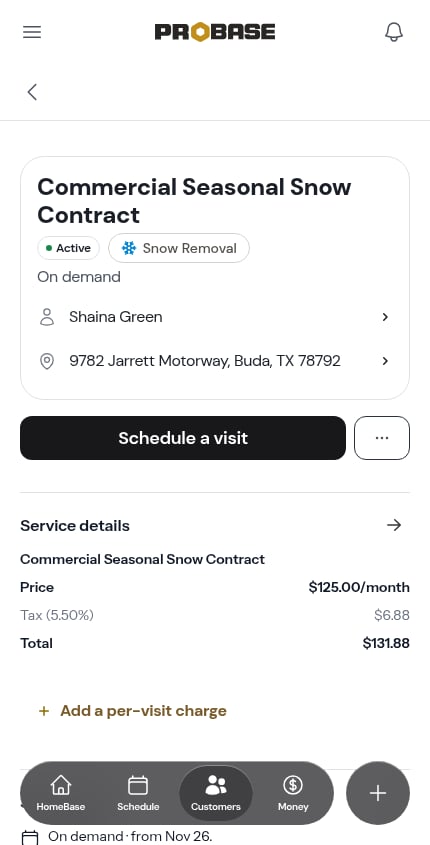
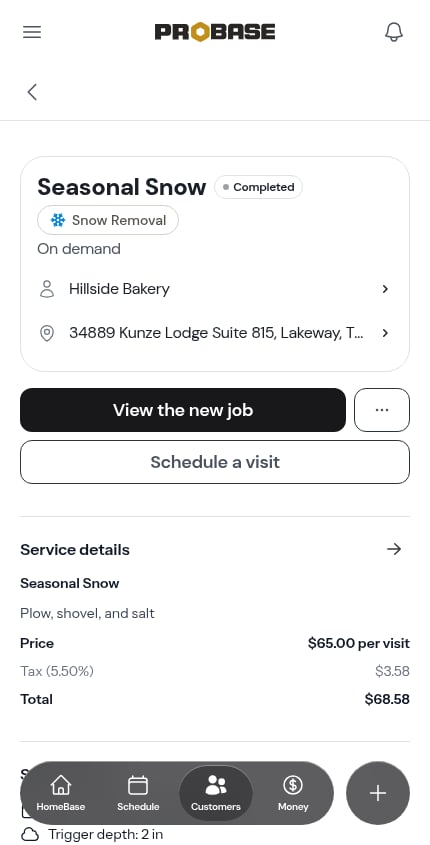
An on-demand job’s page shows its price in words, such as “$75.00 per visit", "$125.00/month” or “$125.00/month + $60.00 per visit”.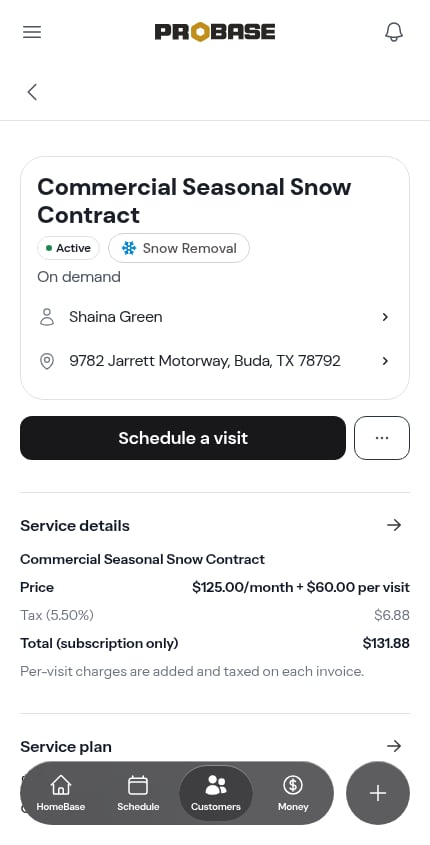
Adding visits
An on-demand job never books visits by itself. To add one:- Use Schedule a visit on the job page for a single visit, or
- Use Dispatch to add a visit to many jobs at once.
When the End Date passes
An on-demand job closes by itself after its End Date ends in your business’s time zone. When it closes:- It reads Completed and stops billing.
- Visits booked after the End Date that nobody has started are cancelled.
- Visits on or before the End Date, and any visit someone already worked on, are kept.
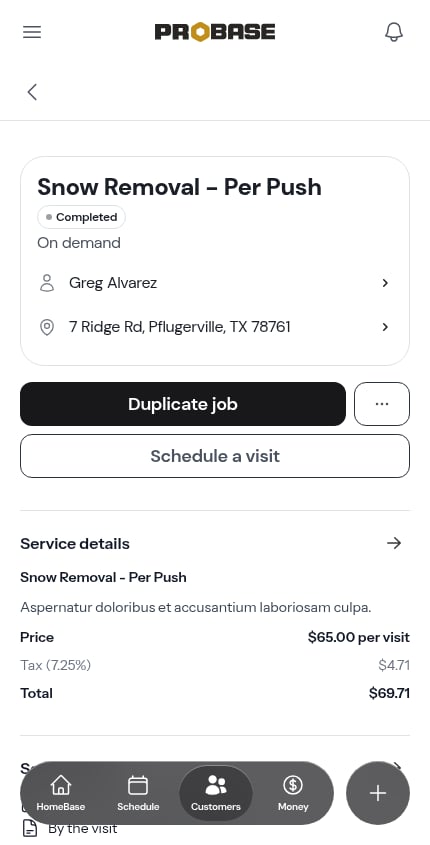
Reopening an ended job
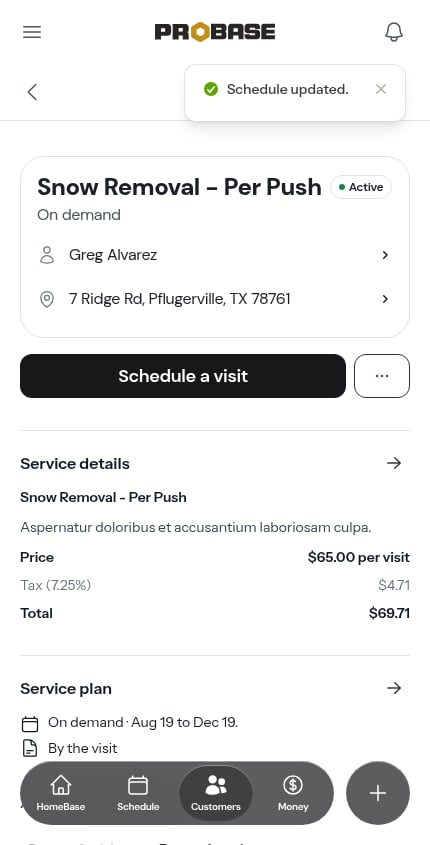
You can reopen a job that closed at its End Date. It continues the same plan: no new first charge, and the Start Date and billing day stay the same. Billing days that passed while the job was closed aren’t charged.-
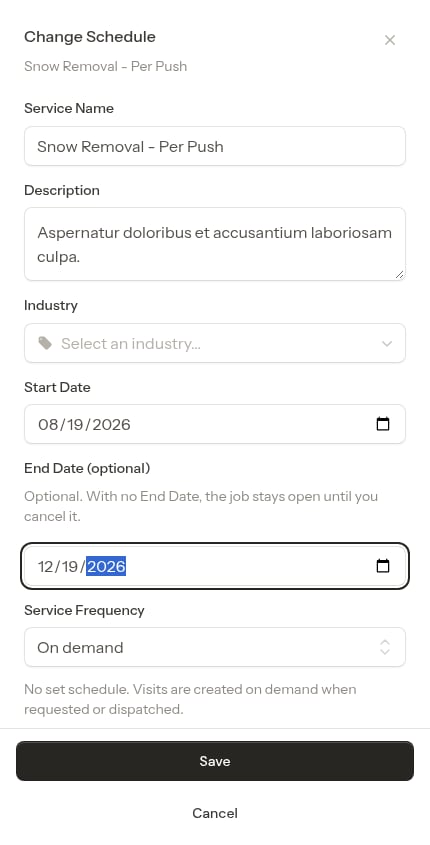
Set a later End Date through Change Schedule. Pick today or a later date, or clear it.
-
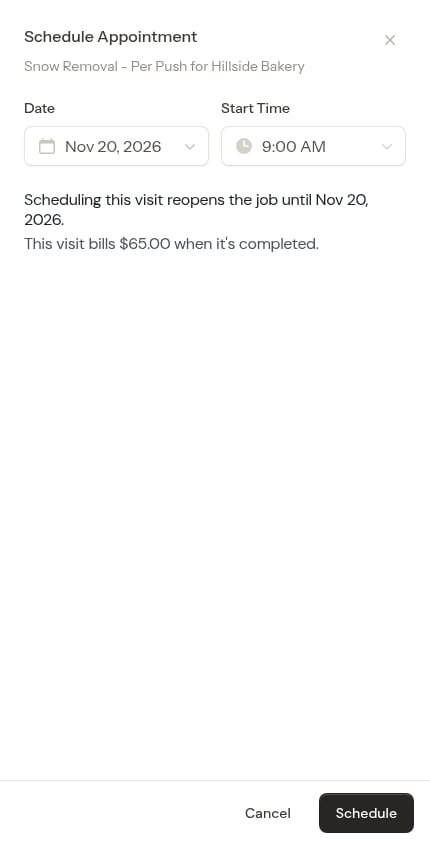
Schedule a visit. The sheet tells you “Scheduling this visit reopens the job until [day]” and what it will cost. The visit’s day becomes the new End Date when it’s later.
- Extend the season for many ended jobs at once from Dispatch. See Ended jobs.
Duplicating a job for next season
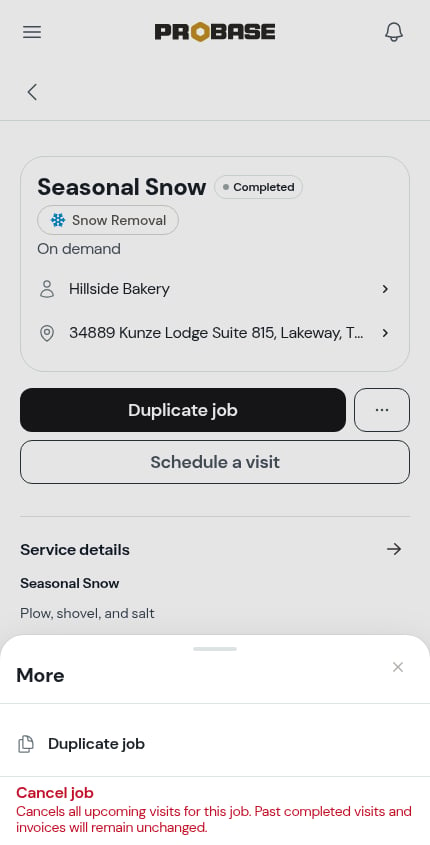
A job that closed at its End Date leads with Duplicate job, with Schedule a visit below it. Duplicate job is also in the job’s ⋯ menu, next to Cancel job.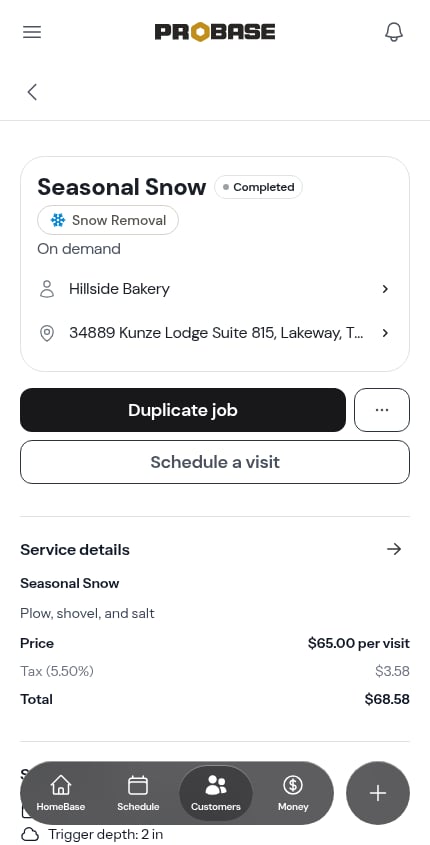
-
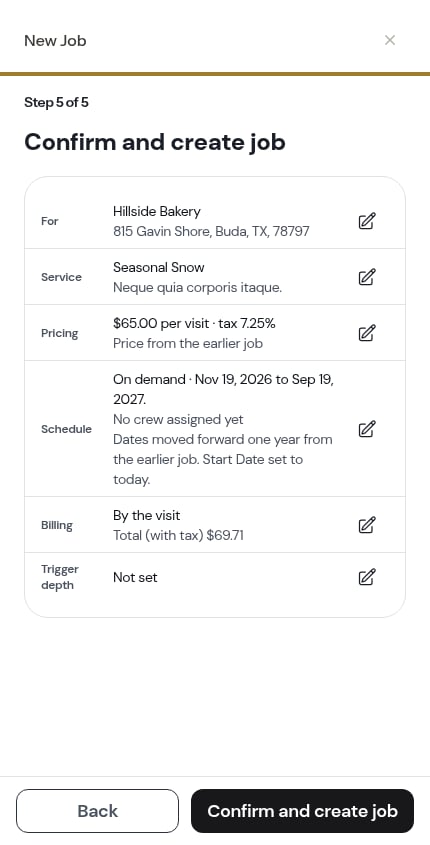
If the Start Date a year on has already passed, the copy starts today instead and keeps the moved End Date. The Schedule row adds “Start Date set to today.”
- If the End Date a year on has already passed too, or the earlier job had no End Date, neither date is filled in and you pick the Start Date yourself.
If another job overlaps
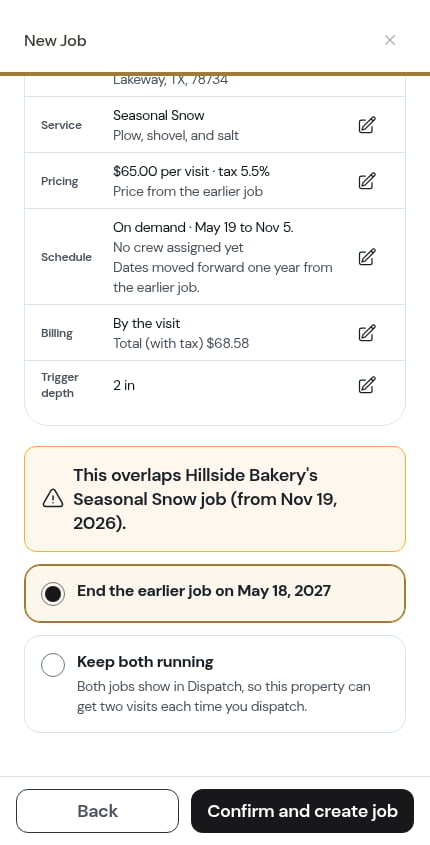
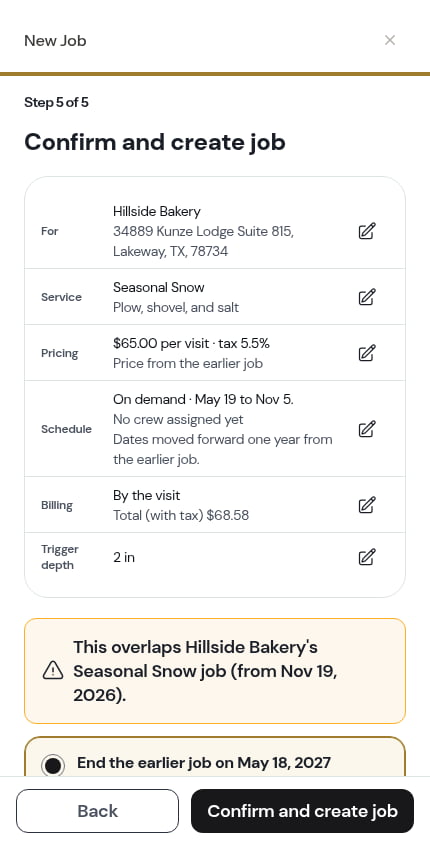
If the same customer already has an active job for the same service at that property, and the dates overlap, the confirmation asks what to do before you create the new one:- End the earlier job the day before the new one starts (the default), or
- Keep both running.