The quote book
Every quote you start lives on the Quotes screen from the moment it’s created — see Creating quotes for building one. This page covers everything after that: getting it in front of the customer, recording the answer, and what happens when they say yes.The Quotes screen
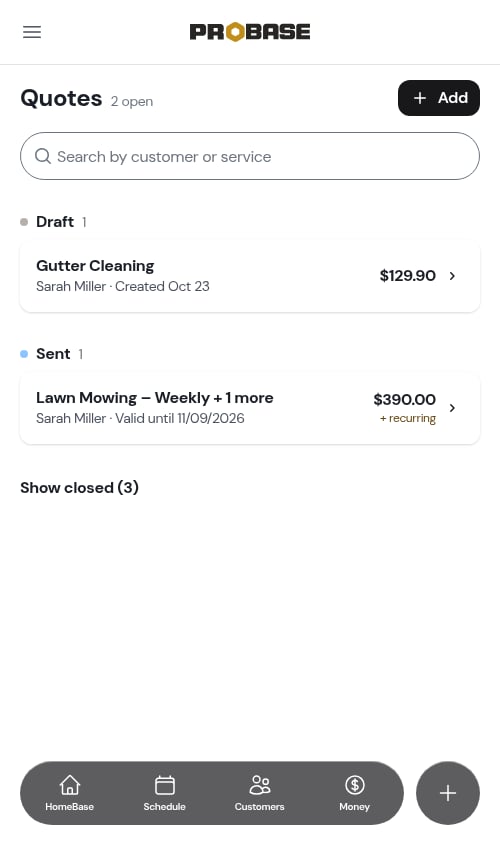
Open Quotes from the navigation drawer, or tap the Draft quotes row on HomeBase. The header shows how many quotes are open, and an Add button starts a new one. Open quotes are grouped by where they’ve got to:
Each row shows the quote name (with + 1 more when it holds several services), the customer, the amount due on the first invoice, + recurring when anything repeats after that, and the Valid until date.
Show closed
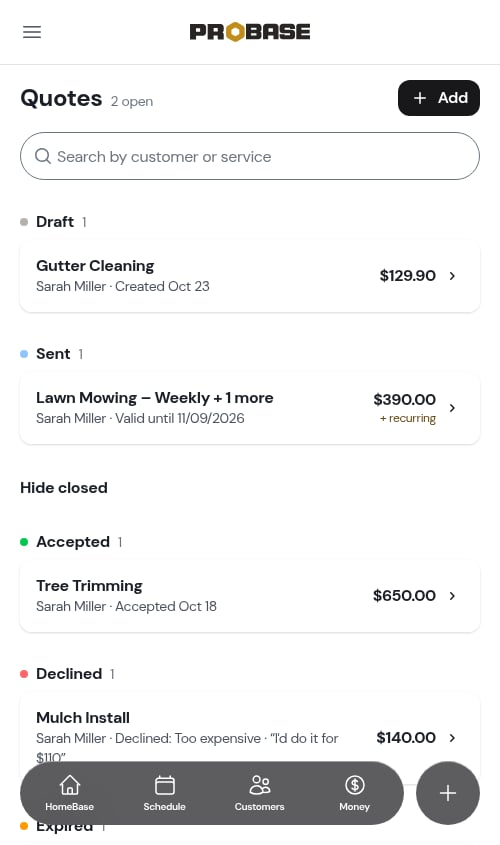
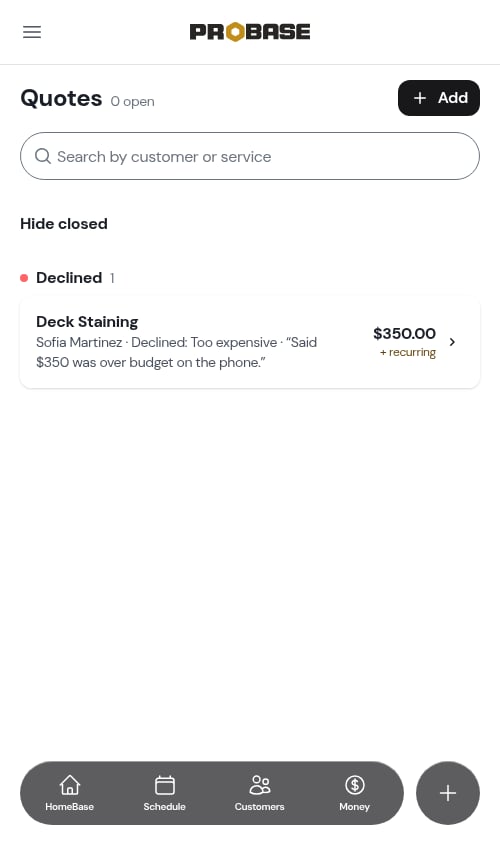
Finished quotes sit behind the Show closed toggle, each wearing its outcome:- Accepted — with the date
- Declined — with the reason and any comment the customer gave
- Expired — the valid-until date passed without an answer
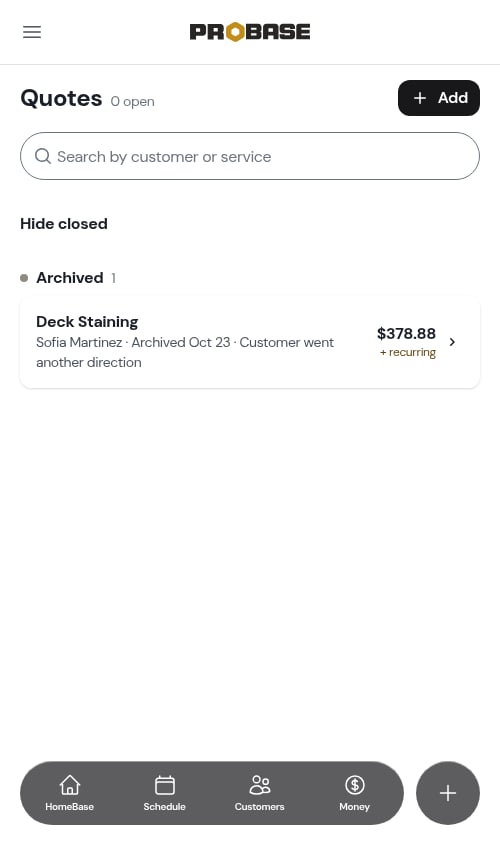
- Archived — you filed it away
Search
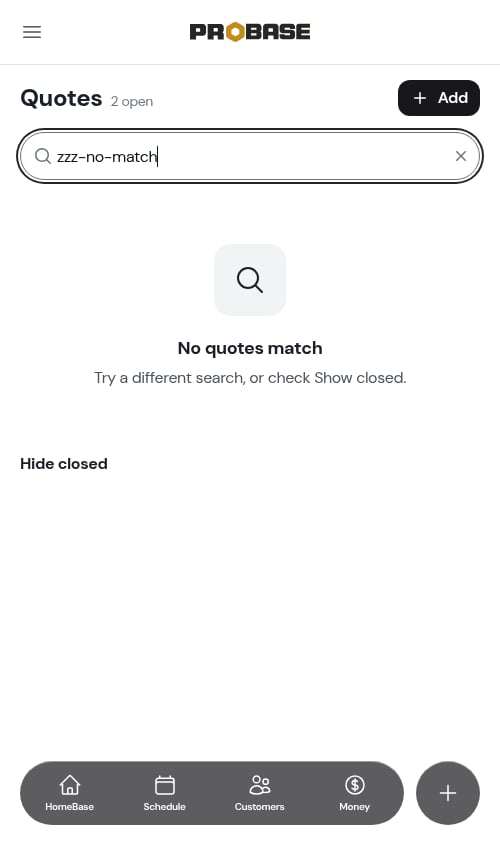
The search box matches on any service on a quote, not just the quote’s name — so searching “Hedge” finds a quote called “Lawn Mowing – Weekly” that has hedge trimming on it.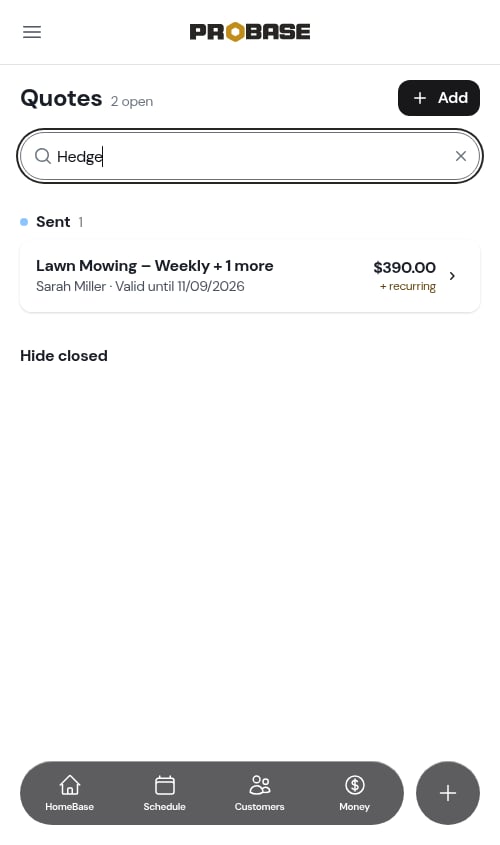
Sending a quote
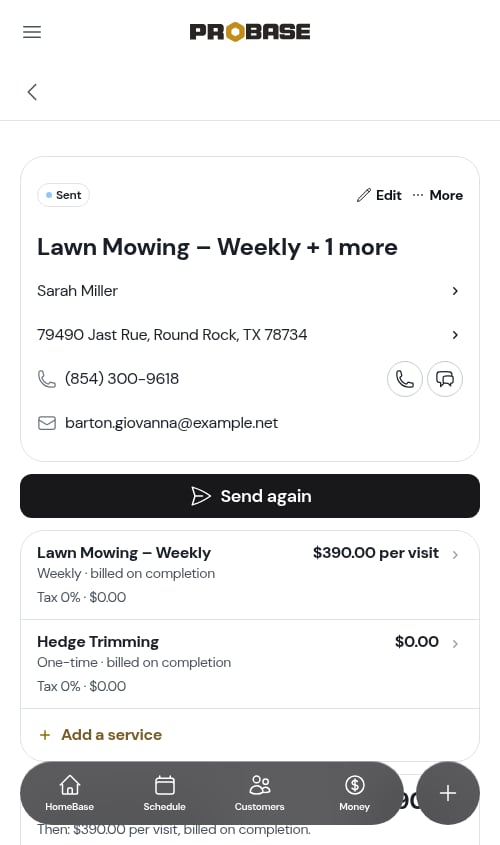
A quote needs at least one service on it before it can go out. When it’s ready, tap Send Quote.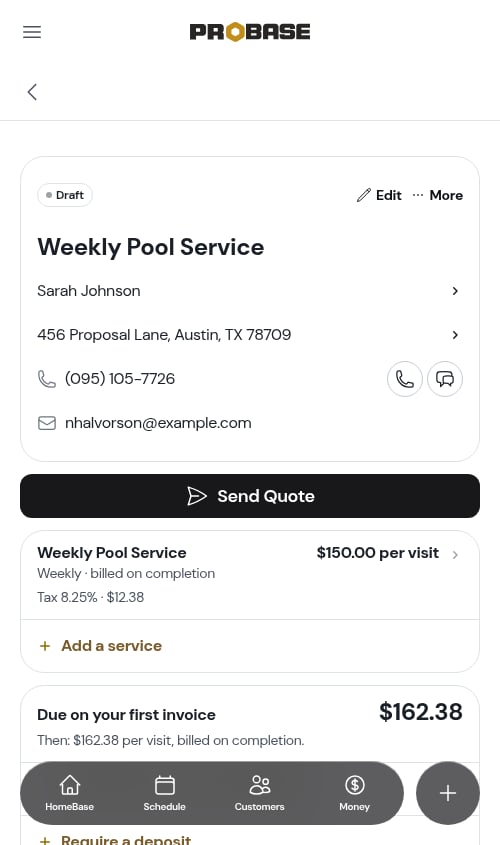
- Send text or Send SMS — sends the message when a phone number is on file. Which one you see depends on your account; see Texting your customers
- Copy — copies the message and link to your clipboard, to paste wherever you like
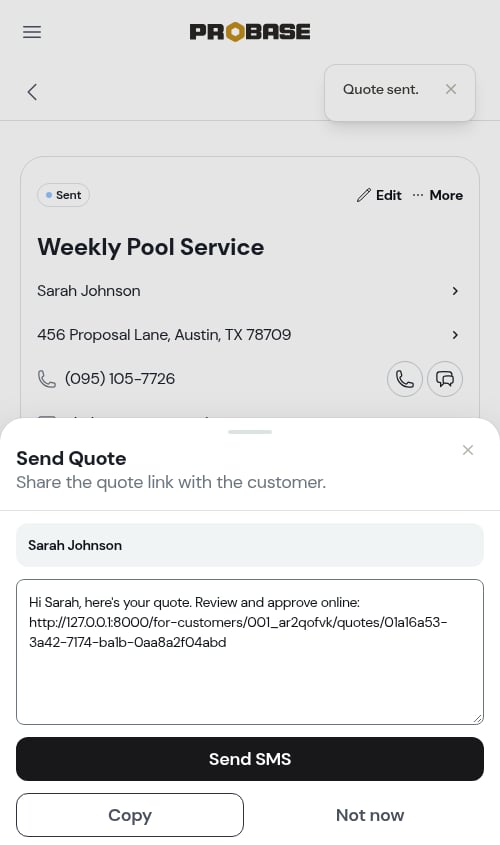
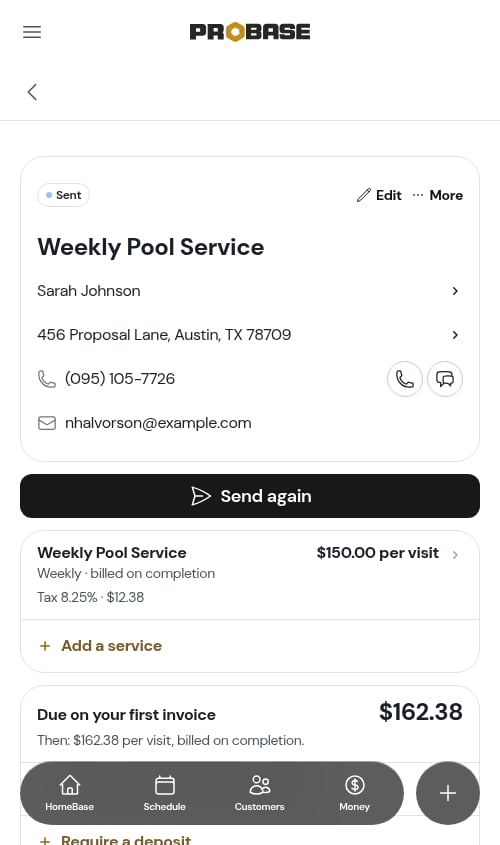
The customer link only exists once the quote is sent. There’s no link to share on a draft.
What the customer sees
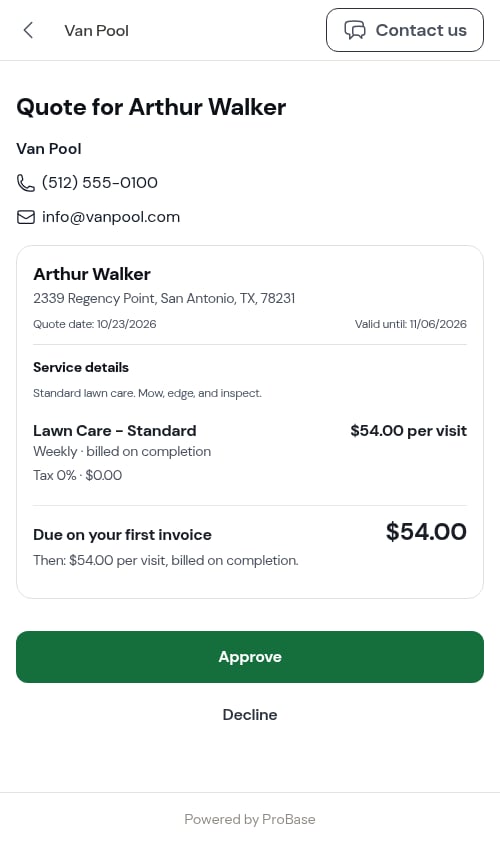
The link opens without any login. The customer sees:- Your business name and contact details
- Their name and property address
- The message you wrote at the top
- Every service with its price, cadence, and any line items
- Discounts, spelled out with the label you gave them
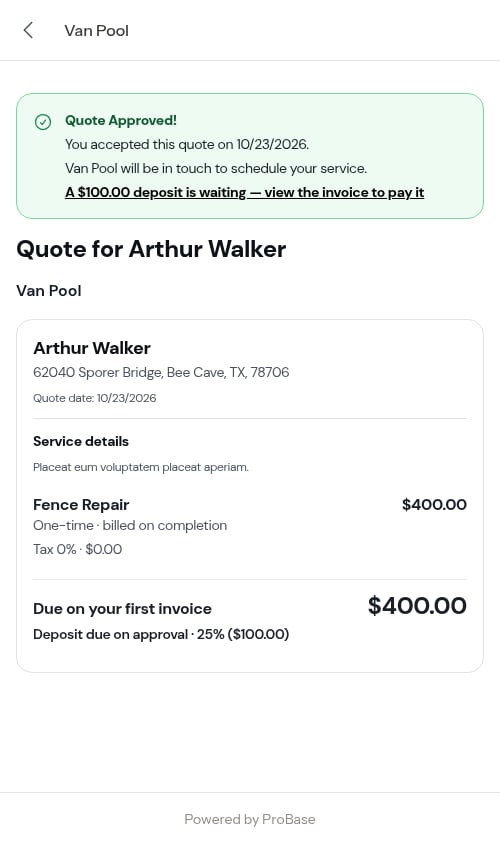
- Any deposit you require, under the first-invoice figure — Deposit due on approval · 25% ($100.00)
- Tax and the total, when a tax rate is set
- The valid-until date
- Anything carried over from the assessment — your notes and the photos
They approve
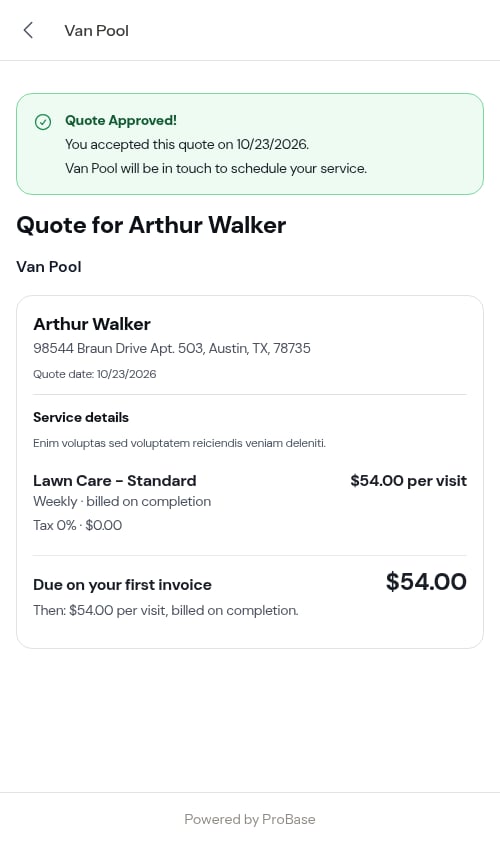
The customer taps Approve and confirms the total.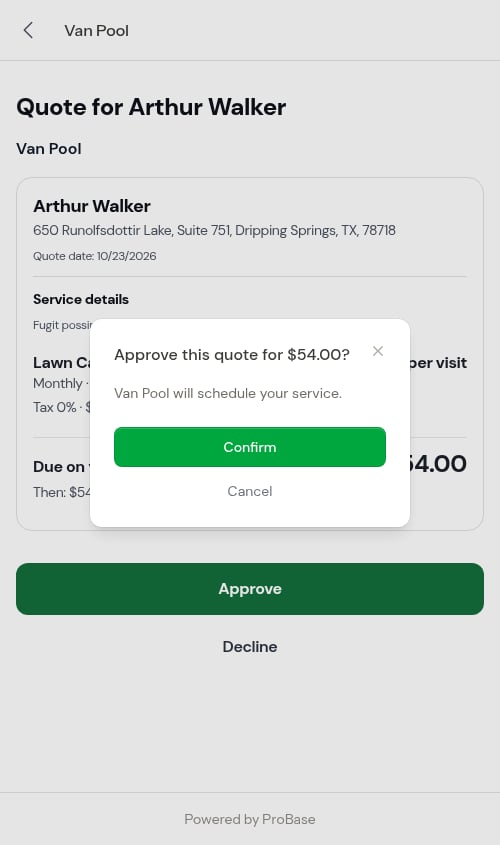
When the quote requires a deposit
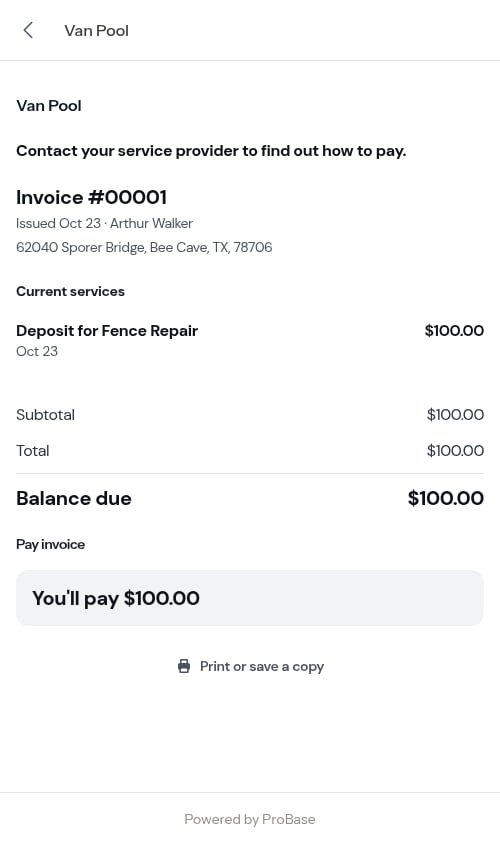
If you required a deposit, the approve confirmation tells the customer up front — A $100.00 deposit is due now — you’ll be taken to its invoice to pay it.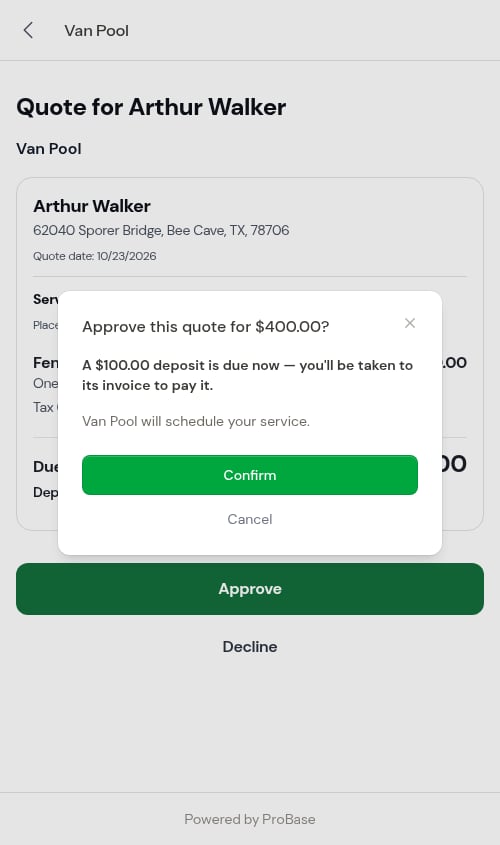
They decline
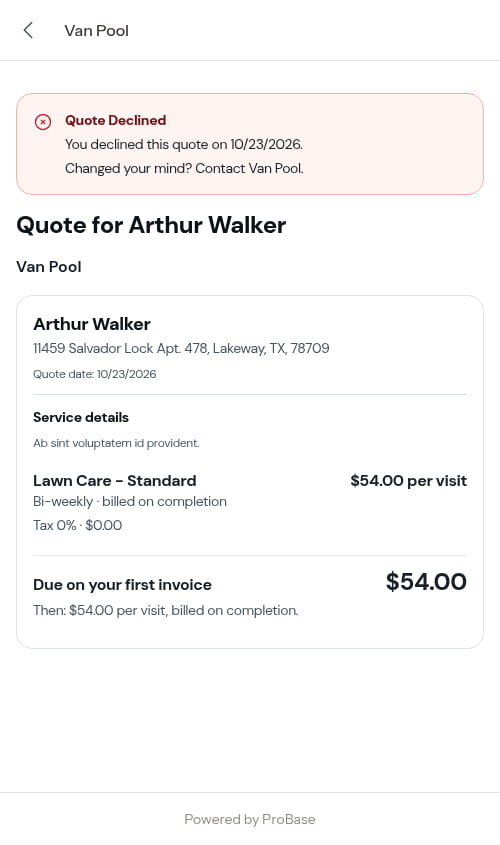
The customer taps Decline and picks a reason — too expensive, found another provider, no longer need the service, timing doesn’t work, or other.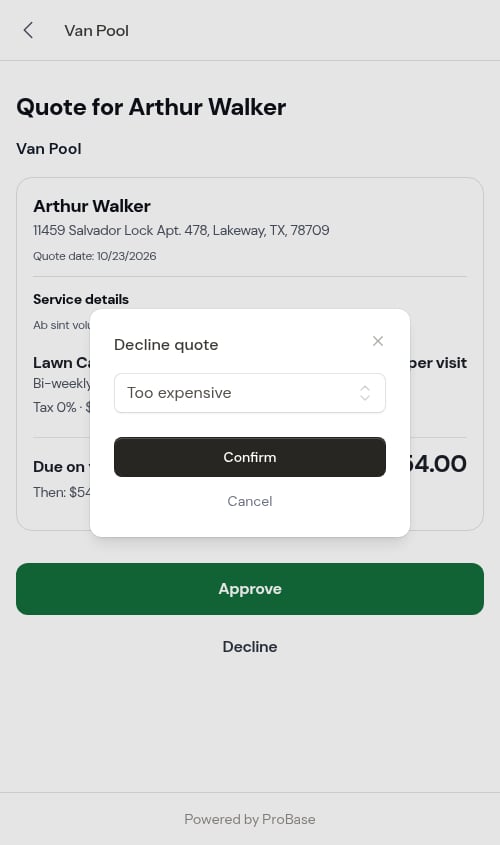
The quote expires
Once the Valid until date passes, the approve and decline buttons are replaced with a notice asking them to get in touch for an updated quote.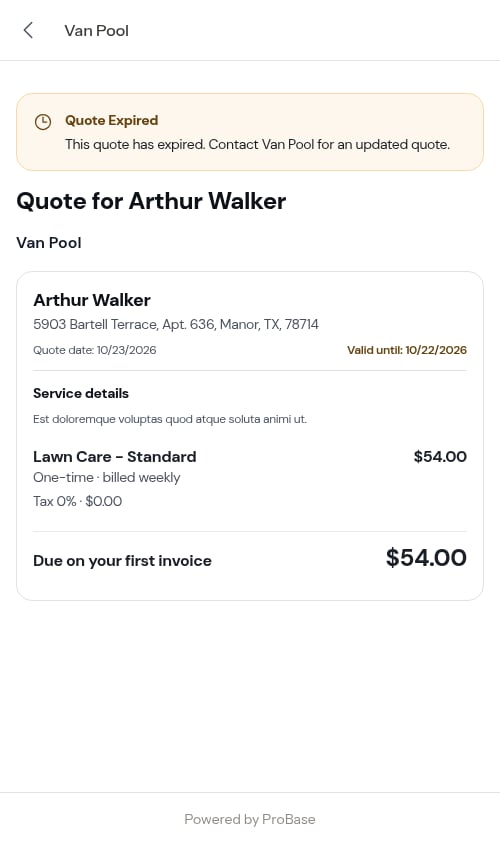
Recording the answer yourself
Customers say yes on the phone, at the door, or by text as often as they do through the link. Both outcomes are recorded from the More menu on the quote.Mark it accepted
Open More and choose Mark accepted.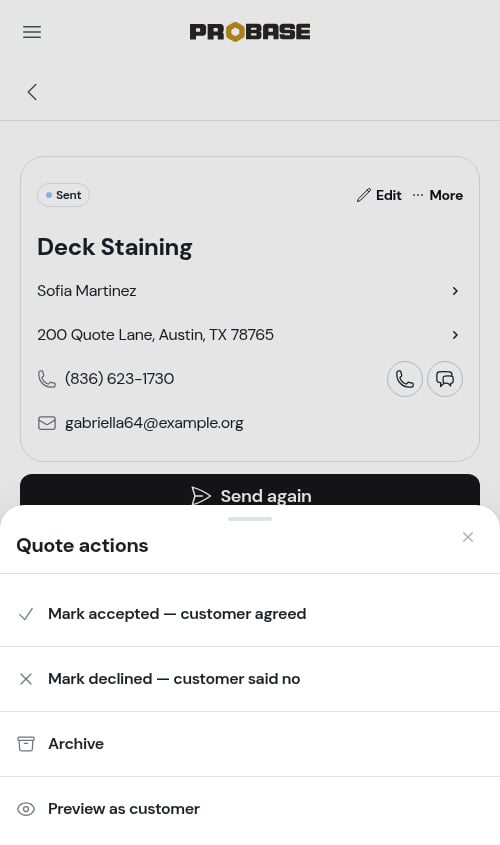
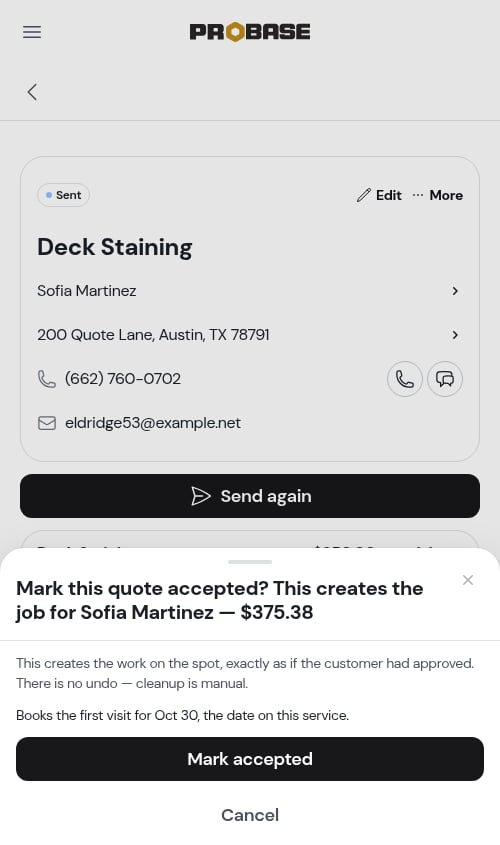
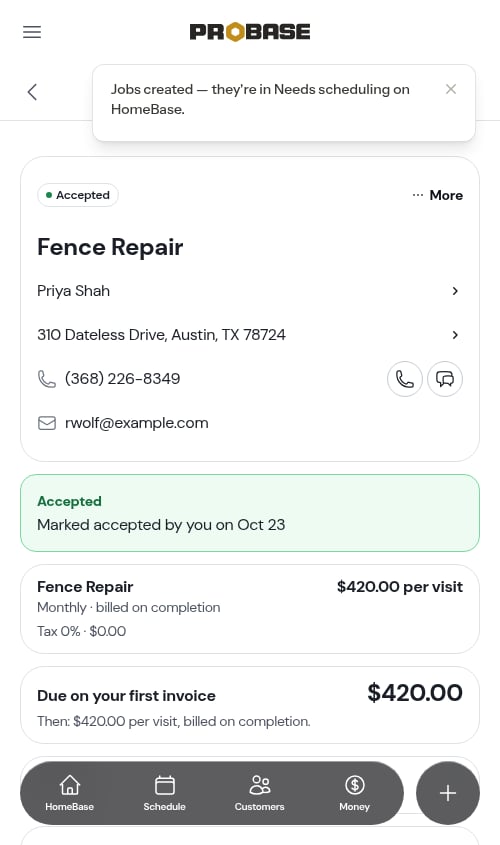
- The quote becomes Accepted, stamped Marked accepted by you with the date
- A job is created carrying the quote’s pricing, billing, and cadence
- The first visit is booked automatically when the service had a start date on it
- If the quote requires a deposit, the deposit invoice is created and marked sent — no message goes to the customer, so collect it and record the payment yourself
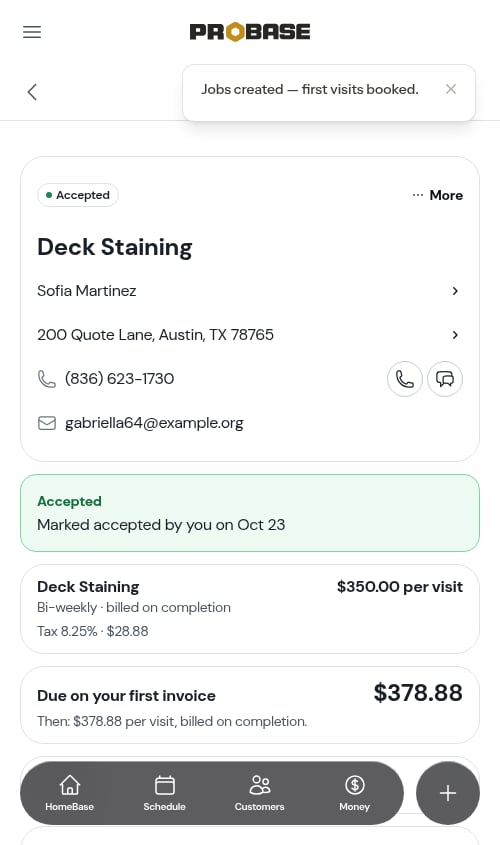
The record notes that you marked it accepted, rather than the customer doing it themselves — so the history stays honest about where the yes came from.
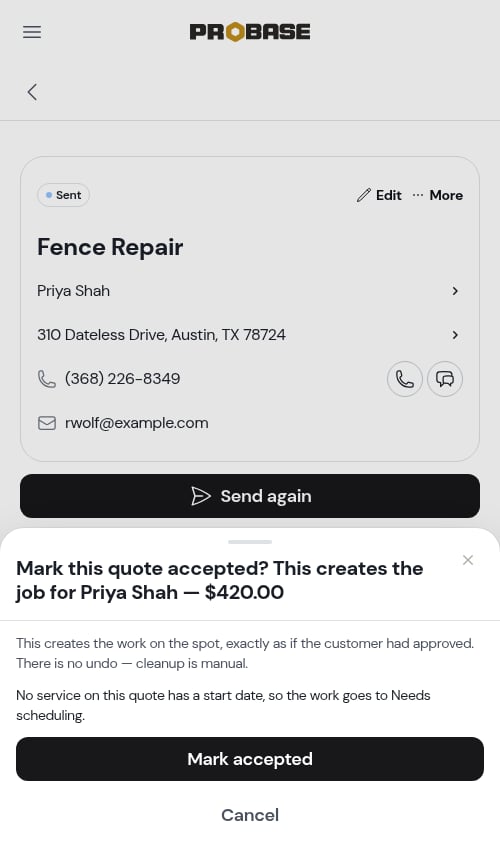
What the sheet tells you about visits
The line about booking changes to match what’s actually on the quote, so you know before you confirm whether anything lands on the calendar:A date that’s already gone by books nothing. Rather than quietly putting a visit in the past, ProBase sends that job to Needs scheduling and tells you so on the sheet.
Accepting a quote with no dates on it
You don’t have to put a start date on a service before you can accept the quote — plenty of work gets a yes before you know when you can get to it.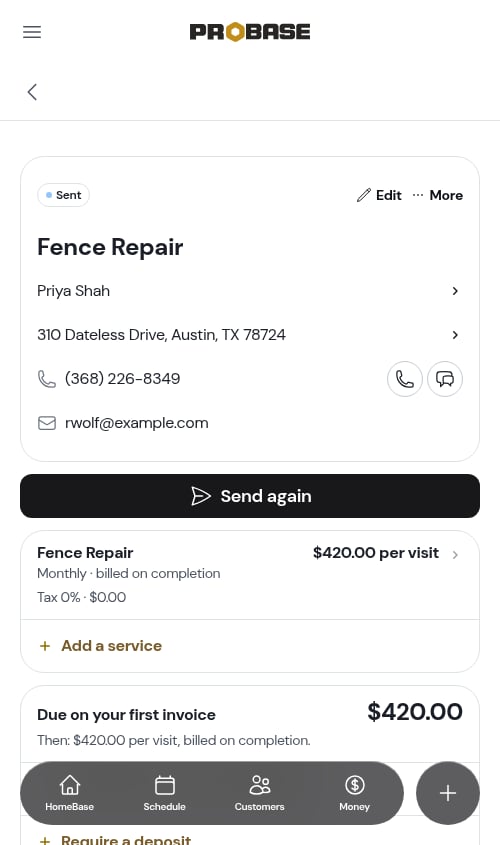
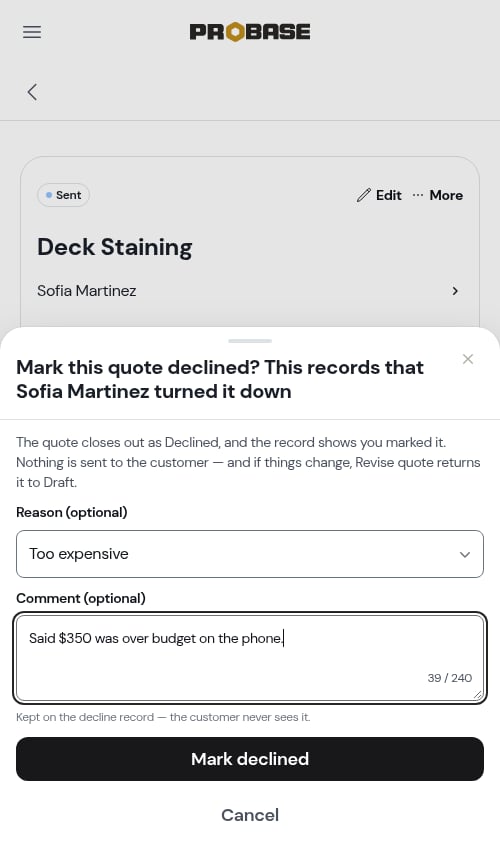
Mark it declined
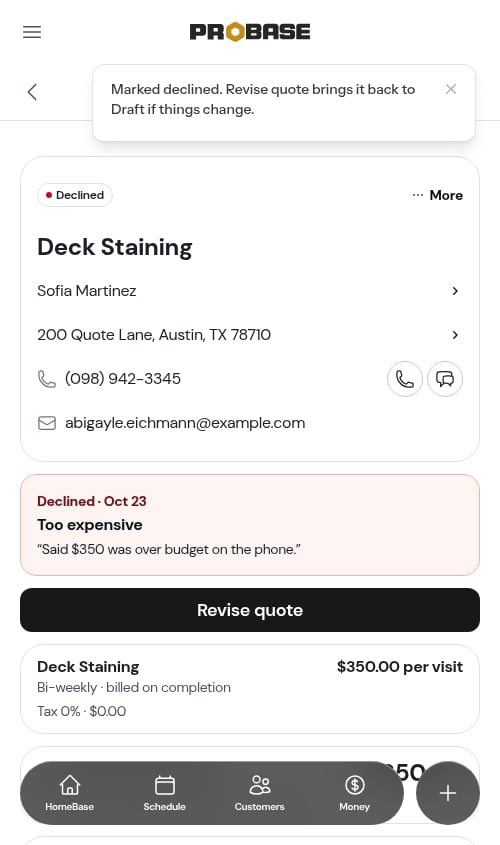
Open More and choose Mark declined — customer said no.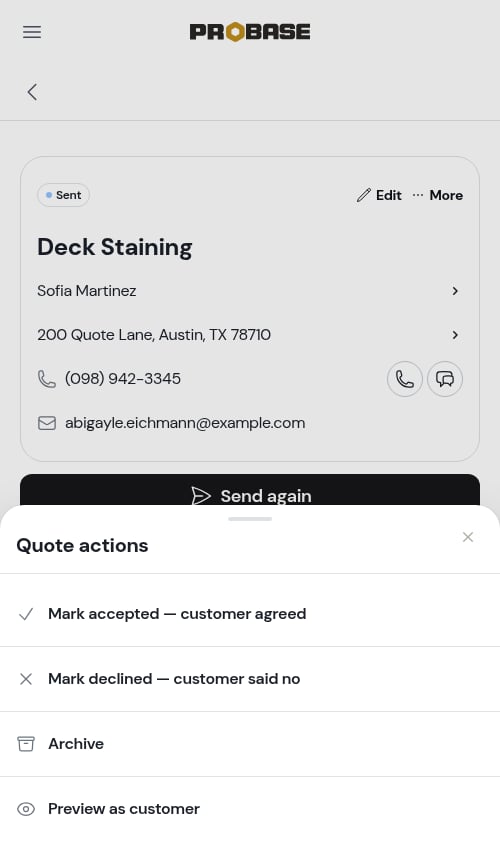
Editing a quote
To change a service — its name, price, cadence, discount, or line items — tap the service row on the quote. See Adding services to the quote. To change the quote’s terms — the valid-until date — tap Edit. The sheet reminds you that edits here touch only this quote; your default terms live in settings.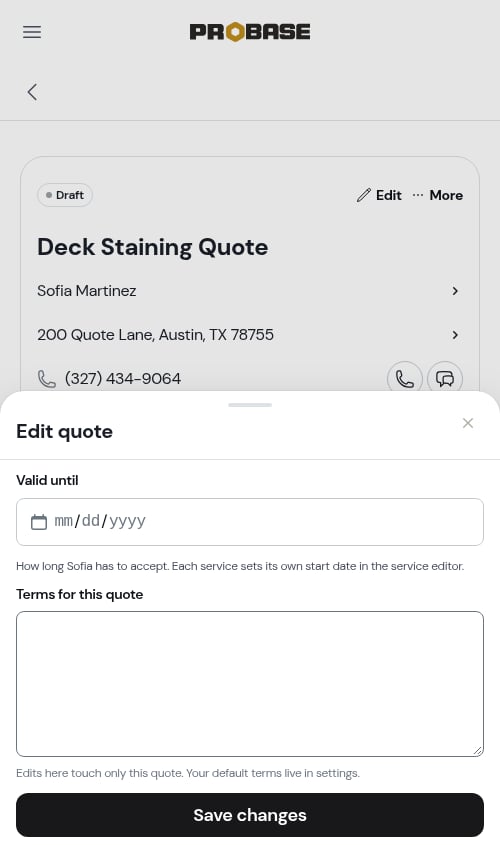
Editing after you’ve sent it
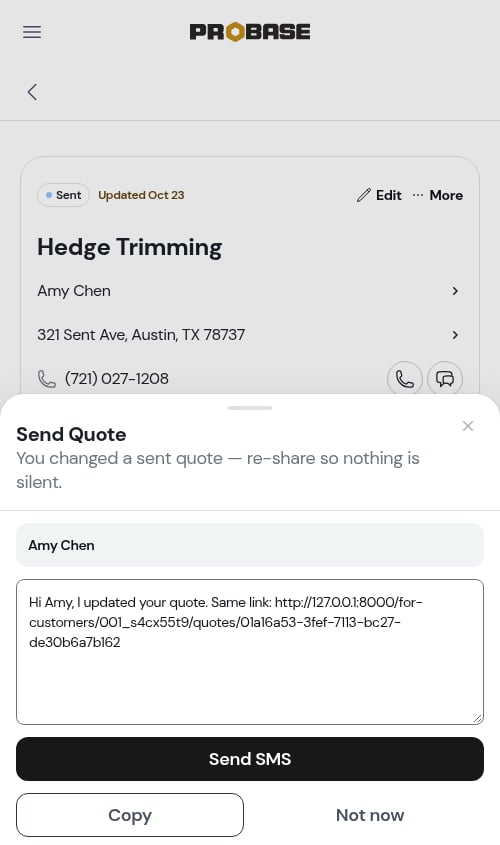
You can still edit a sent quote, but never silently. The sheet warns you up front: This quote is already sent. Saving marks it Updated for the customer, and you’ll get the link to re-share.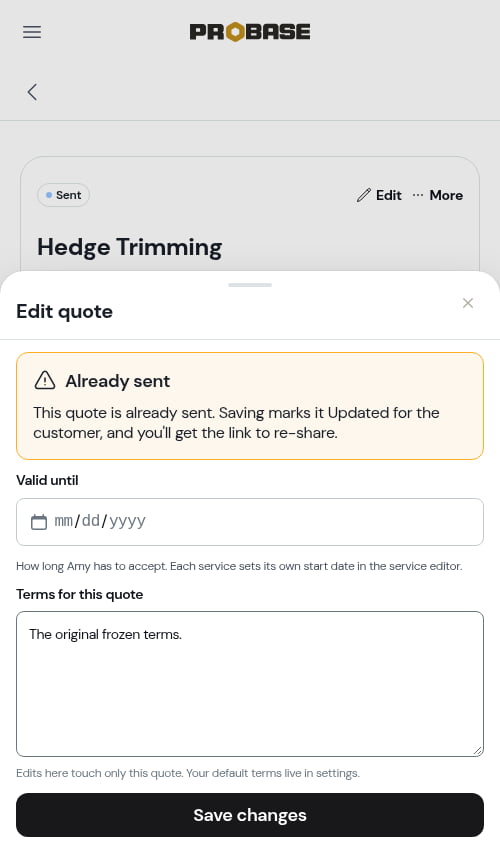
Accepted quotes can’t be edited
Once a quote is accepted the Edit button disappears. The acceptance captured what the customer agreed to, so it stays exactly as it was — change the job it created instead.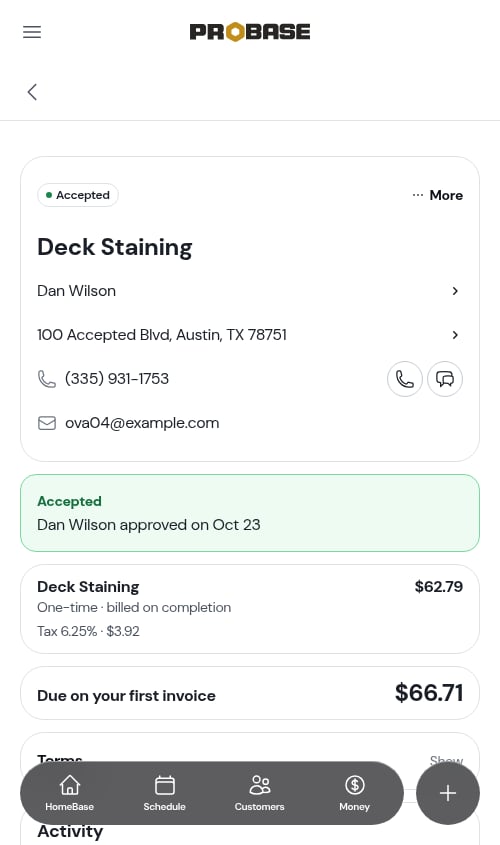
Reviving a declined or expired quote
A no isn’t always final. On a declined or expired quote, tap Revise quote. The same quote returns to Draft with a fresh valid-until date and your current default terms, ready to re-price and send again. The decline reason clears off the quote’s face but stays in its activity history, so you keep the record of what happened without carrying it into the new conversation.Revising works on declined and expired quotes only. Accepted quotes stay put — their changes belong to the job they created — and drafts and live sent quotes are simply edited in place.
Archiving a quote
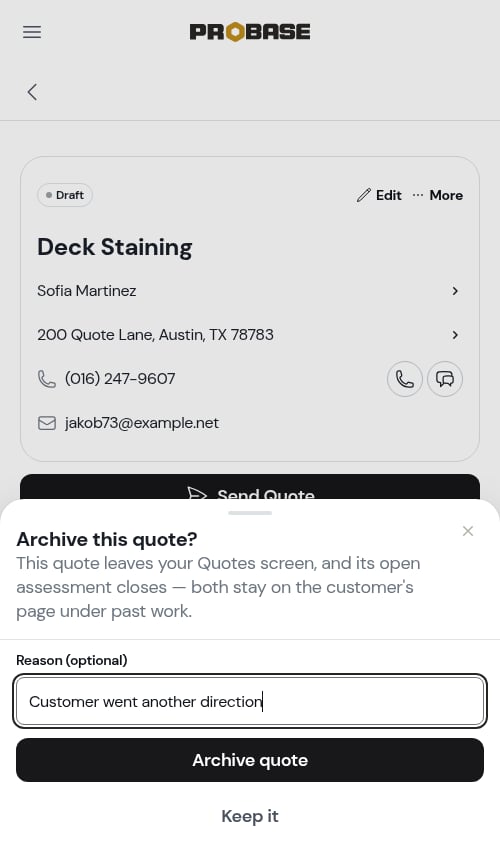
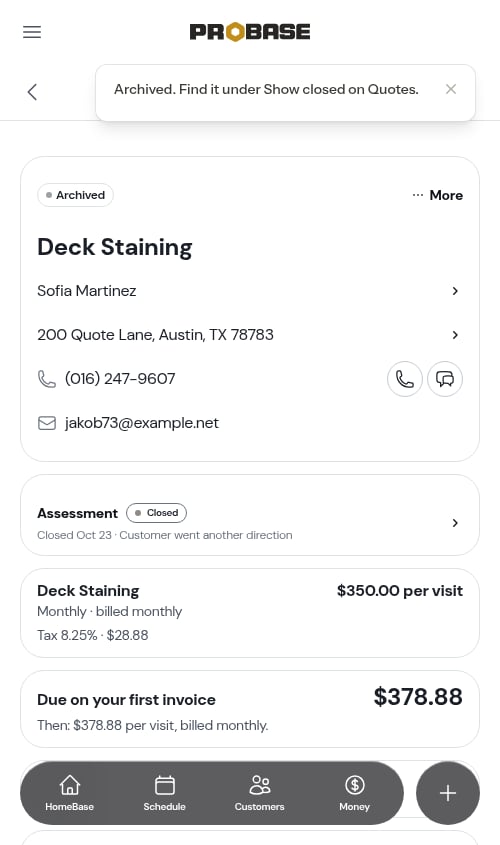
Archiving files a quote away without pretending the customer answered. Open More and choose Archive.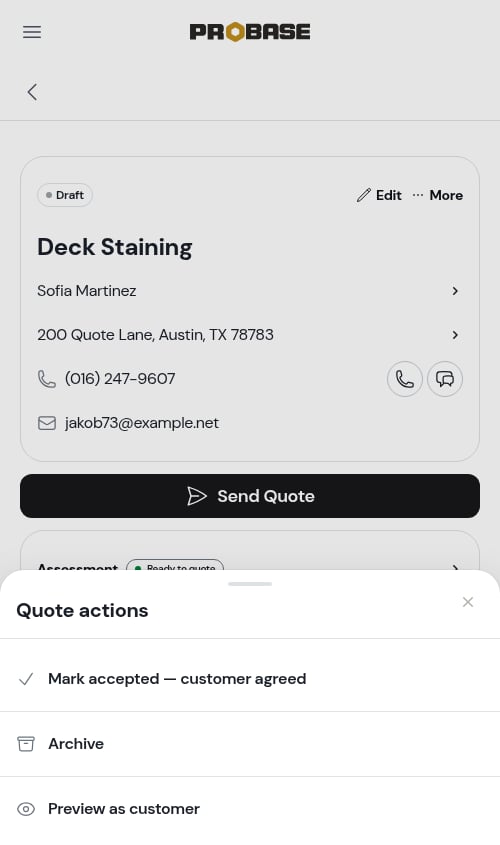
Quote statuses
Expired isn’t a status you set — ProBase works it out from the valid-until date. Extend the date (or revise the quote) and it’s live again.
Best practices
Write the message. The line at the top of the quote is the one thing the customer reads before the numbers. Use it to say why this option. Set a realistic valid-until date. It creates a natural reason to follow up, and protects you when your own costs move. Record the answer, however it arrives. Marking a quote accepted or declined keeps the Quotes screen honest and your history worth reading. Revise rather than rebuild. A declined quote that comes back to life keeps its whole story attached.Next steps
- Creating quotes — build the quote and price the work
- Working assessments — when you need a look first
- Managing services — the job a quote becomes
- Creating appointments — schedule the work