What this is
Scheduled appointments can sometimes land on your calendar without a crew picked — for example when you reschedule a visit without choosing one, or when an older appointment didn’t get assigned for some reason. ProBase flags these so they don’t sit on the schedule unassigned.On single-crew teams, brand-new appointments are auto-assigned to your only crew, so this card is usually empty. It appears when an appointment has slipped through without a crew — most commonly on multi-crew teams.
Finding jobs that need a crew
When jobs on the day you’re planning have no crew, a Jobs with no crew row appears in the Action needed section on HomeBase, with Assign a crew underneath and a count of the jobs waiting. See Plan your day.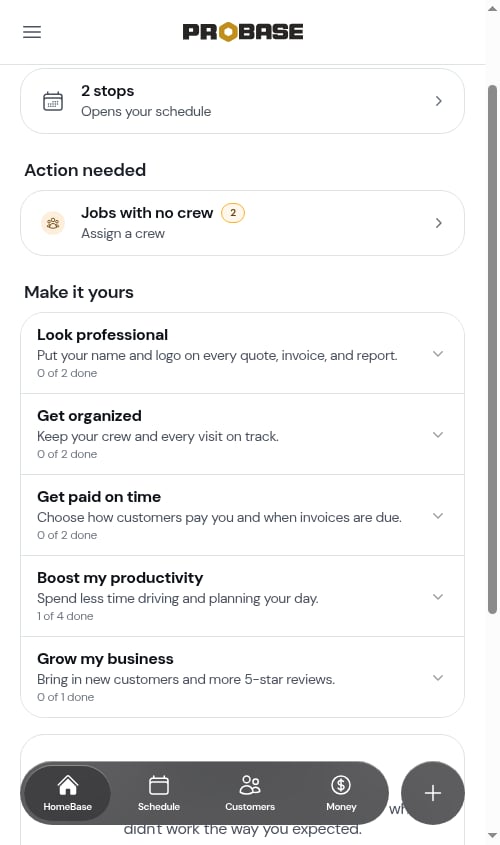
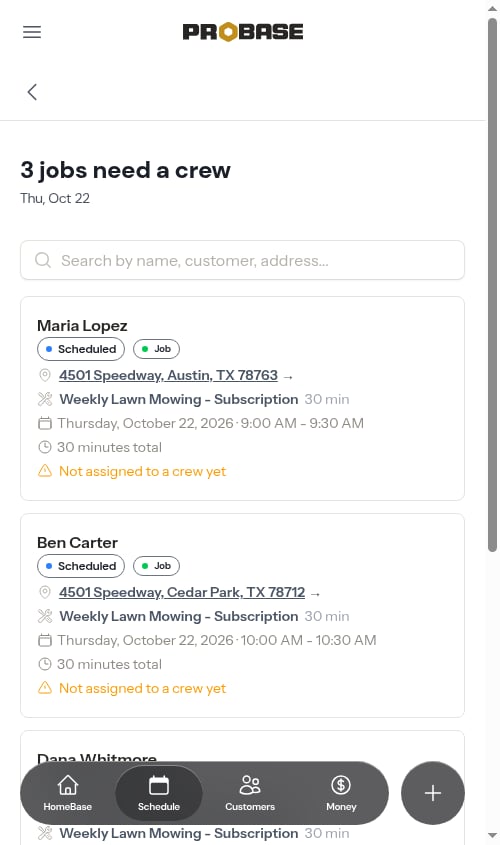
The list page
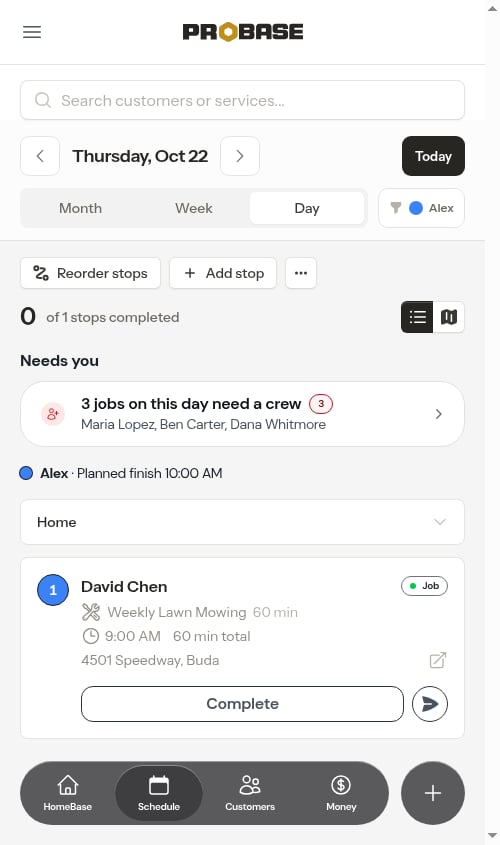
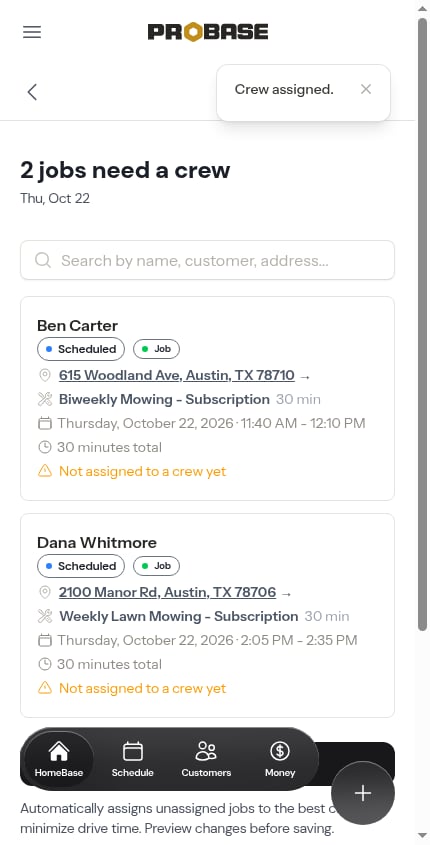
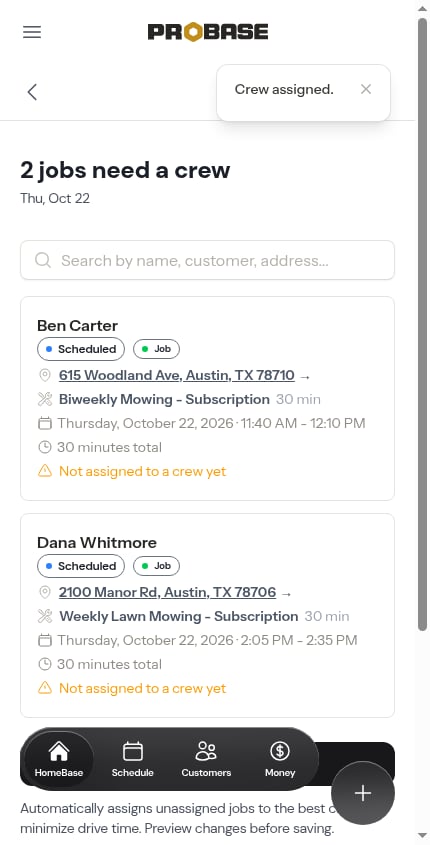
The page comes in two shapes depending on how you got there. Scoped to one day — opened from HomeBase or from the Day view, it lists exactly that day’s jobs with no crew. The count is the heading — “3 jobs need a crew” — with the date underneath.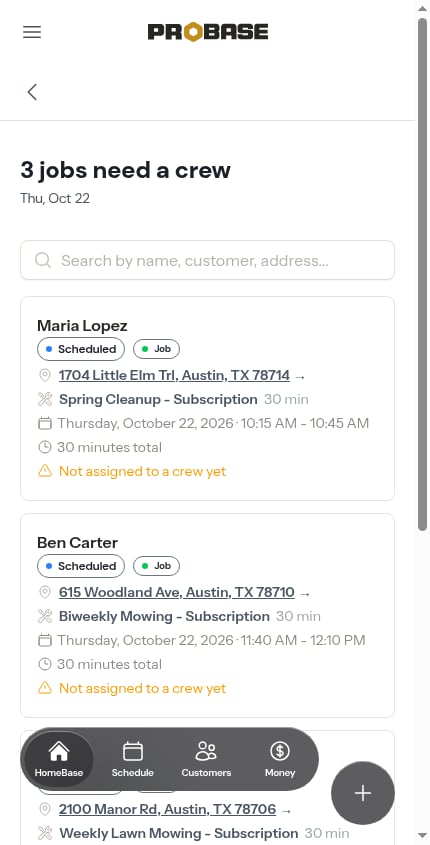
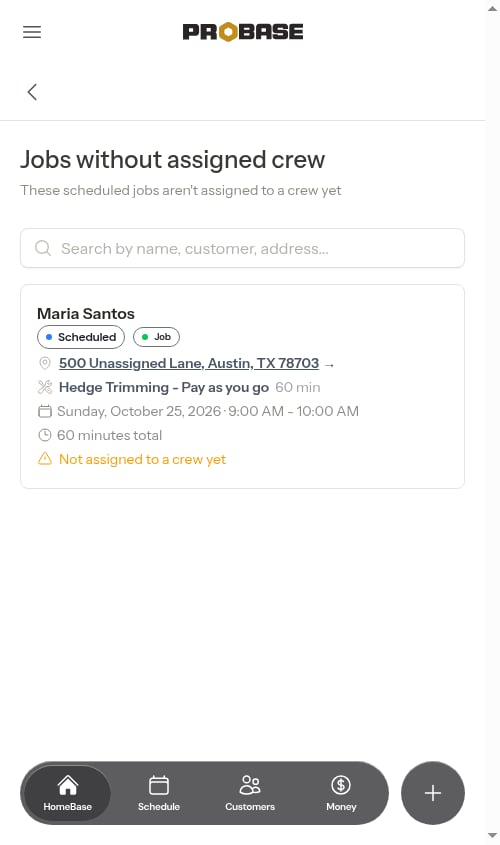
The list focuses on the next 14 days. Because recurring services pre-schedule their whole chain of future visits, this keeps the list to jobs that need a crew soon rather than flooding it with months of far-future visits. Each service shows only its earliest unassigned visit in the window, so you assign a crew once and move on.
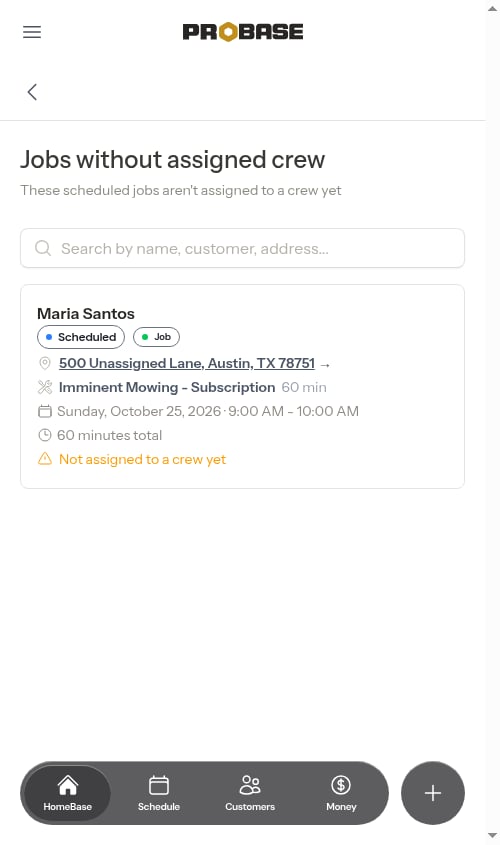
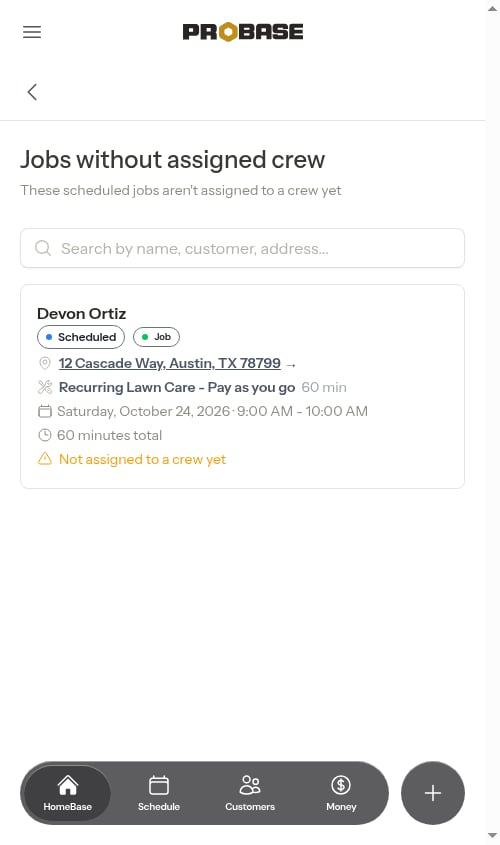
Searching
Use the search bar at the top to filter by service name, customer name, or address.Load more
If you have many unassigned jobs, the list loads 20 at a time. Scroll to the bottom and the next batch loads automatically.Assigning a crew from the list
Tap any job card to open the Assign a crew sheet right there — no need to navigate to the appointment detail page first.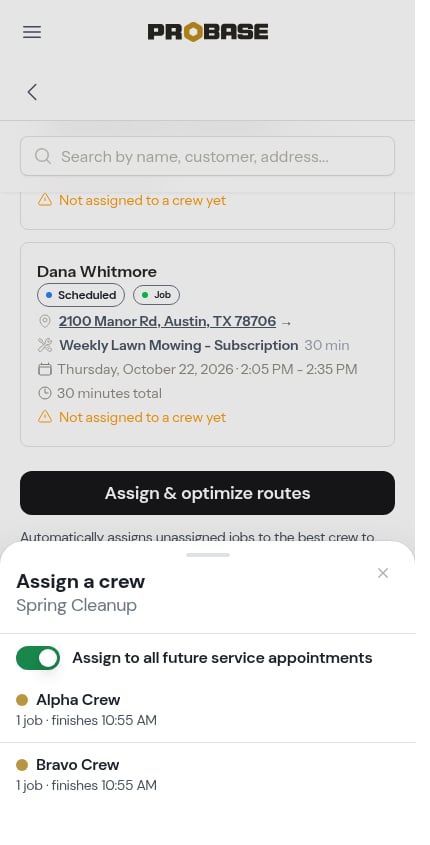
1
Decide how far the assignment reaches
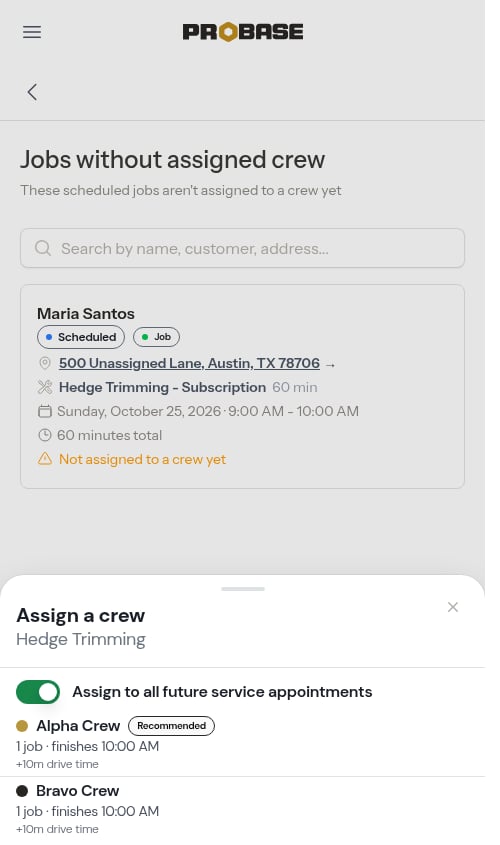
Assign to all future service appointments sits at the top of the sheet. ProBase sets it for you based on the job:
- The visit has no crew yet — it’s on, so the whole recurring chain gets the crew at once.
- The visit already has a crew and you’re moving it — it’s off, and a line explains: “Moving this visit does not change the crew on its later visits.”
2
Read the crew rows
Each row shows the crew’s colour dot, its name, and a line describing that crew’s day with this visit added — for example “6 jobs · finishes 4:40 PM”, or “9 jobs · finishes 5:20 PM — 20 min over working hours” when it would push the crew past its end time.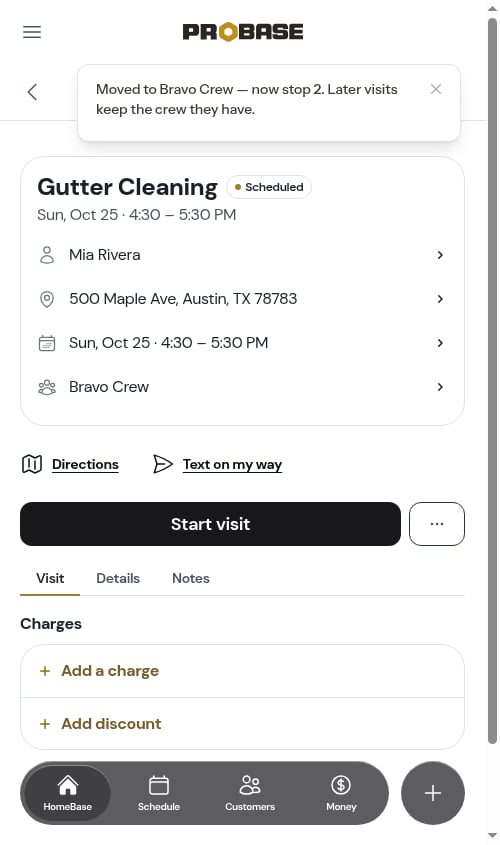
3
Tap the crew
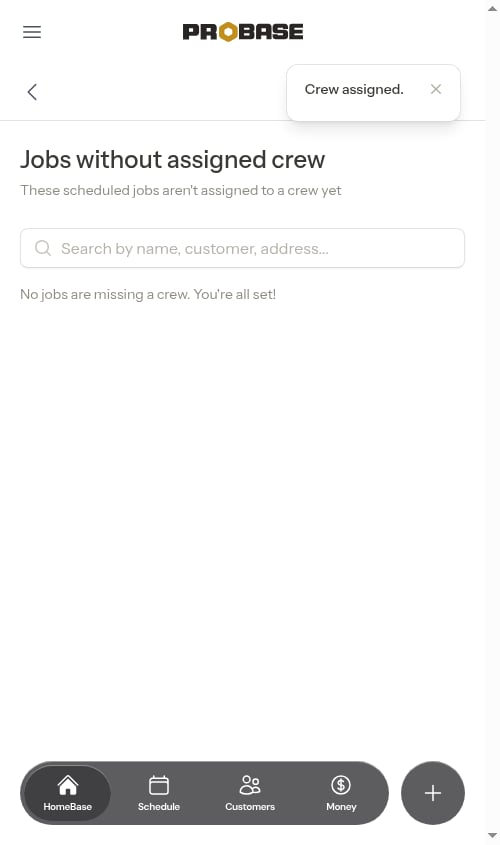
The job is assigned, a Crew assigned. confirmation appears, the sheet closes, and the appointment drops off the list.With Assign to all future service appointments left on, the whole recurring service clears at once — the row is gone straight away rather than reappearing with the next visit in the chain: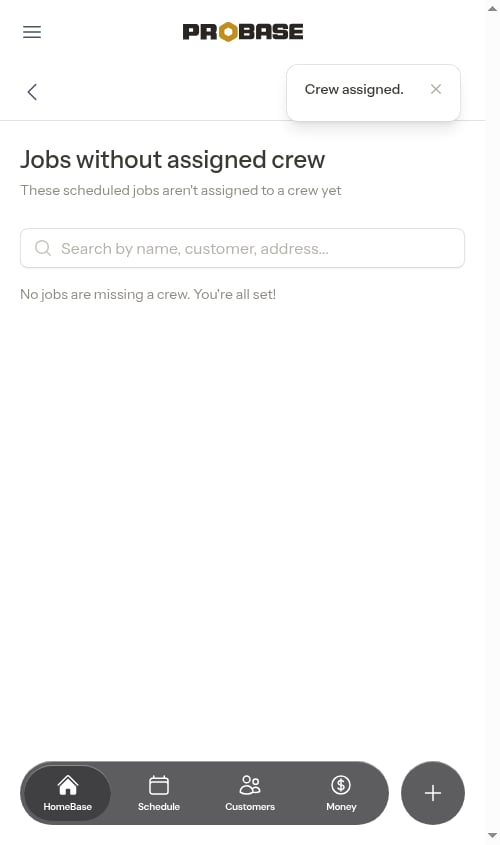
Assign and optimize in one pass
When the list is scoped to a day, a button sits beneath it: Assign & optimize routes.Automatically assigns unassigned jobs to the best crew to minimize drive time. Preview changes before saving. Applies to today’s schedule only. Future jobs remain unchanged.
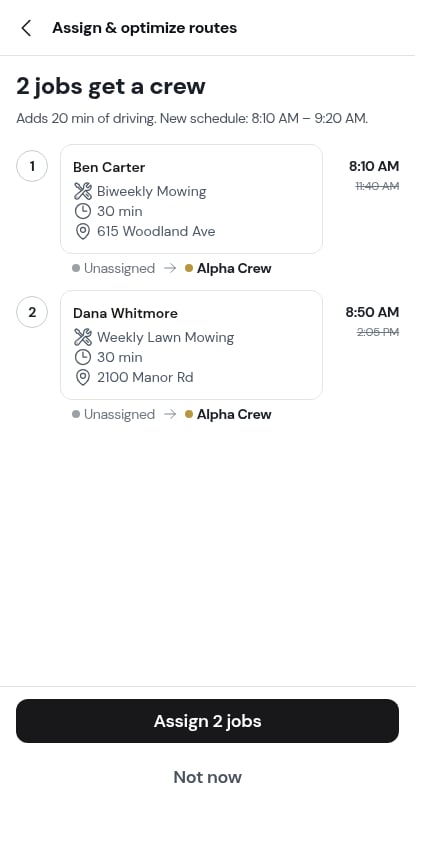
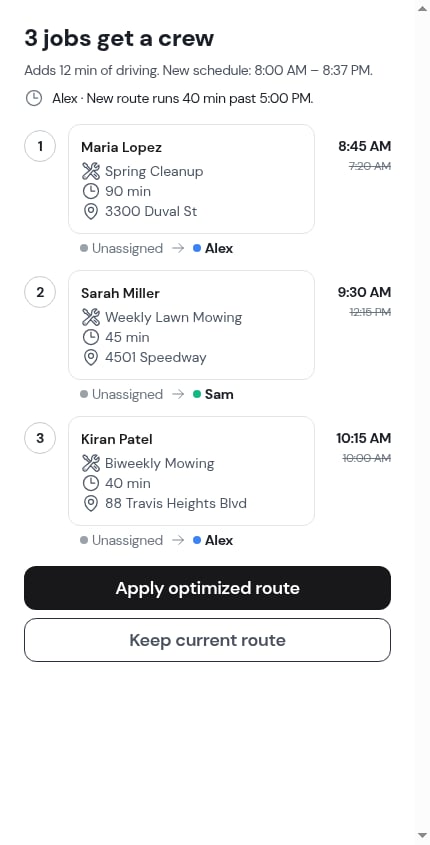
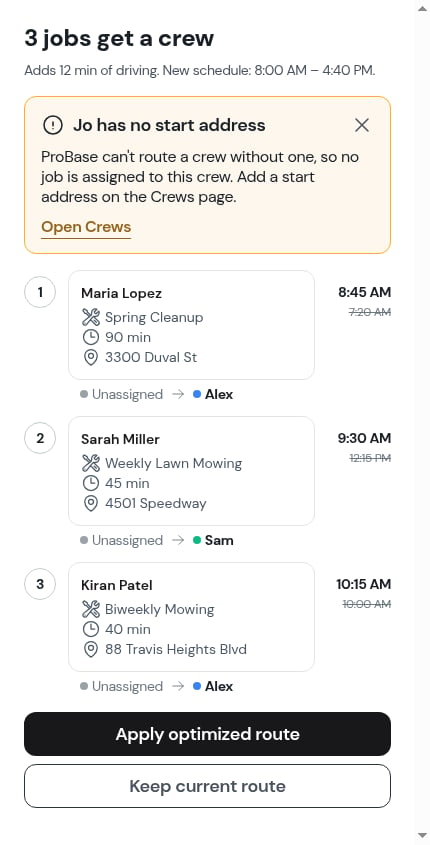
- Assign 2 jobs writes the change. The confirmation counts what got covered — “2 jobs assigned. Undo before you start your first stop.”
- Not now closes the preview and writes nothing.
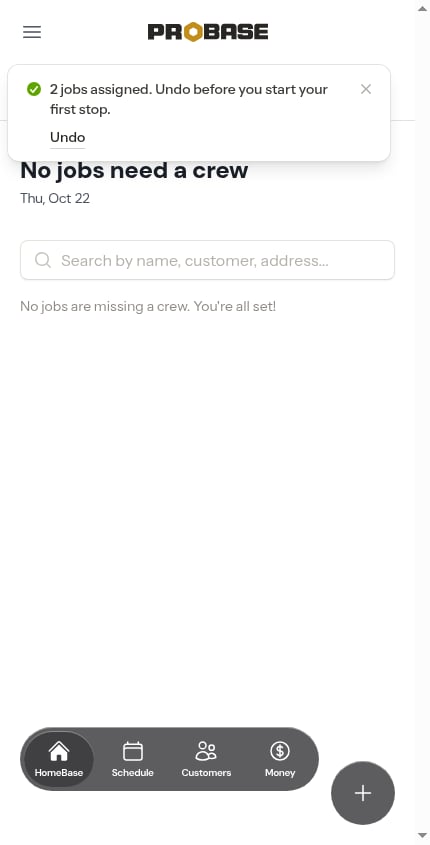
When there’s nothing to assign
The preview says which case you’re in rather than showing a blank screen:The button only appears when the list is scoped to a day, your team has more than one crew, there’s something to assign, and your role can plan routes. It never touches other days — a recurring job’s later visits keep the crew they have.
Other places to assign a crew
The same Assign a crew sheet is reachable from a few other places when you’d rather work appointment-by-appointment:- The visit page — the crew row on the visit’s header card opens the sheet, and ⋯ More → Move to another crew does the same thing. See Assign or change the crew.
- The day list — a stop card with no crew carries an amber line you can tap to assign one without leaving the day.
- Overdue jobs list — when your team has more than one crew, overdue cards show the crew row so you can spot unassigned visits at a glance. See Overdue jobs.
- Reschedule modal — pick or change the crew while you reschedule. See Rescheduling appointments.
- Job creation wizard — pick a crew when scheduling the first appointment. See Creating jobs.
- Assessment creation — pick a crew when scheduling the on-site visit. See Creating quotes and assessments.
Next steps
- Plan your day — where HomeBase surfaces this and the rest of the morning’s work
- Adding your crews — Set up multiple crews so appointments can be routed to the right one
- Overdue jobs — Resolve appointments that slipped past their scheduled date
- HomeBase — Your daily command center for field work