Overview
When a customer pays by card online, ProBase can offer them the chance to add a tip on top of the invoice. You decide how that ask looks: three suggested percentages of your choosing, a plain “type any amount” box, or nothing at all. Tipping is a business-wide setting — one choice that applies to every customer and every invoice.Tipping is part of paying by card online — customers only meet it on the invoice link you send them, and only when you’ve connected Stripe. A customer who can only pay you with Venmo, or who pays you in person, is never asked. If someone hands you more than they owe and the extra is a tip, choose Record as tip when you record the payment.
Where to find the setting
Click Payments in the sidebar under Business. Tipping lives in the Invoice Settings card at the bottom of the page, under the Tips dropdown.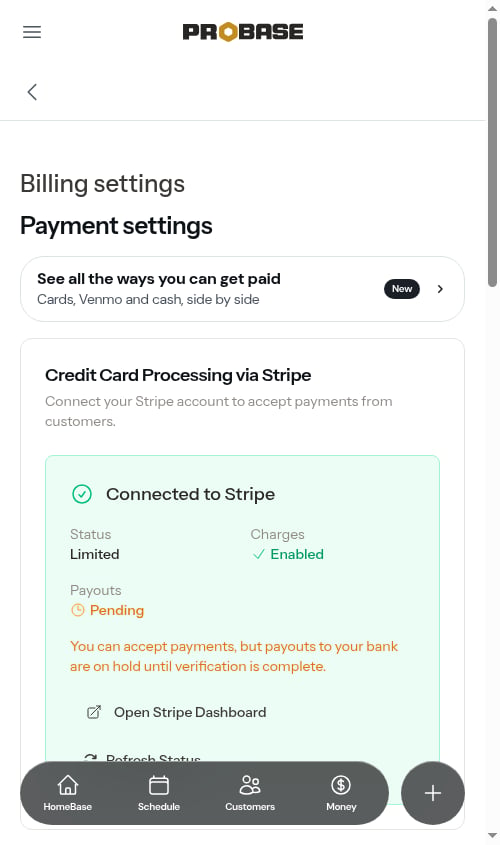
Payments only appears in the sidebar for the Admin role and the business Owner. See Roles and permissions.
The three tipping options
Pick an option and click Save. An Invoice settings updated. toast confirms the change.
Nothing is ever pre-filled as a tip on the review screen — a customer who doesn’t want to tip just leaves the section alone and carries on to payment.
Choosing your suggested percentages
With Suggested percentages selected, a Tip percentages row of three boxes appears underneath.1
Type your three percentages
Enter three whole numbers between 1 and 100 — one per box. They have to be three different numbers.
2
Save
Click Save. The Invoice settings updated. toast appears and your percentages are stored, always ordered lowest to highest.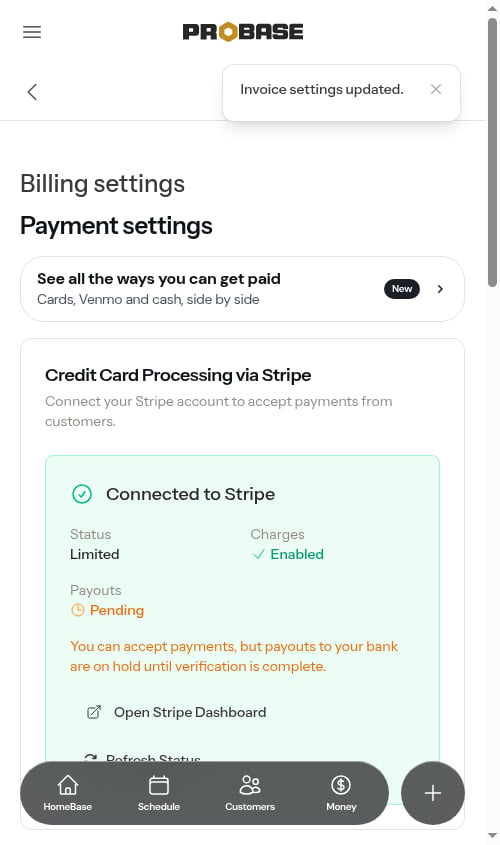
3
Customers see your numbers straight away
The next customer to open a payment link sees exactly the percentages you set, with the dollar amount each one works out to printed underneath.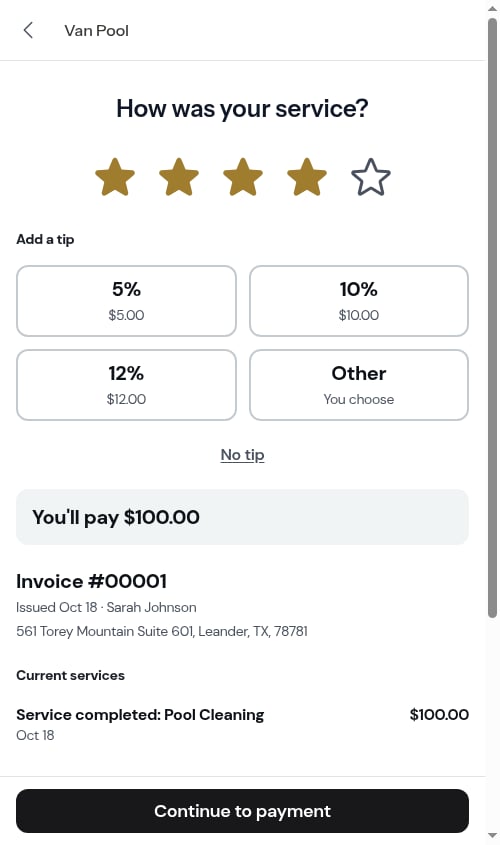
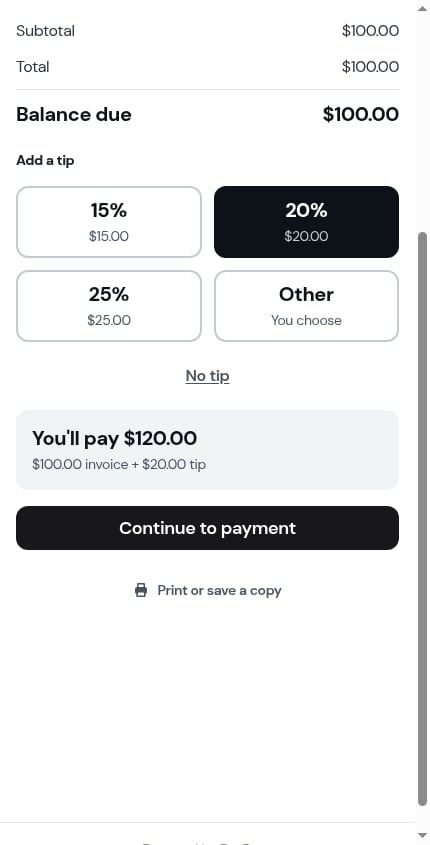
Until you save a set of your own, customers see 15%, 20%, and 25%. Saving once puts your exact three on every customer-facing screen.
Switching to Custom amount only or Don’t ask for tips doesn’t erase your percentages. Switch back to Suggested percentages later and your saved numbers are still there.
Where customers meet the tip question
Which screen asks depends on whether you require a star rating before payment:- Rating required (the default) — the tip is asked on the “How was your service?” screen, appearing right after the customer picks their stars.
- Rating turned off — the invoice page opens on an Add a tip step: your three percentages, an Other button (You choose), and No tip, with a You’ll pay total that updates as the customer chooses. Continue to payment takes them on to pay.
After the tip is paid
A tip becomes its own Tip line on the invoice and its own Tip entry in the customer’s billing history once the payment goes through, so it never gets confused with the service charge. When the customer opens the paid invoice again, it leads with a receipt that splits the two — for example Paid 80.00 invoice + $16.00 tip underneath.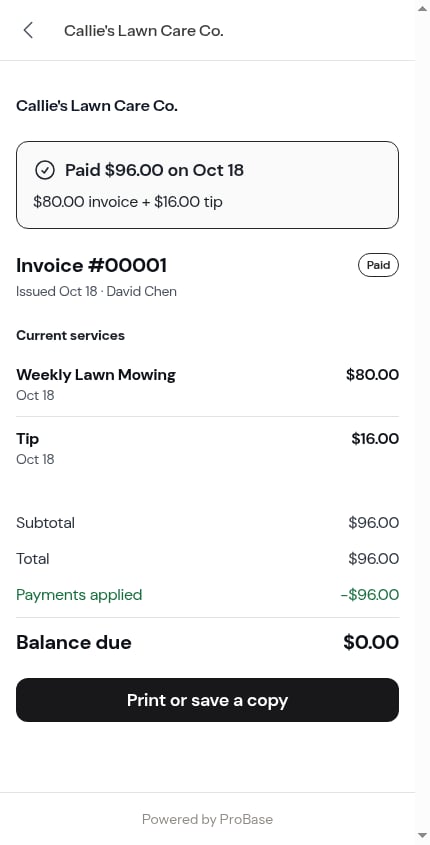
Related
- Service ratings — decides which screen asks for the tip
- Payment terms and due dates — due dates and past-due wording, in the same card
- Customer payment portal — the full customer-side walkthrough
- Recording payments — logging tips paid in cash or by check