What an assessment is for
An assessment is the work you do before you can put a number on a job. Use one to schedule a property visit or request photos so you can price the work accurately. Two things land on your Assessments screen:- Leads from your booking form arrive here automatically, carrying the customer’s own words. See Contact form.
- Assessments you create yourself, from the Assessments screen, the + Quick Actions menu, or a customer’s page.
The Assessments screen
Open Assessments from the navigation drawer. The header shows how many assessments are open, and an Add button starts a new one. Open assessments are grouped by what stage they’re at, newest activity first: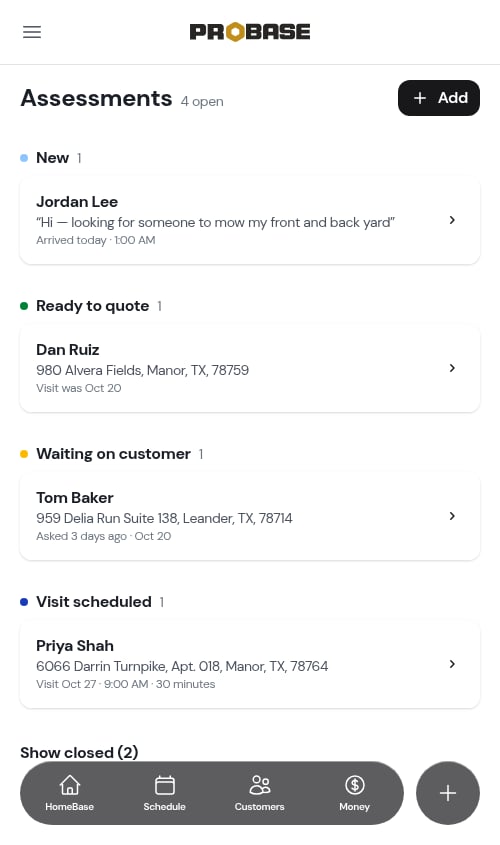
When your list is empty, the screen explains what assessments are for and how leads reach it. Nothing is broken — you just haven’t got any open work waiting on a look.
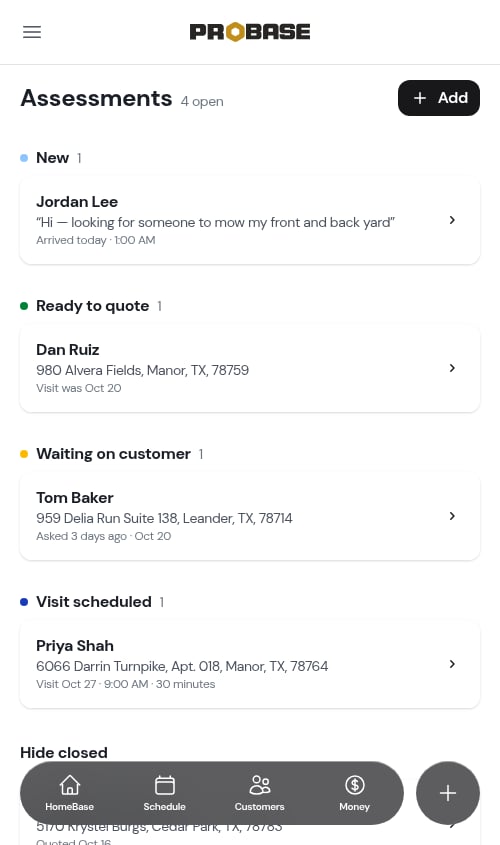
Show closed
Finished assessments live behind the Show closed toggle at the bottom of the screen. They’re one flat list, most recently resolved first, each row wearing its own outcome:- Quoted — you built a quote from it
- Closed — you closed it without quoting (with the reason you typed, if you gave one)
Creating an assessment
Tap Add on the Assessments screen — or New Assessment in the Quick Actions + menu. The flow opens in place over whatever page you were on, so backing out leaves you where you started.1
Who's this for?
Search your customers by name, email, phone, or address, or add a new one. Starting from a customer’s page skips this step.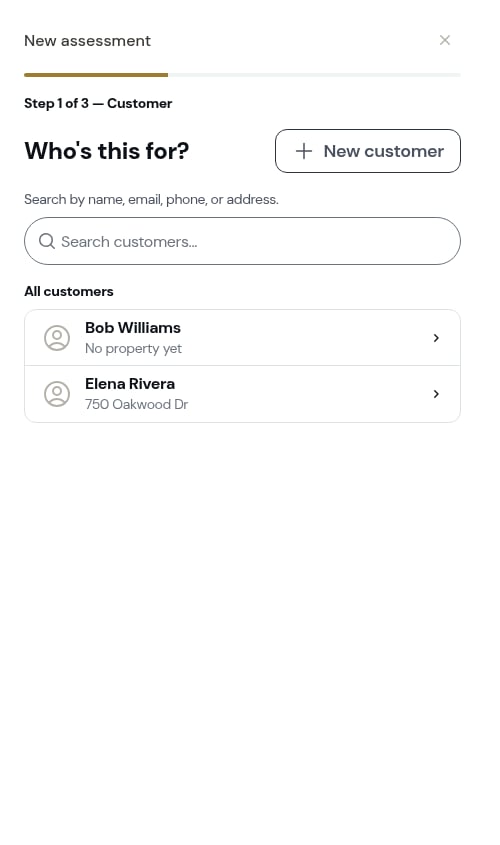
2
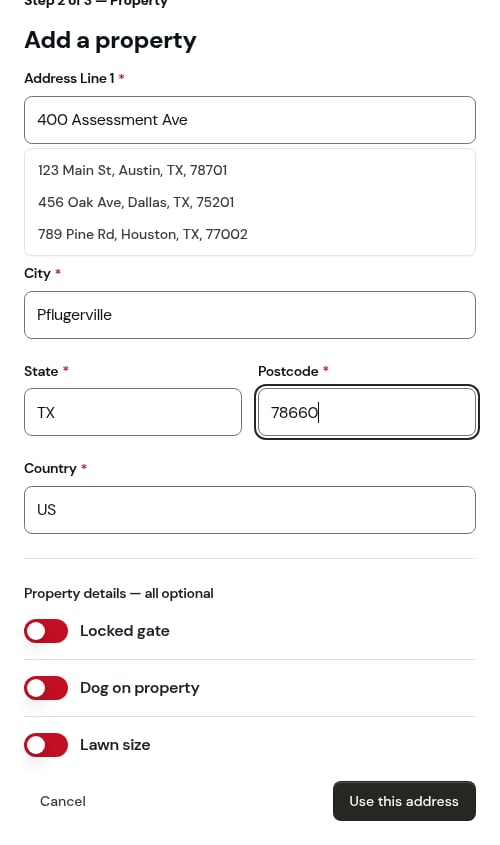
Which property?
Pick the address the work is at, or add a new one. A customer with a single property still gets this step so you can confirm — or add another address.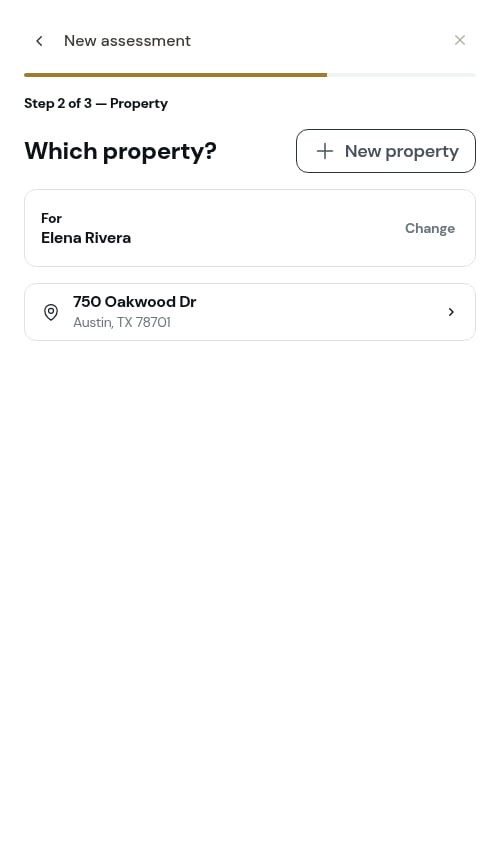
3
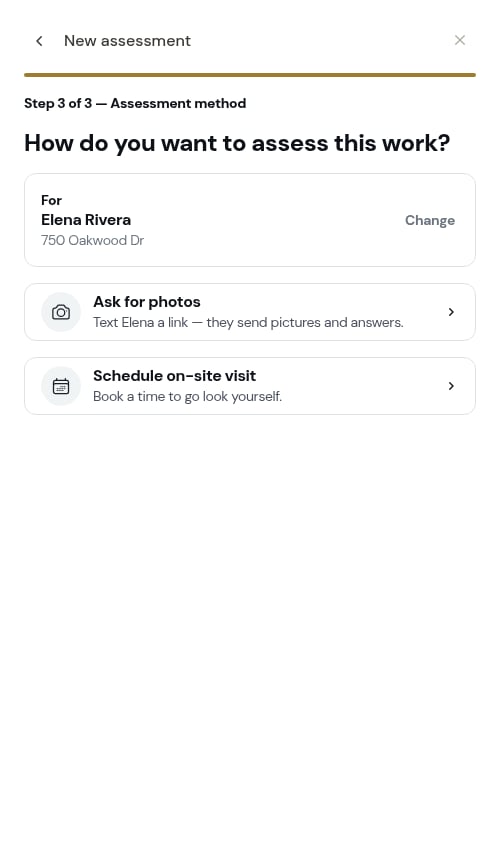
How do you want to assess this work?
Two ways forward, and the one you tap creates the assessment and carries you straight into it:
- Ask for photos — text the customer a link so they can send pictures and answers
-
Schedule on-site visit — book a time to go and look yourself
Asking for photos
Choosing Ask for photos opens the What do you need from them? screen. Type your question — or leave it blank to send the suggested one — and tap Get the link.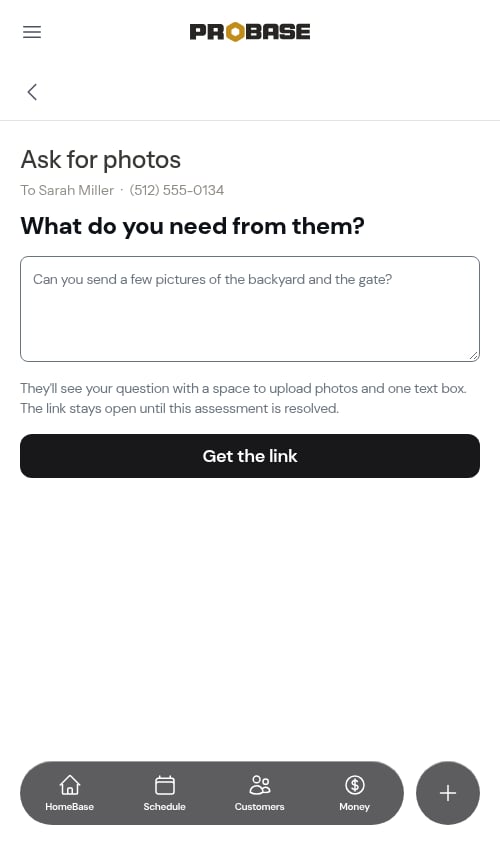
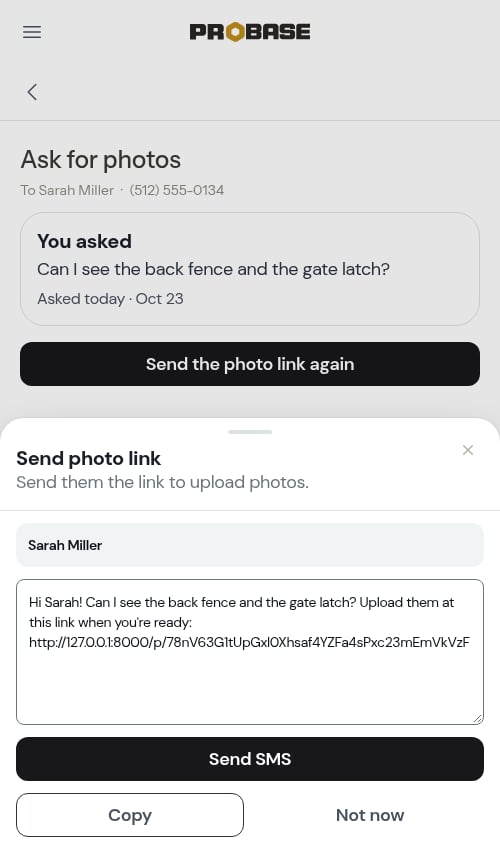
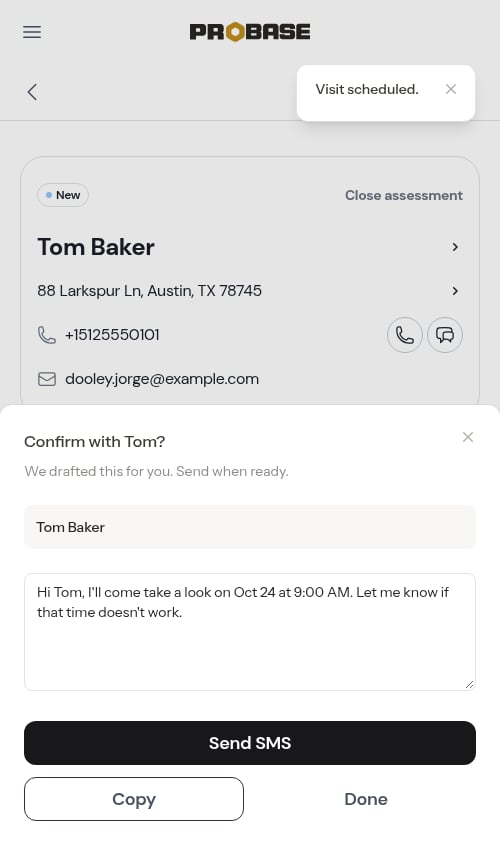
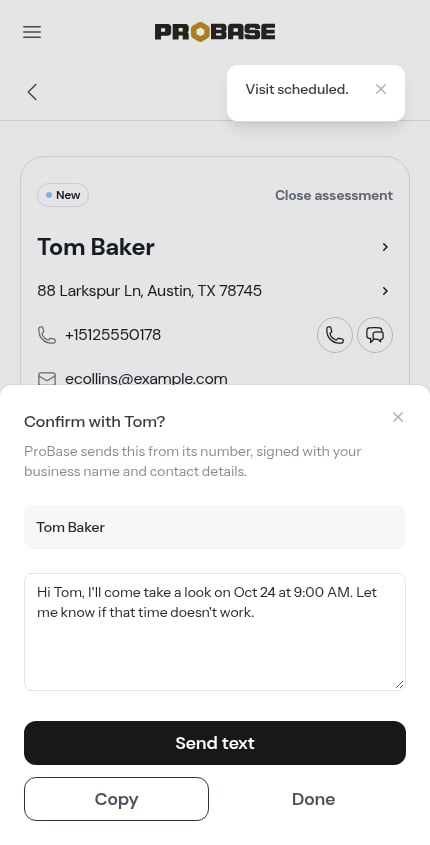
- Send text (or Send SMS, depending on your account) sends the message when a phone number is on file — see Texting your customers
- Copy Message copies it to your clipboard so you can paste it anywhere
What the customer sees
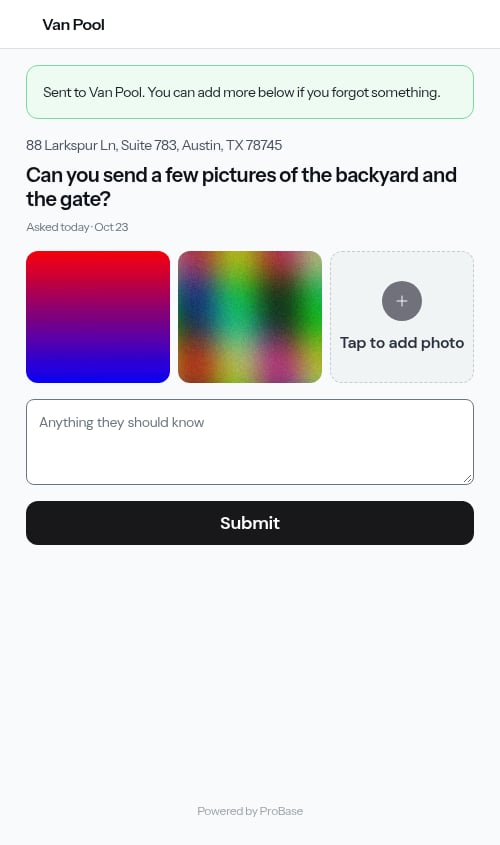
The link opens a single page with your business name at the top, the property address, your question, and a line saying when you asked — Asked today, Asked yesterday, or Asked 4 days ago. There’s no login and no app to install.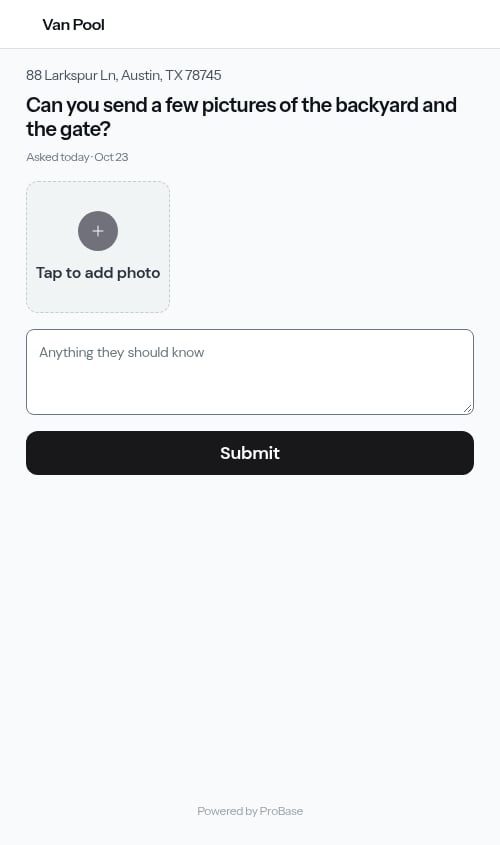
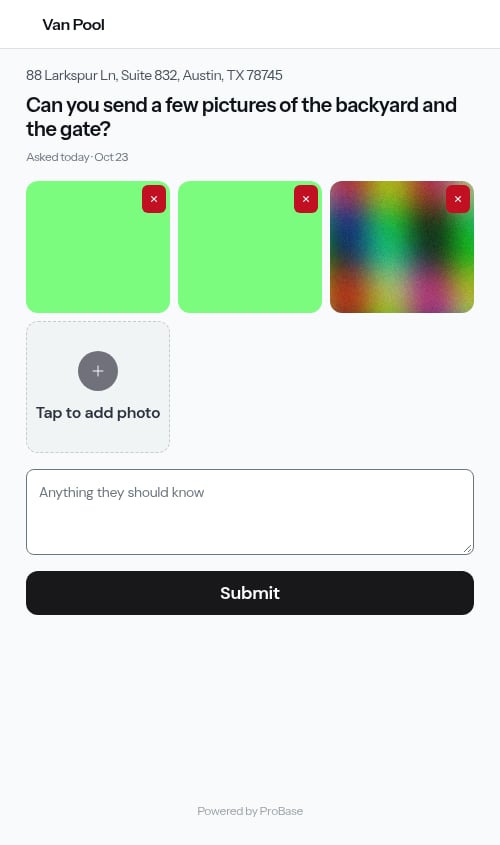
- A Tap to add photo tile — tapping it opens their camera roll, and they can pick several photos at once
- One text box, Anything they should know, for anything they want to type
- A Submit button
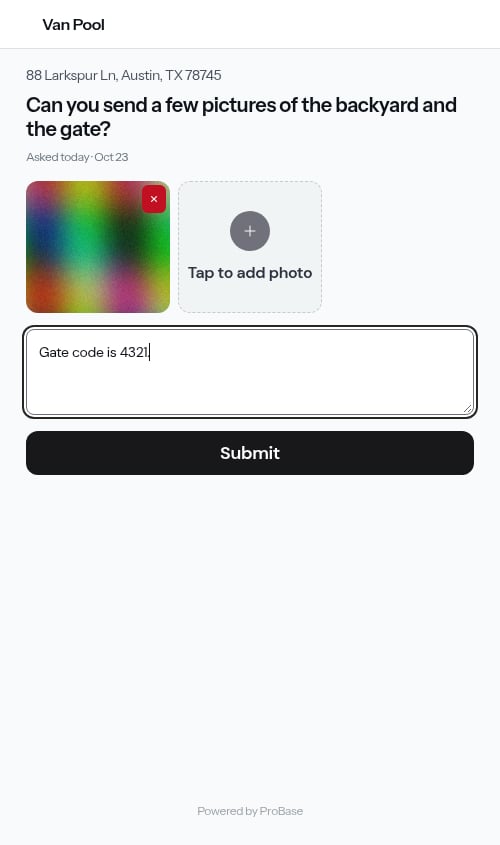
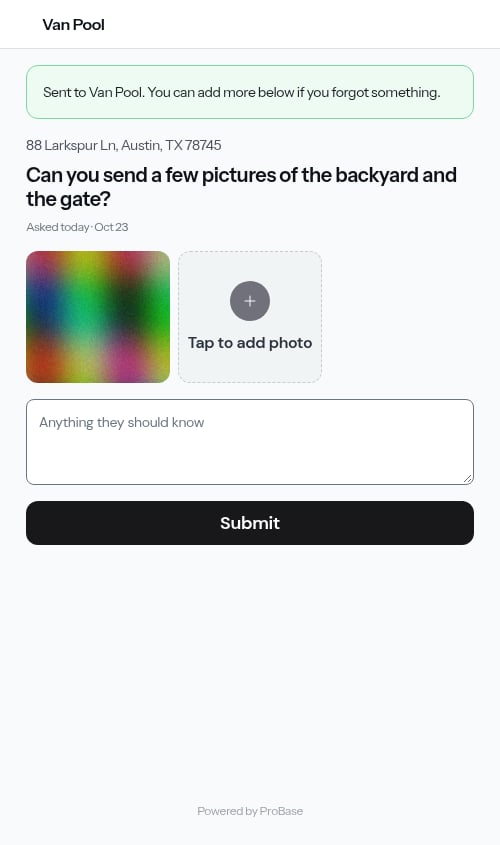
You don’t have to do anything to receive these — there’s no accept step and nothing to download. What they send is on the assessment page the next time you open it.
Customers on an iPhone are usually sending HEIC photos without knowing it. ProBase saves those as ordinary JPEGs, so they open on your phone and your crew’s whatever they’re carrying — see Photos from an iPhone.
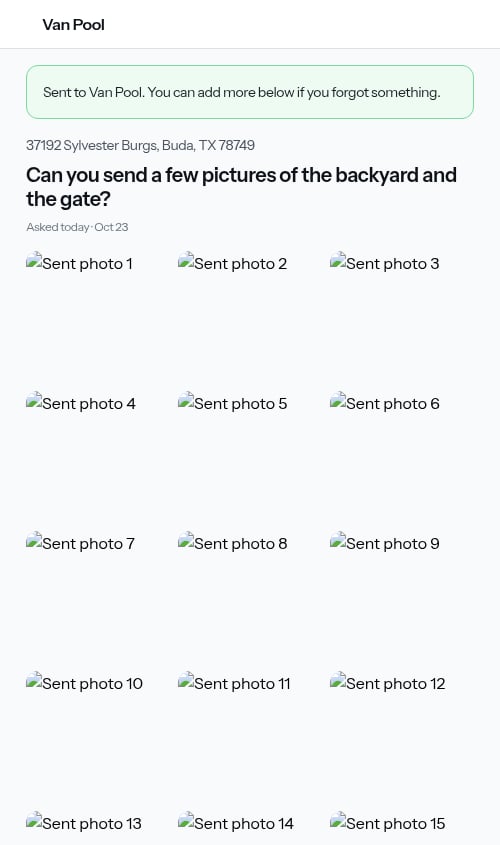
If a staged photo says “Error Loading”
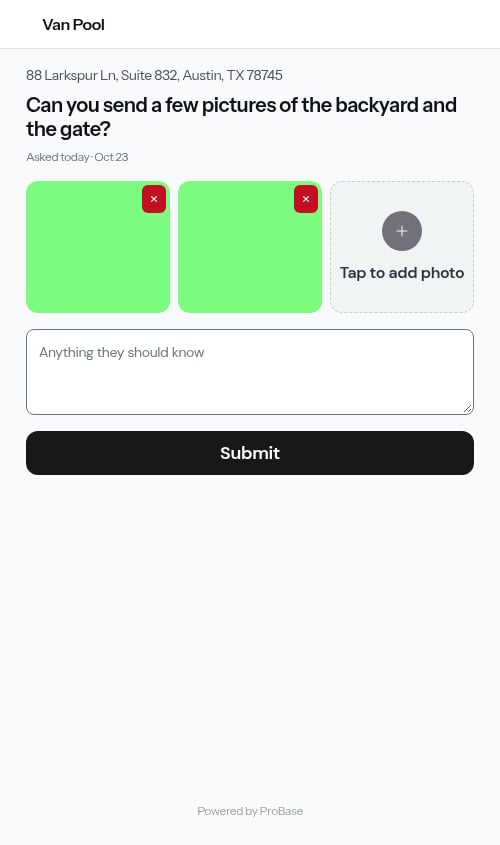
Before a customer taps Submit, the tiles are their own phone or computer previewing the file it picked. Some browsers can’t preview an iPhone HEIC picture, so that tile reads Error Loading instead of showing the photo: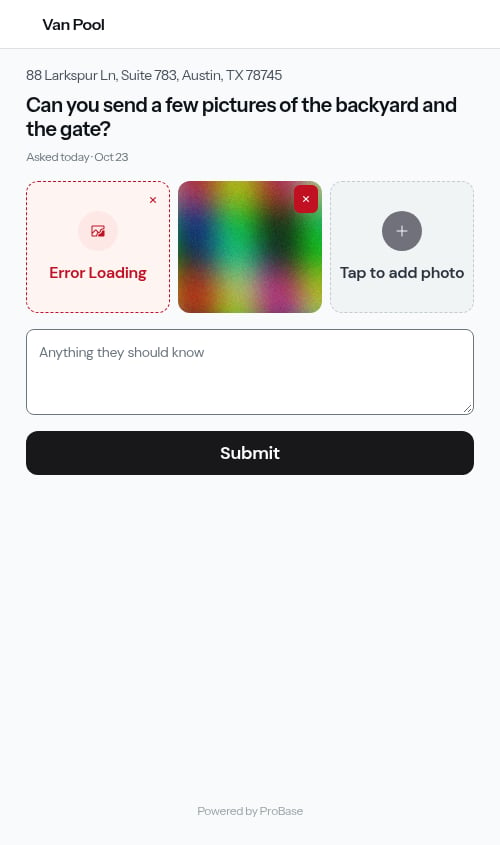
If something goes wrong on their end
The page explains problems in plain language and never loses what they’ve already added: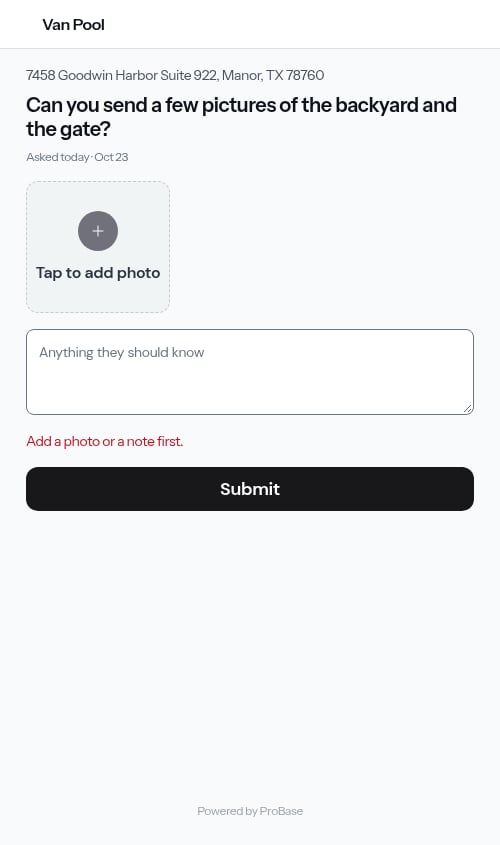
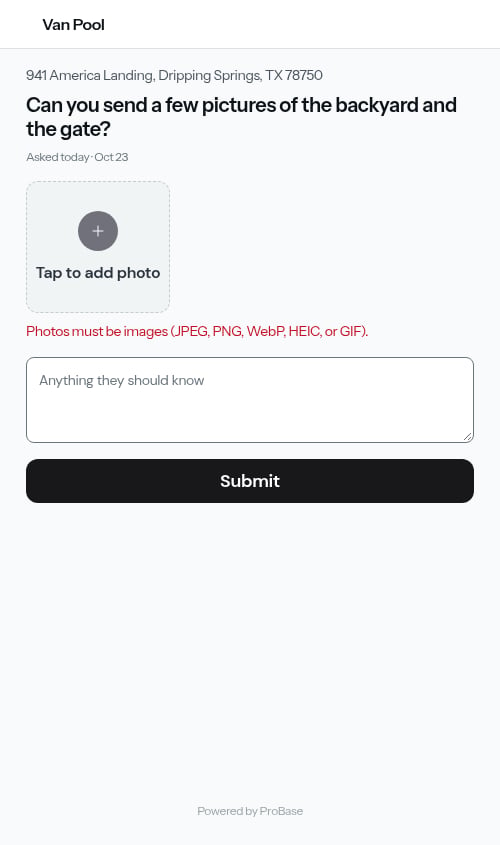
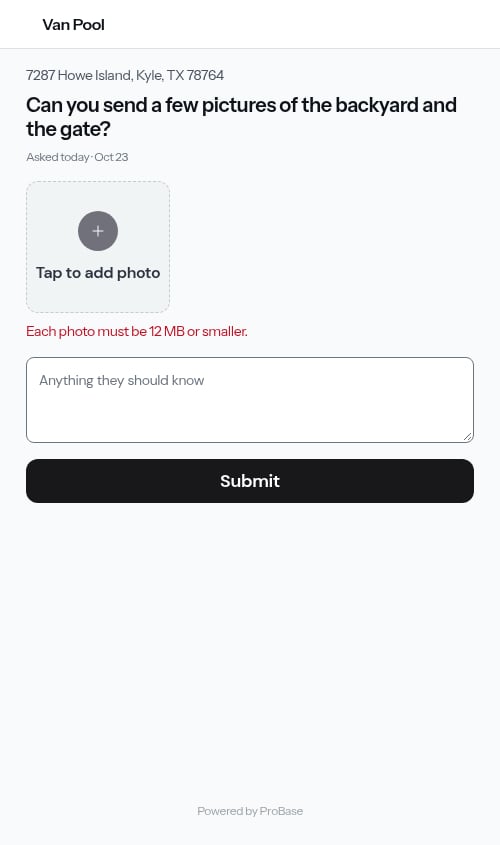
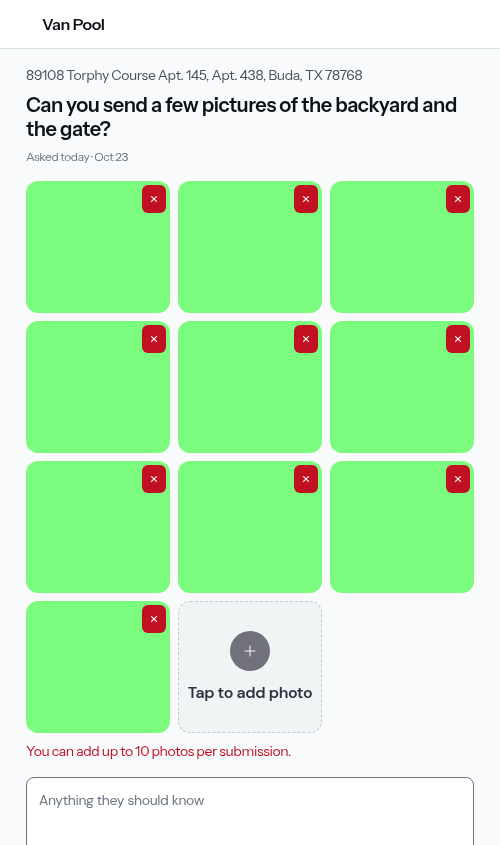
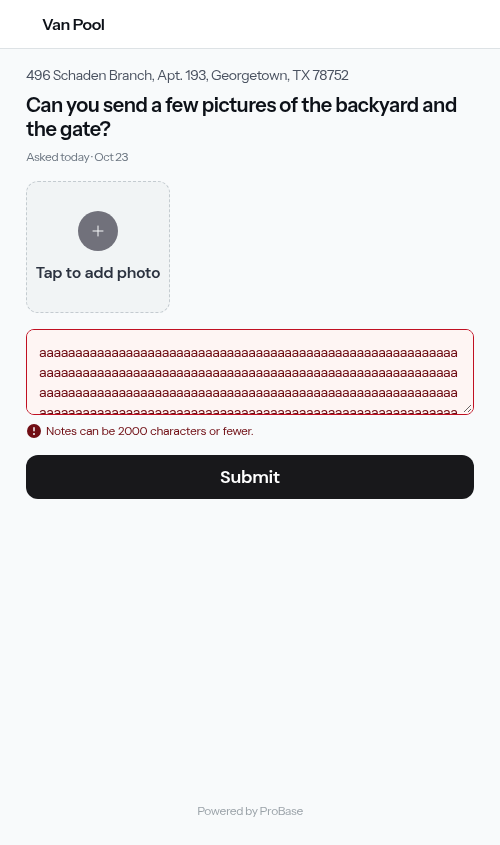
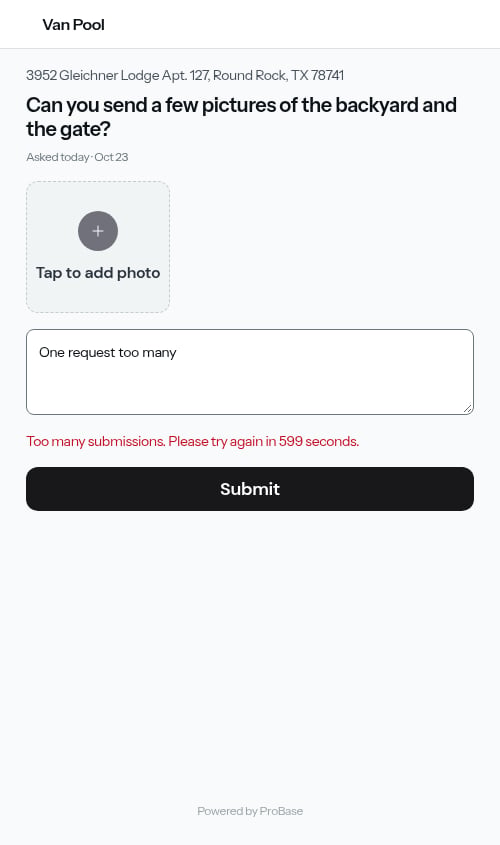
There’s nothing for you to configure here — these limits are built in, and they’re what keeps a public link from being abused. If a customer genuinely can’t get a photo through, ask them to text it to you directly.
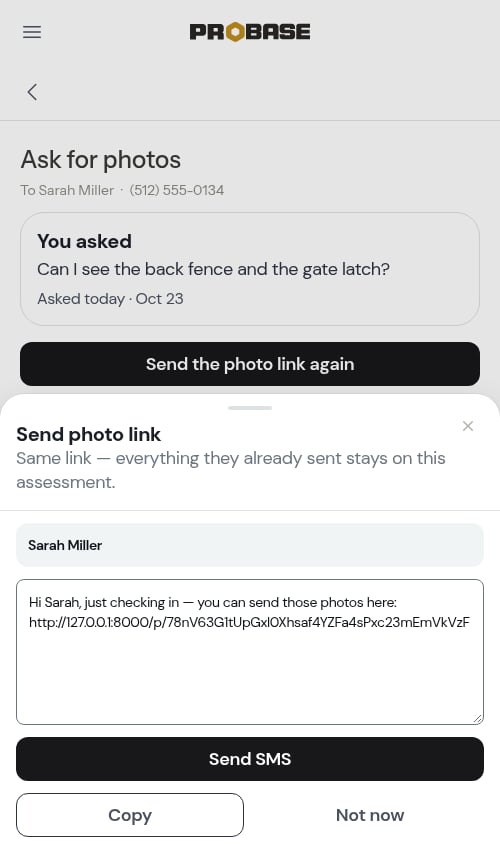
Sending the link again
If they haven’t replied, open the assessment and tap Send the photo link again. It’s the same link and the same question — nothing they already sent is lost.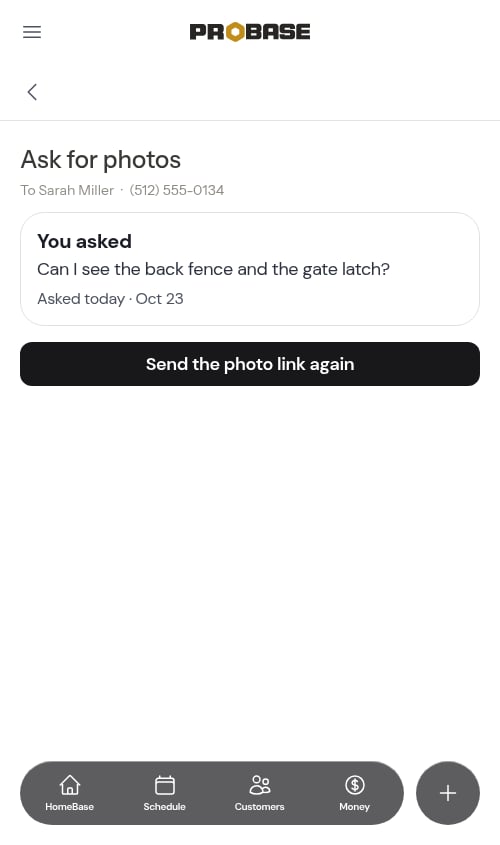
Once you’re done with the assessment
The link stays open while the assessment is live, so the customer can keep adding. As soon as you quote the work or otherwise close the assessment out, the same link stops accepting photos and shows a thank-you instead — “Thanks — [your business] has what they need.” — with your phone number underneath in case they have anything else.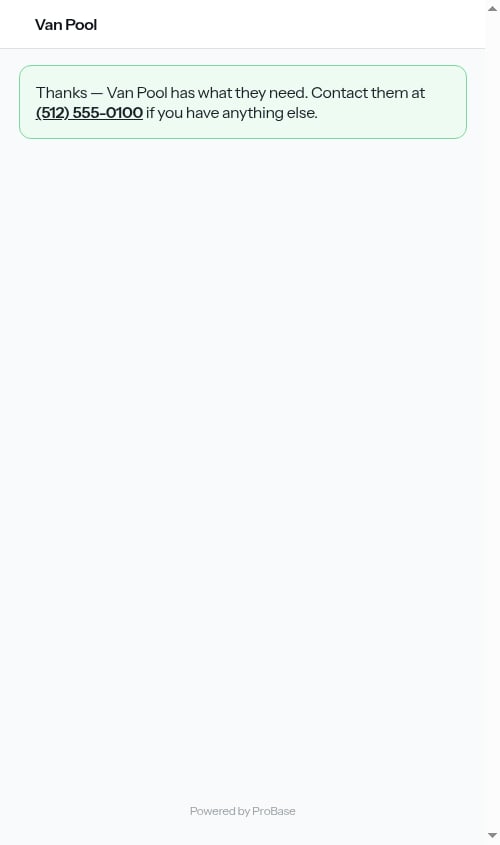
Scheduling an on-site visit
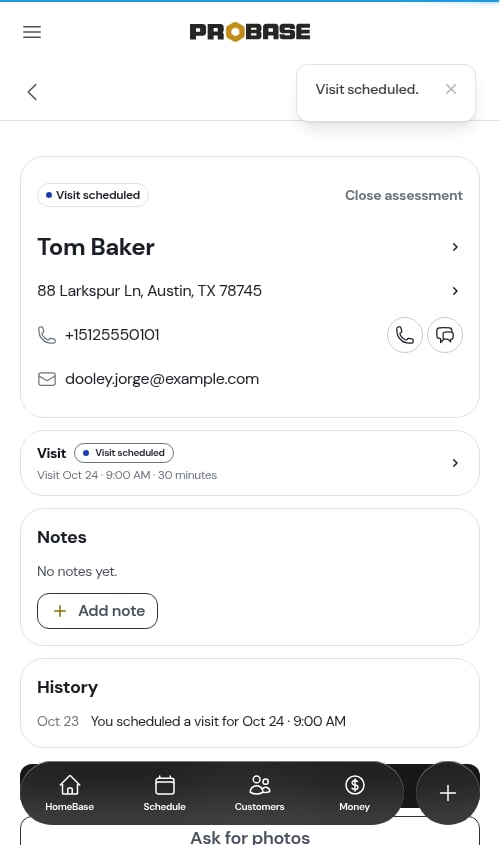
Choosing Schedule on-site visit — or tapping Schedule a visit on an assessment page — opens the When will you go? sheet.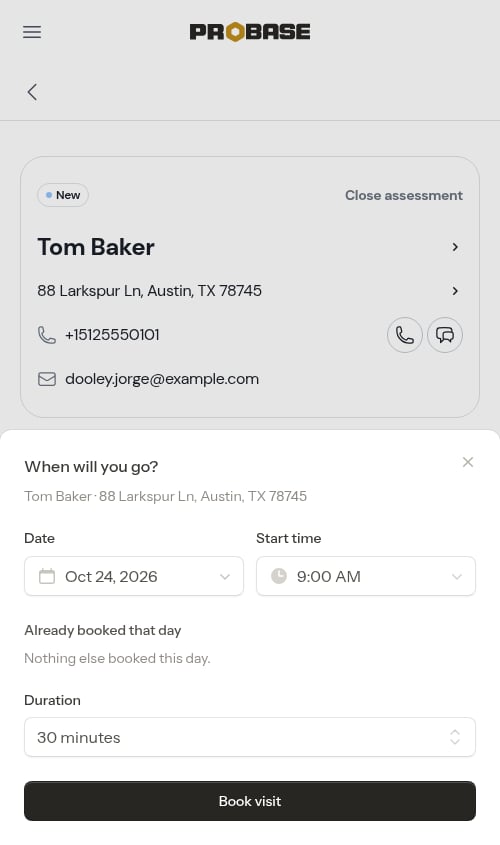
- Date and Start time — the date can be today or later; a day that’s already gone is refused
- Duration — 30, 45, or 60 minutes
- Crew (optional) — only appears when you have more than one crew; leave it Unassigned to decide later
Cancelling a visit
Open the visit’s page from the assessment’s Visit card, tap the outlined ⋯ More button beside the main action and choose Cancel visit. The assessment stays open — the visit card keeps showing so you can see what happened.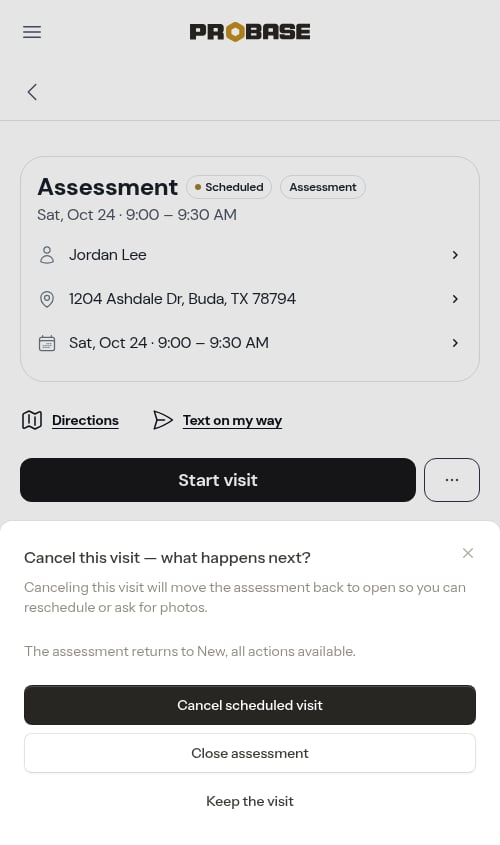
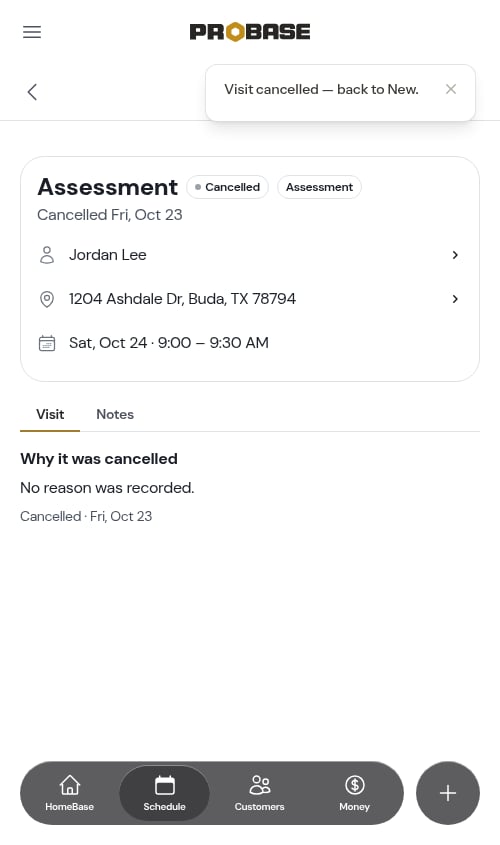
If you’d already started the visit, the clock stops when you cancel and the time you worked stays on the visit — see If the visit is called off while the clock is running.
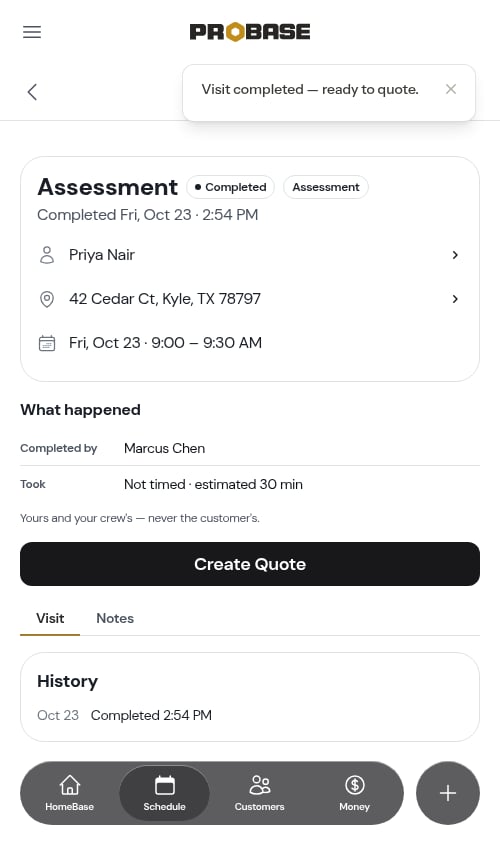
Completing a visit
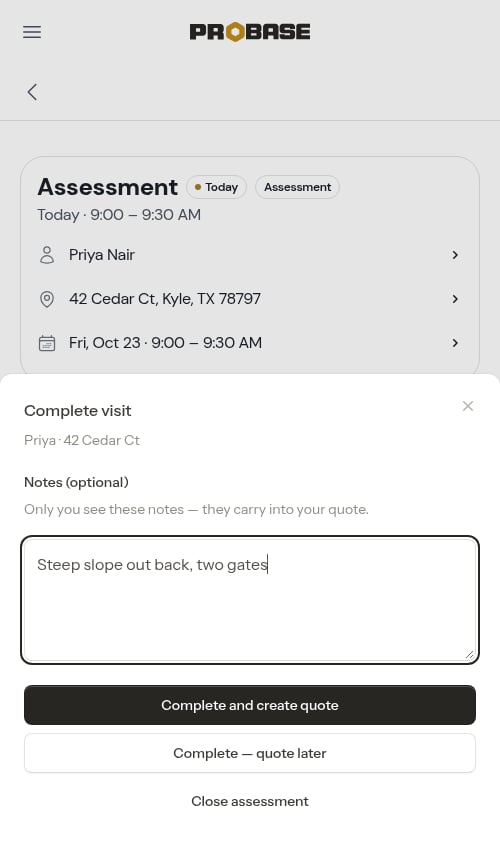
After you’ve been to the property, open the assessment and tap Complete visit. If the visit has a checklist, the checklist step opens first — answer the required questions and tap Continue. Then write what you saw:- Notes (optional) — Only you see these notes — they carry into your quote.
The assessment page
Everything about one assessment lives on its own page, read top to bottom.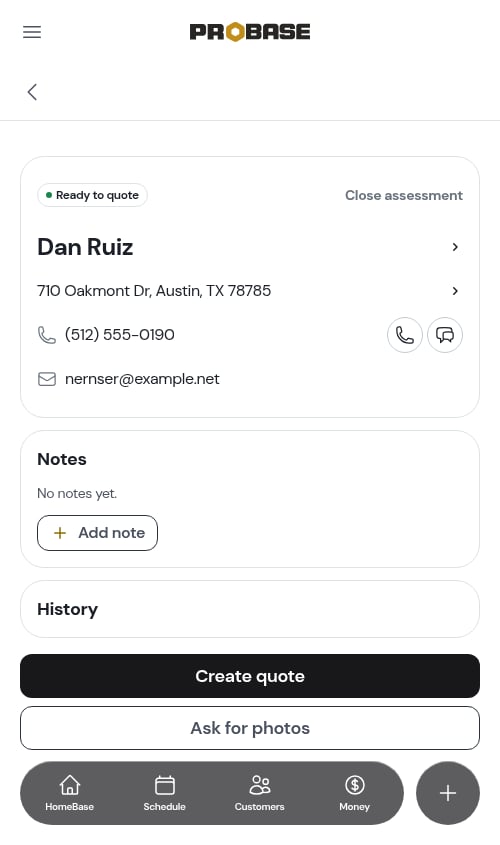
- The lead’s own words — when the assessment came from your booking form, the customer’s message sits above everything else
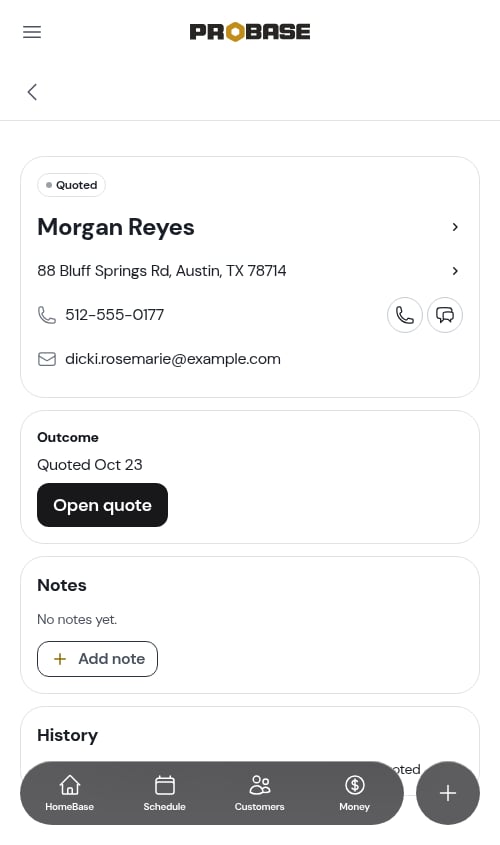
- The header — the current stage as a pill, the customer’s name (tap to open them), the property address, and their phone and email so you can chase without detouring
- You asked — your photo question and when you sent it, while you’re waiting on a reply
- Visit — the visit’s date, time, duration, crew, and status; tap through to the appointment page
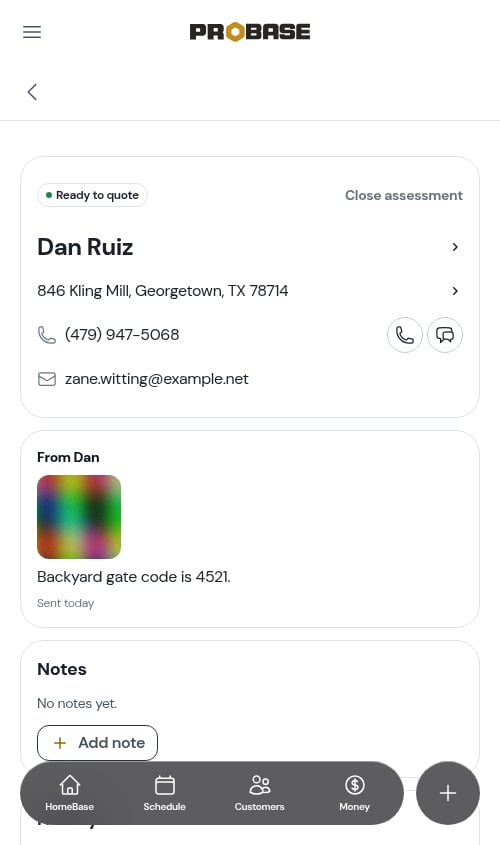
- From [their name] — the customer’s answer and photos
- Outcome — on a resolved assessment: what it became, and when
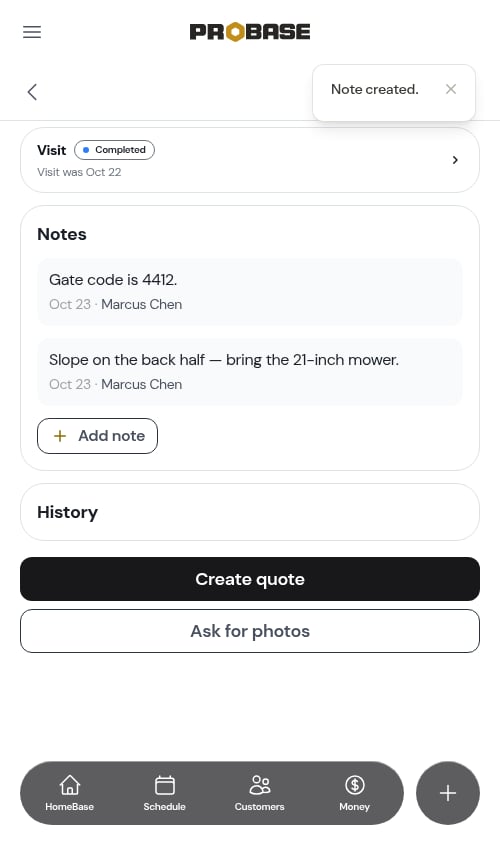
- Notes — your own notes on the assessment, plus any notes written during the visit. Tap Add a note to write one, or a note to edit it
- History — a plain dated list of everything that has happened
- Actions — the buttons that make sense for the stage you’re at
What you can do at each stage
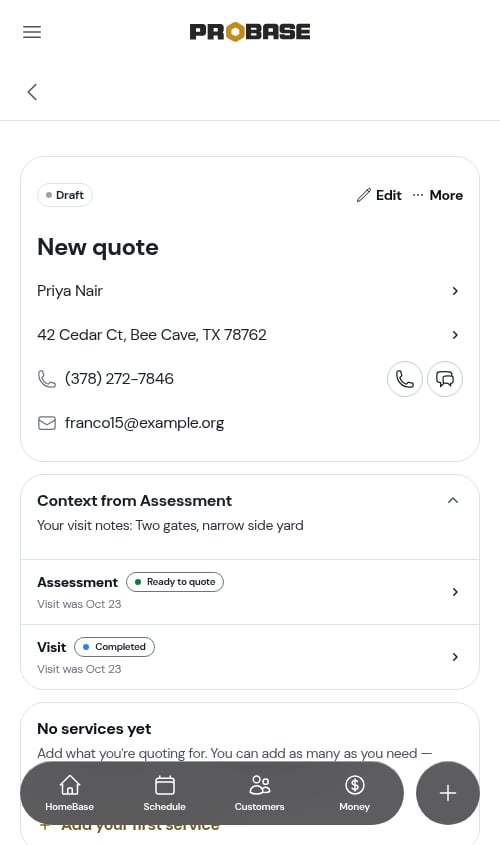
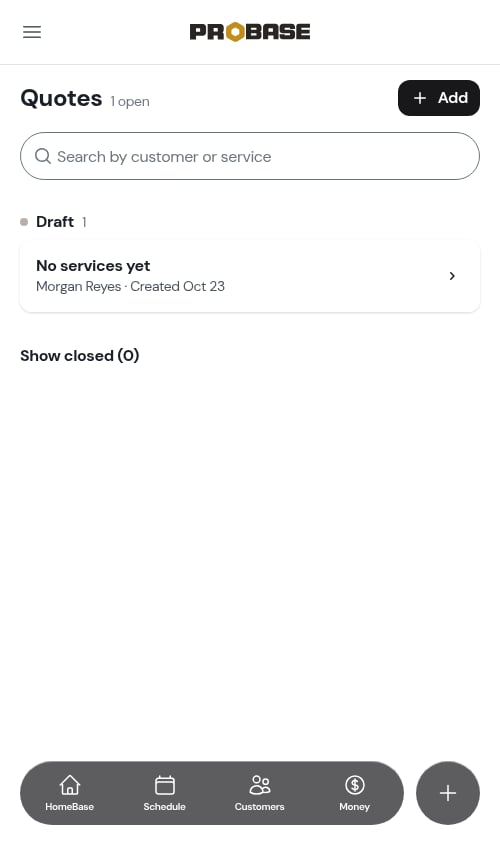
Create quote skips straight to a draft quote — the assessment already knows the customer and the property, so there’s nothing to re-pick. Your notes, the customer’s words, their answer, and the photos all ride along on the quote page while you build it. See Adding services to the quote.
Creating a quote doesn’t close the assessment. It flips to Quoted when the quote is sent.
Closing an assessment
Not every lead becomes work. Tap Close assessment in the header of an open assessment.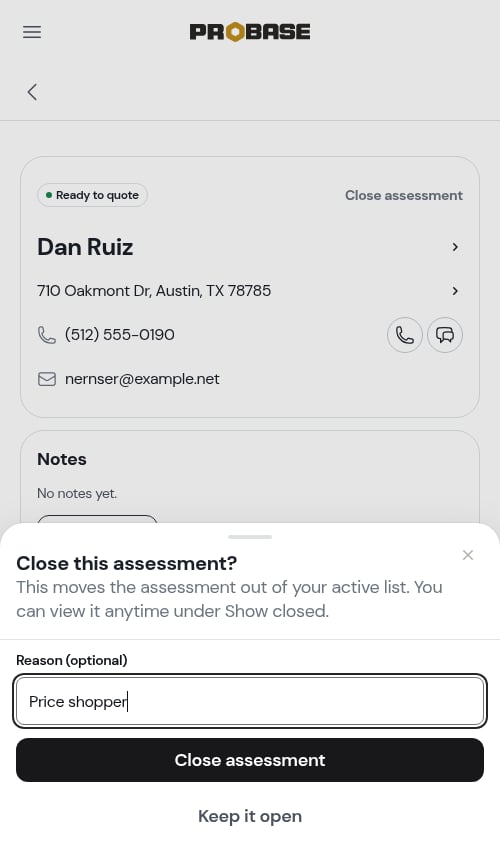
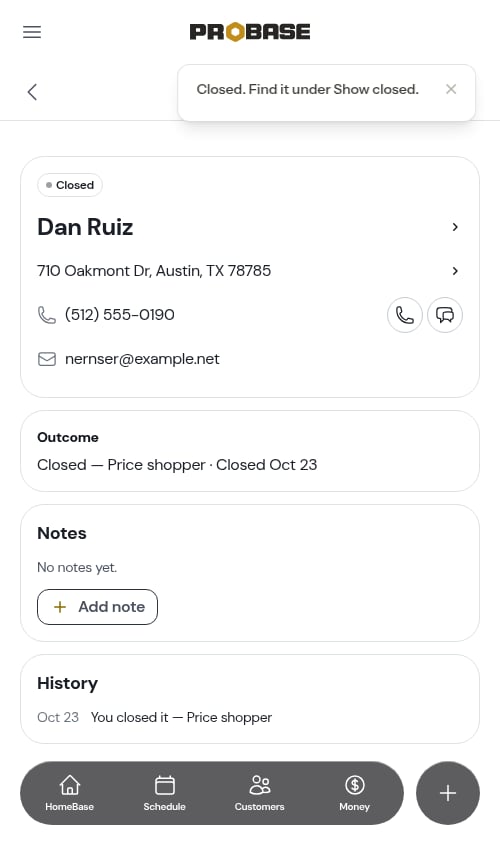
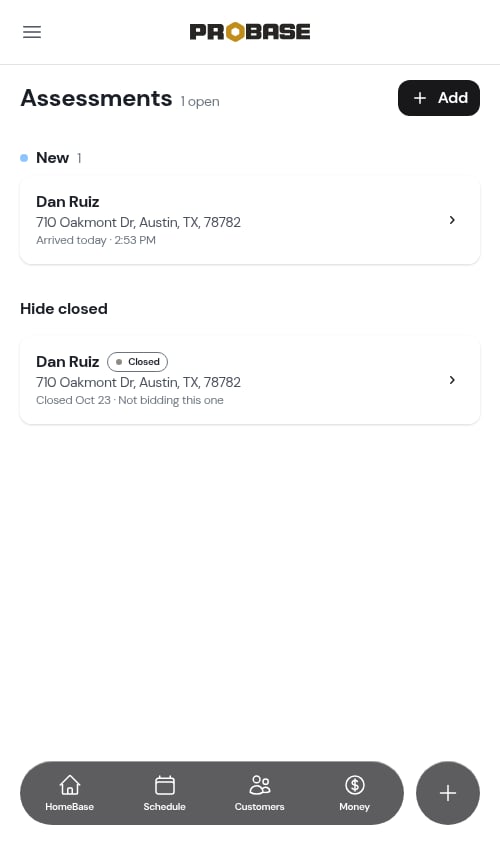
Archiving the customer too
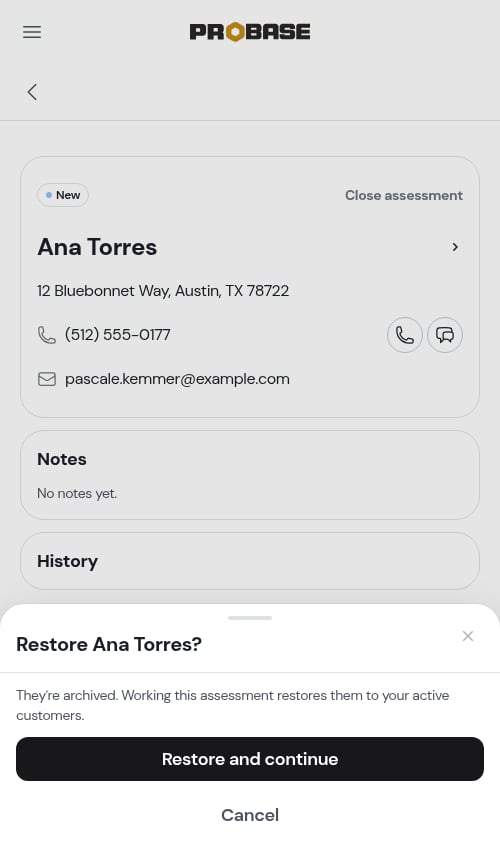
If the person has no active job and no other open assessment, ProBase asks whether to archive them as well. Closing a request isn’t the same as burying a person, so it always asks — Archive [name] or No, keep them.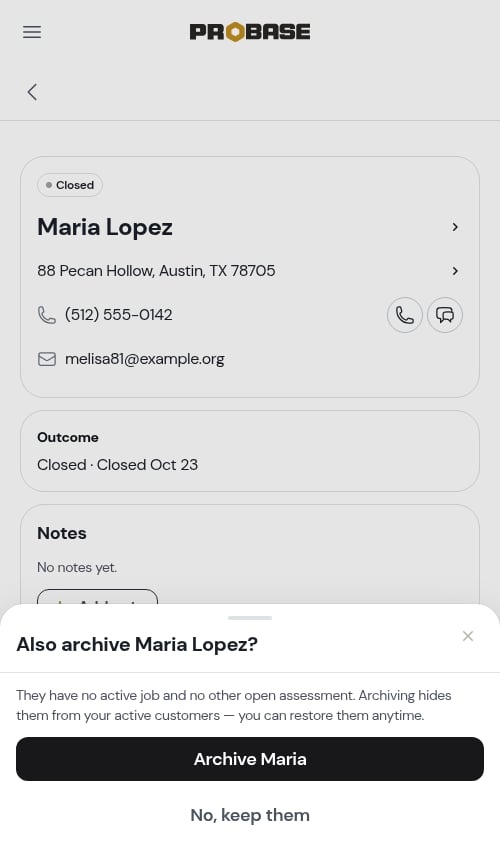
Assessments on the customer and property pages
An assessment also opens from inside the customer’s record, keeping the Customers / customer / property trail so you can carry on where you were.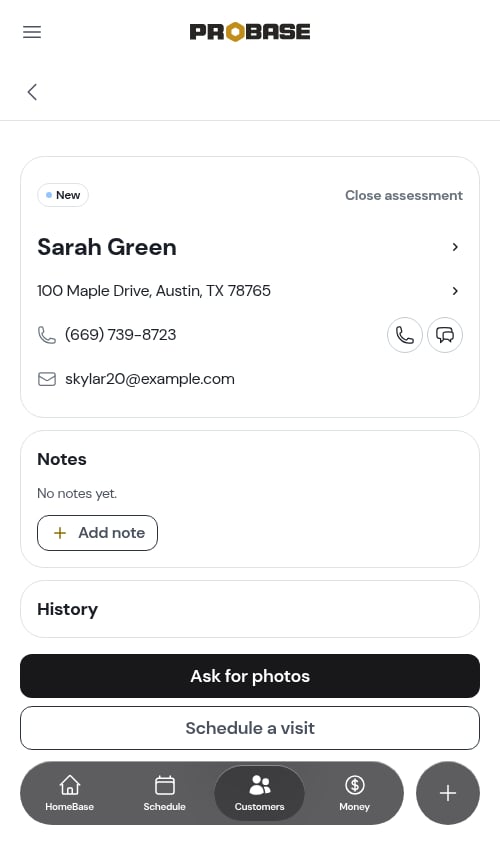
Assessments on HomeBase
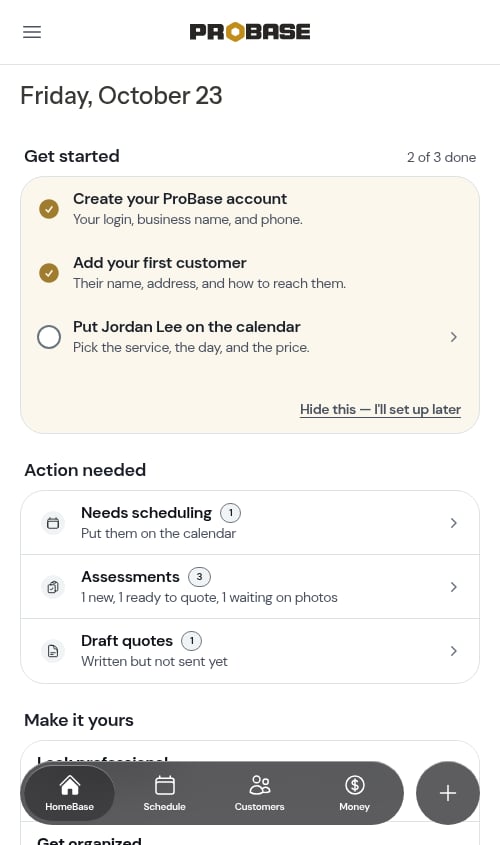
HomeBase surfaces assessments that need you as one Assessments row in its Action needed section. The count is the total, and the line underneath splits it by stage — for example 1 new, 1 ready to quote, 1 waiting on photos:- New — leads waiting on you
- Ready to quote — assessments where it’s your turn
- Waiting on photos — you asked three or more days ago and nothing has come back
Next steps
- Managing quotes — build, send, and close out the quote an assessment becomes
- Creating quotes and assessments — where each flow starts
- Contact form — the booking form that feeds leads in
- Checklists — standard questions to answer on an assessment visit