Overview
Every time ProBase offers to text a customer — on my way, a visit confirmation, an invoice, a payment reminder and more — it writes the message for you. Message templates let you change that starting wording once, so every future text of that kind opens with your words instead of ProBase’s. You can still edit any single text before you send it. A template only changes the wording each text starts with.Message templates are being rolled out gradually. If you don’t see the Customer texts card on your business settings page, it hasn’t reached your account yet — every text keeps using ProBase’s default wording.
Only team members whose role lets them change billing defaults can see and edit message templates.
Opening your templates
Go to your business Settings page. Just above Export your records, the Customer texts card reads Customize default text messages sent to customers and shows how many of your templates you’ve changed — for example 17 templates · 2 customized.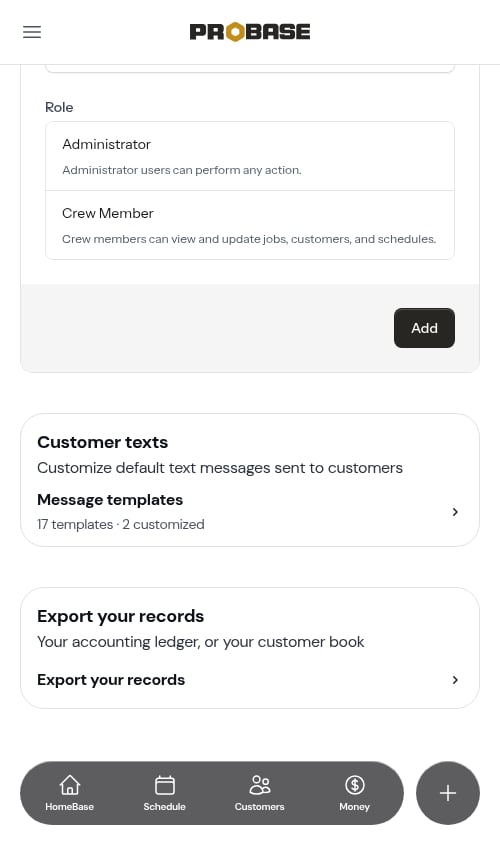
The template list
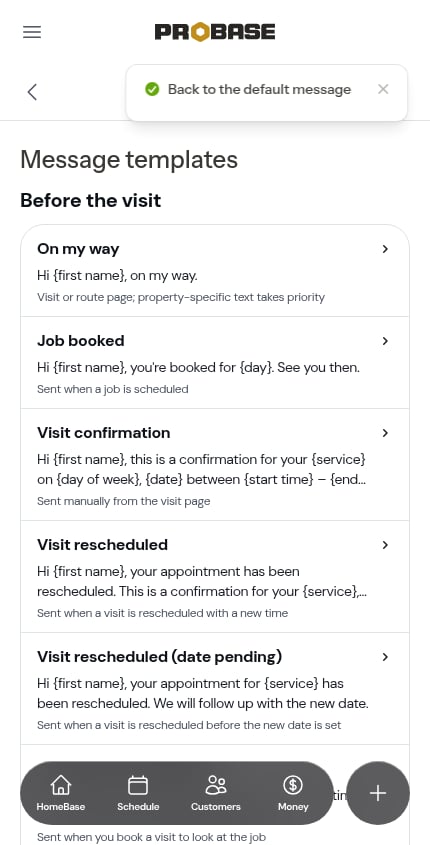
The list groups every template by when it’s sent:- Before the visit — On my way, Job booked, Visit confirmation, Visit rescheduled, Visit rescheduled (date pending), Assessment scheduled, Photo request, Photo request follow-up
- After the visit — Service report ($0), Service report, Google review request
- Quotes — New quote, Updated quote
- Getting paid — Invoice, Payment reminder, Payment receipt, Customer portal link
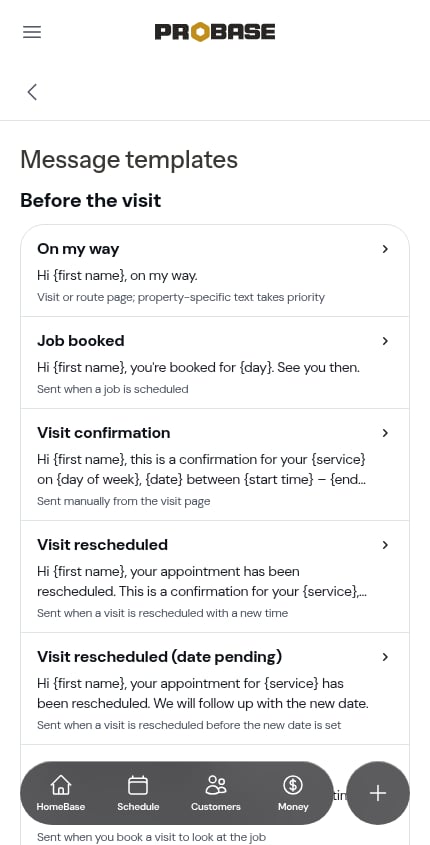
{first name}, are placeholders — ProBase fills them in with the real details for each customer when the text is written.
A template you’ve changed wears a Custom badge.
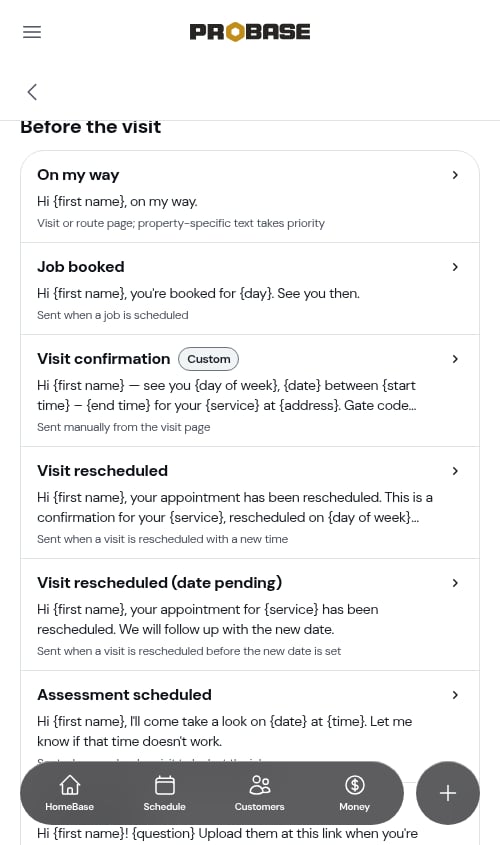
On my way has one extra rule: if you’ve saved your own On my way message on a specific property, that property’s message still wins. The template is used everywhere else.
Editing a template
1
Open the template
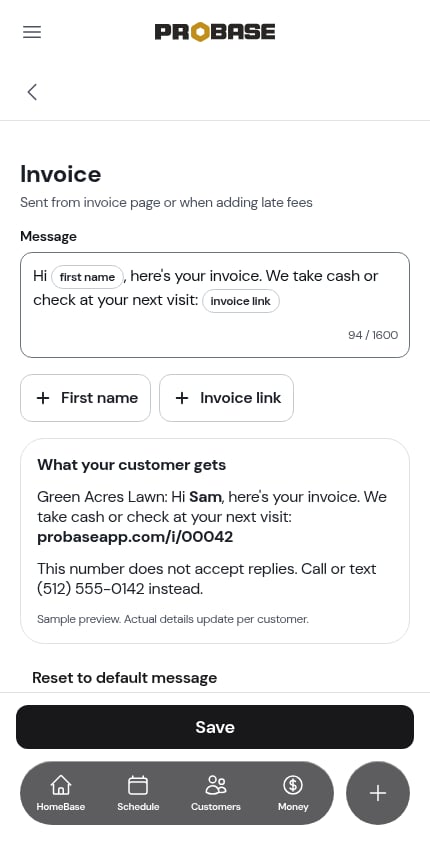
Tap any row in the list. The editor shows the template’s name, where it’s sent, and a Message box with the current wording.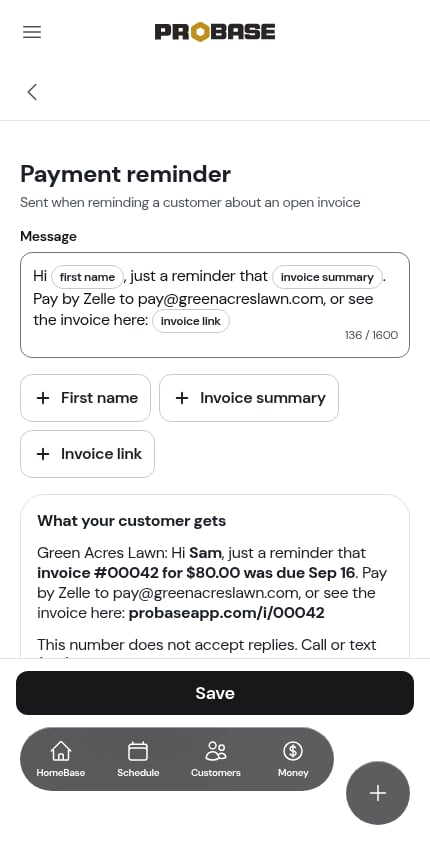
2
Change the wording
Type in the Message box as you would anywhere else. Placeholders appear as small labels inside the text — each one behaves as a single unit, so Backspace removes the whole placeholder at once.To add a placeholder, tap one of the buttons under the box (for example + First name or + Invoice link) and it drops in where your cursor is. A counter in the corner shows how long the message is — up to 1,600 characters.
3
Check the preview
Under the buttons, What your customer gets shows the text as a customer would receive it, with sample details filled in (in bold) and your business name and contact line added the way ProBase adds them to a real text.
4
Save
Tap Save. You’re taken back to the list, a Saved message confirms it, and the row now shows your wording with a Custom badge.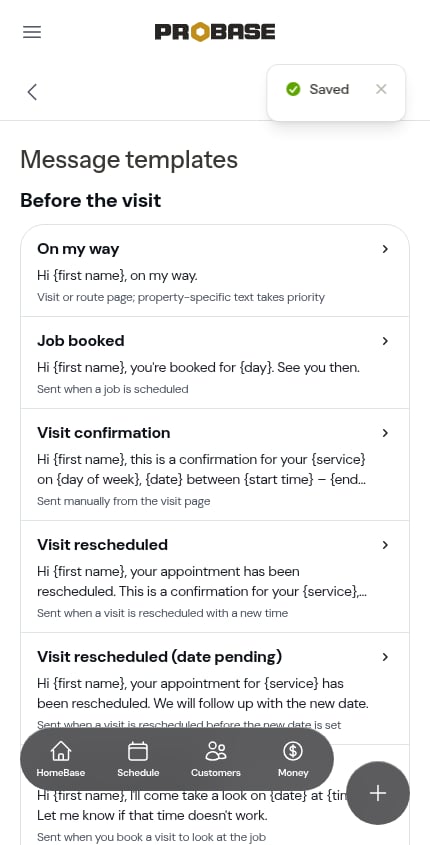
If you remove a placeholder
You can delete any placeholder — ProBase never blocks you from saving. When a placeholder the message normally relies on is missing, its button is highlighted with Not sent to customer, so you know that detail (a date, or a link, for example) won’t be in the text.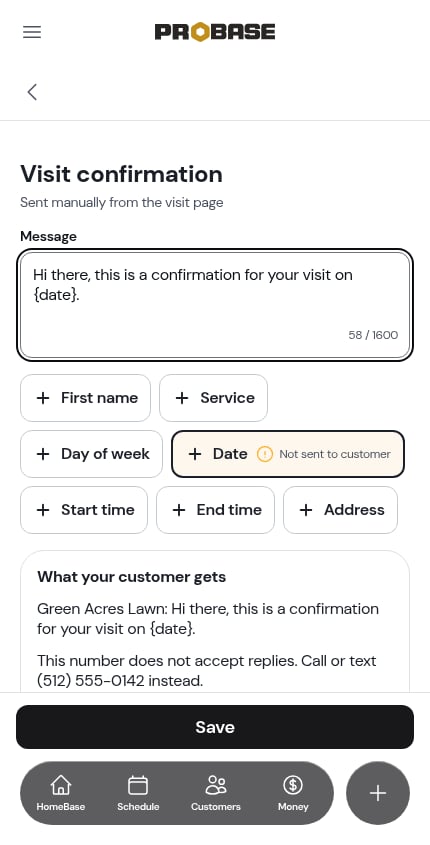
Leaving without saving
If you tap the back arrow with unsaved changes, ProBase asks Discard changes to …? Tap Discard to leave without saving, or Keep editing to go back.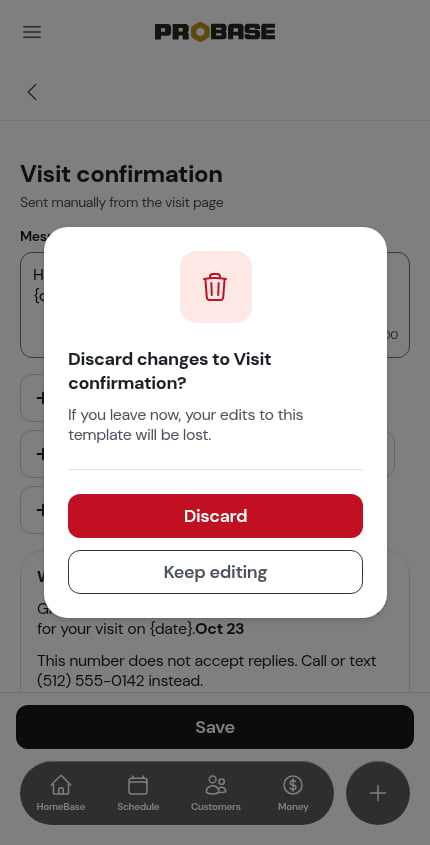
Going back to the default wording
Open a customized template and tap Reset to default message under the preview. ProBase asks you to confirm — Your custom text will be deleted. Future texts will use the default message.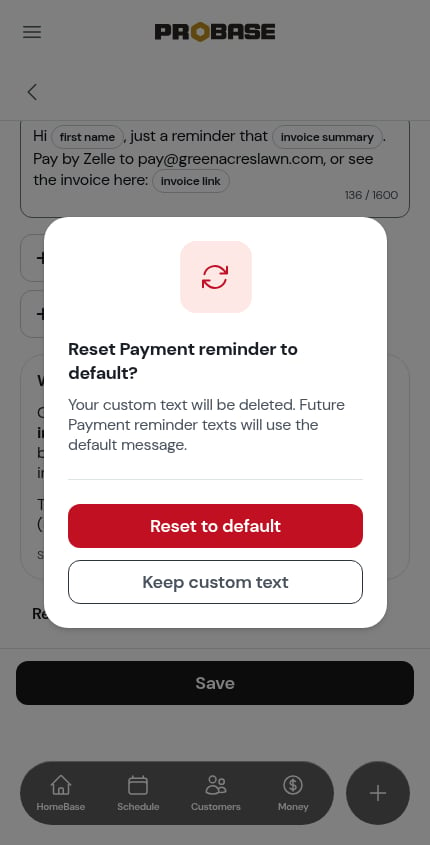
When your payment settings change
The Invoice and Payment reminder texts often mention how customers can pay. If you turn online payments on or off — for example by connecting card payments or a payment app — any custom Invoice or Payment reminder template is marked Needs review in the list, in case your wording now describes the wrong way to pay. Open the template to see the notice: Your payment settings were updated — Review this template to ensure your payment instructions are accurate.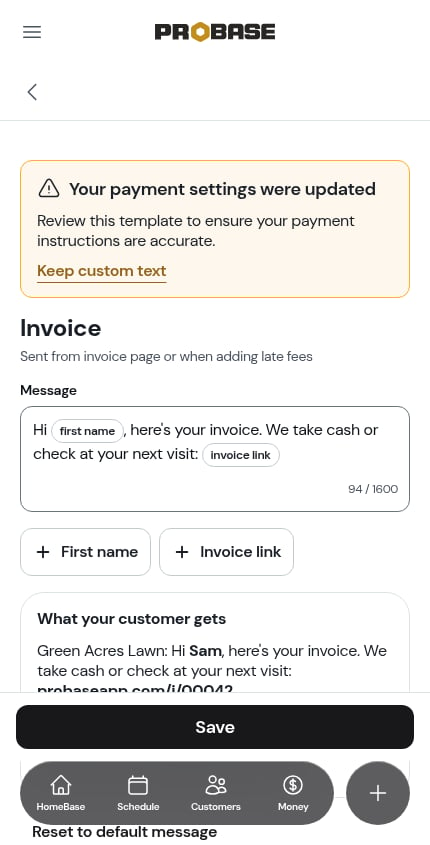
- Edit the wording and tap Save, or
- Tap Keep custom text if your wording is still right — the notice and the badge go away without changing anything.
Saving a text as the default while you send it
You don’t have to visit settings to change a template. When you edit a text in one of the send sheets, a Save as the default … text switch sits under the message — for example Save as the default Visit confirmation text.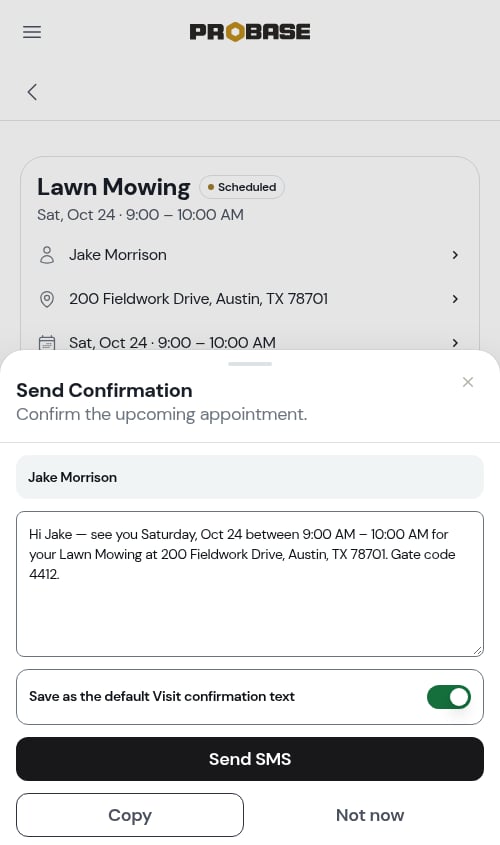
- The shared texting sheet — On my way, Send Confirmation, reschedule notices, quotes and photo requests
- The send report step after completing a visit
- Confirming a booked assessment visit
- The Customer portal sharing sheet on a customer’s page
- The Send invoice screen and the payment reminder screen
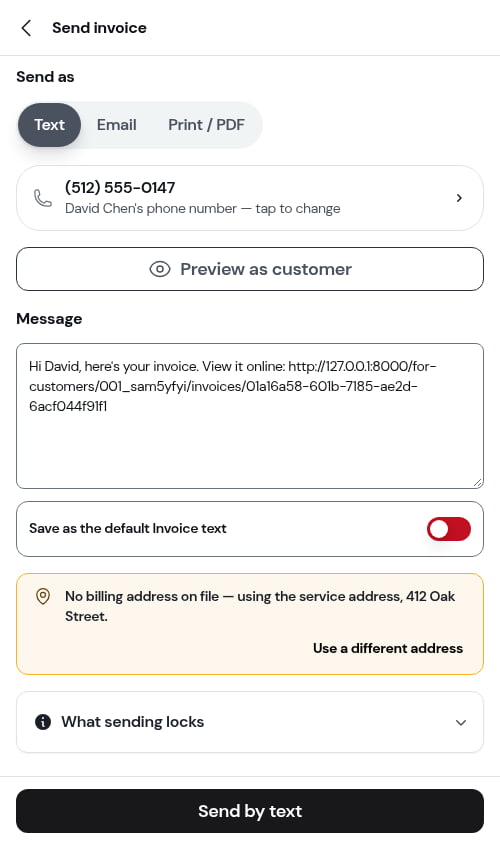
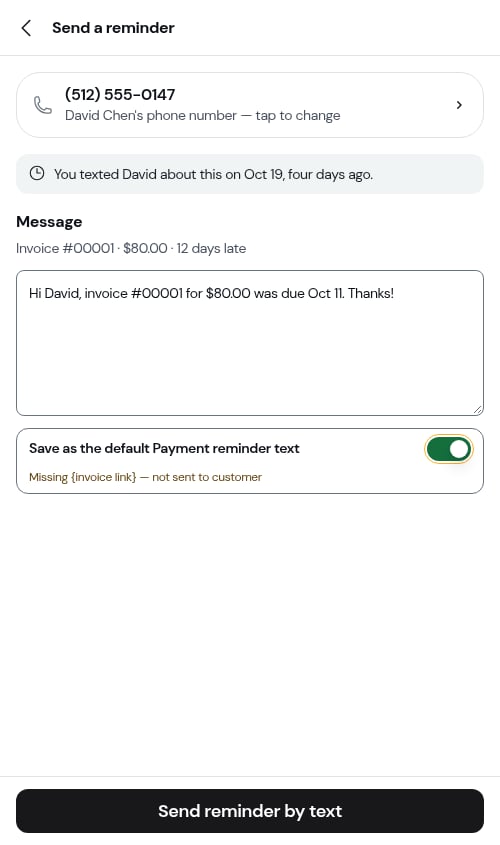
The switch only appears for team members whose role lets them change billing defaults.
Related pages
- Texting your customers — how texts are sent
- Business Profile settings
- Sending invoices